Automatic backup of your files under Windows 10


The longer you work on Windows 10, the more important files such as: letters, spreadsheets, images, etc. will accumulate on your drives over time. Now you have probably already thought about what would happen if these files were destroyed by a defect on your hard drive, or a fault in the system in whole or in part, and so much work and effort you put into the creation and archiving would be gone.
Nobody needs to explain that regular data backup is important.
Only who always thinks that it would be time for a backup again? And you certainly do not want to have to create an additional entry in your organizer! Fortunately, Windows 10 with its on-board resources offers you the opportunity to take on this task, and to automate the regular data backup individually customizable.
Read our article on how to use Windows 10 automatic file backup.
Automatic backup of your files under Windows 10
The longer you work on Windows 10, the more important files such as: letters, spreadsheets, images, etc. will accumulate on your drives over time. Now you have probably already thought about what would happen if these files were destroyed by a defect on your hard drive, or a fault in the system in whole or in part, and so much work and effort you put into the creation and archiving would be gone.
Nobody needs to explain that regular data backup is important.
Only who always thinks that it would be time for a backup again? And you certainly do not want to have to create an additional entry in your organizer! Fortunately, Windows 10 with its on-board resources offers you the opportunity to take on this task, and to automate the regular data backup individually customizable.
Read our article on how to use Windows 10 automatic file backup.
1. Call Windows 10 Settings
1. Call Windows 10 Settings
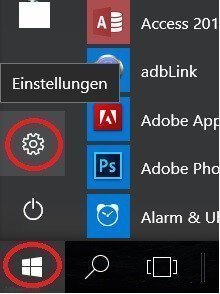
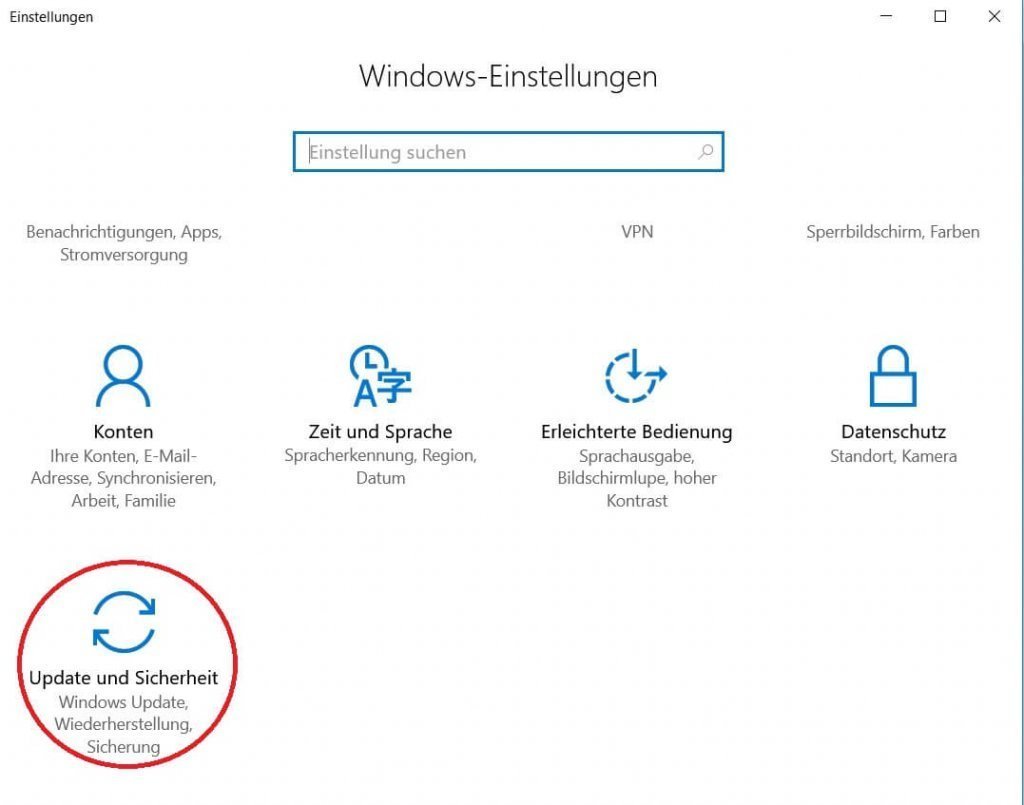
First, call up the Windows 10 settings:
- Left mouse button in the start menu
- Call up the settings menu (Update & Security)
See picture (click to enlarge)
First, call up the Windows 10 settings:
- Left mouse button in the start menu
- Call up the settings menu (Update & Security)
See picture (click to enlarge)
2. Select drive for backup
2. Select drive for backup
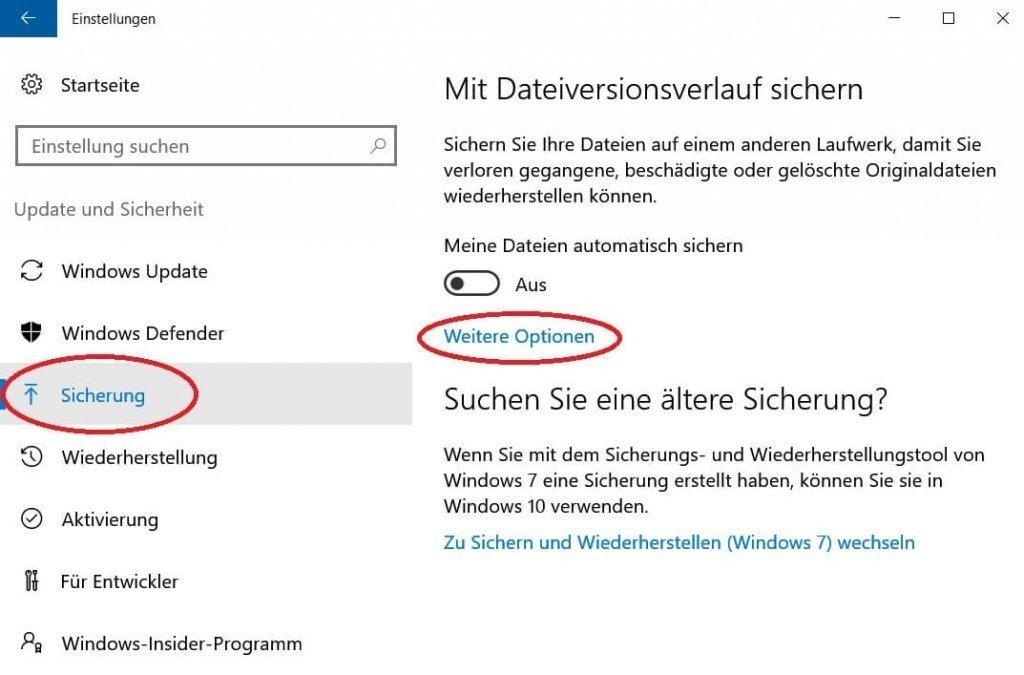
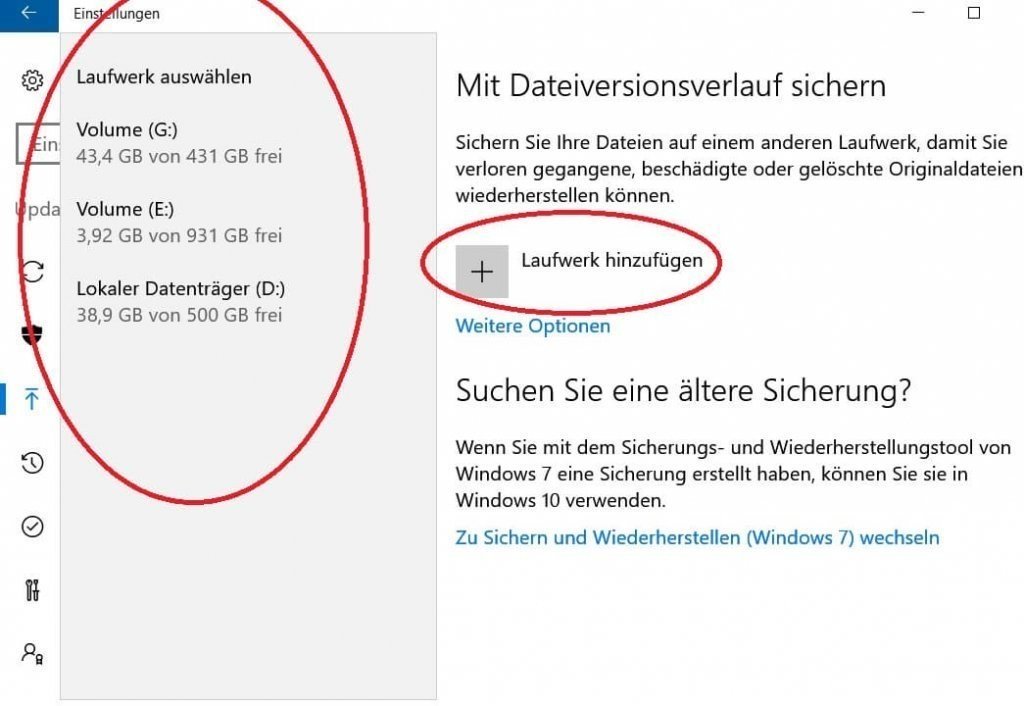
The next step is to select a drive for the regular backup.
- For this we select the menu item “Backup” on the left side.
- And then in the right column “Add drive”
See picture (click to enlarge)
Note:
Understandably, under no circumstances should you select the drive to backup from which the files should be backed up!
We recommend an external data carrier such as to use an external USB hard drive in 2.5-inch format, as this, in contrast to a 3.5-inch drive, the power supply via the USB port, and does not need to be powered separately.
Of course, you can also use a USB stick, although it should be remembered that this is a so-called flash memory, which is infinitely often readable, but not unlimited writable, since this is the same storage technology as a modern SSD hard drive is.

The next step is to select a drive for the regular backup.
- For this we select the menu item “Backup” on the left side.
- And then in the right column “Add drive”
See picture (click to enlarge)
Note:
Understandably, under no circumstances should you select the drive to backup from which the files should be backed up!
We recommend an external data carrier such as to use an external USB hard drive in 2.5-inch format, as this, in contrast to a 3.5-inch drive, the power supply via the USB port, and does not need to be powered separately.
Of course, you can also use a USB stick, although it should be remembered that this is a so-called flash memory, which is infinitely often readable, but not unlimited writable, since this is the same storage technology as a modern SSD hard drive is.
3. Select files to backup
3. Select files to backup
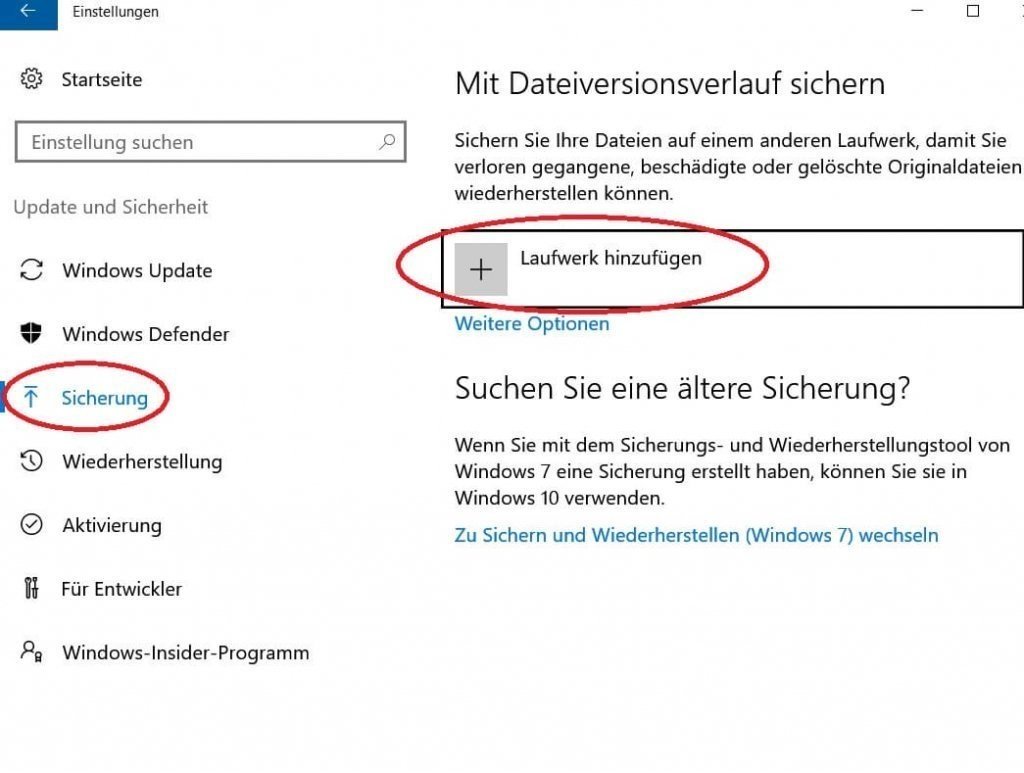
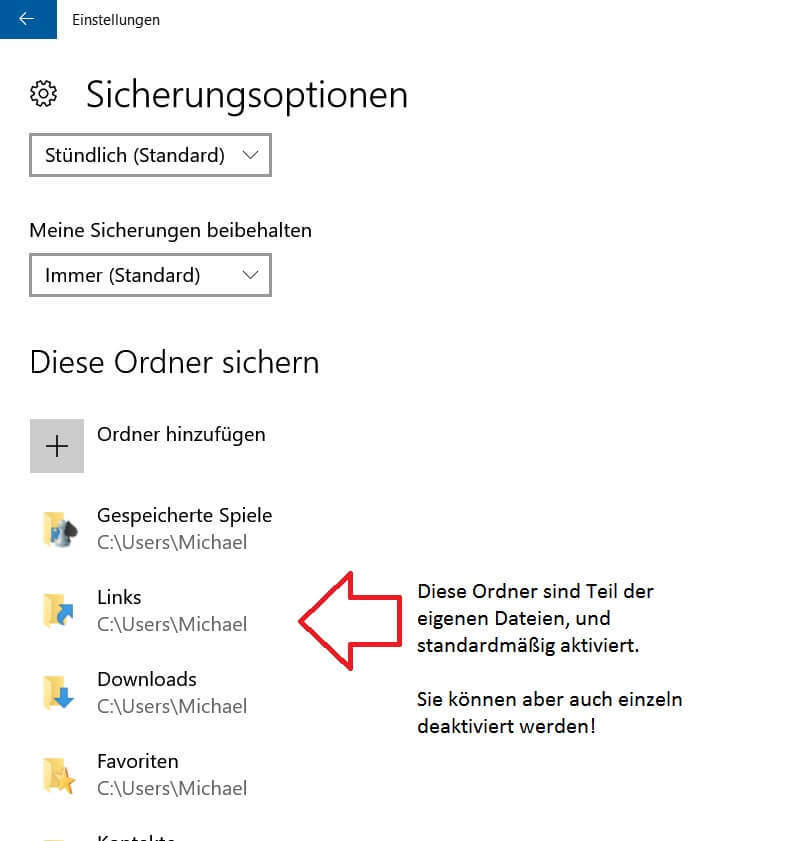
Now that we’ve set up a drive, we’ll have to adjust the following points:
- Which files should be backed up
- How often should the backup be created (hourly, daily, etc.)
- Should the old backups be constantly overwritten, or only if there is no space on the disk for backup is more.
These settings can be found under: “Backup” and then “other options”
See picture (click to enlarge)
Now that we’ve set up a drive, we’ll have to adjust the following points:
- Which files should be backed up
- How often should the backup be created (hourly, daily, etc.)
- Should the old backups be constantly overwritten, or only if there is no space on the disk for backup is more.
These settings can be found under: “Backup” and then “other options”
See picture (click to enlarge)
4. Switch on automatic fuse
4. Switch on automatic fuse
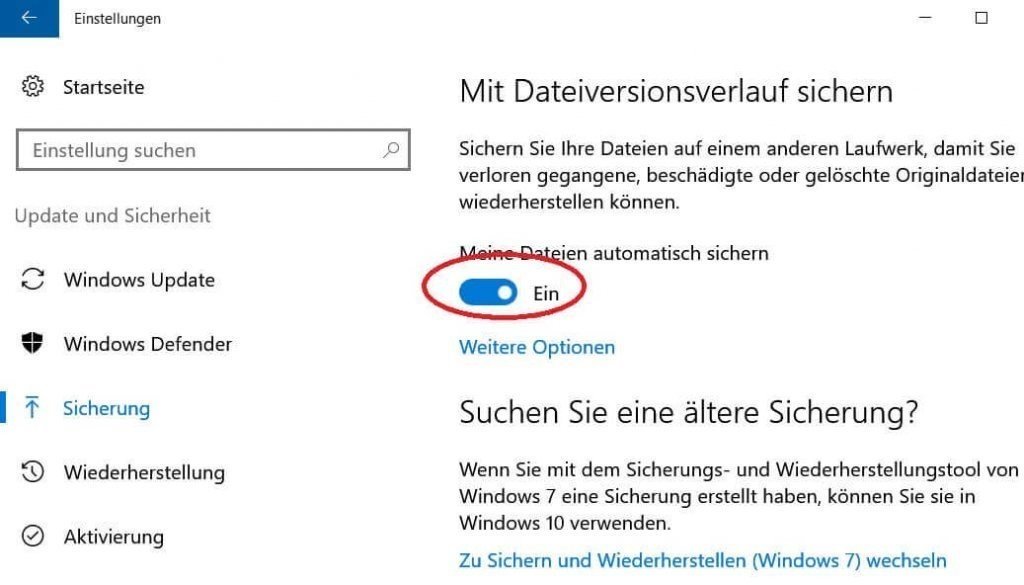
After we have set our drive, as well as the files to be backed up, and set the backup options as described in the previous points, we check in the last step whether the automatic backup is really turned on, and correct if necessary.
See picture (click to enlarge)
From now on, you no longer have to worry about regularly backing up your files, but let this work done automatically by Windows 10.

After we have set our drive, as well as the files to be backed up, and set the backup options as described in the previous points, we check in the last step whether the automatic backup is really turned on, and correct if necessary.
See picture (click to enlarge)
From now on, you no longer have to worry about regularly backing up your files, but let this work done automatically by Windows 10.
Popular Posts:

Alternative for Microsoft Office? – Use Google Docs on Desktop
Microsoft still offers the most popular software package for the office. Competition has been around for some time. Now Google Docs is also available on the desktop.

Finally faster Internet WiFi 6 is at the start
After 6 years of WLAN standard 802.11ac comes now with Wi-Fi 6 the replacement and has plenty of steam under the hood.

Create Pivot Table and Pivot Chart in Excel
So you can easily create pivot tables with Microsoft Excel, and also sort large amounts of data without much effort.

No Internet access in Windows 10 – How you solve the problem
If access to the Internet stops working in Microsoft Windows 10, there are many causes. We give tips on how to solve the problem.

Format bachelor thesis in Word correctly
The review of the formatting of your bachelor thesis only makes sense after the proofreading and the plagiarism check.

This is how the Name Manager works in Excel
Calculate instead of numbers but just by name in Microsoft Excel, and make easier with the name manager's work.
Offers 2024: Word & Excel Templates











Popular Posts:
Alternative for Microsoft Office? – Use Google Docs on Desktop
Microsoft still offers the most popular software package for the office. Competition has been around for some time. Now Google Docs is also available on the desktop.
Finally faster Internet WiFi 6 is at the start
After 6 years of WLAN standard 802.11ac comes now with Wi-Fi 6 the replacement and has plenty of steam under the hood.
Create Pivot Table and Pivot Chart in Excel
So you can easily create pivot tables with Microsoft Excel, and also sort large amounts of data without much effort.
No Internet access in Windows 10 – How you solve the problem
If access to the Internet stops working in Microsoft Windows 10, there are many causes. We give tips on how to solve the problem.
Format bachelor thesis in Word correctly
The review of the formatting of your bachelor thesis only makes sense after the proofreading and the plagiarism check.
This is how the Name Manager works in Excel
Calculate instead of numbers but just by name in Microsoft Excel, and make easier with the name manager's work.
Offers 2024: Word & Excel Templates