Automatic backup of your files under Windows 10
The longer you work on Windows 10, the more important files such as: letters, spreadsheets, images, etc. will accumulate on your drives over time. Now you have probably already thought about what would happen if these files were destroyed by a defect on your hard drive, or a fault in the system in whole or in part, and so much work and effort you put into the creation and archiving would be gone.
Nobody needs to explain that regular data backup is important.
Only who always thinks that it would be time for a backup again? And you certainly do not want to have to create an additional entry in your organizer! Fortunately, Windows 10 with its on-board resources offers you the opportunity to take on this task, and to automate the regular data backup individually customizable.
Read our article on how to use Windows 10 automatic file backup.
Automatic backup of your files under Windows 10
The longer you work on Windows 10, the more important files such as: letters, spreadsheets, images, etc. will accumulate on your drives over time. Now you have probably already thought about what would happen if these files were destroyed by a defect on your hard drive, or a fault in the system in whole or in part, and so much work and effort you put into the creation and archiving would be gone.
Nobody needs to explain that regular data backup is important.
Only who always thinks that it would be time for a backup again? And you certainly do not want to have to create an additional entry in your organizer! Fortunately, Windows 10 with its on-board resources offers you the opportunity to take on this task, and to automate the regular data backup individually customizable.
Read our article on how to use Windows 10 automatic file backup.
1. Call Windows 10 Settings
1. Call Windows 10 Settings
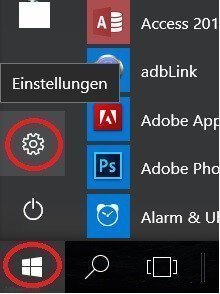
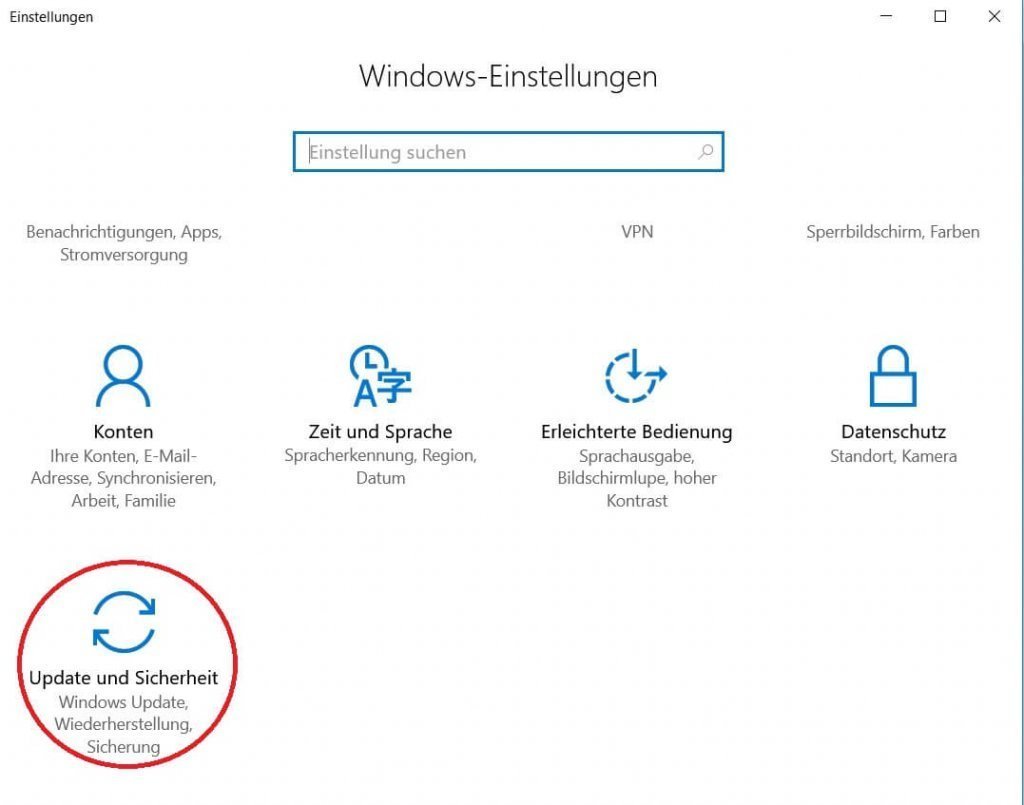
First, call up the Windows 10 settings:
- Left mouse button in the start menu
- Call up the settings menu (Update & Security)
See picture (click to enlarge)
First, call up the Windows 10 settings:
- Left mouse button in the start menu
- Call up the settings menu (Update & Security)
See picture (click to enlarge)
2. Select drive for backup
2. Select drive for backup
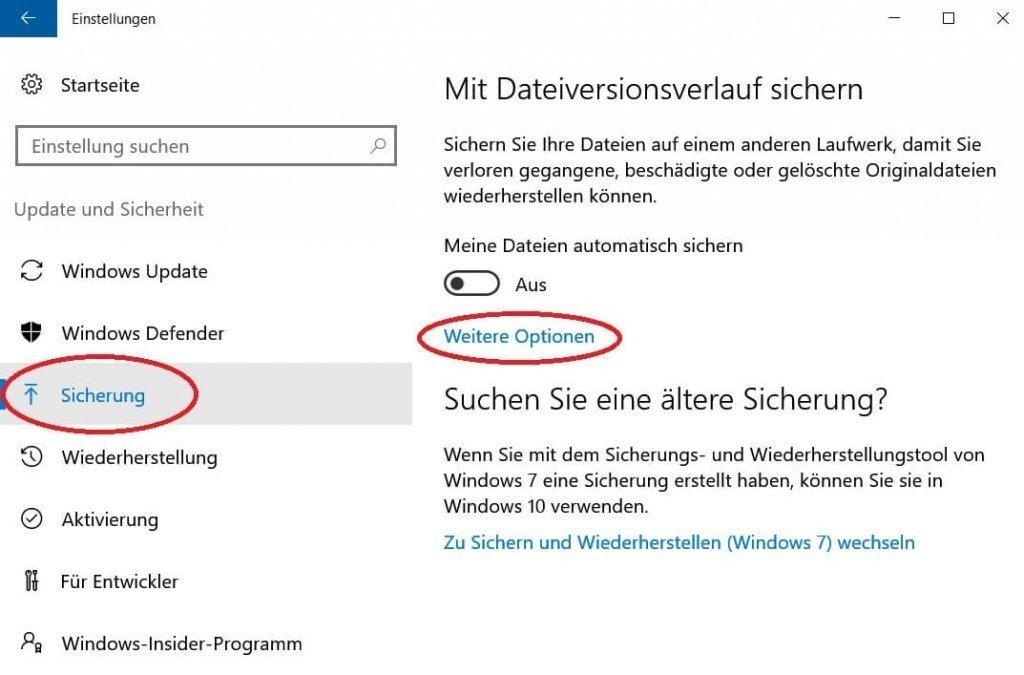
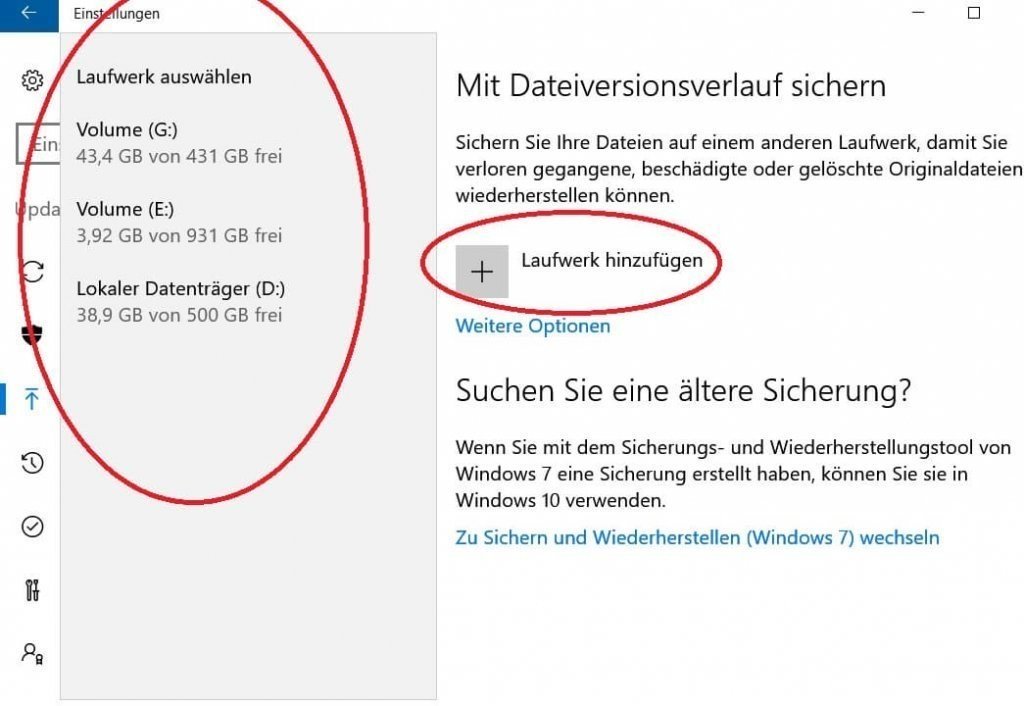
The next step is to select a drive for the regular backup.
- For this we select the menu item „Backup“ on the left side.
- And then in the right column „Add drive“
See picture (click to enlarge)
Note:
Understandably, under no circumstances should you select the drive to backup from which the files should be backed up!
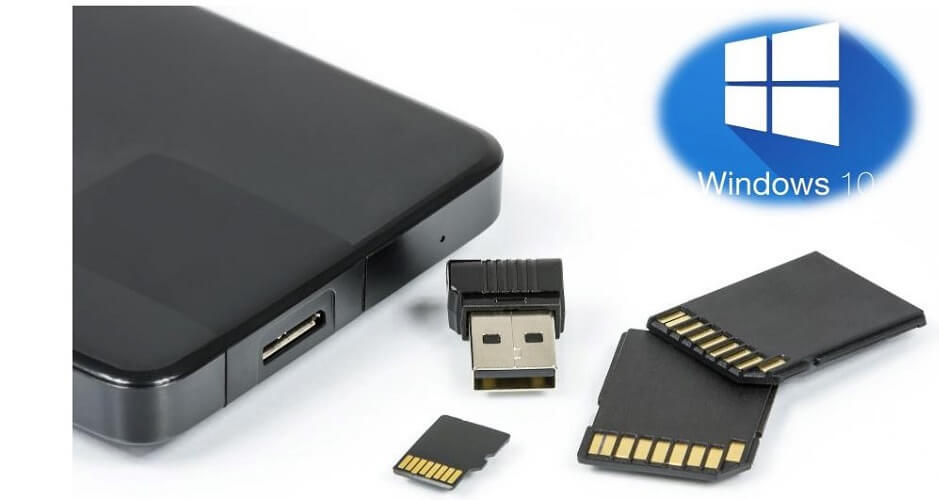
We recommend an external data carrier such as to use an external USB hard drive in 2.5-inch format, as this, in contrast to a 3.5-inch drive, the power supply via the USB port, and does not need to be powered separately.
Of course, you can also use a USB stick, although it should be remembered that this is a so-called flash memory, which is infinitely often readable, but not unlimited writable, since this is the same storage technology as a modern SSD hard drive is.
The next step is to select a drive for the regular backup.
- For this we select the menu item „Backup“ on the left side.
- And then in the right column „Add drive“
See picture (click to enlarge)
Note:
Understandably, under no circumstances should you select the drive to backup from which the files should be backed up!
We recommend an external data carrier such as to use an external USB hard drive in 2.5-inch format, as this, in contrast to a 3.5-inch drive, the power supply via the USB port, and does not need to be powered separately.
Of course, you can also use a USB stick, although it should be remembered that this is a so-called flash memory, which is infinitely often readable, but not unlimited writable, since this is the same storage technology as a modern SSD hard drive is.
3. Select files to backup
3. Select files to backup
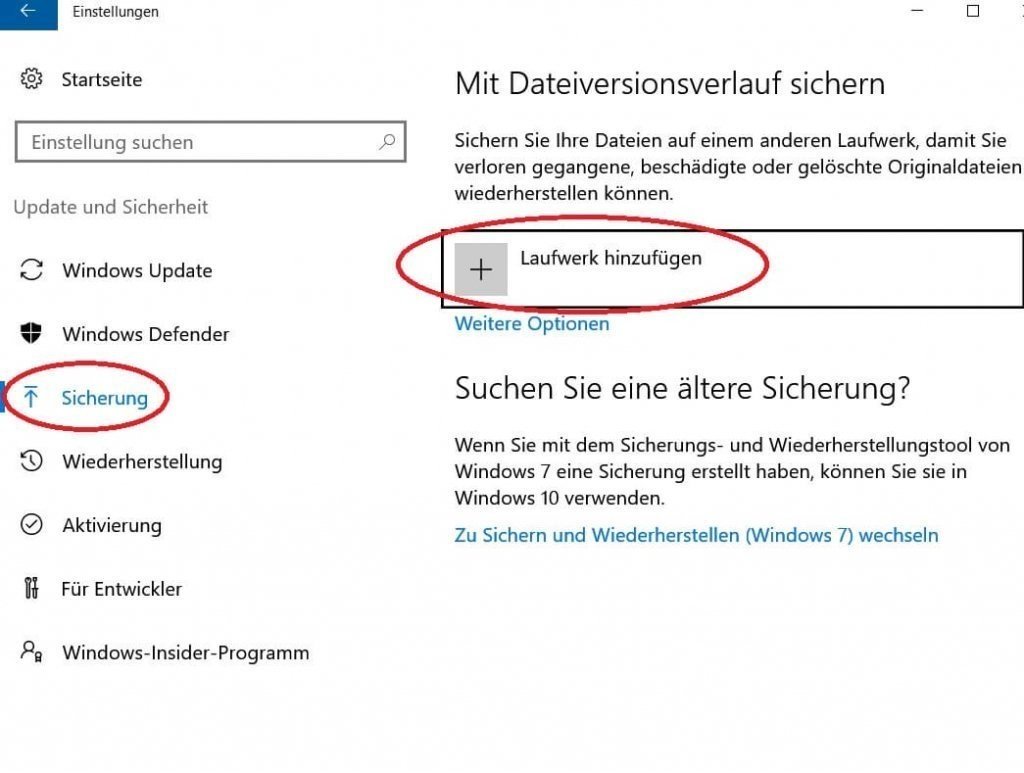
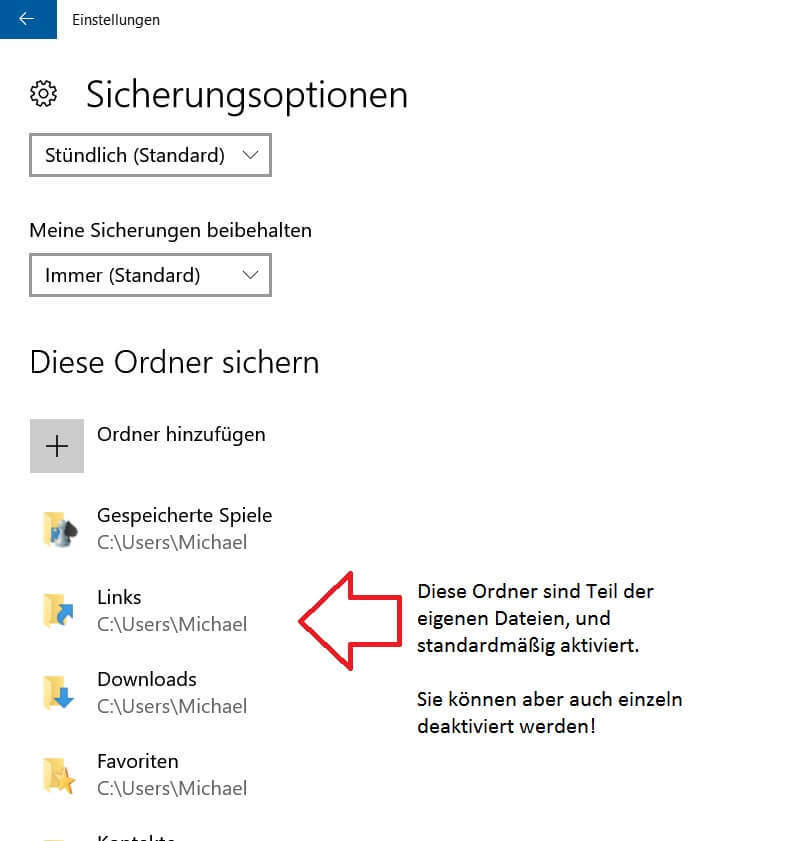
Now that we’ve set up a drive, we’ll have to adjust the following points:
- Which files should be backed up
- How often should the backup be created (hourly, daily, etc.)
- Should the old backups be constantly overwritten, or only if there is no space on the disk for backup is more.
These settings can be found under: „Backup“ and then „other options“
See picture (click to enlarge)
Now that we’ve set up a drive, we’ll have to adjust the following points:
- Which files should be backed up
- How often should the backup be created (hourly, daily, etc.)
- Should the old backups be constantly overwritten, or only if there is no space on the disk for backup is more.
These settings can be found under: „Backup“ and then „other options“
See picture (click to enlarge)
4. Switch on automatic fuse
4. Switch on automatic fuse
After we have set our drive, as well as the files to be backed up, and set the backup options as described in the previous points, we check in the last step whether the automatic backup is really turned on, and correct if necessary.
See picture (click to enlarge)
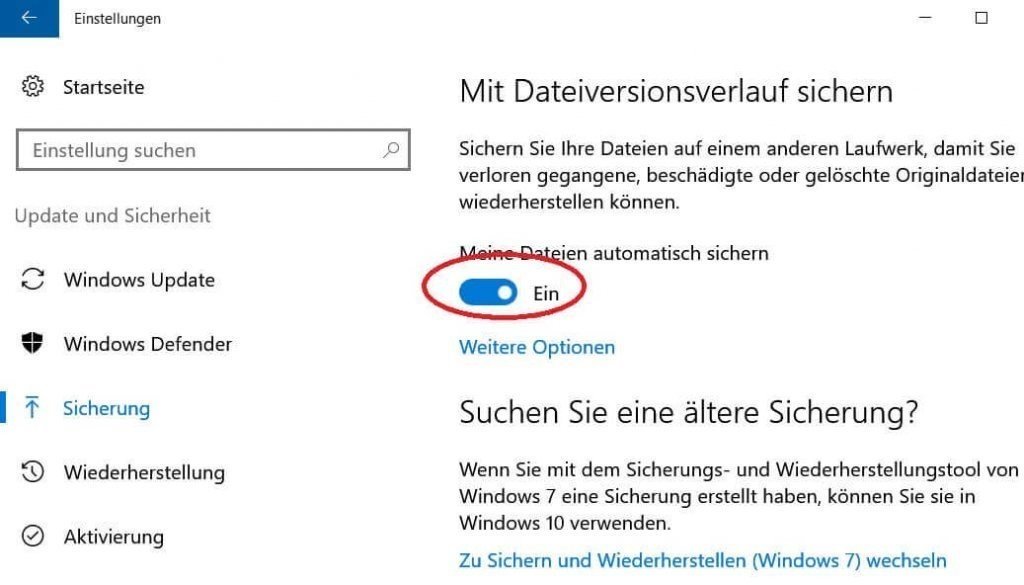
From now on, you no longer have to worry about regularly backing up your files, but let this work done automatically by Windows 10.

After we have set our drive, as well as the files to be backed up, and set the backup options as described in the previous points, we check in the last step whether the automatic backup is really turned on, and correct if necessary.
See picture (click to enlarge)
From now on, you no longer have to worry about regularly backing up your files, but let this work done automatically by Windows 10.
Popular Posts:
Outlook fragt ständig nach dem Passwort? So stoppen Sie die Dauerschleife
Wenn Outlook trotz gespeichertem Passwort ständig nach den Anmeldedaten fragt, blockiert das den E-Mail-Verkehr. Meist helfen das Löschen defekter Windows-Anmeldedaten oder neue App-Passwörter. Erfahren Sie hier, wie Sie das Problem mit wenigen Klicks dauerhaft lösen.

Mikrofon geht nicht in Teams, Zoom oder Meet?
Ein stummes Mikrofon im Meeting ist frustrierend. Oft sind kleine Hardware-Fehler, fehlende System-Rechte oder falsche App-Einstellungen schuld. Dieser Ratgeber liefert Ihnen systematische Schritt-für-Schritt-Lösungen, damit Sie in Teams, Zoom und Meet wieder gehört werden.

Der Drucker druckt nicht: Ursachen, Fehlerquellen und schnelle Lösungen
Ein streikender Drucker kostet Nerven, lässt sich aber meist schnell reparieren. In diesem Ratgeber zeigen wir dir Schritt für Schritt, wie du Papierstaus, WLAN-Abbrüche, Treiberfehler und leere Patronen erkennst und behebst, damit dein Gerät sofort wieder druckt.

Was tun, wenn Outlook nicht mehr startet oder abstürzt?
Wenn Microsoft Outlook plötzlich einfriert oder sich nicht öffnen lässt, ist schnelle Hilfe gefragt. In diesem Artikel zeigen wir Ihnen die effektivsten Lösungswege – vom abgesicherten Modus über die Office-Reparatur bis hin zum Reparieren beschädigter Datendateien.

Erste Hilfe: Wenn das Windows-Update hängt
Ein eingefrorenes Windows-Update ist ärgerlich, lässt sich aber meist schnell lösen. Dieser Ratgeber zeigt Ihnen, wie Sie mit Geduld, einem sicheren Neustart und Windows-Bordmitteln wie der Problembehandlung oder dem Leeren des Caches das System wieder zum Laufen bringen.

Reibungsloser Wechsel: Passwörter und Lesezeichen sicher umziehen
Der Wechsel auf einen neuen PC oder Browser ist schnell erledigt. Mit unserer Anleitung exportieren und importieren Sie Lesezeichen und Passwörter absolut sicher. Erfahren Sie, worauf Sie bei Chrome, Firefox und Edge achten müssen und warum ein Passwortmanager lohnt.
Angebote 2025/2026 in: Vorlagen











Popular Posts:
Outlook fragt ständig nach dem Passwort? So stoppen Sie die Dauerschleife
Wenn Outlook trotz gespeichertem Passwort ständig nach den Anmeldedaten fragt, blockiert das den E-Mail-Verkehr. Meist helfen das Löschen defekter Windows-Anmeldedaten oder neue App-Passwörter. Erfahren Sie hier, wie Sie das Problem mit wenigen Klicks dauerhaft lösen.
Mikrofon geht nicht in Teams, Zoom oder Meet?
Ein stummes Mikrofon im Meeting ist frustrierend. Oft sind kleine Hardware-Fehler, fehlende System-Rechte oder falsche App-Einstellungen schuld. Dieser Ratgeber liefert Ihnen systematische Schritt-für-Schritt-Lösungen, damit Sie in Teams, Zoom und Meet wieder gehört werden.
Der Drucker druckt nicht: Ursachen, Fehlerquellen und schnelle Lösungen
Ein streikender Drucker kostet Nerven, lässt sich aber meist schnell reparieren. In diesem Ratgeber zeigen wir dir Schritt für Schritt, wie du Papierstaus, WLAN-Abbrüche, Treiberfehler und leere Patronen erkennst und behebst, damit dein Gerät sofort wieder druckt.
Was tun, wenn Outlook nicht mehr startet oder abstürzt?
Wenn Microsoft Outlook plötzlich einfriert oder sich nicht öffnen lässt, ist schnelle Hilfe gefragt. In diesem Artikel zeigen wir Ihnen die effektivsten Lösungswege – vom abgesicherten Modus über die Office-Reparatur bis hin zum Reparieren beschädigter Datendateien.
Erste Hilfe: Wenn das Windows-Update hängt
Ein eingefrorenes Windows-Update ist ärgerlich, lässt sich aber meist schnell lösen. Dieser Ratgeber zeigt Ihnen, wie Sie mit Geduld, einem sicheren Neustart und Windows-Bordmitteln wie der Problembehandlung oder dem Leeren des Caches das System wieder zum Laufen bringen.
Reibungsloser Wechsel: Passwörter und Lesezeichen sicher umziehen
Der Wechsel auf einen neuen PC oder Browser ist schnell erledigt. Mit unserer Anleitung exportieren und importieren Sie Lesezeichen und Passwörter absolut sicher. Erfahren Sie, worauf Sie bei Chrome, Firefox und Edge achten müssen und warum ein Passwortmanager lohnt.
Angebote 2025/2026 in: Vorlagen