The Xreference function – difference to Sreference and Wreference

The Vreference and Hreference functions have been around in Excel for a very long time, and they’re also great for querying specific data from a table based on a search criteria. In August 2019, however, a new function in Excel was released as a beta version, which is now also fully available for users of Office 365 and Office 2021. It is about the Xreference in Excel, with which you can not only save on Vreference and Wreference, but this function also fixes some weaknesses that were there in the previously mentioned functions and where users had to work with workarounds again and again to fix them bypass.

As always, Office 365 users are ahead of the game when it comes to new functions, but over the years the Xreference should be everywhere.
In our little tutorial, we would like to explain the direct comparison using a practice-oriented example, and here you will quickly see where the weaknesses of the Vreference are compared to the Xreference.
The Xreference function – difference to Sreference and Wreference
The Vreference and Hreference functions have been around in Excel for a very long time, and they’re also great for querying specific data from a table based on a search criteria. In August 2019, however, a new function in Excel was released as a beta version, which is now also fully available for users of Office 365 and Office 2021. It is about the Xreference in Excel, with which you can not only save on Vreference and Wreference, but this function also fixes some weaknesses that were there in the previously mentioned functions and where users had to work with workarounds again and again to fix them bypass.
As always, Office 365 users are ahead of the game when it comes to new functions, but over the years the Xreference should be everywhere.
In our little tutorial, we would like to explain the direct comparison using a practice-oriented example, and here you will quickly see where the weaknesses of the Vreference are compared to the Xreference.
How does the Xreference work in Excel
In order to show the functionality and the difference to Sreference and Wreference in Excel as transparently and practically as possible, we have created a sample table with different products from a furniture store including batch numbers, versions and storage locations. The aim should be to use a number [column B] to automatically display all the remaining properties of the product in question.
So far that’s not a problem at all and can be easily solved as usual either with an Vreference or an index function. In our case, however, the main focus should be on the weaknesses of the V reference and how we can solve them better using the Xreference.
See fig. (click to enlarge)
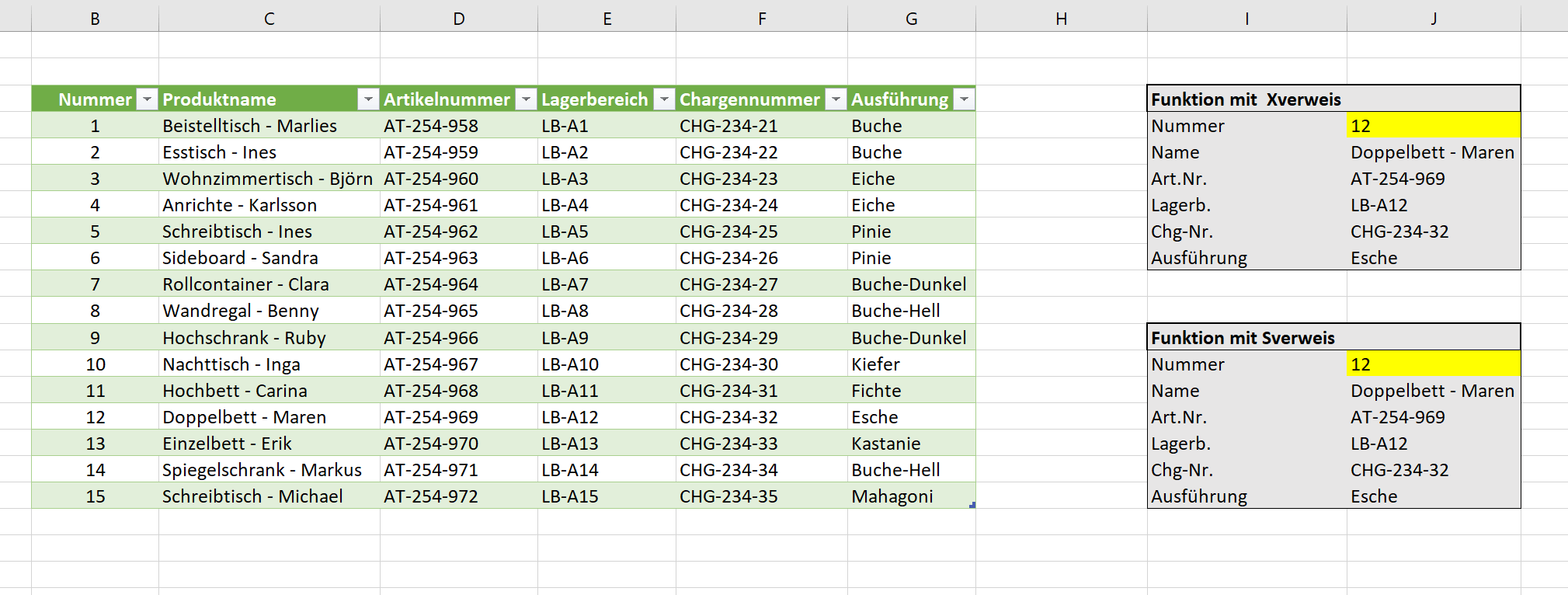

With the Xreference, the formula looks like this when we enter the number [ex. No.12] want to determine the remaining values:
=XREFERENCE(J4;table1[number];table1;”not found”;0;1)

With the Sreference, the formula looks a bit more spartan if you want to determine the remaining values:
=VREFERENCE(J13,Table1[[Number]:[ProductName]],2,TRUE)
Both functions serve their purpose, but work quite differently. Because while the Vreference reacts immediately with error messages as soon as there are changes to the basic table, the Xreference is much more flexible.
Difference: 1
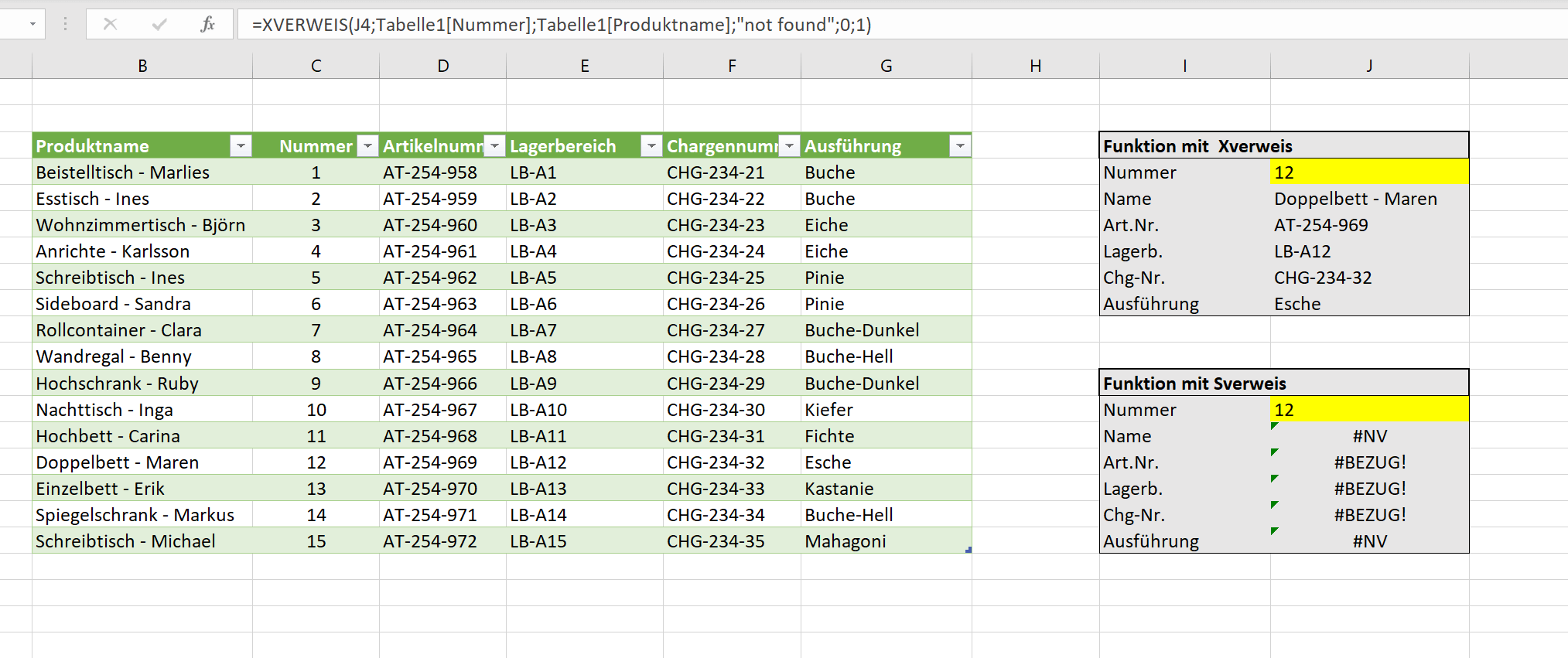
If we move column B to a different position in our original table and swap it with column C , for example, there are immediately error messages with the Sreference because the references are missing. Because the search direction for the reference is always from left to right. The Xreference, on the other hand, changes its search direction automatically when columns or rows are moved and thus still returns the correct results.
Difference: 2
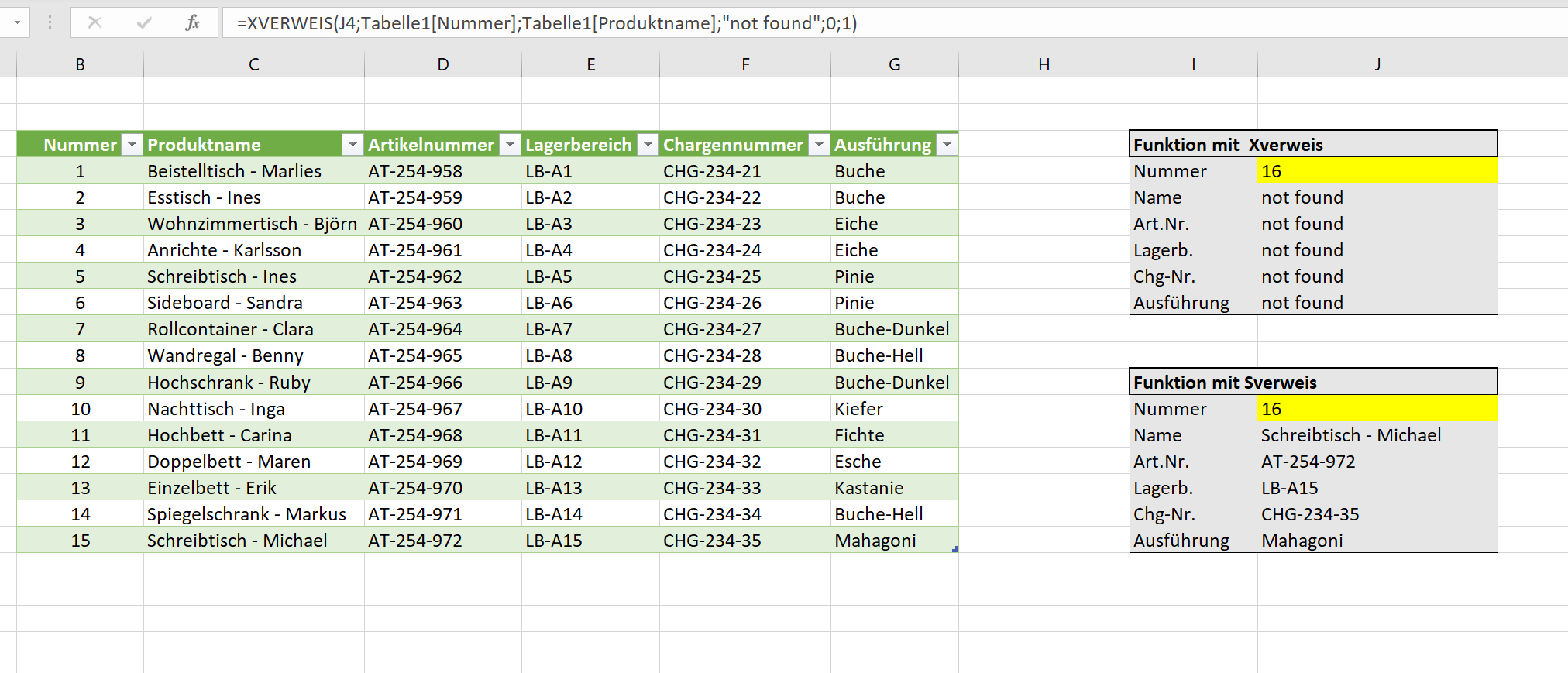
With the Xreference, we have the option of an alternative [e.g. Text] to enter if a value should not be found. This is sort of a built-in IF-THEN function. In this way, user-defined error messages [in our example “not found”] can be output if a value is not found in the list.
Difference: 3
If we go beyond the list with a search for the Sreference and look for the number 16 [which does not exist] in relation to our example table, then instead of error messages, the results of the last entry are simply output. So here are the product specifications of number 15. With a list as small as ours, that’s still possible, but consider a list with hundreds or even thousands of lines. Then you will very quickly have incorrect results.
See fig. (click to enlarge)
As you have certainly seen, the Xreference offers advantages and more potential compared to the Sreference and the Wreference. And of course you can nest and combine the Xreference with other functions in Excel as well. For all those who want to have this function in any case, as already mentioned, the only option is to buy Office 2021 or Office 365.
You can download the table used here free of charge and try it out a bit.
How does the Xreference work in Excel
In order to show the functionality and the difference to Sreference and Wreference in Excel as transparently and practically as possible, we have created a sample table with different products from a furniture store including batch numbers, versions and storage locations. The aim should be to use a number [column B] to automatically display all the remaining properties of the product in question.
So far that’s not a problem at all and can be easily solved as usual either with an Vreference or an index function. In our case, however, the main focus should be on the weaknesses of the V reference and how we can solve them better using the Xreference.
See fig. (click to enlarge)
With the Xreference, the formula looks like this when we enter the number [ex. No.12] want to determine the remaining values:
=XREFERENCE(J4;table1[number];table1;”not found”;0;1)
With the Sreference, the formula looks a bit more spartan if you want to determine the remaining values:
=VREFERENCE(J13,Table1[[Number]:[ProductName]],2,TRUE)
Both functions serve their purpose, but work quite differently. Because while the Vreference reacts immediately with error messages as soon as there are changes to the basic table, the Xreference is much more flexible.
Difference: 1
If we move column B to a different position in our original table and swap it with column C , for example, there are immediately error messages with the Sreference because the references are missing. Because the search direction for the reference is always from left to right. The Xreference, on the other hand, changes its search direction automatically when columns or rows are moved and thus still returns the correct results.
Difference: 2
With the Xreference, we have the option of an alternative [e.g. Text] to enter if a value should not be found. This is sort of a built-in IF-THEN function. In this way, user-defined error messages [in our example “not found”] can be output if a value is not found in the list.
Difference: 3
If we go beyond the list with a search for the Sreference and look for the number 16 [which does not exist] in relation to our example table, then instead of error messages, the results of the last entry are simply output. So here are the product specifications of number 15. With a list as small as ours, that’s still possible, but consider a list with hundreds or even thousands of lines. Then you will very quickly have incorrect results.
See fig. (click to enlarge)
As you have certainly seen, the Xreference offers advantages and more potential compared to the Sreference and the Wreference. And of course you can nest and combine the Xreference with other functions in Excel as well. For all those who want to have this function in any case, as already mentioned, the only option is to buy Office 2021 or Office 365.
You can download the table used here free of charge and try it out a bit.
Bestseller Office Software
[atkp_list id=’32002′ template=’comparetable’][/atkp_list]

Bestseller Office Software
[atkp_list id=’32002′ template=’comparetable’][/atkp_list]
Popular Posts:

Alternative for Microsoft Office? – Use Google Docs on Desktop
Microsoft still offers the most popular software package for the office. Competition has been around for some time. Now Google Docs is also available on the desktop.

Finally faster Internet WiFi 6 is at the start
After 6 years of WLAN standard 802.11ac comes now with Wi-Fi 6 the replacement and has plenty of steam under the hood.

Create Pivot Table and Pivot Chart in Excel
So you can easily create pivot tables with Microsoft Excel, and also sort large amounts of data without much effort.

No Internet access in Windows 10 – How you solve the problem
If access to the Internet stops working in Microsoft Windows 10, there are many causes. We give tips on how to solve the problem.

Format bachelor thesis in Word correctly
The review of the formatting of your bachelor thesis only makes sense after the proofreading and the plagiarism check.

This is how the Name Manager works in Excel
Calculate instead of numbers but just by name in Microsoft Excel, and make easier with the name manager's work.
Offers 2024: Word & Excel Templates











Popular Posts:
Alternative for Microsoft Office? – Use Google Docs on Desktop
Microsoft still offers the most popular software package for the office. Competition has been around for some time. Now Google Docs is also available on the desktop.
Finally faster Internet WiFi 6 is at the start
After 6 years of WLAN standard 802.11ac comes now with Wi-Fi 6 the replacement and has plenty of steam under the hood.
Create Pivot Table and Pivot Chart in Excel
So you can easily create pivot tables with Microsoft Excel, and also sort large amounts of data without much effort.
No Internet access in Windows 10 – How you solve the problem
If access to the Internet stops working in Microsoft Windows 10, there are many causes. We give tips on how to solve the problem.
Format bachelor thesis in Word correctly
The review of the formatting of your bachelor thesis only makes sense after the proofreading and the plagiarism check.
This is how the Name Manager works in Excel
Calculate instead of numbers but just by name in Microsoft Excel, and make easier with the name manager's work.
Offers 2024: Word & Excel Templates