Create distribution lists in Outlook


The longer you work with Outlook, the greater will be your contact list over time.
Therefore, it can be quite useful to organize the contacts into groups so that you do not have to select them individually for emails with multiple recipients, but instead use a recipient group instead.
How to create and edit distribution lists in Microsoft Outlook 2016/2019 can be found in our article.

Create distribution lists in Outlook
The longer you work with Outlook, the greater will be your contact list over time.
Therefore, it can be quite useful to organize the contacts into groups so that you do not have to select them individually for emails with multiple recipients, but instead use a recipient group instead.
How to create and edit distribution lists in Microsoft Outlook 2016/2019 can be found in our article.
1. Create a new distribution list
1. Create a new distribution list
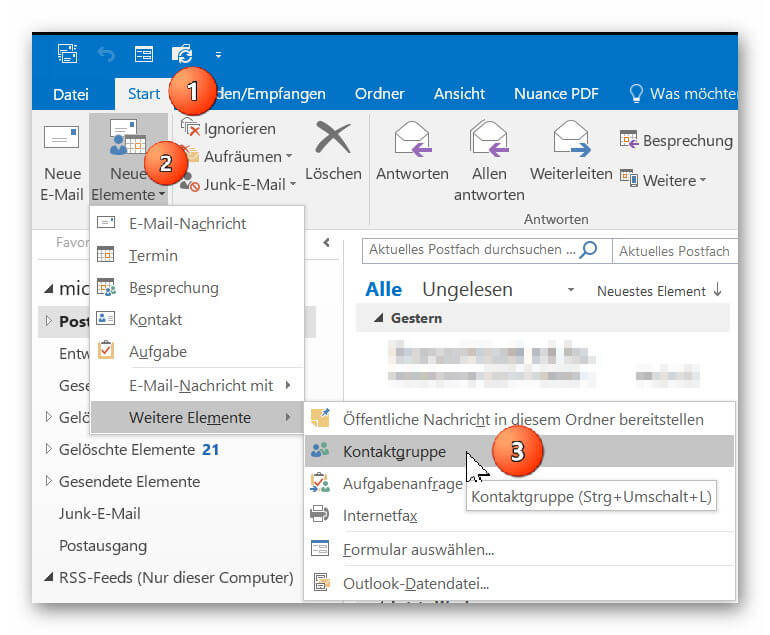
In Outlook go to “Start” tab on “New Items” – “More Items”
there to “contact group” and add a new contact group to your address book.
Next, give your new contact group a name (for example, family, friends, colleagues, etc.)
See picture: (click to enlarge)

In Outlook go to “Start” tab on “New Items” – “More Items”
there to “contact group” and add a new contact group to your address book.
Next, give your new contact group a name (for example, family, friends, colleagues, etc.)
See picture: (click to enlarge)
2. Add contacts to distribution list
2. Add contacts to distribution list
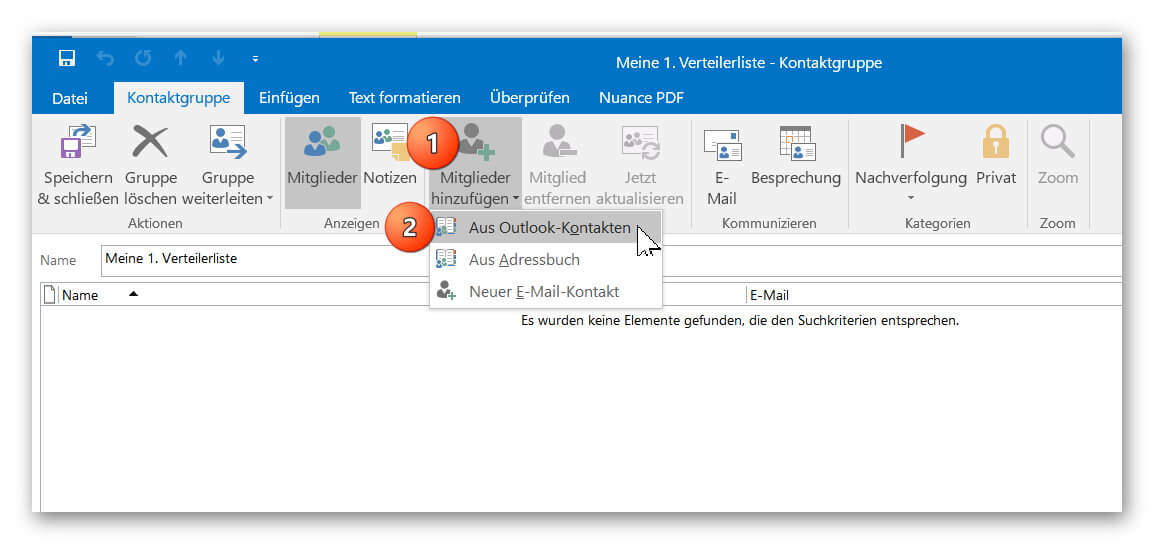
You can now add your contacts from your existing Outlook contacts to your distribution list or create new contacts.
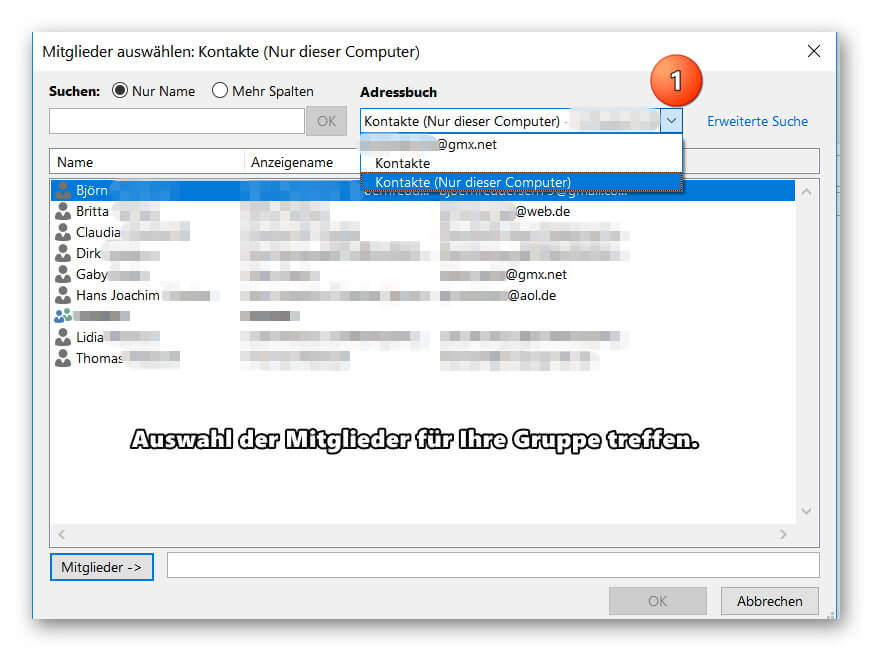
If you should miss some entries in your address book, check if several address books have been created, and then select the missing entries by double-clicking on them.
See picture: (click to enlarge)
You can now add your contacts from your existing Outlook contacts to your distribution list or create new contacts.
If you should miss some entries in your address book, check if several address books have been created, and then select the missing entries by double-clicking on them.
See picture: (click to enlarge)
3. Send e-mail to distribution list in Outlook
3. Send e-mail to distribution list in Outlook
After you have successfully created your distribution list, you will now find it as additional entries in your address book.
Of course, the contacts contained in the group will continue to be displayed as individual entries so that you can always select them specifically as e-mail recipients.
To send an e-mail to one of your distribution lists, simply click on “New E-mail” as usual and double-click on your contact group in the address book.
To check the distribution list again before sending it for security, you can double-click it when selecting it directly in the address book, and if necessary add or remove other members to the list.
See picture: (click to enlarge)
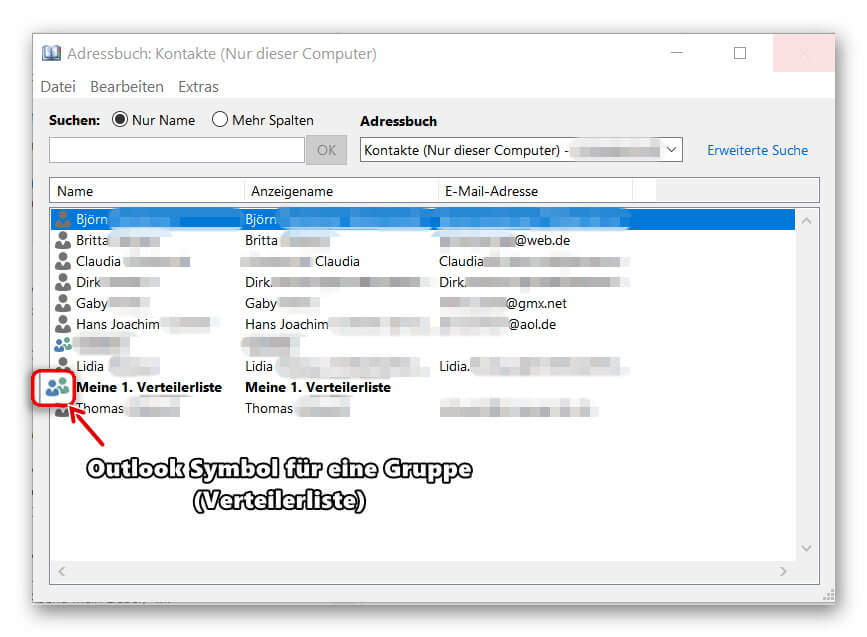

After you have successfully created your distribution list, you will now find it as additional entries in your address book.
Of course, the contacts contained in the group will continue to be displayed as individual entries so that you can always select them specifically as e-mail recipients.
To send an e-mail to one of your distribution lists, simply click on “New E-mail” as usual and double-click on your contact group in the address book.
To check the distribution list again before sending it for security, you can double-click it when selecting it directly in the address book, and if necessary add or remove other members to the list.
See picture: (click to enlarge)
Popular Posts:

Alternative for Microsoft Office? – Use Google Docs on Desktop
Microsoft still offers the most popular software package for the office. Competition has been around for some time. Now Google Docs is also available on the desktop.

Finally faster Internet WiFi 6 is at the start
After 6 years of WLAN standard 802.11ac comes now with Wi-Fi 6 the replacement and has plenty of steam under the hood.

Create Pivot Table and Pivot Chart in Excel
So you can easily create pivot tables with Microsoft Excel, and also sort large amounts of data without much effort.

No Internet access in Windows 10 – How you solve the problem
If access to the Internet stops working in Microsoft Windows 10, there are many causes. We give tips on how to solve the problem.

Format bachelor thesis in Word correctly
The review of the formatting of your bachelor thesis only makes sense after the proofreading and the plagiarism check.

This is how the Name Manager works in Excel
Calculate instead of numbers but just by name in Microsoft Excel, and make easier with the name manager's work.
Offers 2024: Word & Excel Templates











Popular Posts:
Alternative for Microsoft Office? – Use Google Docs on Desktop
Microsoft still offers the most popular software package for the office. Competition has been around for some time. Now Google Docs is also available on the desktop.
Finally faster Internet WiFi 6 is at the start
After 6 years of WLAN standard 802.11ac comes now with Wi-Fi 6 the replacement and has plenty of steam under the hood.
Create Pivot Table and Pivot Chart in Excel
So you can easily create pivot tables with Microsoft Excel, and also sort large amounts of data without much effort.
No Internet access in Windows 10 – How you solve the problem
If access to the Internet stops working in Microsoft Windows 10, there are many causes. We give tips on how to solve the problem.
Format bachelor thesis in Word correctly
The review of the formatting of your bachelor thesis only makes sense after the proofreading and the plagiarism check.
This is how the Name Manager works in Excel
Calculate instead of numbers but just by name in Microsoft Excel, and make easier with the name manager's work.
Offers 2024: Word & Excel Templates