Header and footer in Word – First page different in Word


Would you like to create your own letter template or scientific work in Word? Then you really can’t avoid headers and footers in Word or a dynamic table of contents. Because these building blocks not only create structure in your Word document, but also give the whole thing a more professional look.
In this short tutorial we would like to describe how you can insert and design headers in Word and footers in Word. We will also not ignore the possibility of using the header or footer of the first page differently in Word. For example, if you want to create a business letter template in Word, your logo does not have to be in the header on every page, but is usually only on the first page.
Header and footer in Word – First page different in Word
Would you like to create your own letter template or scientific work in Word? Then you really can’t avoid headers and footers in Word or a dynamic table of contents. Because these building blocks not only create structure in your Word document, but also give the whole thing a more professional look.
In this short tutorial we would like to describe how you can insert and design headers in Word and footers in Word. We will also not ignore the possibility of using the header or footer of the first page differently in Word. For example, if you want to create a business letter template in Word, your logo does not have to be in the header on every page, but is usually only on the first page.
Insert Header in Word
Insert Header in Word
A header is an area at the top of each page of your document that contains information such as the document’s title, author, page number, or other relevant information. With Word, you can easily create a header that appears on every page of your document.
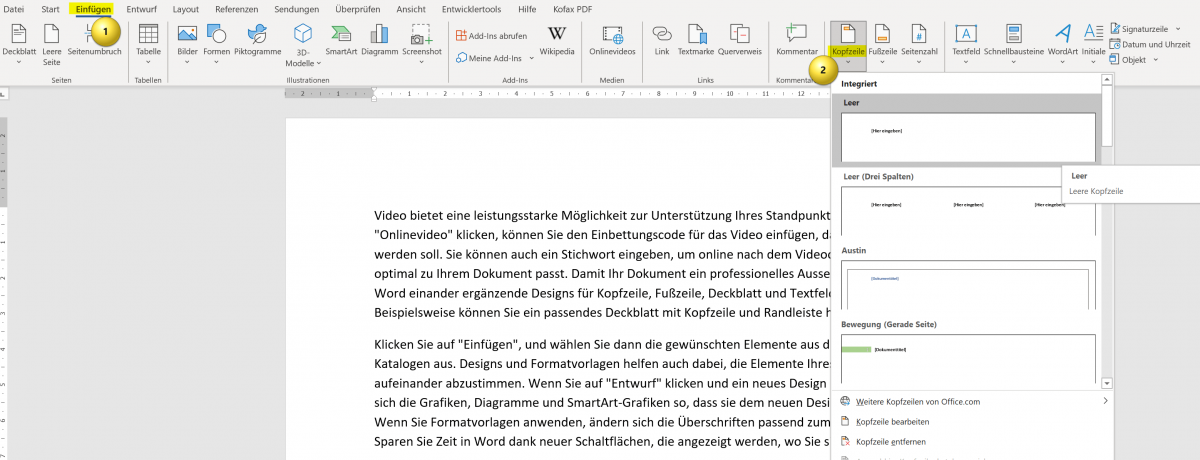
Here are the steps to create a header in Word:
- Click on the “Insert” tab at the top of the menu bar.
- Click the Header button in the Header & Footer area. A list of pre-designed header layouts will appear.
- Select one of the default headers that matches your document type. You can also click “Edit Header” to create your own header.
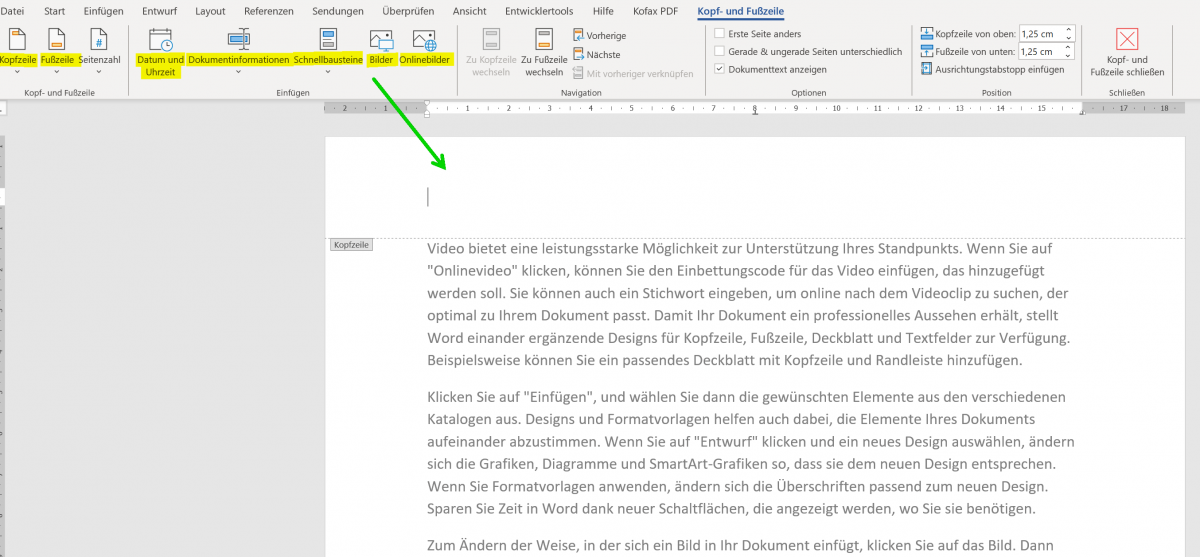
- If you selected “Edit Header“, the Header area will appear where you can enter your text. You can format the text, insert images and add other elements.
- When you’re done, click “Close” on the header toolbar to return to normal view.
Your header will now appear on every page of your document. You can edit or delete the header at any time by clicking Header again and selecting Edit Header or Remove Header.
Tip: By the way, you can get to the header in Word even faster if you simply double-click in the upper area of your Word document.
see fig. (click to enlarge)

Das sind die wichtigsten grundlegenden Schritte, um eine Kopfzeile in Word zu erstellen, und individuell anzupassen. Wir denken, das Ihnen das sicherlich weiterhilft.
If you want your header to be different on each page of your document (e.g. different on the first page than on the following pages), there are two options:
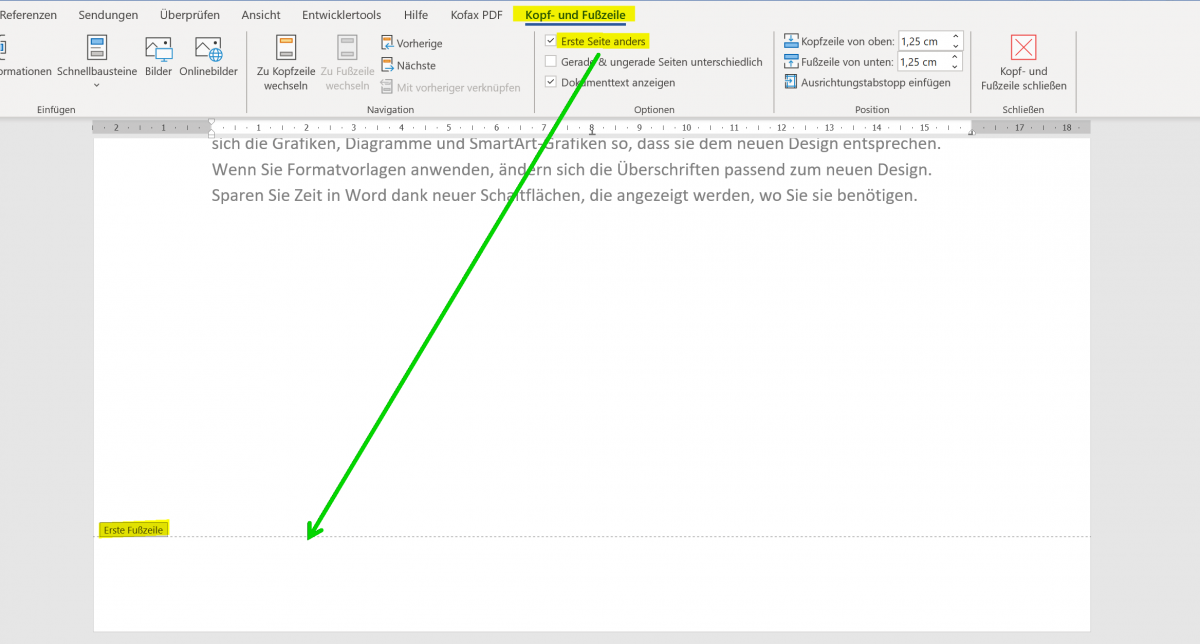
- “Different first page“: With this, the header on the first page is designed differently than on the following pages. To enable this option, click Header, then click Header and Footer Options. Then select “Different first page“.
- “Different Even and Odd Pages“: This makes the header on even pages different than on odd pages. To enable this option, click Header, then click Header and Footer Options. Then select “Different even and odd sides“.
Tip: The footer works just like the header in Word. The shortest way is to simply double-click in the lower area of a page. And the option to design the first page in Word differently is also available here.
see fig. (click to enlarge)
These are the top basic steps to create and customize a header in Word. We think this will definitely help you.

A header is an area at the top of each page of your document that contains information such as the document’s title, author, page number, or other relevant information. With Word, you can easily create a header that appears on every page of your document.
Here are the steps to create a header in Word:
- Click on the “Insert” tab at the top of the menu bar.
- Click the Header button in the Header & Footer area. A list of pre-designed header layouts will appear.
- Select one of the default headers that matches your document type. You can also click “Edit Header” to create your own header.
- If you selected “Edit Header“, the Header area will appear where you can enter your text. You can format the text, insert images and add other elements.
- When you’re done, click “Close” on the header toolbar to return to normal view.
Your header will now appear on every page of your document. You can edit or delete the header at any time by clicking Header again and selecting Edit Header or Remove Header.
Tip: By the way, you can get to the header in Word even faster if you simply double-click in the upper area of your Word document.
see fig. (click to enlarge)
Das sind die wichtigsten grundlegenden Schritte, um eine Kopfzeile in Word zu erstellen, und individuell anzupassen. Wir denken, das Ihnen das sicherlich weiterhilft.
If you want your header to be different on each page of your document (e.g. different on the first page than on the following pages), there are two options:
- “Different first page“: With this, the header on the first page is designed differently than on the following pages. To enable this option, click Header, then click Header and Footer Options. Then select “Different first page“.
- “Different Even and Odd Pages“: This makes the header on even pages different than on odd pages. To enable this option, click Header, then click Header and Footer Options. Then select “Different even and odd sides“.
Tip: The footer works just like the header in Word. The shortest way is to simply double-click in the lower area of a page. And the option to design the first page in Word differently is also available here.
see fig. (click to enlarge)
These are the top basic steps to create and customize a header in Word. We think this will definitely help you.
Popular Posts:

Alternative for Microsoft Office? – Use Google Docs on Desktop
Microsoft still offers the most popular software package for the office. Competition has been around for some time. Now Google Docs is also available on the desktop.

Finally faster Internet WiFi 6 is at the start
After 6 years of WLAN standard 802.11ac comes now with Wi-Fi 6 the replacement and has plenty of steam under the hood.

Create Pivot Table and Pivot Chart in Excel
So you can easily create pivot tables with Microsoft Excel, and also sort large amounts of data without much effort.

No Internet access in Windows 10 – How you solve the problem
If access to the Internet stops working in Microsoft Windows 10, there are many causes. We give tips on how to solve the problem.

Format bachelor thesis in Word correctly
The review of the formatting of your bachelor thesis only makes sense after the proofreading and the plagiarism check.
This is how the Name Manager works in Excel
Calculate instead of numbers but just by name in Microsoft Excel, and make easier with the name manager's work.
Offers 2024: Word & Excel Templates











Popular Posts:
Alternative for Microsoft Office? – Use Google Docs on Desktop
Microsoft still offers the most popular software package for the office. Competition has been around for some time. Now Google Docs is also available on the desktop.
Finally faster Internet WiFi 6 is at the start
After 6 years of WLAN standard 802.11ac comes now with Wi-Fi 6 the replacement and has plenty of steam under the hood.
Create Pivot Table and Pivot Chart in Excel
So you can easily create pivot tables with Microsoft Excel, and also sort large amounts of data without much effort.
No Internet access in Windows 10 – How you solve the problem
If access to the Internet stops working in Microsoft Windows 10, there are many causes. We give tips on how to solve the problem.
Format bachelor thesis in Word correctly
The review of the formatting of your bachelor thesis only makes sense after the proofreading and the plagiarism check.
This is how the Name Manager works in Excel
Calculate instead of numbers but just by name in Microsoft Excel, and make easier with the name manager's work.
Offers 2024: Word & Excel Templates