How to read Windows 10 Key and reinstall it


On July 29, 2015, the countdown started to run, and we all had exactly one year to upgrade our existing Windows 7 or Windows 8.1 to Microsoft’s newest litter Windows 10 for free. And you can not really say that Microsoft has made it especially hard for us here. So popped up at every start of the computer in the system tray a message, but now please finally switch to Windows 10.
And even if the market share of Windows 10 is still a good deal below that of Win 7, sooner or later you will not get around a change.

And this purely for safety reasons.
Because the support of the old systems will be permanently reduced in the long term. Only what happens if we eventually (eg due to the installation of a SSD hard drive) want to rebuild the operating system? Because the key which we still used before the update for Win 7 or Win 8.1, may no longer be valid after the update!
How to read your Windows 10 Key and reinstall your operating system can be found in our article.
How to read Windows 10 Key and reinstall it
On July 29, 2015, the countdown started to run, and we all had exactly one year to upgrade our existing Windows 7 or Windows 8.1 to Microsoft’s newest litter Windows 10 for free. And you can not really say that Microsoft has made it especially hard for us here. So popped up at every start of the computer in the system tray a message, but now please finally switch to Windows 10.
And even if the market share of Windows 10 is still a good deal below that of Win 7, sooner or later you will not get around a change.
And this purely for safety reasons.
Because the support of the old systems will be permanently reduced in the long term. Only what happens if we eventually (eg due to the installation of a SSD hard drive) want to rebuild the operating system? Because the key which we still used before the update for Win 7 or Win 8.1, may no longer be valid after the update!
How to read your Windows 10 Key and reinstall your operating system can be found in our article.
1. Windows 10 key read with on-board resources
1. Windows 10 key read with on-board resources
Basically, it is also possible to read the activation key of Windows 10 with on-board resources, because this is like in the predecessors Win 7 and Win 8.1 in the registry under:
HKEY_LOCAL_MACHINESOFTWAREMicrosoftWindows NTCurrentVersionDigitalProductId
deposited.
Of course you will not find the key here in plain text, but in encrypted form.
So we need a tool to decode and display the key.
You can download this free tool here: License Crawler Download
An installation is not necessary.
You can simply unzip the exe after unpacking. Start file and then have the opportunity to read all the activation keys that are activated on your system.
For the Windows 10 Key, just choose:
Computer: LOCALHOST and directly below: HKEY_LOCAL_MACHINE off.
After clicking on: Start Search, the tool starts to search your registry and read the available keys.
You can complete the search completely, or cancel it manually as soon as your Windows 10 Key appears in the list.
See picture:
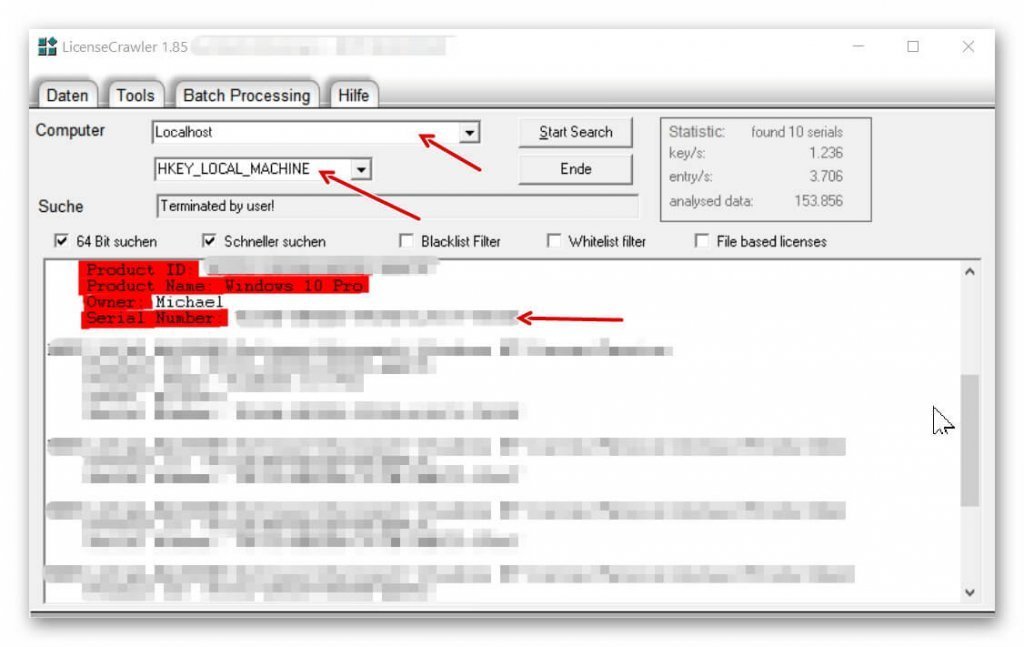

Basically, it is also possible to read the activation key of Windows 10 with on-board resources, because this is like in the predecessors Win 7 and Win 8.1 in the registry under:
HKEY_LOCAL_MACHINESOFTWAREMicrosoftWindows NTCurrentVersionDigitalProductId
deposited.
Of course you will not find the key here in plain text, but in encrypted form.
So we need a tool to decode and display the key.
You can download this free tool here: License Crawler Download
An installation is not necessary.
You can simply unzip the exe after unpacking. Start file and then have the opportunity to read all the activation keys that are activated on your system.
For the Windows 10 Key, just choose:
Computer: LOCALHOST and directly below: HKEY_LOCAL_MACHINE off.
After clicking on: Start Search, the tool starts to search your registry and read the available keys.
You can complete the search completely, or cancel it manually as soon as your Windows 10 Key appears in the list.
See picture: (click to enlarge)
2. Reinstall Windows 10
2. Reinstall Windows 10
Since we have the procedure done automatically when upgrading to Windows 10, we now of course still lack a disk from which we can make a fresh installation.
Simply download the Media Creation Tool here and follow the instructions there to create a bootable media (USB stick, or DVD) to reboot your computer.
Before you start the reinstallation, be sure to back up all important files stored on your computer!
This of course also includes the backup files of Outlook, so your emails and contacts are not at once gone.
Here’s how to make a backup of Outlook 2016: Back up Outlook in 5 steps >>>
Since we have the procedure done automatically when upgrading to Windows 10, we now of course still lack a disk from which we can make a fresh installation.
Simply download the Media Creation Tool here and follow the instructions there to create a bootable media (USB stick, or DVD) to reboot your computer.
Before you start the reinstallation, be sure to back up all important files stored on your computer!
This of course also includes the backup files of Outlook, so your emails and contacts are not at once gone.
Here’s how to make a backup of Outlook 2016: Back up Outlook in 5 steps >>>
3. Call Windows 10 Registry
3. Call Windows 10 Registry
For all those who would like to see what values are actually stored in the registry, and how to actually call them up, you can continue as follows:
- Right-click the Windows icon in the lower left corner of the taskbar
- Select the item: “Run”
- Enter “regedit” in the dialog box and confirm with Enter.
- Confirm the security prompt from Windows.
In order to really understand the entries there, one has to deal with the matter a bit more in detail.
In general, however, it is not necessary for the normal user to make changes there.
In addition, even without precise knowledge of what one changes degree urgently discourage there to make any settings, since you here basic program settings changed, which may no longer be so easy to undo.
See picture: (click to enlarge)
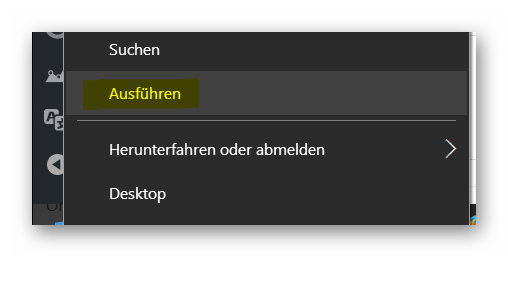
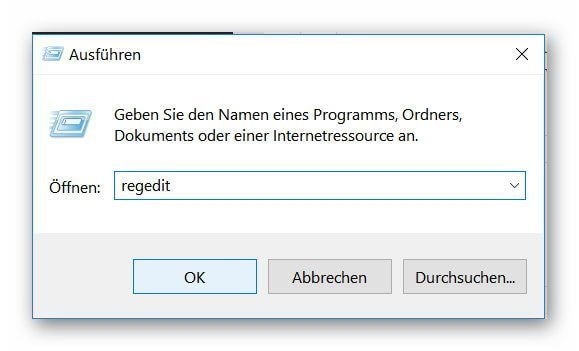
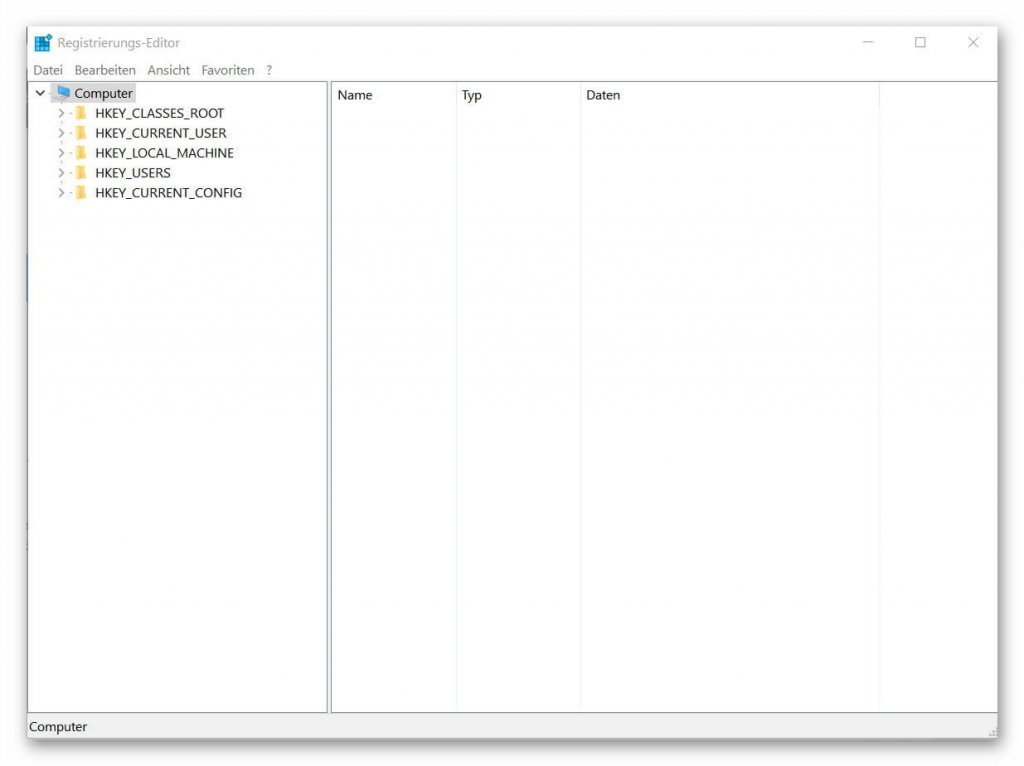

For all those who would like to see what values are actually stored in the registry, and how to actually call them up, you can continue as follows:
- Right-click the Windows icon in the lower left corner of the taskbar
- Select the item: “Run”
- Enter “regedit” in the dialog box and confirm with Enter.
- Confirm the security prompt from Windows.
In order to really understand the entries there, one has to deal with the matter a bit more in detail.
In general, however, it is not necessary for the normal user to make changes there.
In addition, even without precise knowledge of what one changes degree urgently discourage there to make any settings, since you here basic program settings changed, which may no longer be so easy to undo.
See picture:
Popular Posts:
Move pages and insert new ones in word
You probably also know the situation that you are sitting on a very long document, and in the middle of it falls on the actually between page 2 and page 3 still a page in between must.

The Sreference and the Wreference in Excel
Microsoft Excel: How to get S-reference and W-reference purposefully data out of a source.

Automatic backup of your files under Windows 10
You have invested a lot of work in creating your files! Let Windows 10 automatically create file backups to your specifications.

Calculate with date, time and working days in Excel
Calculating correctly with date, time and working days in Excel always causes uncertainty. We will explain step by step how it works.

Easily insert PowerPoint into Word in 5 steps
This is how you bring PowerPoint and Word together and easily add presentations to your Word documents.

How to create secure passwords for your online accounts
Each of us has a variety of online accounts that should all have a separate password if possible. But who should be able to remember everything ...
Offers 2024: Word & Excel Templates











Popular Posts:
Move pages and insert new ones in word
You probably also know the situation that you are sitting on a very long document, and in the middle of it falls on the actually between page 2 and page 3 still a page in between must.
The Sreference and the Wreference in Excel
Microsoft Excel: How to get S-reference and W-reference purposefully data out of a source.
Automatic backup of your files under Windows 10
You have invested a lot of work in creating your files! Let Windows 10 automatically create file backups to your specifications.
Calculate with date, time and working days in Excel
Calculating correctly with date, time and working days in Excel always causes uncertainty. We will explain step by step how it works.
Easily insert PowerPoint into Word in 5 steps
This is how you bring PowerPoint and Word together and easily add presentations to your Word documents.
How to create secure passwords for your online accounts
Each of us has a variety of online accounts that should all have a separate password if possible. But who should be able to remember everything ...
Offers 2024: Word & Excel Templates