Import Google Calendar to Outlook



Today we want to take a quick look at how you can sync between the most frequently used calendars. It’s about how you can import the Google calendar into your Outlook calendar and keep it up to date.
Import Google Calendar to Outlook
Today we want to take a quick look at how you can sync between the most frequently used calendars. It’s about how you can import the Google calendar into your Outlook calendar and keep it up to date.
Import Google Calendar to Outlook
Import Google Calendar to Outlook
You can import Google calendar to Outlook by following the steps below:
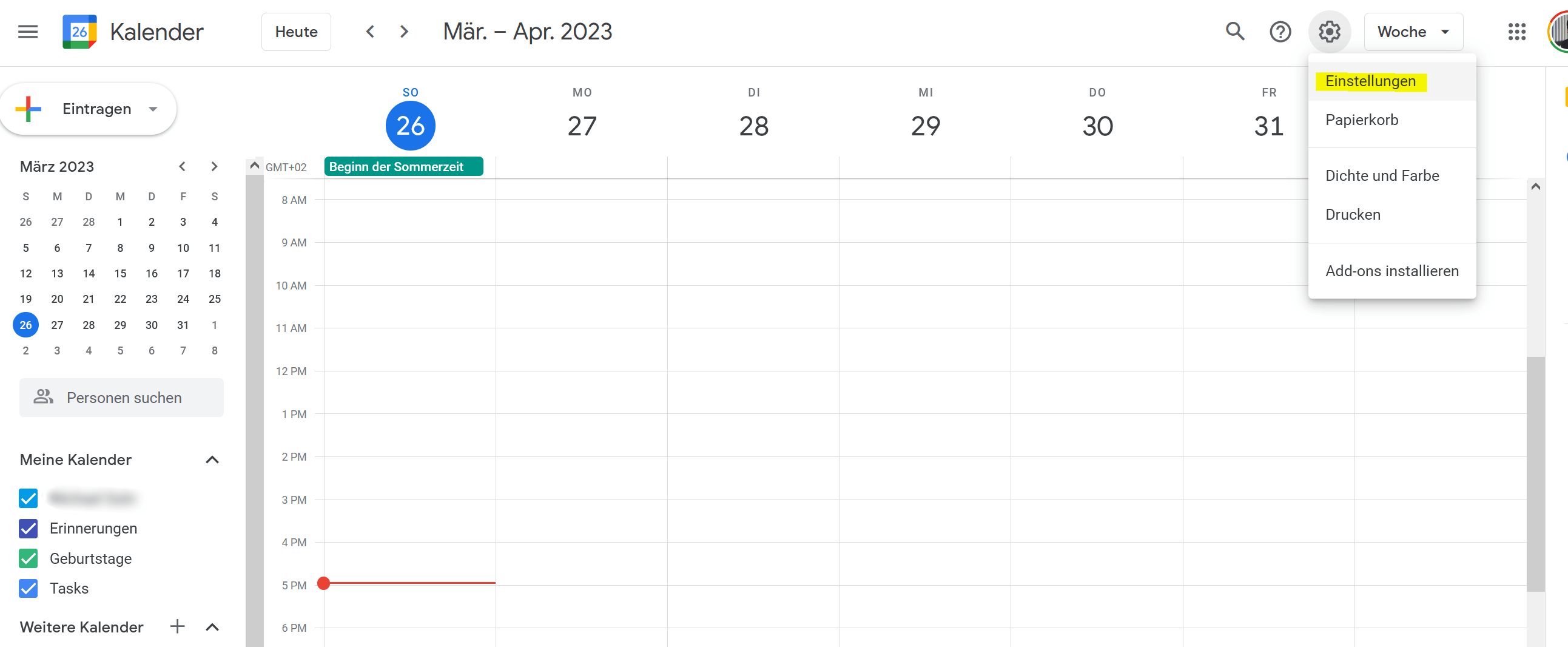
- Open your Google calendar in a web browser and click on the settings icon in the top right corner of the screen. It looks like a gear.
- Select “Settings” from the drop-down menu.
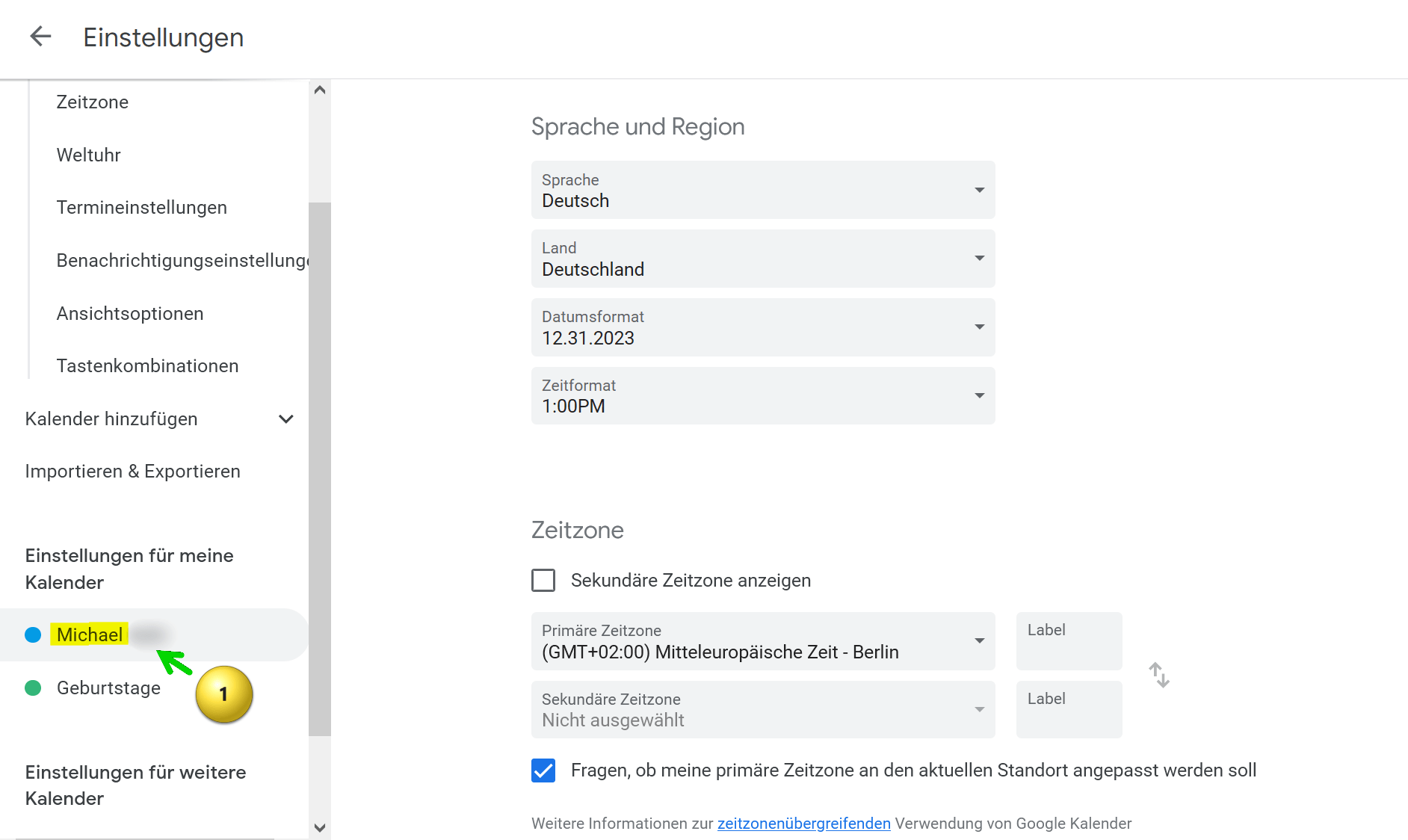
- Locate the calendar you want to import into Outlook and click the calendar name.
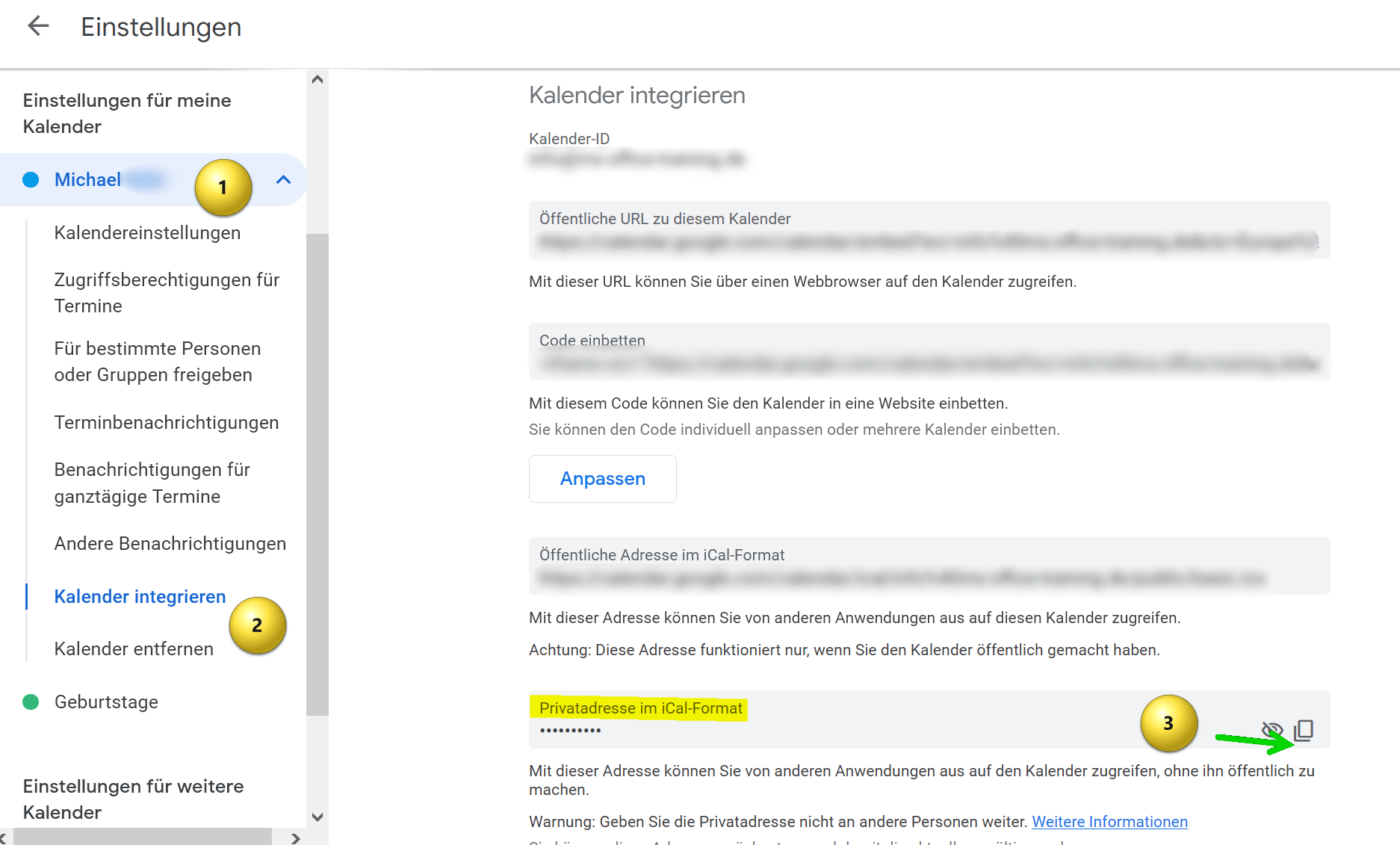
- Then click on “Integrate calendar“.
- Scroll down until you see the option “Home address in iCal format” and copy that address.
see fig. (click to enlarge)
- Create a text file on your computer and copy the address into it.
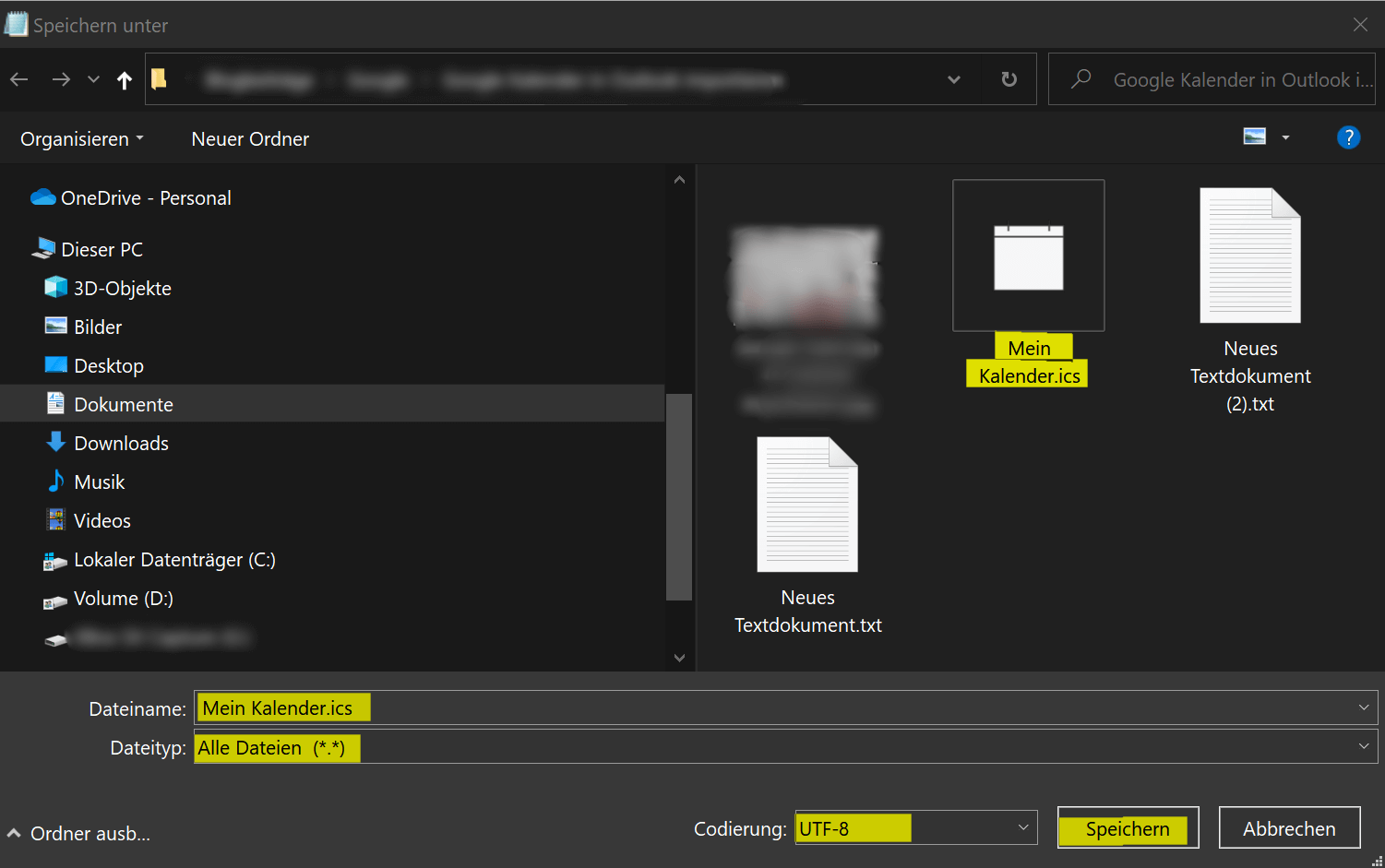
- Then save the file with any filename and the .ics extension. Use “All files” as the file type in the drop-down selection and please keep UTF-8 for the encoding.
- Save this file anywhere on your PC.
see fig. (click to enlarge)

- Open Outlook on your computer.
- Click “File” in the top left.
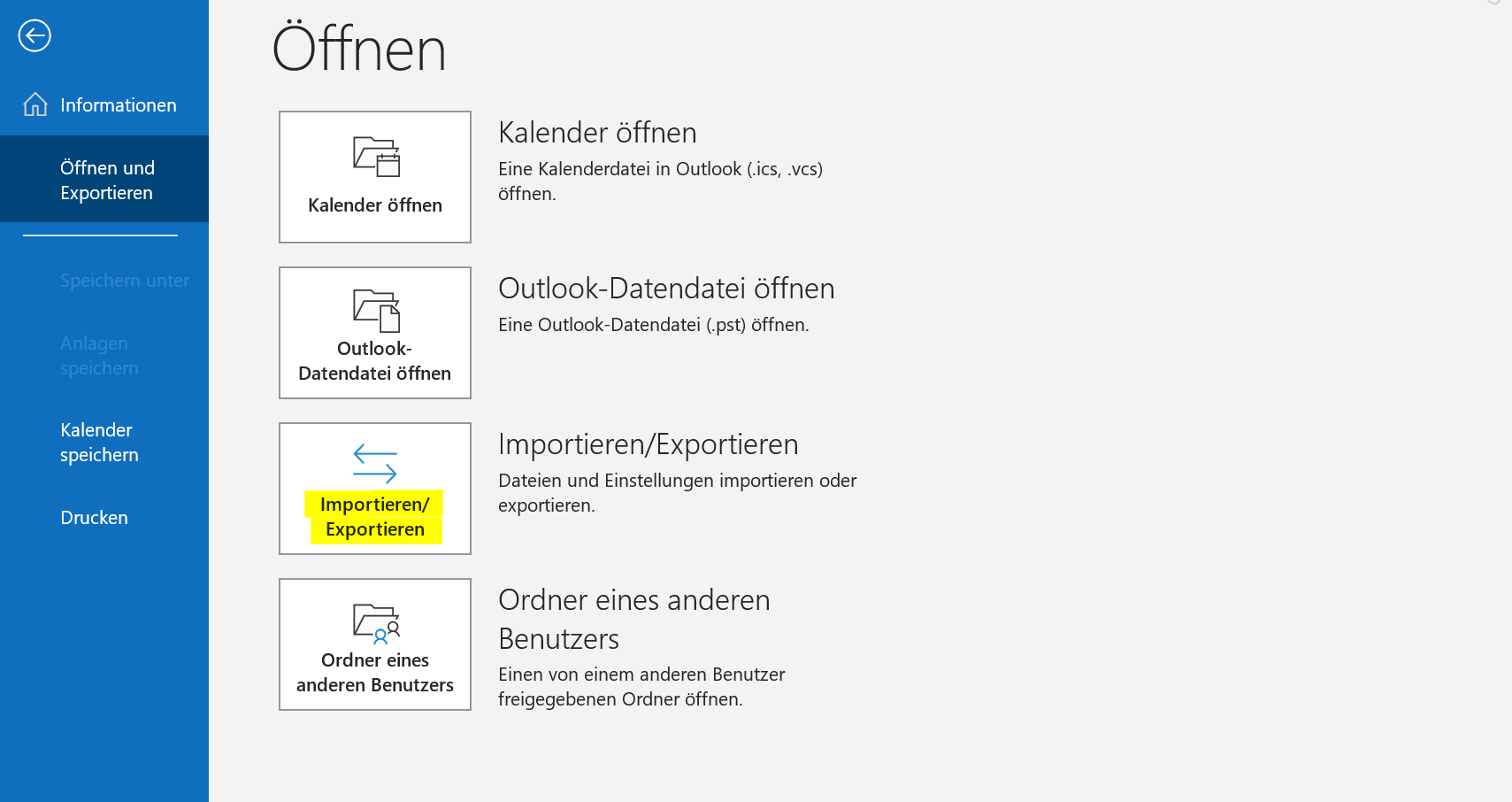
- Click “Open and Export“.
- Click “Import/Export“.
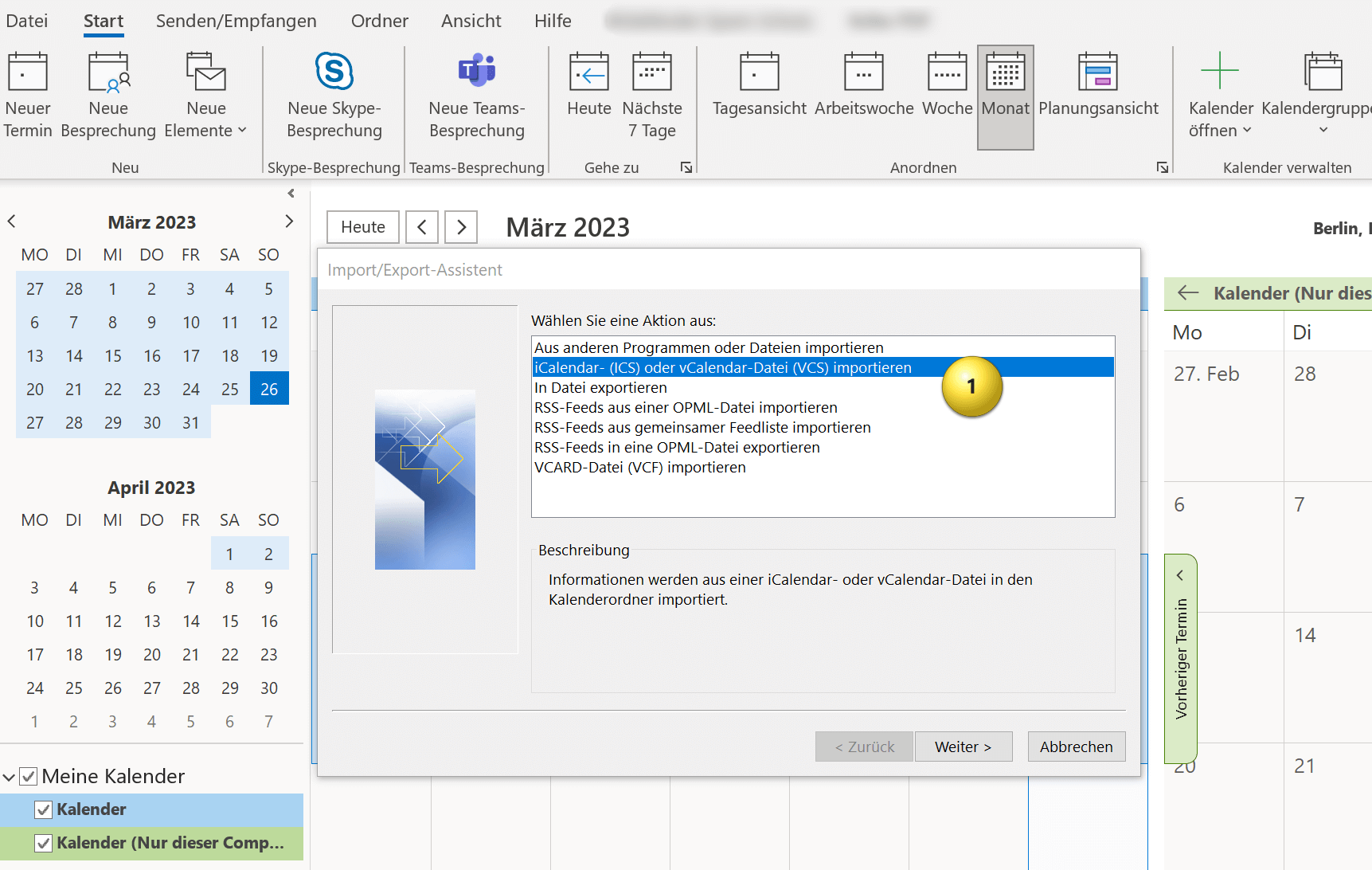
- In the Import and Export Wizard, select “Import an iCalendar (ICS) or vCalendar file (VCS)” and click Next.
Here you now have the option of integrating the Google calendar into your existing Outlook calendar or embedding it as an independent calendar. You have to decide for yourself what makes more sense. If you otherwise also work with several calendars, it makes sense to let the Google calendar run independently, otherwise it is more practical if you integrate the Google calendar into your existing one, so that appointment conflicts are easier to recognize.
see fig. (click to enlarge)

And that’s it. Your Google calendar has been successfully imported into Outlook and you can open the calendar and view all appointments and events in Outlook. Of course, your Outlook calendar will continue to be synchronized with Google calendar in the future.
You can import Google calendar to Outlook by following the steps below:
- Open your Google calendar in a web browser and click on the settings icon in the top right corner of the screen. It looks like a gear.
- Select “Settings” from the drop-down menu.
- Locate the calendar you want to import into Outlook and click the calendar name.
- Then click on “Integrate calendar“.
- Scroll down until you see the option “Home address in iCal format” and copy that address.
see fig. (click to enlarge)
- Create a text file on your computer and copy the address into it.
- Then save the file with any filename and the .ics extension. Use “All files” as the file type in the drop-down selection and please keep UTF-8 for the encoding.
- Save this file anywhere on your PC.
see fig. (click to enlarge)
- Open Outlook on your computer.
- Click “File” in the top left.
- Click “Open and Export“.
- Click “Import/Export“.
- In the Import and Export Wizard, select “Import an iCalendar (ICS) or vCalendar file (VCS)” and click Next.
Here you now have the option of integrating the Google calendar into your existing Outlook calendar or embedding it as an independent calendar. You have to decide for yourself what makes more sense. If you otherwise also work with several calendars, it makes sense to let the Google calendar run independently, otherwise it is more practical if you integrate the Google calendar into your existing one, so that appointment conflicts are easier to recognize.
see fig. (click to enlarge)
And that’s it. Your Google calendar has been successfully imported into Outlook and you can open the calendar and view all appointments and events in Outlook. Of course, your Outlook calendar will continue to be synchronized with Google calendar in the future.
Popular Posts:

Wi-Fi 7 vs. Wi-Fi 6: A quantum leap for your home network?
Wi-Fi 7 is here! Learn all about its advantages over Wi-Fi 6: extreme speed, minimal latency, and MLO. We'll explain who should upgrade now and what you can do with your ISP router. Your guide to the Wi-Fi of the future.

Microsoft 365 Copilot in practice: Your guide to the new everyday work routine
What can Microsoft 365 Copilot really do? 🤖 We'll show you in a practical way how the AI assistant revolutionizes your daily work in Word, Excel & Teams. From a blank page to a finished presentation in minutes! The ultimate practical guide for the new workday. #Copilot #Microsoft365 #AI

EU chat control: The battle between protection and privacy
The EU's chat control measures aim to scan private messages on WhatsApp and similar platforms. Critics see this as mass surveillance. Following massive resistance, including from Germany, the crucial vote in the EU Council has been postponed again. The fight for digital privacy continues.

Safe at Home: The Ultimate Guide to Your PC and Your Wi-Fi
Is your home Wi-Fi really secure? 🏠 From router passwords to phishing protection – our ultimate security guide will make life difficult for hackers. Secure your PC and home network now with our simple and easy-to-understand tips! #Cybersecurity #HomeNetwork

Integrate and use ChatGPT in Excel – is that possible?
ChatGPT is more than just a simple chatbot. Learn how it can revolutionize how you work with Excel by translating formulas, creating VBA macros, and even promising future integration with Office.

Create Out of Office Notice in Outlook
To create an Out of Office message in Microsoft Outlook - Office 365, and start relaxing on vacation
Offers 2024: Word & Excel Templates











Popular Posts:
Wi-Fi 7 vs. Wi-Fi 6: A quantum leap for your home network?
Wi-Fi 7 is here! Learn all about its advantages over Wi-Fi 6: extreme speed, minimal latency, and MLO. We'll explain who should upgrade now and what you can do with your ISP router. Your guide to the Wi-Fi of the future.
Microsoft 365 Copilot in practice: Your guide to the new everyday work routine
What can Microsoft 365 Copilot really do? 🤖 We'll show you in a practical way how the AI assistant revolutionizes your daily work in Word, Excel & Teams. From a blank page to a finished presentation in minutes! The ultimate practical guide for the new workday. #Copilot #Microsoft365 #AI
EU chat control: The battle between protection and privacy
The EU's chat control measures aim to scan private messages on WhatsApp and similar platforms. Critics see this as mass surveillance. Following massive resistance, including from Germany, the crucial vote in the EU Council has been postponed again. The fight for digital privacy continues.
Safe at Home: The Ultimate Guide to Your PC and Your Wi-Fi
Is your home Wi-Fi really secure? 🏠 From router passwords to phishing protection – our ultimate security guide will make life difficult for hackers. Secure your PC and home network now with our simple and easy-to-understand tips! #Cybersecurity #HomeNetwork
Integrate and use ChatGPT in Excel – is that possible?
ChatGPT is more than just a simple chatbot. Learn how it can revolutionize how you work with Excel by translating formulas, creating VBA macros, and even promising future integration with Office.
Create Out of Office Notice in Outlook
To create an Out of Office message in Microsoft Outlook - Office 365, and start relaxing on vacation
Offers 2024: Word & Excel Templates