Autocompletion and Autocorrection in Word


By nature, the Microsoft Office package not only offers the auto-correction feature, which is well-known and sometimes annoying, but also autocomplete in which certain strings are automatically corrected or converted to a preconfigured input.
Less well known, however, is that you have the ability to tailor these features to your needs and to abbreviate commonly written words, or long names and greetings. And, of course, to adjust error corrections at your discretion.
How the whole funkioniert experienced in our article.

Autocompletion and Autocorrection in Word
By nature, the Microsoft Office package not only offers the auto-correction feature, which is well-known and sometimes annoying, but also autocomplete in which certain strings are automatically corrected or converted to a preconfigured input.
Less well known, however, is that you have the ability to tailor these features to your needs and to abbreviate commonly written words, or long names and greetings. And, of course, to adjust error corrections at your discretion.
How the whole funkioniert experienced in our article.
1. Customize the Auto Correction
1. Customize the Auto Correction
If you want to adjust the auto correction. So how to handle spelling and grammar, you have the options between
- Only for the respective application (for example WORD)
- For all Office programs (cross-program with one step)
To call up the autocorrection, go to the tab “File” – “Options” and select the item “Document Check”.
See picture: (click to enlarge)
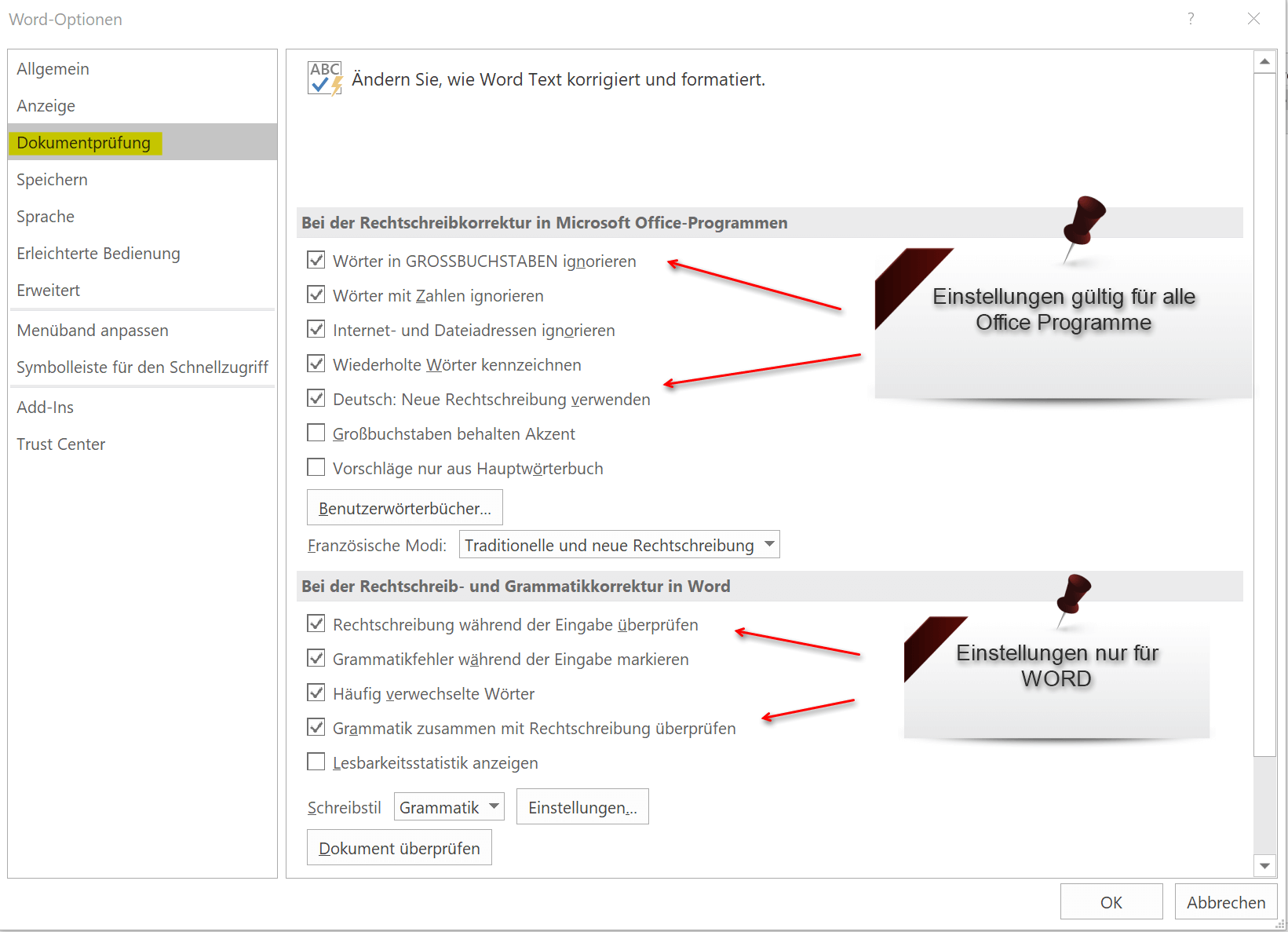
If you want to completely differentiate from the auto-correction here, simply deactivate all the check-marks in the correction options.
However, this is not particularly advisable, because especially when fast writing just one or the other error happens, and especially longer texts will not necessarily be read again later correction.
Therefore we recommend to leave all preset points activated. As an exception you could (depending on your needs) the options:
- Ignore words in CAPITAL LETTERS
- Ignore Internet and file addresses
deactivate, because it can be times that one writes certain words as special expression just in CAPITAL letters, and of course also Internet addresses in documents sometimes needed.
With the “new German orthography” divorce certainly the ghosts, since scarcely anyone by the whole spelling reform looks through. But if you want it to be correct, you can activate this point.
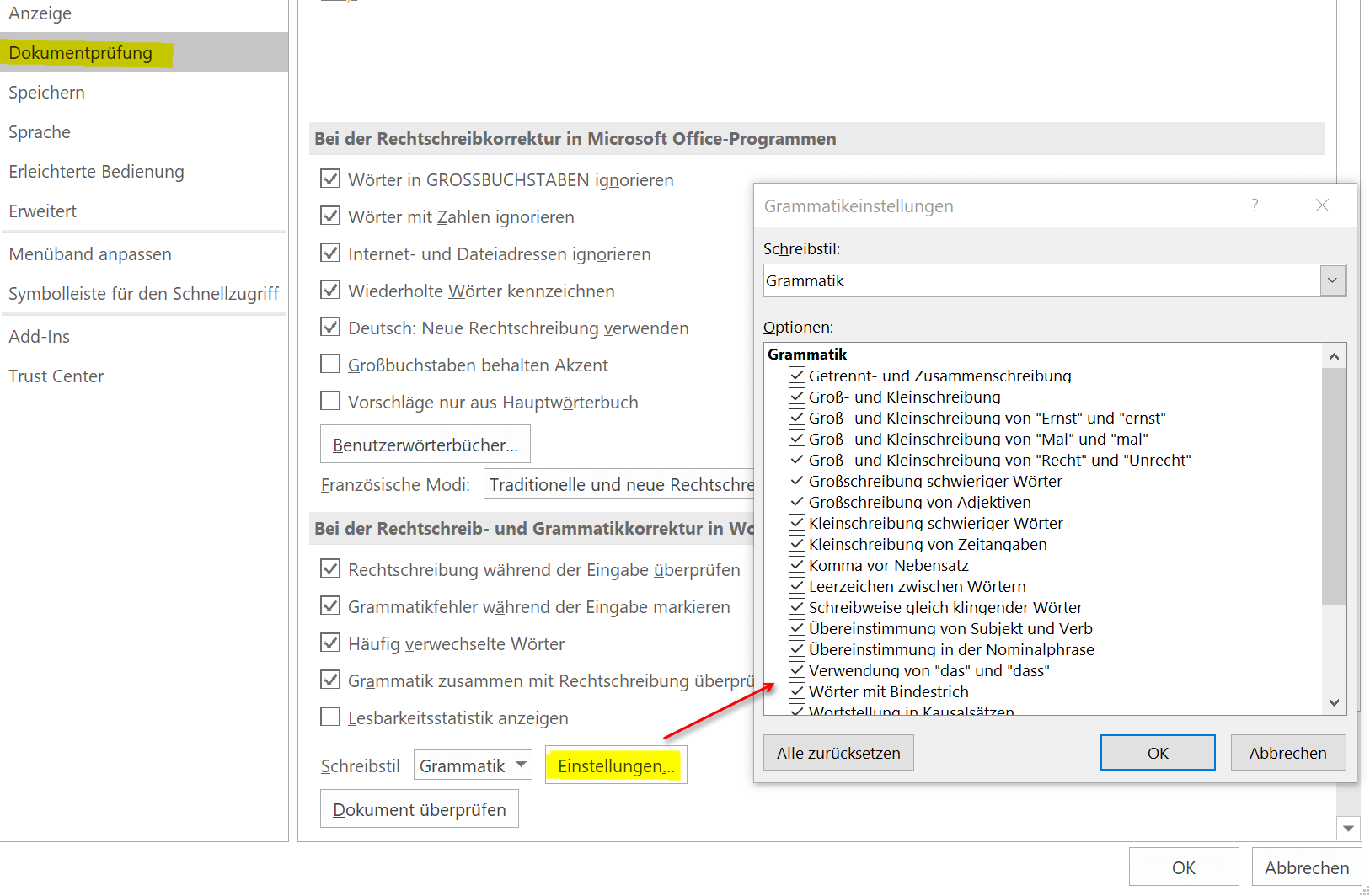
Since this, of course, first relatively flat information and settings for the auto correction, you can refine the whole. Just go to the document review on the point “Settings” and there is then a whole range of options available, on which you will probably first 3x puzzles whether it makes sense, or not.
But once you make that effort and adjust everything according to your own needs, then it works the more relaxed with Word.
See picture: (click to enlarge)

If you want to adjust the auto correction. So how to handle spelling and grammar, you have the options between
- Only for the respective application (for example WORD)
- For all Office programs (cross-program with one step)
To call up the autocorrection, go to the tab “File” – “Options” and select the item “Document Check”.
See picture:
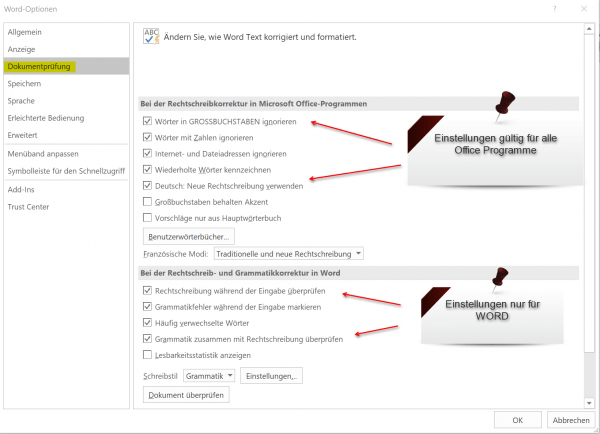
If you want to completely differentiate from the auto-correction here, simply deactivate all the check-marks in the correction options.
However, this is not particularly advisable, because especially when fast writing just one or the other error happens, and especially longer texts will not necessarily be read again later correction.
Therefore we recommend to leave all preset points activated. As an exception you could (depending on your needs) the options:
- Ignore words in CAPITAL LETTERS
- Ignore Internet and file addresses
deactivate, because it can be times that one writes certain words as special expression just in CAPITAL letters, and of course also Internet addresses in documents sometimes needed.
With the “new German orthography” divorce certainly the ghosts, since scarcely anyone by the whole spelling reform looks through. But if you want it to be correct, you can activate this point.
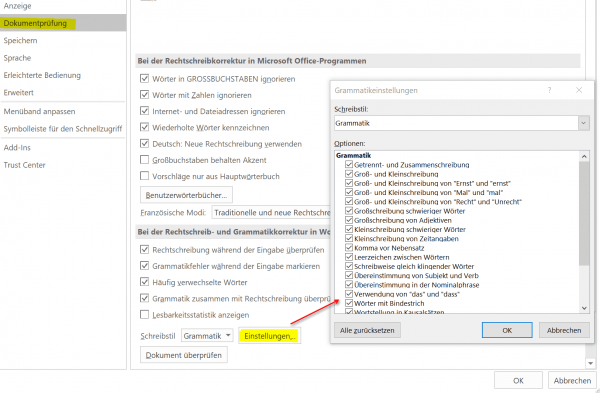
Since this, of course, first relatively flat information and settings for the auto correction, you can refine the whole. Just go to the document review on the point “Settings” and there is then a whole range of options available, on which you will probably first 3x puzzles whether it makes sense, or not.
But once you make that effort and adjust everything according to your own needs, then it works the more relaxed with Word.
See picture:
2. Customize the Autocomplete
2. Customize the Autocomplete
While the correct settings in the auto-correction options can save nerve and protect against unintentional errors, adjusting the autocomplete can greatly facilitate the daily work routine by simply replacing frequently used words with a shortcut and then automatically replacing them.
The way to the settings for this is again via “File” – “Options” and then “Document Check”
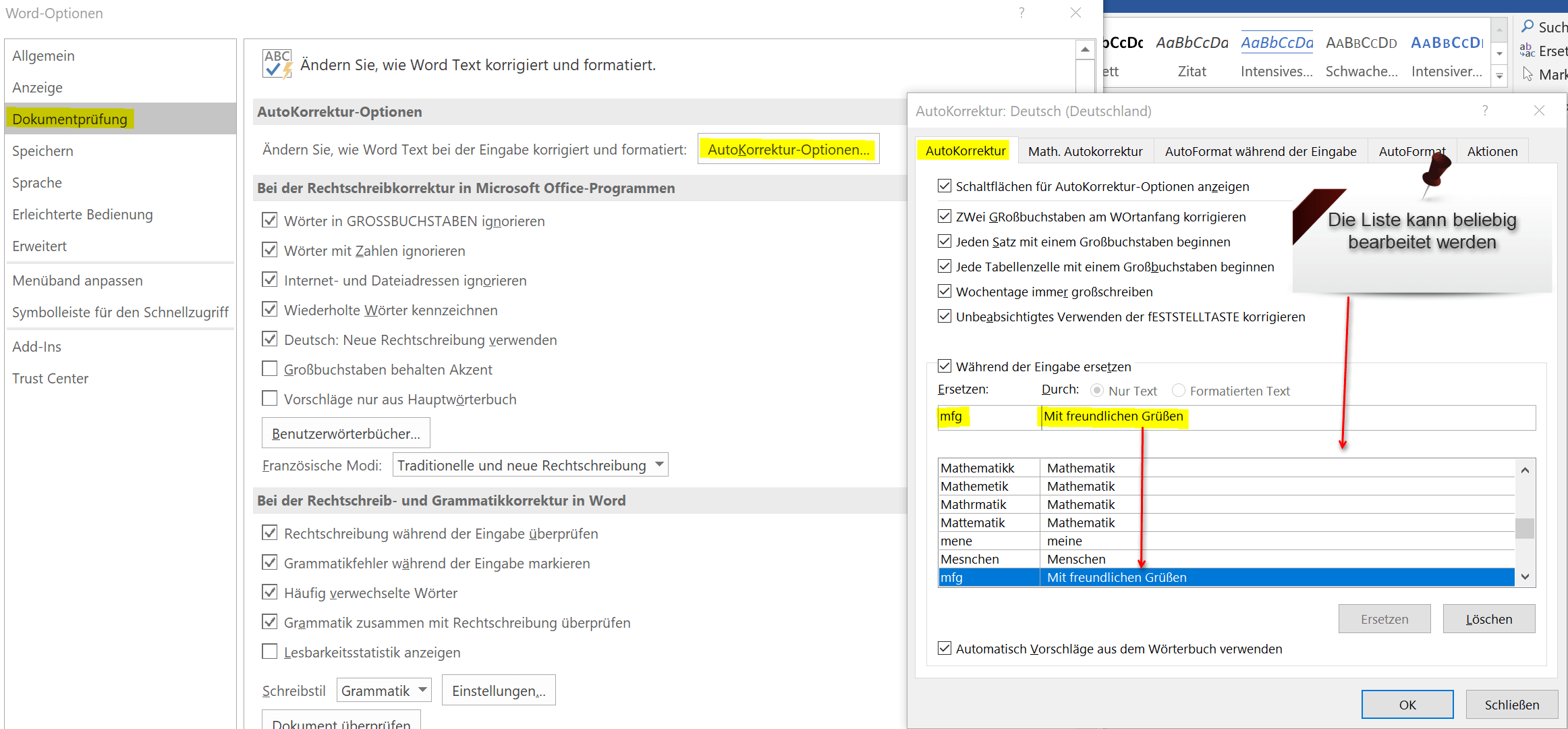
As the first point you will find the tab “Auto Correction Options” where you will find again a lot of settings how to deal with the input. But the point is particularly interesting: “Replace with the input during …”
There is already a list which is preset by default and can be expanded and changed as desired. Let’s just take the typical example at the end of each letter “Sincerely,”
Now we do not want to have to post this point, but simply enter “mfg”, and then the text should be entered automatically. For this we only enter in the field replace “mfg”, and at with “Yours sincerely”
See picture: (click to enlarge)
Note:
Regardless of which Office application (Word, Excel or Outlook) you make these settings for autocomplete, this will automatically apply to all other Office programs.
This means that you only need to make the autocomplete settings once, and have them available in all applications.

While the correct settings in the auto-correction options can save nerve and protect against unintentional errors, adjusting the autocomplete can greatly facilitate the daily work routine by simply replacing frequently used words with a shortcut and then automatically replacing them.
The way to the settings for this is again via “File” – “Options” and then “Document Check”
As the first point you will find the tab “Auto Correction Options” where you will find again a lot of settings how to deal with the input. But the point is particularly interesting: “Replace with the input during …”
There is already a list which is preset by default and can be expanded and changed as desired. Let’s just take the typical example at the end of each letter “Sincerely,”
Now we do not want to have to post this point, but simply enter “mfg”, and then the text should be entered automatically. For this we only enter in the field replace “mfg”, and at with “Yours sincerely”
See picture:
Note:
Regardless of which Office application (Word, Excel or Outlook) you make these settings for autocomplete, this will automatically apply to all other Office programs.
This means that you only need to make the autocomplete settings once, and have them available in all applications.
Popular Posts:

Ad-free home network: Install Pi-hole on Windows
Say goodbye to ads on smart TVs and in apps: Pi-hole software turns your Windows laptop into a network filter. This article explains step-by-step how to install it via Docker and configure the necessary DNS settings in your FRITZ!Box.

How to tune your FRITZ!Box into a professional call server
A professional telephone system can be built using a FRITZ!Box and a laptop. This article shows step by step how to use the free software "Phoner" to schedule announcements and record calls – including important legal information (§ 201 StGB).

Why to-do lists are a waste of time
Do you feel unproductive at the end of the day, even though you've worked hard? Your to-do list is to blame. It tempts you to focus on easy tasks and ignores your limited time. This article explains why lists are "self-deception" and why professionals use a calendar instead.

Smartphone Wi-Fi security: Public hotspots vs. home network
Is smartphone Wi-Fi a security risk? This article analyzes in detail threats such as evil twin attacks and explains protective measures for when you're on the go. We also clarify why home Wi-Fi is usually secure and how you can effectively separate your smart home from sensitive data using a guest network.

Warum dein Excel-Kurs Zeitverschwendung ist – was du wirklich lernen solltest!
Hand aufs Herz: Wann hast du zuletzt eine komplexe Excel-Formel ohne Googeln getippt? Eben. KI schreibt heute den Code für dich. Erfahre, warum klassische Excel-Trainings veraltet sind und welche 3 modernen Skills deinen Marktwert im Büro jetzt massiv steigern.

Cybersicherheit: Die 3 größten Fehler, die 90% aller Mitarbeiter machen
Hacker brauchen keine Codes, sie brauchen nur einen unaufmerksamen Mitarbeiter. Von Passwort-Recycling bis zum gefährlichen Klick: Wir zeigen die drei häufigsten Fehler im Büroalltag und geben praktische Tipps, wie Sie zur menschlichen Firewall werden.
Offers 2024: Word & Excel Templates











Popular Posts:
Ad-free home network: Install Pi-hole on Windows
Say goodbye to ads on smart TVs and in apps: Pi-hole software turns your Windows laptop into a network filter. This article explains step-by-step how to install it via Docker and configure the necessary DNS settings in your FRITZ!Box.
How to tune your FRITZ!Box into a professional call server
A professional telephone system can be built using a FRITZ!Box and a laptop. This article shows step by step how to use the free software "Phoner" to schedule announcements and record calls – including important legal information (§ 201 StGB).
Why to-do lists are a waste of time
Do you feel unproductive at the end of the day, even though you've worked hard? Your to-do list is to blame. It tempts you to focus on easy tasks and ignores your limited time. This article explains why lists are "self-deception" and why professionals use a calendar instead.
Smartphone Wi-Fi security: Public hotspots vs. home network
Is smartphone Wi-Fi a security risk? This article analyzes in detail threats such as evil twin attacks and explains protective measures for when you're on the go. We also clarify why home Wi-Fi is usually secure and how you can effectively separate your smart home from sensitive data using a guest network.
Warum dein Excel-Kurs Zeitverschwendung ist – was du wirklich lernen solltest!
Hand aufs Herz: Wann hast du zuletzt eine komplexe Excel-Formel ohne Googeln getippt? Eben. KI schreibt heute den Code für dich. Erfahre, warum klassische Excel-Trainings veraltet sind und welche 3 modernen Skills deinen Marktwert im Büro jetzt massiv steigern.
Cybersicherheit: Die 3 größten Fehler, die 90% aller Mitarbeiter machen
Hacker brauchen keine Codes, sie brauchen nur einen unaufmerksamen Mitarbeiter. Von Passwort-Recycling bis zum gefährlichen Klick: Wir zeigen die drei häufigsten Fehler im Büroalltag und geben praktische Tipps, wie Sie zur menschlichen Firewall werden.
Offers 2024: Word & Excel Templates