Insert and edit header and footer in Excel


What is very simple and self-evident in Word is unfortunately a Microsoft-made problem in Excel. It is about inserting and adjusting headers and footers in Excel. This is similar to moving pages in Word. In PowerPoint it is very easy to remove pages, and in other in-house software it is made complicated and can only be solved with workarounds. It also doesn’t matter whether you work with Office 365 or with Office 2019 or currently Office 2021. It’s the same problem everywhere.
This short article is only about how to insert and customize headers and footers in Excel. There are a few little pitfalls and limitations in Excel here and there, but I’ll try to give tips for them as best I can. And how it turns out good in the end.
Insert and edit header and footer in Excel
What is very simple and self-evident in Word is unfortunately a Microsoft-made problem in Excel. It is about inserting and adjusting headers and footers in Excel. This is similar to moving pages in Word. In PowerPoint it is very easy to remove pages, and in other in-house software it is made complicated and can only be solved with workarounds. It also doesn’t matter whether you work with Office 365 or with Office 2019 or currently Office 2021. It’s the same problem everywhere.
This short article is only about how to insert and customize headers and footers in Excel. There are a few little pitfalls and limitations in Excel here and there, but I’ll try to give tips for them as best I can. And how it turns out good in the end.
Insert and customize header in Excel
Insert and customize header in Excel
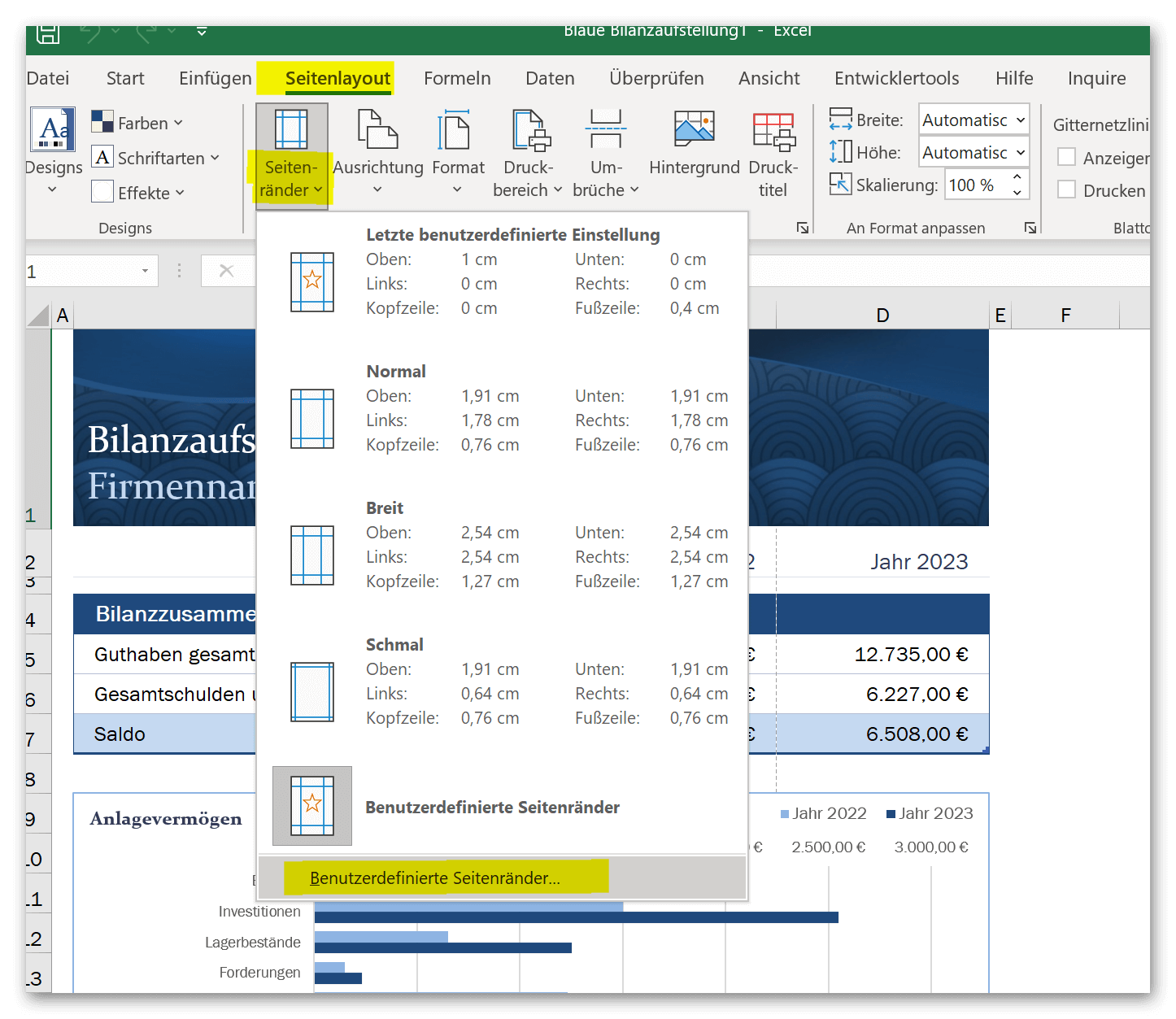
As usual, there are several ways of inserting headers in Excel. The first way is the easier one and is to go to the “Page Layout – Custom Margins” tab and then select the Header/Footer tab in the dialog box. Here you can not only define the layout settings with margins etc., but also adjust the headers and footers.
see fig. (click to enlarge)
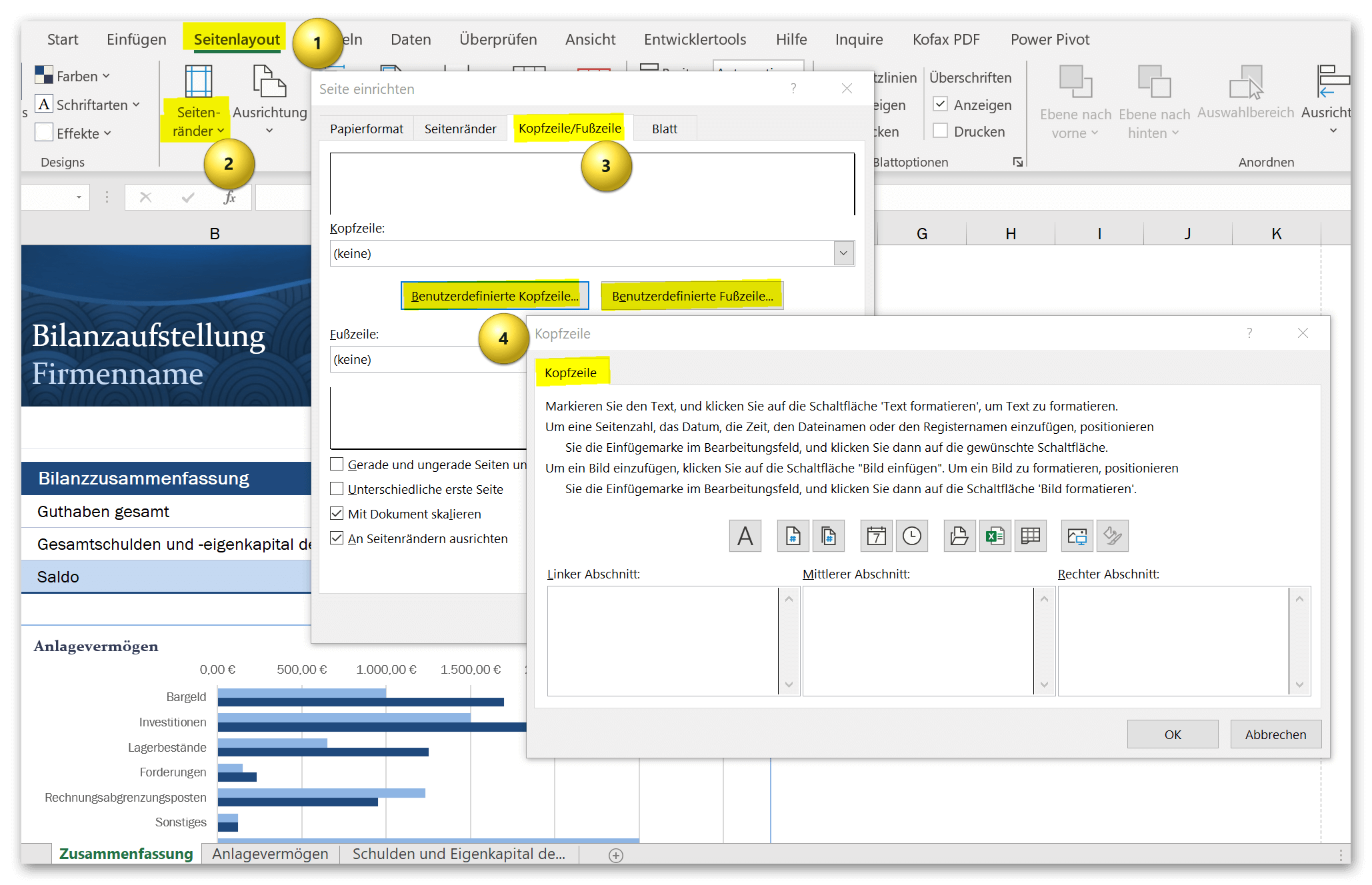

Here you have the option of inserting common content such as the page number, date, document title, etc. for the header and footer. As in Word, you can also provide the first page with a different header than the following pages. Something like this is of course ideal for invoice documents, for example, where the company logo should only appear on the first but not on the following pages. I would keep the “Align to margin” and “Scale with document” checked so that the header and footer are flush with the rest of the content in the document.
If you select the custom header and footer options in the dialog box, you will quickly notice how limited Excel is in contrast to Word. The fact that you only have the option of jumping between three content windows to add content would be something you could live with, but that’s not all, unfortunately, the orientation of the content is also fixed. The content in the left content window is left-aligned, the text is centered in the middle window and right-aligned in the right window.
Unfortunately, this has always been the case, and Microsoft doesn’t bother with it either, because there is probably too little interest and pressure from users.
see fig. (click to enlarge)
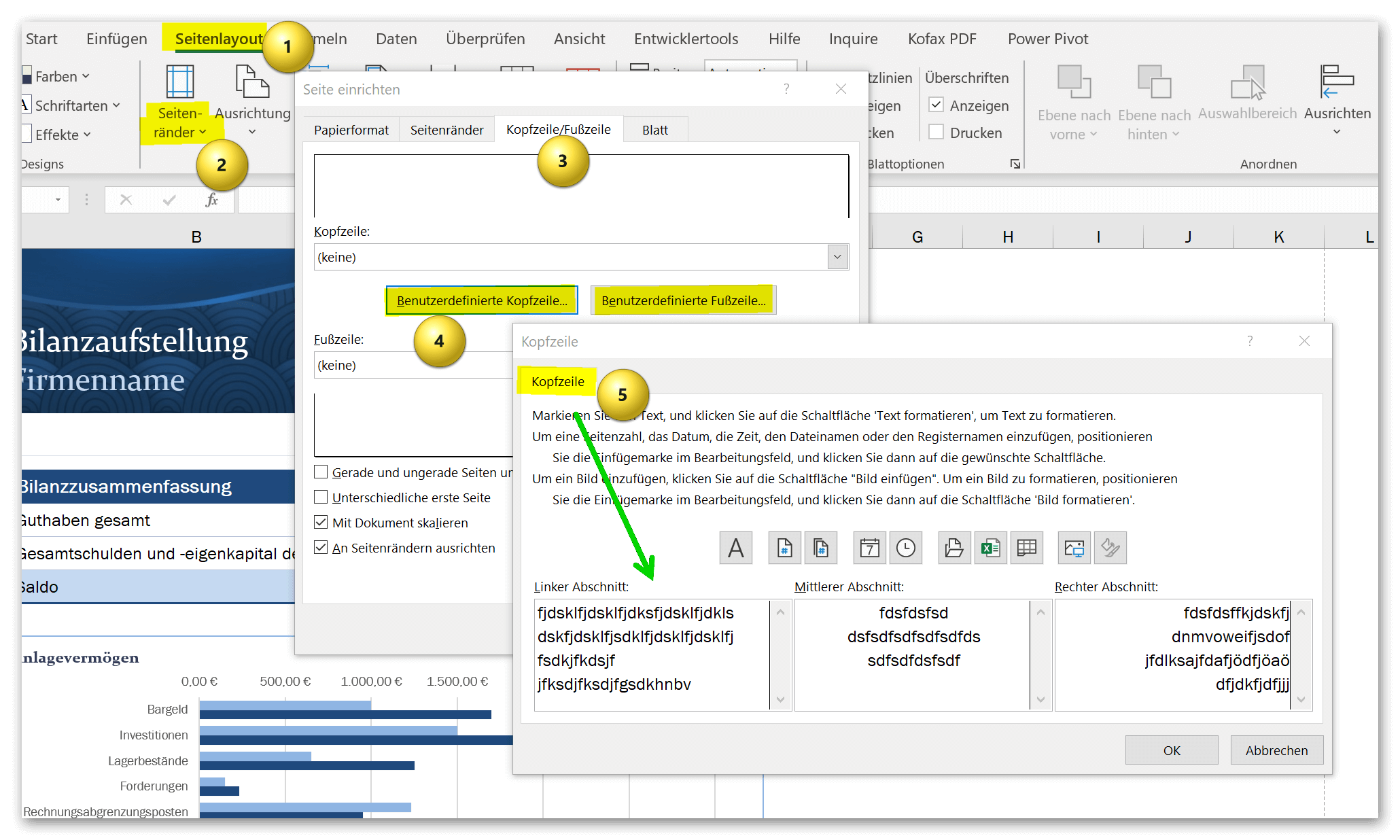
By the way, it’s the same problem with both the header and the footer that you have to deal with here. In the case of the header, where perhaps there is only a logo, you can possibly get used to it, and since such an element is usually aligned to the right, left or center anyway. But that doesn’t work with the footer. At least not in the middle content section.
The only viable way I see at this point is to use the option that Excel also offers. You can also include graphics in the header and footer. I therefore recommend the following:
- Create a footer in Word of your choice.
- Take a screenshot (shortcut for Windows: Windows logo key + SHIFT + S) of the area that will later be used as a footer in Excel.
- Paste the graphic into the middle section with the center alignment.
You may have to adjust the page spacing and the print area a bit (easiest to check in the print preview in Excel) so that it looks good. But unfortunately you don’t have many more options in Excel. Another Wordaround would be to create a Word document with sensible headers and footers and then insert your Excel spreadsheet into Word.
By the way: At the beginning I wrote that there are several ways to get to the header and footer settings in Excel. I have already described the easy way. But for the sake of completeness I wanted to briefly describe the other way:
- Go to Header and Footer from the Insert tab
- At the top left (under File) you can then jump between the header and footer and insert content directly.
A small advantage of this way is that you get the header and footer displayed directly in the document, but the disadvantage is that many users often do not know how to get out of the view to continue working on the document. This only works via the “View” tab and then “Normal”. But I won’t go into it any further at this point, because I’m actually trying to explain things as simply as possible.
As usual, there are several ways of inserting headers in Excel. The first way is the easier one and is to go to the “Page Layout – Custom Margins” tab and then select the Header/Footer tab in the dialog box. Here you can not only define the layout settings with margins etc., but also adjust the headers and footers.
see fig. (click to enlarge)
Here you have the option of inserting common content such as the page number, date, document title, etc. for the header and footer. As in Word, you can also provide the first page with a different header than the following pages. Something like this is of course ideal for invoice documents, for example, where the company logo should only appear on the first but not on the following pages. I would keep the “Align to margin” and “Scale with document” checked so that the header and footer are flush with the rest of the content in the document.
If you select the custom header and footer options in the dialog box, you will quickly notice how limited Excel is in contrast to Word. The fact that you only have the option of jumping between three content windows to add content would be something you could live with, but that’s not all, unfortunately, the orientation of the content is also fixed. The content in the left content window is left-aligned, the text is centered in the middle window and right-aligned in the right window.
Unfortunately, this has always been the case, and Microsoft doesn’t bother with it either, because there is probably too little interest and pressure from users.
see fig. (click to enlarge)
By the way, it’s the same problem with both the header and the footer that you have to deal with here. In the case of the header, where perhaps there is only a logo, you can possibly get used to it, and since such an element is usually aligned to the right, left or center anyway. But that doesn’t work with the footer. At least not in the middle content section.
The only viable way I see at this point is to use the option that Excel also offers. You can also include graphics in the header and footer. I therefore recommend the following:
- Create a footer in Word of your choice.
- Take a screenshot (shortcut for Windows: Windows logo key + SHIFT + S) of the area that will later be used as a footer in Excel.
- Paste the graphic into the middle section with the center alignment.
You may have to adjust the page spacing and the print area a bit (easiest to check in the print preview in Excel) so that it looks good. But unfortunately you don’t have many more options in Excel. Another Wordaround would be to create a Word document with sensible headers and footers and then insert your Excel spreadsheet into Word.
By the way: At the beginning I wrote that there are several ways to get to the header and footer settings in Excel. I have already described the easy way. But for the sake of completeness I wanted to briefly describe the other way:
- Go to Header and Footer from the Insert tab
- At the top left (under File) you can then jump between the header and footer and insert content directly.
A small advantage of this way is that you get the header and footer displayed directly in the document, but the disadvantage is that many users often do not know how to get out of the view to continue working on the document. This only works via the “View” tab and then “Normal”. But I won’t go into it any further at this point, because I’m actually trying to explain things as simply as possible.
Popular Posts:

Ad-free home network: Install Pi-hole on Windows
Say goodbye to ads on smart TVs and in apps: Pi-hole software turns your Windows laptop into a network filter. This article explains step-by-step how to install it via Docker and configure the necessary DNS settings in your FRITZ!Box.
How to tune your FRITZ!Box into a professional call server
A professional telephone system can be built using a FRITZ!Box and a laptop. This article shows step by step how to use the free software "Phoner" to schedule announcements and record calls – including important legal information (§ 201 StGB).

Why to-do lists are a waste of time
Do you feel unproductive at the end of the day, even though you've worked hard? Your to-do list is to blame. It tempts you to focus on easy tasks and ignores your limited time. This article explains why lists are "self-deception" and why professionals use a calendar instead.

Smartphone Wi-Fi security: Public hotspots vs. home network
Is smartphone Wi-Fi a security risk? This article analyzes in detail threats such as evil twin attacks and explains protective measures for when you're on the go. We also clarify why home Wi-Fi is usually secure and how you can effectively separate your smart home from sensitive data using a guest network.

Warum dein Excel-Kurs Zeitverschwendung ist – was du wirklich lernen solltest!
Hand aufs Herz: Wann hast du zuletzt eine komplexe Excel-Formel ohne Googeln getippt? Eben. KI schreibt heute den Code für dich. Erfahre, warum klassische Excel-Trainings veraltet sind und welche 3 modernen Skills deinen Marktwert im Büro jetzt massiv steigern.

Cybersicherheit: Die 3 größten Fehler, die 90% aller Mitarbeiter machen
Hacker brauchen keine Codes, sie brauchen nur einen unaufmerksamen Mitarbeiter. Von Passwort-Recycling bis zum gefährlichen Klick: Wir zeigen die drei häufigsten Fehler im Büroalltag und geben praktische Tipps, wie Sie zur menschlichen Firewall werden.
Offers 2024: Word & Excel Templates











Popular Posts:
Ad-free home network: Install Pi-hole on Windows
Say goodbye to ads on smart TVs and in apps: Pi-hole software turns your Windows laptop into a network filter. This article explains step-by-step how to install it via Docker and configure the necessary DNS settings in your FRITZ!Box.
How to tune your FRITZ!Box into a professional call server
A professional telephone system can be built using a FRITZ!Box and a laptop. This article shows step by step how to use the free software "Phoner" to schedule announcements and record calls – including important legal information (§ 201 StGB).
Why to-do lists are a waste of time
Do you feel unproductive at the end of the day, even though you've worked hard? Your to-do list is to blame. It tempts you to focus on easy tasks and ignores your limited time. This article explains why lists are "self-deception" and why professionals use a calendar instead.
Smartphone Wi-Fi security: Public hotspots vs. home network
Is smartphone Wi-Fi a security risk? This article analyzes in detail threats such as evil twin attacks and explains protective measures for when you're on the go. We also clarify why home Wi-Fi is usually secure and how you can effectively separate your smart home from sensitive data using a guest network.
Warum dein Excel-Kurs Zeitverschwendung ist – was du wirklich lernen solltest!
Hand aufs Herz: Wann hast du zuletzt eine komplexe Excel-Formel ohne Googeln getippt? Eben. KI schreibt heute den Code für dich. Erfahre, warum klassische Excel-Trainings veraltet sind und welche 3 modernen Skills deinen Marktwert im Büro jetzt massiv steigern.
Cybersicherheit: Die 3 größten Fehler, die 90% aller Mitarbeiter machen
Hacker brauchen keine Codes, sie brauchen nur einen unaufmerksamen Mitarbeiter. Von Passwort-Recycling bis zum gefährlichen Klick: Wir zeigen die drei häufigsten Fehler im Büroalltag und geben praktische Tipps, wie Sie zur menschlichen Firewall werden.
Offers 2024: Word & Excel Templates