How Google My Maps works


Google Maps was first released on February 8, 2005. Developed by Google, it is a web-based mapping service and navigation program that provides users with the ability to search and view locations and driving directions around the world. Not only has the map material become more and more detailed, but Google no longer only offers preconfigured route planning, but also allows users more and more freedom to create their own routes. With sights or other relevant points on the route, for example. And these can then be shared with friends in a variety of ways or integrated into your own website.
In our short tutorial we want to briefly examine the possibilities offered by Google My Maps. Actually, Google My Maps has never been better than today.
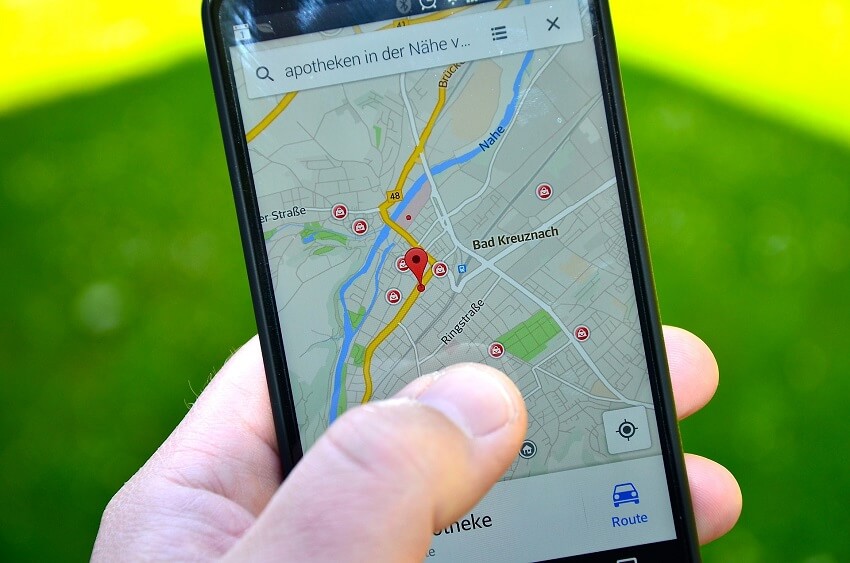
How Google My Maps works
Google Maps was first released on February 8, 2005. Developed by Google, it is a web-based mapping service and navigation program that provides users with the ability to search and view locations and driving directions around the world. Not only has the map material become more and more detailed, but Google no longer only offers preconfigured route planning, but also allows users more and more freedom to create their own routes. With sights or other relevant points on the route, for example. And these can then be shared with friends in a variety of ways or integrated into your own website.
In our short tutorial we want to briefly examine the possibilities offered by Google My Maps. Actually, Google My Maps has never been better than today.
Create your own route in My Maps
Create your own route in My Maps
Proceed as follows to create your own routes with detours and defined stopovers with Google My Maps:
- Open Google My Maps: Go to https://www.google.com/maps/d/u/0/ and log in with your Google account.
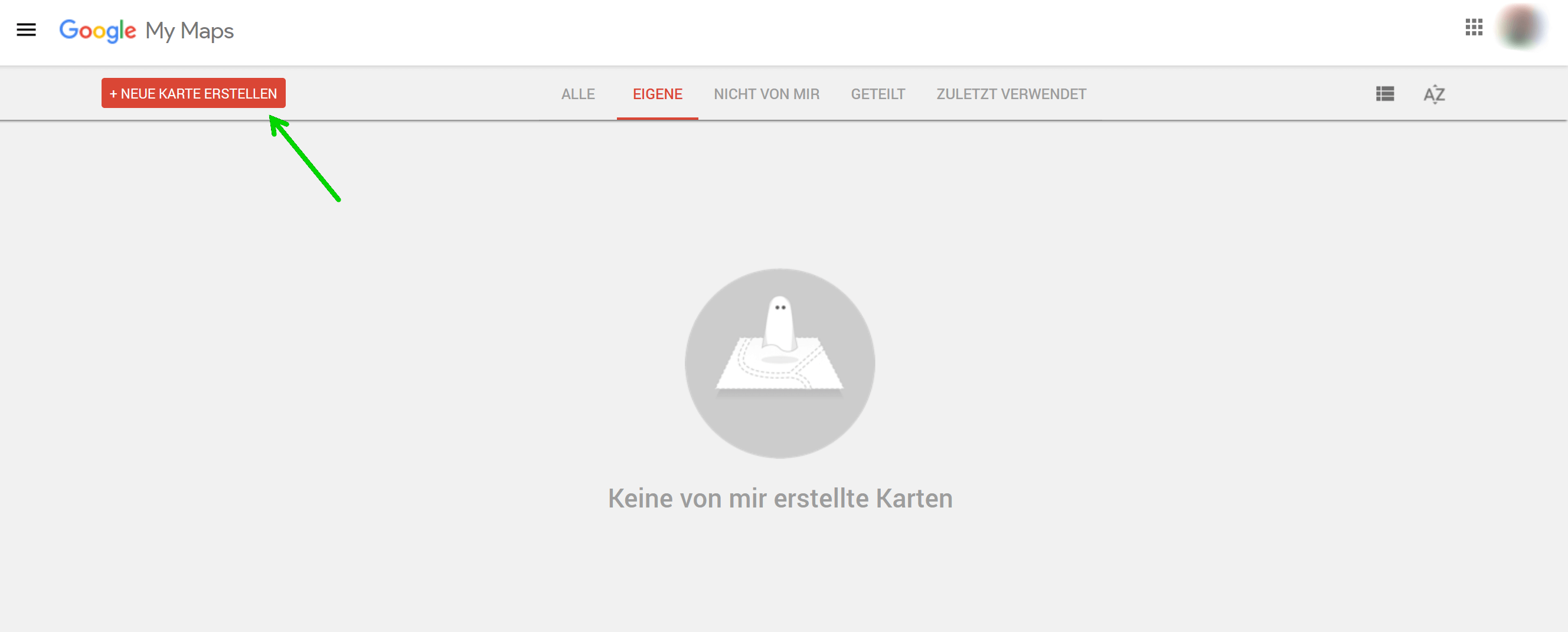
- Create Map: Click Create Map and enter a name and description for the map.
- Add Places: Click the Add Place icon and search for a place or enter the address of the place you want to add. You can also add multiple locations at once by uploading a CSV file (e.g. from your Outlook contacts).
- Editing Places: You can edit any place on the map by clicking the edit icon and changing information such as the name, description and icon.
- Adding lines and shapes: You can add lines and shapes on the map by clicking on the “Add line or shape” icon and drawing a line or shape.
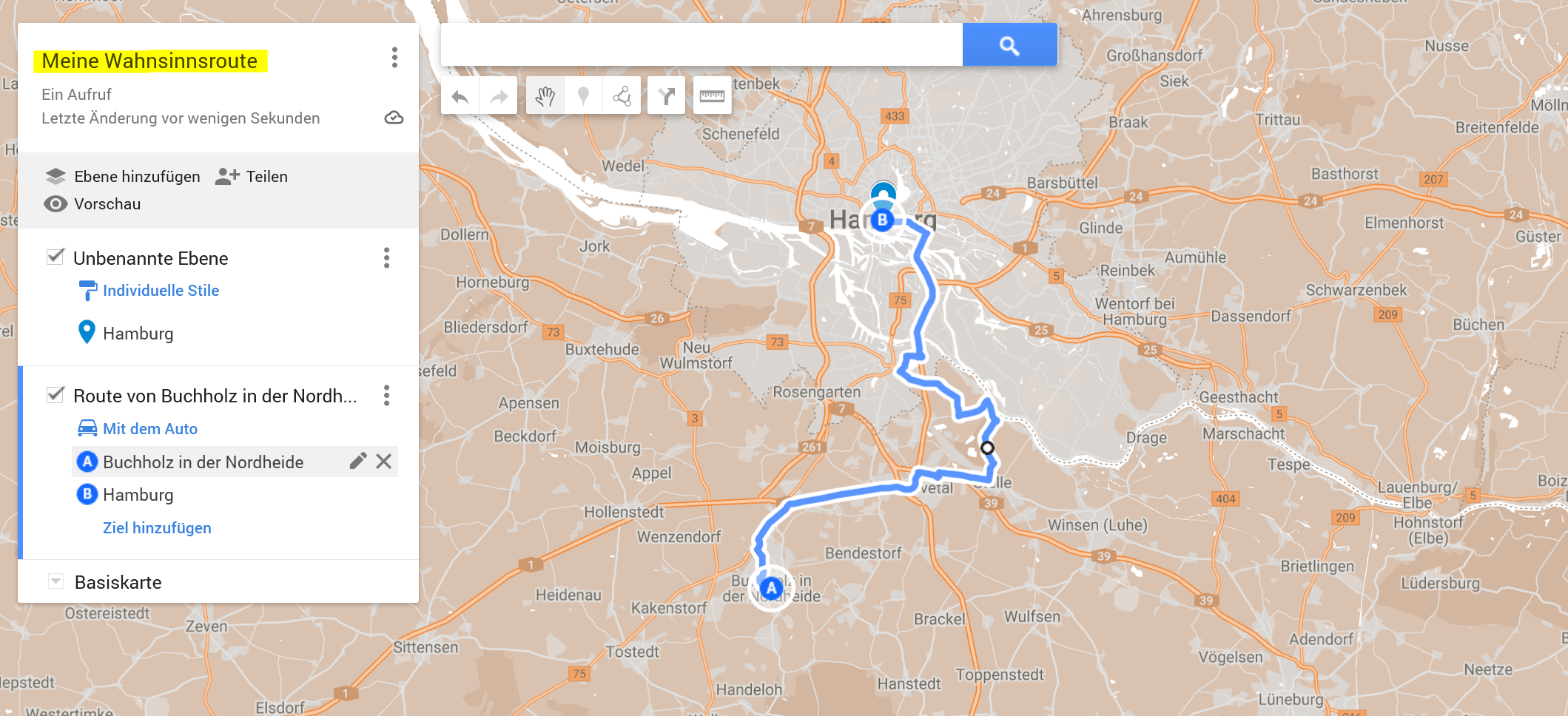
Google My Maps also offers features such as adding images, videos and links to places, embedding maps in websites and exporting maps as KML files (KML = Keyhole Markup Language). In my example, I have set a route from “Buchholz in der Nordheide” to “Hamburg-Downtown“. Stopovers at relevant points can easily be integrated as intermediate destinations, or you can simply change the route by dragging the route line.
PS: As you can see in the picture, no one who is even halfway familiar would drive, but it is easy to create your own route in Google My Maps. The whole thing also works via Google Earth 3D.
see fig. (click to enlarge)

Proceed as follows to create your own routes with detours and defined stopovers with Google My Maps:
- Open Google My Maps: Go to https://www.google.com/maps/d/u/0/ and log in with your Google account.
- Create Map: Click Create Map and enter a name and description for the map.
- Add Places: Click the Add Place icon and search for a place or enter the address of the place you want to add. You can also add multiple locations at once by uploading a CSV file (e.g. from your Outlook contacts).
- Editing Places: You can edit any place on the map by clicking the edit icon and changing information such as the name, description and icon.
- Adding lines and shapes: You can add lines and shapes on the map by clicking on the “Add line or shape” icon and drawing a line or shape.
Google My Maps also offers features such as adding images, videos and links to places, embedding maps in websites and exporting maps as KML files (KML = Keyhole Markup Language). In my example, I have set a route from “Buchholz in der Nordheide” to “Hamburg-Downtown“. Stopovers at relevant points can easily be integrated as intermediate destinations, or you can simply change the route by dragging the route line.
PS: As you can see in the picture, no one who is even halfway familiar would drive, but it is easy to create your own route in Google My Maps. The whole thing also works via Google Earth 3D.
see fig. (click to enlarge)
Share Google My Maps route
Share Google My Maps route
You can share Google My Maps in different ways depending on who you want to see and edit the map. Here are some ways to share Google My Maps:
- Sharing Link: You can share the map by clicking the share icon and then clicking Share link. You can then copy the link and send it to friends, family, or colleagues so they can open and view the map.
- Sharing via email: You can also share the map via email by clicking the Share icon and then clicking email. Enter the email addresses of the people you want to share the card with and add a message if desired.
- Sharing via social media: You can also share the map via social media by clicking the Share icon and then clicking the social network icon where you want to share the map. You can also copy the link and share it on your social network.
- Embed the map: If you want to embed the map on a website or blog, click the Share icon, then click Embed Map. Copy and paste the HTML code into your website or blog.
- Collaborate with others: If you want other users to be able to edit and comment on the map, you can share the map by clicking the Share icon and then clicking add people. Enter the email addresses of the people you want to share the card with and choose whether they can view or edit the card.
It has never been easier and more diverse to create your own routes with Google My Maps, also in combination with Google Earth 3D, and to share them with friends. All your routes are saved to the Google account you were signed in with when you created the route.
You can share Google My Maps in different ways depending on who you want to see and edit the map. Here are some ways to share Google My Maps:
- Sharing Link: You can share the map by clicking the share icon and then clicking Share link. You can then copy the link and send it to friends, family, or colleagues so they can open and view the map.
- Sharing via email: You can also share the map via email by clicking the Share icon and then clicking email. Enter the email addresses of the people you want to share the card with and add a message if desired.
- Sharing via social media: You can also share the map via social media by clicking the Share icon and then clicking the social network icon where you want to share the map. You can also copy the link and share it on your social network.
- Embed the map: If you want to embed the map on a website or blog, click the Share icon, then click Embed Map. Copy and paste the HTML code into your website or blog.
- Collaborate with others: If you want other users to be able to edit and comment on the map, you can share the map by clicking the Share icon and then clicking add people. Enter the email addresses of the people you want to share the card with and choose whether they can view or edit the card.
It has never been easier and more diverse to create your own routes with Google My Maps, also in combination with Google Earth 3D, and to share them with friends. All your routes are saved to the Google account you were signed in with when you created the route.
Popular Posts:

Ad-free home network: Install Pi-hole on Windows
Say goodbye to ads on smart TVs and in apps: Pi-hole software turns your Windows laptop into a network filter. This article explains step-by-step how to install it via Docker and configure the necessary DNS settings in your FRITZ!Box.
How to tune your FRITZ!Box into a professional call server
A professional telephone system can be built using a FRITZ!Box and a laptop. This article shows step by step how to use the free software "Phoner" to schedule announcements and record calls – including important legal information (§ 201 StGB).

Why to-do lists are a waste of time
Do you feel unproductive at the end of the day, even though you've worked hard? Your to-do list is to blame. It tempts you to focus on easy tasks and ignores your limited time. This article explains why lists are "self-deception" and why professionals use a calendar instead.

Smartphone Wi-Fi security: Public hotspots vs. home network
Is smartphone Wi-Fi a security risk? This article analyzes in detail threats such as evil twin attacks and explains protective measures for when you're on the go. We also clarify why home Wi-Fi is usually secure and how you can effectively separate your smart home from sensitive data using a guest network.

Warum dein Excel-Kurs Zeitverschwendung ist – was du wirklich lernen solltest!
Hand aufs Herz: Wann hast du zuletzt eine komplexe Excel-Formel ohne Googeln getippt? Eben. KI schreibt heute den Code für dich. Erfahre, warum klassische Excel-Trainings veraltet sind und welche 3 modernen Skills deinen Marktwert im Büro jetzt massiv steigern.

Cybersicherheit: Die 3 größten Fehler, die 90% aller Mitarbeiter machen
Hacker brauchen keine Codes, sie brauchen nur einen unaufmerksamen Mitarbeiter. Von Passwort-Recycling bis zum gefährlichen Klick: Wir zeigen die drei häufigsten Fehler im Büroalltag und geben praktische Tipps, wie Sie zur menschlichen Firewall werden.
Offers 2024: Word & Excel Templates











Popular Posts:
Ad-free home network: Install Pi-hole on Windows
Say goodbye to ads on smart TVs and in apps: Pi-hole software turns your Windows laptop into a network filter. This article explains step-by-step how to install it via Docker and configure the necessary DNS settings in your FRITZ!Box.
How to tune your FRITZ!Box into a professional call server
A professional telephone system can be built using a FRITZ!Box and a laptop. This article shows step by step how to use the free software "Phoner" to schedule announcements and record calls – including important legal information (§ 201 StGB).
Why to-do lists are a waste of time
Do you feel unproductive at the end of the day, even though you've worked hard? Your to-do list is to blame. It tempts you to focus on easy tasks and ignores your limited time. This article explains why lists are "self-deception" and why professionals use a calendar instead.
Smartphone Wi-Fi security: Public hotspots vs. home network
Is smartphone Wi-Fi a security risk? This article analyzes in detail threats such as evil twin attacks and explains protective measures for when you're on the go. We also clarify why home Wi-Fi is usually secure and how you can effectively separate your smart home from sensitive data using a guest network.
Warum dein Excel-Kurs Zeitverschwendung ist – was du wirklich lernen solltest!
Hand aufs Herz: Wann hast du zuletzt eine komplexe Excel-Formel ohne Googeln getippt? Eben. KI schreibt heute den Code für dich. Erfahre, warum klassische Excel-Trainings veraltet sind und welche 3 modernen Skills deinen Marktwert im Büro jetzt massiv steigern.
Cybersicherheit: Die 3 größten Fehler, die 90% aller Mitarbeiter machen
Hacker brauchen keine Codes, sie brauchen nur einen unaufmerksamen Mitarbeiter. Von Passwort-Recycling bis zum gefährlichen Klick: Wir zeigen die drei häufigsten Fehler im Büroalltag und geben praktische Tipps, wie Sie zur menschlichen Firewall werden.
Offers 2024: Word & Excel Templates