Start Windows without password – How it works


Are you tired of constantly having to enter your Windows password, even though your computer is well protected at home and nobody has unauthorized access? Then we have the right tutorial for you here. This means that in the future, Windows will no longer ask you to change the password again, and you are again obliged to think of a new one. There are good reasons for the Windows password, but this applies primarily to Windows computers that are located at a workstation where unauthorized persons would otherwise have access.

Start Windows without password – How it works
Are you tired of constantly having to enter your Windows password, even though your computer is well protected at home and nobody has unauthorized access? Then we have the right tutorial for you here. This means that in the future, Windows will no longer ask you to change the password again, and you are again obliged to think of a new one. There are good reasons for the Windows password, but this applies primarily to Windows computers that are located at a workstation where unauthorized persons would otherwise have access.
Windows Automatic Login
Windows Automatic Login
As said, it is possible to start Windows without a password, but this can pose a security risk as anyone with physical access to the computer can access it without restrictions.
If you still want to start Windows without a password, there are several methods you can use:
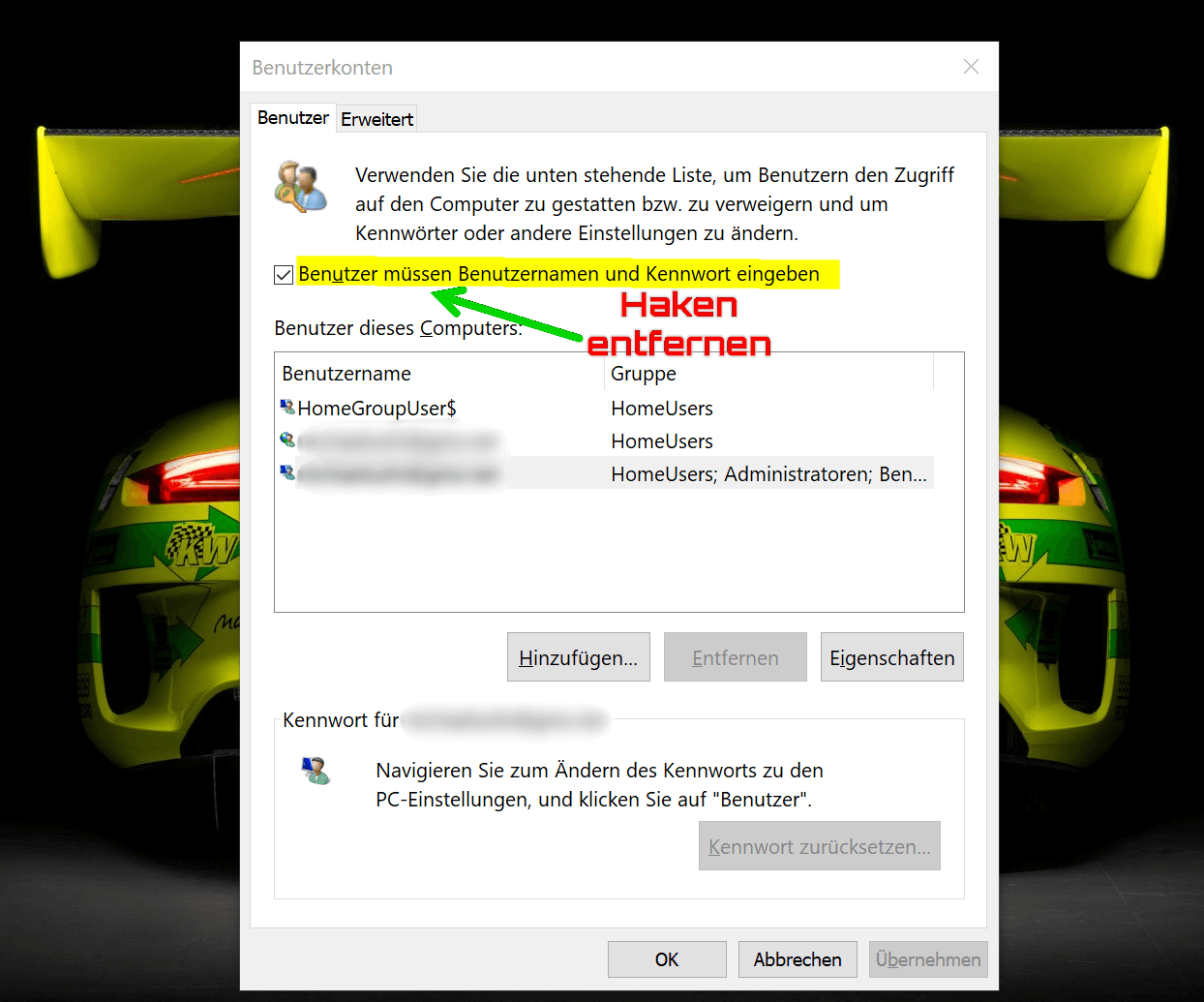
- Automatic login: Windows offers a feature called “Automatic login” that allows you to log in automatically without having to enter a password each time. To enable this feature, press Windows + R key combination and type “netplwiz“. Click OK to open the User Accounts window. Select the account you want to log in automatically and uncheck the “Users must enter username and password” check box. Enter the account password to verify it and click OK.
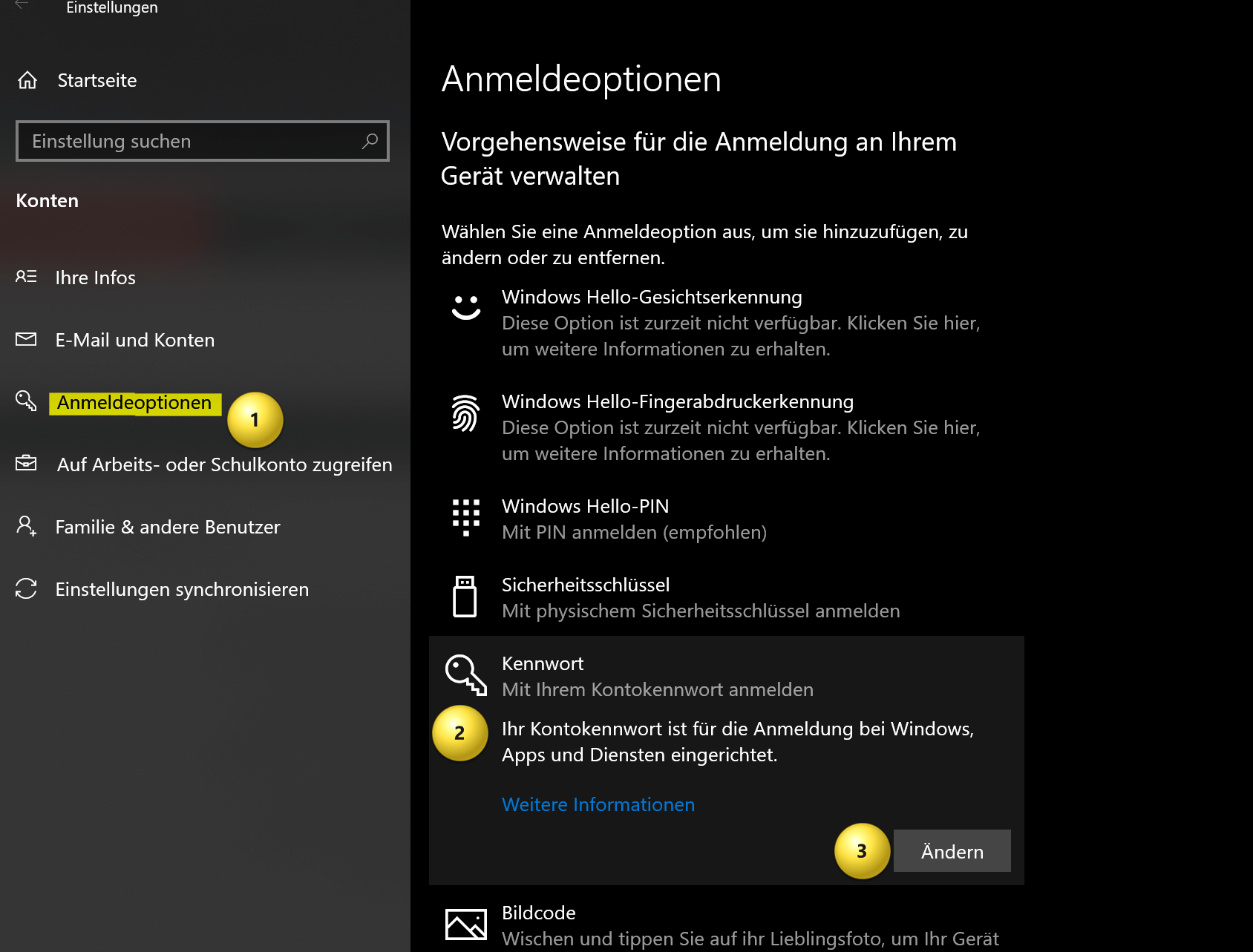
- Disabling password protection: You can also disable password protection entirely by changing your account settings. Go to Settings by pressing Windows + I key combination and click on “Accounts“. Select the account you want to disable the password for and click Sign-in Options. Select “Password” and click “Change“. Enter the account’s current password and leave the New Password field blank. Click “OK” to remove the password.
see fig. (click to enlarge)
Ultimately, it doesn’t matter which of the two options you use. At least from that point on, there will finally be peace and your Windows computer will start completely without entering a password. And he will no longer ask you to change your password again.
As said, it is possible to start Windows without a password, but this can pose a security risk as anyone with physical access to the computer can access it without restrictions.
If you still want to start Windows without a password, there are several methods you can use:
- Automatic login: Windows offers a feature called “Automatic login” that allows you to log in automatically without having to enter a password each time. To enable this feature, press Windows + R key combination and type “netplwiz“. Click OK to open the User Accounts window. Select the account you want to log in automatically and uncheck the “Users must enter username and password” check box. Enter the account password to verify it and click OK.
- Disabling password protection: You can also disable password protection entirely by changing your account settings. Go to Settings by pressing Windows + I key combination and click on “Accounts“. Select the account you want to disable the password for and click Sign-in Options. Select “Password” and click “Change“. Enter the account’s current password and leave the New Password field blank. Click “OK” to remove the password.
see fig. (click to enlarge)
Ultimately, it doesn’t matter which of the two options you use. At least from that point on, there will finally be peace and your Windows computer will start completely without entering a password. And he will no longer ask you to change your password again.
Popular Posts:

Create a Table of Contents in Word
To create a dynamic table of contents in Microsoft Word - Office 365

Use bookmarks and cross-references in Word
How to use text markers to make your Word document dynamic and click through your pages.

Record and save Skype video calls
Skype has finally added a long-missing feature. But there are also external software solutions for it.

The most important tips for online banking
So you do not only do your banking conveniently, but also safely from home.
Create flyers and business cards with Word
To create professional flyers and business cards in Word 2016/2019 without any additional image editing program.

Microsoft Office gets fresher with a new design
The familiar appearance of Microsoft Office versions will soon be a thing of the past, and a sleek design gives it a fresh look.
Offers 2024: Word & Excel Templates











Popular Posts:
Create a Table of Contents in Word
To create a dynamic table of contents in Microsoft Word - Office 365
Use bookmarks and cross-references in Word
How to use text markers to make your Word document dynamic and click through your pages.
Record and save Skype video calls
Skype has finally added a long-missing feature. But there are also external software solutions for it.
The most important tips for online banking
So you do not only do your banking conveniently, but also safely from home.
Create flyers and business cards with Word
To create professional flyers and business cards in Word 2016/2019 without any additional image editing program.
Microsoft Office gets fresher with a new design
The familiar appearance of Microsoft Office versions will soon be a thing of the past, and a sleek design gives it a fresh look.
Offers 2024: Word & Excel Templates