More fonts in Word through Google Fonts


As long as you are limited to writing texts when working with Word, you will probably never have thought that it would be convenient to have more fonts in your luggage. But as soon as you start to use the potential of Word really, and thus also create flyers and business cards, invitations and the like, there is more of a desire to expand the portfolio.
You can find out how to expand the font selection in Word with just a few steps and above all free in our article
More fonts in Word through Google Fonts
As long as you are limited to writing texts when working with Word, you will probably never have thought that it would be convenient to have more fonts in your luggage. But as soon as you start to use the potential of Word really, and thus also create flyers and business cards, invitations and the like, there is more of a desire to expand the portfolio.
You can find out how to expand the font selection in Word with just a few steps and above all free in our article
1. Go to Google Fonts
1. Go to Google Fonts
First, go to https://fonts.google.com
Here you will first find a large selection of available fonts, which of course can be filtered according to either specific criteria, or (if you already know the name of a desired font) can be searched directly.
You can add them to your download list via the small + symbol to the right of each font.
See picture: (click to enlarge)

First, go to https://fonts.google.com
Here you will first find a large selection of available fonts, which of course can be filtered according to either specific criteria, or (if you already know the name of a desired font) can be searched directly.
You can add them to your download list via the small + symbol to the right of each font.
See picture:
2. Customize and download font
2. Customize and download font
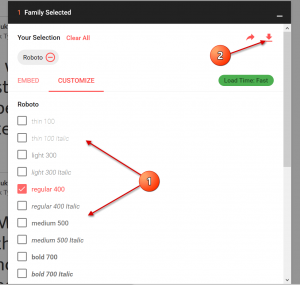
In the next step, you can directly copy out the HTML or CSS shortcodes in order to insert them on a web page, for example.
For the implementation in Word you do not need this, but you can go straight to the tab “Customize”, where you can select the desired font size and download it directly.
See picture: (click to enlarge)
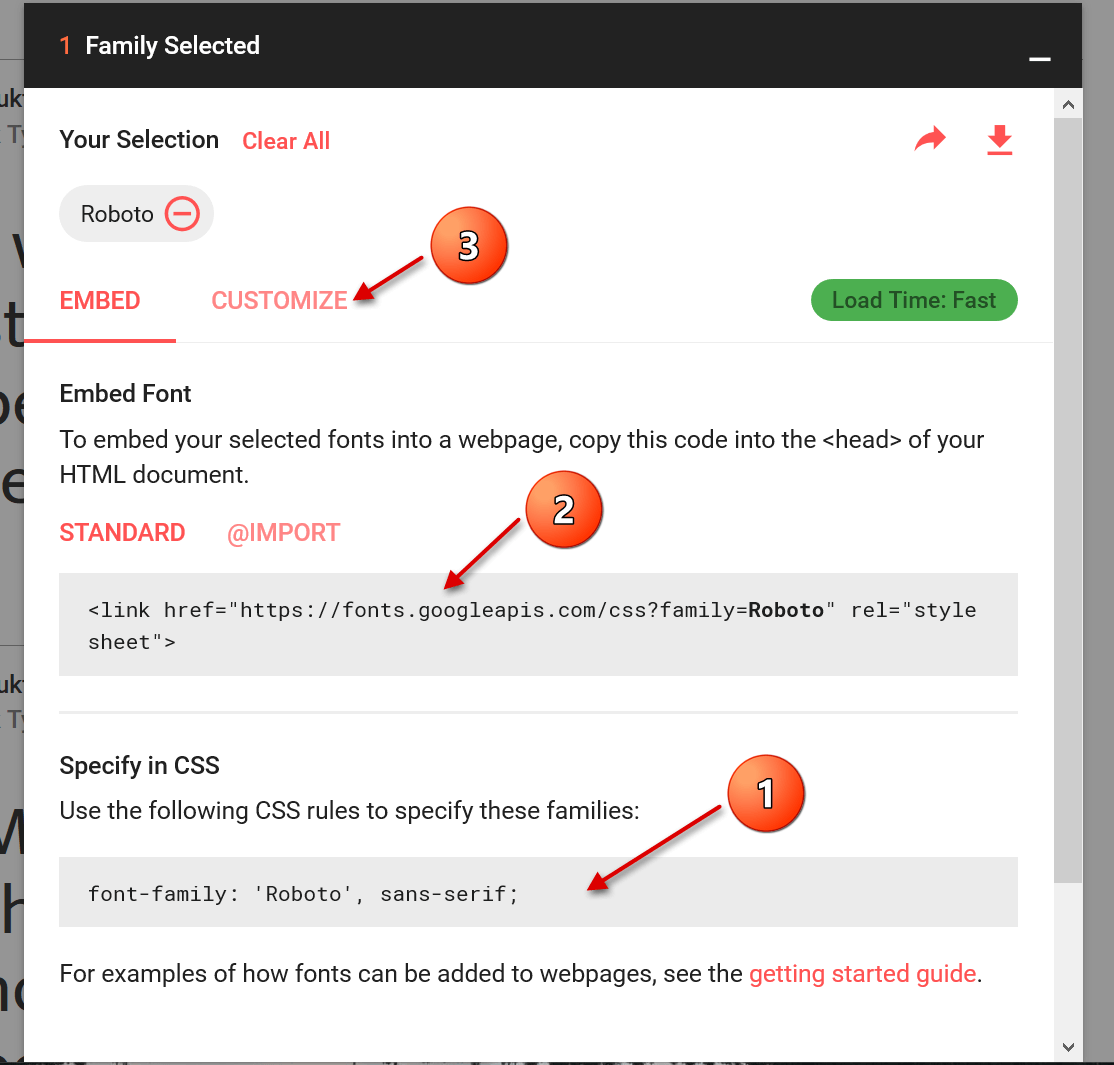
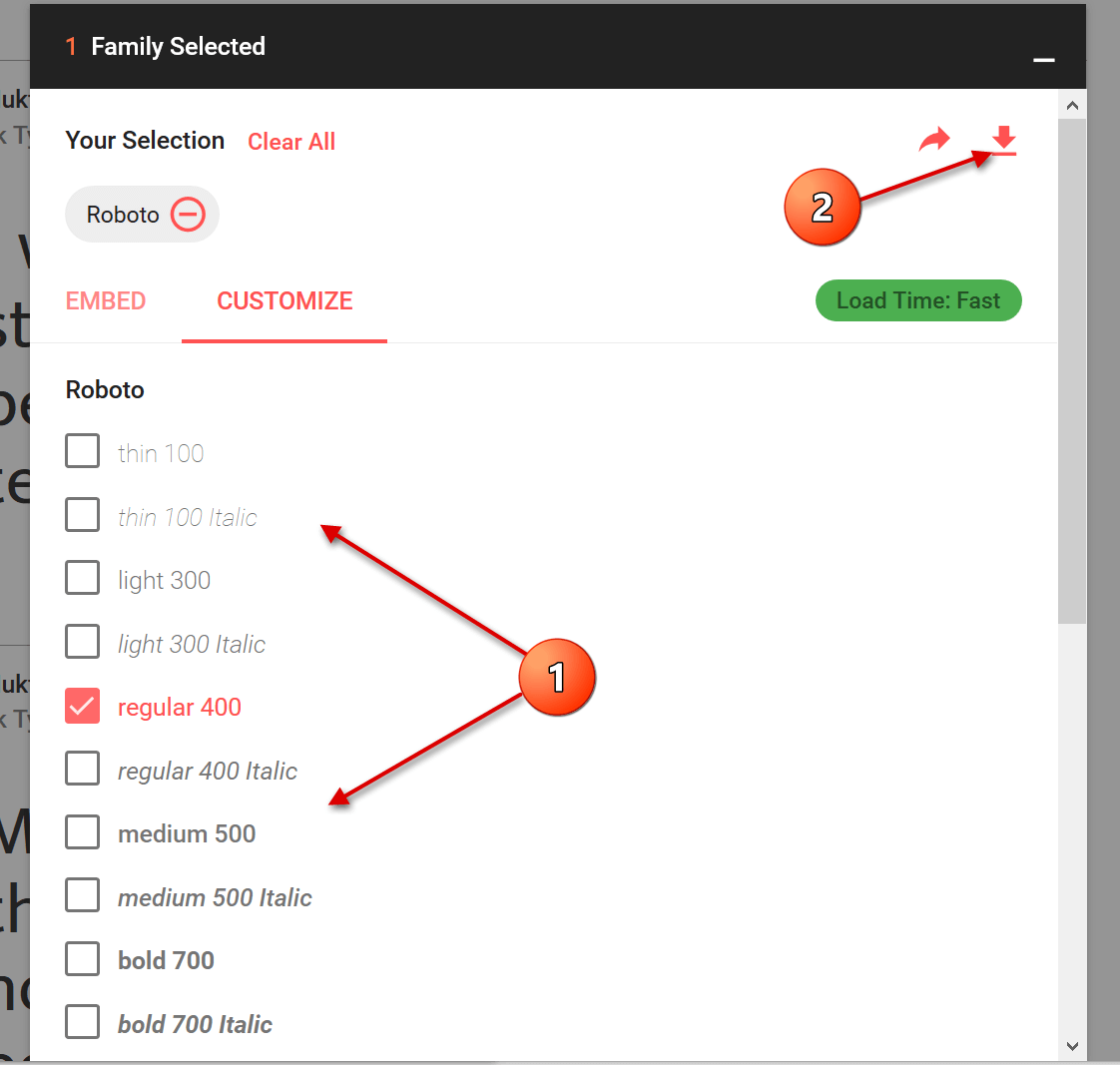
In the next step, you can directly copy out the HTML or CSS shortcodes in order to insert them on a web page, for example.
For the implementation in Word you do not need this, but you can go straight to the tab “Customize”, where you can select the desired font size and download it directly.
See picture: (click to enlarge)
3. Install font
3. Install font
The last step we need to take now is the simplest of them all.
After you have downloaded the zip file, it is best unpacked in a folder specially created for the respective font.
Here all font sizes are displayed, and can be easily installed by right-clicking on the appropriate file.
See picture: (click to enlarge)
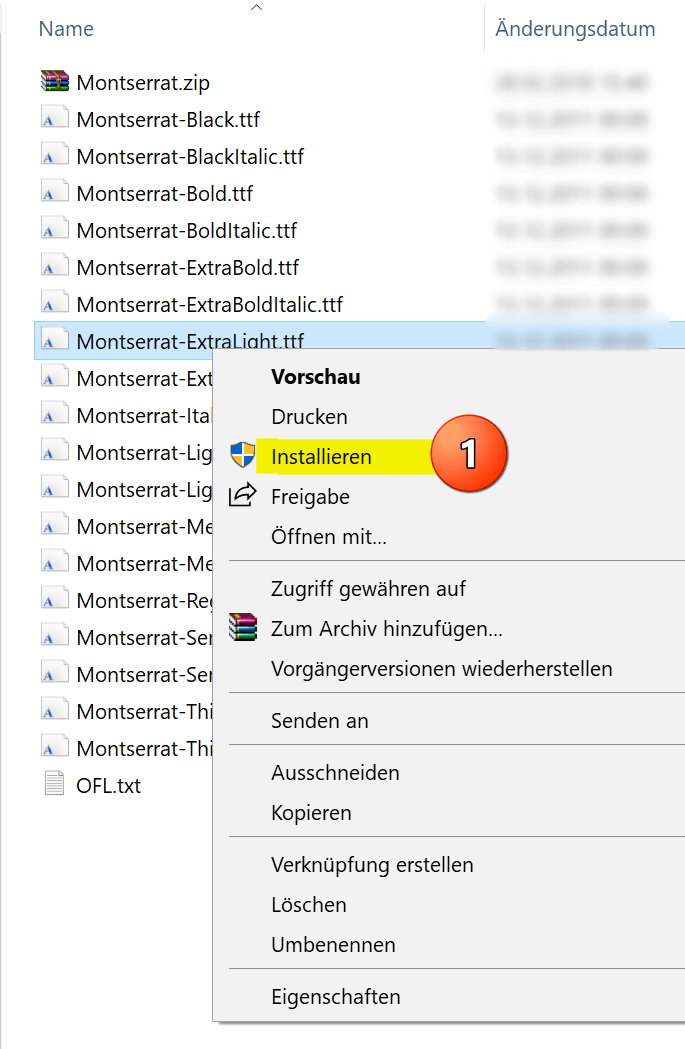

The big advantage of this type of installation is that you have not only expanded the font selection in Word, but in all Microsoft Office applications.
What does this mean the fonts are also available in: Outlook, Excel, Powerpoint, etc.

The last step we need to take now is the simplest of them all.
After you have downloaded the zip file, it is best unpacked in a folder specially created for the respective font.
Here all font sizes are displayed, and can be easily installed by right-clicking on the appropriate file.
See picture:
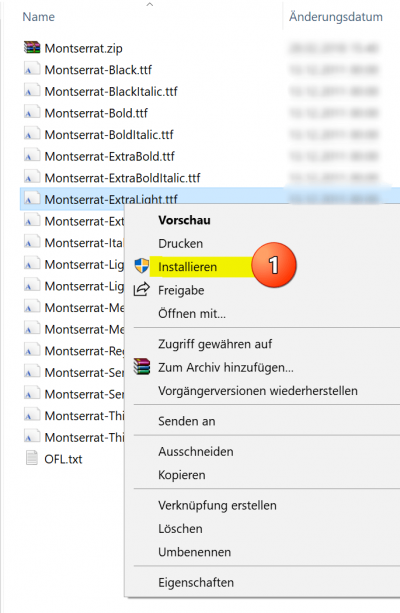
The big advantage of this type of installation is that you have not only expanded the font selection in Word, but in all Microsoft Office applications.
What does this mean the fonts are also available in: Outlook, Excel, Powerpoint, etc.
Popular Posts:

Create a Table of Contents in Word
To create a dynamic table of contents in Microsoft Word - Office 365

Use bookmarks and cross-references in Word
How to use text markers to make your Word document dynamic and click through your pages.

Record and save Skype video calls
Skype has finally added a long-missing feature. But there are also external software solutions for it.

The most important tips for online banking
So you do not only do your banking conveniently, but also safely from home.
Create flyers and business cards with Word
To create professional flyers and business cards in Word 2016/2019 without any additional image editing program.

Microsoft Office gets fresher with a new design
The familiar appearance of Microsoft Office versions will soon be a thing of the past, and a sleek design gives it a fresh look.
Offers 2024: Word & Excel Templates











Popular Posts:
Create a Table of Contents in Word
To create a dynamic table of contents in Microsoft Word - Office 365
Use bookmarks and cross-references in Word
How to use text markers to make your Word document dynamic and click through your pages.
Record and save Skype video calls
Skype has finally added a long-missing feature. But there are also external software solutions for it.
The most important tips for online banking
So you do not only do your banking conveniently, but also safely from home.
Create flyers and business cards with Word
To create professional flyers and business cards in Word 2016/2019 without any additional image editing program.
Microsoft Office gets fresher with a new design
The familiar appearance of Microsoft Office versions will soon be a thing of the past, and a sleek design gives it a fresh look.
Offers 2024: Word & Excel Templates