Disable and add Windows 11 startup programs


Whether it’s Windows 10 or Windows 11. Over time, more and more programs somehow cheat their way into the autostart as if by magic, and thus not only slow down the system start, but can also slow down ongoing operations, depending on the hardware configuration. In this little tutorial we would like to briefly explain how you can add and remove startup programs in Windows 11 and thus have better control over the system.
Disable and add Windows 11 startup programs
Whether it’s Windows 10 or Windows 11. Over time, more and more programs somehow cheat their way into the autostart as if by magic, and thus not only slow down the system start, but can also slow down ongoing operations, depending on the hardware configuration. In this little tutorial we would like to briefly explain how you can add and remove startup programs in Windows 11 and thus have better control over the system.
Disable Windows 11 startup programs
Disable Windows 11 startup programs
As usual, there are several ways to get there. I would like to briefly address two of them here:
Method 1: Using Task Manager
Task Manager is a useful tool in Windows 11 that allows you to monitor and control various aspects of your system, including startup programs. Here is a step-by-step guide on how to remove startup programs using Task Manager:
- Open the Task Manager: right-click the taskbar and select “Task Manager” from the context menu, or press the key combination Ctrl + Shift + Esc.
- Select the Startup tab: In the Task Manager window, click the Startup tab to view a list of all programs that start automatically when you start your computer.
- Look through the list of startup programs until you find the program you want to remove.
- Click on the program to highlight it, then click the Disable button. This removes the program from the list of startup programs so that it no longer starts automatically when you start your computer.
- To ensure that the program no longer starts automatically, restart your computer.
see fig. (click to enlarge)


Method 2: Using the Windows Startup folder
Another way to remove startup programs in Windows 11 is to open the Startup folder and delete the offending programs from there. To do this, proceed as follows:
- Open the Startup folder: Click Windows key + R to open the Run dialog. Type “shell:startup” (without the quotes) and click OK. This will open the Startup folder.
- Browse the Startup folder until you find the program you want to remove.
- Right-click the program and select “Delete” from the context menu. This removes the program from the Startup folder so that it no longer starts automatically when you start your computer.
- To ensure that the program no longer starts automatically, restart your computer.
That was it already. The more unnecessary ballast you throw overboard, the faster your system will start up and be fully operational. Please note, however, that removing startup programs may affect the functioning of your system. If you are unsure about removing a program, I recommend disabling it first and testing if it causes any problems before removing it completely.
As usual, there are several ways to get there. I would like to briefly address two of them here:
Method 1: Using Task Manager
Task Manager is a useful tool in Windows 11 that allows you to monitor and control various aspects of your system, including startup programs. Here is a step-by-step guide on how to remove startup programs using Task Manager:
- Open the Task Manager: right-click the taskbar and select “Task Manager” from the context menu, or press the key combination Ctrl + Shift + Esc.
- Select the Startup tab: In the Task Manager window, click the Startup tab to view a list of all programs that start automatically when you start your computer.
- Look through the list of startup programs until you find the program you want to remove.
- Click on the program to highlight it, then click the Disable button. This removes the program from the list of startup programs so that it no longer starts automatically when you start your computer.
- To ensure that the program no longer starts automatically, restart your computer.
see fig. (click to enlarge)
Method 2: Using the Windows Startup folder
Another way to remove startup programs in Windows 11 is to open the Startup folder and delete the offending programs from there. To do this, proceed as follows:
- Open the Startup folder: Click Windows key + R to open the Run dialog. Type “shell:startup” (without the quotes) and click OK. This will open the Startup folder.
- Browse the Startup folder until you find the program you want to remove.
- Right-click the program and select “Delete” from the context menu. This removes the program from the Startup folder so that it no longer starts automatically when you start your computer.
- To ensure that the program no longer starts automatically, restart your computer.
That was it already. The more unnecessary ballast you throw overboard, the faster your system will start up and be fully operational. Please note, however, that removing startup programs may affect the functioning of your system. If you are unsure about removing a program, I recommend disabling it first and testing if it causes any problems before removing it completely.
Add Windows 11 startup programs
Add Windows 11 startup programs
Of course, in Windows 11 you can not only remove but also add startup programs to ensure that they start automatically when you boot your computer. Here is a step-by-step guide on how to add startup programs:
- Open the Startup folder: Click Windows key + R to open the Run dialog. Type “shell:startup” (without the quotes) and click OK. This will open the Startup folder.
- Open the Start menu: Click the Windows key to open the Start menu.
- Locate the program in the list or type the program name in the Start menu search box. Once you find the program, right-click it and choose “Open File Location” from the context menu.
- Right-click the program’s shortcut in the File Path window and select “Copy” from the context menu.
Add the program to the Startup folder: Right-click an empty area of the Startup folder and choose New, then Shortcut from the context menu. Paste the copied file path of the program into the “Location” field and click “Next“. Enter a name for the shortcut and click Finish.
Right-click the program’s shortcut in the Startup folder and select Properties from the context menu. Verify that the file path and shortcut name are correct.
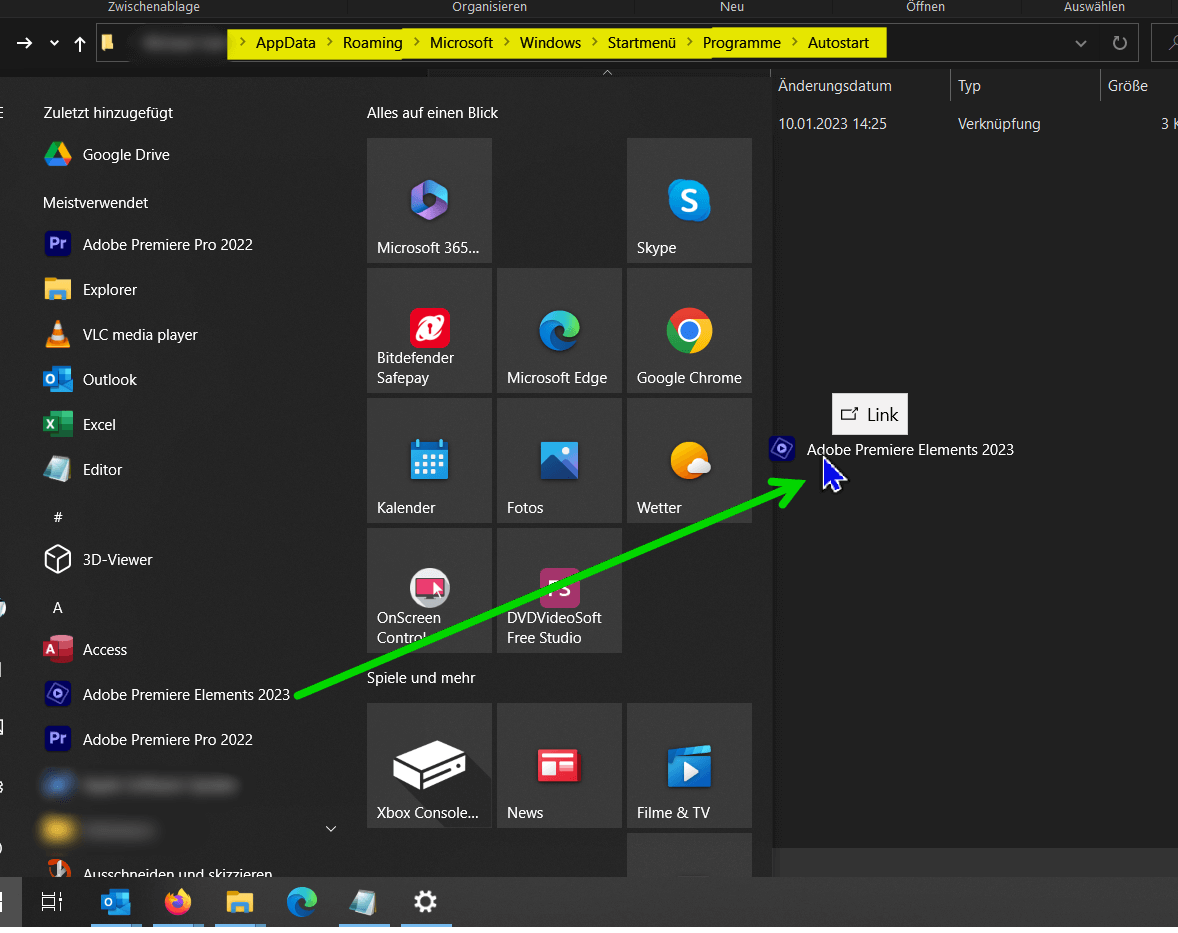
Tip: It is even easier if you are in the start menu with your programs and hold down the left mouse button and drag the program from the start menu to the open autostart folder (drag & drop). The program remains in the start menu, but a shortcut is automatically created in the startup folder.
see fig. (click to enlarge)
To ensure that the program starts automatically when you start your computer, restart your computer.
Please note that adding startup programs can also affect the functioning of your system, as can removing startup programs. Make sure you understand what the program is doing and that it’s safe before adding it to the Startup folder. Because too many programs that start automatically with Windows only consume useless resources!
Of course, in Windows 11 you can not only remove but also add startup programs to ensure that they start automatically when you boot your computer. Here is a step-by-step guide on how to add startup programs:
- Open the Startup folder: Click Windows key + R to open the Run dialog. Type “shell:startup” (without the quotes) and click OK. This will open the Startup folder.
- Open the Start menu: Click the Windows key to open the Start menu.
- Locate the program in the list or type the program name in the Start menu search box. Once you find the program, right-click it and choose “Open File Location” from the context menu.
- Right-click the program’s shortcut in the File Path window and select “Copy” from the context menu.
Add the program to the Startup folder: Right-click an empty area of the Startup folder and choose New, then Shortcut from the context menu. Paste the copied file path of the program into the “Location” field and click “Next“. Enter a name for the shortcut and click Finish.
Right-click the program’s shortcut in the Startup folder and select Properties from the context menu. Verify that the file path and shortcut name are correct.
Tip: It is even easier if you are in the start menu with your programs and hold down the left mouse button and drag the program from the start menu to the open autostart folder (drag & drop). The program remains in the start menu, but a shortcut is automatically created in the startup folder.
see fig. (click to enlarge)
To ensure that the program starts automatically when you start your computer, restart your computer.
Please note that adding startup programs can also affect the functioning of your system, as can removing startup programs. Make sure you understand what the program is doing and that it’s safe before adding it to the Startup folder. Because too many programs that start automatically with Windows only consume useless resources!
Popular Posts:
Ad-free home network: Install Pi-hole on Windows
Say goodbye to ads on smart TVs and in apps: Pi-hole software turns your Windows laptop into a network filter. This article explains step-by-step how to install it via Docker and configure the necessary DNS settings in your FRITZ!Box.
How to tune your FRITZ!Box into a professional call server
A professional telephone system can be built using a FRITZ!Box and a laptop. This article shows step by step how to use the free software "Phoner" to schedule announcements and record calls – including important legal information (§ 201 StGB).

Why to-do lists are a waste of time
Do you feel unproductive at the end of the day, even though you've worked hard? Your to-do list is to blame. It tempts you to focus on easy tasks and ignores your limited time. This article explains why lists are "self-deception" and why professionals use a calendar instead.

Smartphone Wi-Fi security: Public hotspots vs. home network
Is smartphone Wi-Fi a security risk? This article analyzes in detail threats such as evil twin attacks and explains protective measures for when you're on the go. We also clarify why home Wi-Fi is usually secure and how you can effectively separate your smart home from sensitive data using a guest network.

Warum dein Excel-Kurs Zeitverschwendung ist – was du wirklich lernen solltest!
Hand aufs Herz: Wann hast du zuletzt eine komplexe Excel-Formel ohne Googeln getippt? Eben. KI schreibt heute den Code für dich. Erfahre, warum klassische Excel-Trainings veraltet sind und welche 3 modernen Skills deinen Marktwert im Büro jetzt massiv steigern.

Cybersicherheit: Die 3 größten Fehler, die 90% aller Mitarbeiter machen
Hacker brauchen keine Codes, sie brauchen nur einen unaufmerksamen Mitarbeiter. Von Passwort-Recycling bis zum gefährlichen Klick: Wir zeigen die drei häufigsten Fehler im Büroalltag und geben praktische Tipps, wie Sie zur menschlichen Firewall werden.
Offers 2024: Word & Excel Templates











Popular Posts:
Ad-free home network: Install Pi-hole on Windows
Say goodbye to ads on smart TVs and in apps: Pi-hole software turns your Windows laptop into a network filter. This article explains step-by-step how to install it via Docker and configure the necessary DNS settings in your FRITZ!Box.
How to tune your FRITZ!Box into a professional call server
A professional telephone system can be built using a FRITZ!Box and a laptop. This article shows step by step how to use the free software "Phoner" to schedule announcements and record calls – including important legal information (§ 201 StGB).
Why to-do lists are a waste of time
Do you feel unproductive at the end of the day, even though you've worked hard? Your to-do list is to blame. It tempts you to focus on easy tasks and ignores your limited time. This article explains why lists are "self-deception" and why professionals use a calendar instead.
Smartphone Wi-Fi security: Public hotspots vs. home network
Is smartphone Wi-Fi a security risk? This article analyzes in detail threats such as evil twin attacks and explains protective measures for when you're on the go. We also clarify why home Wi-Fi is usually secure and how you can effectively separate your smart home from sensitive data using a guest network.
Warum dein Excel-Kurs Zeitverschwendung ist – was du wirklich lernen solltest!
Hand aufs Herz: Wann hast du zuletzt eine komplexe Excel-Formel ohne Googeln getippt? Eben. KI schreibt heute den Code für dich. Erfahre, warum klassische Excel-Trainings veraltet sind und welche 3 modernen Skills deinen Marktwert im Büro jetzt massiv steigern.
Cybersicherheit: Die 3 größten Fehler, die 90% aller Mitarbeiter machen
Hacker brauchen keine Codes, sie brauchen nur einen unaufmerksamen Mitarbeiter. Von Passwort-Recycling bis zum gefährlichen Klick: Wir zeigen die drei häufigsten Fehler im Büroalltag und geben praktische Tipps, wie Sie zur menschlichen Firewall werden.
Offers 2024: Word & Excel Templates