Import Stock Quotes into Excel – Tutorial


You can find out the stock exchange prices from all possible sources on the Internet, and you can also display everything with extensive figures with historical data, diagrams and charts. However, it is also possible to design everything according to your own taste and to import the share prices directly into Excel and, of course, to have them updated continuously. In this short tutorial we want to look at two different methods on how to import the stock market prices of the most important commodities and currencies into Excel.

Import Stock Quotes into Excel – Tutorial
You can find out the stock exchange prices from all possible sources on the Internet, and you can also display everything with extensive figures with historical data, diagrams and charts. However, it is also possible to design everything according to your own taste and to import the share prices directly into Excel and, of course, to have them updated continuously. In this short tutorial we want to look at two different methods on how to import the stock market prices of the most important commodities and currencies into Excel.
Import stock quotes into Office 365
Import stock quotes into Office 365
The easiest way to get stock quotes is in Office 365. But you also need the subscription model of the Office Suite for this. Although Office 365 offers the full potential, it usually causes annual costs depending on the model. It’s not worth it for everyone, which is why the stand-alone versions (most recently Office 2021) continue to sell well. The method below only works with Office 365. Unfortunately, the “Data types” option in the “Data” tab is not included in the individual versions.
To import stock prices into Office 365, proceed as follows:
- Open Excel in Office 365.
- Select the “Data” tab in the menu bar.
- Then “Get Data” and then “From Stock Quotes“.
- Enter the symbol of the stock you want to get the price for or use the search function.
- Select the data you want and click “OK“.
- Excel creates a data connection to the stock prices and updates the data automatically.
Using Power Query in Excel:
- Open Excel in Office 365.
- Select the “Data” tab in the menu bar.
- Then “Get Data” and then “From More Sources” > “Online Services” > “Stock Prices“.
- Enter the symbol of the stock or search by name.
- Configure the options you want, then click Load.
- Excel loads the data into a table, which you can then edit further with a pivot table, for example.
Both methods use external data connections from the web to retrieve stock prices and plot them in Excel. You can configure the update frequency of the data connection to update prices regularly.
The easiest way to get stock quotes is in Office 365. But you also need the subscription model of the Office Suite for this. Although Office 365 offers the full potential, it usually causes annual costs depending on the model. It’s not worth it for everyone, which is why the stand-alone versions (most recently Office 2021) continue to sell well. The method below only works with Office 365. Unfortunately, the “Data types” option in the “Data” tab is not included in the individual versions.
To import stock prices into Office 365, proceed as follows:
- Open Excel in Office 365.
- Select the “Data” tab in the menu bar.
- Then “Get Data” and then “From Stock Quotes“.
- Enter the symbol of the stock you want to get the price for or use the search function.
- Select the data you want and click “OK“.
- Excel creates a data connection to the stock prices and updates the data automatically.
Using Power Query in Excel:
- Open Excel in Office 365.
- Select the “Data” tab in the menu bar.
- Then “Get Data” and then “From More Sources” > “Online Services” > “Stock Prices“.
- Enter the symbol of the stock or search by name.
- Configure the options you want, then click Load.
- Excel loads the data into a table, which you can then edit further with a pivot table, for example.
Both methods use external data connections from the web to retrieve stock prices and plot them in Excel. You can configure the update frequency of the data connection to update prices regularly.
Import stock quotes into Excel
Import stock quotes into Excel
The variant in Office 365 is the most convenient, but of course not the only one. So let’s look at the other ways we can get stock quotes imported into Excel.
Use of Excel add-ins
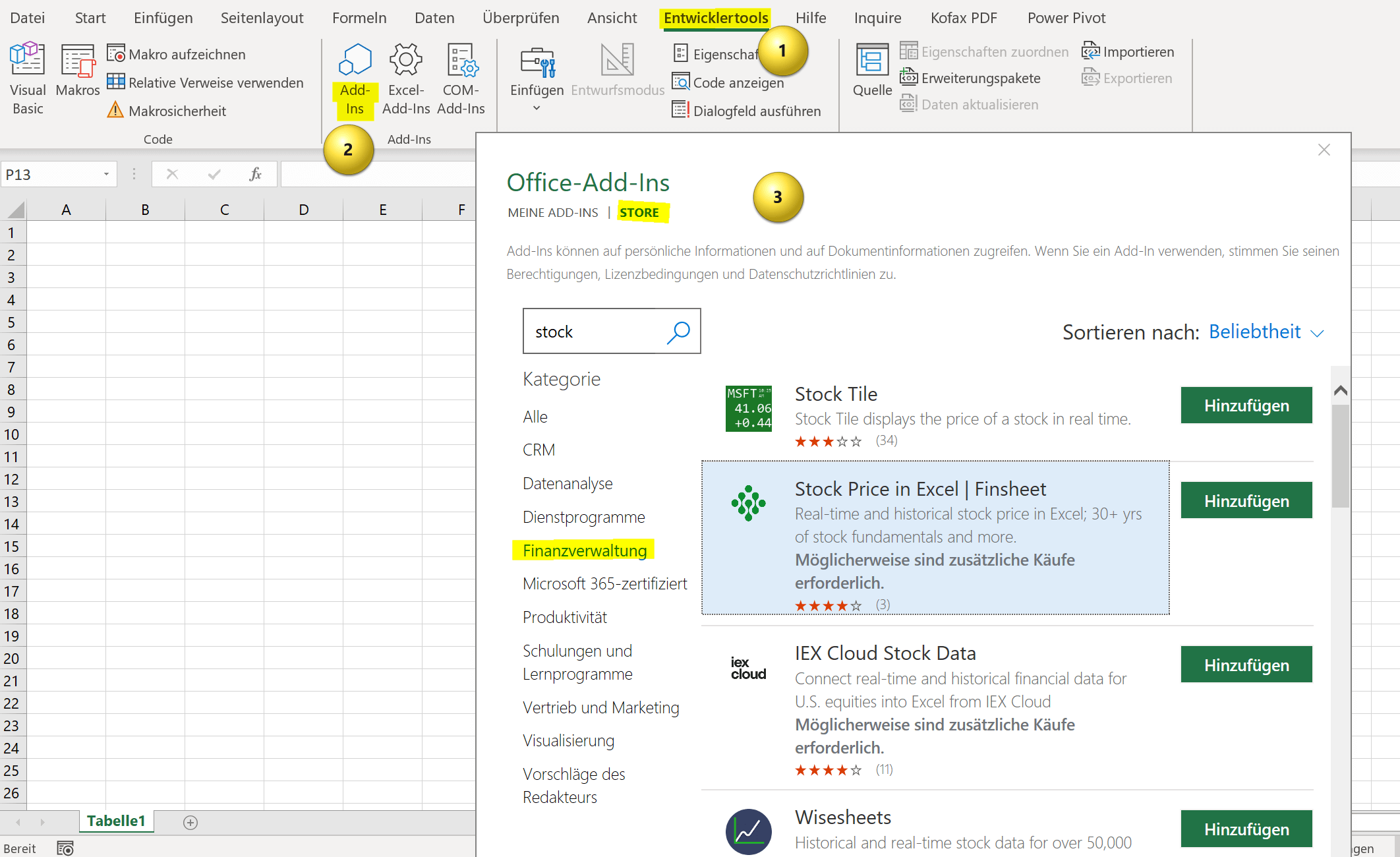
- Go to “Add-Ins” in the Developer tab
- Then click “Store” in the next dialog window
- Either use the search function or go to the “Financial Management” category
- If you haven’t activated the developer tools yet, you can find a tutorial for it here >>>
Here you will find a whole range of providers who make it fairly easy to call up the share prices. But as always in life, nothing is really for free, because you usually have to register (free of charge) with the providers. So once again you pay with your data and not with hard cash.
see fig. (click to enlarge)

Direct web query of stock quotes in Excel
The option I want to explain now actually always works. It is important to find a suitable website where the data is also stored in tabular form and where the data retrieval is also approved. It’s not like that everywhere, as I found out.
In my example, I want to retrieve the data from the Dax Index in real time. Of course you can also select your own tables on the page.
Now it continues as follows:
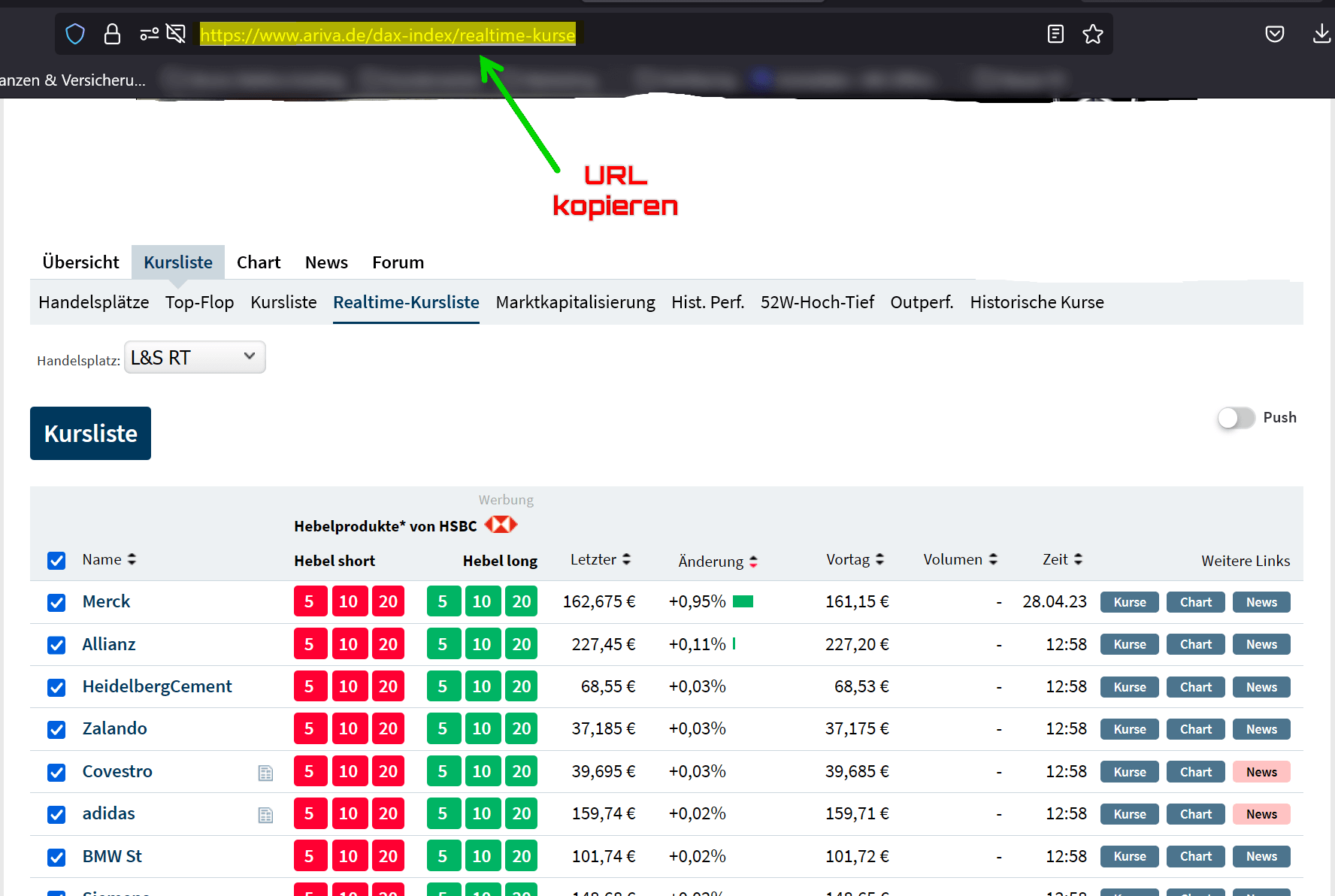
- First call up the URL: https://www.ariva.de/dax-index/realtime-kurse
- Copy the URL from your browser’s address bar
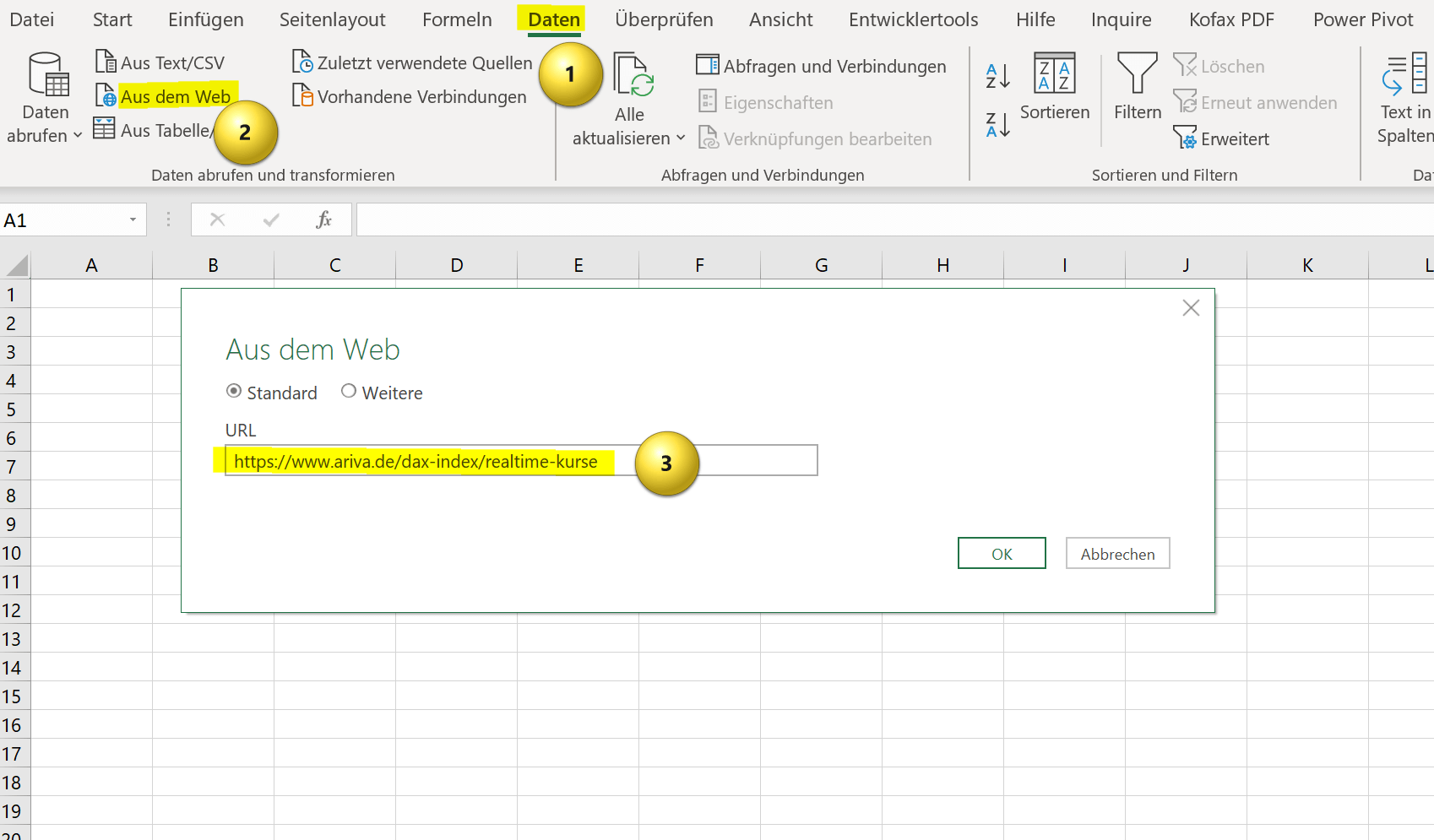
- Open Excel and in the “Data” tab on the left select “Data from Web“
- Enter the URL in the dialog window and confirm with “OK“
Depending on how busy the server is or how fast your internet connection is, it may take a minute or two for the tables to be retrieved from the website.
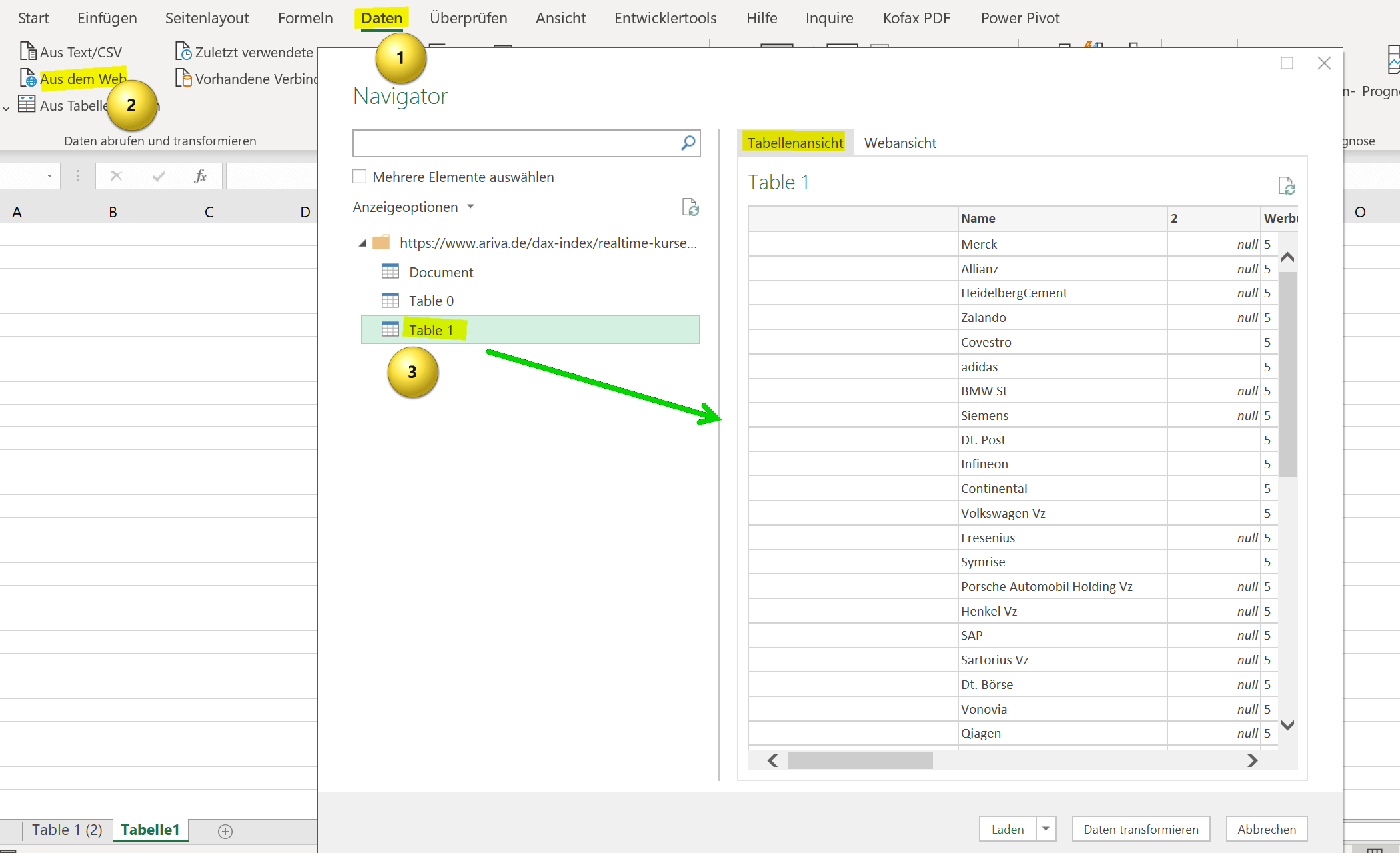
In the lower part of the window you will see the “Load” drop-down button. Here you have different options how you want to process the data retrieval. Actually, I had initially tended to Pivot Table, but the disadvantage here was that it was quite confusing, because each column contained sub-items (also advertisements). Then you would have had to try everything behind what is now hidden. Because the table names are not clearly displayed, but only with: “Table 0, Table 1, etc.”
That’s why I recommend just clicking on “Load“. You then have a spreadsheet that still contains some useless information, but it’s much easier to clean up. You can always convert this later into a pivot table and, if necessary, a pivot chart and sort the data as you like.
So click on the spreadsheets that appear, preview where the data you need is included, and then click Load. The stock quotes spreadsheet will then be imported into Excel as a smart spreadsheet.
see fig. (click to enlarge)
The variant in Office 365 is the most convenient, but of course not the only one. So let’s look at the other ways we can get stock quotes imported into Excel.
Use of Excel add-ins
- Go to “Add-Ins” in the Developer tab
- Then click “Store” in the next dialog window
- Either use the search function or go to the “Financial Management” category
- If you haven’t activated the developer tools yet, you can find a tutorial for it here >>>
Here you will find a whole range of providers who make it fairly easy to call up the share prices. But as always in life, nothing is really for free, because you usually have to register (free of charge) with the providers. So once again you pay with your data and not with hard cash.
see fig. (click to enlarge)
Direct web query of stock quotes in Excel
The option I want to explain now actually always works. It is important to find a suitable website where the data is also stored in tabular form and where the data retrieval is also approved. It’s not like that everywhere, as I found out.
In my example, I want to retrieve the data from the Dax Index in real time. Of course you can also select your own tables on the page.
Now it continues as follows:
- First call up the URL: https://www.ariva.de/dax-index/realtime-kurse
- Copy the URL from your browser’s address bar
- Open Excel and in the “Data” tab on the left select “Data from Web“
- Enter the URL in the dialog window and confirm with “OK“
Depending on how busy the server is or how fast your internet connection is, it may take a minute or two for the tables to be retrieved from the website.
In the lower part of the window you will see the “Load” drop-down button. Here you have different options how you want to process the data retrieval. Actually, I had initially tended to Pivot Table, but the disadvantage here was that it was quite confusing, because each column contained sub-items (also advertisements). Then you would have had to try everything behind what is now hidden. Because the table names are not clearly displayed, but only with: “Table 0, Table 1, etc.”
That’s why I recommend just clicking on “Load“. You then have a spreadsheet that still contains some useless information, but it’s much easier to clean up. You can always convert this later into a pivot table and, if necessary, a pivot chart and sort the data as you like.
So click on the spreadsheets that appear, preview where the data you need is included, and then click Load. The stock quotes spreadsheet will then be imported into Excel as a smart spreadsheet.
see fig. (click to enlarge)
Update stock quotes in Excel
Update stock quotes in Excel
And since we can’t really do much with a static list, of course, we now make sure that you always have the most up-to-date data possible. In order to accomplish this, Excel once again offers a wide variety of options that you can use. Either go to the “Data” tab and then under “Refresh data” to “Query properties” or like me, where the table connections are currently displayed anyway, via the table’s context menu (right mouse button).
Here I recommend activating the check mark for “Update when opening the file“. Then you have the current stock prices at hand every time you open the file. Optionally, you can also specify a fixed update rate in minutes. For example, if it is an Excel file that runs in the background all day anyway.
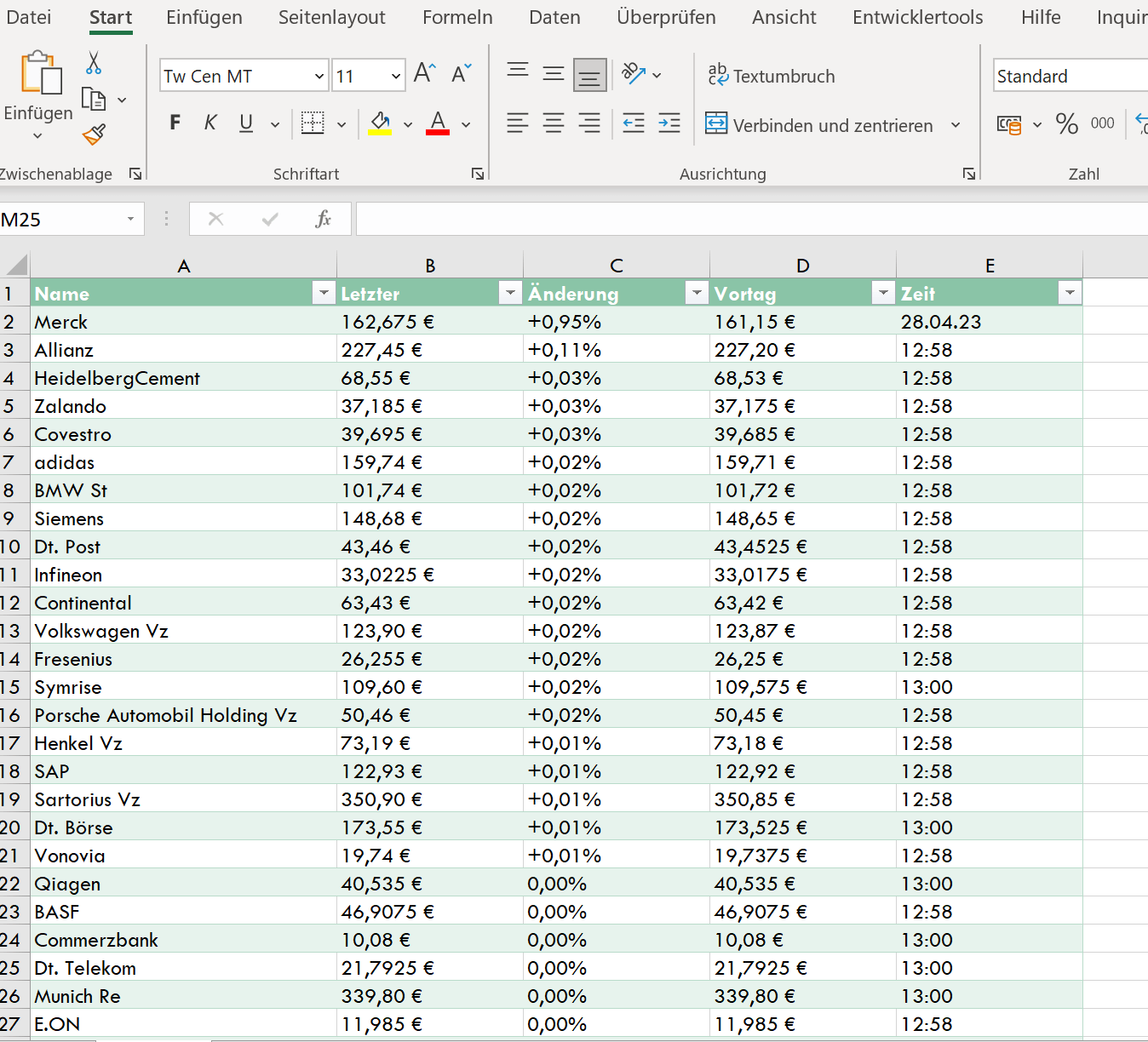
Once the table has been sorted and the useless information has been removed, the whole thing can be easily inserted into Excel in a wide variety of applications. It could then look like this:
see fig. (click to enlarge)
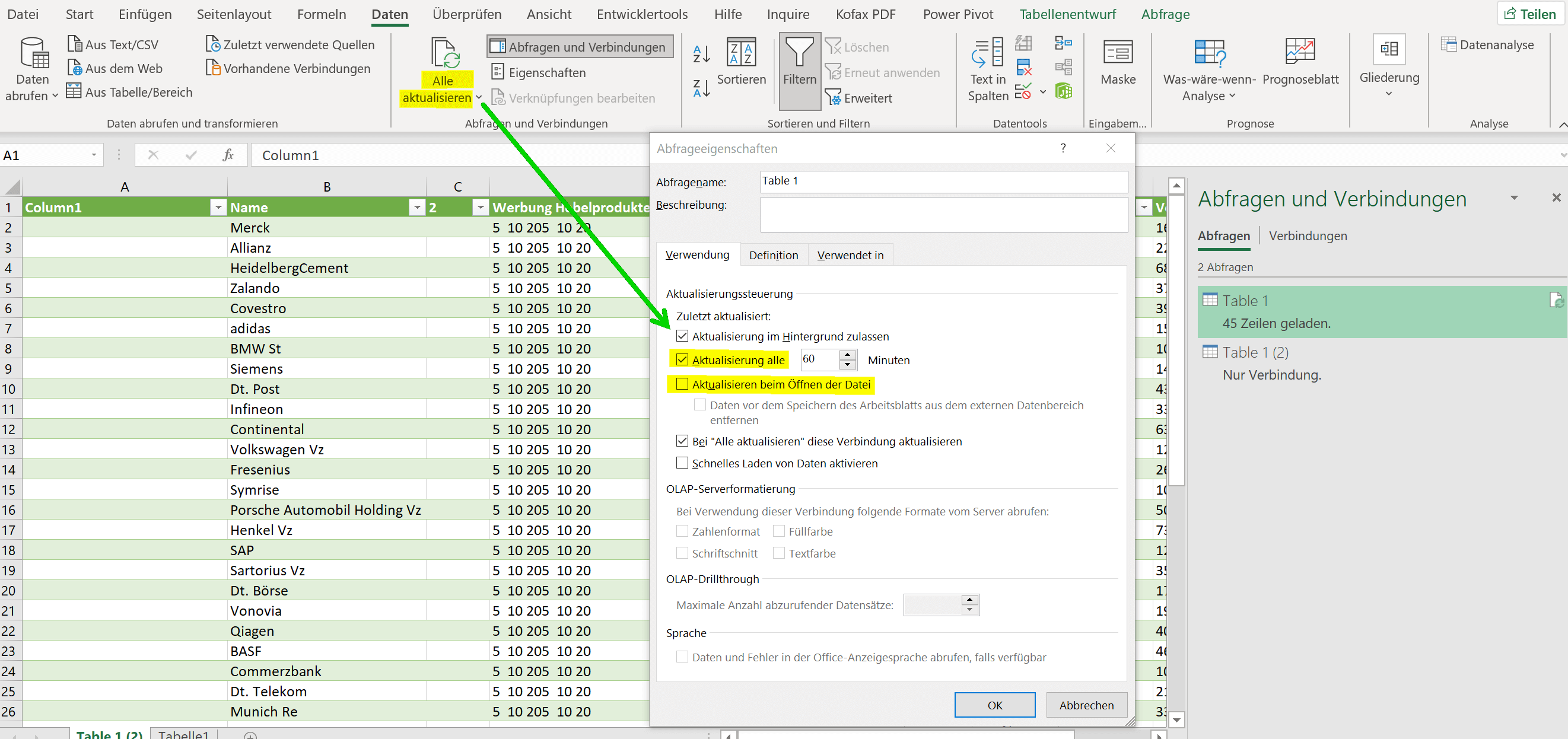
And since we can’t really do much with a static list, of course, we now make sure that you always have the most up-to-date data possible. In order to accomplish this, Excel once again offers a wide variety of options that you can use. Either go to the “Data” tab and then under “Refresh data” to “Query properties” or like me, where the table connections are currently displayed anyway, via the table’s context menu (right mouse button).
Here I recommend activating the check mark for “Update when opening the file“. Then you have the current stock prices at hand every time you open the file. Optionally, you can also specify a fixed update rate in minutes. For example, if it is an Excel file that runs in the background all day anyway.
Once the table has been sorted and the useless information has been removed, the whole thing can be easily inserted into Excel in a wide variety of applications. It could then look like this:
see fig. (click to enlarge)
Popular Posts:

Ad-free home network: Install Pi-hole on Windows
Say goodbye to ads on smart TVs and in apps: Pi-hole software turns your Windows laptop into a network filter. This article explains step-by-step how to install it via Docker and configure the necessary DNS settings in your FRITZ!Box.

How to tune your FRITZ!Box into a professional call server
A professional telephone system can be built using a FRITZ!Box and a laptop. This article shows step by step how to use the free software "Phoner" to schedule announcements and record calls – including important legal information (§ 201 StGB).

Why to-do lists are a waste of time
Do you feel unproductive at the end of the day, even though you've worked hard? Your to-do list is to blame. It tempts you to focus on easy tasks and ignores your limited time. This article explains why lists are "self-deception" and why professionals use a calendar instead.

Smartphone Wi-Fi security: Public hotspots vs. home network
Is smartphone Wi-Fi a security risk? This article analyzes in detail threats such as evil twin attacks and explains protective measures for when you're on the go. We also clarify why home Wi-Fi is usually secure and how you can effectively separate your smart home from sensitive data using a guest network.

Warum dein Excel-Kurs Zeitverschwendung ist – was du wirklich lernen solltest!
Hand aufs Herz: Wann hast du zuletzt eine komplexe Excel-Formel ohne Googeln getippt? Eben. KI schreibt heute den Code für dich. Erfahre, warum klassische Excel-Trainings veraltet sind und welche 3 modernen Skills deinen Marktwert im Büro jetzt massiv steigern.

Cybersicherheit: Die 3 größten Fehler, die 90% aller Mitarbeiter machen
Hacker brauchen keine Codes, sie brauchen nur einen unaufmerksamen Mitarbeiter. Von Passwort-Recycling bis zum gefährlichen Klick: Wir zeigen die drei häufigsten Fehler im Büroalltag und geben praktische Tipps, wie Sie zur menschlichen Firewall werden.
Offers 2024: Word & Excel Templates











Popular Posts:
Ad-free home network: Install Pi-hole on Windows
Say goodbye to ads on smart TVs and in apps: Pi-hole software turns your Windows laptop into a network filter. This article explains step-by-step how to install it via Docker and configure the necessary DNS settings in your FRITZ!Box.
How to tune your FRITZ!Box into a professional call server
A professional telephone system can be built using a FRITZ!Box and a laptop. This article shows step by step how to use the free software "Phoner" to schedule announcements and record calls – including important legal information (§ 201 StGB).
Why to-do lists are a waste of time
Do you feel unproductive at the end of the day, even though you've worked hard? Your to-do list is to blame. It tempts you to focus on easy tasks and ignores your limited time. This article explains why lists are "self-deception" and why professionals use a calendar instead.
Smartphone Wi-Fi security: Public hotspots vs. home network
Is smartphone Wi-Fi a security risk? This article analyzes in detail threats such as evil twin attacks and explains protective measures for when you're on the go. We also clarify why home Wi-Fi is usually secure and how you can effectively separate your smart home from sensitive data using a guest network.
Warum dein Excel-Kurs Zeitverschwendung ist – was du wirklich lernen solltest!
Hand aufs Herz: Wann hast du zuletzt eine komplexe Excel-Formel ohne Googeln getippt? Eben. KI schreibt heute den Code für dich. Erfahre, warum klassische Excel-Trainings veraltet sind und welche 3 modernen Skills deinen Marktwert im Büro jetzt massiv steigern.
Cybersicherheit: Die 3 größten Fehler, die 90% aller Mitarbeiter machen
Hacker brauchen keine Codes, sie brauchen nur einen unaufmerksamen Mitarbeiter. Von Passwort-Recycling bis zum gefährlichen Klick: Wir zeigen die drei häufigsten Fehler im Büroalltag und geben praktische Tipps, wie Sie zur menschlichen Firewall werden.
Offers 2024: Word & Excel Templates