How to read Windows 10 Key and reinstall it


On July 29, 2015, the countdown started to run, and we all had exactly one year to upgrade our existing Windows 7 or Windows 8.1 to Microsoft’s newest litter Windows 10 for free. And you can not really say that Microsoft has made it especially hard for us here. So popped up at every start of the computer in the system tray a message, but now please finally switch to Windows 10.
And even if the market share of Windows 10 is still a good deal below that of Win 7, sooner or later you will not get around a change.

And this purely for safety reasons.
Because the support of the old systems will be permanently reduced in the long term. Only what happens if we eventually (eg due to the installation of a SSD hard drive) want to rebuild the operating system? Because the key which we still used before the update for Win 7 or Win 8.1, may no longer be valid after the update!
How to read your Windows 10 Key and reinstall your operating system can be found in our article.
How to read Windows 10 Key and reinstall it
On July 29, 2015, the countdown started to run, and we all had exactly one year to upgrade our existing Windows 7 or Windows 8.1 to Microsoft’s newest litter Windows 10 for free. And you can not really say that Microsoft has made it especially hard for us here. So popped up at every start of the computer in the system tray a message, but now please finally switch to Windows 10.
And even if the market share of Windows 10 is still a good deal below that of Win 7, sooner or later you will not get around a change.
And this purely for safety reasons.
Because the support of the old systems will be permanently reduced in the long term. Only what happens if we eventually (eg due to the installation of a SSD hard drive) want to rebuild the operating system? Because the key which we still used before the update for Win 7 or Win 8.1, may no longer be valid after the update!
How to read your Windows 10 Key and reinstall your operating system can be found in our article.
1. Windows 10 key read with on-board resources
1. Windows 10 key read with on-board resources
Basically, it is also possible to read the activation key of Windows 10 with on-board resources, because this is like in the predecessors Win 7 and Win 8.1 in the registry under:
HKEY_LOCAL_MACHINESOFTWAREMicrosoftWindows NTCurrentVersionDigitalProductId
deposited.
Of course you will not find the key here in plain text, but in encrypted form.
So we need a tool to decode and display the key.
You can download this free tool here: License Crawler Download
An installation is not necessary.
You can simply unzip the exe after unpacking. Start file and then have the opportunity to read all the activation keys that are activated on your system.
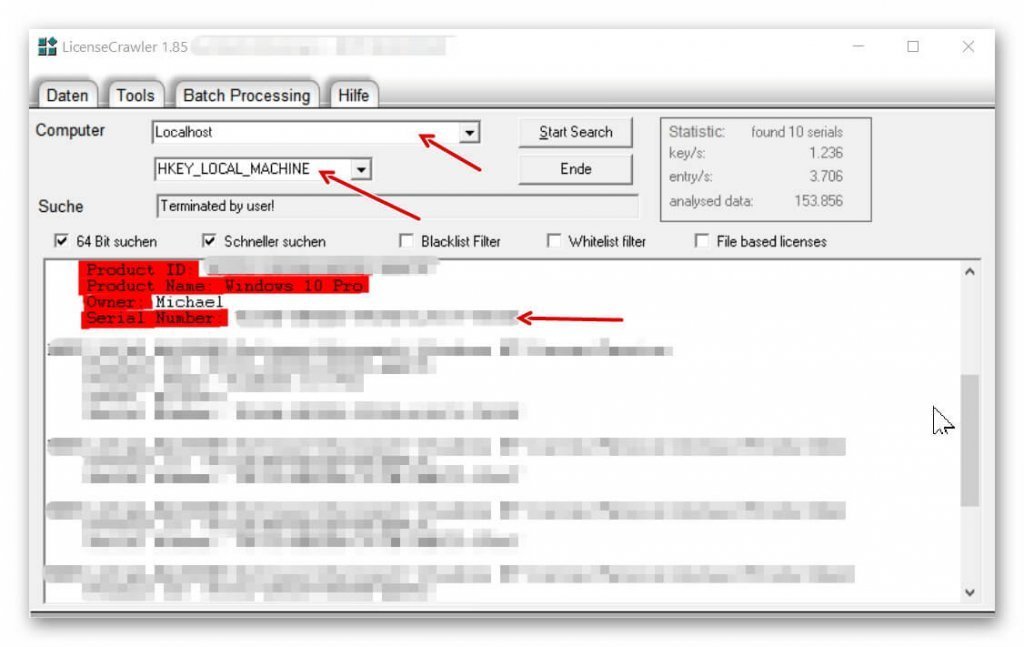
For the Windows 10 Key, just choose:
Computer: LOCALHOST and directly below: HKEY_LOCAL_MACHINE off.
After clicking on: Start Search, the tool starts to search your registry and read the available keys.
You can complete the search completely, or cancel it manually as soon as your Windows 10 Key appears in the list.
See picture:

Basically, it is also possible to read the activation key of Windows 10 with on-board resources, because this is like in the predecessors Win 7 and Win 8.1 in the registry under:
HKEY_LOCAL_MACHINESOFTWAREMicrosoftWindows NTCurrentVersionDigitalProductId
deposited.
Of course you will not find the key here in plain text, but in encrypted form.
So we need a tool to decode and display the key.
You can download this free tool here: License Crawler Download
An installation is not necessary.
You can simply unzip the exe after unpacking. Start file and then have the opportunity to read all the activation keys that are activated on your system.
For the Windows 10 Key, just choose:
Computer: LOCALHOST and directly below: HKEY_LOCAL_MACHINE off.
After clicking on: Start Search, the tool starts to search your registry and read the available keys.
You can complete the search completely, or cancel it manually as soon as your Windows 10 Key appears in the list.
See picture: (click to enlarge)
2. Reinstall Windows 10
2. Reinstall Windows 10
Since we have the procedure done automatically when upgrading to Windows 10, we now of course still lack a disk from which we can make a fresh installation.
Simply download the Media Creation Tool here and follow the instructions there to create a bootable media (USB stick, or DVD) to reboot your computer.
Before you start the reinstallation, be sure to back up all important files stored on your computer!
This of course also includes the backup files of Outlook, so your emails and contacts are not at once gone.
Here’s how to make a backup of Outlook 2016: Back up Outlook in 5 steps >>>
Since we have the procedure done automatically when upgrading to Windows 10, we now of course still lack a disk from which we can make a fresh installation.
Simply download the Media Creation Tool here and follow the instructions there to create a bootable media (USB stick, or DVD) to reboot your computer.
Before you start the reinstallation, be sure to back up all important files stored on your computer!
This of course also includes the backup files of Outlook, so your emails and contacts are not at once gone.
Here’s how to make a backup of Outlook 2016: Back up Outlook in 5 steps >>>
3. Call Windows 10 Registry
3. Call Windows 10 Registry
For all those who would like to see what values are actually stored in the registry, and how to actually call them up, you can continue as follows:
- Right-click the Windows icon in the lower left corner of the taskbar
- Select the item: “Run”
- Enter “regedit” in the dialog box and confirm with Enter.
- Confirm the security prompt from Windows.
In order to really understand the entries there, one has to deal with the matter a bit more in detail.
In general, however, it is not necessary for the normal user to make changes there.
In addition, even without precise knowledge of what one changes degree urgently discourage there to make any settings, since you here basic program settings changed, which may no longer be so easy to undo.
See picture: (click to enlarge)
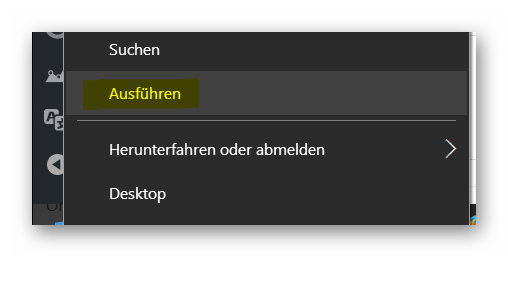
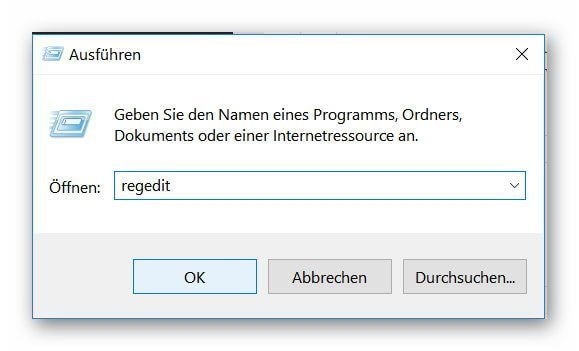
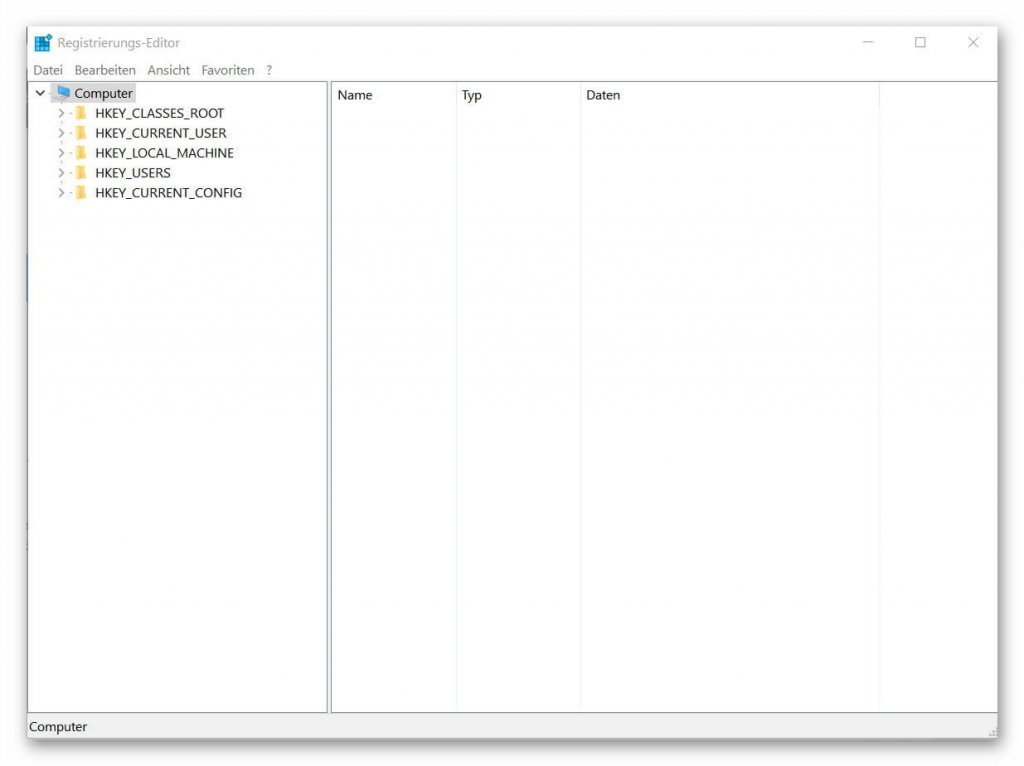

For all those who would like to see what values are actually stored in the registry, and how to actually call them up, you can continue as follows:
- Right-click the Windows icon in the lower left corner of the taskbar
- Select the item: “Run”
- Enter “regedit” in the dialog box and confirm with Enter.
- Confirm the security prompt from Windows.
In order to really understand the entries there, one has to deal with the matter a bit more in detail.
In general, however, it is not necessary for the normal user to make changes there.
In addition, even without precise knowledge of what one changes degree urgently discourage there to make any settings, since you here basic program settings changed, which may no longer be so easy to undo.
See picture:
Popular Posts:

Ad-free home network: Install Pi-hole on Windows
Say goodbye to ads on smart TVs and in apps: Pi-hole software turns your Windows laptop into a network filter. This article explains step-by-step how to install it via Docker and configure the necessary DNS settings in your FRITZ!Box.
How to tune your FRITZ!Box into a professional call server
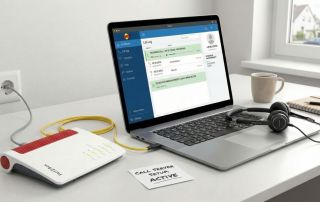
A professional telephone system can be built using a FRITZ!Box and a laptop. This article shows step by step how to use the free software "Phoner" to schedule announcements and record calls – including important legal information (§ 201 StGB).

Why to-do lists are a waste of time
Do you feel unproductive at the end of the day, even though you've worked hard? Your to-do list is to blame. It tempts you to focus on easy tasks and ignores your limited time. This article explains why lists are "self-deception" and why professionals use a calendar instead.

Smartphone Wi-Fi security: Public hotspots vs. home network
Is smartphone Wi-Fi a security risk? This article analyzes in detail threats such as evil twin attacks and explains protective measures for when you're on the go. We also clarify why home Wi-Fi is usually secure and how you can effectively separate your smart home from sensitive data using a guest network.

Warum dein Excel-Kurs Zeitverschwendung ist – was du wirklich lernen solltest!
Hand aufs Herz: Wann hast du zuletzt eine komplexe Excel-Formel ohne Googeln getippt? Eben. KI schreibt heute den Code für dich. Erfahre, warum klassische Excel-Trainings veraltet sind und welche 3 modernen Skills deinen Marktwert im Büro jetzt massiv steigern.

Cybersicherheit: Die 3 größten Fehler, die 90% aller Mitarbeiter machen
Hacker brauchen keine Codes, sie brauchen nur einen unaufmerksamen Mitarbeiter. Von Passwort-Recycling bis zum gefährlichen Klick: Wir zeigen die drei häufigsten Fehler im Büroalltag und geben praktische Tipps, wie Sie zur menschlichen Firewall werden.
Offers 2024: Word & Excel Templates











Popular Posts:
Ad-free home network: Install Pi-hole on Windows
Say goodbye to ads on smart TVs and in apps: Pi-hole software turns your Windows laptop into a network filter. This article explains step-by-step how to install it via Docker and configure the necessary DNS settings in your FRITZ!Box.
How to tune your FRITZ!Box into a professional call server
A professional telephone system can be built using a FRITZ!Box and a laptop. This article shows step by step how to use the free software "Phoner" to schedule announcements and record calls – including important legal information (§ 201 StGB).
Why to-do lists are a waste of time
Do you feel unproductive at the end of the day, even though you've worked hard? Your to-do list is to blame. It tempts you to focus on easy tasks and ignores your limited time. This article explains why lists are "self-deception" and why professionals use a calendar instead.
Smartphone Wi-Fi security: Public hotspots vs. home network
Is smartphone Wi-Fi a security risk? This article analyzes in detail threats such as evil twin attacks and explains protective measures for when you're on the go. We also clarify why home Wi-Fi is usually secure and how you can effectively separate your smart home from sensitive data using a guest network.
Warum dein Excel-Kurs Zeitverschwendung ist – was du wirklich lernen solltest!
Hand aufs Herz: Wann hast du zuletzt eine komplexe Excel-Formel ohne Googeln getippt? Eben. KI schreibt heute den Code für dich. Erfahre, warum klassische Excel-Trainings veraltet sind und welche 3 modernen Skills deinen Marktwert im Büro jetzt massiv steigern.
Cybersicherheit: Die 3 größten Fehler, die 90% aller Mitarbeiter machen
Hacker brauchen keine Codes, sie brauchen nur einen unaufmerksamen Mitarbeiter. Von Passwort-Recycling bis zum gefährlichen Klick: Wir zeigen die drei häufigsten Fehler im Büroalltag und geben praktische Tipps, wie Sie zur menschlichen Firewall werden.
Offers 2024: Word & Excel Templates