Excel random number generator – With Analysis function


Do you want to use Excel to create the next numbers for your lottery ticket, or would you like Excel to randomly draw the winner and the prize itself from a table? There are various options for how you can use a random number generator in Excel or draw random numbers. So today we want to look at different ways how it can work.
In doing so, we will once again reveal a hidden function in Excel that is not visible by default.

Excel random number generator – With Analysis function
Do you want to use Excel to create the next numbers for your lottery ticket, or would you like Excel to randomly draw the winner and the prize itself from a table? There are various options for how you can use a random number generator in Excel or draw random numbers. So today we want to look at different ways how it can work.
In doing so, we will once again reveal a hidden function in Excel that is not visible by default.
Random numbers in Excel with a formula
Random numbers in Excel with a formula
In Excel, you can generate random numbers with the formula “=RAND()“.
This formula would return a random number between 0 and 1. You can then use this random number to generate other numbers. For example, you can use the formula “=RAND() * 100” to generate a random number between 0 and 100. You can specify the number of decimal places and the formatting (e.g. currency in €) yourself in the “Start” tab.
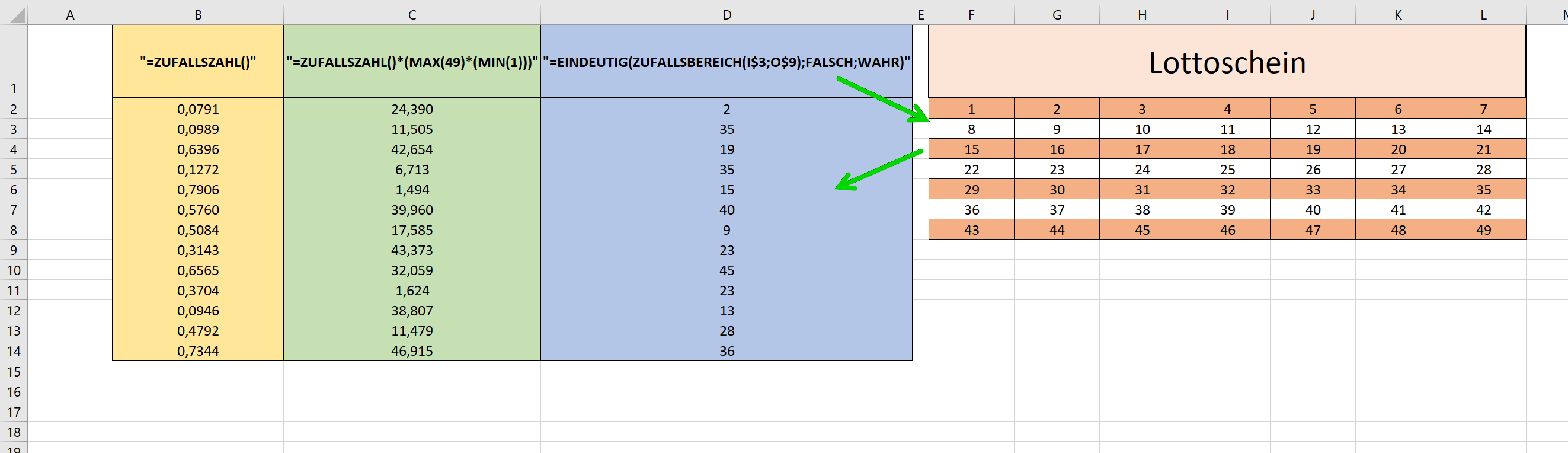
If you want to generate a random number that falls within a certain range, you can use the formula “=RAND()*(MAX(49)*(MIN(1)))“. Here “max” would be the maximum value 49 and “min” the minimum value 1 between which the random number should lie.
If you want to generate a random number that is new every time you update or recalculate your spreadsheet, you can paste the formula into a cell and then press the F9 key to recalculate the formula and get a new random number to generate. You could also create a table that, like in our example, shows the number series of a 6 out of 49 lottery ticket, and from this with the function: “=UNIQUE(RANDOM(I$3;O$9);FALSE;TRUE)” random and unique draw numbers. For a deeper understanding of the “$” characters used, I recommend our article on absolute, relative, and mixed cell references.
Note: Since the random numbers are based on Excel formulas, they are regenerated each time the spreadsheet is updated. However, if you want a random number to be generated only once and then remain constant, you can copy and paste the random number as a value. The nested functions that we have applied here can be changed and adjusted at will. For example, you could also extend the function with “=INTEGRATE(…” if you only want whole numbers, and so on and so forth. It also helps to simply try it out to explore the limits of functionality. Find more about nested functions here with us >>>
see fig. (click to enlarge)

In Excel, you can generate random numbers with the formula “=RAND()“.
This formula would return a random number between 0 and 1. You can then use this random number to generate other numbers. For example, you can use the formula “=RAND() * 100” to generate a random number between 0 and 100. You can specify the number of decimal places and the formatting (e.g. currency in €) yourself in the “Start” tab.
If you want to generate a random number that falls within a certain range, you can use the formula “=RAND()*(MAX(49)*(MIN(1)))“. Here “max” would be the maximum value 49 and “min” the minimum value 1 between which the random number should lie.
If you want to generate a random number that is new every time you update or recalculate your spreadsheet, you can paste the formula into a cell and then press the F9 key to recalculate the formula and get a new random number to generate. You could also create a table that, like in our example, shows the number series of a 6 out of 49 lottery ticket, and from this with the function: “=UNIQUE(RANDOM(I$3;O$9);FALSE;TRUE)” random and unique draw numbers. For a deeper understanding of the “$” characters used, I recommend our article on absolute, relative, and mixed cell references.
Note: Since the random numbers are based on Excel formulas, they are regenerated each time the spreadsheet is updated. However, if you want a random number to be generated only once and then remain constant, you can copy and paste the random number as a value. The nested functions that we have applied here can be changed and adjusted at will. For example, you could also extend the function with “=INTEGRATE(…” if you only want whole numbers, and so on and so forth. It also helps to simply try it out to explore the limits of functionality. Find more about nested functions here with us >>>
see fig. (click to enlarge)
Random numbers in Excel using the analyze function
Random numbers in Excel using the analyze function
Since we already used the term “analysis function” in the title, we now want to go into more detail about it. By default, this data analysis feature is not enabled in Excel. To enable data analysis option in Excel, you need to follow the following steps:
- Open Excel and click on the “File” tab.
- Click “Options“.
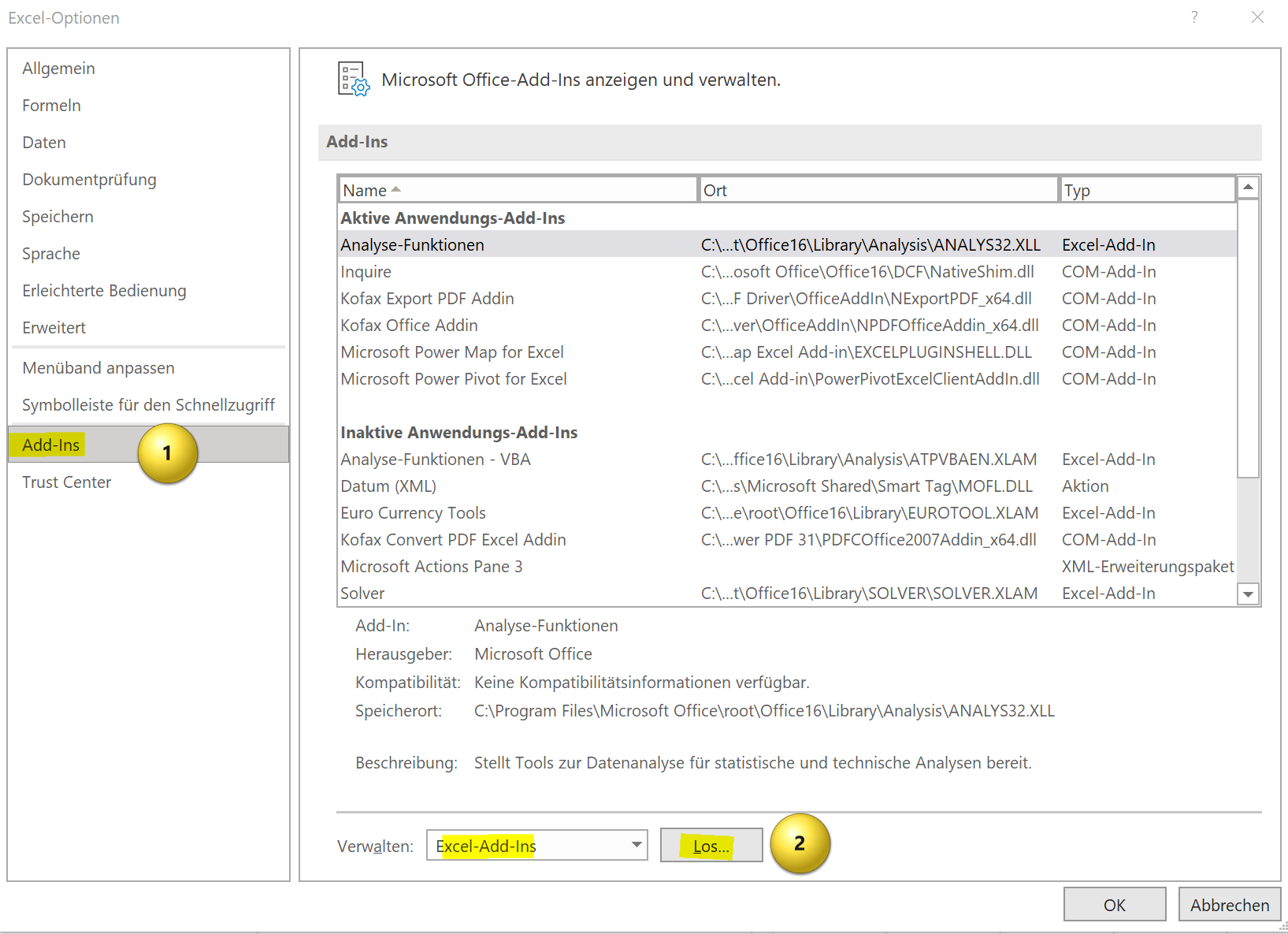
- In the left pane of the Excel Options window, select Add-Ins.
- From the Manage drop-down menu, select Excel Add-ins and click Go.
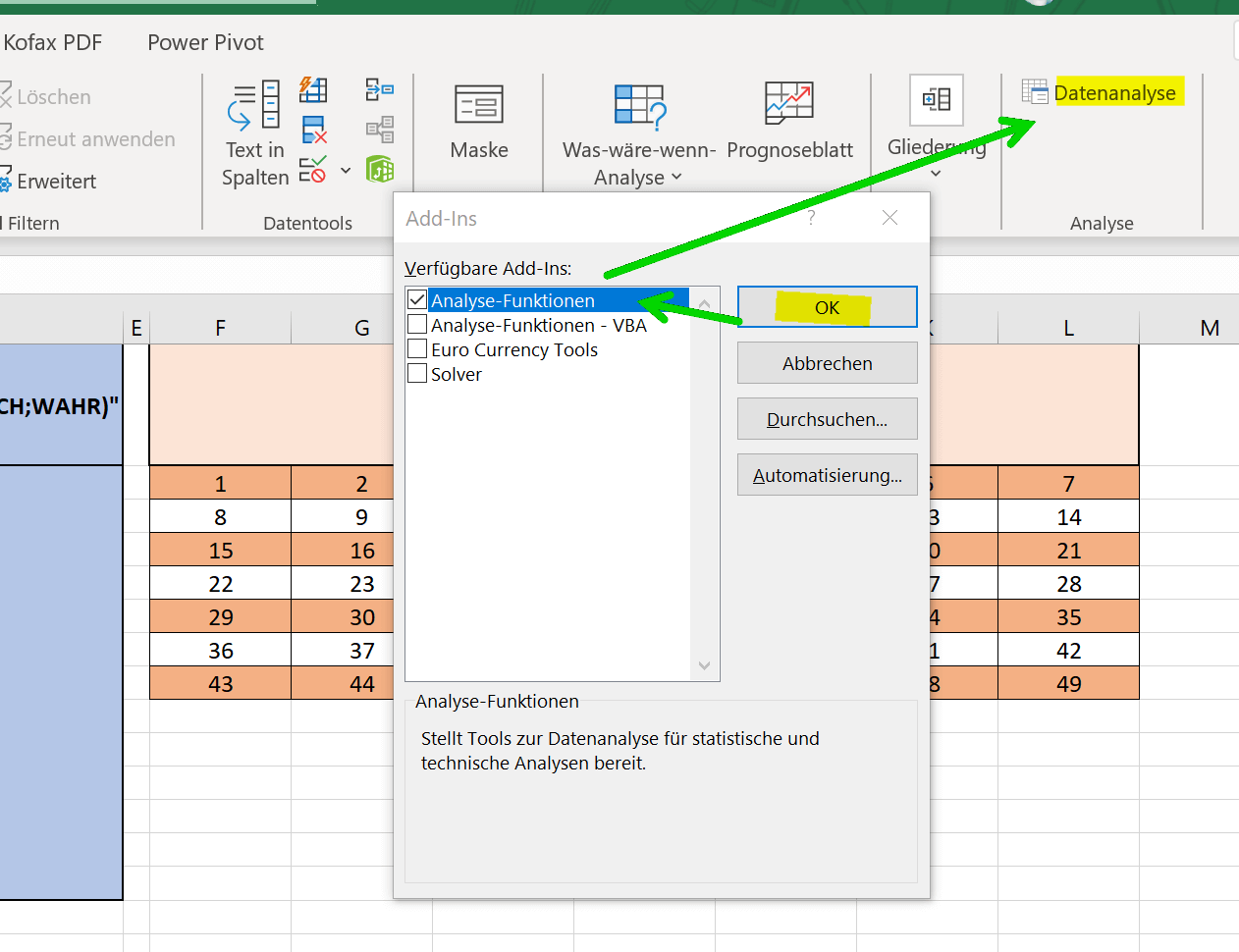
- Check the box next to “Data Analysis” and click OK.
- The data analysis feature should now be available in the “Data” tab in your ribbon and you can use the various data analysis tools.
If you don’t see the Data Analysis option in the list of available add-ins, you may need to install the add-in. To do this, simply click “Browse” to locate and install the add-in installation file.
see fig. (click to enlarge)
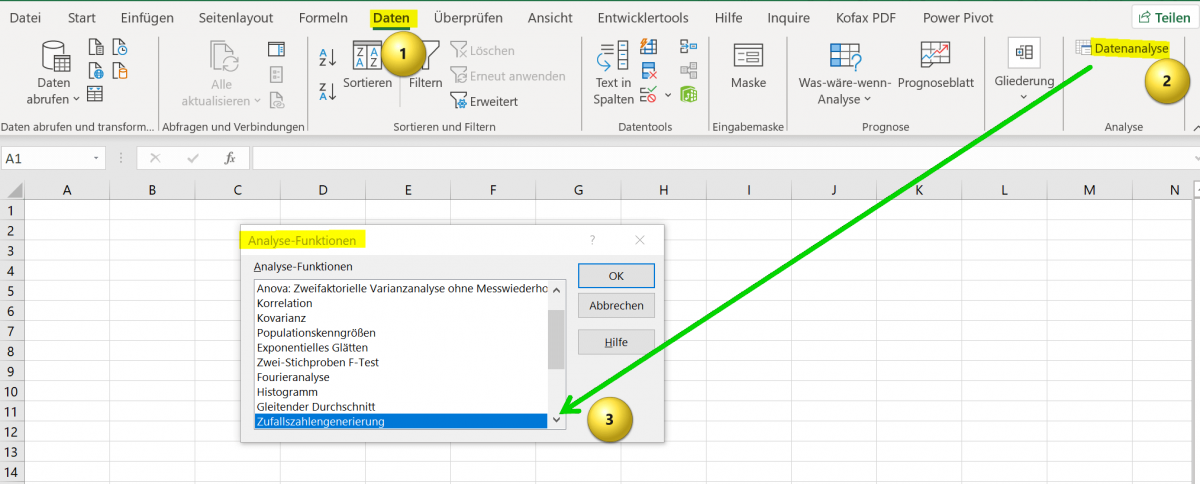
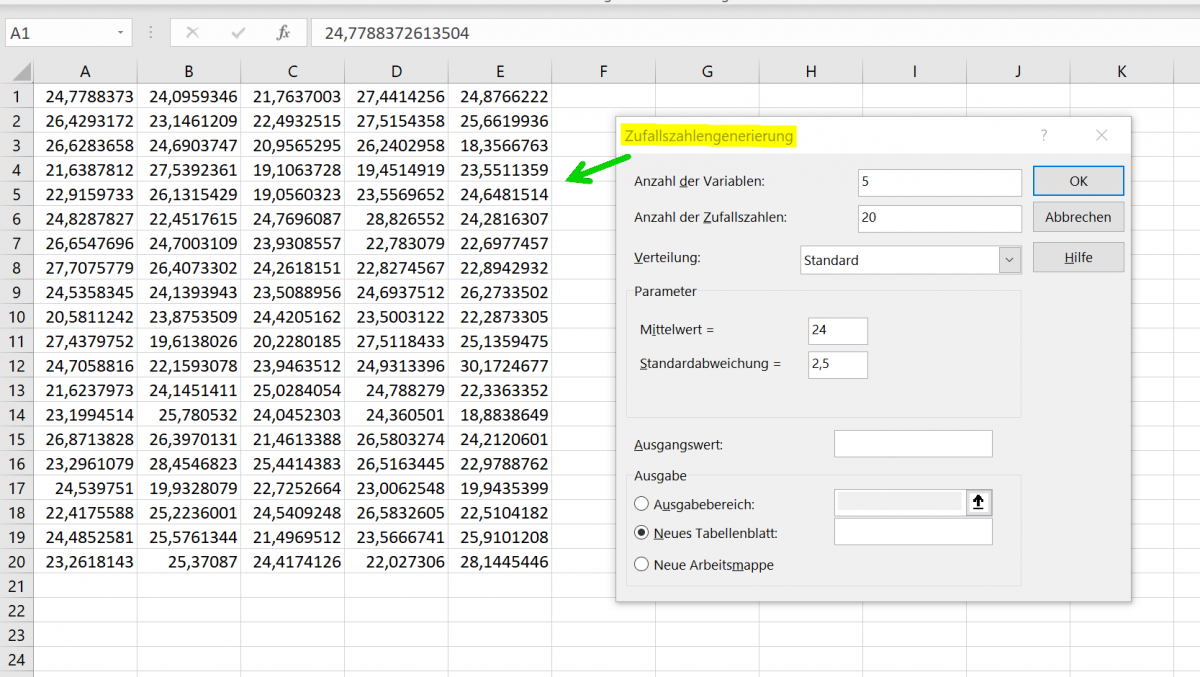
With the analysis function, you have expanded your options in Excel a good deal again, and we can also use the analysis function to determine random numbers. For our example, let’s take a new spreadsheet and click on “Data Analysis” on the “Data” tab. We have set the number of variables to 5, and we want 20 different random numbers to be generated for each variable with a “standard deviation” or normal distribution of 2.5.
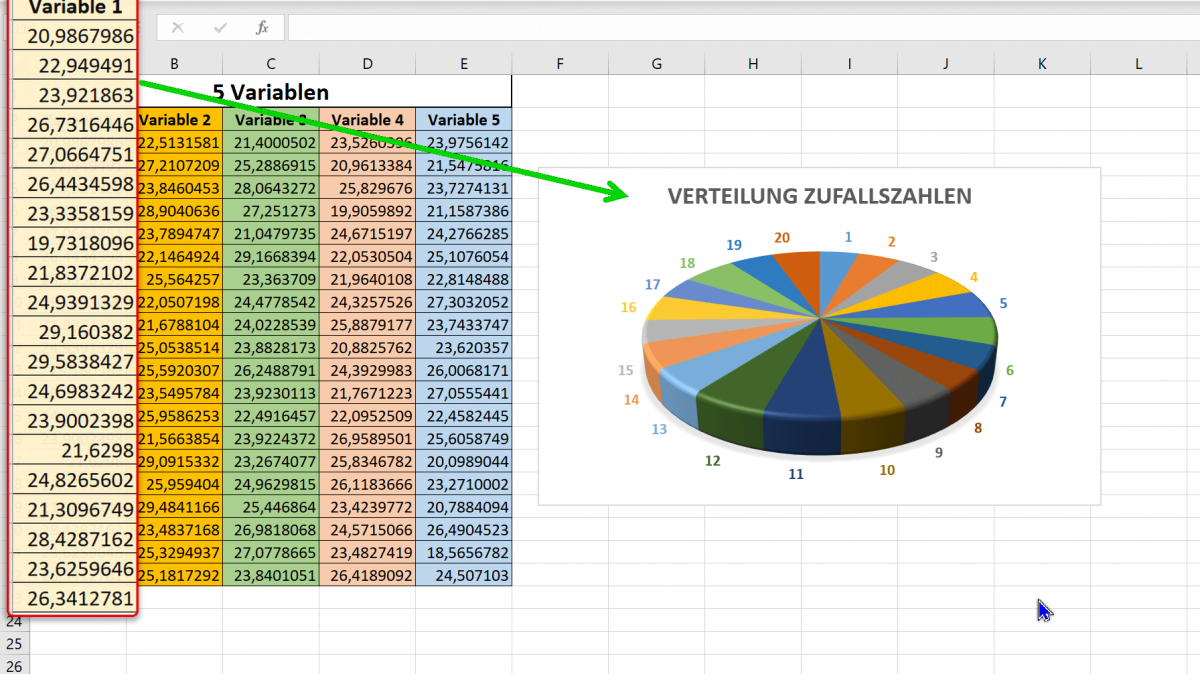
We let Excel start the random number generation in cell A1. After clicking on “Ok” we are presented with our numbers with an even distribution. This also becomes clear when we display a diagram of the numerical values in column A, as shown in the example.
see fig. (click to enlarge)
We hope that we could help you with our little tutorial regarding random numbers in Excel, also by using the data analysis option. Feel free to experiment with this feature to discover more possibilities.
Since we already used the term “analysis function” in the title, we now want to go into more detail about it. By default, this data analysis feature is not enabled in Excel. To enable data analysis option in Excel, you need to follow the following steps:
- Open Excel and click on the “File” tab.
- Click “Options“.
- In the left pane of the Excel Options window, select Add-Ins.
- From the Manage drop-down menu, select Excel Add-ins and click Go.
- Check the box next to “Data Analysis” and click OK.
- The data analysis feature should now be available in the “Data” tab in your ribbon and you can use the various data analysis tools.
If you don’t see the Data Analysis option in the list of available add-ins, you may need to install the add-in. To do this, simply click “Browse” to locate and install the add-in installation file.
see fig. (click to enlarge)
With the analysis function, you have expanded your options in Excel a good deal again, and we can also use the analysis function to determine random numbers. For our example, let’s take a new spreadsheet and click on “Data Analysis” on the “Data” tab. We have set the number of variables to 5, and we want 20 different random numbers to be generated for each variable with a “standard deviation” or normal distribution of 2.5.
We let Excel start the random number generation in cell A1. After clicking on “Ok” we are presented with our numbers with an even distribution. This also becomes clear when we display a diagram of the numerical values in column A, as shown in the example.
see fig. (click to enlarge)
We hope that we could help you with our little tutorial regarding random numbers in Excel, also by using the data analysis option. Feel free to experiment with this feature to discover more possibilities.
Popular Posts:

How AI fuels cyberattacks – and how it protects us from them
Cybercriminals are using AI for deepfakes and automated attacks. Defenses are also relying on AI: through behavioral analysis (UEBA) and automated responses (SOAR). Learn how this arms race works and how modern security strategies can protect your business.

Information overload: Protection & tips against digital stress
Constantly online, overwhelmed by news, emails & social media? Digital information overload leads to stress and concentration problems. Learn the best strategies and practical tips to effectively protect yourself, manage the chaos, and regain your focus.

Put an end to password chaos: Why a password manager is important
Passwords are constantly being stolen through data leaks. A password manager is your digital vault. It creates and stores strong, unique passwords for every service. This effectively protects you against identity theft through "credential stuffing".

Stop procrastinating: How distraction blockers can help you regain focus
Constant digital distractions kill your productivity. Distraction blockers like Forest or Freedom help you regain focus. They specifically block distractions on your PC and mobile phone and use techniques like the Pomodoro Technique. This helps you stop procrastinating.
Wer ist wo? Microsoft Teams schafft Klarheit im Hybrid-Büro
Die neue Arbeitsstandort-Funktion in Microsoft Teams zeigt, wer im Büro oder remote arbeitet. Verbessern Sie Ihre Meeting-Planung in Outlook und die Team-Koordination. Wir erklären die Vorteile, die Admin-Steuerung und die tiefe Anbindung an Microsoft Viva.

Excel Tutorial: How to quickly and safely remove duplicates
Duplicate entries in your Excel lists? This distorts your data. Our tutorial shows you, using a practical example, how to clean up your data in seconds with the "Remove Duplicates" function – whether you want to delete identical rows or just values in a column.
Offers 2024: Word & Excel Templates











Popular Posts:
How AI fuels cyberattacks – and how it protects us from them
Cybercriminals are using AI for deepfakes and automated attacks. Defenses are also relying on AI: through behavioral analysis (UEBA) and automated responses (SOAR). Learn how this arms race works and how modern security strategies can protect your business.
Information overload: Protection & tips against digital stress
Constantly online, overwhelmed by news, emails & social media? Digital information overload leads to stress and concentration problems. Learn the best strategies and practical tips to effectively protect yourself, manage the chaos, and regain your focus.
Put an end to password chaos: Why a password manager is important
Passwords are constantly being stolen through data leaks. A password manager is your digital vault. It creates and stores strong, unique passwords for every service. This effectively protects you against identity theft through "credential stuffing".
Stop procrastinating: How distraction blockers can help you regain focus
Constant digital distractions kill your productivity. Distraction blockers like Forest or Freedom help you regain focus. They specifically block distractions on your PC and mobile phone and use techniques like the Pomodoro Technique. This helps you stop procrastinating.
Wer ist wo? Microsoft Teams schafft Klarheit im Hybrid-Büro
Die neue Arbeitsstandort-Funktion in Microsoft Teams zeigt, wer im Büro oder remote arbeitet. Verbessern Sie Ihre Meeting-Planung in Outlook und die Team-Koordination. Wir erklären die Vorteile, die Admin-Steuerung und die tiefe Anbindung an Microsoft Viva.
Excel Tutorial: How to quickly and safely remove duplicates
Duplicate entries in your Excel lists? This distorts your data. Our tutorial shows you, using a practical example, how to clean up your data in seconds with the "Remove Duplicates" function – whether you want to delete identical rows or just values in a column.
Offers 2024: Word & Excel Templates