Dynamic ranges in Excel: OFFSET function


If you think of INDIRECT as a translator (text to reference), then think of OFFSET as a GPS system for your cells.
This function is one of the most flexible tools in Excel for creating dynamic ranges—that is, ranges that can change their size or position based on other calculations. Instead of referencing a fixed range like A1:A10, you tell Excel: “Start at A1, go down 3 rows, 2 columns to the right, and from there give me a range that is 5 rows high and 1 column wide.”
What does OFFSET do?
The function returns a cell reference that is “offset” from a starting cell (or range). It doesn’t move any cells or data; it simply creates a new reference frame that you can then use in other functions (such as SUM, AVERAGE, or in charts).
The Syntax Broken Down
The syntax is more extensive than that of INDIRECT, but each component has a clear purpose:
=OFFSET(reference, rows, columns, [height], [width])
- Reference (Required): Your “anchor” or starting point. The “journey” begins from this cell. (e.g., A1)
- Rows (Required): How many rows you want to move down (positive number) or up (negative number) from the reference.
- Columns (Required): How many columns you want to move to the right (positive number) or left (negative number) from the reference.
- [Height] (Optional): Defines how many rows the new range should have. If omitted, the new range will have the same height as the reference.
- [Width] (Optional): Defines how many columns the new range should have. If omitted, the new range will have the same width as the reference.
Practical example: Calculating the sum of the “last N months”
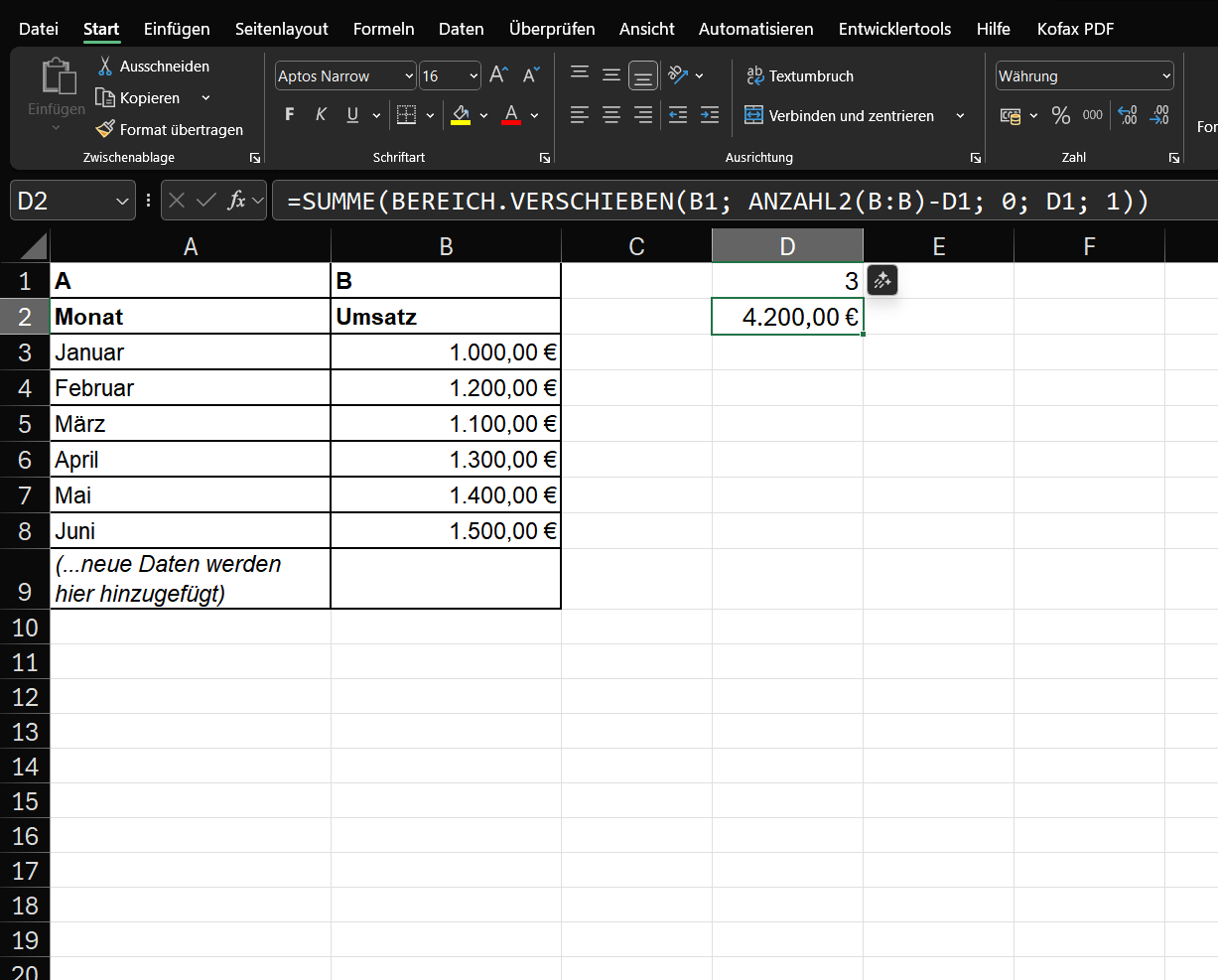
You could manually enter =SUM(B5:B7). But if you add “July,” you would have to change the formula to =SUM(B6:B8). That’s tedious.
The dynamic solution with OFFSET:
- We create a formula that automatically finds the range to be summed.
- In one cell (e.g., D1), you enter how many months you want to consider: 3
- In another cell (e.g., D2), you enter the OFFSET formula, wrapped in a SUM function:
- =SUM(OFFSET(B1, COUNTA(B:B)-D1, 0, D1, 1))
What’s happening here? Let’s break it down:
- OFFSET(…): This is the core.
- B1: Our reference. We start at the heading “Sales”.
- COUNTA(B:B)-D1: The row argument.
- COUNTA(B:B) counts all non-empty cells in column B. In June, that’s 7 (heading + 6 months).
- D1 is 3.
So the calculation is: 7 – 3 = 4.
- Excel is instructed: “Go down 4 rows from the reference (B1).” (It lands at cell B5, “April”).
- 0: The column argument. “Go 0 columns left or right.” (Stays in column B).
- D1: The height argument. “Create a range from B5 that is as tall as the value in D1 (i.e., 3 rows).”
- 1: The width argument. “The range should be 1 column wide.”
- Result: The formula dynamically creates the reference B5:B7. SUM adds this range, and the result is €4,200 (€1,300 + €1,400 + €1,500).
The magic moment: Next month, add “July” with €1,600 in row 8.
The magic moment:
- COUNTA(B:B) is now 8.
- The row argument becomes 8 – 3 = 5.
- The formula starts at B1, goes down 5 rows (to B6, “May”), and creates a range 3 rows high (B6:B8).
- The sum now automatically calculates B6:B8 (May, June, July). You didn’t have to touch the formula!
Important instructions
Like INDIRECT, OFFSET is a volatile function.
This means:
- Performance: The formula is recalculated with every single change in your workbook—even if you type something in a completely different worksheet.
- Performance problem: If you use thousands of OFFSET formulas, your Excel file can become noticeably slower.
Conclusion and modern alternatives
OFFSET is incredibly powerful for creating dynamic ranges, especially for charts that are meant to “grow” with their data (by using the formula in a named range).
However, there are often better, non-volatile alternatives available today:
- Excel tables (Ctrl+T): The best alternative. If you format your data as a table, formulas and charts that reference it will automatically expand when you add new data. This often makes OFFSET unnecessary for this purpose.INDEX: A combination of INDEX and COUNTA can often achieve the same results as OFFSET, but is not volatile and therefore faster.
Use OFFSET when you need ultimate flexibility in moving and resizing a reference, but be aware of the performance cost.

Beliebte Beiträge

Create a Word letter template with form fields
Create a professional DIN 5008 letter template with form fields and drop-down lists in Microsoft Word, and write letters as easily as you would fill out a form.

Protect Word documents from editing
Protect your documents in Microsoft Word from unauthorized editing or block access completely.

Show and remove duplicate entries in Excel | Tutorial
We explain how to remove duplicate entries from Excel. And also how you can only display duplicate entries in Excel but not delete them immediately in order to decide on a case-by-case basis.

Custom Formatting Excel – Number Format Codes Excel
We use a practical example to explain the importance and possible uses of custom formatting in Excel. Number format codes in Excel are not rocket science!

How to create a dynamic table in Excel
This is how you conveniently create a dynamic table in Excel and have it automatically carry out calculations.

Use macros correctly in Excel
Almost everyone has heard of the term "macro" in the context of Excel, and perhaps has shied away from it because it sounds like a rather complicated affair for which you have to deal with Excel programming.
Offers 2024: Word & Excel Templates