Create email templates in Outlook


Anyone who often writes emails with the same content will eventually get annoyed by writing the same text passages over and over again. Just as you can work with multiple signatures in Outlook to speed up and standardize these processes, you can of course also create and save e-mail templates and e-mail forms in Outlook and call them up as needed.
In our short tutorial we would like to describe how you can create and save your own e-mail templates for a wide variety of application scenarios without much effort.

Create email templates in Outlook
Anyone who often writes emails with the same content will eventually get annoyed by writing the same text passages over and over again. Just as you can work with multiple signatures in Outlook to speed up and standardize these processes, you can of course also create and save e-mail templates and e-mail forms in Outlook and call them up as needed.
In our short tutorial we would like to describe how you can create and save your own e-mail templates for a wide variety of application scenarios without much effort.
1. Create, save and open simple email templates
Creating standard e-mail templates in Outlook is basically very easy.
- First compose your e-mail as you would like to use it later as a template.
- Then go to the menu: File – Save as
- Select the file format: Outlook template and save your template
As soon as you select the Outlook template file format, you will be directed to the default storage location. All the templates you have created are saved there. The default location for email templates in Outlook is: C:\Users\YOURNAME\AppData\Roaming\Microsoft\Templates
See fig. (click to enlarge)
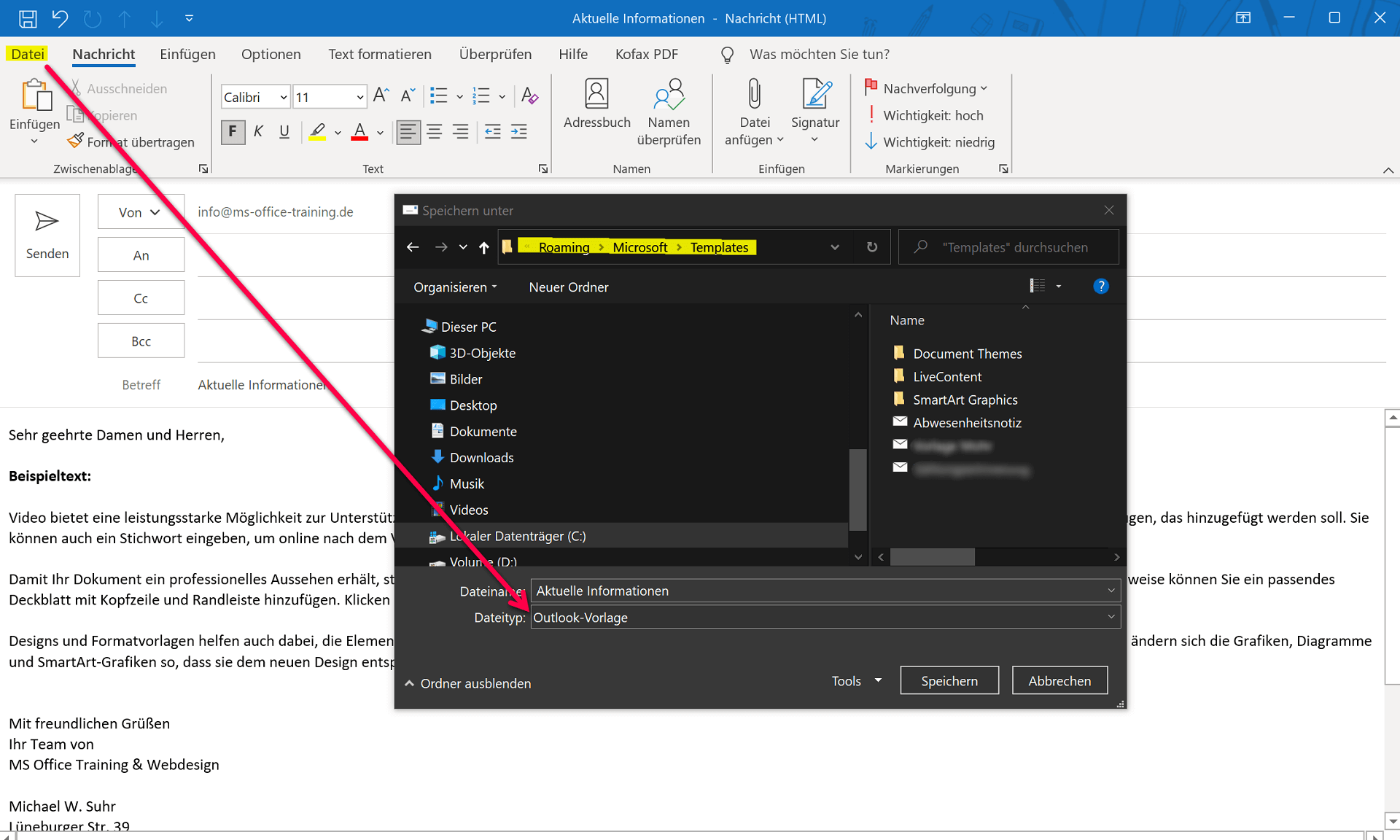
You can also make templates a little more professional, for example by copying the content of a letter template created in Word with form fields and pasting it into your Outlook template. The form fields remain completely intact, and your mail then creates the impression of a real letter.
In the picture below we have chosen the content of our business letter template and simply saved it as an Outlook template. Once you have created a template, open it in Outlook as follows:
Start tab – New items – Other items – Select form
In the next dialog box, select: Templates in the file system. This is where your templates are stored.
See fig. (click to enlarge)

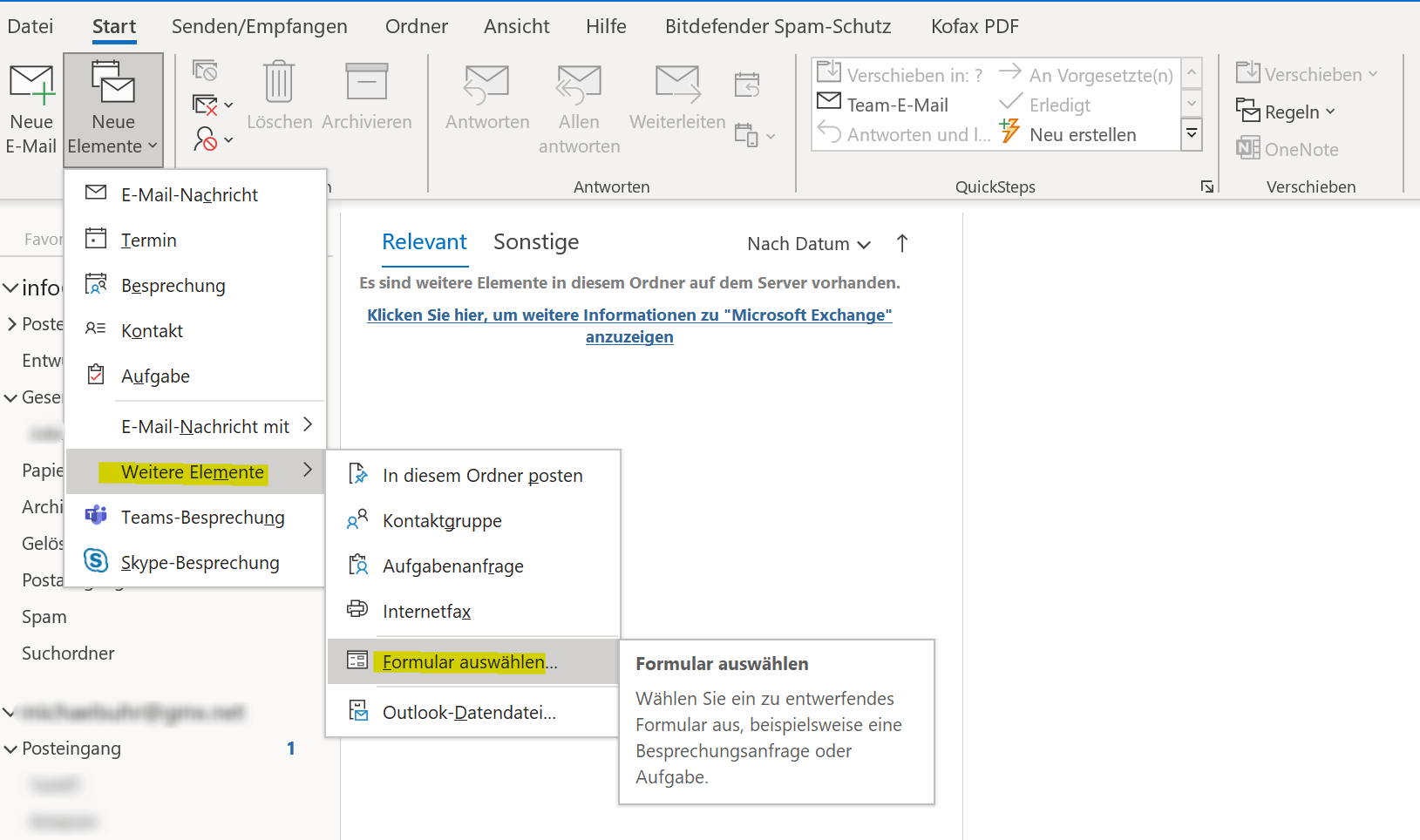
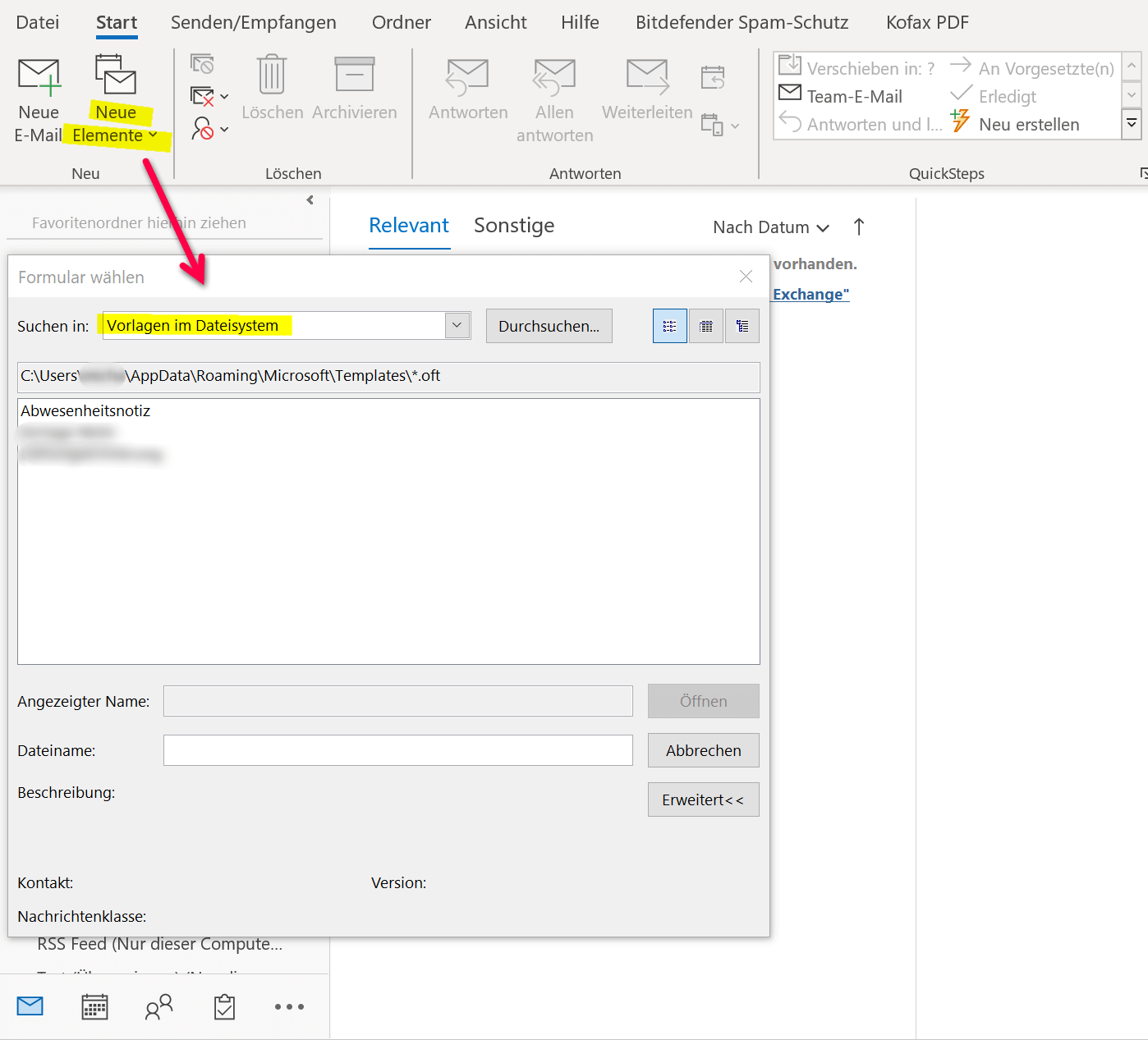
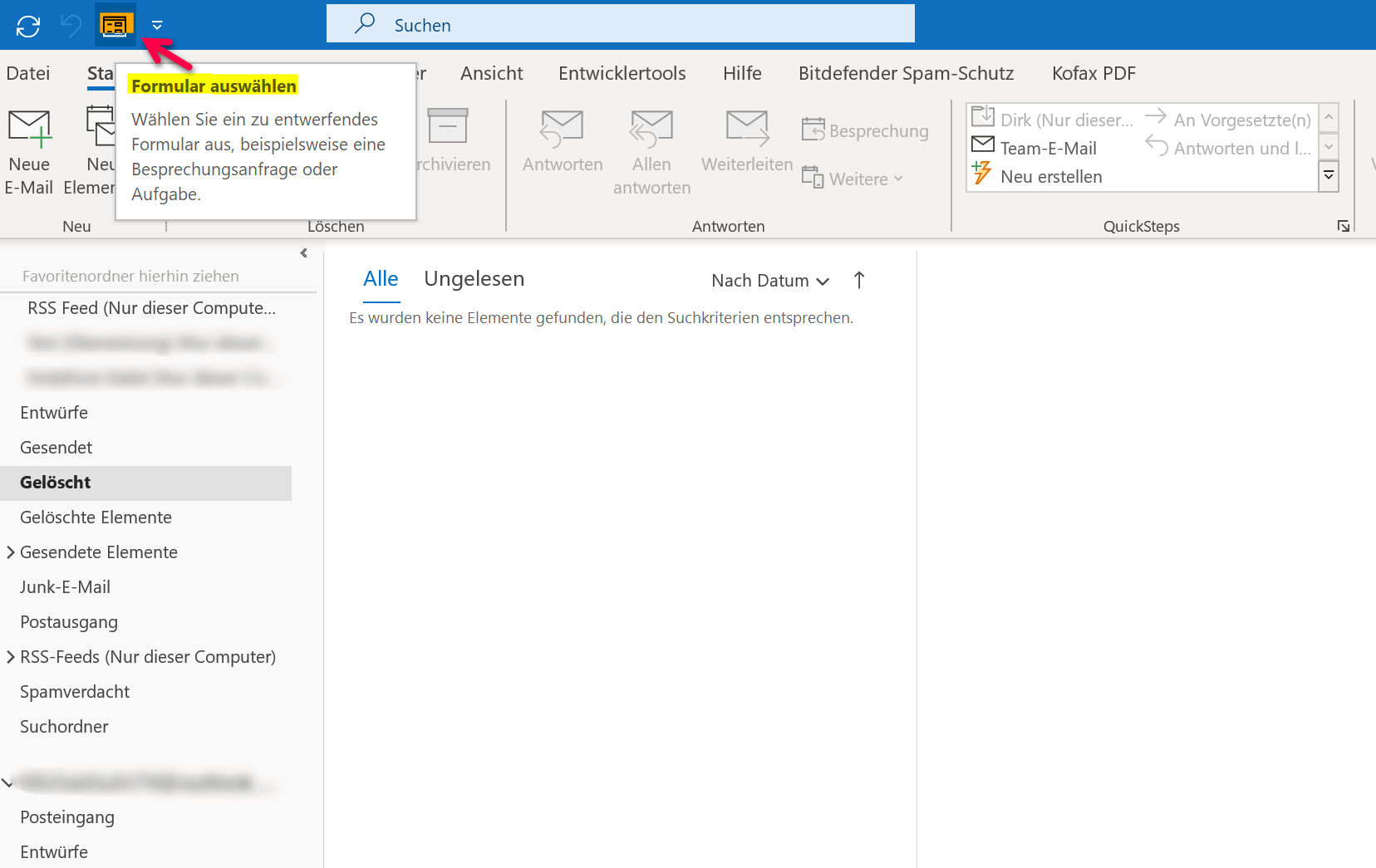
You can also make access to the templates you have created a little easier by customizing your quick launch bar in Outlook.
To do this, go to the File – Options – Quick Access Toolbar tab, select the Select form item and add it to your quick launch bar.
See fig. (click to enlarge)
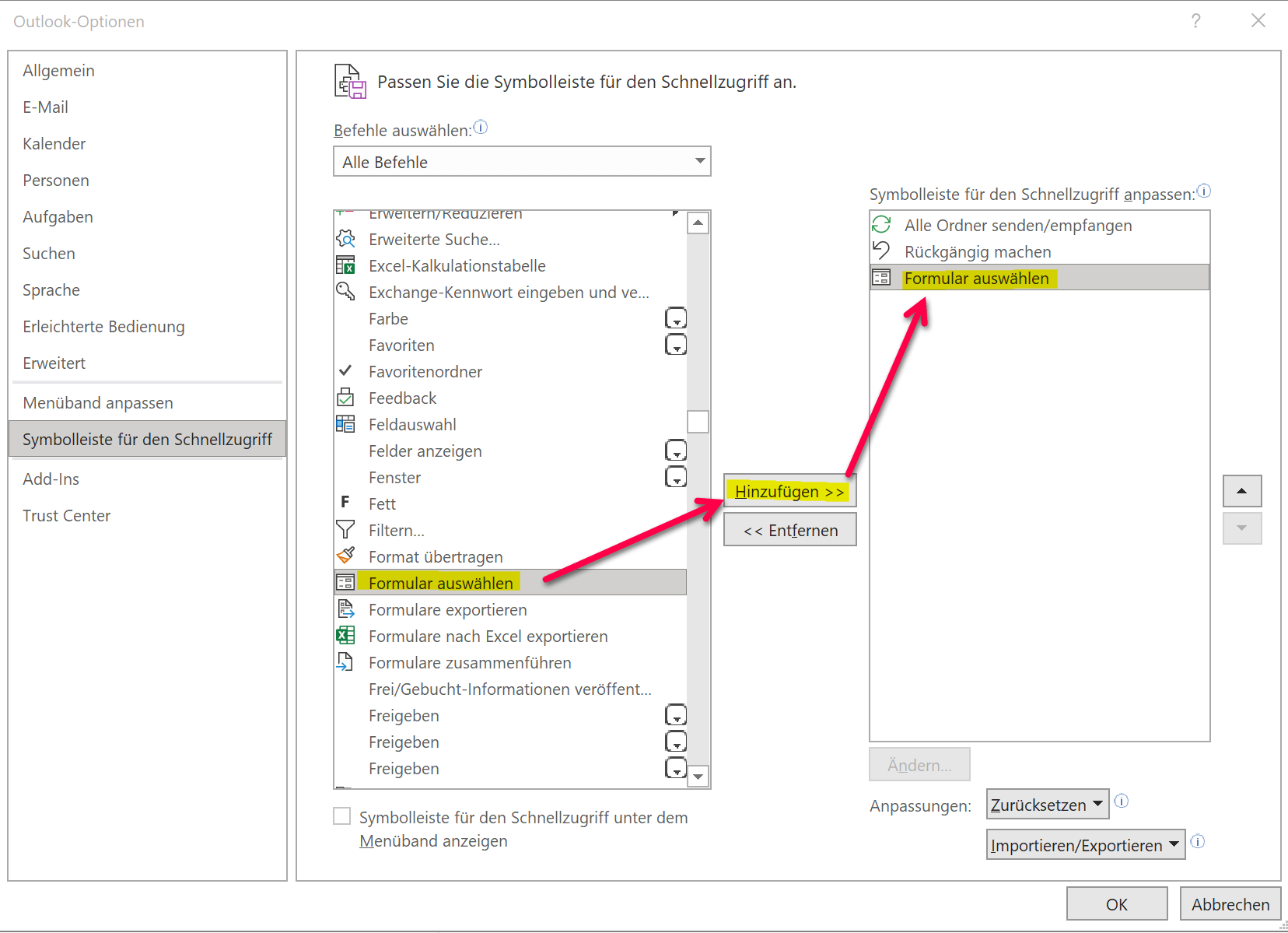
As you have seen, the whole thing is actually not that difficult and can make daily work with frequently recurring e-mails much easier.
1. Create, save and open simple email templates
Creating standard e-mail templates in Outlook is basically very easy.
- First compose your e-mail as you would like to use it later as a template.
- Then go to the menu: File – Save as
- Select the file format: Outlook template and save your template
As soon as you select the Outlook template file format, you will be directed to the default storage location. All the templates you have created are saved there. The default location for email templates in Outlook is: C:\Users\YOURNAME\AppData\Roaming\Microsoft\Templates
See fig. (click to enlarge)
You can also make templates a little more professional, for example by copying the content of a letter template created in Word with form fields and pasting it into your Outlook template. The form fields remain completely intact, and your mail then creates the impression of a real letter.
In the picture below we have chosen the content of our business letter template and simply saved it as an Outlook template. Once you have created a template, open it in Outlook as follows:
Start tab – New items – Other items – Select form
In the next dialog box, select: Templates in the file system. This is where your templates are stored.
See fig. (click to enlarge)
You can also make access to the templates you have created a little easier by customizing your quick launch bar in Outlook.
To do this, go to the File – Options – Quick Access Toolbar tab, select the Select form item and add it to your quick launch bar.
See fig. (click to enlarge)
As you have seen, the whole thing is actually not that difficult and can make daily work with frequently recurring e-mails much easier.
Popular Posts:

How AI fuels cyberattacks – and how it protects us from them
Cybercriminals are using AI for deepfakes and automated attacks. Defenses are also relying on AI: through behavioral analysis (UEBA) and automated responses (SOAR). Learn how this arms race works and how modern security strategies can protect your business.

Information overload: Protection & tips against digital stress
Constantly online, overwhelmed by news, emails & social media? Digital information overload leads to stress and concentration problems. Learn the best strategies and practical tips to effectively protect yourself, manage the chaos, and regain your focus.
Put an end to password chaos: Why a password manager is important
Passwords are constantly being stolen through data leaks. A password manager is your digital vault. It creates and stores strong, unique passwords for every service. This effectively protects you against identity theft through "credential stuffing".

Stop procrastinating: How distraction blockers can help you regain focus
Constant digital distractions kill your productivity. Distraction blockers like Forest or Freedom help you regain focus. They specifically block distractions on your PC and mobile phone and use techniques like the Pomodoro Technique. This helps you stop procrastinating.
Wer ist wo? Microsoft Teams schafft Klarheit im Hybrid-Büro
Die neue Arbeitsstandort-Funktion in Microsoft Teams zeigt, wer im Büro oder remote arbeitet. Verbessern Sie Ihre Meeting-Planung in Outlook und die Team-Koordination. Wir erklären die Vorteile, die Admin-Steuerung und die tiefe Anbindung an Microsoft Viva.

Excel Tutorial: How to quickly and safely remove duplicates
Duplicate entries in your Excel lists? This distorts your data. Our tutorial shows you, using a practical example, how to clean up your data in seconds with the "Remove Duplicates" function – whether you want to delete identical rows or just values in a column.
Offers 2024: Word & Excel Templates











Popular Posts:
How AI fuels cyberattacks – and how it protects us from them
Cybercriminals are using AI for deepfakes and automated attacks. Defenses are also relying on AI: through behavioral analysis (UEBA) and automated responses (SOAR). Learn how this arms race works and how modern security strategies can protect your business.
Information overload: Protection & tips against digital stress
Constantly online, overwhelmed by news, emails & social media? Digital information overload leads to stress and concentration problems. Learn the best strategies and practical tips to effectively protect yourself, manage the chaos, and regain your focus.
Put an end to password chaos: Why a password manager is important
Passwords are constantly being stolen through data leaks. A password manager is your digital vault. It creates and stores strong, unique passwords for every service. This effectively protects you against identity theft through "credential stuffing".
Stop procrastinating: How distraction blockers can help you regain focus
Constant digital distractions kill your productivity. Distraction blockers like Forest or Freedom help you regain focus. They specifically block distractions on your PC and mobile phone and use techniques like the Pomodoro Technique. This helps you stop procrastinating.
Wer ist wo? Microsoft Teams schafft Klarheit im Hybrid-Büro
Die neue Arbeitsstandort-Funktion in Microsoft Teams zeigt, wer im Büro oder remote arbeitet. Verbessern Sie Ihre Meeting-Planung in Outlook und die Team-Koordination. Wir erklären die Vorteile, die Admin-Steuerung und die tiefe Anbindung an Microsoft Viva.
Excel Tutorial: How to quickly and safely remove duplicates
Duplicate entries in your Excel lists? This distorts your data. Our tutorial shows you, using a practical example, how to clean up your data in seconds with the "Remove Duplicates" function – whether you want to delete identical rows or just values in a column.
Offers 2024: Word & Excel Templates