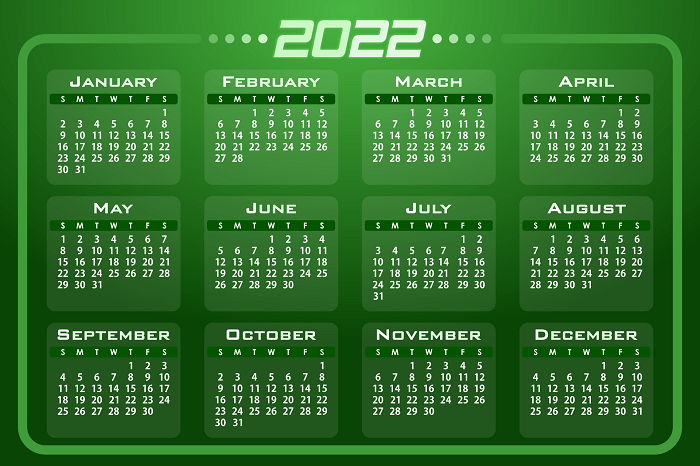
Create annual calendar 2022 in Excel


Creating an annual calendar yourself in Excel is actually not that difficult, but it still has a few small pitfalls. It becomes even more complex when you try to include the weekends and holidays, and ideally of course to highlight them in color.
In any case, a calendar in Excel is practical, as you can adapt it individually to your own ideas.
In our article we would like to describe how you can use Excel to create a dynamic annual calendar 2022, which adapts itself dynamically every year just by changing the year, and also automatically displays the calendar week and the weekends.
Create annual calendar 2022 in Excel
Creating an annual calendar yourself in Excel is actually not that difficult, but it still has a few small pitfalls. It becomes even more complex when you try to include the weekends and holidays, and ideally of course to highlight them in color.
In any case, a calendar in Excel is practical, as you can adapt it individually to your own ideas.
In our article we would like to describe how you can use Excel to create a dynamic annual calendar 2022, which adapts itself dynamically every year just by changing the year, and also automatically displays the calendar week and the weekends.
1. The preparation
1. The preparation
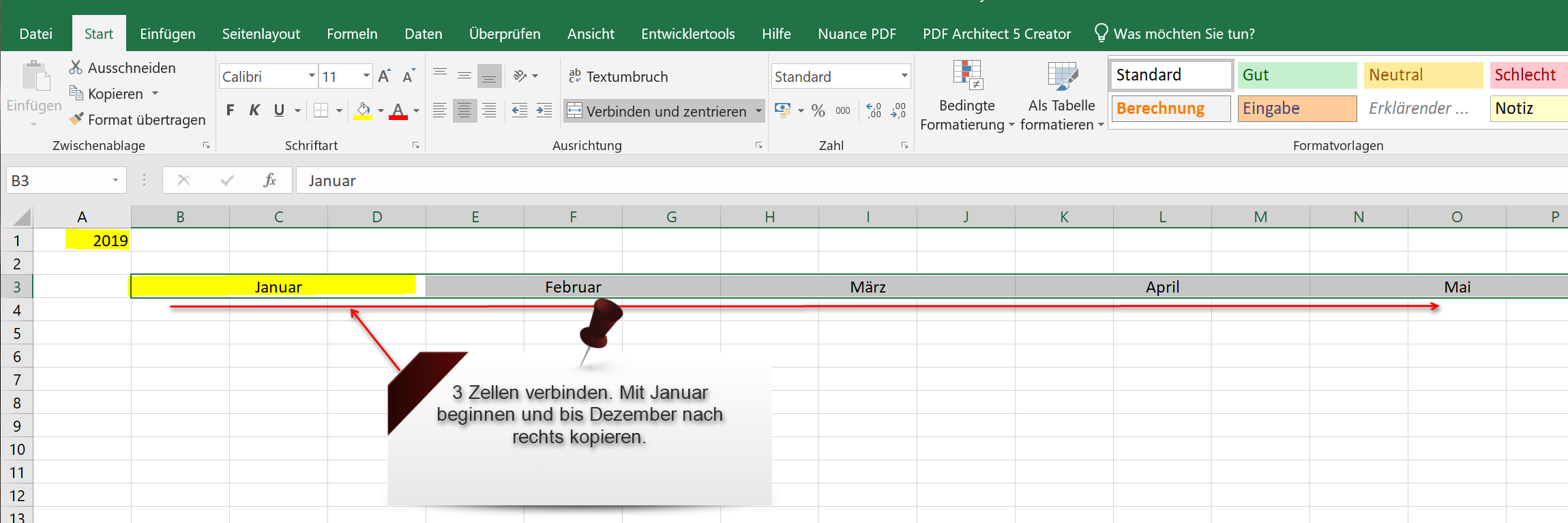
So that we can later create the calendar for the whole year using the Excel copy control in just a few steps, a few operations with the corresponding functions are necessary.
- Enter any year in the top line.
- Leave 2 to 3 lines below this.
- Connect 3 cells with each other using the “Connect and center” function.
- Enter the month “January” in the first cell cluster.
- Select the cell that says “January” and copy it over to the right until December.
See fig .: (click to enlarge)
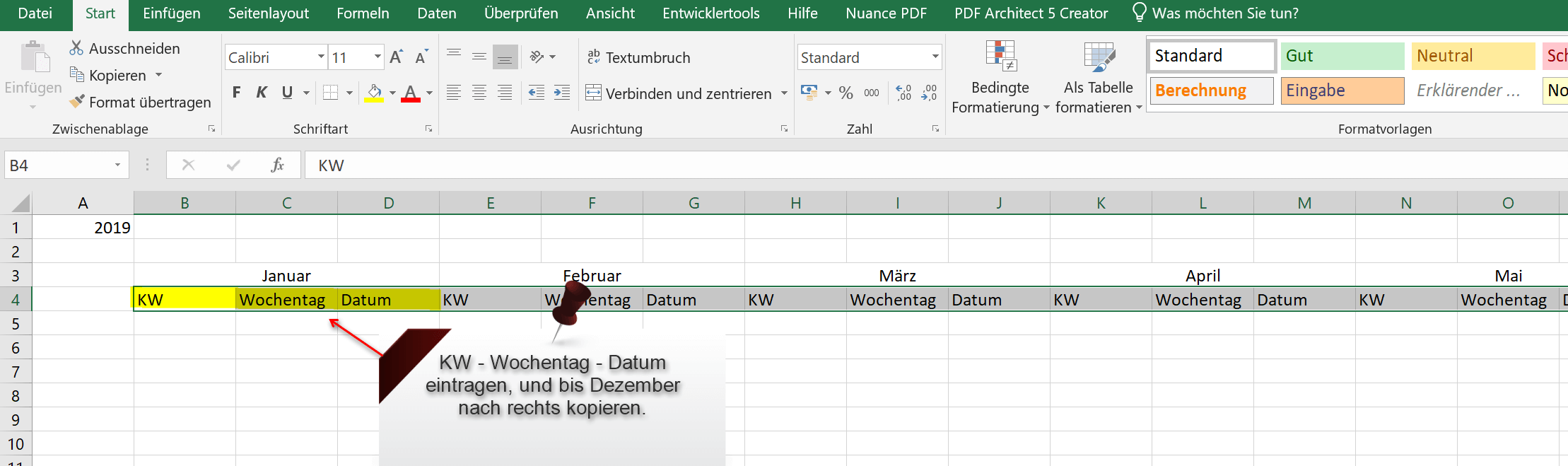
Next, enter under the line in which the months are: CW – weekday – date
You only need to do this with the first three cells under the month of January. Then select these three cells and copy them back to the right until the month of December.
See fig .: (click to enlarge)
Prepared in this way, we can start entering the first small function and format the cells accordingly.
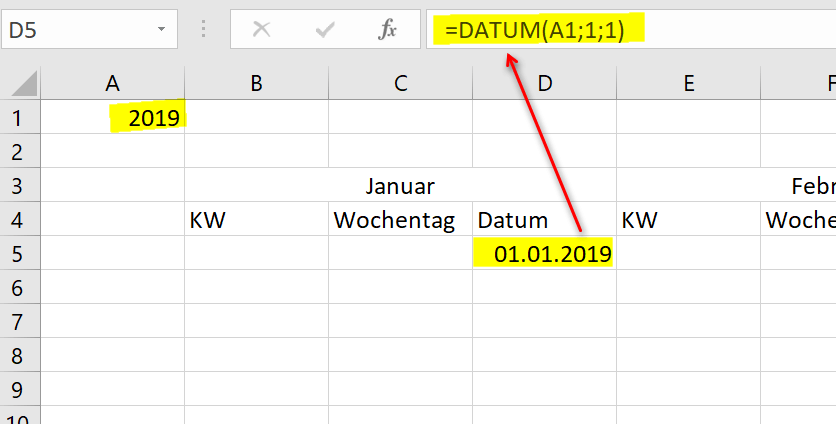
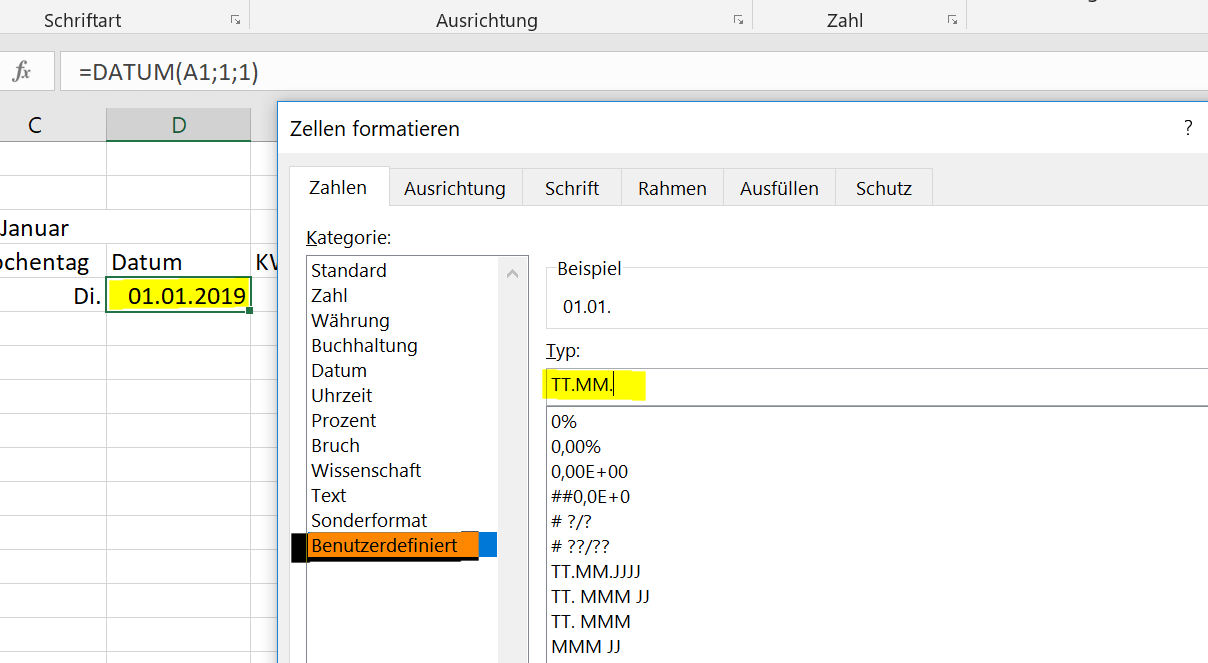
- Enter the following in the cell under “Date”: = DATE (A1; 1; 1) and confirm with Enter.
- Click in this cell in the context menu or via the menu ribbon on “Format cells”, select “Date” and “User-defined”.
- Enter DD.MM in the field for the user-defined formatting. to only display the day and month.
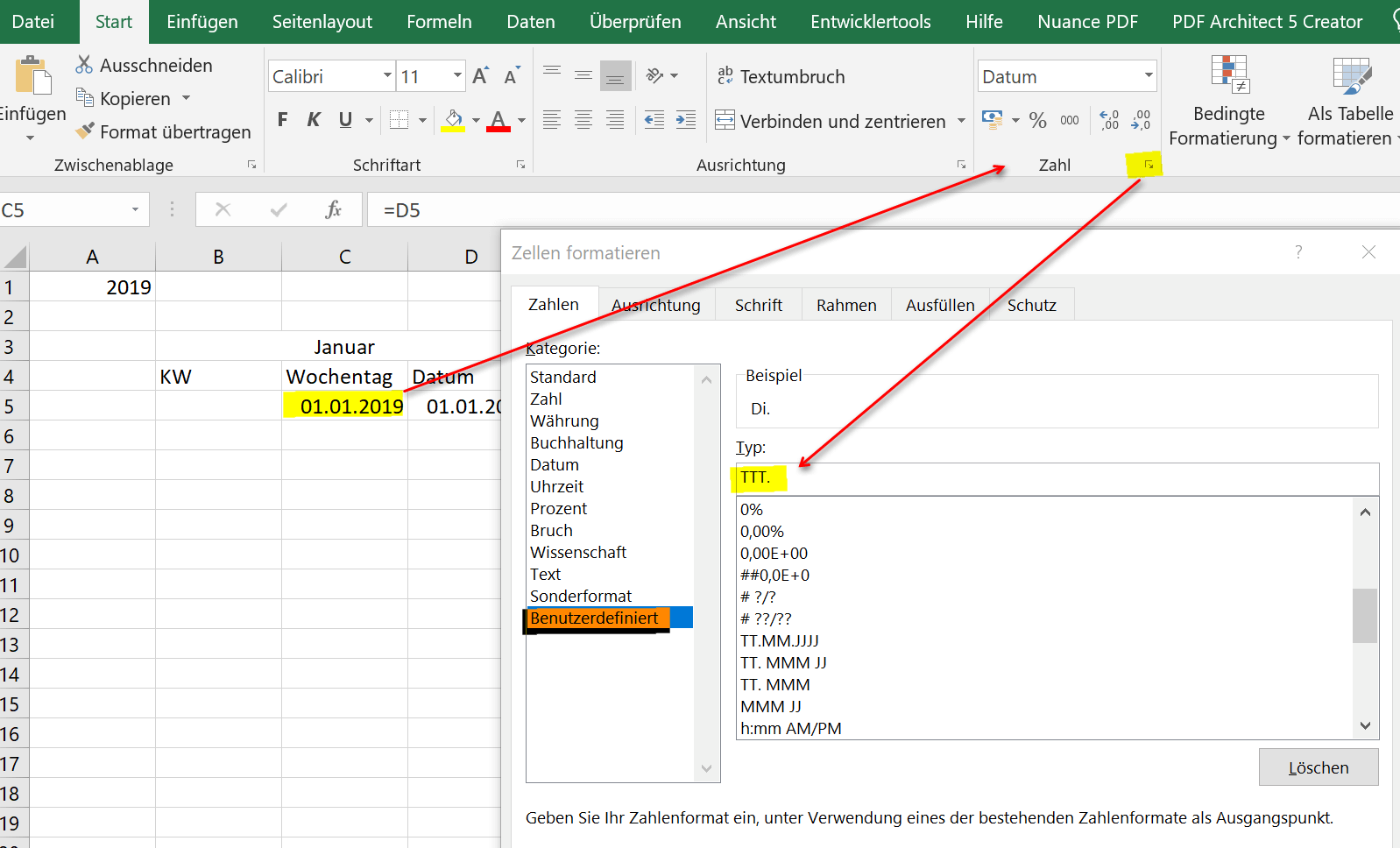
- In the cell to the left of the date created in this way, enter = D5, referring to the date cell.
- Then format this cell again as user-defined as date and enter TTT there. to only display the day of the week in abbreviated form here.
See fig .: (click to enlarge)
So that we can later create the calendar for the whole year using the Excel copy control in just a few steps, a few operations with the corresponding functions are necessary.
- Enter any year in the top line.
- Leave 2 to 3 lines below this.
- Connect 3 cells with each other using the “Connect and center” function.
- Enter the month “January” in the first cell cluster.
- Select the cell that says “January” and copy it over to the right until December.
See fig .: (click to enlarge)
Next, enter under the line in which the months are: CW – weekday – date
You only need to do this with the first three cells under the month of January. Then select these three cells and copy them back to the right until the month of December.
See fig .: (click to enlarge)
Prepared in this way, we can start entering the first small function and format the cells accordingly.
- Enter the following in the cell under “Date”: = DATE (A1; 1; 1) and confirm with Enter.
- Click in this cell in the context menu or via the menu ribbon on “Format cells”, select “Date” and “User-defined”.
- Enter DD.MM in the field for the user-defined formatting. to only display the day and month.
- In the cell to the left of the date created in this way, enter = D5, referring to the date cell.
- Then format this cell again as user-defined as date and enter TTT there. to only display the day of the week in abbreviated form here.
See fig .: (click to enlarge)
2. Enter the important functions
2. Enter the important functions
To do this, we first start with the determination of the date for the month of February:
- Enter the following in the cell under Date for February: = EDATE (D5; 1) The reference to the date cell of January is important.
- In the cell where the day of the week is, refer to the date again and format this cell as you did for January.
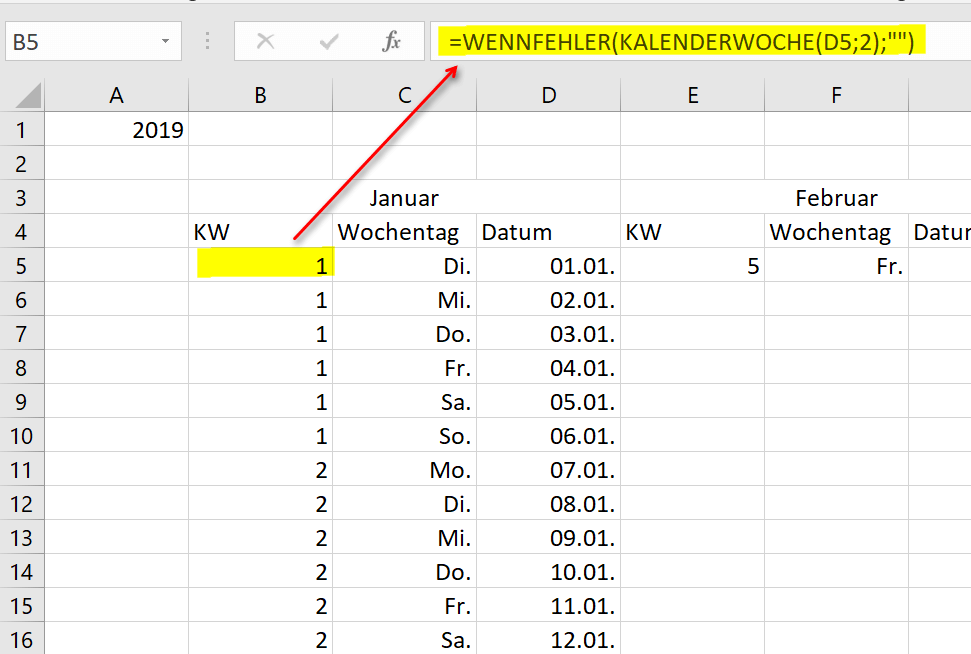
- Now mark the cell under “KW” in the month of January and enter the following there: = IF ERROR (CALENDAR WEEK (D5; 2); “”)
- Repeat the process for the cell under KW in February.
Note:
The “IF ERROR” function will later help to hide errors – which do not affect the functionality of the calendar – but which look ugly.
See fig .: (click to enlarge)


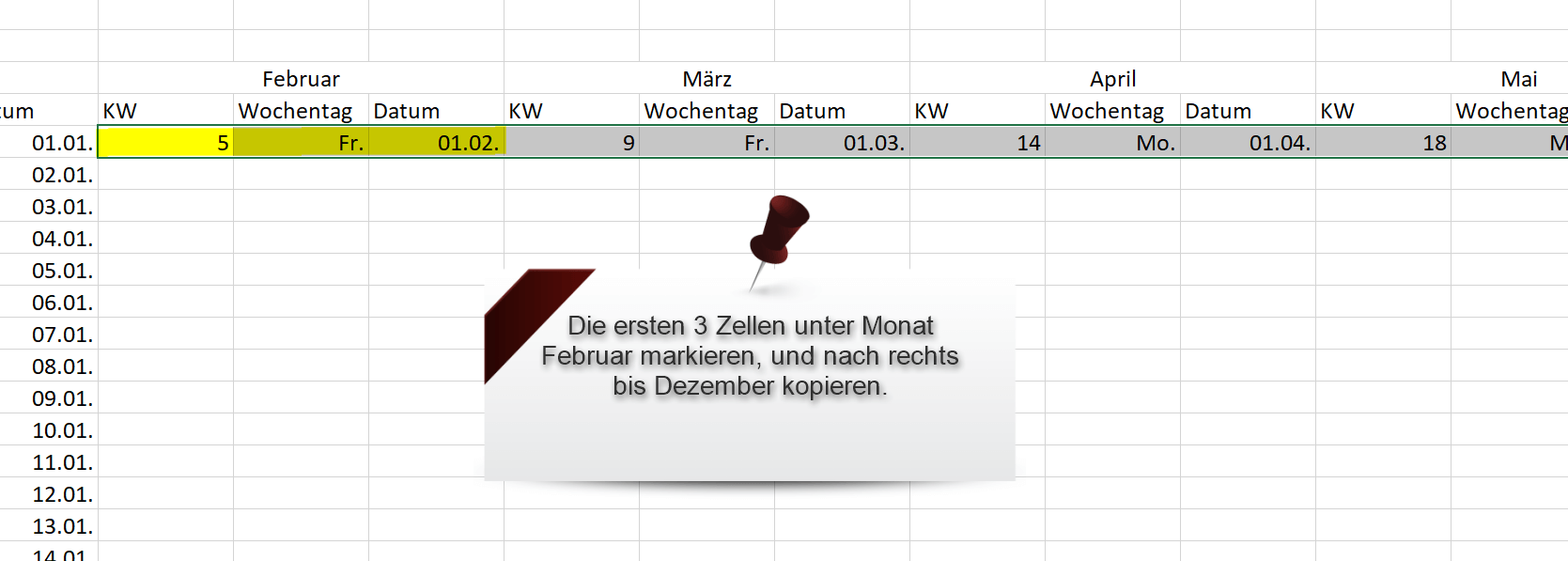
Now select the 3 cells: CW – weekday – date under the month of February, and copy this over to December on the right.
See fig .: (click to enlarge)

Next, enter the following function in the cell under 01.01: = IFERROR (IF (MONTH (D5 + 1) = MONTH (D $ 5); D5 + 1; “”); “”)
With this function, we tell Excel, in short, that a date from February does not suddenly appear in the month of January, and we also hide undesired error messages with IFERROR.
Repeat this function again in the cell under 02/01. But make sure that you also refer to the date in February and not in January.
Now you can mark the cell with 02.01, copy it down at the lower right corner of the mark until the last day of January by holding down the left mouse button. Then mark the first cell under “Day of the week” for January, and double-click left on the lower right edge of the mark.
This will automatically fill in all cells to the end.
To do this, we first start with the determination of the date for the month of February:
- Enter the following in the cell under Date for February: = EDATE (D5; 1) The reference to the date cell of January is important.
- In the cell where the day of the week is, refer to the date again and format this cell as you did for January.
- Now mark the cell under “KW” in the month of January and enter the following there: = IF ERROR (CALENDAR WEEK (D5; 2); “”)
- Repeat the process for the cell under KW in February.
Note:
The “IF ERROR” function will later help to hide errors – which do not affect the functionality of the calendar – but which look ugly.
See fig .: (click to enlarge)
Now select the 3 cells: CW – weekday – date under the month of February, and copy this over to December on the right.
See fig .: (click to enlarge)
Next, enter the following function in the cell under 01.01: = IFERROR (IF (MONTH (D5 + 1) = MONTH (D $ 5); D5 + 1; “”); “”)
With this function, we tell Excel, in short, that a date from February does not suddenly appear in the month of January, and we also hide undesired error messages with IFERROR.
Repeat this function again in the cell under 02/01. But make sure that you also refer to the date in February and not in January.
Now you can mark the cell with 02.01, copy it down at the lower right corner of the mark until the last day of January by holding down the left mouse button. Then mark the first cell under “Day of the week” for January, and double-click left on the lower right edge of the mark.
This will automatically fill in all cells to the end.
3. Highlight weekends in the calendar
3. Highlight weekends in the calendar
Now the calendar is actually ready so far that you could finish it with one copy step.
However, for our example, we want to automatically highlight the weekends beforehand and copy this function at the same time.
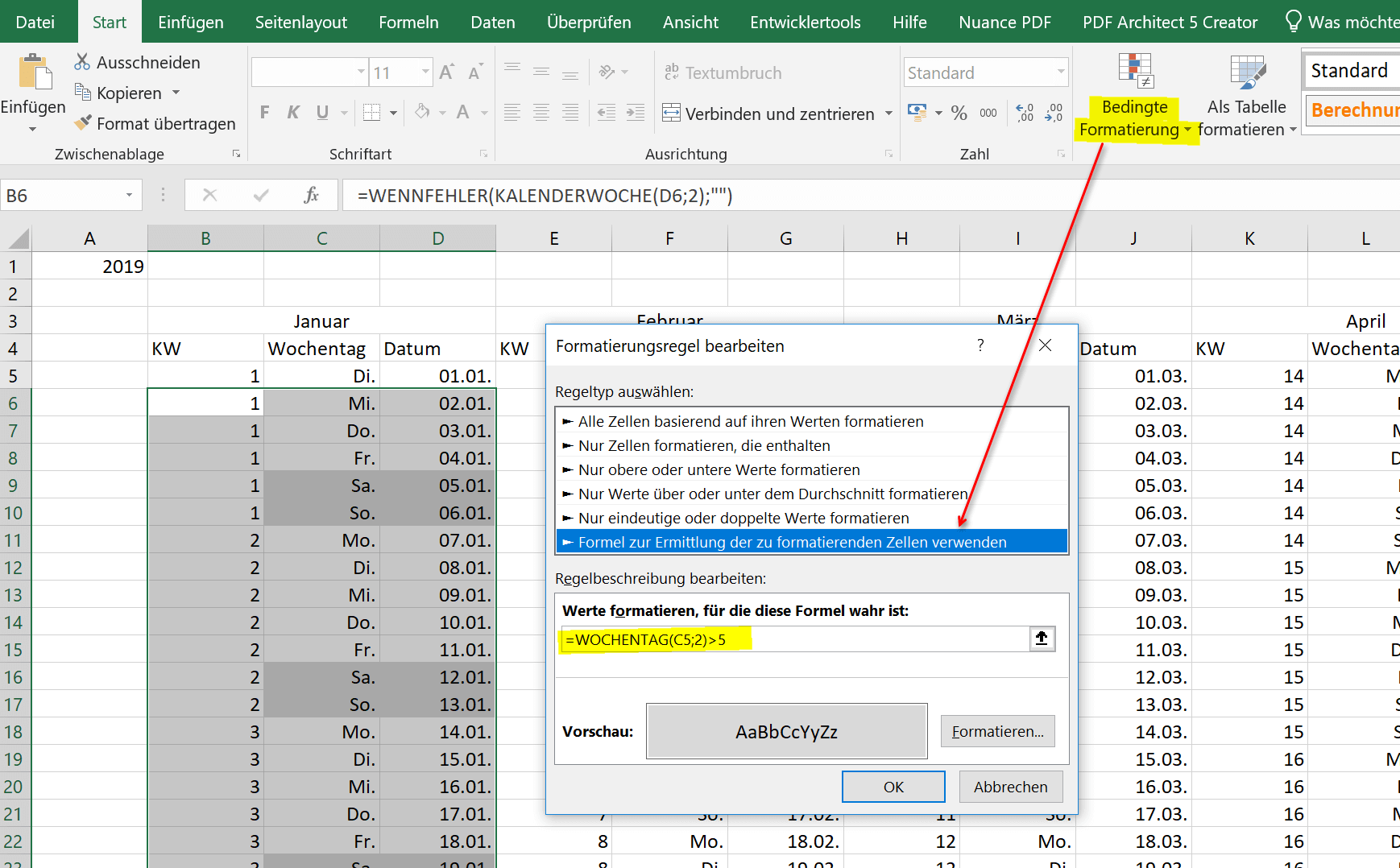
- Select the first 3 cells under the month of January and expand the selection to the end of the month.
- Then click on “Conditional Formatting” in the ribbon and select “Use formula to determine the cells to be formatted”
- Enter the following function here: = WEEKDAY (C5; 2)> 5
- Now click on “Format” and choose either a background color or a font color as desired.
- Confirm the rule with “OK”
See fig .: (click to enlarge)
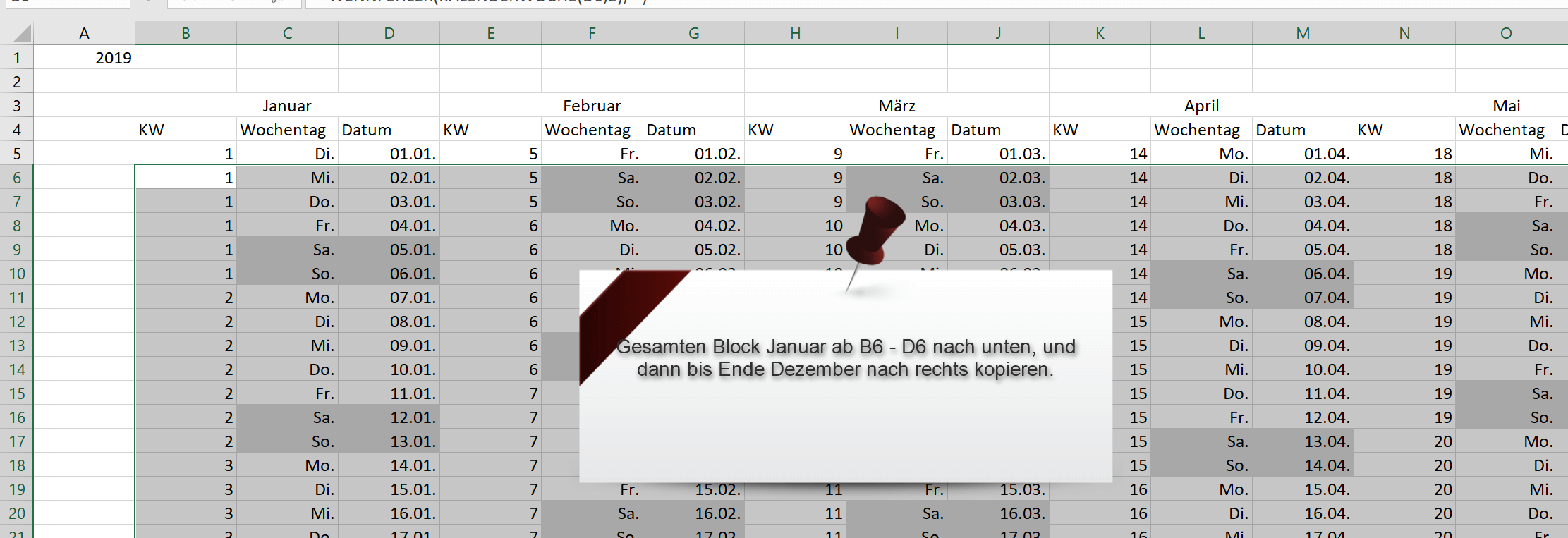
You can leave the existing marking of the cells marked as it is, and hold them on the lower right edge with the left mouse button and copy them to the right until the end of December.
And with that our calendar would already be finished (at least in the basic structure). If you now want to jump to a different year, you only need to change the year and all other values in the calendar adapt dynamically.
See fig. (Click to enlarge)
Tip:
How you can use such an annual calendar as a vacation or shift planner, for example, can also be downloaded from our offers.
Offers 2024: Word & Excel Templates












Now the calendar is actually ready so far that you could finish it with one copy step.
However, for our example, we want to automatically highlight the weekends beforehand and copy this function at the same time.
- Select the first 3 cells under the month of January and expand the selection to the end of the month.
- Then click on “Conditional Formatting” in the ribbon and select “Use formula to determine the cells to be formatted”
- Enter the following function here: = WEEKDAY (C5; 2)> 5
- Now click on “Format” and choose either a background color or a font color as desired.
- Confirm the rule with “OK”
See fig .: (click to enlarge)
You can leave the existing marking of the cells marked as it is, and hold them on the lower right edge with the left mouse button and copy them to the right until the end of December.
And with that our calendar would already be finished (at least in the basic structure). If you now want to jump to a different year, you only need to change the year and all other values in the calendar adapt dynamically.
See fig. (Click to enlarge)
Tip:
How you can use such an annual calendar as a vacation or shift planner, for example, can also be downloaded from our offers.
Offers 2024: Word & Excel Templates
Popular Posts:

Ad-free home network: Install Pi-hole on Windows
Say goodbye to ads on smart TVs and in apps: Pi-hole software turns your Windows laptop into a network filter. This article explains step-by-step how to install it via Docker and configure the necessary DNS settings in your FRITZ!Box.
How to tune your FRITZ!Box into a professional call server
A professional telephone system can be built using a FRITZ!Box and a laptop. This article shows step by step how to use the free software "Phoner" to schedule announcements and record calls – including important legal information (§ 201 StGB).

Why to-do lists are a waste of time
Do you feel unproductive at the end of the day, even though you've worked hard? Your to-do list is to blame. It tempts you to focus on easy tasks and ignores your limited time. This article explains why lists are "self-deception" and why professionals use a calendar instead.

Smartphone Wi-Fi security: Public hotspots vs. home network
Is smartphone Wi-Fi a security risk? This article analyzes in detail threats such as evil twin attacks and explains protective measures for when you're on the go. We also clarify why home Wi-Fi is usually secure and how you can effectively separate your smart home from sensitive data using a guest network.

Warum dein Excel-Kurs Zeitverschwendung ist – was du wirklich lernen solltest!
Hand aufs Herz: Wann hast du zuletzt eine komplexe Excel-Formel ohne Googeln getippt? Eben. KI schreibt heute den Code für dich. Erfahre, warum klassische Excel-Trainings veraltet sind und welche 3 modernen Skills deinen Marktwert im Büro jetzt massiv steigern.

Cybersicherheit: Die 3 größten Fehler, die 90% aller Mitarbeiter machen
Hacker brauchen keine Codes, sie brauchen nur einen unaufmerksamen Mitarbeiter. Von Passwort-Recycling bis zum gefährlichen Klick: Wir zeigen die drei häufigsten Fehler im Büroalltag und geben praktische Tipps, wie Sie zur menschlichen Firewall werden.
Offers 2024: Word & Excel Templates
Popular Posts:
Ad-free home network: Install Pi-hole on Windows
Say goodbye to ads on smart TVs and in apps: Pi-hole software turns your Windows laptop into a network filter. This article explains step-by-step how to install it via Docker and configure the necessary DNS settings in your FRITZ!Box.
How to tune your FRITZ!Box into a professional call server
A professional telephone system can be built using a FRITZ!Box and a laptop. This article shows step by step how to use the free software "Phoner" to schedule announcements and record calls – including important legal information (§ 201 StGB).
Why to-do lists are a waste of time
Do you feel unproductive at the end of the day, even though you've worked hard? Your to-do list is to blame. It tempts you to focus on easy tasks and ignores your limited time. This article explains why lists are "self-deception" and why professionals use a calendar instead.
Smartphone Wi-Fi security: Public hotspots vs. home network
Is smartphone Wi-Fi a security risk? This article analyzes in detail threats such as evil twin attacks and explains protective measures for when you're on the go. We also clarify why home Wi-Fi is usually secure and how you can effectively separate your smart home from sensitive data using a guest network.
Warum dein Excel-Kurs Zeitverschwendung ist – was du wirklich lernen solltest!
Hand aufs Herz: Wann hast du zuletzt eine komplexe Excel-Formel ohne Googeln getippt? Eben. KI schreibt heute den Code für dich. Erfahre, warum klassische Excel-Trainings veraltet sind und welche 3 modernen Skills deinen Marktwert im Büro jetzt massiv steigern.
Cybersicherheit: Die 3 größten Fehler, die 90% aller Mitarbeiter machen
Hacker brauchen keine Codes, sie brauchen nur einen unaufmerksamen Mitarbeiter. Von Passwort-Recycling bis zum gefährlichen Klick: Wir zeigen die drei häufigsten Fehler im Büroalltag und geben praktische Tipps, wie Sie zur menschlichen Firewall werden.
Offers 2024: Word & Excel Templates