Convert PowerPoint slides into a PDF


With PowerPoint, you have an excellent presentation software that you can use with a little skill and creativity to convey simple and vivid complex content.
Now, you might want to make the presentation accessible where PowerPoint may not be used.
Of course, the PDF format is an obvious choice.
You also have the option to port and adapt only certain slides instead of the complete PowerPoint presentation as so-called “hands out” into a PDF so that participants can easily print them out.
Read in our article how it is done with PowerPoint 2016.

Convert PowerPoint slides into a PDF
With PowerPoint, you have an excellent presentation software that you can use with a little skill and creativity to convey simple and vivid complex content.
Now, you might want to make the presentation accessible where PowerPoint may not be used.
Of course, the PDF format is an obvious choice.
You also have the option to port and adapt only certain slides instead of the complete PowerPoint presentation as so-called “hands out” into a PDF so that participants can easily print them out.
Read in our article how it is done with PowerPoint 2016.
1. Conversion via direct selection
1. Conversion via direct selection
Like (almost) everywhere many ways to convert a PowerPoint file into a PDF lead to Rome.
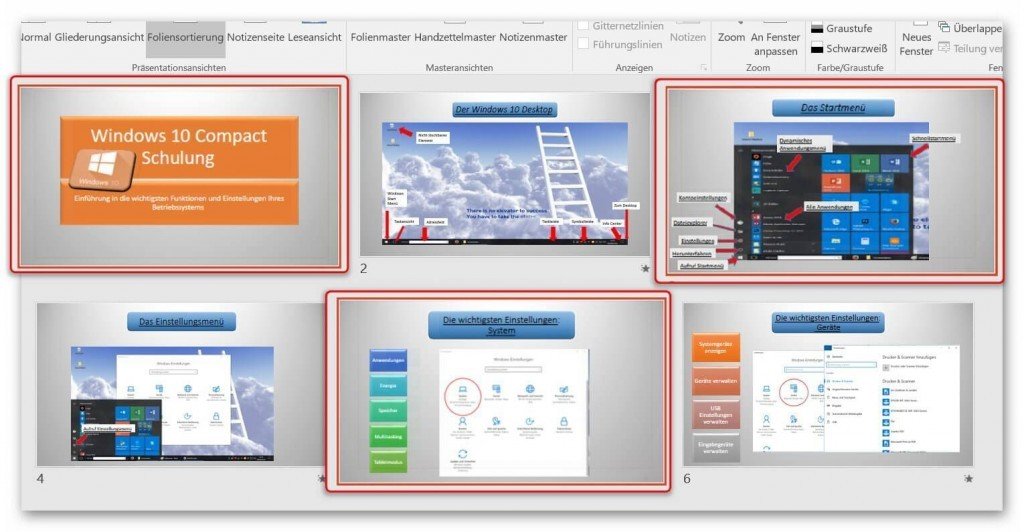
In the first option, you select the slides in an overview directly and convert them.
To do this, select “Slide Sorter” in your open PowerPoint file “View”
See picture (click to enlarge)

In the overview displayed there, you have a good overview of all slides in your presentation and can select them one after the other. (Hold down CTRL and select with left-click)
See picture (click to enlarge)

Like (almost) everywhere many ways to convert a PowerPoint file into a PDF lead to Rome.
In the first option, you select the slides in an overview directly and convert them.
To do this, select “Slide Sorter” in your open PowerPoint file “View”
See picture (click to enlarge)
In the overview displayed there, you have a good overview of all slides in your presentation and can select them one after the other. (Hold down CTRL and select with left-click)
See picture (click to enlarge)
2. Print PowerPoint as PDF
2. Print PowerPoint as PDF
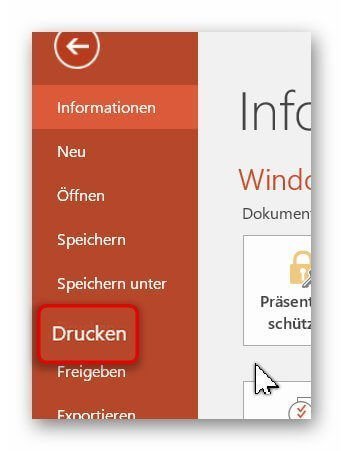
After selecting the desired slides, we click on “Print” in the “Start” tab and select a virtual PDF printer there.
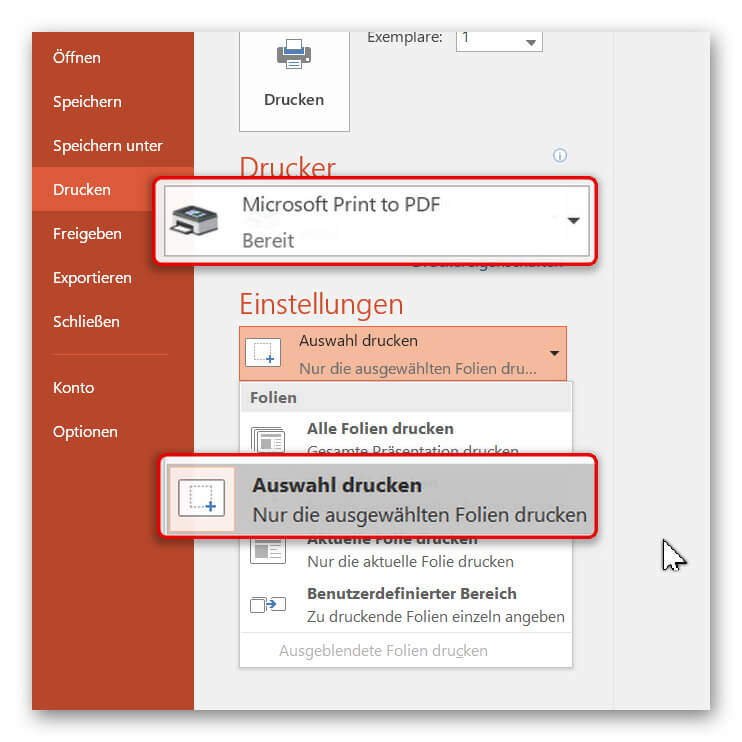
In our example, we simply use the “Microsoft Print to PDF” feature, which is installed by default.
Under the item “Settings” in the print menu we select “Print Selection” to convert only our previously selected slides.
See picture (click to enlarge)
After selecting the desired slides, we click on “Print” in the “Start” tab and select a virtual PDF printer there.
In our example, we simply use the “Microsoft Print to PDF” feature, which is installed by default.
Under the item “Settings” in the print menu we select “Print Selection” to convert only our previously selected slides.
See picture (click to enlarge)
3. Convert PowerPoint to PDF
3. Convert PowerPoint to PDF
The 2nd possibility to bring your presentation into a PDF works as follows:
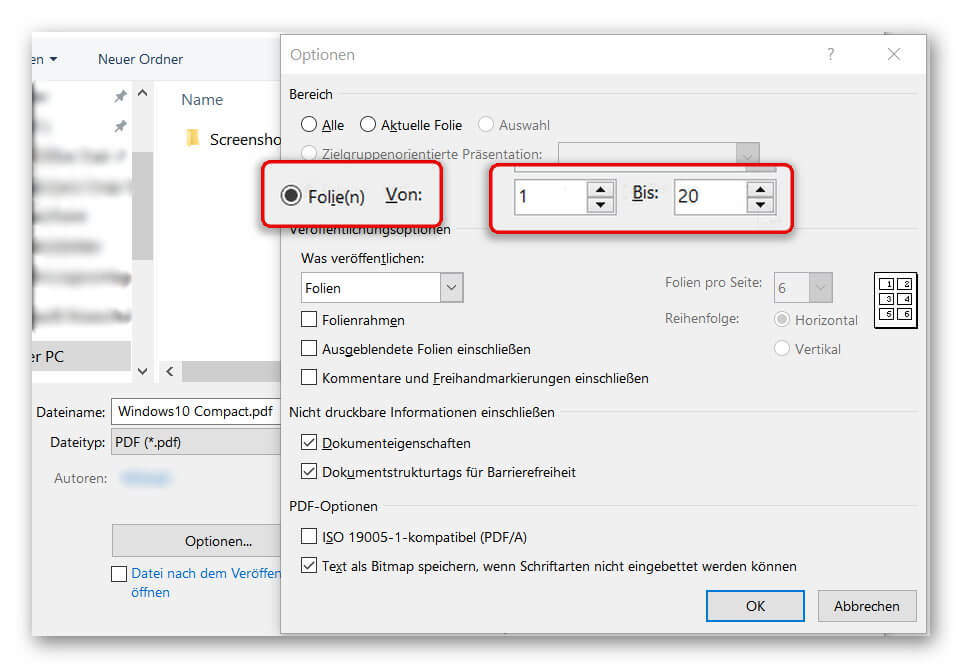
- In the “Start” tab, select “Save As” – “Browse” and assign a name for your document. As file format select “PDF”.
- After selecting the appropriate file format, you have more options for saving.
- Customize the options (such as: from page to page) for the file you want to save as a PDF, and then click Save.
See picture (click to enlarge)

After saving, you will receive a PDF document of your PowerPoint presentation that you can conveniently email or print out.
Optionally, we recommend the professional software Nuance Power PDF 2.0. This integrates seamlessly into all Microsoft Office programs, and offers even more comfort features.

The 2nd possibility to bring your presentation into a PDF works as follows:
- In the “Start” tab, select “Save As” – “Browse” and assign a name for your document. As file format select “PDF”.
- After selecting the appropriate file format, you have more options for saving.
- Customize the options (such as: from page to page) for the file you want to save as a PDF, and then click Save.
See picture (click to enlarge)
After saving, you will receive a PDF document of your PowerPoint presentation that you can conveniently email or print out.
Optionally, we recommend the professional software Nuance Power PDF 2.0. This integrates seamlessly into all Microsoft Office programs, and offers even more comfort features.
Popular Posts:

Create a Table of Contents in Word
To create a dynamic table of contents in Microsoft Word - Office 365

Use bookmarks and cross-references in Word
How to use text markers to make your Word document dynamic and click through your pages.

Record and save Skype video calls
Skype has finally added a long-missing feature. But there are also external software solutions for it.

The most important tips for online banking
So you do not only do your banking conveniently, but also safely from home.
Create flyers and business cards with Word
To create professional flyers and business cards in Word 2016/2019 without any additional image editing program.

Microsoft Office gets fresher with a new design
The familiar appearance of Microsoft Office versions will soon be a thing of the past, and a sleek design gives it a fresh look.
Offers 2024: Word & Excel Templates











Popular Posts:
Create a Table of Contents in Word
To create a dynamic table of contents in Microsoft Word - Office 365
Use bookmarks and cross-references in Word
How to use text markers to make your Word document dynamic and click through your pages.
Record and save Skype video calls
Skype has finally added a long-missing feature. But there are also external software solutions for it.
The most important tips for online banking
So you do not only do your banking conveniently, but also safely from home.
Create flyers and business cards with Word
To create professional flyers and business cards in Word 2016/2019 without any additional image editing program.
Microsoft Office gets fresher with a new design
The familiar appearance of Microsoft Office versions will soon be a thing of the past, and a sleek design gives it a fresh look.
Offers 2024: Word & Excel Templates