
1. Jump quickly to the end or the beginning
1. Jump quickly to the end or the beginning
You have a very long document and you want to avoid the hassle of scrolling with the mouse wheel
jump quickly to the beginning or to the end to check something?
Solution:
With the key combination “STRG” + “HOME” (to the beginning of the document)
With the key combination “CTRL” + “END” (to the beginning of the document)
You have a very long document and you want to avoid the hassle of scrolling with the mouse wheel
jump quickly to the beginning or to the end to check something?
Solution:
With the key combination “STRG” + “HOME” (to the beginning of the document)
With the key combination “CTRL” + “END” (to the beginning of the document)
2. Create a new document using a shortcut
2. Create a new document using a shortcut
Are you currently working on a document and want to quickly create a new one without going through the menu?
Solution:
With the key combination “CTRL” + “N” a new empty document is opened in addition to the existing document.
Are you currently working on a document and want to quickly create a new one without going through the menu?
Solution:
With the key combination “CTRL” + “N” a new empty document is opened in addition to the existing document.
3. Mark text passages quickly
3. Mark text passages quickly
Would you like to mark certain words, lines or paragraphs quickly with the mouse without having to select them precisely by dragging the mouse?
Solution:
- Mark individual words: 2x click in the relevant word
- Mark entire lines: 1x click to the left of the relevant line
- Mark complete paragraphs: 2x click to the left of the paragraph concerned

Tip:
If you want to mark several words, lines or paragraphs together, simply hold down the “CTRL” key after the first mark and mark the next section of text.
Would you like to mark certain words, lines or paragraphs quickly with the mouse without having to select them precisely by dragging the mouse?
Solution:
- Mark individual words: 2x click in the relevant word
- Mark entire lines: 1x click to the left of the relevant line
- Mark complete paragraphs: 2x click to the left of the paragraph concerned
Tip:
If you want to mark several words, lines or paragraphs together, simply hold down the “CTRL” key after the first mark and mark the next section of text.
4. Move text passages in Word
4. Move text passages in Word
You have created a document and you realize that a certain text passage is out of place and actually belongs in another place?
Solution:
- Select the relevant section of text
- With the left mouse button pressed, drag the marked text segment to the desired position in the document
Note:
A black vertical cursor bar is displayed while the text area to be moved is being moved. This is the position at which the text passage can be inserted.
You have created a document and you realize that a certain text passage is out of place and actually belongs in another place?
Solution:
- Select the relevant section of text
- With the left mouse button pressed, drag the marked text segment to the desired position in the document
Note:
A black vertical cursor bar is displayed while the text area to be moved is being moved. This is the position at which the text passage can be inserted.
5. Auto-complete words
5. Auto-complete words
Do you want to avoid having to write frequently used words that are also very long?
Wouldn’t it be perfect to just enter 1 or 2 letters and then let Word automatically complete them to the desired word?
Solution:
- Under the register: “File / Options / Document review” select the entry Autocorrect options.
- In the line “Replace while typing” add your desired abbreviation and the word from which you want to generate.
See fig .: (click to enlarge)

Note:
The autocorrection created in this way will from now on be used in every new document.
Do you want to avoid having to write frequently used words that are also very long?
Wouldn’t it be perfect to just enter 1 or 2 letters and then let Word automatically complete them to the desired word?
Solution:
- Under the register: “File / Options / Document review” select the entry Autocorrect options.
- In the line “Replace while typing” add your desired abbreviation and the word from which you want to generate.
See fig .: (click to enlarge)
Note:
The autocorrection created in this way will from now on be used in every new document.
6. Customize the quick start bar
6. Customize the quick start bar
Do you use certain functions in Word very often and don’t want to constantly go through the cumbersome way via the tabs to get to your destination?
Solution:
- Select the item “Customize toolbar” above the tabs at the top left
See fig .: (click to enlarge)
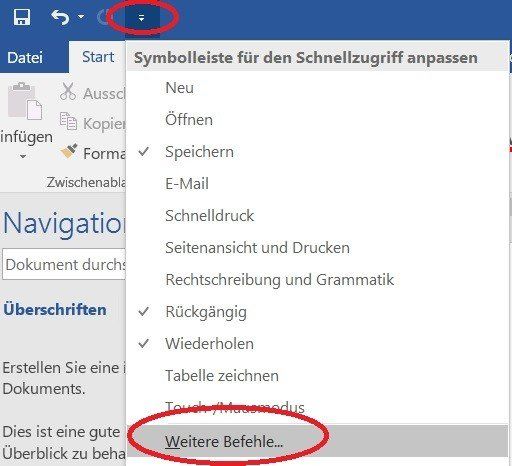
Now either select one of the points already given, or click on the point “More commands”.
See fig.2: (click to enlarge)
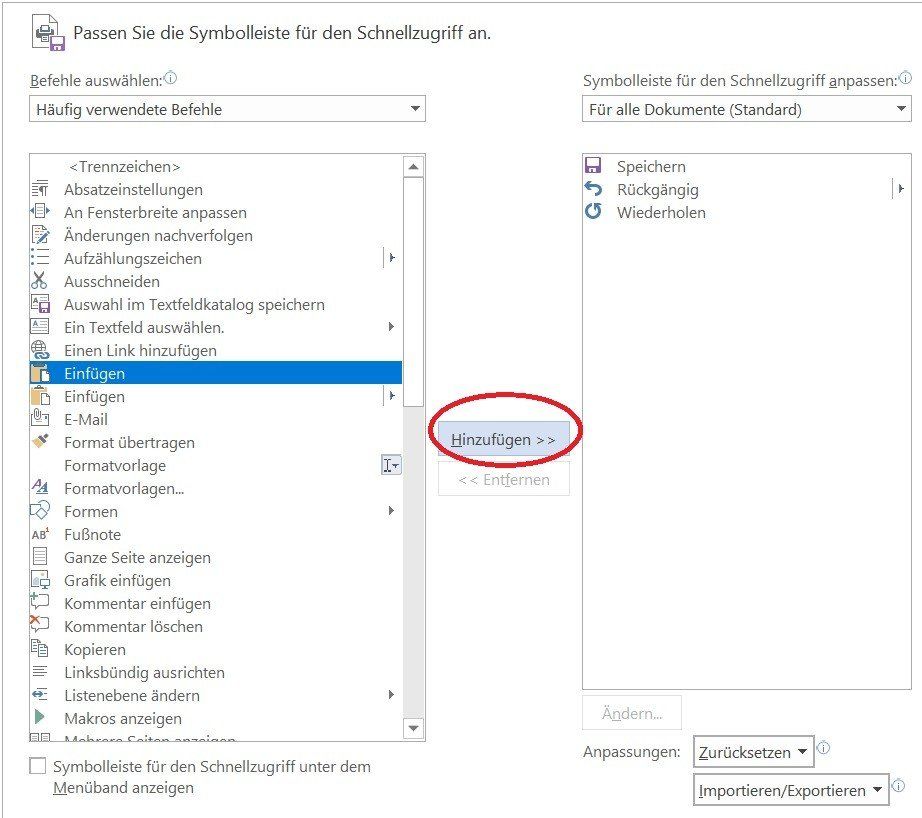
On the left side you will find all available commands, which you can select in each case and transfer to your personal quick start menu using the “Add” button.
Note:
You can choose whether the customized quick launch bar is to be used from now on for each document or only for the current document.
Do you use certain functions in Word very often and don’t want to constantly go through the cumbersome way via the tabs to get to your destination?
Solution:
- Select the item “Customize toolbar” above the tabs at the top left
See fig .: (click to enlarge)
Now either select one of the points already given, or click on the point “More commands”.
See fig.2: (click to enlarge)
On the left side you will find all available commands, which you can select in each case and transfer to your personal quick start menu using the “Add” button.
Note:
You can choose whether the customized quick launch bar is to be used from now on for each document or only for the current document.
7. Automatic storage function
7. Automatic storage function
Have you been working on a long document for a while and suddenly your computer crashed or the power went out? If you have not saved manually in between because you were too absorbed in your work, everything is gone and you have to start over with the document.
Fortunately, there is the automatically adaptable memory function in Word.
Solution:
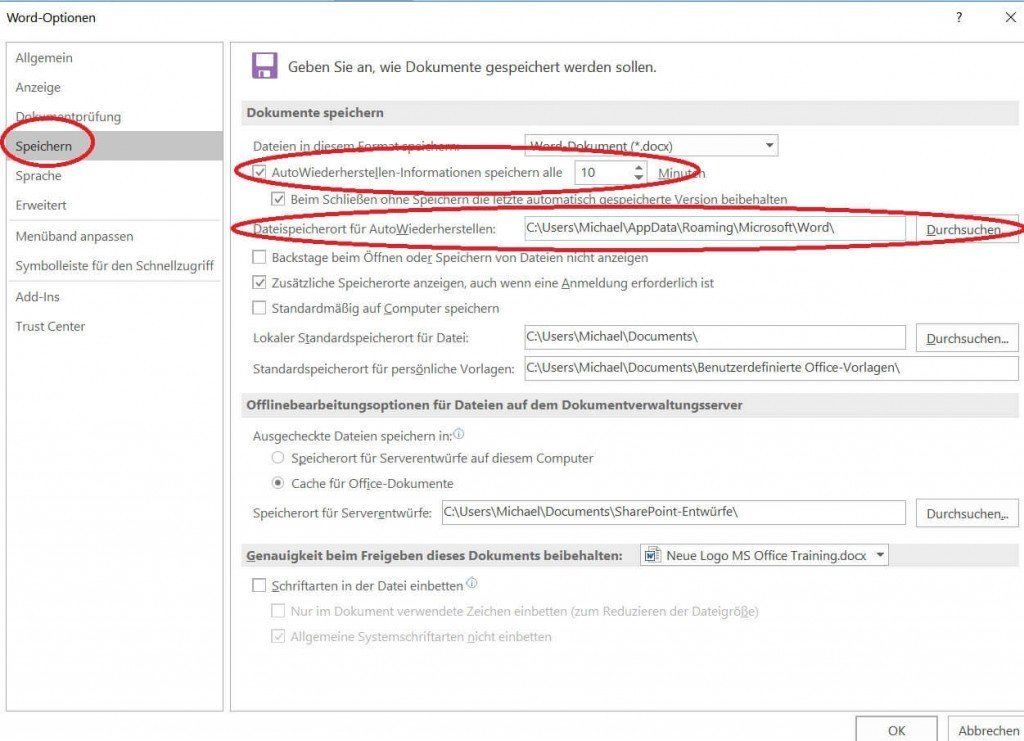
- Select Word Options, “Save” and individually set the time intervals at which an automatic Word backup should be made. You can also specify the file format (usually “docx”) and the storage location there.
See fig .: (click to enlarge)
Note:
The intermediate copies automatically saved by Word are automatically deleted after you have manually saved and closed the document, and are only used to protect against unexpected events.
However, you can also set everything here according to your own ideas.
Have you been working on a long document for a while and suddenly your computer crashed or the power went out? If you have not saved manually in between because you were too absorbed in your work, everything is gone and you have to start over with the document.
Fortunately, there is the automatically adaptable memory function in Word.
Solution:
- Select Word Options, “Save” and individually set the time intervals at which an automatic Word backup should be made. You can also specify the file format (usually “docx”) and the storage location there.
See fig .: (click to enlarge)
Note:
The intermediate copies automatically saved by Word are automatically deleted after you have manually saved and closed the document, and are only used to protect against unexpected events.
However, you can also set everything here according to your own ideas.
8. Insert blank pages in Word
8. Insert blank pages in Word
Are you working on a document and suddenly you realize that a certain page is in the wrong place?
Let’s take the following example:
- We want to get the content of page 5 on page 2, or page 2 should become 3, page 4 should become 5, etc.
Solution:
- Place the cursor in front of the first word on page 2 and then click on the “Insert / Empty Page” tab
See fig .: (click to enlarge)
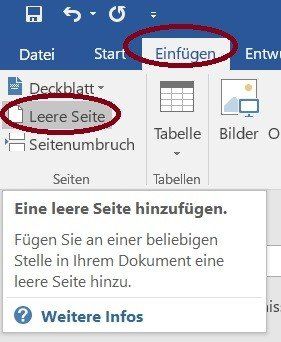
This inserts a page break on the page where your cursor was last, and creates a blank page in front of page 2. (You have now created a new page 2.) Now cut out the content of page 5 that you would like to move to a different position (highlight the content and then “CTRL” + X) and paste it at the beginning of the new blank page.
The now blank page 5 from which you have cut the content can be deleted from the document by removing the resulting page break from it.
Are you working on a document and suddenly you realize that a certain page is in the wrong place?
Let’s take the following example:
- We want to get the content of page 5 on page 2, or page 2 should become 3, page 4 should become 5, etc.
Solution:
- Place the cursor in front of the first word on page 2 and then click on the “Insert / Empty Page” tab
See fig .: (click to enlarge)
This inserts a page break on the page where your cursor was last, and creates a blank page in front of page 2. (You have now created a new page 2.) Now cut out the content of page 5 that you would like to move to a different position (highlight the content and then “CTRL” + X) and paste it at the beginning of the new blank page.
The now blank page 5 from which you have cut the content can be deleted from the document by removing the resulting page break from it.
9. Transferring text formatting
9. Transferring text formatting
Are you working on a document and want to display several words in a different color, in bold or underlined without having to select each word individually and then having to assign the color again and again?
Let’s take the following example:
- You want to have several words “bold” in a document.
Solution:
- Select the first Word to be formatted and select Bold in the “Start / Font” tab.
- While the word remains selected, double-click in the “Start” tab on the symbol: “Transfer format”
See picture: (click to enlarge)
Now simply click on each word in the document which should be shown in bold, or mark any number of text sections to provide them with the appropriate formatting.
When you have formatted all the words you want, simply end the process of permanent formatting transfer by pressing the “ESC” key.

Are you working on a document and want to display several words in a different color, in bold or underlined without having to select each word individually and then having to assign the color again and again?
Let’s take the following example:
- You want to have several words “bold” in a document.
Solution:
- Select the first Word to be formatted and select Bold in the “Start / Font” tab.
- While the word remains selected, double-click in the “Start” tab on the symbol: “Transfer format”
See picture: (click to enlarge)
Now simply click on each word in the document which should be shown in bold, or mark any number of text sections to provide them with the appropriate formatting.
When you have formatted all the words you want, simply end the process of permanent formatting transfer by pressing the “ESC” key.
Popular Posts:

Ad-free home network: Install Pi-hole on Windows
Say goodbye to ads on smart TVs and in apps: Pi-hole software turns your Windows laptop into a network filter. This article explains step-by-step how to install it via Docker and configure the necessary DNS settings in your FRITZ!Box.

How to tune your FRITZ!Box into a professional call server
A professional telephone system can be built using a FRITZ!Box and a laptop. This article shows step by step how to use the free software "Phoner" to schedule announcements and record calls – including important legal information (§ 201 StGB).

Why to-do lists are a waste of time
Do you feel unproductive at the end of the day, even though you've worked hard? Your to-do list is to blame. It tempts you to focus on easy tasks and ignores your limited time. This article explains why lists are "self-deception" and why professionals use a calendar instead.

Smartphone Wi-Fi security: Public hotspots vs. home network
Is smartphone Wi-Fi a security risk? This article analyzes in detail threats such as evil twin attacks and explains protective measures for when you're on the go. We also clarify why home Wi-Fi is usually secure and how you can effectively separate your smart home from sensitive data using a guest network.

Warum dein Excel-Kurs Zeitverschwendung ist – was du wirklich lernen solltest!
Hand aufs Herz: Wann hast du zuletzt eine komplexe Excel-Formel ohne Googeln getippt? Eben. KI schreibt heute den Code für dich. Erfahre, warum klassische Excel-Trainings veraltet sind und welche 3 modernen Skills deinen Marktwert im Büro jetzt massiv steigern.

Cybersicherheit: Die 3 größten Fehler, die 90% aller Mitarbeiter machen
Hacker brauchen keine Codes, sie brauchen nur einen unaufmerksamen Mitarbeiter. Von Passwort-Recycling bis zum gefährlichen Klick: Wir zeigen die drei häufigsten Fehler im Büroalltag und geben praktische Tipps, wie Sie zur menschlichen Firewall werden.
Offers 2024: Word & Excel Templates











Popular Posts:
Ad-free home network: Install Pi-hole on Windows
Say goodbye to ads on smart TVs and in apps: Pi-hole software turns your Windows laptop into a network filter. This article explains step-by-step how to install it via Docker and configure the necessary DNS settings in your FRITZ!Box.
How to tune your FRITZ!Box into a professional call server
A professional telephone system can be built using a FRITZ!Box and a laptop. This article shows step by step how to use the free software "Phoner" to schedule announcements and record calls – including important legal information (§ 201 StGB).
Why to-do lists are a waste of time
Do you feel unproductive at the end of the day, even though you've worked hard? Your to-do list is to blame. It tempts you to focus on easy tasks and ignores your limited time. This article explains why lists are "self-deception" and why professionals use a calendar instead.
Smartphone Wi-Fi security: Public hotspots vs. home network
Is smartphone Wi-Fi a security risk? This article analyzes in detail threats such as evil twin attacks and explains protective measures for when you're on the go. We also clarify why home Wi-Fi is usually secure and how you can effectively separate your smart home from sensitive data using a guest network.
Warum dein Excel-Kurs Zeitverschwendung ist – was du wirklich lernen solltest!
Hand aufs Herz: Wann hast du zuletzt eine komplexe Excel-Formel ohne Googeln getippt? Eben. KI schreibt heute den Code für dich. Erfahre, warum klassische Excel-Trainings veraltet sind und welche 3 modernen Skills deinen Marktwert im Büro jetzt massiv steigern.
Cybersicherheit: Die 3 größten Fehler, die 90% aller Mitarbeiter machen
Hacker brauchen keine Codes, sie brauchen nur einen unaufmerksamen Mitarbeiter. Von Passwort-Recycling bis zum gefährlichen Klick: Wir zeigen die drei häufigsten Fehler im Büroalltag und geben praktische Tipps, wie Sie zur menschlichen Firewall werden.
Offers 2024: Word & Excel Templates