Header and footer in Word – First page different in Word


Would you like to create your own letter template or scientific work in Word? Then you really can’t avoid headers and footers in Word or a dynamic table of contents. Because these building blocks not only create structure in your Word document, but also give the whole thing a more professional look.
In this short tutorial we would like to describe how you can insert and design headers in Word and footers in Word. We will also not ignore the possibility of using the header or footer of the first page differently in Word. For example, if you want to create a business letter template in Word, your logo does not have to be in the header on every page, but is usually only on the first page.
Header and footer in Word – First page different in Word
Would you like to create your own letter template or scientific work in Word? Then you really can’t avoid headers and footers in Word or a dynamic table of contents. Because these building blocks not only create structure in your Word document, but also give the whole thing a more professional look.
In this short tutorial we would like to describe how you can insert and design headers in Word and footers in Word. We will also not ignore the possibility of using the header or footer of the first page differently in Word. For example, if you want to create a business letter template in Word, your logo does not have to be in the header on every page, but is usually only on the first page.
Insert Header in Word
Insert Header in Word
A header is an area at the top of each page of your document that contains information such as the document’s title, author, page number, or other relevant information. With Word, you can easily create a header that appears on every page of your document.
Here are the steps to create a header in Word:
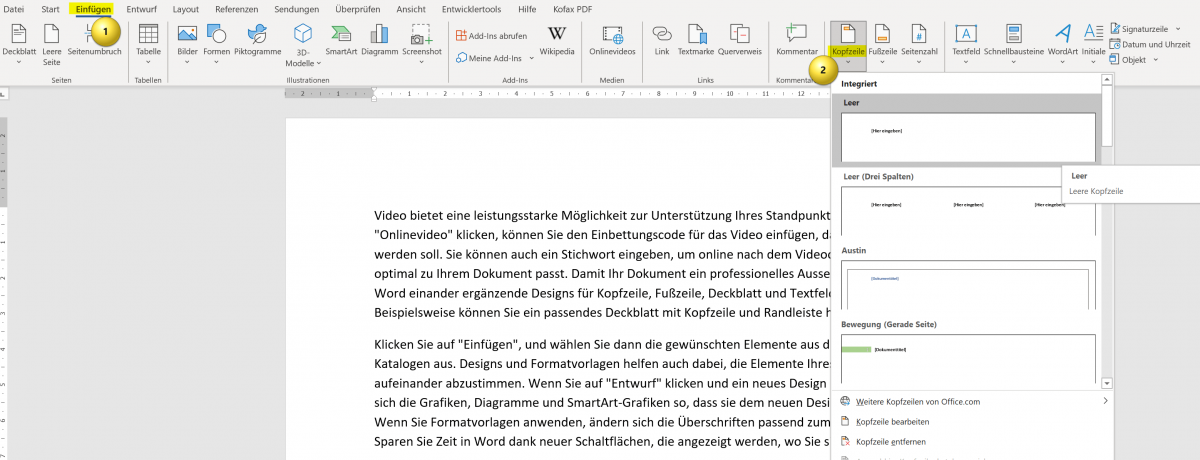
- Click on the “Insert” tab at the top of the menu bar.
- Click the Header button in the Header & Footer area. A list of pre-designed header layouts will appear.
- Select one of the default headers that matches your document type. You can also click “Edit Header” to create your own header.
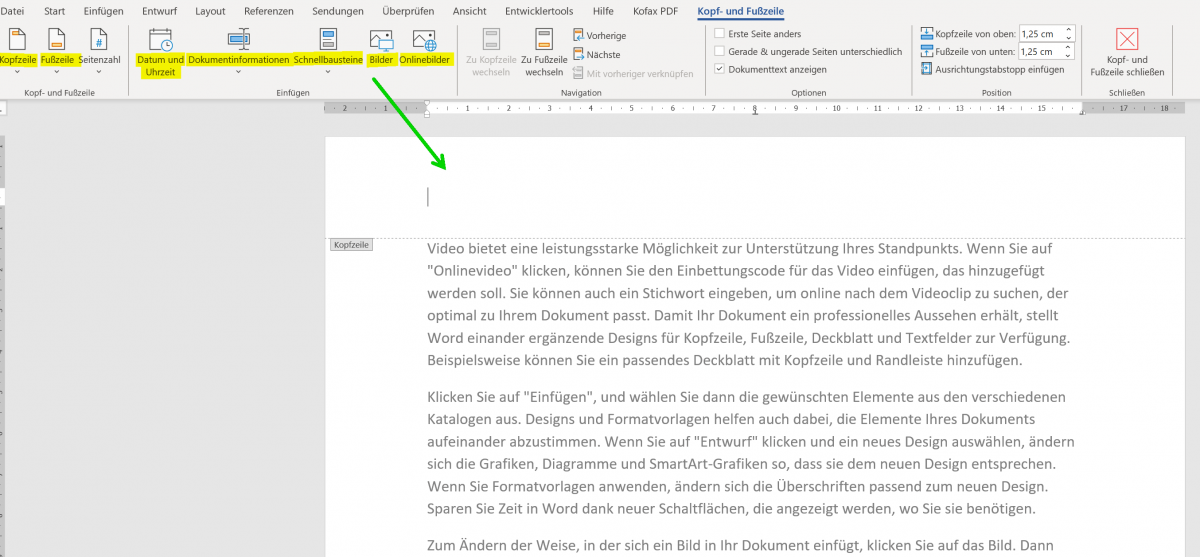
- If you selected “Edit Header“, the Header area will appear where you can enter your text. You can format the text, insert images and add other elements.
- When you’re done, click “Close” on the header toolbar to return to normal view.
Your header will now appear on every page of your document. You can edit or delete the header at any time by clicking Header again and selecting Edit Header or Remove Header.
Tip: By the way, you can get to the header in Word even faster if you simply double-click in the upper area of your Word document.
see fig. (click to enlarge)

Das sind die wichtigsten grundlegenden Schritte, um eine Kopfzeile in Word zu erstellen, und individuell anzupassen. Wir denken, das Ihnen das sicherlich weiterhilft.
If you want your header to be different on each page of your document (e.g. different on the first page than on the following pages), there are two options:
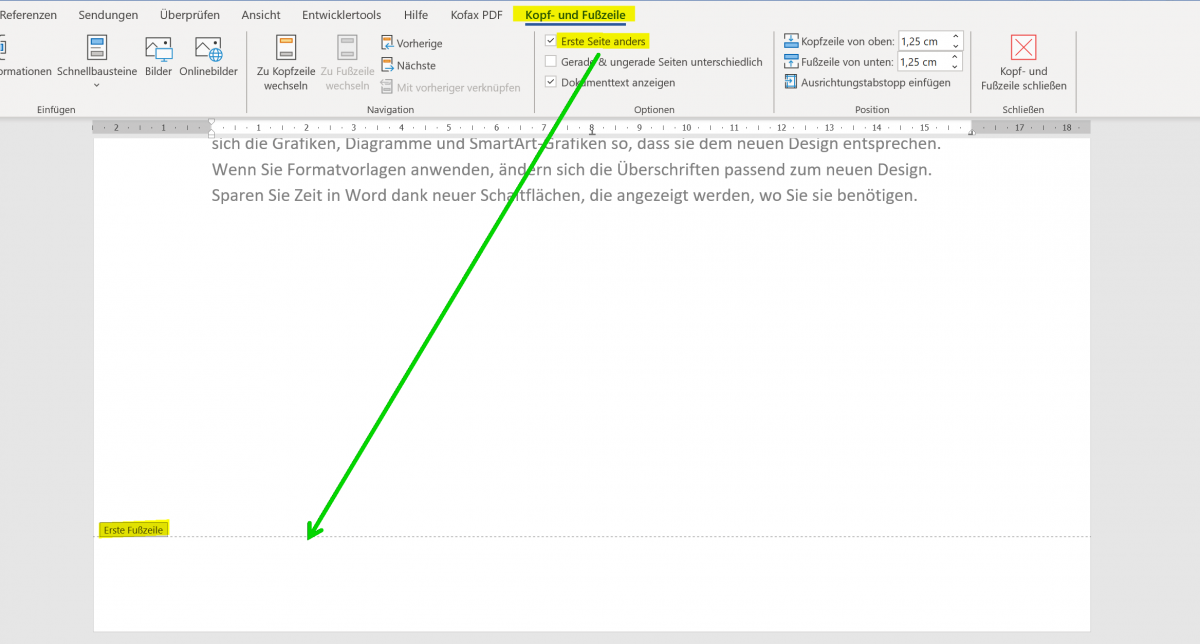
- “Different first page“: With this, the header on the first page is designed differently than on the following pages. To enable this option, click Header, then click Header and Footer Options. Then select “Different first page“.
- “Different Even and Odd Pages“: This makes the header on even pages different than on odd pages. To enable this option, click Header, then click Header and Footer Options. Then select “Different even and odd sides“.
Tip: The footer works just like the header in Word. The shortest way is to simply double-click in the lower area of a page. And the option to design the first page in Word differently is also available here.
see fig. (click to enlarge)
These are the top basic steps to create and customize a header in Word. We think this will definitely help you.

A header is an area at the top of each page of your document that contains information such as the document’s title, author, page number, or other relevant information. With Word, you can easily create a header that appears on every page of your document.
Here are the steps to create a header in Word:
- Click on the “Insert” tab at the top of the menu bar.
- Click the Header button in the Header & Footer area. A list of pre-designed header layouts will appear.
- Select one of the default headers that matches your document type. You can also click “Edit Header” to create your own header.
- If you selected “Edit Header“, the Header area will appear where you can enter your text. You can format the text, insert images and add other elements.
- When you’re done, click “Close” on the header toolbar to return to normal view.
Your header will now appear on every page of your document. You can edit or delete the header at any time by clicking Header again and selecting Edit Header or Remove Header.
Tip: By the way, you can get to the header in Word even faster if you simply double-click in the upper area of your Word document.
see fig. (click to enlarge)
Das sind die wichtigsten grundlegenden Schritte, um eine Kopfzeile in Word zu erstellen, und individuell anzupassen. Wir denken, das Ihnen das sicherlich weiterhilft.
If you want your header to be different on each page of your document (e.g. different on the first page than on the following pages), there are two options:
- “Different first page“: With this, the header on the first page is designed differently than on the following pages. To enable this option, click Header, then click Header and Footer Options. Then select “Different first page“.
- “Different Even and Odd Pages“: This makes the header on even pages different than on odd pages. To enable this option, click Header, then click Header and Footer Options. Then select “Different even and odd sides“.
Tip: The footer works just like the header in Word. The shortest way is to simply double-click in the lower area of a page. And the option to design the first page in Word differently is also available here.
see fig. (click to enlarge)
These are the top basic steps to create and customize a header in Word. We think this will definitely help you.
Popular Posts:

Ad-free home network: Install Pi-hole on Windows
Say goodbye to ads on smart TVs and in apps: Pi-hole software turns your Windows laptop into a network filter. This article explains step-by-step how to install it via Docker and configure the necessary DNS settings in your FRITZ!Box.
How to tune your FRITZ!Box into a professional call server
A professional telephone system can be built using a FRITZ!Box and a laptop. This article shows step by step how to use the free software "Phoner" to schedule announcements and record calls – including important legal information (§ 201 StGB).

Why to-do lists are a waste of time
Do you feel unproductive at the end of the day, even though you've worked hard? Your to-do list is to blame. It tempts you to focus on easy tasks and ignores your limited time. This article explains why lists are "self-deception" and why professionals use a calendar instead.

Smartphone Wi-Fi security: Public hotspots vs. home network
Is smartphone Wi-Fi a security risk? This article analyzes in detail threats such as evil twin attacks and explains protective measures for when you're on the go. We also clarify why home Wi-Fi is usually secure and how you can effectively separate your smart home from sensitive data using a guest network.

Warum dein Excel-Kurs Zeitverschwendung ist – was du wirklich lernen solltest!
Hand aufs Herz: Wann hast du zuletzt eine komplexe Excel-Formel ohne Googeln getippt? Eben. KI schreibt heute den Code für dich. Erfahre, warum klassische Excel-Trainings veraltet sind und welche 3 modernen Skills deinen Marktwert im Büro jetzt massiv steigern.

Cybersicherheit: Die 3 größten Fehler, die 90% aller Mitarbeiter machen
Hacker brauchen keine Codes, sie brauchen nur einen unaufmerksamen Mitarbeiter. Von Passwort-Recycling bis zum gefährlichen Klick: Wir zeigen die drei häufigsten Fehler im Büroalltag und geben praktische Tipps, wie Sie zur menschlichen Firewall werden.
Offers 2024: Word & Excel Templates











Popular Posts:
Ad-free home network: Install Pi-hole on Windows
Say goodbye to ads on smart TVs and in apps: Pi-hole software turns your Windows laptop into a network filter. This article explains step-by-step how to install it via Docker and configure the necessary DNS settings in your FRITZ!Box.
How to tune your FRITZ!Box into a professional call server
A professional telephone system can be built using a FRITZ!Box and a laptop. This article shows step by step how to use the free software "Phoner" to schedule announcements and record calls – including important legal information (§ 201 StGB).
Why to-do lists are a waste of time
Do you feel unproductive at the end of the day, even though you've worked hard? Your to-do list is to blame. It tempts you to focus on easy tasks and ignores your limited time. This article explains why lists are "self-deception" and why professionals use a calendar instead.
Smartphone Wi-Fi security: Public hotspots vs. home network
Is smartphone Wi-Fi a security risk? This article analyzes in detail threats such as evil twin attacks and explains protective measures for when you're on the go. We also clarify why home Wi-Fi is usually secure and how you can effectively separate your smart home from sensitive data using a guest network.
Warum dein Excel-Kurs Zeitverschwendung ist – was du wirklich lernen solltest!
Hand aufs Herz: Wann hast du zuletzt eine komplexe Excel-Formel ohne Googeln getippt? Eben. KI schreibt heute den Code für dich. Erfahre, warum klassische Excel-Trainings veraltet sind und welche 3 modernen Skills deinen Marktwert im Büro jetzt massiv steigern.
Cybersicherheit: Die 3 größten Fehler, die 90% aller Mitarbeiter machen
Hacker brauchen keine Codes, sie brauchen nur einen unaufmerksamen Mitarbeiter. Von Passwort-Recycling bis zum gefährlichen Klick: Wir zeigen die drei häufigsten Fehler im Büroalltag und geben praktische Tipps, wie Sie zur menschlichen Firewall werden.
Offers 2024: Word & Excel Templates