More fonts in Word through Google Fonts


As long as you are limited to writing texts when working with Word, you will probably never have thought that it would be convenient to have more fonts in your luggage. But as soon as you start to use the potential of Word really, and thus also create flyers and business cards, invitations and the like, there is more of a desire to expand the portfolio.
You can find out how to expand the font selection in Word with just a few steps and above all free in our article
More fonts in Word through Google Fonts
As long as you are limited to writing texts when working with Word, you will probably never have thought that it would be convenient to have more fonts in your luggage. But as soon as you start to use the potential of Word really, and thus also create flyers and business cards, invitations and the like, there is more of a desire to expand the portfolio.
You can find out how to expand the font selection in Word with just a few steps and above all free in our article
1. Go to Google Fonts
1. Go to Google Fonts
First, go to https://fonts.google.com
Here you will first find a large selection of available fonts, which of course can be filtered according to either specific criteria, or (if you already know the name of a desired font) can be searched directly.
You can add them to your download list via the small + symbol to the right of each font.
See picture: (click to enlarge)

First, go to https://fonts.google.com
Here you will first find a large selection of available fonts, which of course can be filtered according to either specific criteria, or (if you already know the name of a desired font) can be searched directly.
You can add them to your download list via the small + symbol to the right of each font.
See picture:
2. Customize and download font
2. Customize and download font
In the next step, you can directly copy out the HTML or CSS shortcodes in order to insert them on a web page, for example.
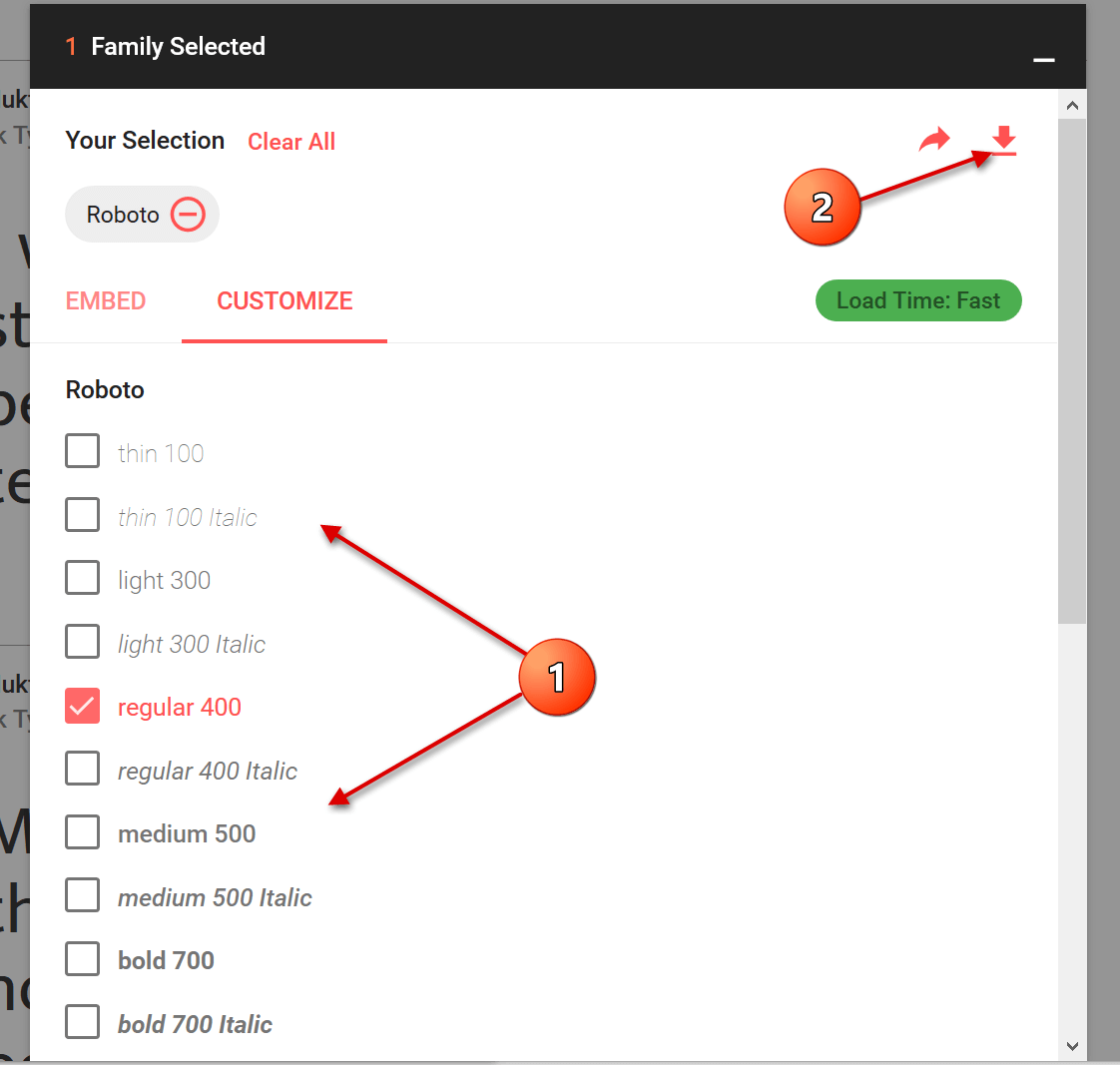
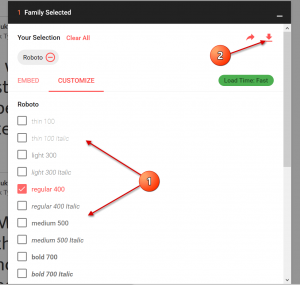
For the implementation in Word you do not need this, but you can go straight to the tab “Customize”, where you can select the desired font size and download it directly.
See picture: (click to enlarge)
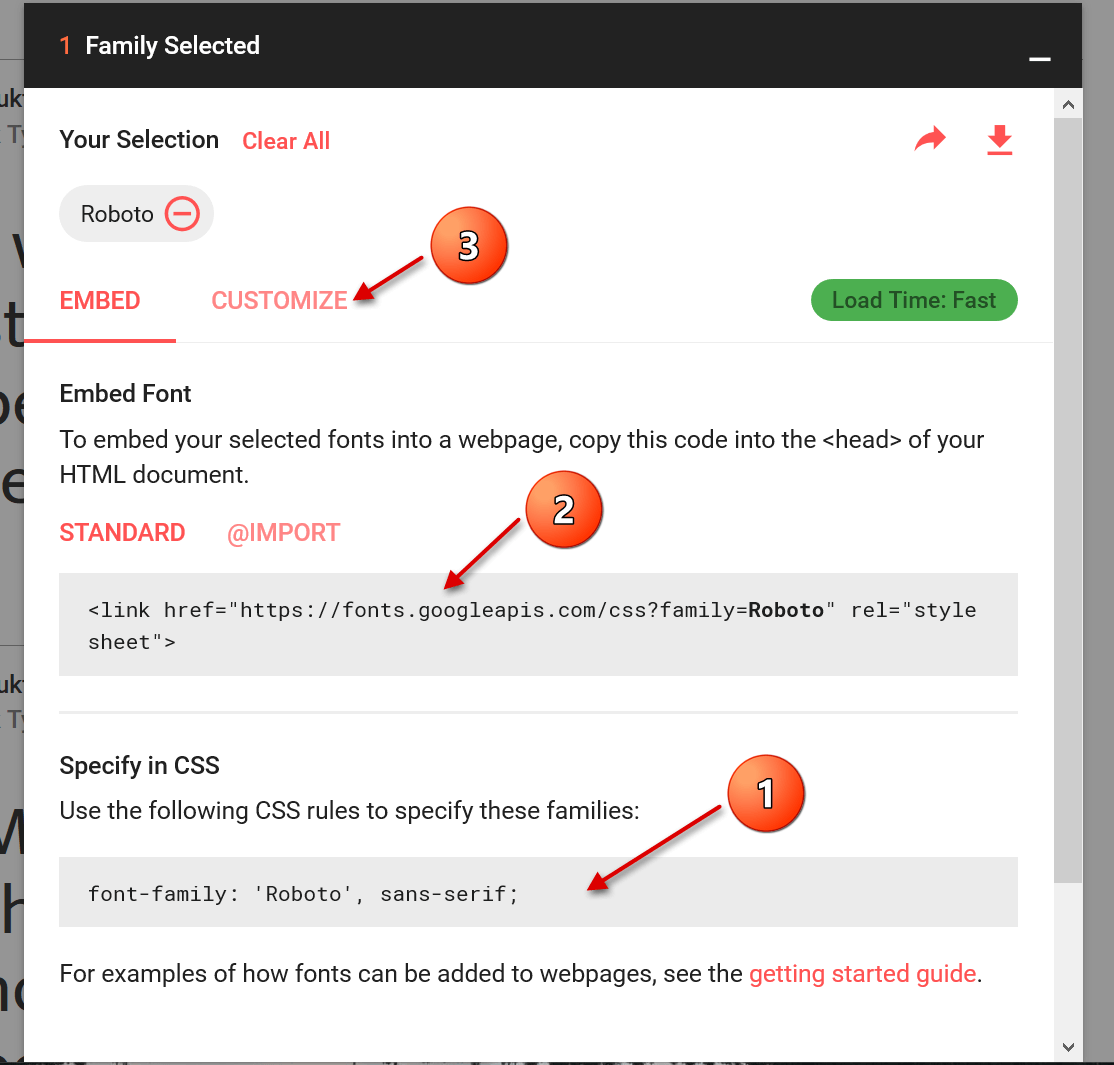
In the next step, you can directly copy out the HTML or CSS shortcodes in order to insert them on a web page, for example.
For the implementation in Word you do not need this, but you can go straight to the tab “Customize”, where you can select the desired font size and download it directly.
See picture: (click to enlarge)
3. Install font
3. Install font
The last step we need to take now is the simplest of them all.
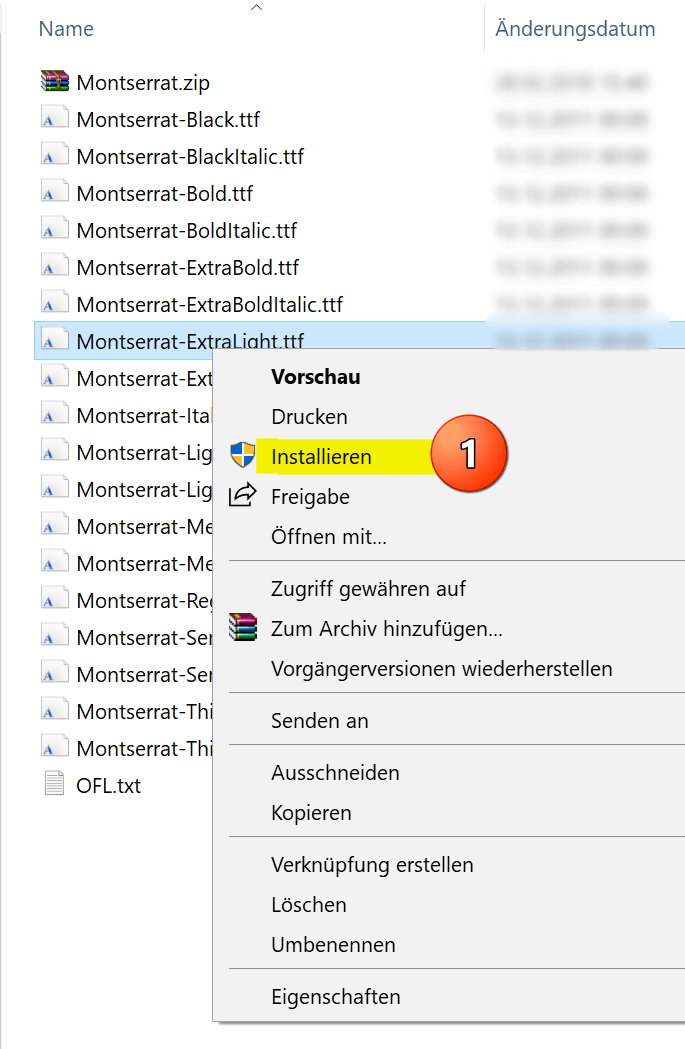
After you have downloaded the zip file, it is best unpacked in a folder specially created for the respective font.
Here all font sizes are displayed, and can be easily installed by right-clicking on the appropriate file.
See picture: (click to enlarge)

The big advantage of this type of installation is that you have not only expanded the font selection in Word, but in all Microsoft Office applications.
What does this mean the fonts are also available in: Outlook, Excel, Powerpoint, etc.

The last step we need to take now is the simplest of them all.
After you have downloaded the zip file, it is best unpacked in a folder specially created for the respective font.
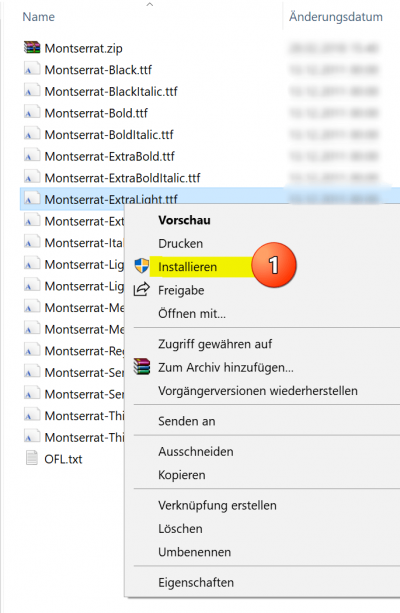
Here all font sizes are displayed, and can be easily installed by right-clicking on the appropriate file.
See picture:
The big advantage of this type of installation is that you have not only expanded the font selection in Word, but in all Microsoft Office applications.
What does this mean the fonts are also available in: Outlook, Excel, Powerpoint, etc.
Popular Posts:

How AI fuels cyberattacks – and how it protects us from them
Cybercriminals are using AI for deepfakes and automated attacks. Defenses are also relying on AI: through behavioral analysis (UEBA) and automated responses (SOAR). Learn how this arms race works and how modern security strategies can protect your business.

Information overload: Protection & tips against digital stress
Constantly online, overwhelmed by news, emails & social media? Digital information overload leads to stress and concentration problems. Learn the best strategies and practical tips to effectively protect yourself, manage the chaos, and regain your focus.
Put an end to password chaos: Why a password manager is important
Passwords are constantly being stolen through data leaks. A password manager is your digital vault. It creates and stores strong, unique passwords for every service. This effectively protects you against identity theft through "credential stuffing".

Stop procrastinating: How distraction blockers can help you regain focus
Constant digital distractions kill your productivity. Distraction blockers like Forest or Freedom help you regain focus. They specifically block distractions on your PC and mobile phone and use techniques like the Pomodoro Technique. This helps you stop procrastinating.
Wer ist wo? Microsoft Teams schafft Klarheit im Hybrid-Büro
Die neue Arbeitsstandort-Funktion in Microsoft Teams zeigt, wer im Büro oder remote arbeitet. Verbessern Sie Ihre Meeting-Planung in Outlook und die Team-Koordination. Wir erklären die Vorteile, die Admin-Steuerung und die tiefe Anbindung an Microsoft Viva.

Excel Tutorial: How to quickly and safely remove duplicates
Duplicate entries in your Excel lists? This distorts your data. Our tutorial shows you, using a practical example, how to clean up your data in seconds with the "Remove Duplicates" function – whether you want to delete identical rows or just values in a column.
Offers 2024: Word & Excel Templates











Popular Posts:
How AI fuels cyberattacks – and how it protects us from them
Cybercriminals are using AI for deepfakes and automated attacks. Defenses are also relying on AI: through behavioral analysis (UEBA) and automated responses (SOAR). Learn how this arms race works and how modern security strategies can protect your business.
Information overload: Protection & tips against digital stress
Constantly online, overwhelmed by news, emails & social media? Digital information overload leads to stress and concentration problems. Learn the best strategies and practical tips to effectively protect yourself, manage the chaos, and regain your focus.
Put an end to password chaos: Why a password manager is important
Passwords are constantly being stolen through data leaks. A password manager is your digital vault. It creates and stores strong, unique passwords for every service. This effectively protects you against identity theft through "credential stuffing".
Stop procrastinating: How distraction blockers can help you regain focus
Constant digital distractions kill your productivity. Distraction blockers like Forest or Freedom help you regain focus. They specifically block distractions on your PC and mobile phone and use techniques like the Pomodoro Technique. This helps you stop procrastinating.
Wer ist wo? Microsoft Teams schafft Klarheit im Hybrid-Büro
Die neue Arbeitsstandort-Funktion in Microsoft Teams zeigt, wer im Büro oder remote arbeitet. Verbessern Sie Ihre Meeting-Planung in Outlook und die Team-Koordination. Wir erklären die Vorteile, die Admin-Steuerung und die tiefe Anbindung an Microsoft Viva.
Excel Tutorial: How to quickly and safely remove duplicates
Duplicate entries in your Excel lists? This distorts your data. Our tutorial shows you, using a practical example, how to clean up your data in seconds with the "Remove Duplicates" function – whether you want to delete identical rows or just values in a column.
Offers 2024: Word & Excel Templates