Forgot Windows Password? – Here is the solution…


It’s become such a thing with passwords. First, there are more and more passwords to remember, and then they are supposed to get longer and more complicated. Preferably with special characters and upper and lower case. So it is not surprising if you get things mixed up here and there and no longer know the password with the best will in the world. In our little tutorial we would like to show some options how you can still get your Windows password and start the computer.

Forgot Windows Password? – Here is the solution…
It’s become such a thing with passwords. First, there are more and more passwords to remember, and then they are supposed to get longer and more complicated. Preferably with special characters and upper and lower case. So it is not surprising if you get things mixed up here and there and no longer know the password with the best will in the world. In our little tutorial we would like to show some options how you can still get your Windows password and start the computer.
Forgot Windows password
Forgot Windows password
Use Microsoft account
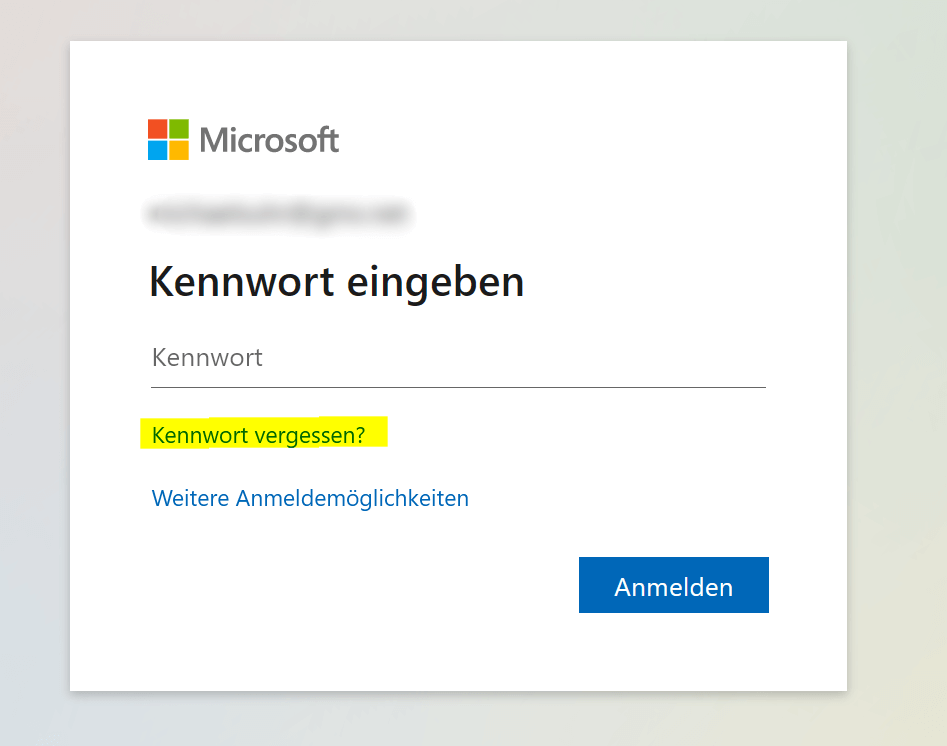
If you’re using a Microsoft account to sign in to your Windows computer, you can try signing in using the “Forgot your password” option on the sign-in page. You will then be asked to provide an alternate email address or phone number in order to receive a temporary password to log in with. Once you have received the temporary password, you can use it to log in and then set a new password for your user account.

Use admin account
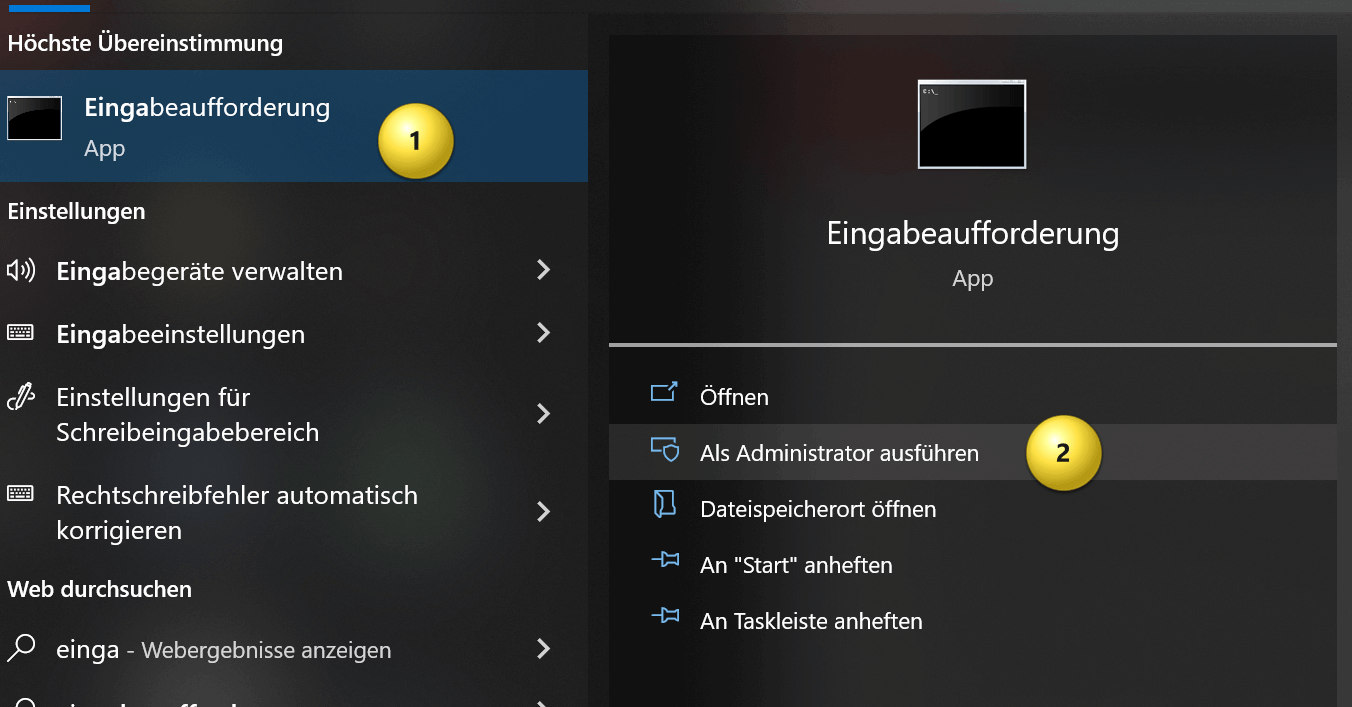
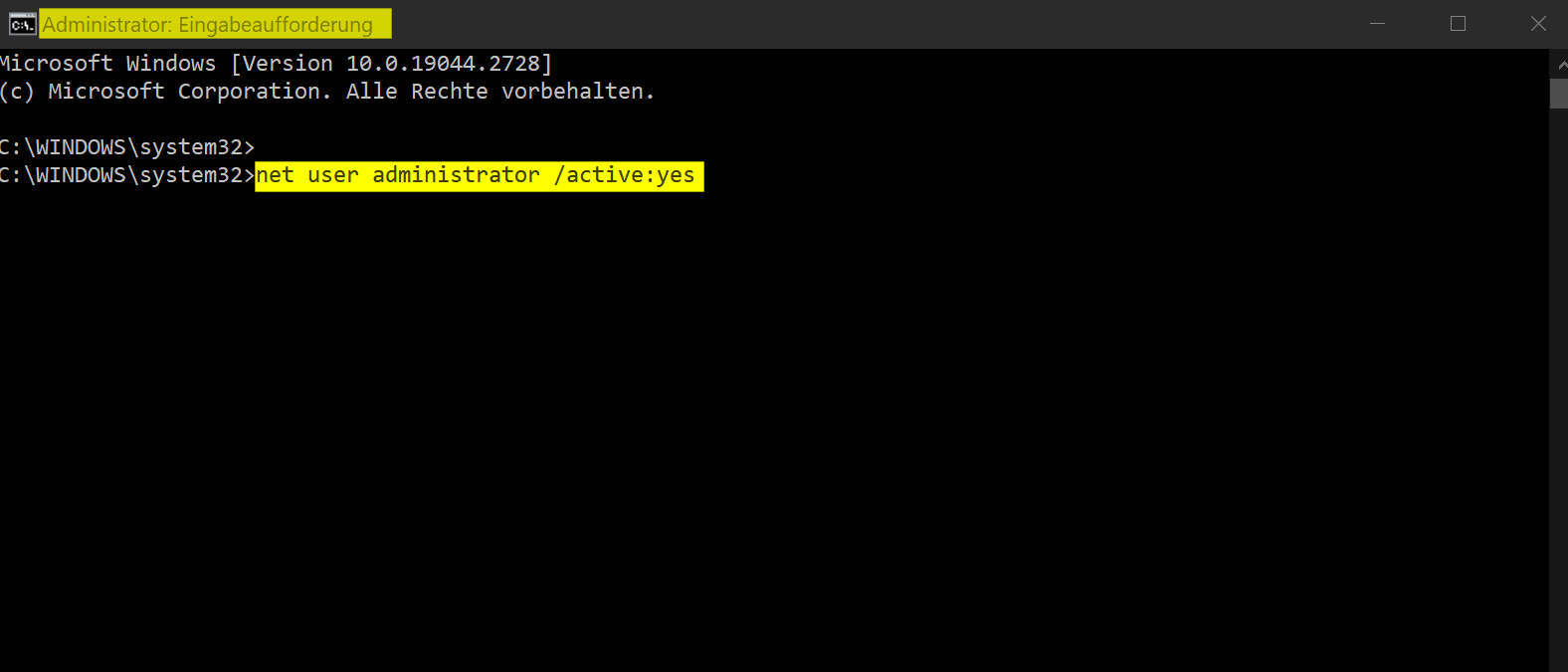
If you have activated the administrator account on your computer, you can use it to change the password of your normal user account. To operate in the administrator account, you need to start in safe mode. When the computer starts, press the F8 key several times to start Safe Mode. Then log in with the administrator account and change the password of the user account.
Use recovery drive
A recovery drive is an external hard drive that can be used to restore or reset your computer. If you created a recovery drive, you can use it to reset the password.
To create a recovery drive in Windows, you need a USB drive with enough space. Follow the steps below:
- Connect the USB disk to your computer and make sure it is recognized.
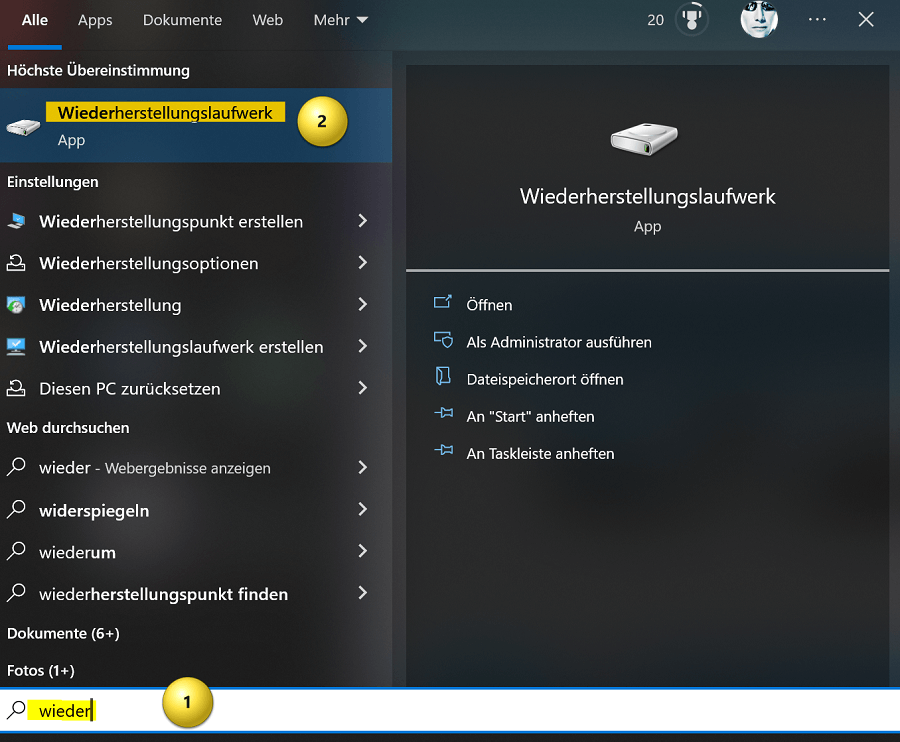
- Open the start menu and type “recovery drive“. Click on the “Create a recovery drive” option.
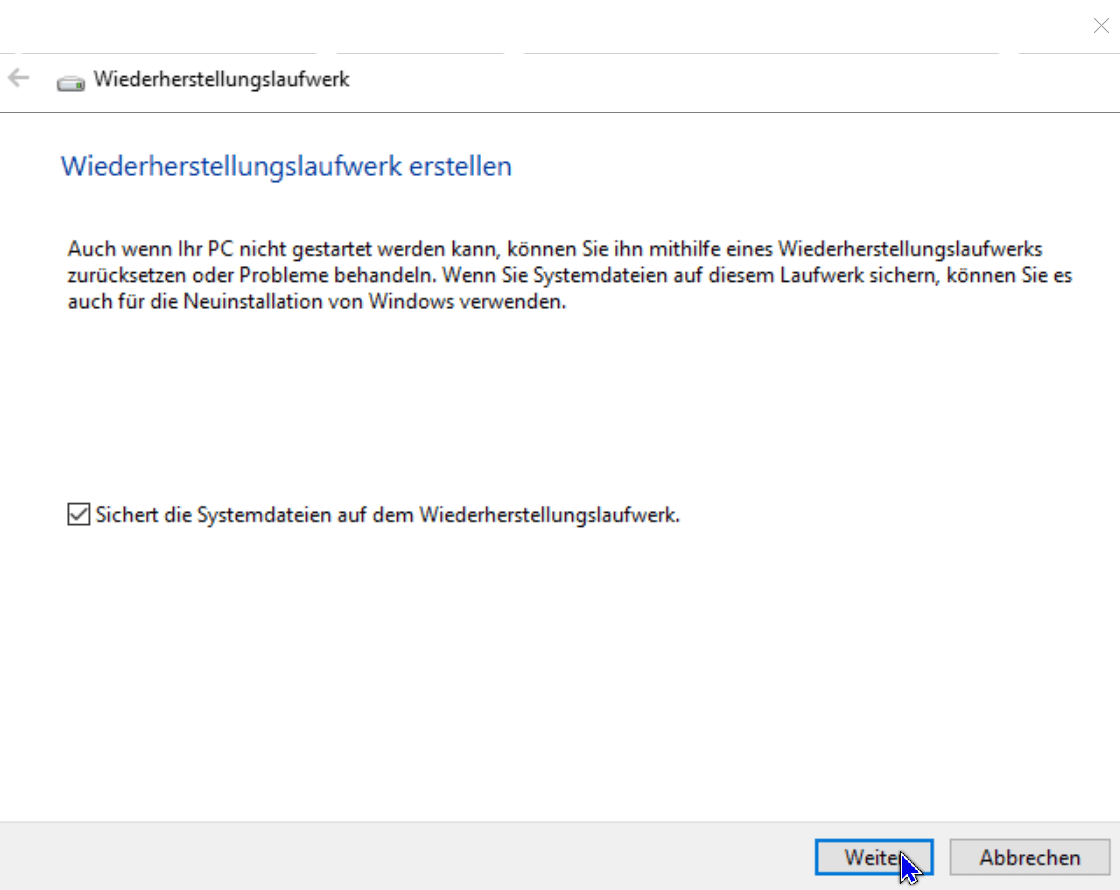
- The Create Recovery Drive tool starts. Make sure that the correct USB stick is selected and click “Next“.
- Select “Copy system files to the recovery drive” and click Next again.
- Click “Create” to start the creation process.
- The creation process may take a few minutes. Once it is complete, click “Finish“.
Your recovery drive is now ready and you can use it to troubleshoot your Windows system or to perform a clean install of Windows. However, note that all data on the USB disk will be erased during the creation process. Be sure to back up important data elsewhere beforehand.
Use third-party tools
There are various third-party tools that you can use to reset the password. However, these tools are not officially approved by Microsoft and hence may lead to data loss or other issues. Some examples of these tools are “Offline NT Password & Registry Editor” or “PCUnlocker“. Therefore, only use this option if the other options don’t work and if you know the consequences.
It is also important to note that in some cases, resetting password can result in loss of files. Make sure you have backed up important files before trying to reset the password.
To sum up, there are several ways to reset or recover forgotten Windows password. The best option depends on the type of user account you have and your personal situation. It is important to be aware that some options can lead to data loss and therefore you should always back up your important files before attempting a password reset.
Use Microsoft account
If you’re using a Microsoft account to sign in to your Windows computer, you can try signing in using the “Forgot your password” option on the sign-in page. You will then be asked to provide an alternate email address or phone number in order to receive a temporary password to log in with. Once you have received the temporary password, you can use it to log in and then set a new password for your user account.
Use admin account
If you have activated the administrator account on your computer, you can use it to change the password of your normal user account. To operate in the administrator account, you need to start in safe mode. When the computer starts, press the F8 key several times to start Safe Mode. Then log in with the administrator account and change the password of the user account.
Use recovery drive
A recovery drive is an external hard drive that can be used to restore or reset your computer. If you created a recovery drive, you can use it to reset the password.
To create a recovery drive in Windows, you need a USB drive with enough space. Follow the steps below:
- Connect the USB disk to your computer and make sure it is recognized.
- Open the start menu and type “recovery drive“. Click on the “Create a recovery drive” option.
- The Create Recovery Drive tool starts. Make sure that the correct USB stick is selected and click “Next“.
- Select “Copy system files to the recovery drive” and click Next again.
- Click “Create” to start the creation process.
- The creation process may take a few minutes. Once it is complete, click “Finish“.
Your recovery drive is now ready and you can use it to troubleshoot your Windows system or to perform a clean install of Windows. However, note that all data on the USB disk will be erased during the creation process. Be sure to back up important data elsewhere beforehand.
Use third-party tools
There are various third-party tools that you can use to reset the password. However, these tools are not officially approved by Microsoft and hence may lead to data loss or other issues. Some examples of these tools are “Offline NT Password & Registry Editor” or “PCUnlocker“. Therefore, only use this option if the other options don’t work and if you know the consequences.
It is also important to note that in some cases, resetting password can result in loss of files. Make sure you have backed up important files before trying to reset the password.
To sum up, there are several ways to reset or recover forgotten Windows password. The best option depends on the type of user account you have and your personal situation. It is important to be aware that some options can lead to data loss and therefore you should always back up your important files before attempting a password reset.
Popular Posts:

Ad-free home network: Install Pi-hole on Windows
Say goodbye to ads on smart TVs and in apps: Pi-hole software turns your Windows laptop into a network filter. This article explains step-by-step how to install it via Docker and configure the necessary DNS settings in your FRITZ!Box.
How to tune your FRITZ!Box into a professional call server
A professional telephone system can be built using a FRITZ!Box and a laptop. This article shows step by step how to use the free software "Phoner" to schedule announcements and record calls – including important legal information (§ 201 StGB).

Why to-do lists are a waste of time
Do you feel unproductive at the end of the day, even though you've worked hard? Your to-do list is to blame. It tempts you to focus on easy tasks and ignores your limited time. This article explains why lists are "self-deception" and why professionals use a calendar instead.

Smartphone Wi-Fi security: Public hotspots vs. home network
Is smartphone Wi-Fi a security risk? This article analyzes in detail threats such as evil twin attacks and explains protective measures for when you're on the go. We also clarify why home Wi-Fi is usually secure and how you can effectively separate your smart home from sensitive data using a guest network.

Warum dein Excel-Kurs Zeitverschwendung ist – was du wirklich lernen solltest!
Hand aufs Herz: Wann hast du zuletzt eine komplexe Excel-Formel ohne Googeln getippt? Eben. KI schreibt heute den Code für dich. Erfahre, warum klassische Excel-Trainings veraltet sind und welche 3 modernen Skills deinen Marktwert im Büro jetzt massiv steigern.

Cybersicherheit: Die 3 größten Fehler, die 90% aller Mitarbeiter machen
Hacker brauchen keine Codes, sie brauchen nur einen unaufmerksamen Mitarbeiter. Von Passwort-Recycling bis zum gefährlichen Klick: Wir zeigen die drei häufigsten Fehler im Büroalltag und geben praktische Tipps, wie Sie zur menschlichen Firewall werden.
Offers 2024: Word & Excel Templates











Popular Posts:
Ad-free home network: Install Pi-hole on Windows
Say goodbye to ads on smart TVs and in apps: Pi-hole software turns your Windows laptop into a network filter. This article explains step-by-step how to install it via Docker and configure the necessary DNS settings in your FRITZ!Box.
How to tune your FRITZ!Box into a professional call server
A professional telephone system can be built using a FRITZ!Box and a laptop. This article shows step by step how to use the free software "Phoner" to schedule announcements and record calls – including important legal information (§ 201 StGB).
Why to-do lists are a waste of time
Do you feel unproductive at the end of the day, even though you've worked hard? Your to-do list is to blame. It tempts you to focus on easy tasks and ignores your limited time. This article explains why lists are "self-deception" and why professionals use a calendar instead.
Smartphone Wi-Fi security: Public hotspots vs. home network
Is smartphone Wi-Fi a security risk? This article analyzes in detail threats such as evil twin attacks and explains protective measures for when you're on the go. We also clarify why home Wi-Fi is usually secure and how you can effectively separate your smart home from sensitive data using a guest network.
Warum dein Excel-Kurs Zeitverschwendung ist – was du wirklich lernen solltest!
Hand aufs Herz: Wann hast du zuletzt eine komplexe Excel-Formel ohne Googeln getippt? Eben. KI schreibt heute den Code für dich. Erfahre, warum klassische Excel-Trainings veraltet sind und welche 3 modernen Skills deinen Marktwert im Büro jetzt massiv steigern.
Cybersicherheit: Die 3 größten Fehler, die 90% aller Mitarbeiter machen
Hacker brauchen keine Codes, sie brauchen nur einen unaufmerksamen Mitarbeiter. Von Passwort-Recycling bis zum gefährlichen Klick: Wir zeigen die drei häufigsten Fehler im Büroalltag und geben praktische Tipps, wie Sie zur menschlichen Firewall werden.
Offers 2024: Word & Excel Templates