Calculate with date, time and working days in Excel


Sometimes the simplest things you can do with Excel are not as easy as it first seems. This still includes the right calculation with times and dates. If then both come together and you want to determine, for example, the number of days or hours that are between two values, this raises repeatedly questions.
It gets even more complex if not just a total number of days, but especially only working days should be calculated. In our tutorial, we go through several scenarios on how to easily work with these values in Excel.

Calculate with date, time and working days in Excel
Sometimes the simplest things you can do with Excel are not as easy as it first seems. This still includes the right calculation with times and dates. If then both come together and you want to determine, for example, the number of days or hours that are between two values, this raises repeatedly questions.
It gets even more complex if not just a total number of days, but especially only working days should be calculated. In our tutorial, we go through several scenarios on how to easily work with these values in Excel.
1. Calculate with date in Excel
1. Calculate with date in Excel
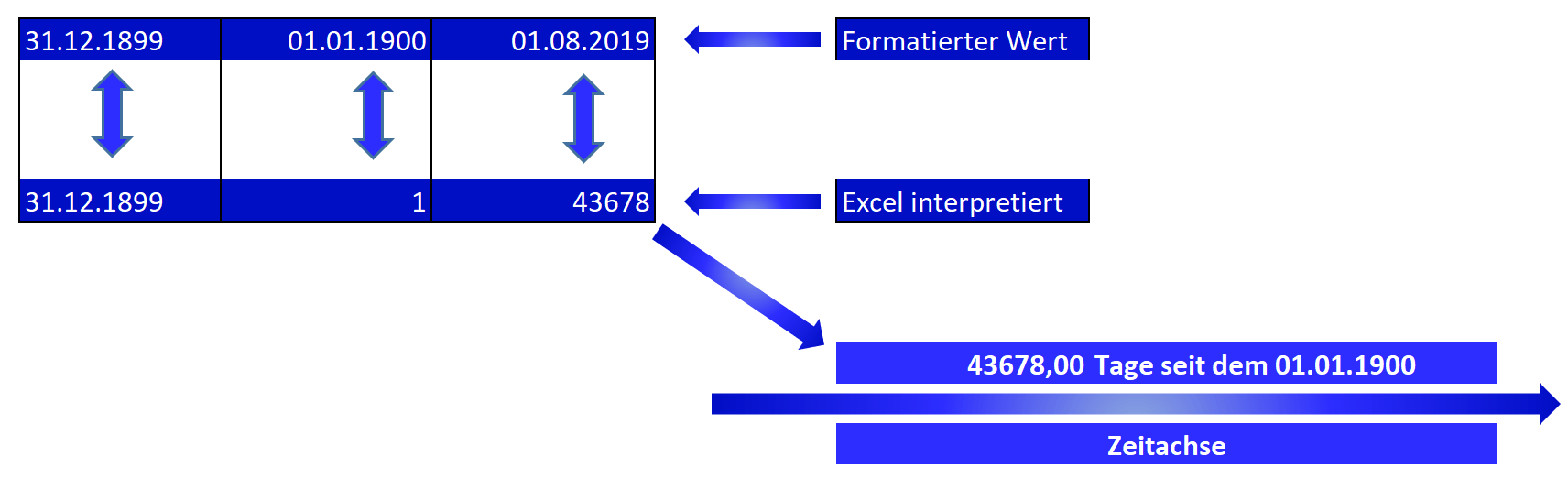
Before we start to calculate dates and times (German spelling) in Excel, it is very interesting to know how Excel handles this data at all. Because the time starts here not in the year 0 but only on 01.01.1900. And that’s exactly how Excel translates a date that was not formatted as a date.
Example:
If you enter a date in a cell before 01.01.1900 (ex .: 31.12.1899) then it does not matter if you format the cell as a date value or as an absolute number. It will always display exactly the specified value, which Excel does not interpret as a date or as a number, but as a text. So you can not calculate this.
It looks different if the value you enter, for example, is 01/01/1900 (or later). Then Excel will automatically recognize this input and format the value as a date. Now change the formatting of the cell in question to an absolute number then the 01.01.1900 would be there as 1 and every day after that comes with 2, 3, 4 … etc.
Because it is the 1st or 2nd or 3rd day after the 01.01.1900. And that’s exactly how Excel calculates dates later.
See picture (click to enlarge)

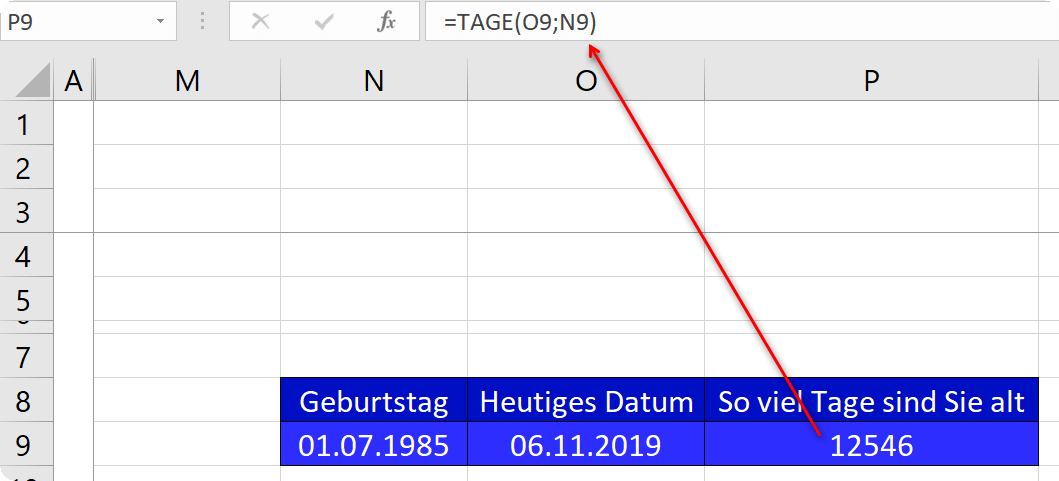
When it comes down to it, it’s actually easy to calculate with dates. Let’s say you were born on 01.07.1985 and would like to know how many days you are old. Then enter the first cell 01.07.1985 and in the second cell the current date bsp. 06.11.2019.
Then you only have to subtract the smaller date (01.07.1985) from the larger one (06.11.2019) in the result cell. Or you use the function = DAYS( in the result cell (the result is 12,546 days in both cases).
See picture (click to enlarge)
Likewise, you can work on this way, of course, only with times.
Before we start to calculate dates and times (German spelling) in Excel, it is very interesting to know how Excel handles this data at all. Because the time starts here not in the year 0 but only on 01.01.1900. And that’s exactly how Excel translates a date that was not formatted as a date.
Example:
If you enter a date in a cell before 01.01.1900 (ex .: 31.12.1899) then it does not matter if you format the cell as a date value or as an absolute number. It will always display exactly the specified value, which Excel does not interpret as a date or as a number, but as a text. So you can not calculate this.
It looks different if the value you enter, for example, is 01/01/1900 (or later). Then Excel will automatically recognize this input and format the value as a date. Now change the formatting of the cell in question to an absolute number then the 01.01.1900 would be there as 1 and every day after that comes with 2, 3, 4 … etc.
Because it is the 1st or 2nd or 3rd day after the 01.01.1900. And that’s exactly how Excel calculates dates later.
See picture (click to enlarge)
When it comes down to it, it’s actually easy to calculate with dates. Let’s say you were born on 01.07.1985 and would like to know how many days you are old. Then enter the first cell 01.07.1985 and in the second cell the current date bsp. 06.11.2019.
Then you only have to subtract the smaller date (01.07.1985) from the larger one (06.11.2019) in the result cell. Or you use the function = DAYS( in the result cell (the result is 12,546 days in both cases).
See picture (click to enlarge)
Likewise, you can work on this way, of course, only with times.
2. Calculate combined with date and time
2. Calculate combined with date and time
Of course, to combine the date and time to present a result works well. Let’s take our example to hand again and just say you were born on 01.07.1985 at 8:00 clock and today it is the 06.11.2019 at 16:05 clock.
Here we would like to know how many days, hours and minutes you are old. If we proceed the same way as before in calculating only days and try to get a result in days, minutes and hours, we will fail. Because the formatting dd : hh: mm unfortunately fails in Excel as soon as the result goes beyond 31 days.
The solution for this we do with the function = rounding off (
Enter the following function in the cell in which the result should be:
See picture (click to enlarge)

You can already see that you get a satisfying result with a few small tricks. In the end, of course, you could extend the function by a few seconds, and also other texts as “Min.” or “hrs.” use. But in principle it is feasible in this way.
Of course, to combine the date and time to present a result works well. Let’s take our example to hand again and just say you were born on 01.07.1985 at 8:00 clock and today it is the 06.11.2019 at 16:05 clock.
Here we would like to know how many days, hours and minutes you are old. If we proceed the same way as before in calculating only days and try to get a result in days, minutes and hours, we will fail. Because the formatting dd : hh: mm unfortunately fails in Excel as soon as the result goes beyond 31 days.
The solution for this we do with the function = rounding off (
Enter the following function in the cell in which the result should be:
See picture (click to enlarge)
You can already see that you get a satisfying result with a few small tricks. In the end, of course, you could extend the function by a few seconds, and also other texts as “Min.” or “hrs.” use. But in principle it is feasible in this way.
3. Calculate with working days in Excel
3. Calculate with working days in Excel
If we now explicitly want to calculate only with working days instead of just a total number of days and exclude weekends and public holidays, Excel offers the functions “WORKING DAYS”, “WORKING DAYS.INTL”, “NETWORKING DAYS” and “NETWORKING DAYS INTL”.
“WORKING DAYS”:
Function “working days” does not calculate the working days, but an end date inclusive weekend, which bsp. could also be a term of payment.
“WORKING DAYS INTL”:
The additional function “INTL” stands for international, and is the claim that in other countries, unlike in Germany also on Saturday and Sunday possibly worked, and is free for other days. You can thus choose within the function which days should be weekends.
“NETWORKDAYS”:
Function “Net working days” calculates the working days, between a start and an end date including weekends.
“NETWORK DAYS INTL”:
Again, the additional function “INTL” for International.
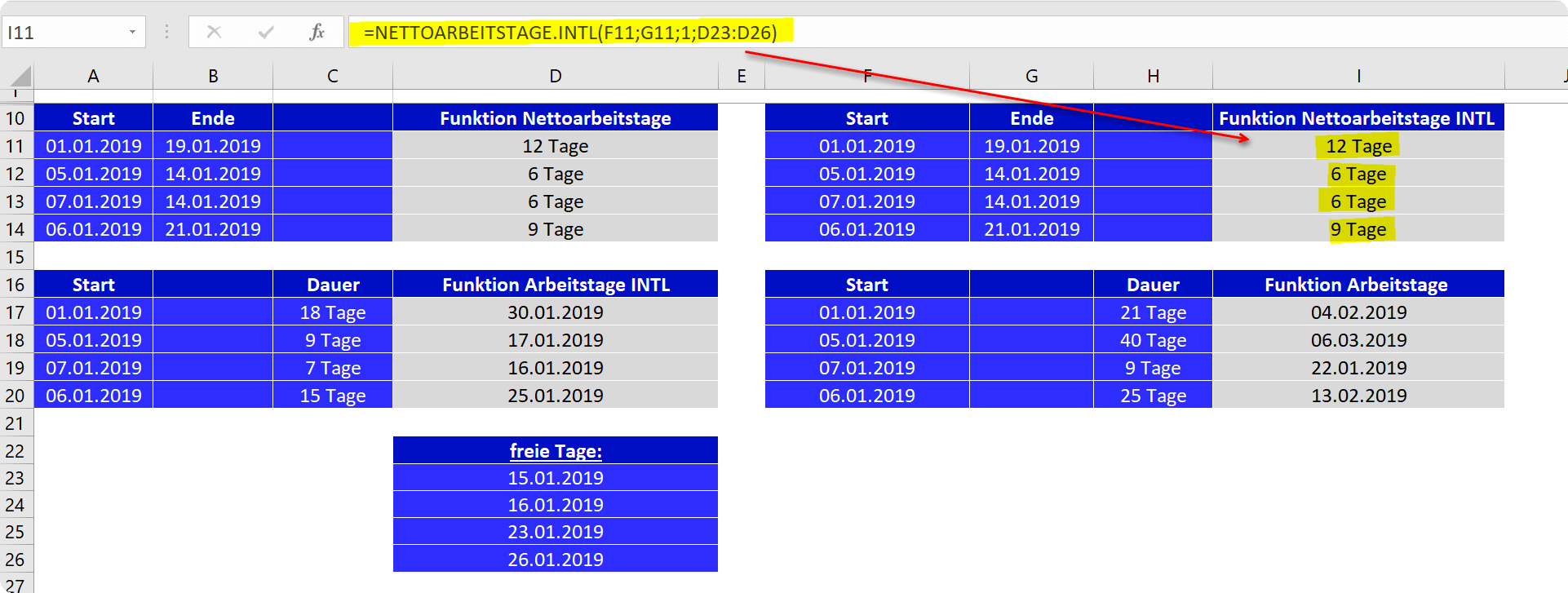
Let’s just take the example that we want to calculate a number of working days or net working days for a project. A small list of days off we refer to when the function asks for “days off”.
See picture (click to enlarge)
Function working day
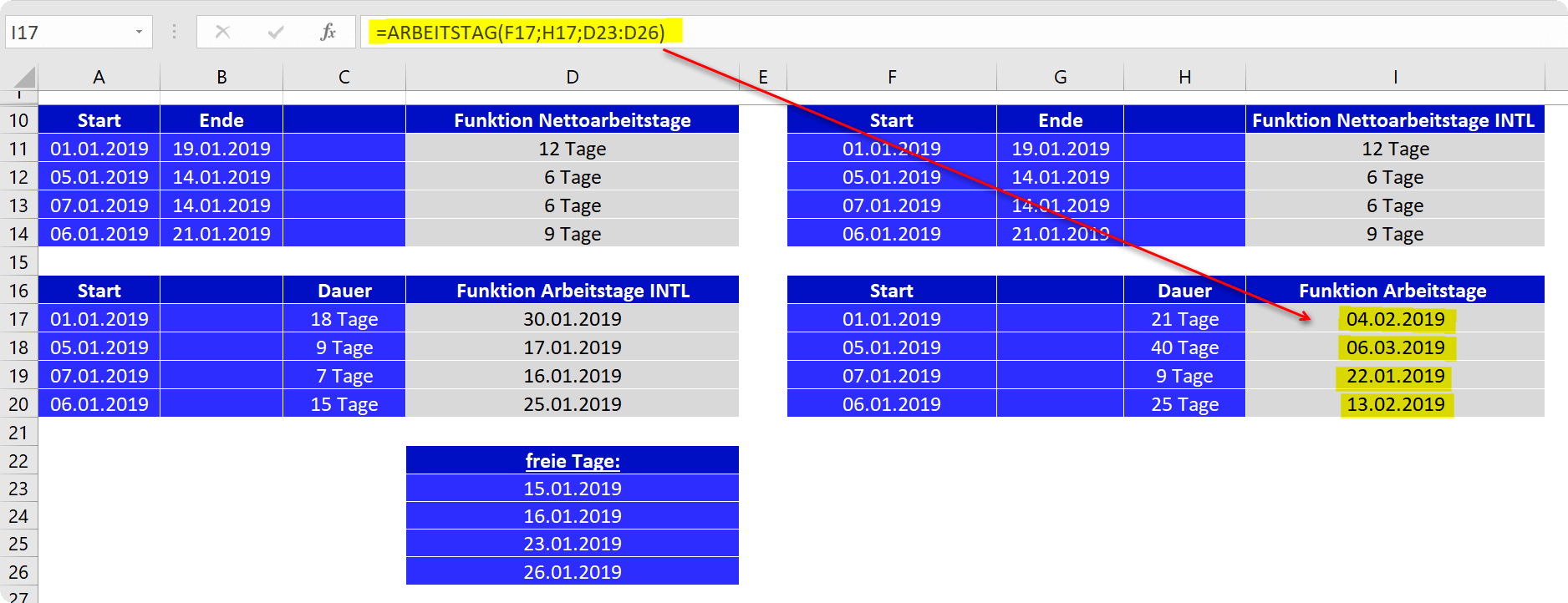
Function working day INTL

Function net working days
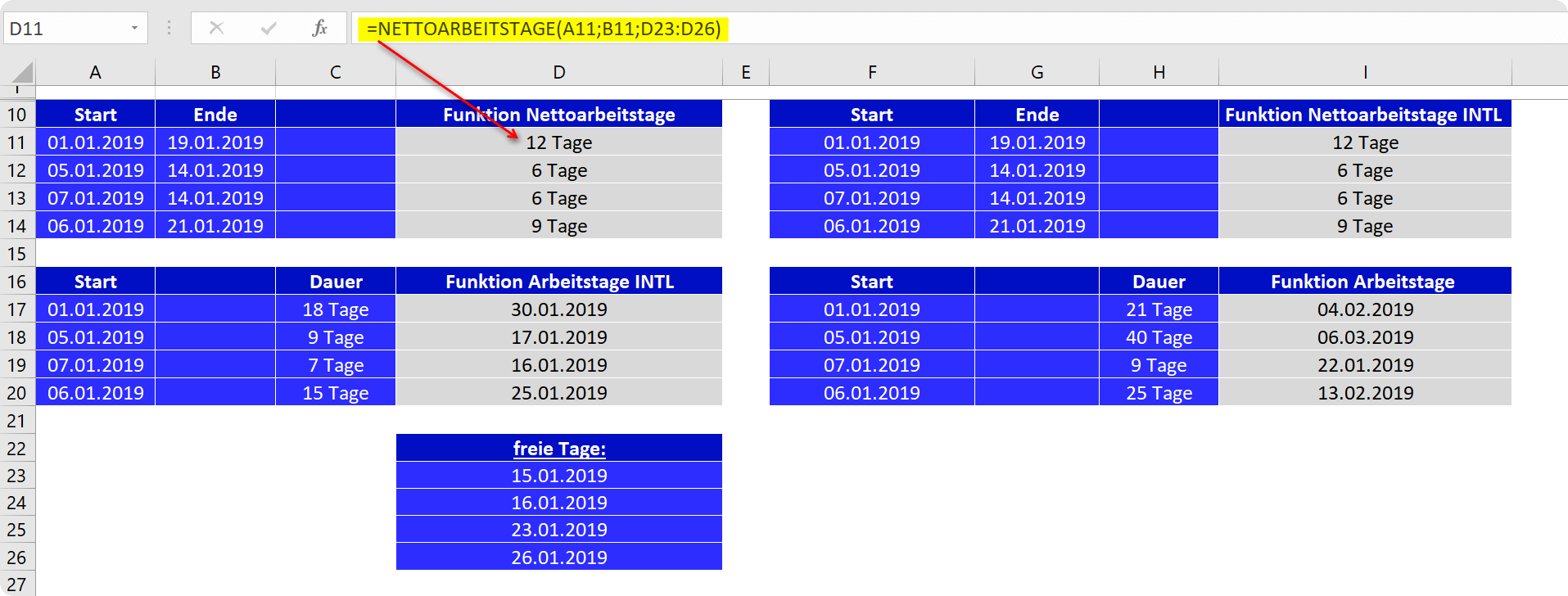
Function net working days INTL
We hope that we have been able to help you with this tutorial and that you will now be able to work more reliably with date and times in Excel.

If we now explicitly want to calculate only with working days instead of just a total number of days and exclude weekends and public holidays, Excel offers the functions “WORKING DAYS”, “WORKING DAYS.INTL”, “NETWORKING DAYS” and “NETWORKING DAYS INTL”.
“WORKING DAYS”:
Function “working days” does not calculate the working days, but an end date inclusive weekend, which bsp. could also be a term of payment.
“WORKING DAYS INTL”:
The additional function “INTL” stands for international, and is the claim that in other countries, unlike in Germany also on Saturday and Sunday possibly worked, and is free for other days. You can thus choose within the function which days should be weekends.
“NETWORKDAYS”:
Function “Net working days” calculates the working days, between a start and an end date including weekends.
“NETWORK DAYS INTL”:
Again, the additional function “INTL” for International.
Let’s just take the example that we want to calculate a number of working days or net working days for a project. A small list of days off we refer to when the function asks for “days off”.
See picture (click to enlarge)
Function working day
Function working day INTL
Function net working days
Function net working days INTL
We hope that we have been able to help you with this tutorial and that you will now be able to work more reliably with date and times in Excel.
Popular Posts:

Ad-free home network: Install Pi-hole on Windows
Say goodbye to ads on smart TVs and in apps: Pi-hole software turns your Windows laptop into a network filter. This article explains step-by-step how to install it via Docker and configure the necessary DNS settings in your FRITZ!Box.

How to tune your FRITZ!Box into a professional call server
A professional telephone system can be built using a FRITZ!Box and a laptop. This article shows step by step how to use the free software "Phoner" to schedule announcements and record calls – including important legal information (§ 201 StGB).

Why to-do lists are a waste of time
Do you feel unproductive at the end of the day, even though you've worked hard? Your to-do list is to blame. It tempts you to focus on easy tasks and ignores your limited time. This article explains why lists are "self-deception" and why professionals use a calendar instead.

Smartphone Wi-Fi security: Public hotspots vs. home network
Is smartphone Wi-Fi a security risk? This article analyzes in detail threats such as evil twin attacks and explains protective measures for when you're on the go. We also clarify why home Wi-Fi is usually secure and how you can effectively separate your smart home from sensitive data using a guest network.

Warum dein Excel-Kurs Zeitverschwendung ist – was du wirklich lernen solltest!
Hand aufs Herz: Wann hast du zuletzt eine komplexe Excel-Formel ohne Googeln getippt? Eben. KI schreibt heute den Code für dich. Erfahre, warum klassische Excel-Trainings veraltet sind und welche 3 modernen Skills deinen Marktwert im Büro jetzt massiv steigern.

Cybersicherheit: Die 3 größten Fehler, die 90% aller Mitarbeiter machen
Hacker brauchen keine Codes, sie brauchen nur einen unaufmerksamen Mitarbeiter. Von Passwort-Recycling bis zum gefährlichen Klick: Wir zeigen die drei häufigsten Fehler im Büroalltag und geben praktische Tipps, wie Sie zur menschlichen Firewall werden.
Offers 2024: Word & Excel Templates











Popular Posts:
Ad-free home network: Install Pi-hole on Windows
Say goodbye to ads on smart TVs and in apps: Pi-hole software turns your Windows laptop into a network filter. This article explains step-by-step how to install it via Docker and configure the necessary DNS settings in your FRITZ!Box.
How to tune your FRITZ!Box into a professional call server
A professional telephone system can be built using a FRITZ!Box and a laptop. This article shows step by step how to use the free software "Phoner" to schedule announcements and record calls – including important legal information (§ 201 StGB).
Why to-do lists are a waste of time
Do you feel unproductive at the end of the day, even though you've worked hard? Your to-do list is to blame. It tempts you to focus on easy tasks and ignores your limited time. This article explains why lists are "self-deception" and why professionals use a calendar instead.
Smartphone Wi-Fi security: Public hotspots vs. home network
Is smartphone Wi-Fi a security risk? This article analyzes in detail threats such as evil twin attacks and explains protective measures for when you're on the go. We also clarify why home Wi-Fi is usually secure and how you can effectively separate your smart home from sensitive data using a guest network.
Warum dein Excel-Kurs Zeitverschwendung ist – was du wirklich lernen solltest!
Hand aufs Herz: Wann hast du zuletzt eine komplexe Excel-Formel ohne Googeln getippt? Eben. KI schreibt heute den Code für dich. Erfahre, warum klassische Excel-Trainings veraltet sind und welche 3 modernen Skills deinen Marktwert im Büro jetzt massiv steigern.
Cybersicherheit: Die 3 größten Fehler, die 90% aller Mitarbeiter machen
Hacker brauchen keine Codes, sie brauchen nur einen unaufmerksamen Mitarbeiter. Von Passwort-Recycling bis zum gefährlichen Klick: Wir zeigen die drei häufigsten Fehler im Büroalltag und geben praktische Tipps, wie Sie zur menschlichen Firewall werden.
Offers 2024: Word & Excel Templates