Start Windows without password – How it works


Are you tired of constantly having to enter your Windows password, even though your computer is well protected at home and nobody has unauthorized access? Then we have the right tutorial for you here. This means that in the future, Windows will no longer ask you to change the password again, and you are again obliged to think of a new one. There are good reasons for the Windows password, but this applies primarily to Windows computers that are located at a workstation where unauthorized persons would otherwise have access.
Start Windows without password – How it works
Are you tired of constantly having to enter your Windows password, even though your computer is well protected at home and nobody has unauthorized access? Then we have the right tutorial for you here. This means that in the future, Windows will no longer ask you to change the password again, and you are again obliged to think of a new one. There are good reasons for the Windows password, but this applies primarily to Windows computers that are located at a workstation where unauthorized persons would otherwise have access.
Windows Automatic Login
Windows Automatic Login
As said, it is possible to start Windows without a password, but this can pose a security risk as anyone with physical access to the computer can access it without restrictions.
If you still want to start Windows without a password, there are several methods you can use:
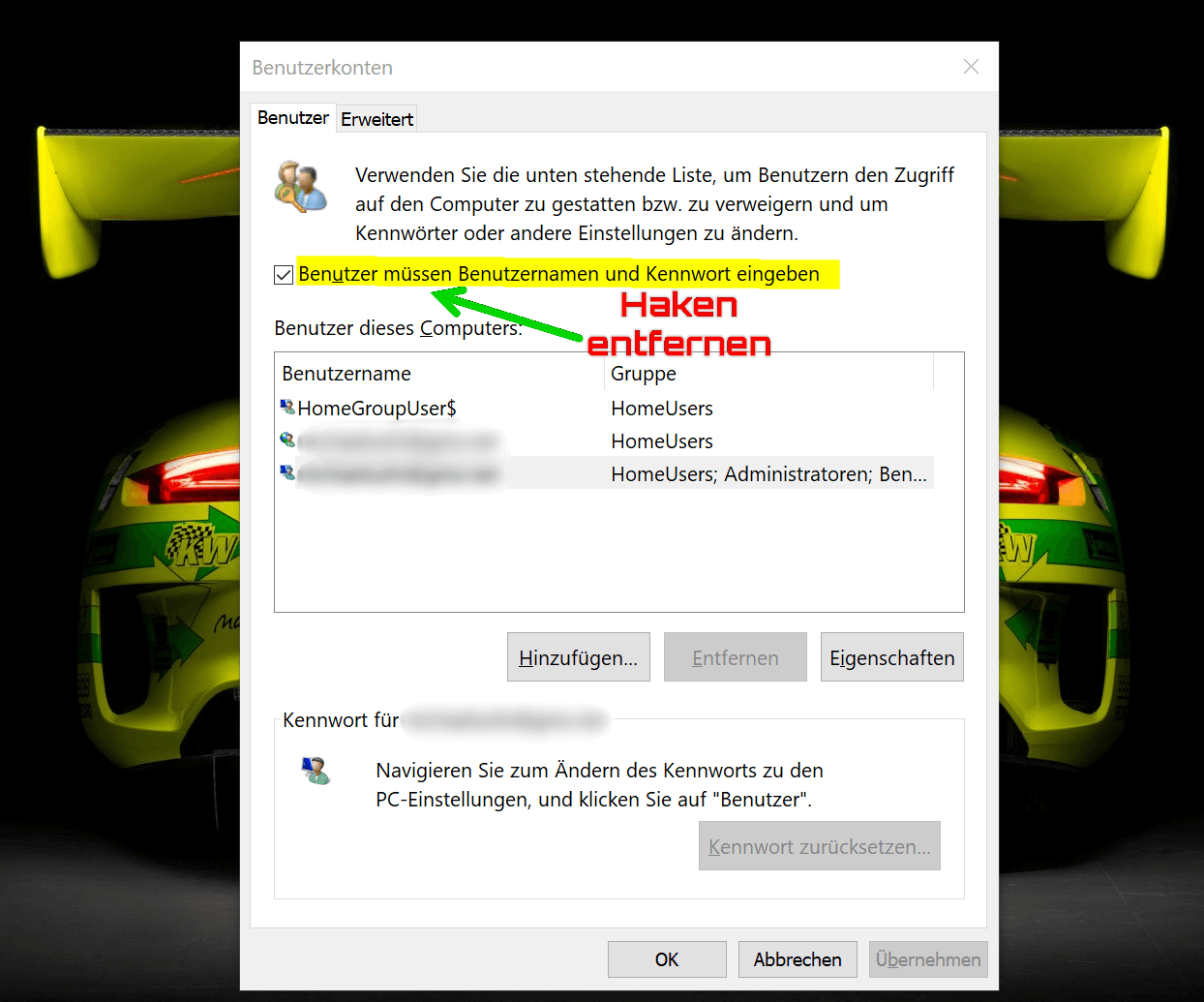
- Automatic login: Windows offers a feature called “Automatic login” that allows you to log in automatically without having to enter a password each time. To enable this feature, press Windows + R key combination and type “netplwiz“. Click OK to open the User Accounts window. Select the account you want to log in automatically and uncheck the “Users must enter username and password” check box. Enter the account password to verify it and click OK.
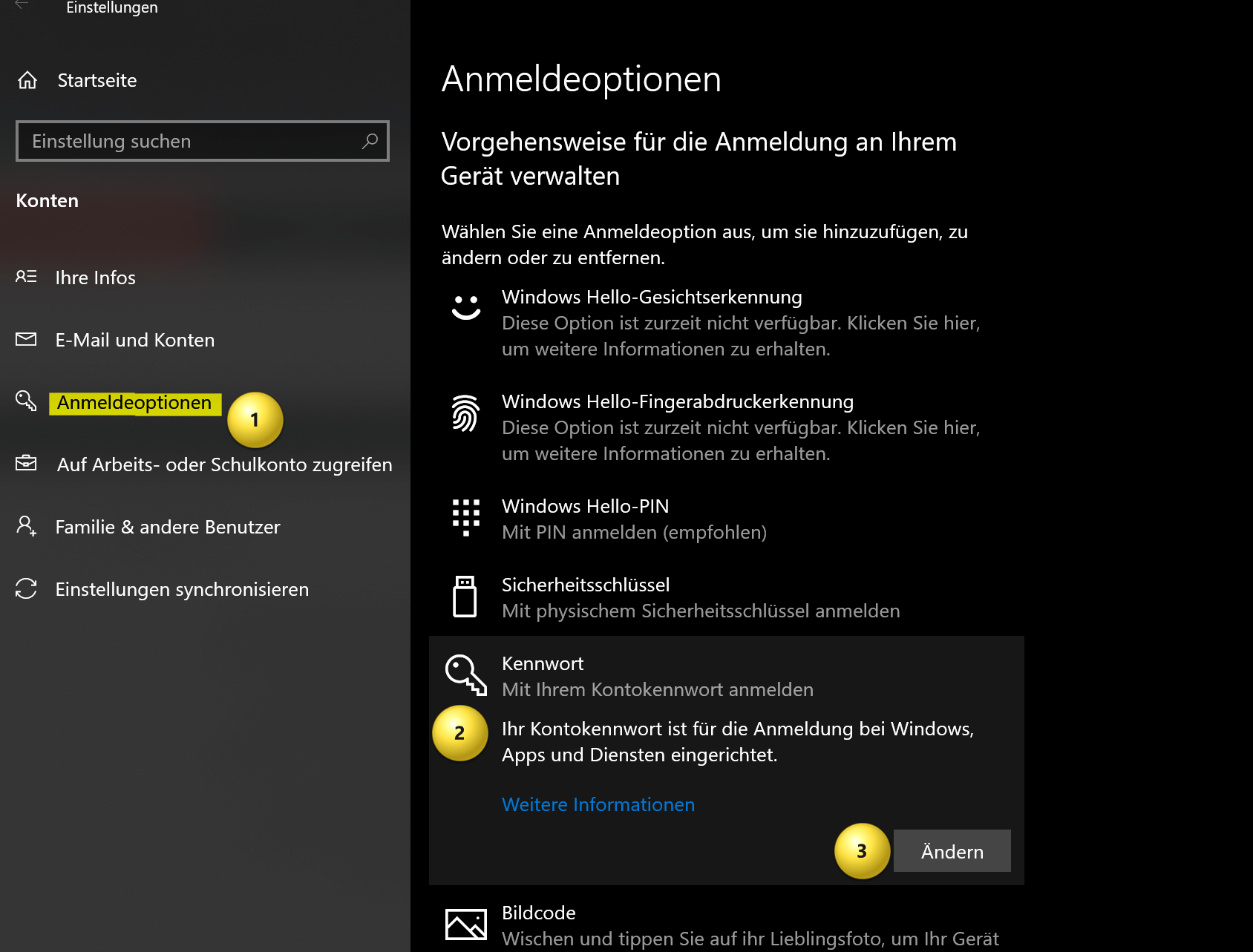
- Disabling password protection: You can also disable password protection entirely by changing your account settings. Go to Settings by pressing Windows + I key combination and click on “Accounts“. Select the account you want to disable the password for and click Sign-in Options. Select “Password” and click “Change“. Enter the account’s current password and leave the New Password field blank. Click “OK” to remove the password.
see fig. (click to enlarge)
Ultimately, it doesn’t matter which of the two options you use. At least from that point on, there will finally be peace and your Windows computer will start completely without entering a password. And he will no longer ask you to change your password again.
As said, it is possible to start Windows without a password, but this can pose a security risk as anyone with physical access to the computer can access it without restrictions.
If you still want to start Windows without a password, there are several methods you can use:
- Automatic login: Windows offers a feature called “Automatic login” that allows you to log in automatically without having to enter a password each time. To enable this feature, press Windows + R key combination and type “netplwiz“. Click OK to open the User Accounts window. Select the account you want to log in automatically and uncheck the “Users must enter username and password” check box. Enter the account password to verify it and click OK.
- Disabling password protection: You can also disable password protection entirely by changing your account settings. Go to Settings by pressing Windows + I key combination and click on “Accounts“. Select the account you want to disable the password for and click Sign-in Options. Select “Password” and click “Change“. Enter the account’s current password and leave the New Password field blank. Click “OK” to remove the password.
see fig. (click to enlarge)
Ultimately, it doesn’t matter which of the two options you use. At least from that point on, there will finally be peace and your Windows computer will start completely without entering a password. And he will no longer ask you to change your password again.
Popular Posts:

So sieht das wirklich perfekte Homeoffice-Setup für 2026 aus
Ihr Homeoffice ist veraltet? Steigern Sie 2026 Produktivität & Gesundheit. Unser Guide zeigt das perfekte Setup: von ergonomischen Stühlen und 4K-Webcams bis zu Mesh-WLAN und Kabelmanagement. So investieren Sie in Ihre Karriere.

Internet, Telefon & TV: Die besten Komplettpakete
Internet, TV & Telefon aus einer Hand? Wir vergleichen die Komplettpakete von Telekom, Vodafone, O2 & 1&1. Wer punktet bei Speed, TV-Komfort (MagentaTV vs. GigaTV) und Preis? So finden Sie das beste Triple-Play-Angebot für Ihre Adresse.

5 Anzeichen, dass dein Chef dich im Homeoffice digital überwacht
Nur weil du im Homeoffice bist, heißt das nicht, dass dir niemand zusieht. "Bossware" ist auf dem Vormarsch. Wir zeigen 5 subtile Anzeichen für digitale Überwachung – von "Teams-Status"-Kult bis zu verdächtigen IT-Tools. So erkennst du die Warnsignale und schützt deine Karriere.

Schluss mit dem Tool-Chaos: 5 Apps, die Euer Office wirklich produktiver machen
Schluss mit digitaler Reibung: Diese 5 Apps machen Ihr Büro wirklich produktiver. Entdecken Sie, wie Asana, Loom, Notion, Zapier und Slack die Effizienz steigern, Meetings reduzieren und Ihr Team smarter vernetzen – wenn man sie richtig einsetzt.

AI in everyday office life: Your new invisible colleague
AI won't replace you – but those who use it will have a competitive edge. Make AI your co-pilot in the office! We'll show you four concrete hacks for faster emails, better meeting notes, and solved Excel problems. Get started today, no IT degree required.

Fünf vor Zwölf: Wie Sie erkennen, dass Sie kurz vor dem Burnout stehen
Erschöpfung ist normal, doch wenn das Wochenende keine Erholung mehr bringt und Zynismus die Motivation ersetzt, stehen Sie kurz vor dem Burnout. Erfahren Sie, welche 7 Warnsignale Sie niemals ignorieren dürfen und warum es jetzt lebenswichtig ist, die Notbremse zu ziehen
Offers 2024: Word & Excel Templates











Popular Posts:
So sieht das wirklich perfekte Homeoffice-Setup für 2026 aus
Ihr Homeoffice ist veraltet? Steigern Sie 2026 Produktivität & Gesundheit. Unser Guide zeigt das perfekte Setup: von ergonomischen Stühlen und 4K-Webcams bis zu Mesh-WLAN und Kabelmanagement. So investieren Sie in Ihre Karriere.
Internet, Telefon & TV: Die besten Komplettpakete
Internet, TV & Telefon aus einer Hand? Wir vergleichen die Komplettpakete von Telekom, Vodafone, O2 & 1&1. Wer punktet bei Speed, TV-Komfort (MagentaTV vs. GigaTV) und Preis? So finden Sie das beste Triple-Play-Angebot für Ihre Adresse.
5 Anzeichen, dass dein Chef dich im Homeoffice digital überwacht
Nur weil du im Homeoffice bist, heißt das nicht, dass dir niemand zusieht. "Bossware" ist auf dem Vormarsch. Wir zeigen 5 subtile Anzeichen für digitale Überwachung – von "Teams-Status"-Kult bis zu verdächtigen IT-Tools. So erkennst du die Warnsignale und schützt deine Karriere.
Schluss mit dem Tool-Chaos: 5 Apps, die Euer Office wirklich produktiver machen
Schluss mit digitaler Reibung: Diese 5 Apps machen Ihr Büro wirklich produktiver. Entdecken Sie, wie Asana, Loom, Notion, Zapier und Slack die Effizienz steigern, Meetings reduzieren und Ihr Team smarter vernetzen – wenn man sie richtig einsetzt.
AI in everyday office life: Your new invisible colleague
AI won't replace you – but those who use it will have a competitive edge. Make AI your co-pilot in the office! We'll show you four concrete hacks for faster emails, better meeting notes, and solved Excel problems. Get started today, no IT degree required.
Fünf vor Zwölf: Wie Sie erkennen, dass Sie kurz vor dem Burnout stehen
Erschöpfung ist normal, doch wenn das Wochenende keine Erholung mehr bringt und Zynismus die Motivation ersetzt, stehen Sie kurz vor dem Burnout. Erfahren Sie, welche 7 Warnsignale Sie niemals ignorieren dürfen und warum es jetzt lebenswichtig ist, die Notbremse zu ziehen
Offers 2024: Word & Excel Templates