Set up Google Backup Code


The Google backup code serves as an alternative method of authentication if you do not have access to your usual means of authentication, e.g. B. your smartphone or your security keys. It’s a one-time code that you can use when needed to access your Google account. There are situations where you may not be able to access your main device, such as when your smartphone is lost or stolen, the battery is dead, or you have no cell service. In such cases, you can use the Google backup code to log into your account.

In this short tutorial we want to describe how to get a Google backup code. And I also strongly advise you to set this up. Because I’ve been in a similar situation myself, and if you’re not a business customer at Google, nobody will talk to you. Instead, you can browse through any number of forums and standardized help pages on the web. And mostly without success!
Set up Google Backup Code
The Google backup code serves as an alternative method of authentication if you do not have access to your usual means of authentication, e.g. B. your smartphone or your security keys. It’s a one-time code that you can use when needed to access your Google account. There are situations where you may not be able to access your main device, such as when your smartphone is lost or stolen, the battery is dead, or you have no cell service. In such cases, you can use the Google backup code to log into your account.
In this short tutorial we want to describe how to get a Google backup code. And I also strongly advise you to set this up. Because I’ve been in a similar situation myself, and if you’re not a business customer at Google, nobody will talk to you. Instead, you can browse through any number of forums and standardized help pages on the web. And mostly without success!
Set up a Google backup code
Set up a Google backup code
If you need the smartphone to log into your Google account but can’t access it for various reasons – be it lost, stolen, broken or other reasons not working – you face the problem, don’t more access to your data behind the Google account. This can become a significant problem, especially if you don’t have an alternate phone number on file as a backup, which is probably the case for most users. If the smartphone is permanently unusable, the problem gets worse.
Google has developed special emergency codes for this situation, which are now known as “backup codes” and serve as a kind of spare key for your account. These codes are one-time passwords that you provided during the two-factor authentication setup process. The backup codes do not replace your password, they only serve as an alternative for the second authentication step after entering the password.
The option to receive the emergency codes can be found directly in the two-factor authentication settings. There you can download a list of 10 codes, each code can only be used once. This is comparable to the previously widespread TAN lists in online banking. When you have used up all the codes, you must create a new list. Note, however, that creating a new list will automatically disable all older codes!
To set up a Google backup code, you must first ensure that you have a Google account. If you don’t already have a Google account, you can create one by following the steps on the Google sign-up page.
Once you have a Google account, you can set up a backup code as follows:
- Go to your Google account. You can do this by going to the Google homepage and clicking “Sign in“. Then enter your credentials and log in.
- Click your profile picture or the circle icon containing your initial in the top right corner of the Google homepage. A drop-down menu will appear.
- Select “Google Account” from the drop down menu. This will take you to the Account Summary page.
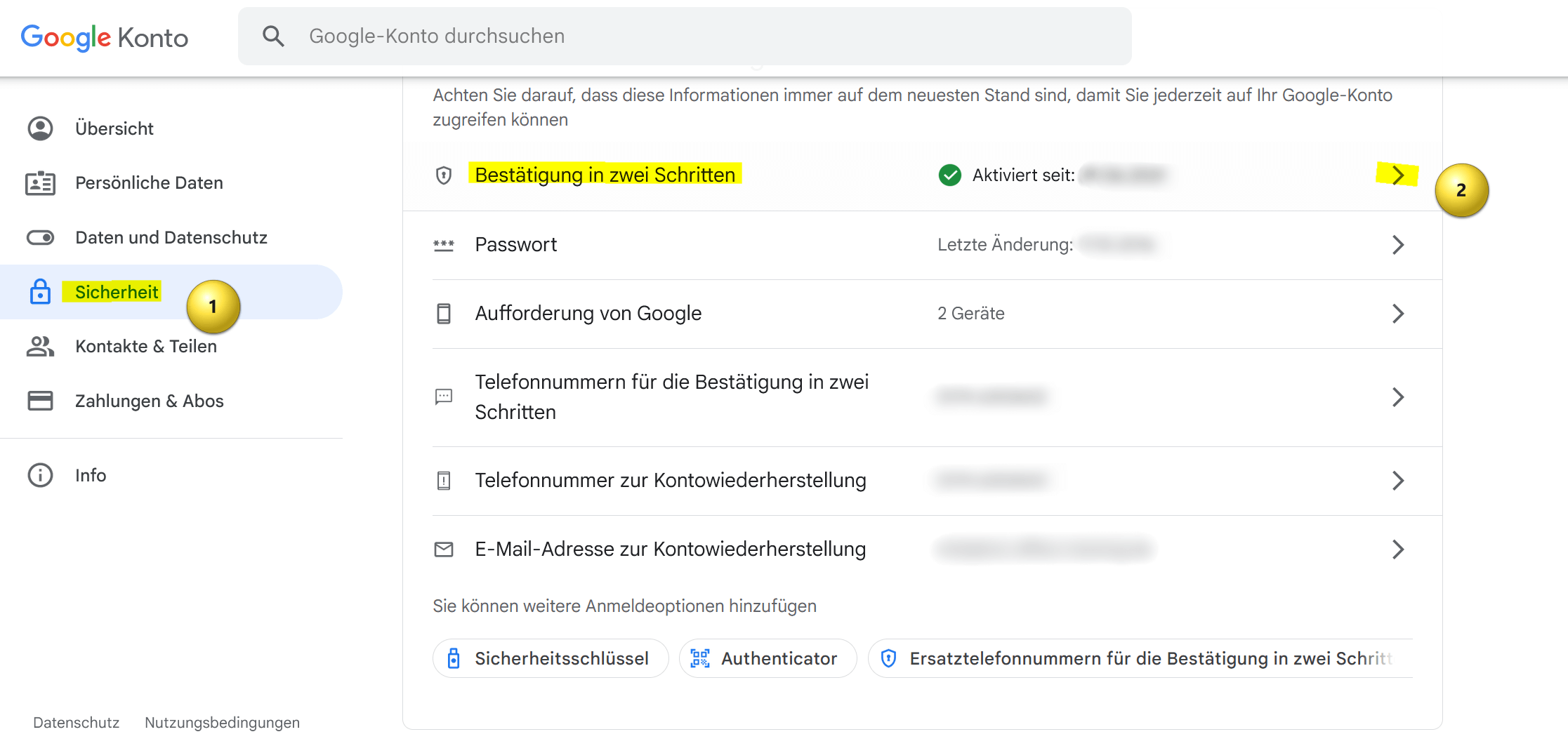
- On the Account Summary page, look for the Security section and click on it.
- In the “Security” section, scroll down and look for the “2-step verification” option. Click on it.
- You may be asked to re-enter your Google password to continue.
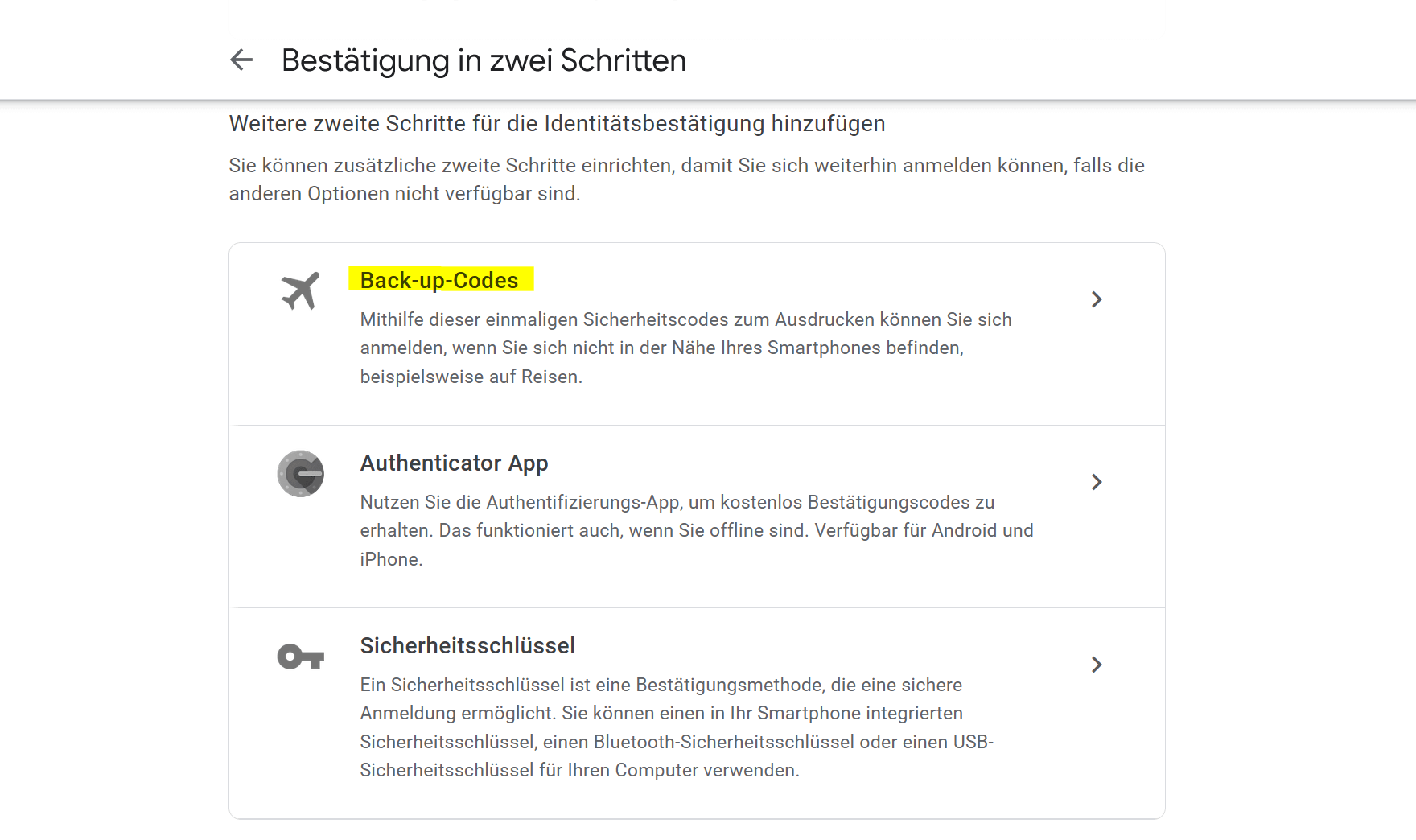
- On the 2-Step Verification page, you’ll see various options for setting up two-factor authentication. Select the “Backup Codes” option.
- Click “Generate Codes” or a similar button. Google will generate a list of several backup codes for you.
- Save these backup codes in a safe place. You can write them down or save them in a password manager app. You will need these codes if you don’t have access to your device or your usual authentication methods.
- Once you have saved the backup codes, click “Next” or a similar button to complete the setup process.
see fig. (click to enlarge)
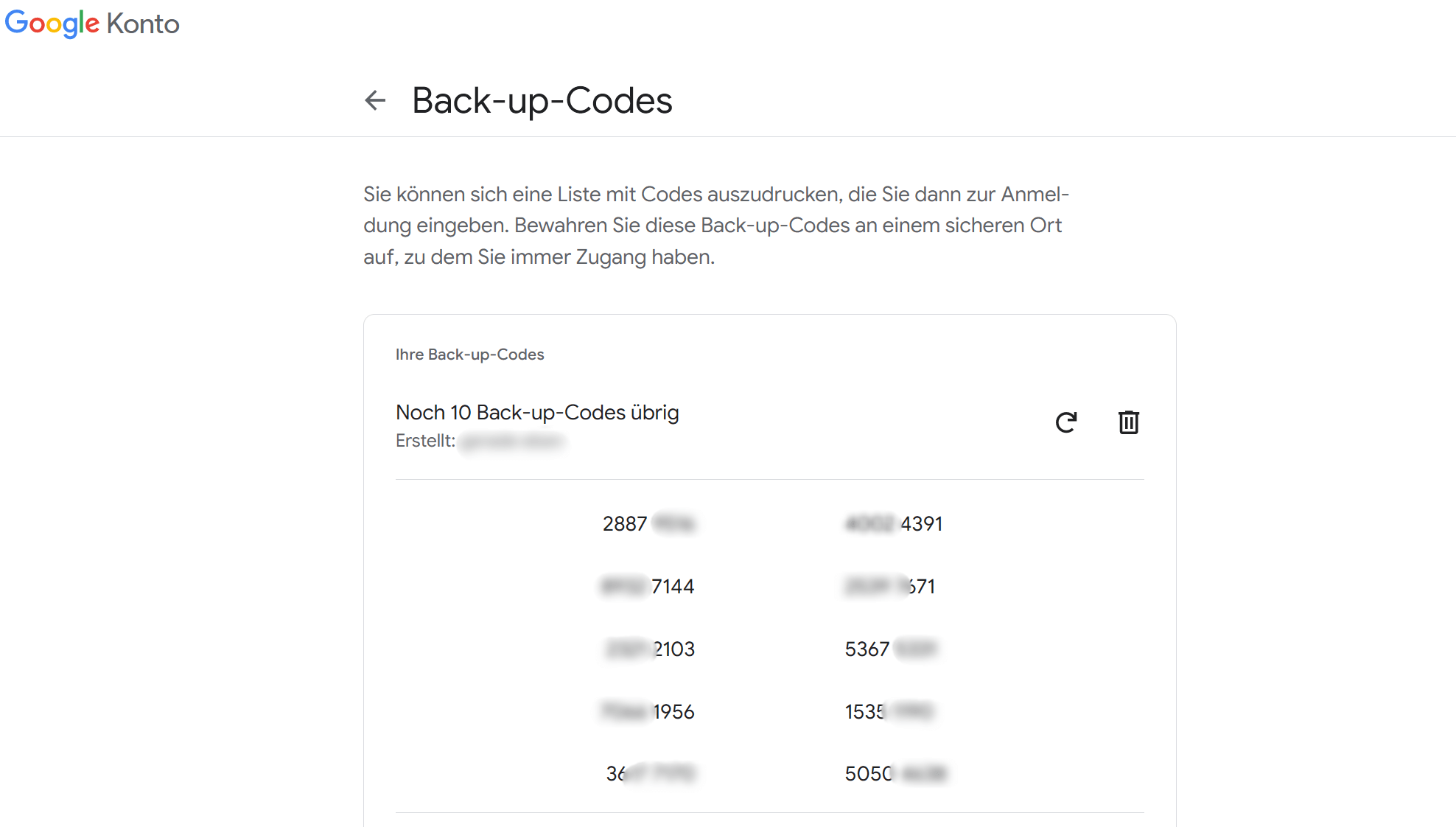
That’s it! You have now set up a Google backup code that you can use to access your Google account if you don’t have access to your usual means of authentication. Make sure you keep the backup codes safe and don’t lose them!
If you need the smartphone to log into your Google account but can’t access it for various reasons – be it lost, stolen, broken or other reasons not working – you face the problem, don’t more access to your data behind the Google account. This can become a significant problem, especially if you don’t have an alternate phone number on file as a backup, which is probably the case for most users. If the smartphone is permanently unusable, the problem gets worse.
Google has developed special emergency codes for this situation, which are now known as “backup codes” and serve as a kind of spare key for your account. These codes are one-time passwords that you provided during the two-factor authentication setup process. The backup codes do not replace your password, they only serve as an alternative for the second authentication step after entering the password.
The option to receive the emergency codes can be found directly in the two-factor authentication settings. There you can download a list of 10 codes, each code can only be used once. This is comparable to the previously widespread TAN lists in online banking. When you have used up all the codes, you must create a new list. Note, however, that creating a new list will automatically disable all older codes!
To set up a Google backup code, you must first ensure that you have a Google account. If you don’t already have a Google account, you can create one by following the steps on the Google sign-up page.
Once you have a Google account, you can set up a backup code as follows:
- Go to your Google account. You can do this by going to the Google homepage and clicking “Sign in“. Then enter your credentials and log in.
- Click your profile picture or the circle icon containing your initial in the top right corner of the Google homepage. A drop-down menu will appear.
- Select “Google Account” from the drop down menu. This will take you to the Account Summary page.
- On the Account Summary page, look for the Security section and click on it.
- In the “Security” section, scroll down and look for the “2-step verification” option. Click on it.
- You may be asked to re-enter your Google password to continue.
- On the 2-Step Verification page, you’ll see various options for setting up two-factor authentication. Select the “Backup Codes” option.
- Click “Generate Codes” or a similar button. Google will generate a list of several backup codes for you.
- Save these backup codes in a safe place. You can write them down or save them in a password manager app. You will need these codes if you don’t have access to your device or your usual authentication methods.
- Once you have saved the backup codes, click “Next” or a similar button to complete the setup process.
see fig. (click to enlarge)
That’s it! You have now set up a Google backup code that you can use to access your Google account if you don’t have access to your usual means of authentication. Make sure you keep the backup codes safe and don’t lose them!
Popular Posts:

So sieht das wirklich perfekte Homeoffice-Setup für 2026 aus
Ihr Homeoffice ist veraltet? Steigern Sie 2026 Produktivität & Gesundheit. Unser Guide zeigt das perfekte Setup: von ergonomischen Stühlen und 4K-Webcams bis zu Mesh-WLAN und Kabelmanagement. So investieren Sie in Ihre Karriere.

Internet, Telefon & TV: Die besten Komplettpakete
Internet, TV & Telefon aus einer Hand? Wir vergleichen die Komplettpakete von Telekom, Vodafone, O2 & 1&1. Wer punktet bei Speed, TV-Komfort (MagentaTV vs. GigaTV) und Preis? So finden Sie das beste Triple-Play-Angebot für Ihre Adresse.

5 Anzeichen, dass dein Chef dich im Homeoffice digital überwacht
Nur weil du im Homeoffice bist, heißt das nicht, dass dir niemand zusieht. "Bossware" ist auf dem Vormarsch. Wir zeigen 5 subtile Anzeichen für digitale Überwachung – von "Teams-Status"-Kult bis zu verdächtigen IT-Tools. So erkennst du die Warnsignale und schützt deine Karriere.

Schluss mit dem Tool-Chaos: 5 Apps, die Euer Office wirklich produktiver machen
Schluss mit digitaler Reibung: Diese 5 Apps machen Ihr Büro wirklich produktiver. Entdecken Sie, wie Asana, Loom, Notion, Zapier und Slack die Effizienz steigern, Meetings reduzieren und Ihr Team smarter vernetzen – wenn man sie richtig einsetzt.

AI in everyday office life: Your new invisible colleague
AI won't replace you – but those who use it will have a competitive edge. Make AI your co-pilot in the office! We'll show you four concrete hacks for faster emails, better meeting notes, and solved Excel problems. Get started today, no IT degree required.

Fünf vor Zwölf: Wie Sie erkennen, dass Sie kurz vor dem Burnout stehen
Erschöpfung ist normal, doch wenn das Wochenende keine Erholung mehr bringt und Zynismus die Motivation ersetzt, stehen Sie kurz vor dem Burnout. Erfahren Sie, welche 7 Warnsignale Sie niemals ignorieren dürfen und warum es jetzt lebenswichtig ist, die Notbremse zu ziehen
Offers 2024: Word & Excel Templates











Popular Posts:
So sieht das wirklich perfekte Homeoffice-Setup für 2026 aus
Ihr Homeoffice ist veraltet? Steigern Sie 2026 Produktivität & Gesundheit. Unser Guide zeigt das perfekte Setup: von ergonomischen Stühlen und 4K-Webcams bis zu Mesh-WLAN und Kabelmanagement. So investieren Sie in Ihre Karriere.
Internet, Telefon & TV: Die besten Komplettpakete
Internet, TV & Telefon aus einer Hand? Wir vergleichen die Komplettpakete von Telekom, Vodafone, O2 & 1&1. Wer punktet bei Speed, TV-Komfort (MagentaTV vs. GigaTV) und Preis? So finden Sie das beste Triple-Play-Angebot für Ihre Adresse.
5 Anzeichen, dass dein Chef dich im Homeoffice digital überwacht
Nur weil du im Homeoffice bist, heißt das nicht, dass dir niemand zusieht. "Bossware" ist auf dem Vormarsch. Wir zeigen 5 subtile Anzeichen für digitale Überwachung – von "Teams-Status"-Kult bis zu verdächtigen IT-Tools. So erkennst du die Warnsignale und schützt deine Karriere.
Schluss mit dem Tool-Chaos: 5 Apps, die Euer Office wirklich produktiver machen
Schluss mit digitaler Reibung: Diese 5 Apps machen Ihr Büro wirklich produktiver. Entdecken Sie, wie Asana, Loom, Notion, Zapier und Slack die Effizienz steigern, Meetings reduzieren und Ihr Team smarter vernetzen – wenn man sie richtig einsetzt.
AI in everyday office life: Your new invisible colleague
AI won't replace you – but those who use it will have a competitive edge. Make AI your co-pilot in the office! We'll show you four concrete hacks for faster emails, better meeting notes, and solved Excel problems. Get started today, no IT degree required.
Fünf vor Zwölf: Wie Sie erkennen, dass Sie kurz vor dem Burnout stehen
Erschöpfung ist normal, doch wenn das Wochenende keine Erholung mehr bringt und Zynismus die Motivation ersetzt, stehen Sie kurz vor dem Burnout. Erfahren Sie, welche 7 Warnsignale Sie niemals ignorieren dürfen und warum es jetzt lebenswichtig ist, die Notbremse zu ziehen
Offers 2024: Word & Excel Templates