Password madness: Why passkeys are the future


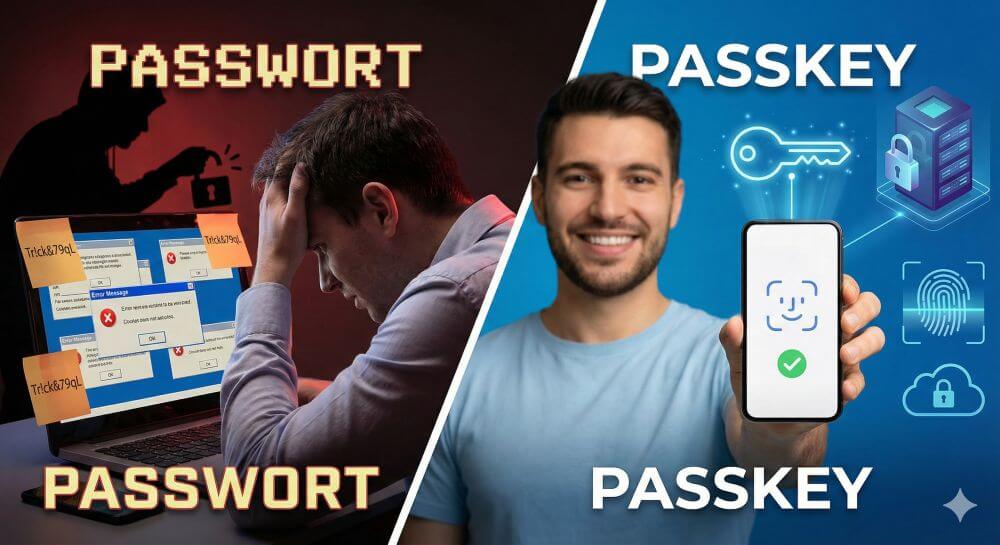
We all know the ritual: create a new account, come up with a password that must contain an uppercase letter, a number, and a special character, immediately forget it, and finally click “Reset password.”
For decades, passwords were the standard for digital security—and simultaneously the biggest security risk. But that era is drawing to a close. The solution is Passkeys.
What exactly is a passkey?
A passkey is a new way to log in that completely eliminates the need for passwords. Instead of typing in a string of characters (which can be stolen or guessed), you simply use the device you already own—your smartphone, tablet, or laptop.
The technology is based on standards from the FIDO Alliance, a consortium of tech giants like Apple, Google, and Microsoft that have agreed on a common, secure standard.
In short: A passkey turns your device into the key to your online accounts.
How does that work technically?
Behind the scenes, passkeys use asymmetric cryptography (public-key cryptography). This sounds complicated, but it’s actually quite simple:
- The key pair: When creating a passkey, two keys are generated.
- The private key: This is securely stored on your device (e.g., in the security chip of an iPhone or Android phone). It never leaves the device.
- The public key: This is sent to the service (e.g., Google, PayPal, Amazon) and stored there.
- The login: When you want to log in, the server presents your device with a mathematical problem. Your device solves this problem using the private key and sends the solution back.
The authorization: You simply confirm the process using biometrics (Face ID, fingerprint) or your device PIN.
The decisive advantages over passwords
We have compiled an overview of why passkeys are the better alternative to passwords:
| Advantage | Explanation |
|---|---|
| Protection against phishing | That’s the biggest advantage. A passkey is tied to a specific website. Even if you’re lured to a deceptively realistic fake website, your device will refuse to log in because the domain is incorrect. |
| No server hacks | When a company is hacked, the attackers don’t find passwords, only useless public keys. Your account remains secure. |
| comfort | No more memorizing complex strings like Tr!ck&79qL. A glance or a fingerprint is all it takes. |
| synchronization | Passkeys are securely synchronized between your own devices via the cloud (iCloud Keychain, Google Password Manager). |
Device switching & backup of passkeys
One of the most common concerns when switching to passkeys is: “What happens if I lose my phone or buy a new one? Will I lock myself out?”
The answer depends on how you manage your passkeys and whether you’re changing operating systems. Here’s what’s important when switching devices:
1. Switching within the same “ecosystem” (The usual case)
If you’re switching from one iPhone to a new iPhone or from one Android device to a new Android device, the process is extremely simple.
- Apple: Passkeys are stored in iCloud Keychain. As soon as you sign in to your new iPhone with your Apple ID, all your passkeys are automatically available.
- Google/Android: Here, the Google Password Manager takes care of it. Sign in to your new device with your Google account, and the passkeys will be synced.
Important: Make sure cloud synchronization (iCloud or Google Sync) was enabled on your old device before erasing it.
2. Switching Systems (e.g., from iPhone to Android)
This is where things get a bit more complex, as Apple and Google don’t directly share their “keychains.” When switching systems, you have two options:
- The QR code method: You want to log in on your new Android phone, but the passkey is on your old iPad? The website displays a QR code. Scan this with your old device (the one that has the passkey). Confirm the login via a secure Bluetooth connection. Tip: Immediately create a new passkey on your new device.
- Third-party password managers: Services like 1Password, Dashlane, or Bitwarden now also support passkeys. The big advantage: These apps work independently of the operating system. If you save your passkeys there, you have access to them regardless of whether you use Windows, iOS, Android, or macOS.
3. The Golden Rule: Don’t Delete the Old Device Immediately
Never delete your old smartphone or laptop before the new device is fully set up. Keep the old device in a drawer for a few days as a “security key.” Use this time to ensure that you have access to all important services (banking, email, social media) with the new device and have registered new passkeys there if necessary.
4. Set up recovery options
Since you no longer have a password to reset via email, alternative access methods are essential. Always provide the following information for important accounts:
- A phone number for SMS verification.
- An alternative email address.
- If possible: A physical security key (e.g., YubiKey) as an emergency backup stored in a safe.
Disadvantages and risks
No technology is perfect, and we have to be honest and admit that even with passkeys, there are still hurdles to getting used to them:
Device dependency: You need access to your devices. If you lose your phone and haven’t enabled cloud backup, access can be difficult (which is why recovery methods are important).
Platform limitations: Although it’s improving, sharing passkeys between Apple and Windows/Android devices is still somewhat more cumbersome than simply typing a password (often possible by scanning a QR code).
Availability: Not all websites offer passkeys yet, although the number is growing daily (e.g., Amazon, Google, WhatsApp, and Nintendo already support them).
Conclusion: Should you switch
Yes, absolutely!
Passkeys are more secure and user-friendly than anything we’ve had before. They solve the “weakest link” problem (the person choosing “123456” as their password). Even though we’re still in a transition phase where passwords and passkeys coexist, the future clearly belongs to keyless login.
If a service offers you the option to create a passkey today, do it.

Beliebte Beiträge
Header and footer in Word – First page different in Word
How to make headers different on the first page than on the rest of the pages. Also create custom footers in Word for your documents.
Clean up Excel spreadsheets
It is very easy to use Excel tables created without a system and still get usable data from them with a few tricks.

Insert and edit header and footer in Excel
Inserting a header and footer in Excel is far from user-friendly. We show ways and workarounds how you can do it anyway.

Concatenate text and date in Excel – Tutorial
Concatenating text and date in Excel requires a combination of two functions. We use a practical example to explain how it can be used.

Create and save your own text modules in Word
Create your own text blocks in Word, save them and quickly add ready-made text and graphics to your documents.

Data Queries in Excel – Works with Power Query
So erstellen Sie aktive Datenabfragen durch Power Query aus verschiedensten Quellen in Excel, führen Daten aus verschiedenen Dateien und Tabellen zusammen.
Offers 2024: Word & Excel Templates