Include RSS feeds in Outlook and your browser


It is often said that deadly lives last longer …
And so it is with the so-called RSS feeds, which seem almost as outdated as the teletext of the TV station, but the RSS feed is currently experiencing a renaissance among website operators and interested readers.
At the same time, newsletters continue to be valid because they are often associated with many benefits for subscribers. The advantage of RSS feeds compared to newsletters, however, is that you do not necessarily receive the information you have subscribed by e-mail. even with dynamic bookmarks in your web browser.
You can find out how to insert an RSS feed into Microsoft Outlook and your browser in our article.

Include RSS feeds in Outlook and your browser
It is often said that deadly lives last longer …
And so it is with the so-called RSS feeds, which seem almost as outdated as the teletext of the TV station, but the RSS feed is currently experiencing a renaissance among website operators and interested readers.
At the same time, newsletters continue to be valid because they are often associated with many benefits for subscribers. The advantage of RSS feeds compared to newsletters, however, is that you do not necessarily receive the information you have subscribed by e-mail. even with dynamic bookmarks in your web browser.
You can find out how to insert an RSS feed into Microsoft Outlook and your browser in our article.
1. What is an RSS feed anyway?
1. What is an RSS feed anyway?
RSS are special file formats that have been continuously introduced since the beginning of 2000, and show changes on web pages.
These are mostly excerpted, with only some of the changes being displayed (a preview of a new post on a webpage, so to speak) and partly also a full text RSS feed.
- RSS today stands for: Really Simple Syndication (very simple summary).
- Feed stands for: feed, feed (in the sense of feed).
For those who want to get even closer to the terminology and background technology, can do this here:
RSS are special file formats that have been continuously introduced since the beginning of 2000, and show changes on web pages.
These are mostly excerpted, with only some of the changes being displayed (a preview of a new post on a webpage, so to speak) and partly also a full text RSS feed.
- RSS today stands for: Really Simple Syndication (very simple summary).
- Feed stands for: feed, feed (in the sense of feed).
For those who want to get even closer to the terminology and background technology, can do this here:
2. How do I get interesting RSS feeds?
2. How do I get interesting RSS feeds?
Many website operators who also run a blog or a news page offer these RSS feeds in addition to newsletters on their pages.
Of course, you can also use the Google search to simply enter a well-known website and then + RSS feed.
Easily recognize an RSS feed by the unmistakable icon:
See picture:


Many website operators who also run a blog or a news page offer these RSS feeds in addition to newsletters on their pages.
Of course, you can also use the Google search to simply enter a well-known website and then + RSS feed.
Easily recognize an RSS feed by the unmistakable icon:
See picture:
3. Include RSS feed in Outlook
3. Include RSS feed in Outlook
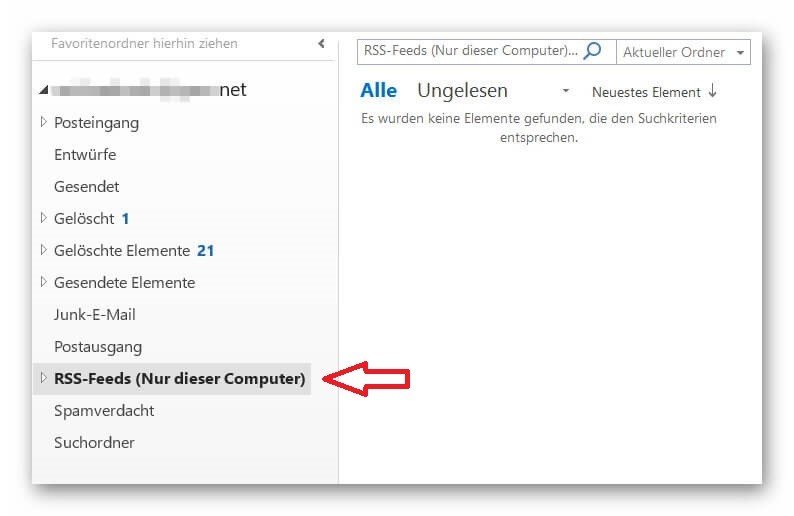
After installing Outlook 2016 and setting up an e-mail address, you will not only see the usual folders such as: Inbox, Outbox, Sent Items, Deleted Items, etc., but also a (non-erasable) folder named: RSS Feeds.
See picture: (click to enlarge)
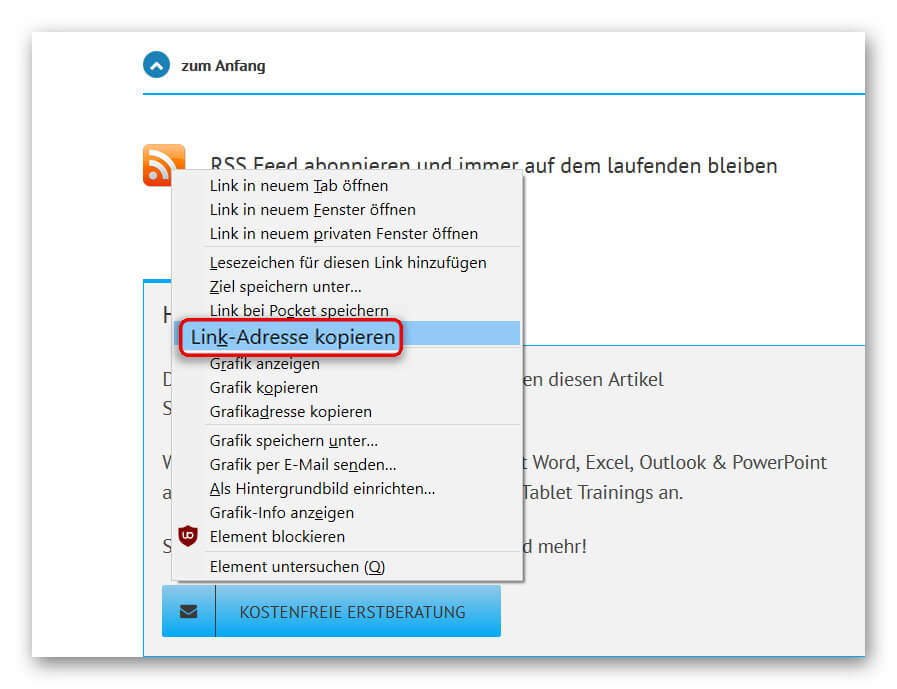
In order to integrate the RSS feed into your Outlook, you first need the URL of the relevant feed.
You receive this as follows:
- Right-click on the RSS feed icon and in the context menu “Copy link address”.
- Go to Outlook and locate the RSS feeds folder.
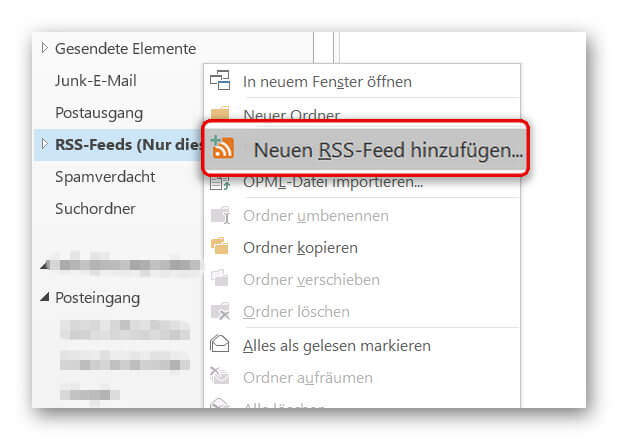
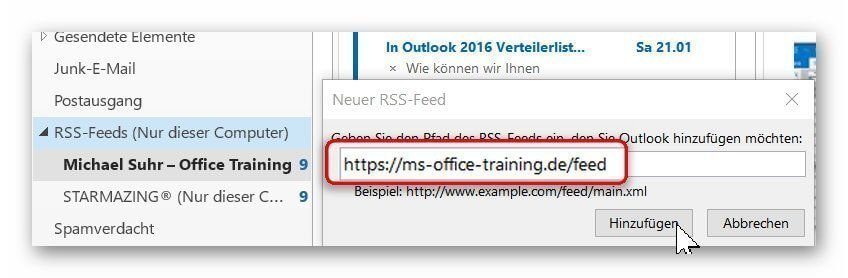
- Right click on the RSS feed folder in Outlook, and there in the context menu: “Add new RSS feed”
- In the following window, simply insert the link via CTRL + C.
See picture: (click to enlarge)
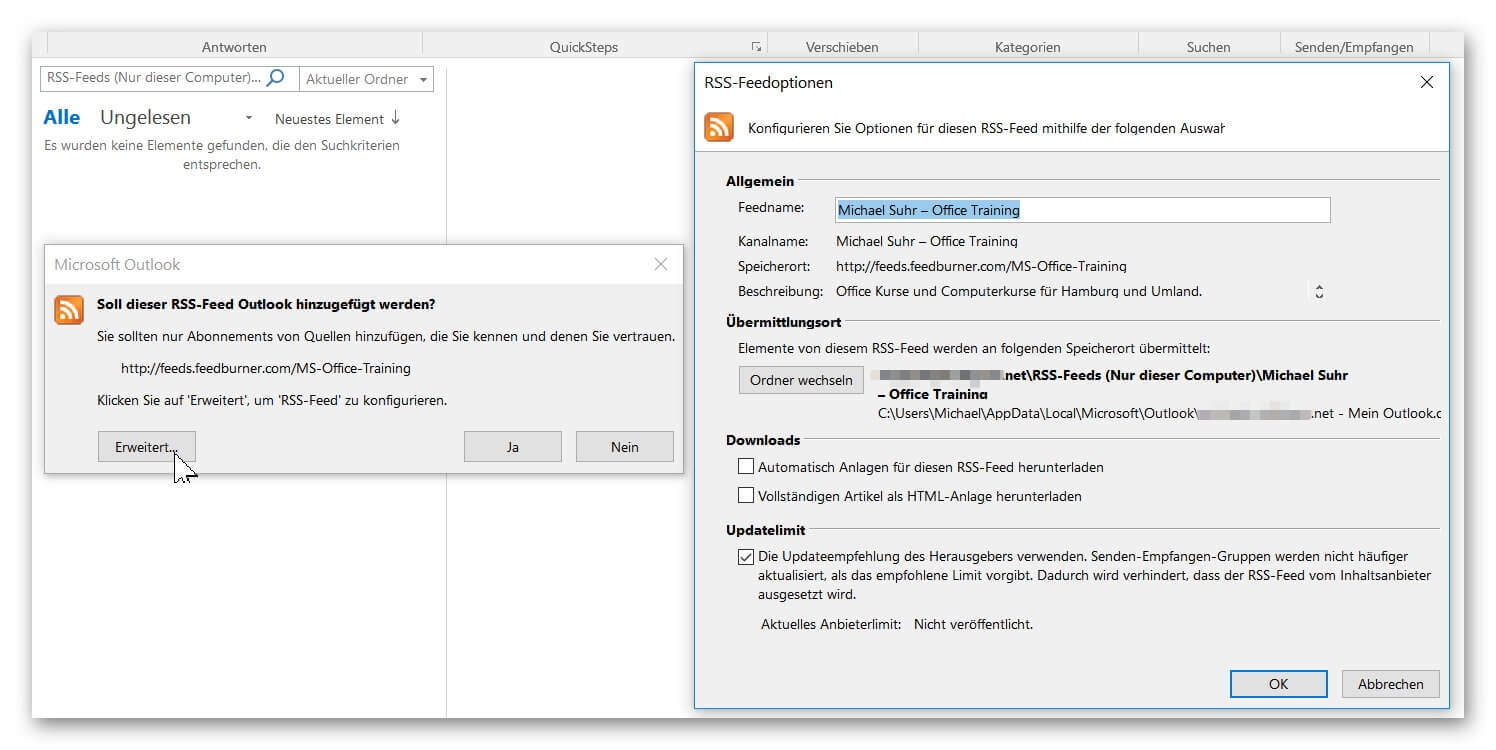
In the following security question you now have the opportunity to customize the RSS feed, and then confirm its receipt.
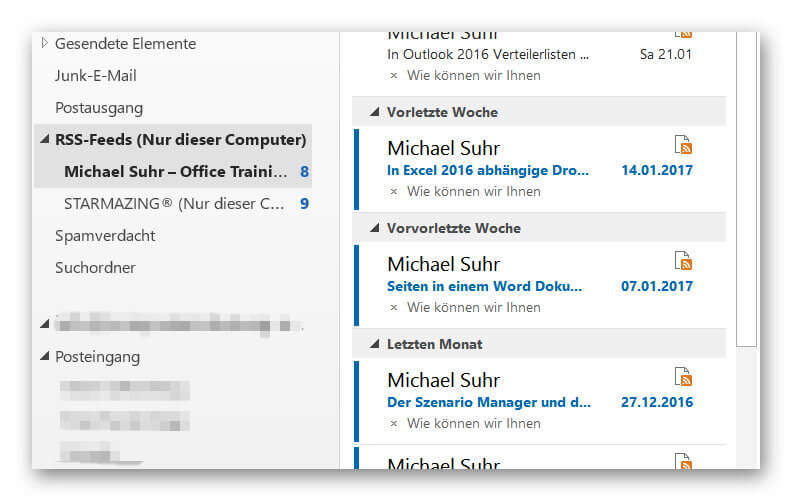
From now on, your new RSS feed will be updated every time your Outlook folders are synced, and you will receive all subscribed news.
See picture: (click to enlarge)
After installing Outlook 2016 and setting up an e-mail address, you will not only see the usual folders such as: Inbox, Outbox, Sent Items, Deleted Items, etc., but also a (non-erasable) folder named: RSS Feeds.
See picture: (click to enlarge)
In order to integrate the RSS feed into your Outlook, you first need the URL of the relevant feed.
You receive this as follows:
- Right-click on the RSS feed icon and in the context menu “Copy link address”.
- Go to Outlook and locate the RSS feeds folder.
- Right click on the RSS feed folder in Outlook, and there in the context menu: “Add new RSS feed”
- In the following window, simply insert the link via CTRL + C.
See picture: (click to enlarge)
In the following security question you now have the opportunity to customize the RSS feed, and then confirm its receipt.
From now on, your new RSS feed will be updated every time your Outlook folders are synced, and you will receive all subscribed news.
See picture: (click to enlarge)
4. Include RSS feed in Mozilla Firefox
4. Include RSS feed in Mozilla Firefox
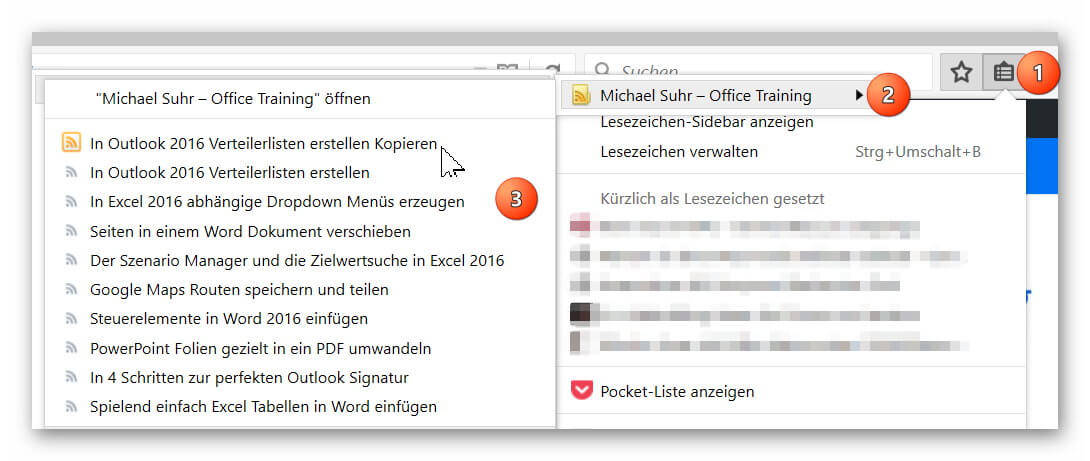
Of course, you can also receive RSS feeds outside of Outlook as a dynamic bookmark.
In the Mozilla Firefox browser you proceed as follows:
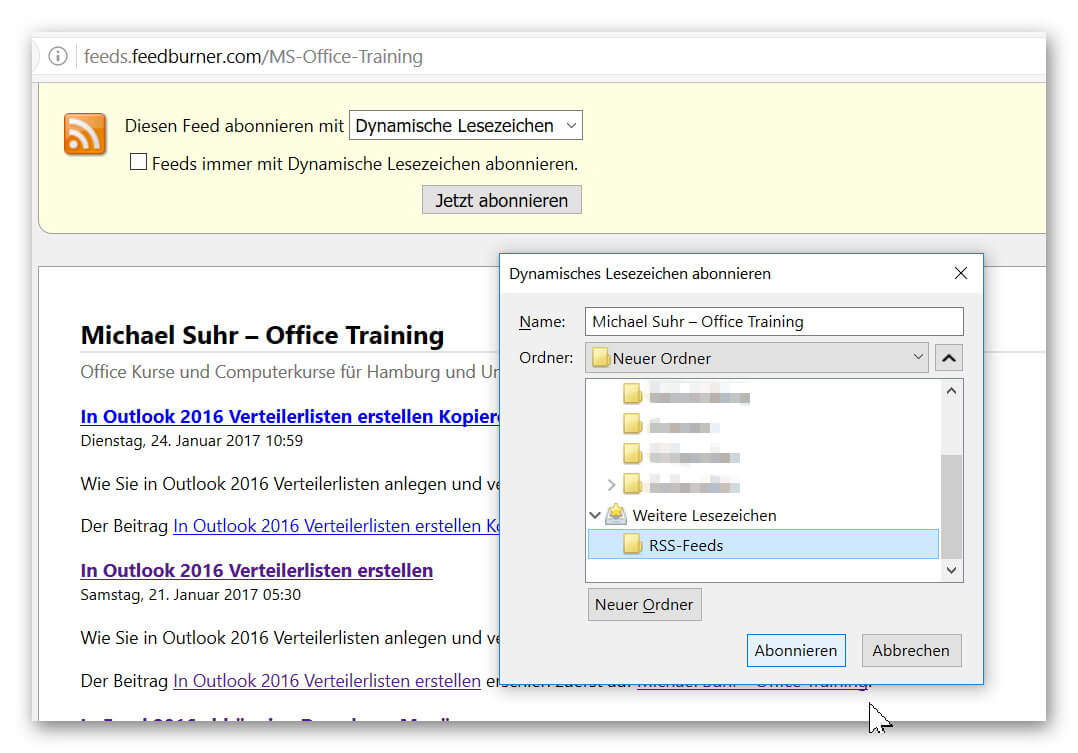
- Left click on the relevant RSS feed.
- In the window that opens, click on “Subscribe now”
- Set a folder in your bookmarks list.
You can now easily see in your bookmarks at any time if there is news on the subscribed page.
See picture: (click to enlarge)
Of course, you can also receive RSS feeds outside of Outlook as a dynamic bookmark.
In the Mozilla Firefox browser you proceed as follows:
- Left click on the relevant RSS feed.
- In the window that opens, click on “Subscribe now”
- Set a folder in your bookmarks list.
You can now easily see in your bookmarks at any time if there is news on the subscribed page.
See picture: (click to enlarge)
5. Include RSS Feed in Microsoft Edge
5. Include RSS Feed in Microsoft Edge
Unfortunately, Microsoft currently does not offer an integrated RSS reader with its Edge Browser.
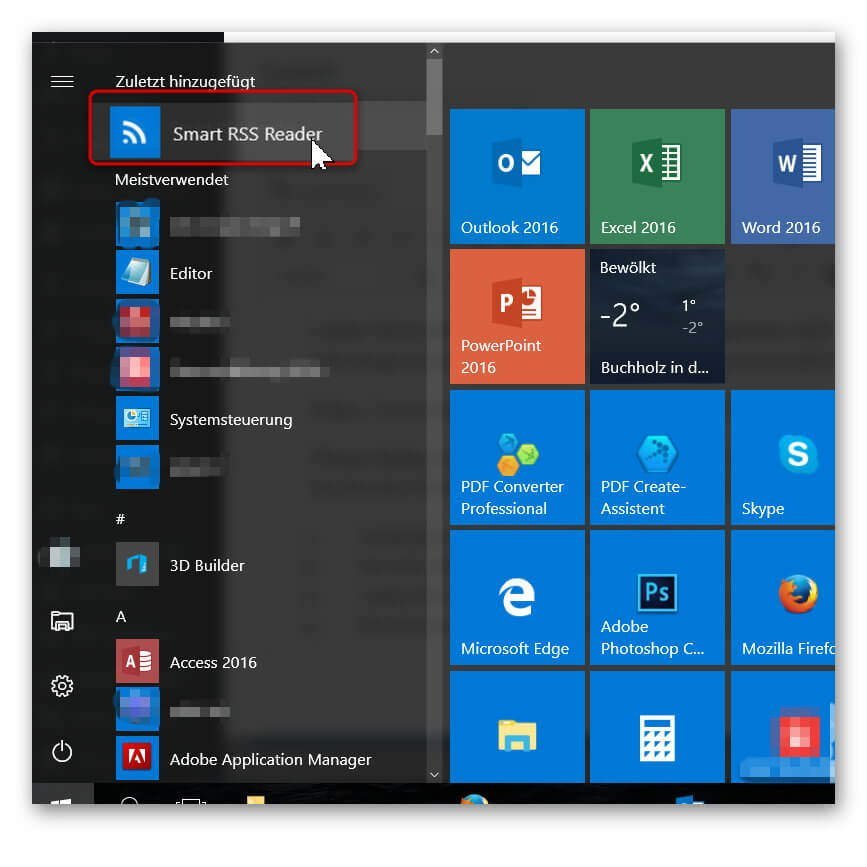
Of course, you can also receive RSS feeds on Windows by simply downloading a separate RSS reader (for example, from the Microsoft Store):
https://www.microsoft.com/en-us/store/p/smart-rss-reader/9nblggh5x1t7
You will find this later in your program library.
See picture: (click to enlarge)
Unfortunately, Microsoft currently does not offer an integrated RSS reader with its Edge Browser.
Of course, you can also receive RSS feeds on Windows by simply downloading a separate RSS reader (for example, from the Microsoft Store):
https://www.microsoft.com/en-us/store/p/smart-rss-reader/9nblggh5x1t7
You will find this later in your program library.
See picture: (click to enlarge)
6. Include RSS feed in Google Chrome
6. Include RSS feed in Google Chrome
Even in Google Chrome is by nature no RSS reader included, but this is not necessarily a disadvantage.
With its slim base structure, Chrome is one of the fastest browsers that can be easily adapted to individual needs via various extensions.
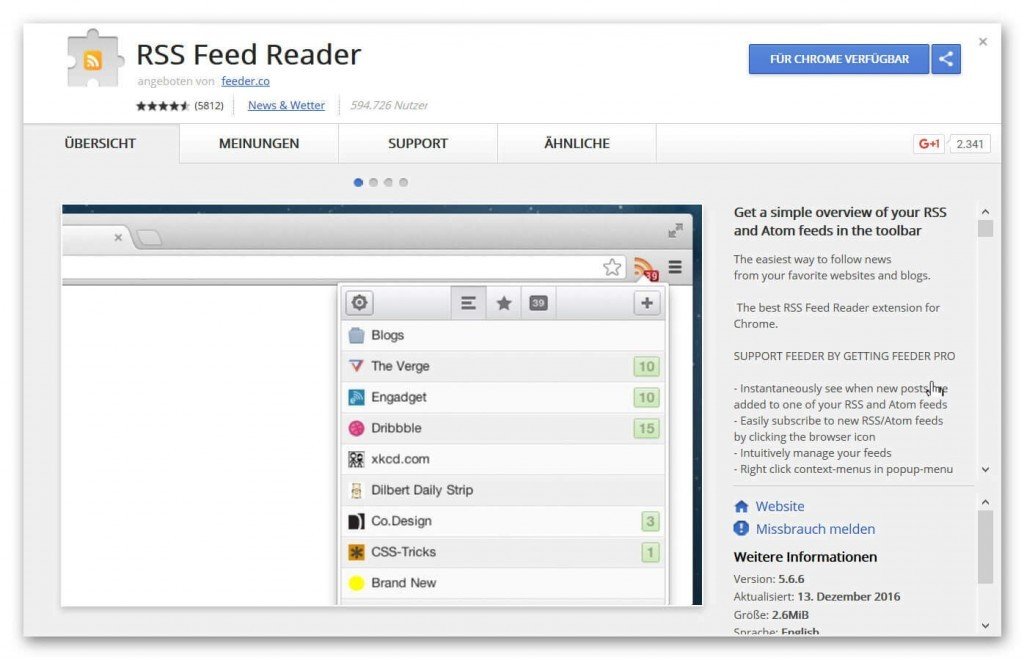
So you can easily integrate a separate RSS feed reader here.
Under the following link you can download it from the official webstore:
https://chrome.google.com/webstore/detail/rss-feed-reader/pnjaodmkngahhkoihejjehlcdlnohgmp
There you have the possibility to receive RSS feeds dynamically via a browser add-on.
See picture: (click to enlarge)

Even in Google Chrome is by nature no RSS reader included, but this is not necessarily a disadvantage.
With its slim base structure, Chrome is one of the fastest browsers that can be easily adapted to individual needs via various extensions.
So you can easily integrate a separate RSS feed reader here.
Under the following link you can download it from the official webstore:
https://chrome.google.com/webstore/detail/rss-feed-reader/pnjaodmkngahhkoihejjehlcdlnohgmp
There you have the possibility to receive RSS feeds dynamically via a browser add-on.
See picture: (click to enlarge)
Popular Posts:

5 simple security rules against phishing and spam that everyone should know
Deceptively authentic emails from your bank, DHL, or PayPal? That's phishing! Data theft and viruses are a daily threat. We'll show you 5 simple rules (2FA, password managers, etc.) to protect yourself immediately and effectively and help you spot scammers.

The 5 best tips for a clean folder structure on your PC and in the cloud
Say goodbye to file chaos! "Offer_final_v2.docx" is a thing of the past. Learn 5 simple tips for a perfect folder structure on your PC and in the cloud (OneDrive). With proper file naming and archive rules, you'll find everything instantly.

Never do the same thing again: How to record a macro in Excel
Tired of repetitive tasks in Excel? Learn how to create your first personal "magic button" with the macro recorder. Automate formatting and save hours – no programming required! Click here for easy instructions.
IMAP vs. Local Folders: The secret to your Outlook structure and why it matters
Do you know the difference between IMAP and local folders in Outlook? Incorrect use can lead to data loss! We'll explain simply what belongs where, how to clean up your mailbox, and how to archive emails securely and for the long term.

Der ultimative Effizienz-Boost: Wie Excel, Word und Outlook für Sie zusammenarbeiten
Schluss mit manuellem Kopieren! Lernen Sie, wie Sie Excel-Listen, Word-Vorlagen & Outlook verbinden, um personalisierte Serien-E-Mails automatisch zu versenden. Sparen Sie Zeit, vermeiden Sie Fehler und steigern Sie Ihre Effizienz. Hier geht's zur einfachen Anleitung!

Agentic AI: The next quantum leap in artificial intelligence?
Forget simple chatbots! Agentic AI is here: Autonomous AI that plans, learns, and solves complex tasks for you. Discover how AI agents will revolutionize the world of work and your everyday life. Are you ready for the future of artificial intelligence?
Offers 2024: Word & Excel Templates











Popular Posts:
5 simple security rules against phishing and spam that everyone should know
Deceptively authentic emails from your bank, DHL, or PayPal? That's phishing! Data theft and viruses are a daily threat. We'll show you 5 simple rules (2FA, password managers, etc.) to protect yourself immediately and effectively and help you spot scammers.
The 5 best tips for a clean folder structure on your PC and in the cloud
Say goodbye to file chaos! "Offer_final_v2.docx" is a thing of the past. Learn 5 simple tips for a perfect folder structure on your PC and in the cloud (OneDrive). With proper file naming and archive rules, you'll find everything instantly.
Never do the same thing again: How to record a macro in Excel
Tired of repetitive tasks in Excel? Learn how to create your first personal "magic button" with the macro recorder. Automate formatting and save hours – no programming required! Click here for easy instructions.
IMAP vs. Local Folders: The secret to your Outlook structure and why it matters
Do you know the difference between IMAP and local folders in Outlook? Incorrect use can lead to data loss! We'll explain simply what belongs where, how to clean up your mailbox, and how to archive emails securely and for the long term.
Der ultimative Effizienz-Boost: Wie Excel, Word und Outlook für Sie zusammenarbeiten
Schluss mit manuellem Kopieren! Lernen Sie, wie Sie Excel-Listen, Word-Vorlagen & Outlook verbinden, um personalisierte Serien-E-Mails automatisch zu versenden. Sparen Sie Zeit, vermeiden Sie Fehler und steigern Sie Ihre Effizienz. Hier geht's zur einfachen Anleitung!
Agentic AI: The next quantum leap in artificial intelligence?
Forget simple chatbots! Agentic AI is here: Autonomous AI that plans, learns, and solves complex tasks for you. Discover how AI agents will revolutionize the world of work and your everyday life. Are you ready for the future of artificial intelligence?
Offers 2024: Word & Excel Templates