Create and save your own text modules in Word


Who does not know them, the extremely long texts that come from authorities such as tax offices, employment agencies, etc. Sometimes you wonder who writes all this. Because only simple forms do not always work. Especially when it comes to individual speeches and personal issues. The solution in public authorities is quite simple, because special software solutions are used here, with which adaptable text modules, which already contain the same information in all letters, can be inserted into a document.
It wouldn’t be possible otherwise!

But you don’t need separate software to work with ready-made text modules. Microsoft Word offers the possibility to create and save your own text modules. In Word, you can not only work with your own text modules, but also with entire content modules. These can also include graphics, images, tables and much more. contain. For example, if you have a small company or work in an association where longer texts, which actually mostly contain the same information, you can either create your own letter template in Word for each application, or you can work with individual ones Text modules in Word.
We would like to take a closer look at how this works in our little tool tip.
Create and save your own text modules in Word
Who does not know them, the extremely long texts that come from authorities such as tax offices, employment agencies, etc. Sometimes you wonder who writes all this. Because only simple forms do not always work. Especially when it comes to individual speeches and personal issues. The solution in public authorities is quite simple, because special software solutions are used here, with which adaptable text modules, which already contain the same information in all letters, can be inserted into a document.
It wouldn’t be possible otherwise!
But you don’t need separate software to work with ready-made text modules. Microsoft Word offers the possibility to create and save your own text modules. In Word, you can not only work with your own text modules, but also with entire content modules. These can also include graphics, images, tables and much more. contain. For example, if you have a small company or work in an association where longer texts, which actually mostly contain the same information, you can either create your own letter template in Word for each application, or you can work with individual ones Text modules in Word.
We would like to take a closer look at how this works in our little tool tip.
Create and save text modules in Word
Create and save text modules in Word
As a first example, we had Word create an automated sample text from which we would like to save a few paragraphs as a text module template for future documents.
Tip: If you ever need a bit of text to try out in Word, simply enter =rand(5,5) in the document. This will generate random text from Word. The first number after =rand in brackets is the number of paragraphs you want in the example text, and the second number how many sentences each paragraph should contain.
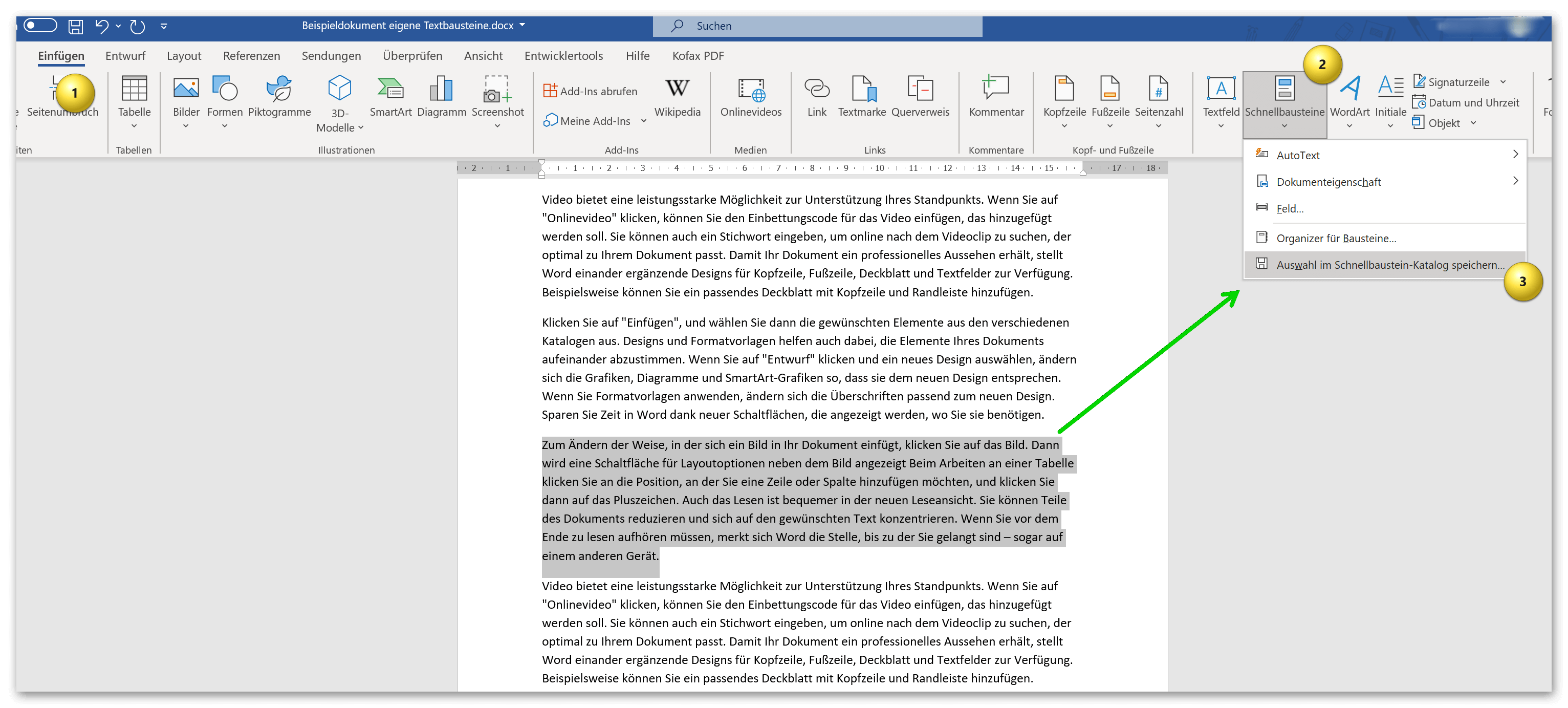
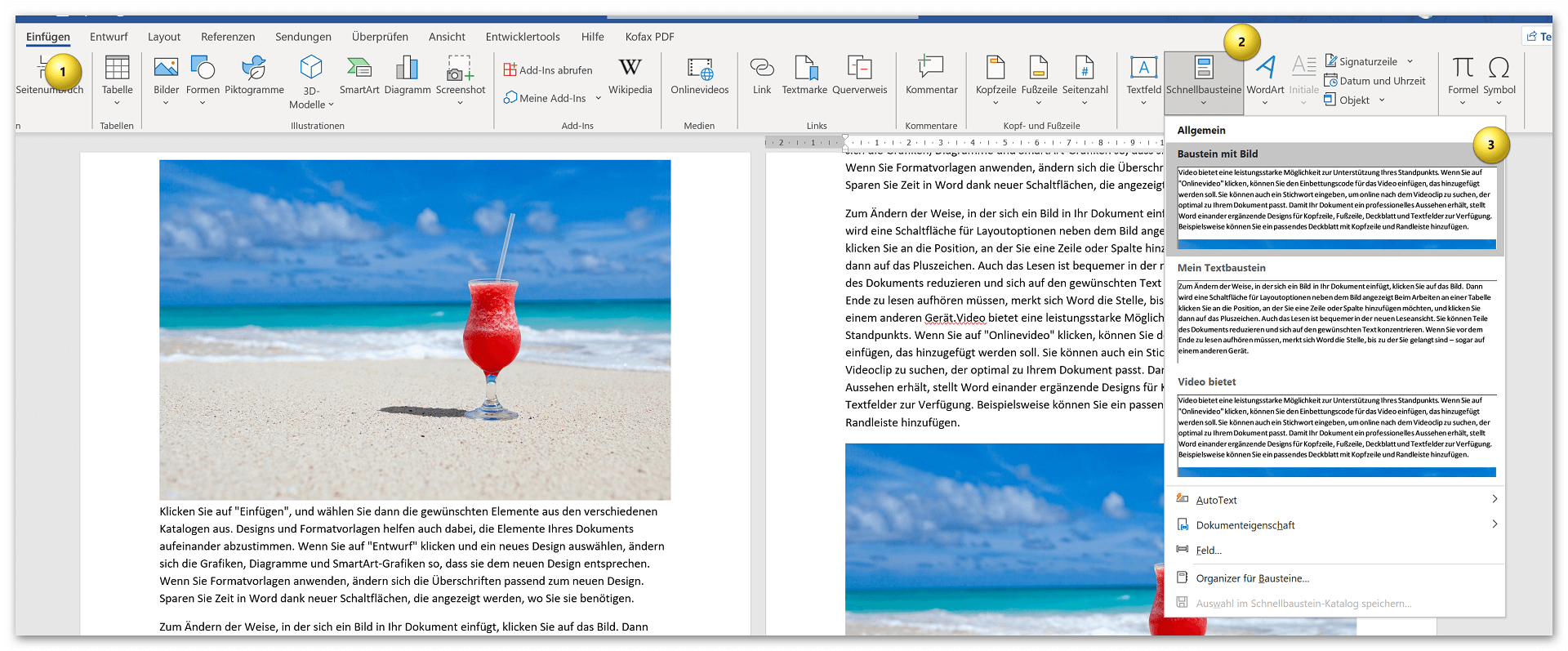
n the example, we first let Word generate our sample text and simply marked the third paragraph to save it as a template. In the second step we go to Word via the Insert tab – Quick Parts – Save selection to Quick Part Gallery.
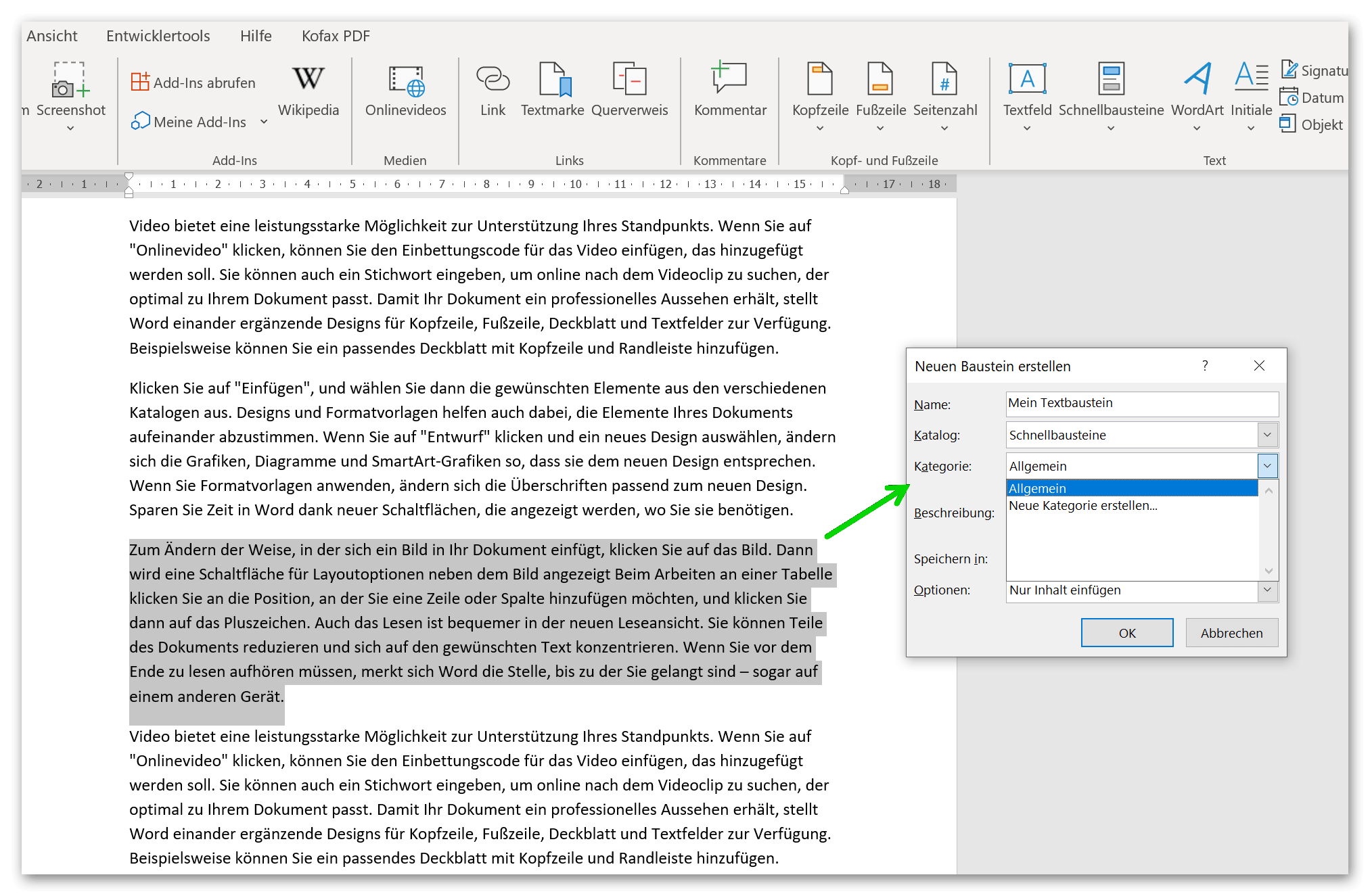
Next you will see a dialog window where you can give your phrase a custom name and place it in a category, but you can also create your own categories. Basically, you have a whole range of options for setting up your own repertoire of quick parts in the sub-item quick parts – organizer for quick parts.
see fig. (click to enlarge)

Of course, this principle works with all content that you have created in Word. In this way, images, graphics, tables, etc. can be easily saved and categorized.
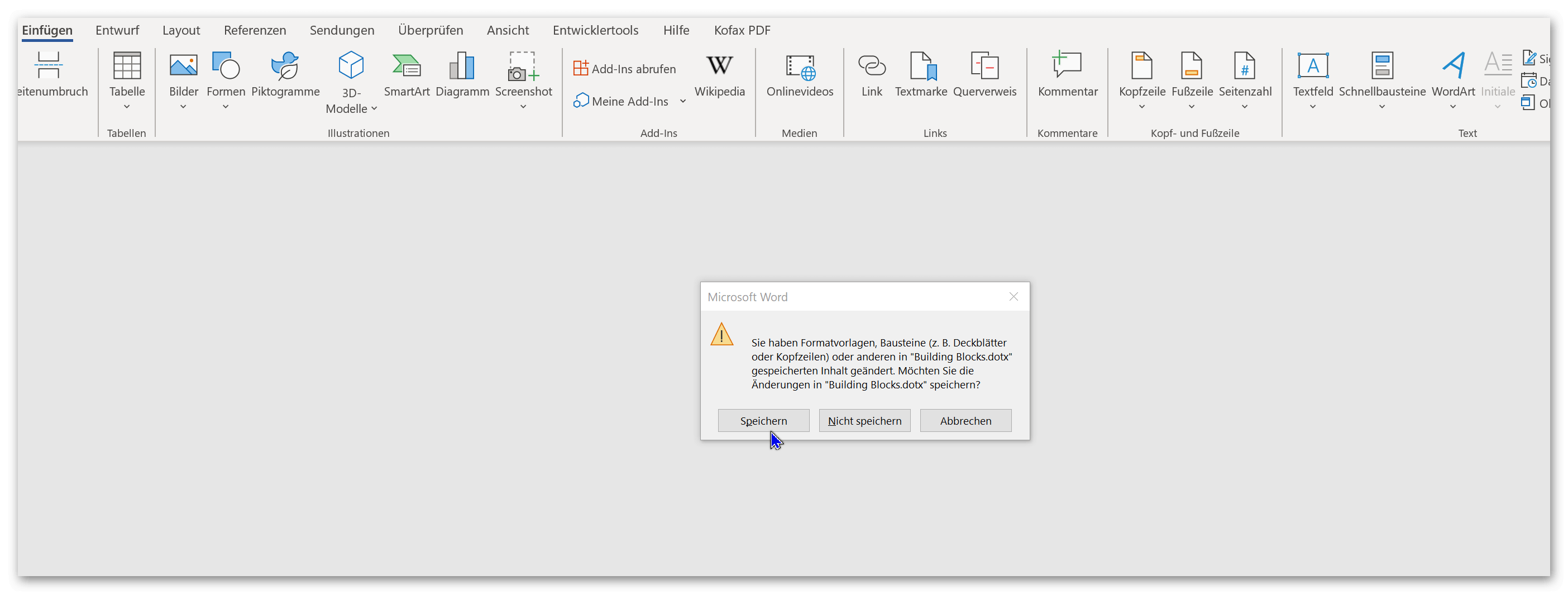
Important: If you save the document from which you created your building blocks in Word, you will be asked in a small dialog window whether you want to save the content that you have stored in the quick building block catalog as dotx. (i.e. template) want to save. Please make sure to save here so that the quick parts are available later in every new Word document. You can change the quick component catalog at any time, and also delete or adapt components that are no longer required.
see fig. (click to enlarge)
That’s basically it. As you have seen, this is done very quickly and can speed up work in Word immensely if you already have ready-made quick building blocks at hand.
As a first example, we had Word create an automated sample text from which we would like to save a few paragraphs as a text module template for future documents.
Tip: If you ever need a bit of text to try out in Word, simply enter =rand(5,5) in the document. This will generate random text from Word. The first number after =rand in brackets is the number of paragraphs you want in the example text, and the second number how many sentences each paragraph should contain.
n the example, we first let Word generate our sample text and simply marked the third paragraph to save it as a template. In the second step we go to Word via the Insert tab – Quick Parts – Save selection to Quick Part Gallery.
Next you will see a dialog window where you can give your phrase a custom name and place it in a category, but you can also create your own categories. Basically, you have a whole range of options for setting up your own repertoire of quick parts in the sub-item quick parts – organizer for quick parts.
see fig. (click to enlarge)
Of course, this principle works with all content that you have created in Word. In this way, images, graphics, tables, etc. can be easily saved and categorized.
Important: If you save the document from which you created your building blocks in Word, you will be asked in a small dialog window whether you want to save the content that you have stored in the quick building block catalog as dotx. (i.e. template) want to save. Please make sure to save here so that the quick parts are available later in every new Word document. You can change the quick component catalog at any time, and also delete or adapt components that are no longer required.
see fig. (click to enlarge)
That’s basically it. As you have seen, this is done very quickly and can speed up work in Word immensely if you already have ready-made quick building blocks at hand.
Popular Posts:

5 simple security rules against phishing and spam that everyone should know
Deceptively authentic emails from your bank, DHL, or PayPal? That's phishing! Data theft and viruses are a daily threat. We'll show you 5 simple rules (2FA, password managers, etc.) to protect yourself immediately and effectively and help you spot scammers.

The 5 best tips for a clean folder structure on your PC and in the cloud
Say goodbye to file chaos! "Offer_final_v2.docx" is a thing of the past. Learn 5 simple tips for a perfect folder structure on your PC and in the cloud (OneDrive). With proper file naming and archive rules, you'll find everything instantly.

Never do the same thing again: How to record a macro in Excel
Tired of repetitive tasks in Excel? Learn how to create your first personal "magic button" with the macro recorder. Automate formatting and save hours – no programming required! Click here for easy instructions.

IMAP vs. Local Folders: The secret to your Outlook structure and why it matters
Do you know the difference between IMAP and local folders in Outlook? Incorrect use can lead to data loss! We'll explain simply what belongs where, how to clean up your mailbox, and how to archive emails securely and for the long term.

Der ultimative Effizienz-Boost: Wie Excel, Word und Outlook für Sie zusammenarbeiten
Schluss mit manuellem Kopieren! Lernen Sie, wie Sie Excel-Listen, Word-Vorlagen & Outlook verbinden, um personalisierte Serien-E-Mails automatisch zu versenden. Sparen Sie Zeit, vermeiden Sie Fehler und steigern Sie Ihre Effizienz. Hier geht's zur einfachen Anleitung!

Agentic AI: The next quantum leap in artificial intelligence?
Forget simple chatbots! Agentic AI is here: Autonomous AI that plans, learns, and solves complex tasks for you. Discover how AI agents will revolutionize the world of work and your everyday life. Are you ready for the future of artificial intelligence?
Offers 2024: Word & Excel Templates











Popular Posts:
5 simple security rules against phishing and spam that everyone should know
Deceptively authentic emails from your bank, DHL, or PayPal? That's phishing! Data theft and viruses are a daily threat. We'll show you 5 simple rules (2FA, password managers, etc.) to protect yourself immediately and effectively and help you spot scammers.
The 5 best tips for a clean folder structure on your PC and in the cloud
Say goodbye to file chaos! "Offer_final_v2.docx" is a thing of the past. Learn 5 simple tips for a perfect folder structure on your PC and in the cloud (OneDrive). With proper file naming and archive rules, you'll find everything instantly.
Never do the same thing again: How to record a macro in Excel
Tired of repetitive tasks in Excel? Learn how to create your first personal "magic button" with the macro recorder. Automate formatting and save hours – no programming required! Click here for easy instructions.
IMAP vs. Local Folders: The secret to your Outlook structure and why it matters
Do you know the difference between IMAP and local folders in Outlook? Incorrect use can lead to data loss! We'll explain simply what belongs where, how to clean up your mailbox, and how to archive emails securely and for the long term.
Der ultimative Effizienz-Boost: Wie Excel, Word und Outlook für Sie zusammenarbeiten
Schluss mit manuellem Kopieren! Lernen Sie, wie Sie Excel-Listen, Word-Vorlagen & Outlook verbinden, um personalisierte Serien-E-Mails automatisch zu versenden. Sparen Sie Zeit, vermeiden Sie Fehler und steigern Sie Ihre Effizienz. Hier geht's zur einfachen Anleitung!
Agentic AI: The next quantum leap in artificial intelligence?
Forget simple chatbots! Agentic AI is here: Autonomous AI that plans, learns, and solves complex tasks for you. Discover how AI agents will revolutionize the world of work and your everyday life. Are you ready for the future of artificial intelligence?
Offers 2024: Word & Excel Templates