Why is my Excel File so big?


If you’re thinking of Excel files, you probably do not ponder whether you still have enough space on your hard drive for the file. And certainly, hardly anyone will stuff their hard drive so much that there are not a few gigabytes of space left.
But it can still be very eye-catching if you either take a quick look at the file size of your Excel spreadsheet, or you may wonder why it takes until the file is loaded.
Now the troubleshooting starts where all the megabytes come from, although the table is actually quite manageable.
Find out how to solve the problem in Excel 2016 and find out more in our article.

Why is my Excel File so big?
If you’re thinking of Excel files, you probably do not ponder whether you still have enough space on your hard drive for the file. And certainly, hardly anyone will stuff their hard drive so much that there are not a few gigabytes of space left.
But it can still be very eye-catching if you either take a quick look at the file size of your Excel spreadsheet, or you may wonder why it takes until the file is loaded.
Now the troubleshooting starts where all the megabytes come from, although the table is actually quite manageable.
Find out how to solve the problem in Excel 2016 and find out more in our article.
1. Check obvious pictures and shapes
1. Check obvious pictures and shapes
The more data you put into your Excel spreadsheet, the bigger and slower the file will be over time.
Make sure that you can not slightly reduce the size of the inserted images by the number of pixels.
This is very simple under Windows with the on-board tool Microsoft Paint.
In addition, you can reduce graphics that you have inserted as a png or jpeg almost lossless with the online tool Tiny PNG significantly.
The more data you put into your Excel spreadsheet, the bigger and slower the file will be over time.
Make sure that you can not slightly reduce the size of the inserted images by the number of pixels.
This is very simple under Windows with the on-board tool Microsoft Paint.
In addition, you can reduce graphics that you have inserted as a png or jpeg almost lossless with the online tool Tiny PNG significantly.
2. Check hidden graphics in cell comments
2. Check hidden graphics in cell comments
Now there are not only obvious graphics and shapes that you can see immediately.
These can also hide in cell comments that only become visible when you move the mouse directly over the cell.
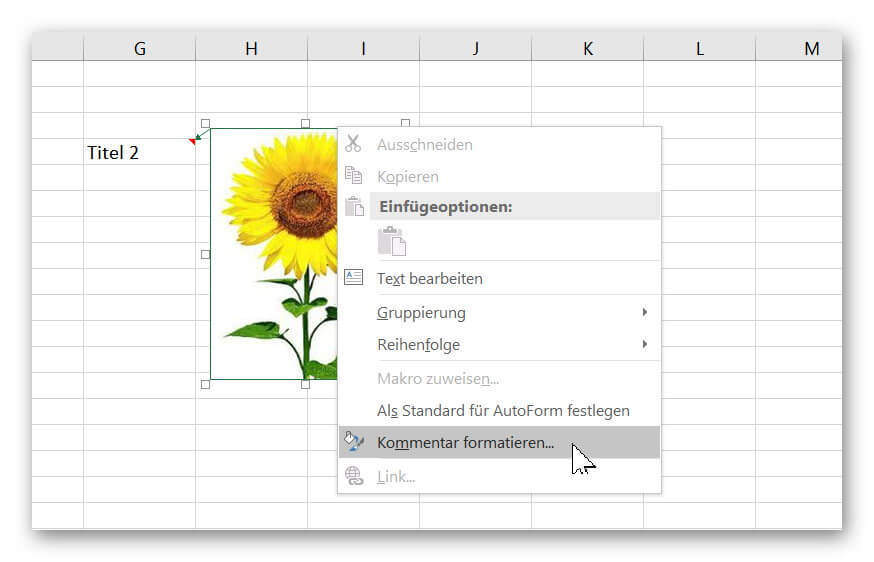
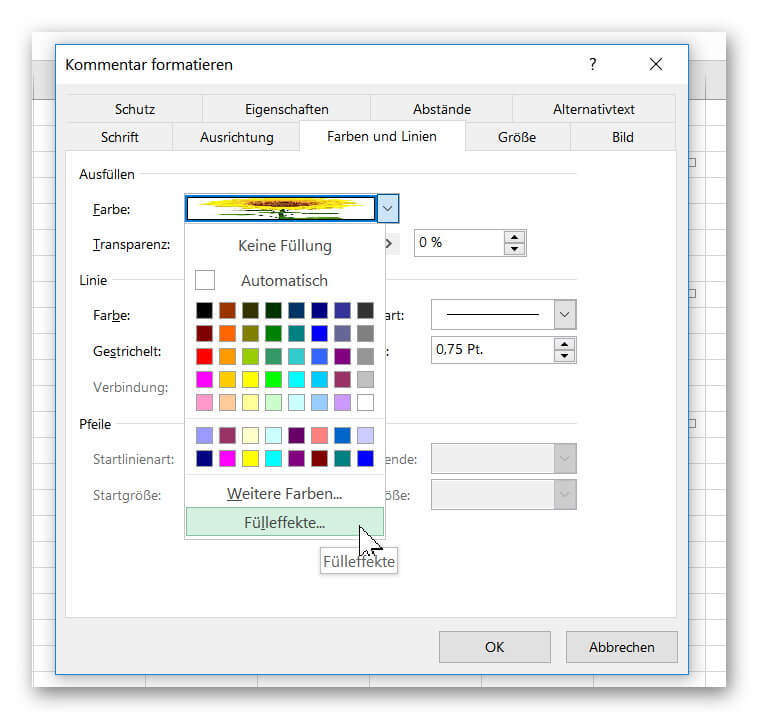
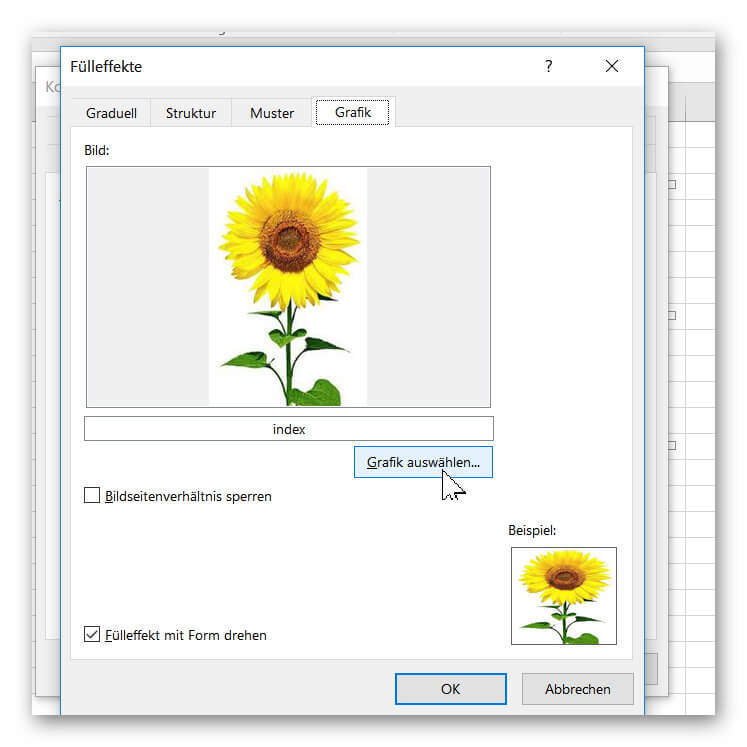
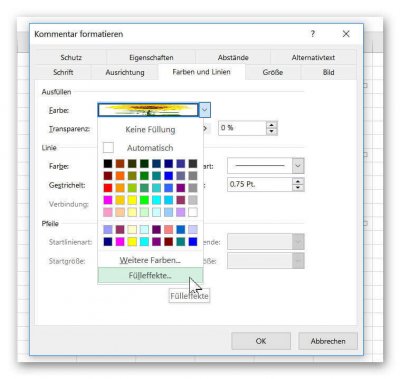
- Replace the graph of the cell comment as follows:
- Right-click on the relevant cell and there “Edit comment”
- Right-click again on the frame of the cell comment and “Format Comment”
- In the next window on “Colors and lines”
- Then the item “Color” on “Fill Effects”
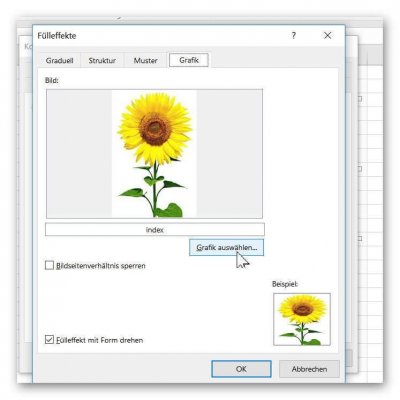
- In the next window, click on “Graphics” and “Select graphic”
If you want graphics to be a cell comment (which of course looks fancy), make sure they are optimized in size.
See picture: (click to enlarge)

Now there are not only obvious graphics and shapes that you can see immediately.
These can also hide in cell comments that only become visible when you move the mouse directly over the cell.
- Replace the graph of the cell comment as follows:
- Right-click on the relevant cell and there “Edit comment”
- Right-click again on the frame of the cell comment and “Format Comment”
- In the next window on “Colors and lines”
- Then the item “Color” on “Fill Effects”
- In the next window, click on “Graphics” and “Select graphic”
If you want graphics to be a cell comment (which of course looks fancy), make sure they are optimized in size.
See picture: (click to enlarge)
3. Check diagrams
3. Check diagrams
Also should be mentioned that such a small bar or pie chart does not inflate the file immediately infinitely.
But also here one must always be aware that the more graphics, and also graphical effects, as well as queries (possibly over several spreadsheets) are included, this of course also on the file size, and thus the loading times of a table can have a negative effect ,
It may well be worthwhile to take a critical look at included graphics and diagrams.
Also should be mentioned that such a small bar or pie chart does not inflate the file immediately infinitely.
But also here one must always be aware that the more graphics, and also graphical effects, as well as queries (possibly over several spreadsheets) are included, this of course also on the file size, and thus the loading times of a table can have a negative effect ,
It may well be worthwhile to take a critical look at included graphics and diagrams.
4. Excessive cell formatting in Excel
4. Excessive cell formatting in Excel
Finally, we come to a point where you can actually despair, because this is really only to be found with detective work.
It is the so-called “excessive cell formatting” that makes an Excel file incredibly slow, and also takes its toll in size, although it shows absolutely nothing.
This can happen, for example, if you have conditionally formatted cells and have selected an entire column or row instead of just the cells in question.
However, we have already come across this problem, although we have not done anything like that.
You can easily test it by simply selecting the top-most cell (on Windows) in your worksheet and then pressing CTRL + End.
If your cursor lands far away from the actual content somewhere along a line number, there is a suspicion that Excel considers the cells to be filled cells and takes them into account each time they start up, and actively loads them.
Note:
In Excel 2016, the maximum number of lines is 1,048,576 and the maximum number of columns is 16,384.
But fortunately, Microsoft has taken on this problem and offers an add-in for it. Unfortunately, this is not enabled by default and must first be done manually to work with it.
To do this, proceed as follows:
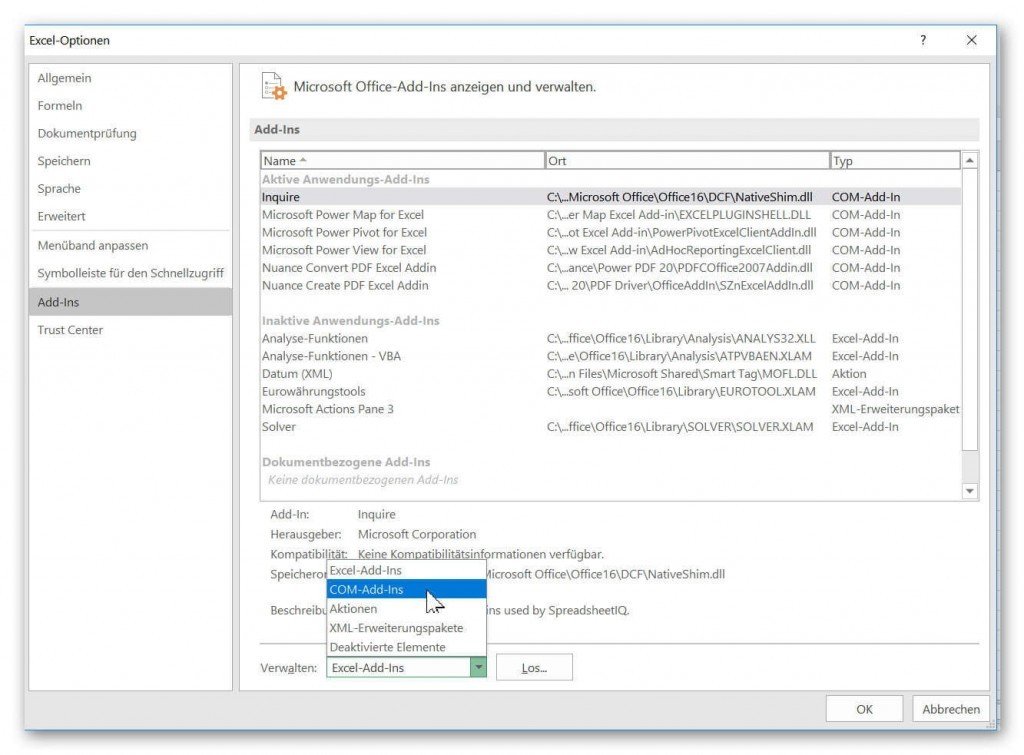
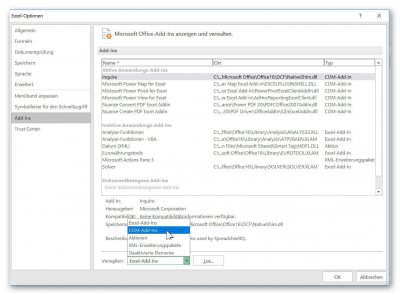
- Go to the tab: “File” on “Options” and “Add-ins”
- In the Manage field, select Com Add-Ins and click Go To
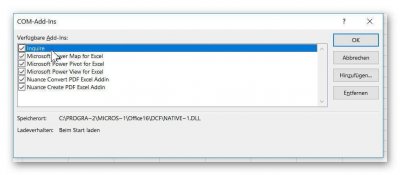
- In the Com Add-Ins dialog box, select the Inquire check box.
From now on you have the additional Inquire tab always available in Excel.
See picture: (click to enlarge)


Finally, we come to a point where you can actually despair, because this is really only to be found with detective work.
It is the so-called “excessive cell formatting” that makes an Excel file incredibly slow, and also takes its toll in size, although it shows absolutely nothing.
This can happen, for example, if you have conditionally formatted cells and have selected an entire column or row instead of just the cells in question.
However, we have already come across this problem, although we have not done anything like that.
You can easily test it by simply selecting the top-most cell (on Windows) in your worksheet and then pressing CTRL + End.
If your cursor lands far away from the actual content somewhere along a line number, there is a suspicion that Excel considers the cells to be filled cells and takes them into account each time they start up, and actively loads them.
Note:
In Excel 2016, the maximum number of lines is 1,048,576 and the maximum number of columns is 16,384.
But fortunately, Microsoft has taken on this problem and offers an add-in for it. Unfortunately, this is not enabled by default and must first be done manually to work with it.
To do this, proceed as follows:
- Go to the tab: “File” on “Options” and “Add-ins”
- In the Manage field, select Com Add-Ins and click Go To
- In the Com Add-Ins dialog box, select the Inquire check box.
From now on you have the additional Inquire tab always available in Excel.
See picture:
5. Clean up excessive cell formatting with Inquire
5. Clean up excessive cell formatting with Inquire
That was actually the more complicated part of the whole action.
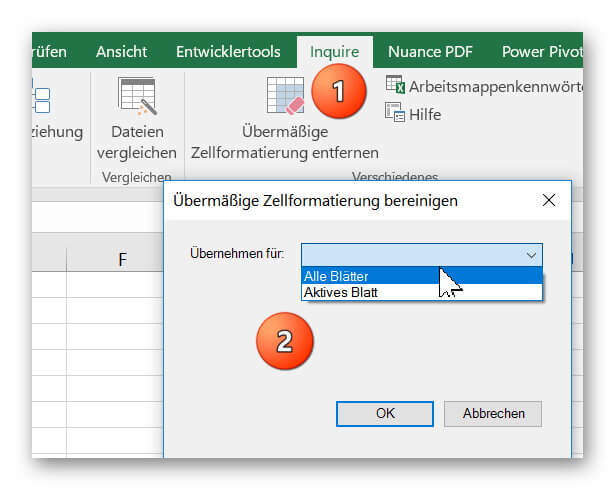
To clean up your spreadsheet of unnecessary cell formatting, under your new “Inquire” tab, click on “Remove excessive cell formatting” and in the next dialog box just select whether you want to perform this action on the current or all worksheets contained in the folder and confirm with “OK”
After saving your file again, you will notice that the file size has shrunk drastically, and your spreadsheet will load as usual in the future.
See picture: (click to enlarge)

That was actually the more complicated part of the whole action.
To clean up your spreadsheet of unnecessary cell formatting, under your new “Inquire” tab, click on “Remove excessive cell formatting” and in the next dialog box just select whether you want to perform this action on the current or all worksheets contained in the folder and confirm with “OK”
After saving your file again, you will notice that the file size has shrunk drastically, and your spreadsheet will load as usual in the future.
See picture: (click to enlarge)
Popular Posts:

So sieht das wirklich perfekte Homeoffice-Setup für 2026 aus
Ihr Homeoffice ist veraltet? Steigern Sie 2026 Produktivität & Gesundheit. Unser Guide zeigt das perfekte Setup: von ergonomischen Stühlen und 4K-Webcams bis zu Mesh-WLAN und Kabelmanagement. So investieren Sie in Ihre Karriere.

Internet, Telefon & TV: Die besten Komplettpakete
Internet, TV & Telefon aus einer Hand? Wir vergleichen die Komplettpakete von Telekom, Vodafone, O2 & 1&1. Wer punktet bei Speed, TV-Komfort (MagentaTV vs. GigaTV) und Preis? So finden Sie das beste Triple-Play-Angebot für Ihre Adresse.

5 Anzeichen, dass dein Chef dich im Homeoffice digital überwacht
Nur weil du im Homeoffice bist, heißt das nicht, dass dir niemand zusieht. "Bossware" ist auf dem Vormarsch. Wir zeigen 5 subtile Anzeichen für digitale Überwachung – von "Teams-Status"-Kult bis zu verdächtigen IT-Tools. So erkennst du die Warnsignale und schützt deine Karriere.

Schluss mit dem Tool-Chaos: 5 Apps, die Euer Office wirklich produktiver machen
Schluss mit digitaler Reibung: Diese 5 Apps machen Ihr Büro wirklich produktiver. Entdecken Sie, wie Asana, Loom, Notion, Zapier und Slack die Effizienz steigern, Meetings reduzieren und Ihr Team smarter vernetzen – wenn man sie richtig einsetzt.

AI in everyday office life: Your new invisible colleague
AI won't replace you – but those who use it will have a competitive edge. Make AI your co-pilot in the office! We'll show you four concrete hacks for faster emails, better meeting notes, and solved Excel problems. Get started today, no IT degree required.

Fünf vor Zwölf: Wie Sie erkennen, dass Sie kurz vor dem Burnout stehen
Erschöpfung ist normal, doch wenn das Wochenende keine Erholung mehr bringt und Zynismus die Motivation ersetzt, stehen Sie kurz vor dem Burnout. Erfahren Sie, welche 7 Warnsignale Sie niemals ignorieren dürfen und warum es jetzt lebenswichtig ist, die Notbremse zu ziehen
Offers 2024: Word & Excel Templates











Popular Posts:
So sieht das wirklich perfekte Homeoffice-Setup für 2026 aus
Ihr Homeoffice ist veraltet? Steigern Sie 2026 Produktivität & Gesundheit. Unser Guide zeigt das perfekte Setup: von ergonomischen Stühlen und 4K-Webcams bis zu Mesh-WLAN und Kabelmanagement. So investieren Sie in Ihre Karriere.
Internet, Telefon & TV: Die besten Komplettpakete
Internet, TV & Telefon aus einer Hand? Wir vergleichen die Komplettpakete von Telekom, Vodafone, O2 & 1&1. Wer punktet bei Speed, TV-Komfort (MagentaTV vs. GigaTV) und Preis? So finden Sie das beste Triple-Play-Angebot für Ihre Adresse.
5 Anzeichen, dass dein Chef dich im Homeoffice digital überwacht
Nur weil du im Homeoffice bist, heißt das nicht, dass dir niemand zusieht. "Bossware" ist auf dem Vormarsch. Wir zeigen 5 subtile Anzeichen für digitale Überwachung – von "Teams-Status"-Kult bis zu verdächtigen IT-Tools. So erkennst du die Warnsignale und schützt deine Karriere.
Schluss mit dem Tool-Chaos: 5 Apps, die Euer Office wirklich produktiver machen
Schluss mit digitaler Reibung: Diese 5 Apps machen Ihr Büro wirklich produktiver. Entdecken Sie, wie Asana, Loom, Notion, Zapier und Slack die Effizienz steigern, Meetings reduzieren und Ihr Team smarter vernetzen – wenn man sie richtig einsetzt.
AI in everyday office life: Your new invisible colleague
AI won't replace you – but those who use it will have a competitive edge. Make AI your co-pilot in the office! We'll show you four concrete hacks for faster emails, better meeting notes, and solved Excel problems. Get started today, no IT degree required.
Fünf vor Zwölf: Wie Sie erkennen, dass Sie kurz vor dem Burnout stehen
Erschöpfung ist normal, doch wenn das Wochenende keine Erholung mehr bringt und Zynismus die Motivation ersetzt, stehen Sie kurz vor dem Burnout. Erfahren Sie, welche 7 Warnsignale Sie niemals ignorieren dürfen und warum es jetzt lebenswichtig ist, die Notbremse zu ziehen
Offers 2024: Word & Excel Templates