
1. Set recovery points regularly
1. Set recovery points regularly
Windows 10 gives you the option of system recovery. System settings, drivers and installed programs are reset to an earlier point in time. This feature can make your PC operational again in an emergency. In order to undo unwanted system changes, you have to set so-called recovery points.
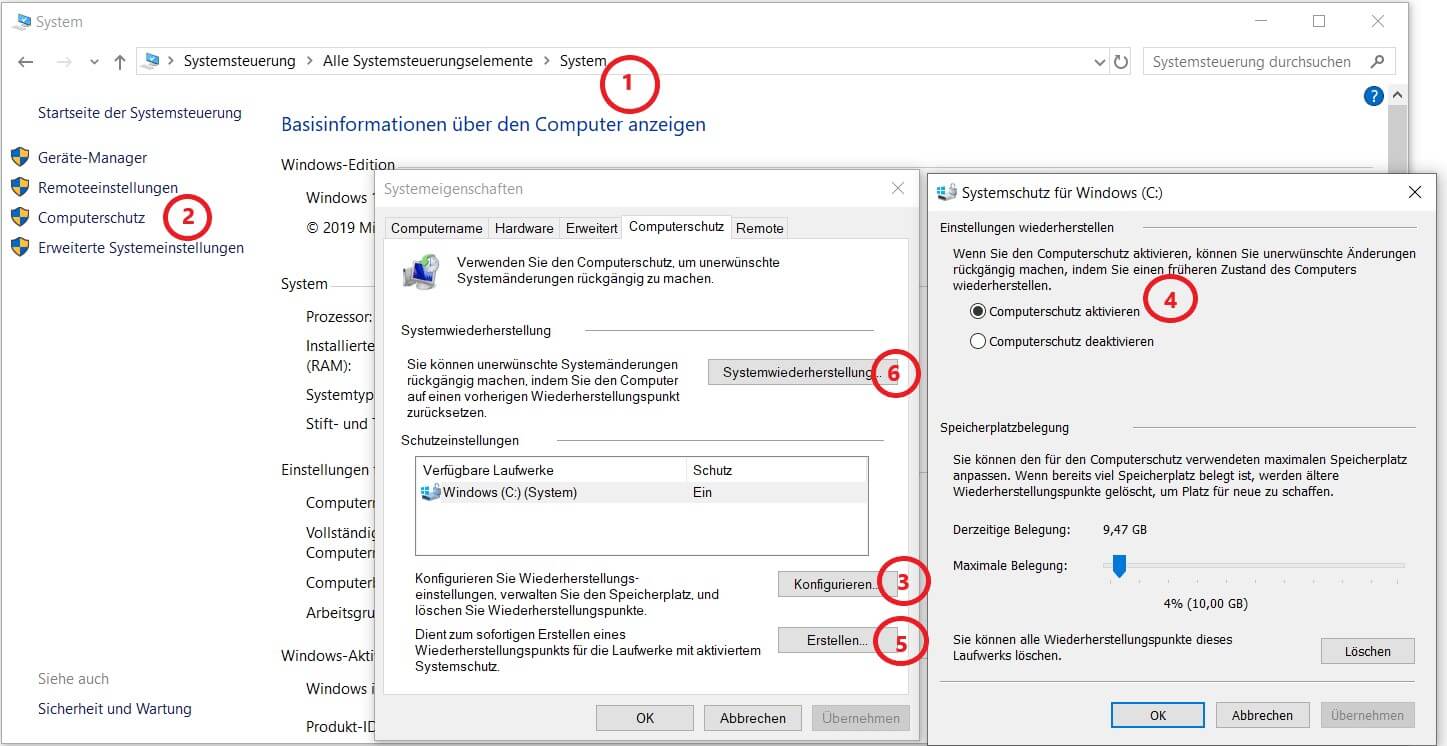
To do this, go to System Properties via the path Control Panel \ All Control Panel Items \ System → Computer Protection or simply type in the search “Create Restore Point”. Make sure that the status for protecting your system is set to “On”. Then click “Create …” and save your restore point.
I recommend you make major changes, such as New installations, always set a restore point. Advanced users can even automate this using Windows Task Scheduler and PowerShell. If the worst comes to the worst, you can also restore the system in the system properties.
See picture: (click to enlarge)

One more important thing:
Setting recovery points is not a substitute for regular backups! You cannot back up your files using recovery points. You should therefore regularly copy documents, photos, videos, etc. to another data medium.
Windows 10 gives you the option of system recovery. System settings, drivers and installed programs are reset to an earlier point in time. This feature can make your PC operational again in an emergency. In order to undo unwanted system changes, you have to set so-called recovery points.
To do this, go to System Properties via the path Control Panel \ All Control Panel Items \ System → Computer Protection or simply type in the search “Create Restore Point”. Make sure that the status for protecting your system is set to “On”. Then click “Create …” and save your restore point.
I recommend you make major changes, such as New installations, always set a restore point. Advanced users can even automate this using Windows Task Scheduler and PowerShell. If the worst comes to the worst, you can also restore the system in the system properties.
See picture: (click to enlarge)
One more important thing:
Setting recovery points is not a substitute for regular backups! You cannot back up your files using recovery points. You should therefore regularly copy documents, photos, videos, etc. to another data medium.
2. Activate firewall and antivirus completely
2. Activate firewall and antivirus completely
You shouldn’t be on a network without a firewall. Therefore, make sure that the Windows Defender Firewall is activated for all network profiles. If you switch to the network and security settings, you will find the activation status for various network profiles (domain network, private network and public network).
You should see a small green tick on each icon. If not, click on the network profile and set the switch for the Windows Defender Firewall to “On”. I can also recommend that you activate the firewall notifications to be informed immediately about blocked apps.
See picture: (click to enlarge)
Furthermore, you should definitely use an anti-virus program. The Windows Defender Antivirus integrated in Windows 10 has no longer had to hide behind paid third-party products for some time. You can also find it in the network and security settings under “Virus and threat protection” and activate it there.
Windows has recently had a new intrusion prevention feature called “Monitored Folder Access” that protects your files from being tampered with by malware and ransomware. This feature is not activated by default. Therefore go to “Manage Ransomware Protection” and switch it on.
See picture: (click to enlarge)
You shouldn’t be on a network without a firewall. Therefore, make sure that the Windows Defender Firewall is activated for all network profiles. If you switch to the network and security settings, you will find the activation status for various network profiles (domain network, private network and public network).
You should see a small green tick on each icon. If not, click on the network profile and set the switch for the Windows Defender Firewall to “On”. I can also recommend that you activate the firewall notifications to be informed immediately about blocked apps.
See picture: (click to enlarge)
Furthermore, you should definitely use an anti-virus program. The Windows Defender Antivirus integrated in Windows 10 has no longer had to hide behind paid third-party products for some time. You can also find it in the network and security settings under “Virus and threat protection” and activate it there.
Windows has recently had a new intrusion prevention feature called “Monitored Folder Access” that protects your files from being tampered with by malware and ransomware. This feature is not activated by default. Therefore go to “Manage Ransomware Protection” and switch it on.
See picture: (click to enlarge)
3. Uninstall apps (bloatware) that are not required
3. Uninstall apps (bloatware) that are not required
Numerous programs are preinstalled on your Windows PC, which you probably do not need at all. These unnecessary programs are called bloatware because they inflate your system and use up valuable resources on your PC.
We are talking about apps like Candy Crush, Farm Ville, Solitaire, Bing News etc. In the long run, not only does the performance of your system suffer, but also security. Due to security gaps in bloatware, malware can get onto your PC, which is why you should “garbage” your PC as a precaution. If you haven’t already done so, go to Start → Settings → Apps → Apps and Features.
Here is a list of all your programs. Simply select the unnecessary Microsoft Store apps and manufacturer programs and uninstall them.
Numerous programs are preinstalled on your Windows PC, which you probably do not need at all. These unnecessary programs are called bloatware because they inflate your system and use up valuable resources on your PC.
We are talking about apps like Candy Crush, Farm Ville, Solitaire, Bing News etc. In the long run, not only does the performance of your system suffer, but also security. Due to security gaps in bloatware, malware can get onto your PC, which is why you should “garbage” your PC as a precaution. If you haven’t already done so, go to Start → Settings → Apps → Apps and Features.
Here is a list of all your programs. Simply select the unnecessary Microsoft Store apps and manufacturer programs and uninstall them.
4. Disable communication with non-paired devices
4. Disable communication with non-paired devices
In my opinion, a problematic Bluetooth setting is stored as standard in Windows 10.
Wireless devices that are not explicitly linked to your PC can exchange information with your apps. I recommend that you eliminate this source of risk and only allow communication with paired and trustworthy devices. To do this, go to Start → Settings → Data protection, scroll down to “Additional devices” and set the switch to “Off”.
See picture: (click to enlarge)
In my opinion, a problematic Bluetooth setting is stored as standard in Windows 10.
Wireless devices that are not explicitly linked to your PC can exchange information with your apps. I recommend that you eliminate this source of risk and only allow communication with paired and trustworthy devices. To do this, go to Start → Settings → Data protection, scroll down to “Additional devices” and set the switch to “Off”.
See picture: (click to enlarge)
5. Encrypt hard disk with BitLocker
5. Encrypt hard disk with BitLocker
The hard disk encryption solution integrated in Windows 10 Pro and Enterprise called “Bit Locker” is another security feature that you should use.
In the event of loss or theft of your device, your data is protected against access by unauthorized persons. You can set it up under Control Panel \ System and Security \ Bit Locker Drive Encryption. Windows guides you step by step through the setup process.
It is important that you make a backup before encryption and keep the recovery key well after successful encryption.
The hard disk encryption solution integrated in Windows 10 Pro and Enterprise called “Bit Locker” is another security feature that you should use.
In the event of loss or theft of your device, your data is protected against access by unauthorized persons. You can set it up under Control Panel \ System and Security \ Bit Locker Drive Encryption. Windows guides you step by step through the setup process.
It is important that you make a backup before encryption and keep the recovery key well after successful encryption.
6. Make regular backups of your data
6. Make regular backups of your data
Last but not least, I advise you to consistently create backups of your data. If you follow this advice and implement it correctly, nothing can throw you off the track so quickly. Basically, you can create a physical backup on an external data carrier as well as a cloud backup with a cloud storage service like OneDrive.
If you have very important data, I even recommend both. Then follow the so-called “3-2-1 rule”: You have saved your data in triplicate, use at least two different storage media and at least one version of your data is located at a greater distance from the other data carriers.
Backing up with OneDrive is quickest and easiest, since the OneDrive app is already integrated in Windows 10. Use the search function to find the OneDrive app. You can now log in with your Microsoft account and then save all the files you want to back up in your OneDrive folder in File Explorer.
OneDrive will then automatically synchronize your local files with the cloud for you. If you need more than 5GB of free storage, you can upgrade to a paid subscription.

Last but not least, I advise you to consistently create backups of your data. If you follow this advice and implement it correctly, nothing can throw you off the track so quickly. Basically, you can create a physical backup on an external data carrier as well as a cloud backup with a cloud storage service like OneDrive.
If you have very important data, I even recommend both. Then follow the so-called “3-2-1 rule”: You have saved your data in triplicate, use at least two different storage media and at least one version of your data is located at a greater distance from the other data carriers.
Backing up with OneDrive is quickest and easiest, since the OneDrive app is already integrated in Windows 10. Use the search function to find the OneDrive app. You can now log in with your Microsoft account and then save all the files you want to back up in your OneDrive folder in File Explorer.
OneDrive will then automatically synchronize your local files with the cloud for you. If you need more than 5GB of free storage, you can upgrade to a paid subscription.
About the author:

Cloud Cape’s portfolio includes Vulnerability Management as-a-Service, Penetration Testing from the Cloud and Managed Public Cloud Services for AWS and Azure.
About the author:
Cloud Cape’s portfolio includes Vulnerability Management as-a-Service, Penetration Testing from the Cloud and Managed Public Cloud Services for AWS and Azure.
Popular Posts:

So sieht das wirklich perfekte Homeoffice-Setup für 2026 aus
Ihr Homeoffice ist veraltet? Steigern Sie 2026 Produktivität & Gesundheit. Unser Guide zeigt das perfekte Setup: von ergonomischen Stühlen und 4K-Webcams bis zu Mesh-WLAN und Kabelmanagement. So investieren Sie in Ihre Karriere.

Internet, Telefon & TV: Die besten Komplettpakete
Internet, TV & Telefon aus einer Hand? Wir vergleichen die Komplettpakete von Telekom, Vodafone, O2 & 1&1. Wer punktet bei Speed, TV-Komfort (MagentaTV vs. GigaTV) und Preis? So finden Sie das beste Triple-Play-Angebot für Ihre Adresse.

5 Anzeichen, dass dein Chef dich im Homeoffice digital überwacht
Nur weil du im Homeoffice bist, heißt das nicht, dass dir niemand zusieht. "Bossware" ist auf dem Vormarsch. Wir zeigen 5 subtile Anzeichen für digitale Überwachung – von "Teams-Status"-Kult bis zu verdächtigen IT-Tools. So erkennst du die Warnsignale und schützt deine Karriere.

Schluss mit dem Tool-Chaos: 5 Apps, die Euer Office wirklich produktiver machen
Schluss mit digitaler Reibung: Diese 5 Apps machen Ihr Büro wirklich produktiver. Entdecken Sie, wie Asana, Loom, Notion, Zapier und Slack die Effizienz steigern, Meetings reduzieren und Ihr Team smarter vernetzen – wenn man sie richtig einsetzt.

AI in everyday office life: Your new invisible colleague
AI won't replace you – but those who use it will have a competitive edge. Make AI your co-pilot in the office! We'll show you four concrete hacks for faster emails, better meeting notes, and solved Excel problems. Get started today, no IT degree required.

Fünf vor Zwölf: Wie Sie erkennen, dass Sie kurz vor dem Burnout stehen
Erschöpfung ist normal, doch wenn das Wochenende keine Erholung mehr bringt und Zynismus die Motivation ersetzt, stehen Sie kurz vor dem Burnout. Erfahren Sie, welche 7 Warnsignale Sie niemals ignorieren dürfen und warum es jetzt lebenswichtig ist, die Notbremse zu ziehen
Offers 2024: Word & Excel Templates











Popular Posts:
So sieht das wirklich perfekte Homeoffice-Setup für 2026 aus
Ihr Homeoffice ist veraltet? Steigern Sie 2026 Produktivität & Gesundheit. Unser Guide zeigt das perfekte Setup: von ergonomischen Stühlen und 4K-Webcams bis zu Mesh-WLAN und Kabelmanagement. So investieren Sie in Ihre Karriere.
Internet, Telefon & TV: Die besten Komplettpakete
Internet, TV & Telefon aus einer Hand? Wir vergleichen die Komplettpakete von Telekom, Vodafone, O2 & 1&1. Wer punktet bei Speed, TV-Komfort (MagentaTV vs. GigaTV) und Preis? So finden Sie das beste Triple-Play-Angebot für Ihre Adresse.
5 Anzeichen, dass dein Chef dich im Homeoffice digital überwacht
Nur weil du im Homeoffice bist, heißt das nicht, dass dir niemand zusieht. "Bossware" ist auf dem Vormarsch. Wir zeigen 5 subtile Anzeichen für digitale Überwachung – von "Teams-Status"-Kult bis zu verdächtigen IT-Tools. So erkennst du die Warnsignale und schützt deine Karriere.
Schluss mit dem Tool-Chaos: 5 Apps, die Euer Office wirklich produktiver machen
Schluss mit digitaler Reibung: Diese 5 Apps machen Ihr Büro wirklich produktiver. Entdecken Sie, wie Asana, Loom, Notion, Zapier und Slack die Effizienz steigern, Meetings reduzieren und Ihr Team smarter vernetzen – wenn man sie richtig einsetzt.
AI in everyday office life: Your new invisible colleague
AI won't replace you – but those who use it will have a competitive edge. Make AI your co-pilot in the office! We'll show you four concrete hacks for faster emails, better meeting notes, and solved Excel problems. Get started today, no IT degree required.
Fünf vor Zwölf: Wie Sie erkennen, dass Sie kurz vor dem Burnout stehen
Erschöpfung ist normal, doch wenn das Wochenende keine Erholung mehr bringt und Zynismus die Motivation ersetzt, stehen Sie kurz vor dem Burnout. Erfahren Sie, welche 7 Warnsignale Sie niemals ignorieren dürfen und warum es jetzt lebenswichtig ist, die Notbremse zu ziehen
Offers 2024: Word & Excel Templates