From assistant to agent: Microsoft’s Copilot


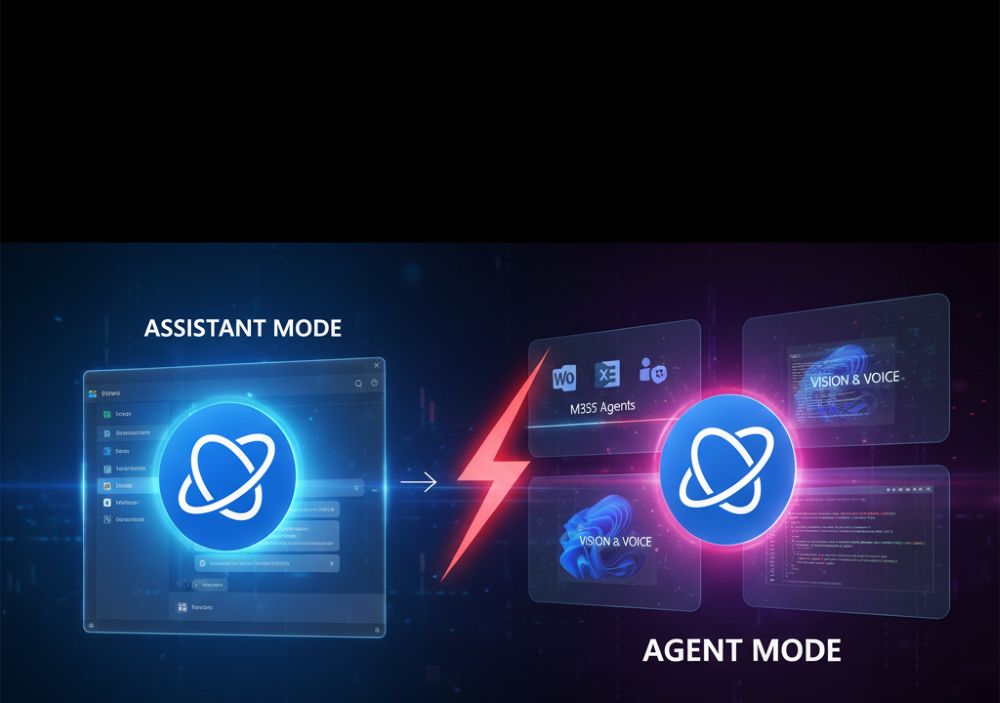
Since its introduction, Microsoft Copilot has fundamentally changed the way we interact with software. What began as AI-powered text assistance has quickly become a core element of Microsoft’s strategy. However, the latest developments (through the end of 2025) mark the biggest leap yet: Microsoft is transforming from a passive “assistant” waiting for commands to a proactive “agent” working independently.
This revolution spans three key areas: the workplace (Microsoft 365), the operating system (Windows 11), and software development (GitHub).
1. New features in Microsoft 365: The specialized colleague
In everyday office life, Copilot transforms from a generalist to a team of specialists. Instead of a single chatbot, users gain access to specialized agents and tools that are deeply integrated into workflows.
The Introduction of AI Agents
The biggest innovation is the introduction of specialized Copilot agents. These agents can receive complex tasks and work on them independently over extended periods.
- Researcher Agent: You can assign this agent a topic (e.g., “Analyze the market trends for e-mobility in Europe”). The agent conducts independent research, summarizes information from various sources (internal and external), and creates a complete report.
- Analyst Agent: This agent focuses on data. It can analyze complex raw data from Excel spreadsheets or databases, recognize patterns, and suggest visualizations for presentations.
- Copilot Studio: The Tailor-Made Employee
For companies, the “Copilot Studio” is perhaps the most important innovation. It’s a low-code platform that allows companies to create their own Copilot agents. These agents can be connected to internal systems (such as SAP, Salesforce, or proprietary databases) to automate specific business processes, for example:
- An “HR Copilot” for vacation planning.
- An “IT Support Agent” for automated troubleshooting.
- A “Sales Agent” that prepares customer data.
Copilot Analytics and App Enhancements
- Analytics: Administrators receive detailed ROI analyses via Viva Insights and the M365 Admin Center to see how and where Copilot delivers real value to the company.
- Excel: Copilot can now also analyze and categorize unstructured data, such as plain text columns.
- PowerPoint: The assistant now creates slide-specific speaker notes on request, instead of just a general summary. to deliver the presentation.
- Outlook & Teams: Copilot takes a more active role in scheduling, automatically suggesting agendas based on the topic and participants, and moderating meeting time.
2. New features in Windows 11: The sighted operating system
In Windows 11, Copilot is fully integrated with the operating system. It’s no longer just a sidebar, but an integral part of the user experience, capable of seeing, hearing, and acting.
Copilot Voice: Hands-free Control
Voice control is being rolled out globally. Users can now access Copilot hands-free using a wake word. This goes beyond simple commands; you can delegate system tasks in natural language (“Turn on Dark Mode,” “Open Settings and show me Bluetooth devices”).
Copilot Vision: AI Sees Your Screen
This is a fundamental shift: Copilot can now “see” what’s happening on your screen. You can share your desktop or a specific application with Copilot and ask context-sensitive questions:
- “Help me fill out this form.”
- “Summarize the text in this open window.”
- “Why am I seeing an error message here?”
Deep System and File Integration
Copilot is gradually gaining access to Windows settings and the local file system (this is still partially under development/preview). In the future, you will be able to issue commands such as:
- “Sort all photos in the ‘Vacation 2025’ folder by date.”
- “Extract all tables from the PDF files in my Downloads folder.”
3. New features in GitHub Copilot: The autonomous programmer
For developers, Microsoft is showcasing the technological pinnacle of Copilot. Here, the transformation to an “agent” is most advanced.
The “Agent Mode” (Preview)
The new “Agent Mode” represents a paradigm shift. The developer gives Copilot a goal (e.g., “Fix this bug” or “Implement this new feature”). Copilot then acts autonomously:
- Iterate: It writes the code.
- Test: It executes the tests.
- Debug: If the tests fail, it analyzes the error and attempts to write a fix independently.
- Retry: It repeats this cycle until the task is solved.
Copilot Edits: Refactoring in Natural Language
One of the most powerful new features is “Copilot Edits”. Developers can instruct Copilot to perform complex refactoring across multiple files and folders simply via chat commands.
Command: “Rename the function ‘GetUser’ to ‘FetchUserProfile’ and update all instances throughout the project where it is called.”
Context Awareness and “Vision”
Microsoft Learn Integration: A major problem with AI models is outdated knowledge. GitHub Copilot can now directly access the official Microsoft Learn documentation to ensure that its code suggestions are up-to-date.
Vision (UI Analysis): Similar to Windows, developers can upload screenshots or sketches of a user interface, and Copilot will generate the corresponding frontend code (e.g., HTML/CSS).
Conclusion
Microsoft Copilot in 2025 is no longer the tool it was in 2023. It’s an ecosystem of specialized AI agents. Whether as a data analyst in Excel, a visionary assistant in Windows, or an autonomous programmer in GitHub – Copilot takes on responsibility, works independently, and evolves from a tool into a fully-fledged digital employee.

Beliebte Beiträge
Microsoft Office 2021 – Is the switch worth it?
Since October 5, 2021, the time has finally come. After Office 2019, Office 2021 is now at the start. We took a closer look at the new Office version and found out whether the switch is worth it.

Excel Scenario manager and target value search
How you can use the scenario manager and target value search in Excel 2016/2019 to present complex issues in a space-saving and clear way.

Insert controls and form fields in Word
With Microsoft Word you can not only comfortably create letters, lists and articles with tables of contents, but also go one step further, and Set up your own forms using controls.

Apply nested functions in Excel
Nested functions in Excel offer the possibility to combine several arguments with each other or to exclude conditions. We explain how it works.
Office 2021 – Everything you need to know about price, versions and scope
Shortly before the release, Microsoft announced the prices and scope for the new Office 2021. We are a little amazed at what is coming.
Insert Excel spreadsheets into Word Documents
So you can easily insert Excel spreadsheets into Word and link them together to get a dynamic document.
Offers 2024: Word & Excel Templates