Forgot Windows Password? – Here is the solution…


It’s become such a thing with passwords. First, there are more and more passwords to remember, and then they are supposed to get longer and more complicated. Preferably with special characters and upper and lower case. So it is not surprising if you get things mixed up here and there and no longer know the password with the best will in the world. In our little tutorial we would like to show some options how you can still get your Windows password and start the computer.

Forgot Windows Password? – Here is the solution…
It’s become such a thing with passwords. First, there are more and more passwords to remember, and then they are supposed to get longer and more complicated. Preferably with special characters and upper and lower case. So it is not surprising if you get things mixed up here and there and no longer know the password with the best will in the world. In our little tutorial we would like to show some options how you can still get your Windows password and start the computer.
Forgot Windows password
Forgot Windows password
Use Microsoft account
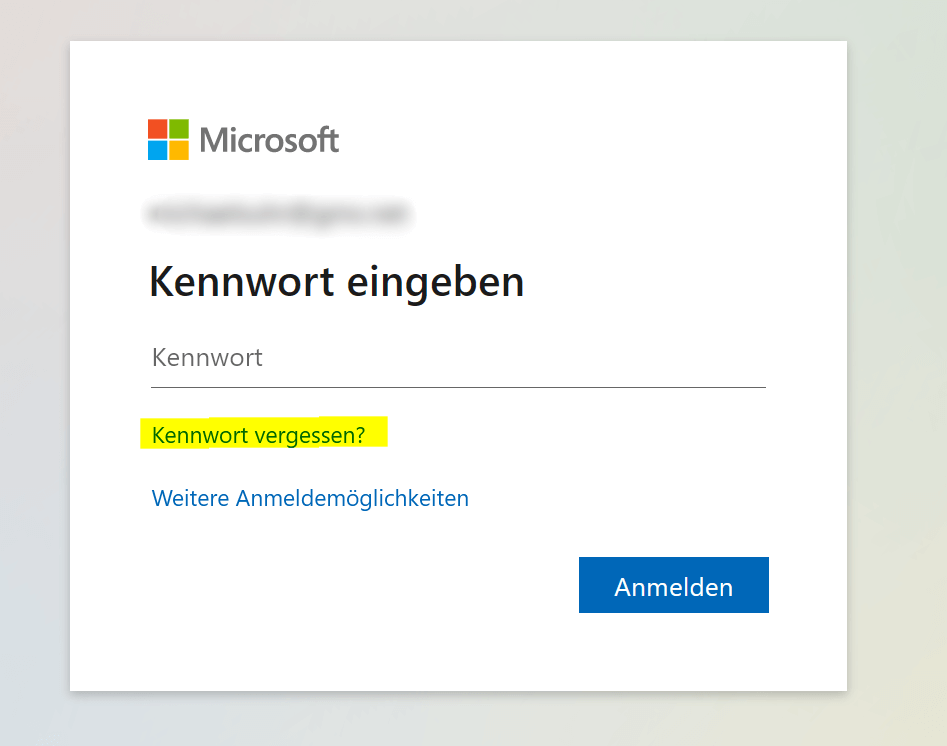
If you’re using a Microsoft account to sign in to your Windows computer, you can try signing in using the “Forgot your password” option on the sign-in page. You will then be asked to provide an alternate email address or phone number in order to receive a temporary password to log in with. Once you have received the temporary password, you can use it to log in and then set a new password for your user account.

Use admin account
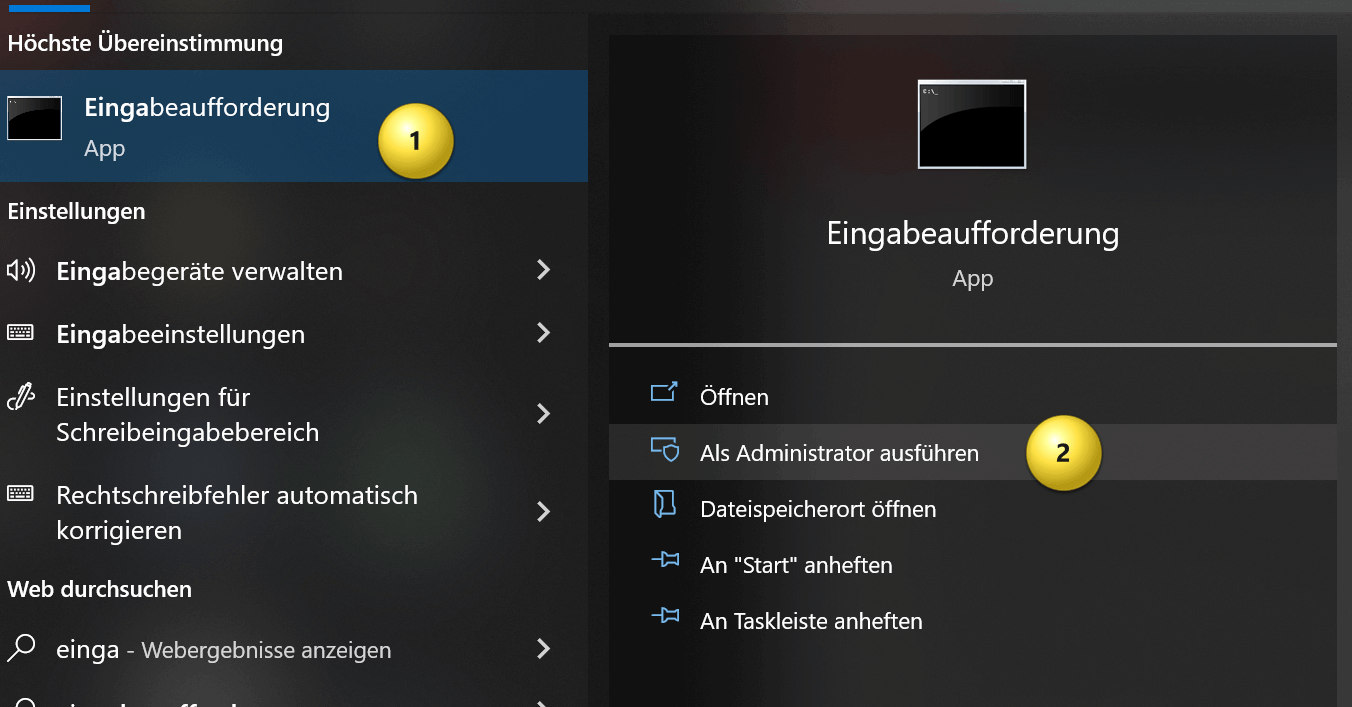
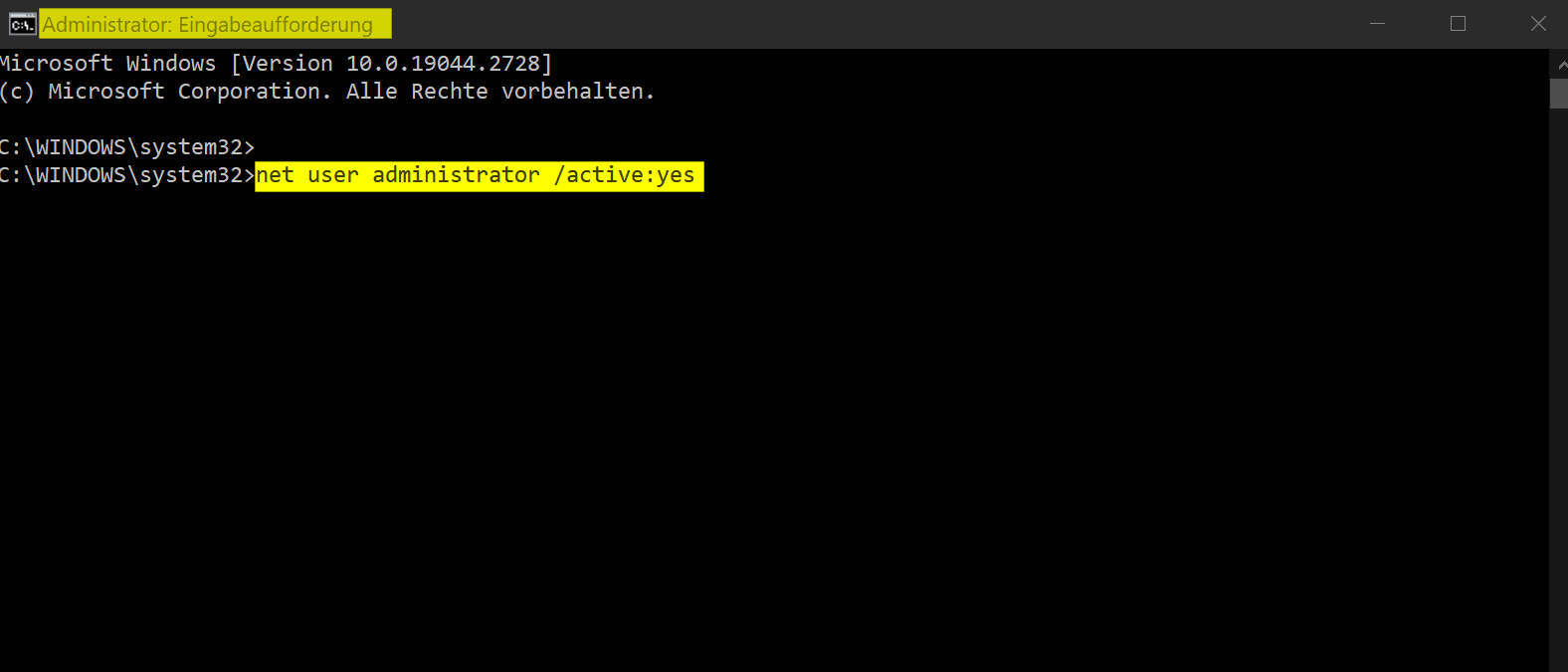
If you have activated the administrator account on your computer, you can use it to change the password of your normal user account. To operate in the administrator account, you need to start in safe mode. When the computer starts, press the F8 key several times to start Safe Mode. Then log in with the administrator account and change the password of the user account.
Use recovery drive
A recovery drive is an external hard drive that can be used to restore or reset your computer. If you created a recovery drive, you can use it to reset the password.
To create a recovery drive in Windows, you need a USB drive with enough space. Follow the steps below:
- Connect the USB disk to your computer and make sure it is recognized.
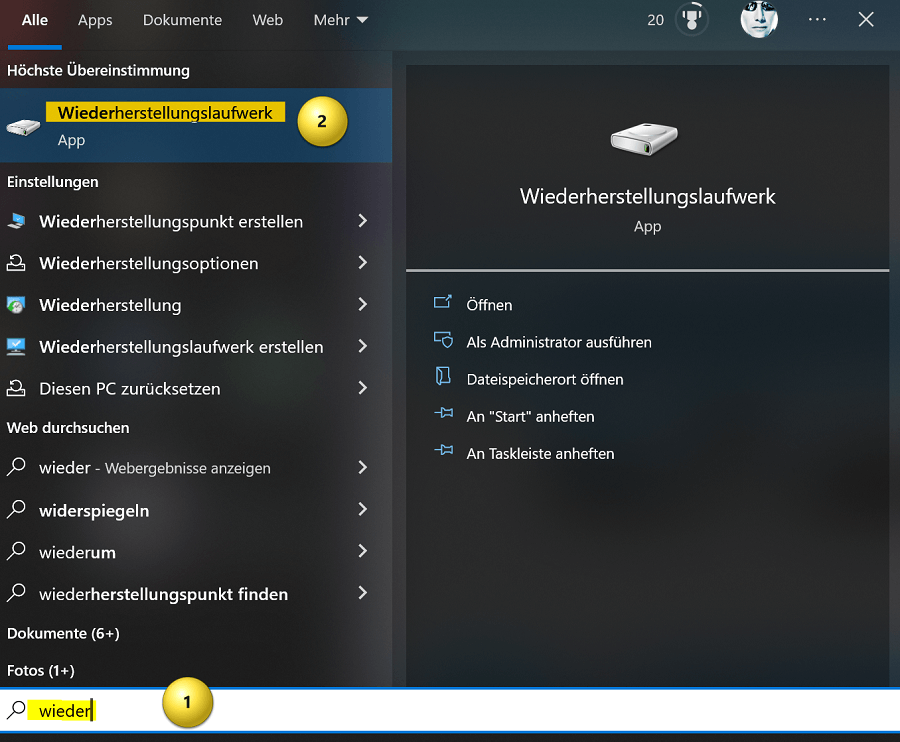
- Open the start menu and type “recovery drive“. Click on the “Create a recovery drive” option.
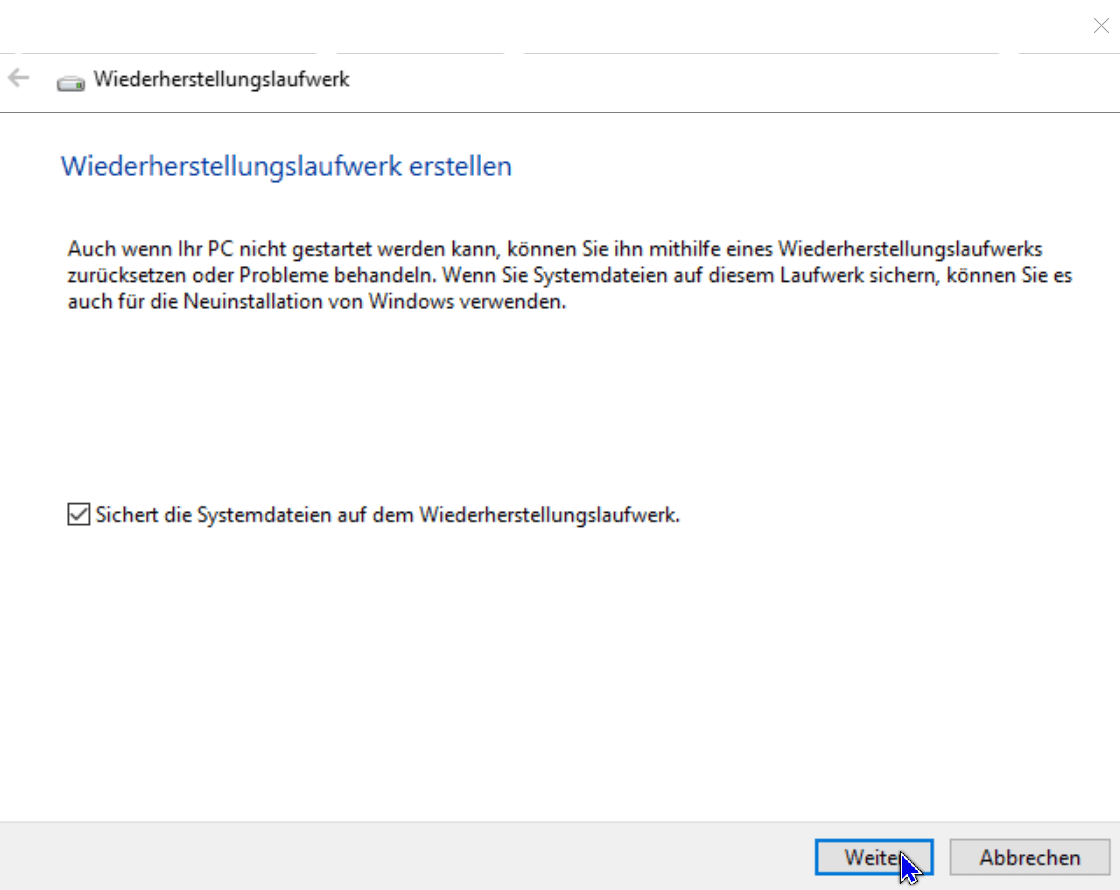
- The Create Recovery Drive tool starts. Make sure that the correct USB stick is selected and click “Next“.
- Select “Copy system files to the recovery drive” and click Next again.
- Click “Create” to start the creation process.
- The creation process may take a few minutes. Once it is complete, click “Finish“.
Your recovery drive is now ready and you can use it to troubleshoot your Windows system or to perform a clean install of Windows. However, note that all data on the USB disk will be erased during the creation process. Be sure to back up important data elsewhere beforehand.
Use third-party tools
There are various third-party tools that you can use to reset the password. However, these tools are not officially approved by Microsoft and hence may lead to data loss or other issues. Some examples of these tools are “Offline NT Password & Registry Editor” or “PCUnlocker“. Therefore, only use this option if the other options don’t work and if you know the consequences.
It is also important to note that in some cases, resetting password can result in loss of files. Make sure you have backed up important files before trying to reset the password.
To sum up, there are several ways to reset or recover forgotten Windows password. The best option depends on the type of user account you have and your personal situation. It is important to be aware that some options can lead to data loss and therefore you should always back up your important files before attempting a password reset.
Use Microsoft account
If you’re using a Microsoft account to sign in to your Windows computer, you can try signing in using the “Forgot your password” option on the sign-in page. You will then be asked to provide an alternate email address or phone number in order to receive a temporary password to log in with. Once you have received the temporary password, you can use it to log in and then set a new password for your user account.
Use admin account
If you have activated the administrator account on your computer, you can use it to change the password of your normal user account. To operate in the administrator account, you need to start in safe mode. When the computer starts, press the F8 key several times to start Safe Mode. Then log in with the administrator account and change the password of the user account.
Use recovery drive
A recovery drive is an external hard drive that can be used to restore or reset your computer. If you created a recovery drive, you can use it to reset the password.
To create a recovery drive in Windows, you need a USB drive with enough space. Follow the steps below:
- Connect the USB disk to your computer and make sure it is recognized.
- Open the start menu and type “recovery drive“. Click on the “Create a recovery drive” option.
- The Create Recovery Drive tool starts. Make sure that the correct USB stick is selected and click “Next“.
- Select “Copy system files to the recovery drive” and click Next again.
- Click “Create” to start the creation process.
- The creation process may take a few minutes. Once it is complete, click “Finish“.
Your recovery drive is now ready and you can use it to troubleshoot your Windows system or to perform a clean install of Windows. However, note that all data on the USB disk will be erased during the creation process. Be sure to back up important data elsewhere beforehand.
Use third-party tools
There are various third-party tools that you can use to reset the password. However, these tools are not officially approved by Microsoft and hence may lead to data loss or other issues. Some examples of these tools are “Offline NT Password & Registry Editor” or “PCUnlocker“. Therefore, only use this option if the other options don’t work and if you know the consequences.
It is also important to note that in some cases, resetting password can result in loss of files. Make sure you have backed up important files before trying to reset the password.
To sum up, there are several ways to reset or recover forgotten Windows password. The best option depends on the type of user account you have and your personal situation. It is important to be aware that some options can lead to data loss and therefore you should always back up your important files before attempting a password reset.
Popular Posts:

Die Renaissance des Büros: Warum Präsenz manchmal unschlagbar ist
Homeoffice bietet Fokus, doch das Büro bleibt als sozialer Anker unverzichtbar. Spontane Innovation, direktes Voneinander-Lernen und echtes Wir-Gefühl sind digital kaum zu ersetzen. Lesen Sie, warum Präsenz oft besser ist und wie die ideale Mischung für moderne Teams aussieht.

New Work & Moderne Karriere: Warum die Karriereleiter ausgedient hat
Die klassische Karriereleiter hat ausgedient. New Work fordert ein neues Denken: Skills statt Titel, Netzwerk statt Hierarchie. Erfahre, warum das "Karriere-Klettergerüst" deine neue Realität ist und wie du dich mit 4 konkreten Schritten zukunftssicher aufstellst.

Die Homeoffice-Falle: Warum unsichtbare Arbeit deine Beförderung gefährdet
Produktiv im Homeoffice, doch befördert wird der Kollege im Büro? Willkommen in der Homeoffice-Falle. "Proximity Bias" lässt deine Leistung oft unsichtbar werden. Lerne 4 Strategien, wie du auch remote sichtbar bleibst und deine Karriere sicherst – ganz ohne Wichtigtuerei.

Microsoft Loop in Teams: The revolution of your notes?
What exactly are these Loop components in Microsoft Teams? We'll show you how these "living mini-documents" can accelerate your teamwork. From dynamic agendas to shared, real-time checklists – discover practical use cases for your everyday work.

Career booster 2026: These Microsoft Office skills will take you further!
A new year, new career opportunities! But which Office skills will really be in demand in 2026? "Skilled use" is no longer enough. We'll show you today's must-haves – like advanced Excel, using AI in the office, and relevant certifications for your resume.

Why Zero Trust doesn’t work without identity protection!
Zero Trust means: Trust no one, verify everyone. Identity protection is at the heart of this modern security model. Learn how IAM, MFA, Conditional Access, and the principle of least privilege effectively protect your business when the old network perimeter is gone.
Offers 2024: Word & Excel Templates











Popular Posts:
Die Renaissance des Büros: Warum Präsenz manchmal unschlagbar ist
Homeoffice bietet Fokus, doch das Büro bleibt als sozialer Anker unverzichtbar. Spontane Innovation, direktes Voneinander-Lernen und echtes Wir-Gefühl sind digital kaum zu ersetzen. Lesen Sie, warum Präsenz oft besser ist und wie die ideale Mischung für moderne Teams aussieht.
New Work & Moderne Karriere: Warum die Karriereleiter ausgedient hat
Die klassische Karriereleiter hat ausgedient. New Work fordert ein neues Denken: Skills statt Titel, Netzwerk statt Hierarchie. Erfahre, warum das "Karriere-Klettergerüst" deine neue Realität ist und wie du dich mit 4 konkreten Schritten zukunftssicher aufstellst.
Die Homeoffice-Falle: Warum unsichtbare Arbeit deine Beförderung gefährdet
Produktiv im Homeoffice, doch befördert wird der Kollege im Büro? Willkommen in der Homeoffice-Falle. "Proximity Bias" lässt deine Leistung oft unsichtbar werden. Lerne 4 Strategien, wie du auch remote sichtbar bleibst und deine Karriere sicherst – ganz ohne Wichtigtuerei.
Microsoft Loop in Teams: The revolution of your notes?
What exactly are these Loop components in Microsoft Teams? We'll show you how these "living mini-documents" can accelerate your teamwork. From dynamic agendas to shared, real-time checklists – discover practical use cases for your everyday work.
Career booster 2026: These Microsoft Office skills will take you further!
A new year, new career opportunities! But which Office skills will really be in demand in 2026? "Skilled use" is no longer enough. We'll show you today's must-haves – like advanced Excel, using AI in the office, and relevant certifications for your resume.
Why Zero Trust doesn’t work without identity protection!
Zero Trust means: Trust no one, verify everyone. Identity protection is at the heart of this modern security model. Learn how IAM, MFA, Conditional Access, and the principle of least privilege effectively protect your business when the old network perimeter is gone.
Offers 2024: Word & Excel Templates