Forgot Windows Password? – Here is the solution…


It’s become such a thing with passwords. First, there are more and more passwords to remember, and then they are supposed to get longer and more complicated. Preferably with special characters and upper and lower case. So it is not surprising if you get things mixed up here and there and no longer know the password with the best will in the world. In our little tutorial we would like to show some options how you can still get your Windows password and start the computer.

Forgot Windows Password? – Here is the solution…
It’s become such a thing with passwords. First, there are more and more passwords to remember, and then they are supposed to get longer and more complicated. Preferably with special characters and upper and lower case. So it is not surprising if you get things mixed up here and there and no longer know the password with the best will in the world. In our little tutorial we would like to show some options how you can still get your Windows password and start the computer.
Forgot Windows password
Forgot Windows password
Use Microsoft account
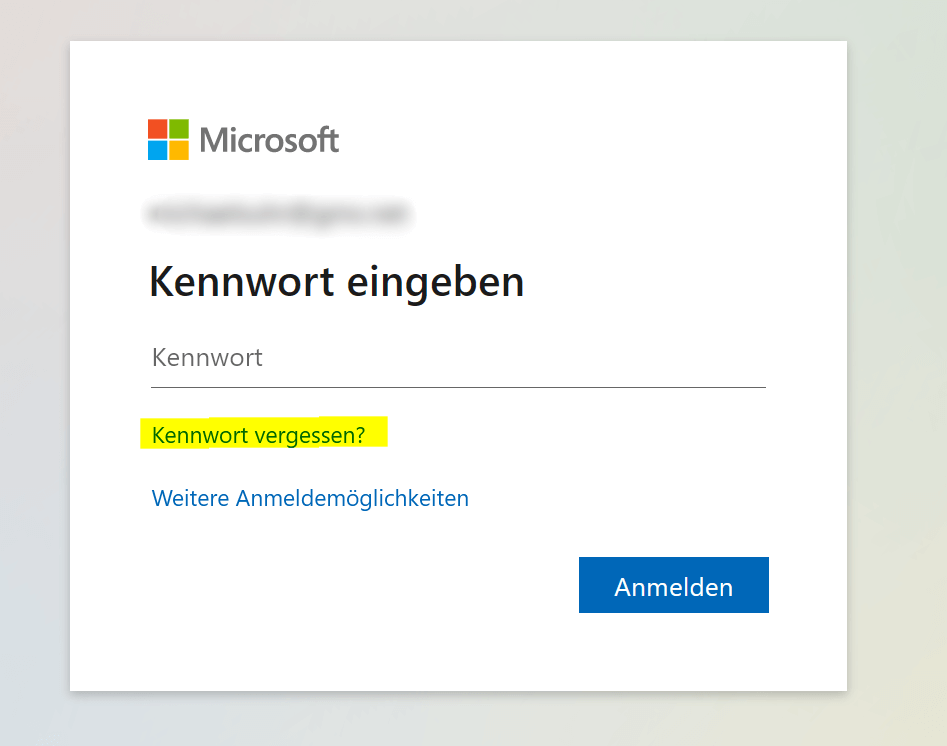
If you’re using a Microsoft account to sign in to your Windows computer, you can try signing in using the “Forgot your password” option on the sign-in page. You will then be asked to provide an alternate email address or phone number in order to receive a temporary password to log in with. Once you have received the temporary password, you can use it to log in and then set a new password for your user account.

Use admin account
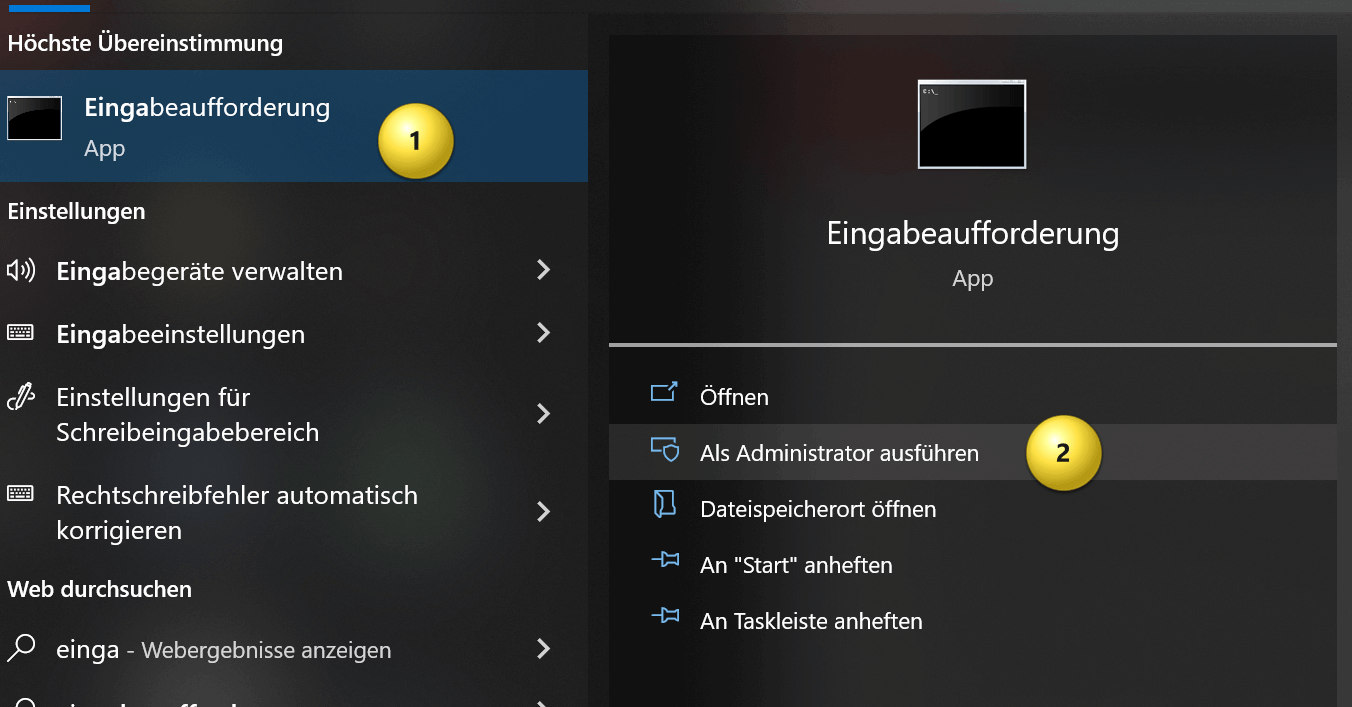
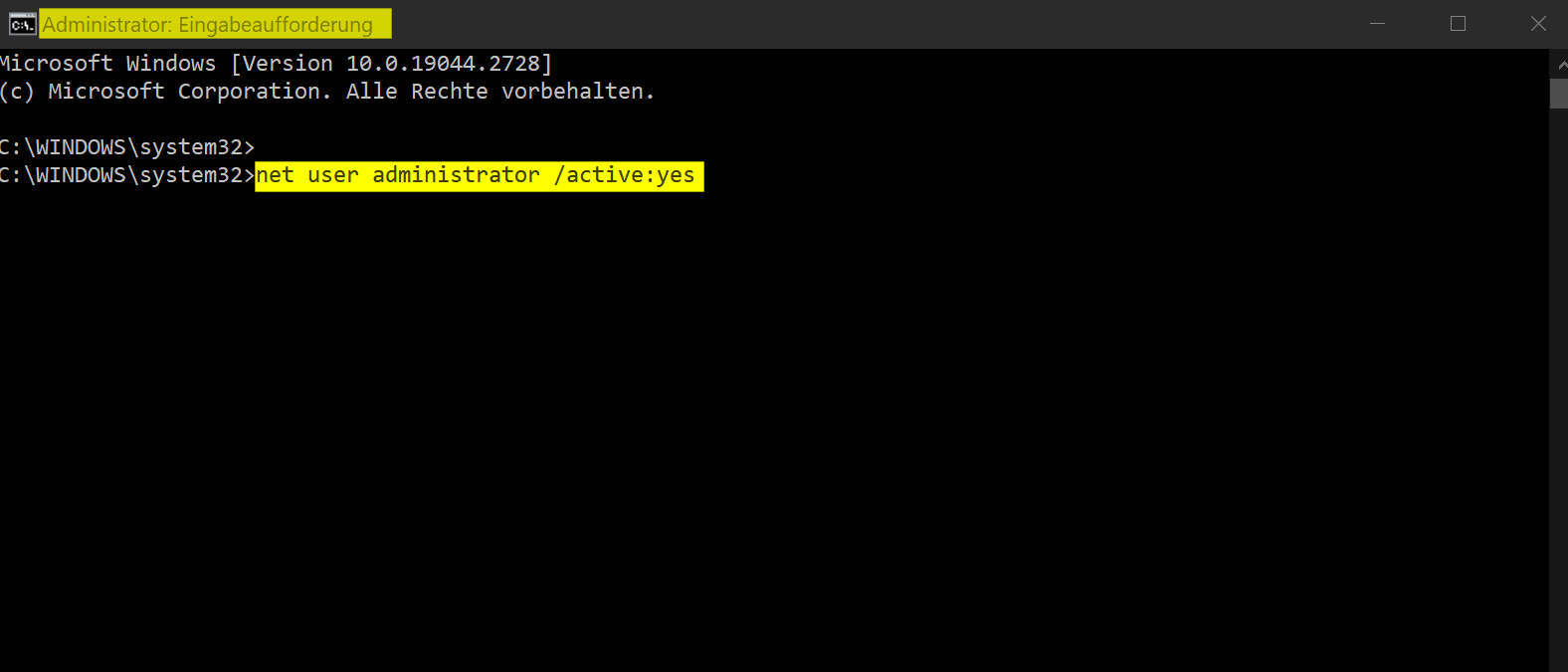
If you have activated the administrator account on your computer, you can use it to change the password of your normal user account. To operate in the administrator account, you need to start in safe mode. When the computer starts, press the F8 key several times to start Safe Mode. Then log in with the administrator account and change the password of the user account.
Use recovery drive
A recovery drive is an external hard drive that can be used to restore or reset your computer. If you created a recovery drive, you can use it to reset the password.
To create a recovery drive in Windows, you need a USB drive with enough space. Follow the steps below:
- Connect the USB disk to your computer and make sure it is recognized.
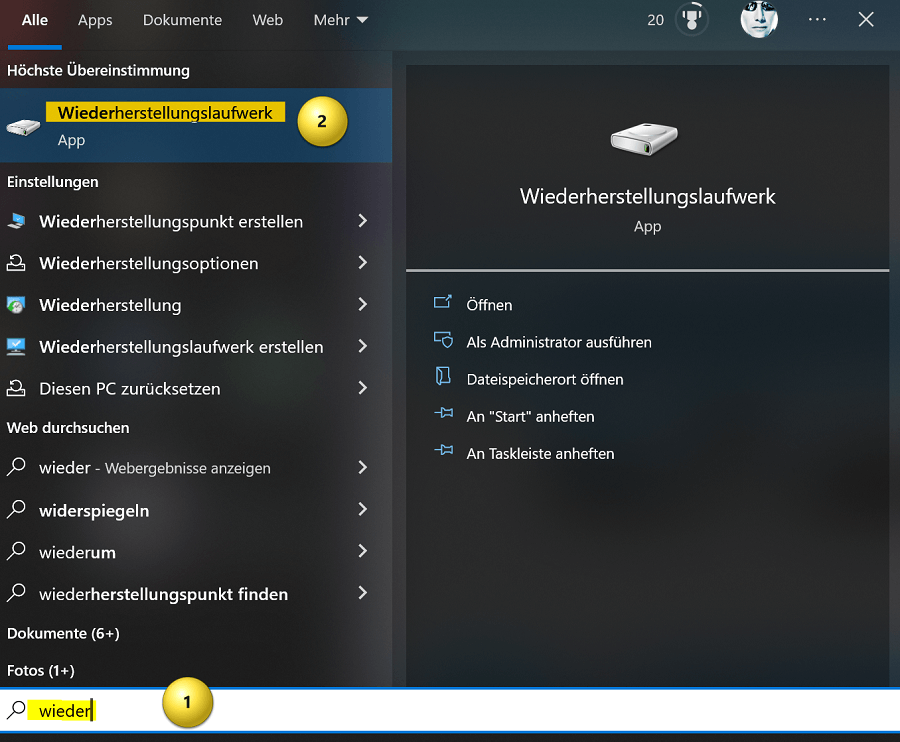
- Open the start menu and type “recovery drive“. Click on the “Create a recovery drive” option.
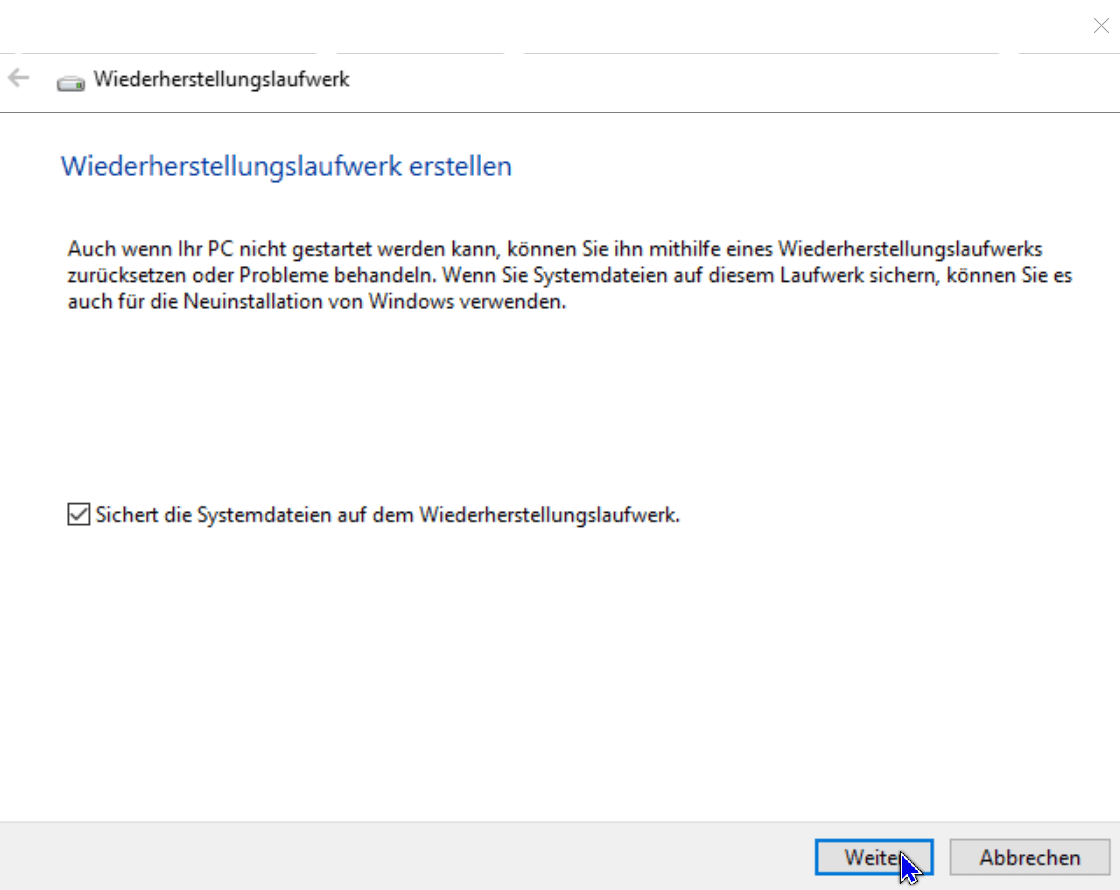
- The Create Recovery Drive tool starts. Make sure that the correct USB stick is selected and click “Next“.
- Select “Copy system files to the recovery drive” and click Next again.
- Click “Create” to start the creation process.
- The creation process may take a few minutes. Once it is complete, click “Finish“.
Your recovery drive is now ready and you can use it to troubleshoot your Windows system or to perform a clean install of Windows. However, note that all data on the USB disk will be erased during the creation process. Be sure to back up important data elsewhere beforehand.
Use third-party tools
There are various third-party tools that you can use to reset the password. However, these tools are not officially approved by Microsoft and hence may lead to data loss or other issues. Some examples of these tools are “Offline NT Password & Registry Editor” or “PCUnlocker“. Therefore, only use this option if the other options don’t work and if you know the consequences.
It is also important to note that in some cases, resetting password can result in loss of files. Make sure you have backed up important files before trying to reset the password.
To sum up, there are several ways to reset or recover forgotten Windows password. The best option depends on the type of user account you have and your personal situation. It is important to be aware that some options can lead to data loss and therefore you should always back up your important files before attempting a password reset.
Use Microsoft account
If you’re using a Microsoft account to sign in to your Windows computer, you can try signing in using the “Forgot your password” option on the sign-in page. You will then be asked to provide an alternate email address or phone number in order to receive a temporary password to log in with. Once you have received the temporary password, you can use it to log in and then set a new password for your user account.
Use admin account
If you have activated the administrator account on your computer, you can use it to change the password of your normal user account. To operate in the administrator account, you need to start in safe mode. When the computer starts, press the F8 key several times to start Safe Mode. Then log in with the administrator account and change the password of the user account.
Use recovery drive
A recovery drive is an external hard drive that can be used to restore or reset your computer. If you created a recovery drive, you can use it to reset the password.
To create a recovery drive in Windows, you need a USB drive with enough space. Follow the steps below:
- Connect the USB disk to your computer and make sure it is recognized.
- Open the start menu and type “recovery drive“. Click on the “Create a recovery drive” option.
- The Create Recovery Drive tool starts. Make sure that the correct USB stick is selected and click “Next“.
- Select “Copy system files to the recovery drive” and click Next again.
- Click “Create” to start the creation process.
- The creation process may take a few minutes. Once it is complete, click “Finish“.
Your recovery drive is now ready and you can use it to troubleshoot your Windows system or to perform a clean install of Windows. However, note that all data on the USB disk will be erased during the creation process. Be sure to back up important data elsewhere beforehand.
Use third-party tools
There are various third-party tools that you can use to reset the password. However, these tools are not officially approved by Microsoft and hence may lead to data loss or other issues. Some examples of these tools are “Offline NT Password & Registry Editor” or “PCUnlocker“. Therefore, only use this option if the other options don’t work and if you know the consequences.
It is also important to note that in some cases, resetting password can result in loss of files. Make sure you have backed up important files before trying to reset the password.
To sum up, there are several ways to reset or recover forgotten Windows password. The best option depends on the type of user account you have and your personal situation. It is important to be aware that some options can lead to data loss and therefore you should always back up your important files before attempting a password reset.
Popular Posts:

So sieht das wirklich perfekte Homeoffice-Setup für 2026 aus
Ihr Homeoffice ist veraltet? Steigern Sie 2026 Produktivität & Gesundheit. Unser Guide zeigt das perfekte Setup: von ergonomischen Stühlen und 4K-Webcams bis zu Mesh-WLAN und Kabelmanagement. So investieren Sie in Ihre Karriere.

Internet, Telefon & TV: Die besten Komplettpakete
Internet, TV & Telefon aus einer Hand? Wir vergleichen die Komplettpakete von Telekom, Vodafone, O2 & 1&1. Wer punktet bei Speed, TV-Komfort (MagentaTV vs. GigaTV) und Preis? So finden Sie das beste Triple-Play-Angebot für Ihre Adresse.

5 Anzeichen, dass dein Chef dich im Homeoffice digital überwacht
Nur weil du im Homeoffice bist, heißt das nicht, dass dir niemand zusieht. "Bossware" ist auf dem Vormarsch. Wir zeigen 5 subtile Anzeichen für digitale Überwachung – von "Teams-Status"-Kult bis zu verdächtigen IT-Tools. So erkennst du die Warnsignale und schützt deine Karriere.

Schluss mit dem Tool-Chaos: 5 Apps, die Euer Office wirklich produktiver machen
Schluss mit digitaler Reibung: Diese 5 Apps machen Ihr Büro wirklich produktiver. Entdecken Sie, wie Asana, Loom, Notion, Zapier und Slack die Effizienz steigern, Meetings reduzieren und Ihr Team smarter vernetzen – wenn man sie richtig einsetzt.

AI in everyday office life: Your new invisible colleague
AI won't replace you – but those who use it will have a competitive edge. Make AI your co-pilot in the office! We'll show you four concrete hacks for faster emails, better meeting notes, and solved Excel problems. Get started today, no IT degree required.

Fünf vor Zwölf: Wie Sie erkennen, dass Sie kurz vor dem Burnout stehen
Erschöpfung ist normal, doch wenn das Wochenende keine Erholung mehr bringt und Zynismus die Motivation ersetzt, stehen Sie kurz vor dem Burnout. Erfahren Sie, welche 7 Warnsignale Sie niemals ignorieren dürfen und warum es jetzt lebenswichtig ist, die Notbremse zu ziehen
Offers 2024: Word & Excel Templates











Popular Posts:
So sieht das wirklich perfekte Homeoffice-Setup für 2026 aus
Ihr Homeoffice ist veraltet? Steigern Sie 2026 Produktivität & Gesundheit. Unser Guide zeigt das perfekte Setup: von ergonomischen Stühlen und 4K-Webcams bis zu Mesh-WLAN und Kabelmanagement. So investieren Sie in Ihre Karriere.
Internet, Telefon & TV: Die besten Komplettpakete
Internet, TV & Telefon aus einer Hand? Wir vergleichen die Komplettpakete von Telekom, Vodafone, O2 & 1&1. Wer punktet bei Speed, TV-Komfort (MagentaTV vs. GigaTV) und Preis? So finden Sie das beste Triple-Play-Angebot für Ihre Adresse.
5 Anzeichen, dass dein Chef dich im Homeoffice digital überwacht
Nur weil du im Homeoffice bist, heißt das nicht, dass dir niemand zusieht. "Bossware" ist auf dem Vormarsch. Wir zeigen 5 subtile Anzeichen für digitale Überwachung – von "Teams-Status"-Kult bis zu verdächtigen IT-Tools. So erkennst du die Warnsignale und schützt deine Karriere.
Schluss mit dem Tool-Chaos: 5 Apps, die Euer Office wirklich produktiver machen
Schluss mit digitaler Reibung: Diese 5 Apps machen Ihr Büro wirklich produktiver. Entdecken Sie, wie Asana, Loom, Notion, Zapier und Slack die Effizienz steigern, Meetings reduzieren und Ihr Team smarter vernetzen – wenn man sie richtig einsetzt.
AI in everyday office life: Your new invisible colleague
AI won't replace you – but those who use it will have a competitive edge. Make AI your co-pilot in the office! We'll show you four concrete hacks for faster emails, better meeting notes, and solved Excel problems. Get started today, no IT degree required.
Fünf vor Zwölf: Wie Sie erkennen, dass Sie kurz vor dem Burnout stehen
Erschöpfung ist normal, doch wenn das Wochenende keine Erholung mehr bringt und Zynismus die Motivation ersetzt, stehen Sie kurz vor dem Burnout. Erfahren Sie, welche 7 Warnsignale Sie niemals ignorieren dürfen und warum es jetzt lebenswichtig ist, die Notbremse zu ziehen
Offers 2024: Word & Excel Templates