Create dependent dropdown menus in Excel


In Excel, it may make sense to create a drop-down list that is based on a data source and also adapts dynamically instead of creating a very long list in rows or columns. You may also want to create 2 or more lists, with the list below each dependent on the previous one.
How to create interdependent dropdown with dynamic source customization in Excel – Office 365 can be found in our article.

Create dependent dropdown menus in Excel
In Excel, it may make sense to create a drop-down list that is based on a data source and also adapts dynamically instead of creating a very long list in rows or columns. You may also want to create 2 or more lists, with the list below each dependent on the previous one.
How to create interdependent dropdown with dynamic source customization in Excel – Office 365 can be found in our article.
1. Create a dynamic table in Excel
1. Create a dynamic table in Excel
So that our dropdown list adapts dynamically to the data source, we first have to dynamically design the data source (s) ourselves.
In our first example, we compile a list of states and (part of) their respective cities.
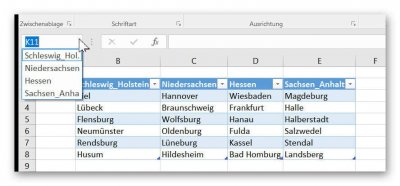
- We mark our respective list.
- Then click in the tab: “Paste” on “Table”
- And put there also the hook with “table has headings”.
- Then we assign a name for each of our tables, which should match the title of each table.
See picture: (click to enlarge)
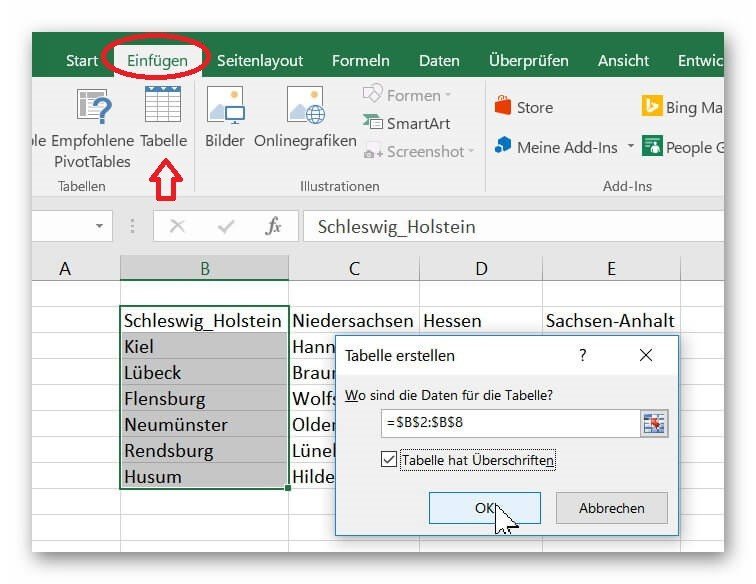
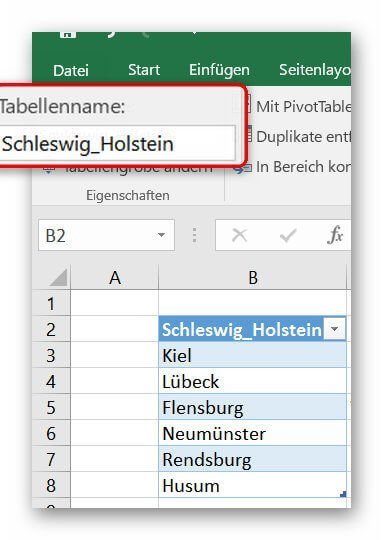
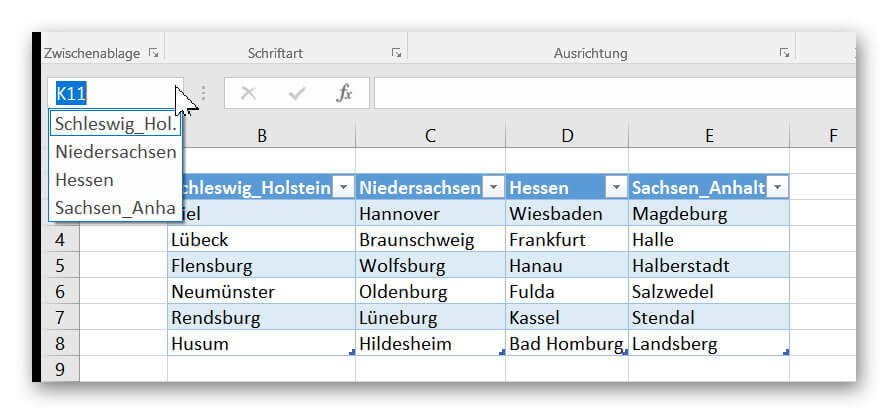
So that our dropdown list adapts dynamically to the data source, we first have to dynamically design the data source (s) ourselves.
In our first example, we compile a list of states and (part of) their respective cities.
- We mark our respective list.
- Then click in the tab: “Paste” on “Table”
- And put there also the hook with “table has headings”.
- Then we assign a name for each of our tables, which should match the title of each table.
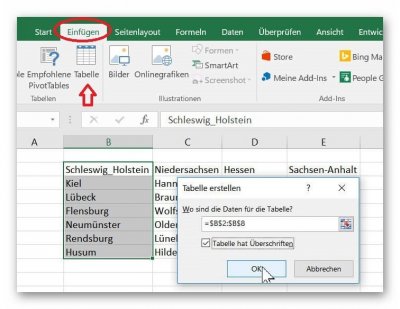
See picture:
2. Create a drop-down list in Excel
2. Create a drop-down list in Excel
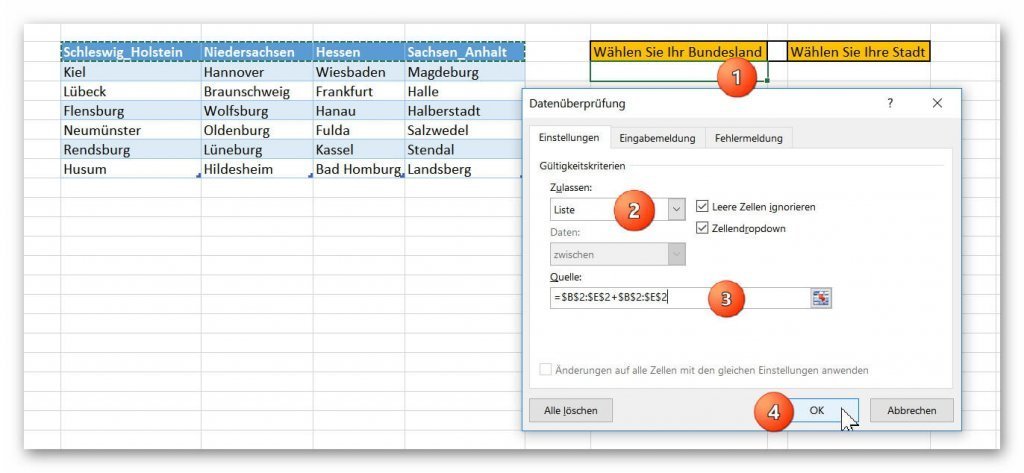
In order to create our first drop down list for the selection of the federal states click into the desired cell in which the selection is to be available, and then click in the tab: “Data” on “data check”
There we select first as an option the data check “list”, mark our first list with the federal states as an associated data source, and confirm with “OK”.
See picture: (click to enlarge)

In the next step, we limit the choices of the dependent drop-down list by referring to our previously set dynamic tables.
For this purpose, we first mark the cell in which our second drop-down list should be.
- Go over the “Data” tab again in the “Data Review”
- And there select “list”.
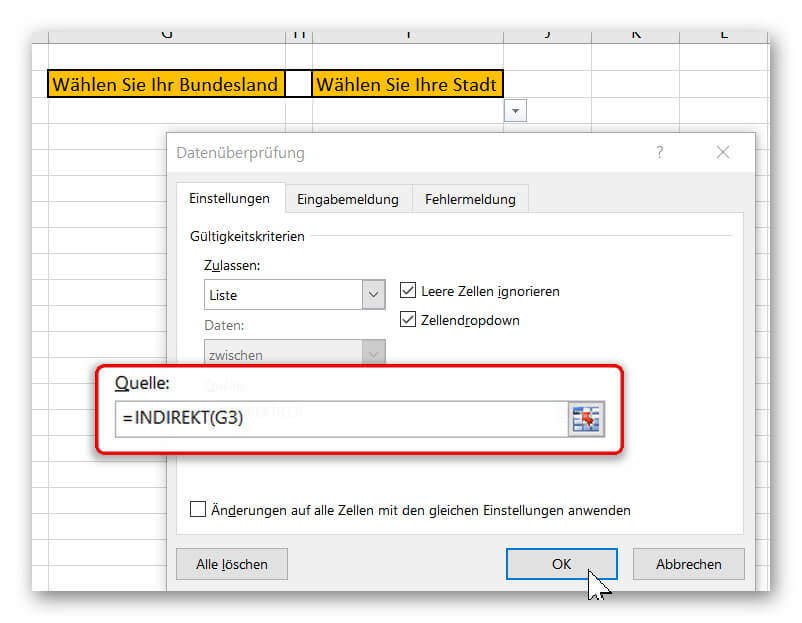
In order to set the data source depending on the selection made earlier, we must use a small function and enter “= INDIRECT (G3)” in the data source field.
(we select the cell in which the upstream dropdown selection takes place)
It is important that we enter the cell as relative and not as absolute reference!
- Correct: = INDIRECT (G3)
- Wrong: = INDIRECT ($ G $ 3)

With this function, the list refers to the previously created tables.
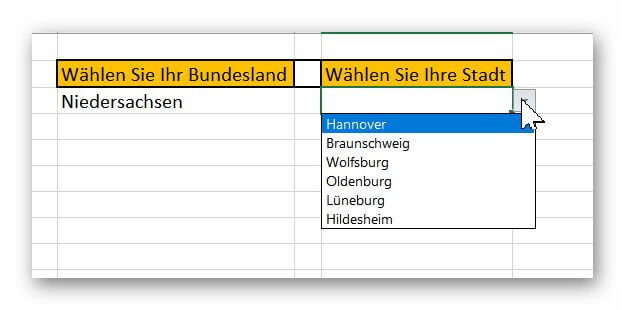
We therefore select a table in the first drop-down list, and the second drop-down list uses the “Indirect” function to see which entries exist in this table (exclusive heading), and only selects these according to the preceding entry.
See picture: (click to enlarge)
In order to create our first drop down list for the selection of the federal states click into the desired cell in which the selection is to be available, and then click in the tab: “Data” on “data check”
There we select first as an option the data check “list”, mark our first list with the federal states as an associated data source, and confirm with “OK”.
See picture: (click to enlarge)
In the next step, we limit the choices of the dependent drop-down list by referring to our previously set dynamic tables.
For this purpose, we first mark the cell in which our second drop-down list should be.
- Go over the “Data” tab again in the “Data Review”
- And there select “list”.
In order to set the data source depending on the selection made earlier, we must use a small function and enter “= INDIRECT (G3)” in the data source field.
(we select the cell in which the upstream dropdown selection takes place)
It is important that we enter the cell as relative and not as absolute reference!
- Correct: = INDIRECT (G3)
- Wrong: = INDIRECT ($ G $ 3)
With this function, the list refers to the previously created tables.
We therefore select a table in the first drop-down list, and the second drop-down list uses the “Indirect” function to see which entries exist in this table (exclusive heading), and only selects these according to the preceding entry.
See picture: (click to enlarge)
3. Extend a dynamic table in Excel
3. Extend a dynamic table in Excel
The big advantage of drop-down menus related to dynamic lists is that they automatically adapt to the length of the list entries.
As soon as we add an entry, it will be available in the selection. And when we remove an entry, it also disappears just as quickly.
To look forward to the o.g. For example, we would need to refer to, for example, Add another state to create a new table (renamed), and easily include it in the drop-down selection.
To add new cities to existing ones, we extend the table either by:
- Press the TAB key in the last cell of the table.
- By dragging the list at the bottom right (colored reinforced edge) with pressed left mouse button.
Or by a new entry in an empty cell below the table.
(iD.R., the table is automatically expanded here, and a query appears if so desired.)
Of course, this procedure of the dependent drop-down lists can be continued.
So we could next, for example, depending on the city, still on the municipalities, and then on street directories continue to filter.

The big advantage of drop-down menus related to dynamic lists is that they automatically adapt to the length of the list entries.
As soon as we add an entry, it will be available in the selection. And when we remove an entry, it also disappears just as quickly.
To look forward to the o.g. For example, we would need to refer to, for example, Add another state to create a new table (renamed), and easily include it in the drop-down selection.
To add new cities to existing ones, we extend the table either by:
- Press the TAB key in the last cell of the table.
- By dragging the list at the bottom right (colored reinforced edge) with pressed left mouse button.
Or by a new entry in an empty cell below the table.
(iD.R., the table is automatically expanded here, and a query appears if so desired.)
Of course, this procedure of the dependent drop-down lists can be continued.
So we could next, for example, depending on the city, still on the municipalities, and then on street directories continue to filter.
Popular Posts:

So sieht das wirklich perfekte Homeoffice-Setup für 2026 aus
Ihr Homeoffice ist veraltet? Steigern Sie 2026 Produktivität & Gesundheit. Unser Guide zeigt das perfekte Setup: von ergonomischen Stühlen und 4K-Webcams bis zu Mesh-WLAN und Kabelmanagement. So investieren Sie in Ihre Karriere.

Internet, Telefon & TV: Die besten Komplettpakete
Internet, TV & Telefon aus einer Hand? Wir vergleichen die Komplettpakete von Telekom, Vodafone, O2 & 1&1. Wer punktet bei Speed, TV-Komfort (MagentaTV vs. GigaTV) und Preis? So finden Sie das beste Triple-Play-Angebot für Ihre Adresse.

5 Anzeichen, dass dein Chef dich im Homeoffice digital überwacht
Nur weil du im Homeoffice bist, heißt das nicht, dass dir niemand zusieht. "Bossware" ist auf dem Vormarsch. Wir zeigen 5 subtile Anzeichen für digitale Überwachung – von "Teams-Status"-Kult bis zu verdächtigen IT-Tools. So erkennst du die Warnsignale und schützt deine Karriere.

Schluss mit dem Tool-Chaos: 5 Apps, die Euer Office wirklich produktiver machen
Schluss mit digitaler Reibung: Diese 5 Apps machen Ihr Büro wirklich produktiver. Entdecken Sie, wie Asana, Loom, Notion, Zapier und Slack die Effizienz steigern, Meetings reduzieren und Ihr Team smarter vernetzen – wenn man sie richtig einsetzt.

AI in everyday office life: Your new invisible colleague
AI won't replace you – but those who use it will have a competitive edge. Make AI your co-pilot in the office! We'll show you four concrete hacks for faster emails, better meeting notes, and solved Excel problems. Get started today, no IT degree required.

Fünf vor Zwölf: Wie Sie erkennen, dass Sie kurz vor dem Burnout stehen
Erschöpfung ist normal, doch wenn das Wochenende keine Erholung mehr bringt und Zynismus die Motivation ersetzt, stehen Sie kurz vor dem Burnout. Erfahren Sie, welche 7 Warnsignale Sie niemals ignorieren dürfen und warum es jetzt lebenswichtig ist, die Notbremse zu ziehen
Offers 2024: Word & Excel Templates











Popular Posts:
So sieht das wirklich perfekte Homeoffice-Setup für 2026 aus
Ihr Homeoffice ist veraltet? Steigern Sie 2026 Produktivität & Gesundheit. Unser Guide zeigt das perfekte Setup: von ergonomischen Stühlen und 4K-Webcams bis zu Mesh-WLAN und Kabelmanagement. So investieren Sie in Ihre Karriere.
Internet, Telefon & TV: Die besten Komplettpakete
Internet, TV & Telefon aus einer Hand? Wir vergleichen die Komplettpakete von Telekom, Vodafone, O2 & 1&1. Wer punktet bei Speed, TV-Komfort (MagentaTV vs. GigaTV) und Preis? So finden Sie das beste Triple-Play-Angebot für Ihre Adresse.
5 Anzeichen, dass dein Chef dich im Homeoffice digital überwacht
Nur weil du im Homeoffice bist, heißt das nicht, dass dir niemand zusieht. "Bossware" ist auf dem Vormarsch. Wir zeigen 5 subtile Anzeichen für digitale Überwachung – von "Teams-Status"-Kult bis zu verdächtigen IT-Tools. So erkennst du die Warnsignale und schützt deine Karriere.
Schluss mit dem Tool-Chaos: 5 Apps, die Euer Office wirklich produktiver machen
Schluss mit digitaler Reibung: Diese 5 Apps machen Ihr Büro wirklich produktiver. Entdecken Sie, wie Asana, Loom, Notion, Zapier und Slack die Effizienz steigern, Meetings reduzieren und Ihr Team smarter vernetzen – wenn man sie richtig einsetzt.
AI in everyday office life: Your new invisible colleague
AI won't replace you – but those who use it will have a competitive edge. Make AI your co-pilot in the office! We'll show you four concrete hacks for faster emails, better meeting notes, and solved Excel problems. Get started today, no IT degree required.
Fünf vor Zwölf: Wie Sie erkennen, dass Sie kurz vor dem Burnout stehen
Erschöpfung ist normal, doch wenn das Wochenende keine Erholung mehr bringt und Zynismus die Motivation ersetzt, stehen Sie kurz vor dem Burnout. Erfahren Sie, welche 7 Warnsignale Sie niemals ignorieren dürfen und warum es jetzt lebenswichtig ist, die Notbremse zu ziehen
Offers 2024: Word & Excel Templates