Create and save your own text modules in Word


Who does not know them, the extremely long texts that come from authorities such as tax offices, employment agencies, etc. Sometimes you wonder who writes all this. Because only simple forms do not always work. Especially when it comes to individual speeches and personal issues. The solution in public authorities is quite simple, because special software solutions are used here, with which adaptable text modules, which already contain the same information in all letters, can be inserted into a document.
It wouldn’t be possible otherwise!

But you don’t need separate software to work with ready-made text modules. Microsoft Word offers the possibility to create and save your own text modules. In Word, you can not only work with your own text modules, but also with entire content modules. These can also include graphics, images, tables and much more. contain. For example, if you have a small company or work in an association where longer texts, which actually mostly contain the same information, you can either create your own letter template in Word for each application, or you can work with individual ones Text modules in Word.
We would like to take a closer look at how this works in our little tool tip.
Create and save your own text modules in Word
Who does not know them, the extremely long texts that come from authorities such as tax offices, employment agencies, etc. Sometimes you wonder who writes all this. Because only simple forms do not always work. Especially when it comes to individual speeches and personal issues. The solution in public authorities is quite simple, because special software solutions are used here, with which adaptable text modules, which already contain the same information in all letters, can be inserted into a document.
It wouldn’t be possible otherwise!
But you don’t need separate software to work with ready-made text modules. Microsoft Word offers the possibility to create and save your own text modules. In Word, you can not only work with your own text modules, but also with entire content modules. These can also include graphics, images, tables and much more. contain. For example, if you have a small company or work in an association where longer texts, which actually mostly contain the same information, you can either create your own letter template in Word for each application, or you can work with individual ones Text modules in Word.
We would like to take a closer look at how this works in our little tool tip.
Create and save text modules in Word
Create and save text modules in Word
As a first example, we had Word create an automated sample text from which we would like to save a few paragraphs as a text module template for future documents.
Tip: If you ever need a bit of text to try out in Word, simply enter =rand(5,5) in the document. This will generate random text from Word. The first number after =rand in brackets is the number of paragraphs you want in the example text, and the second number how many sentences each paragraph should contain.
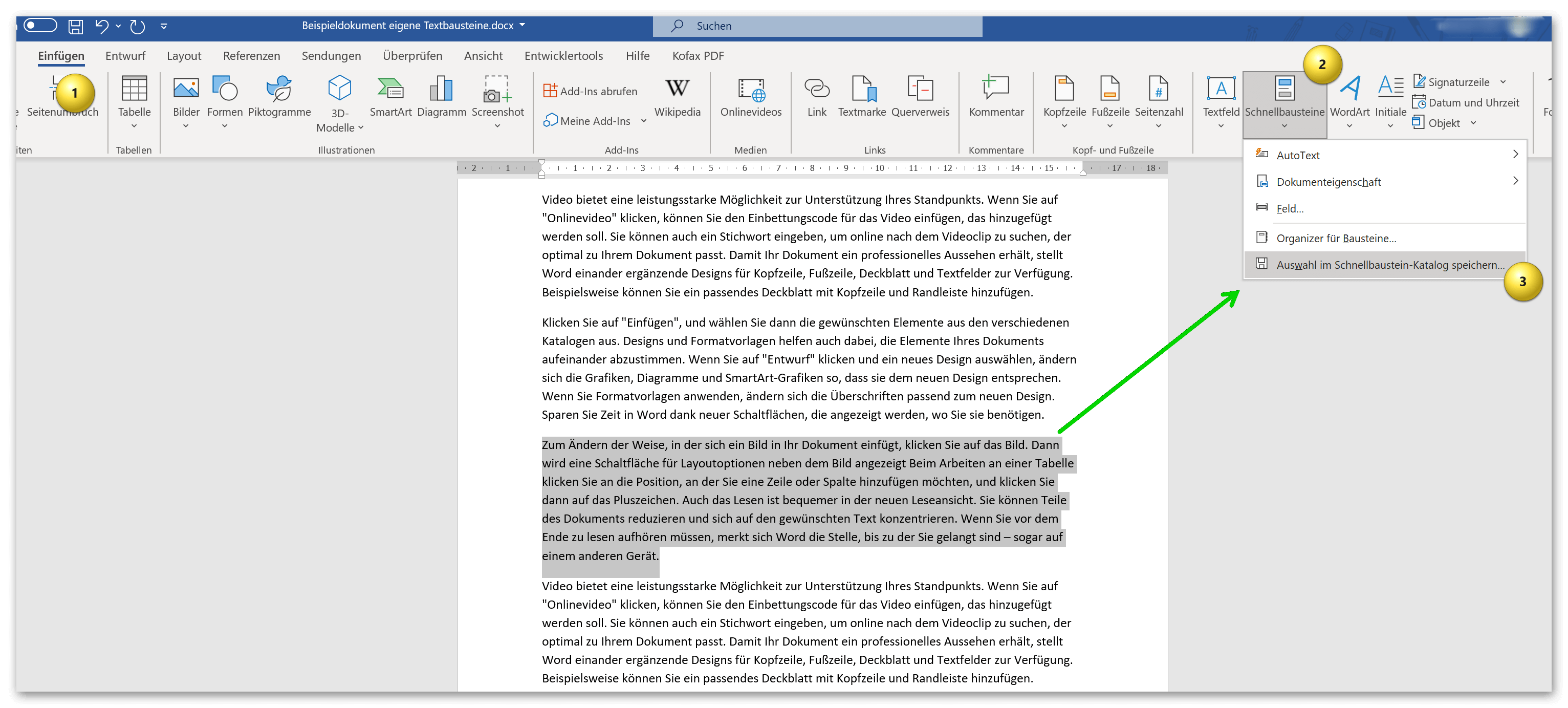
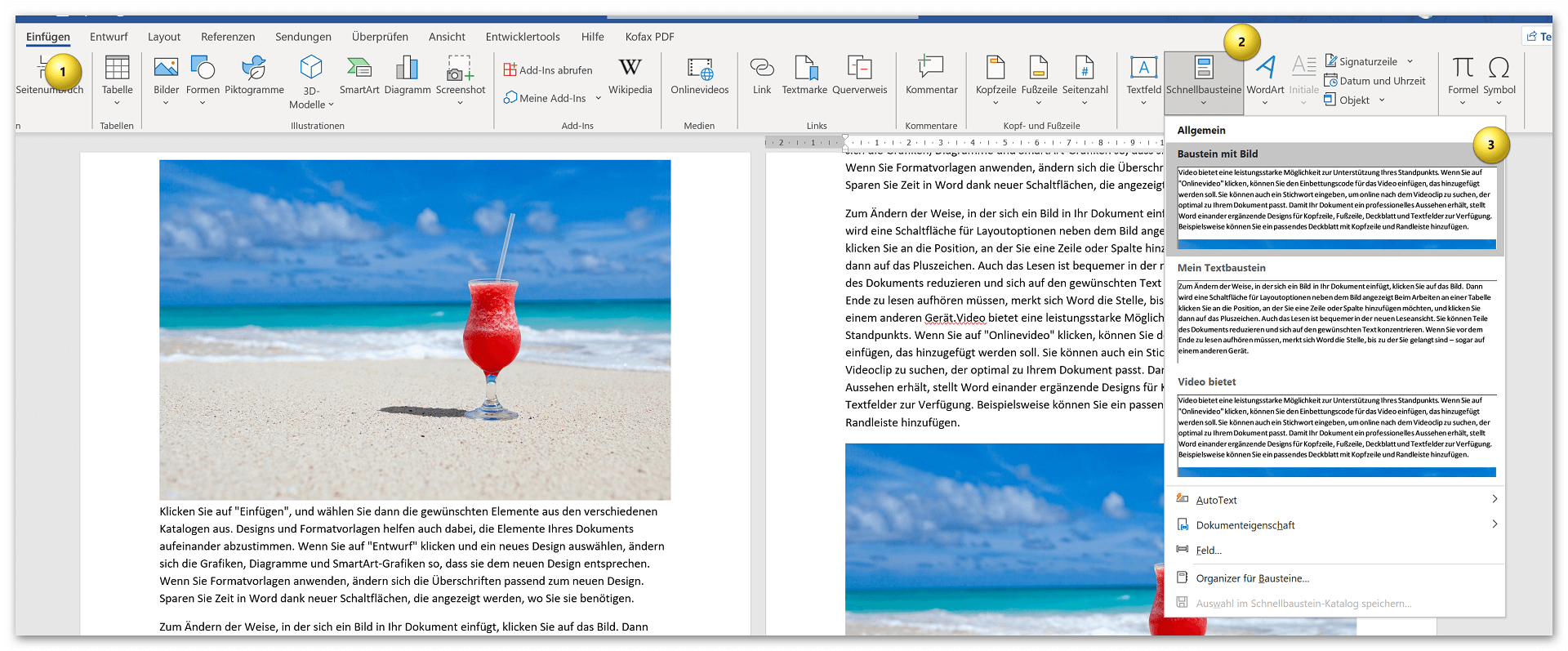
n the example, we first let Word generate our sample text and simply marked the third paragraph to save it as a template. In the second step we go to Word via the Insert tab – Quick Parts – Save selection to Quick Part Gallery.
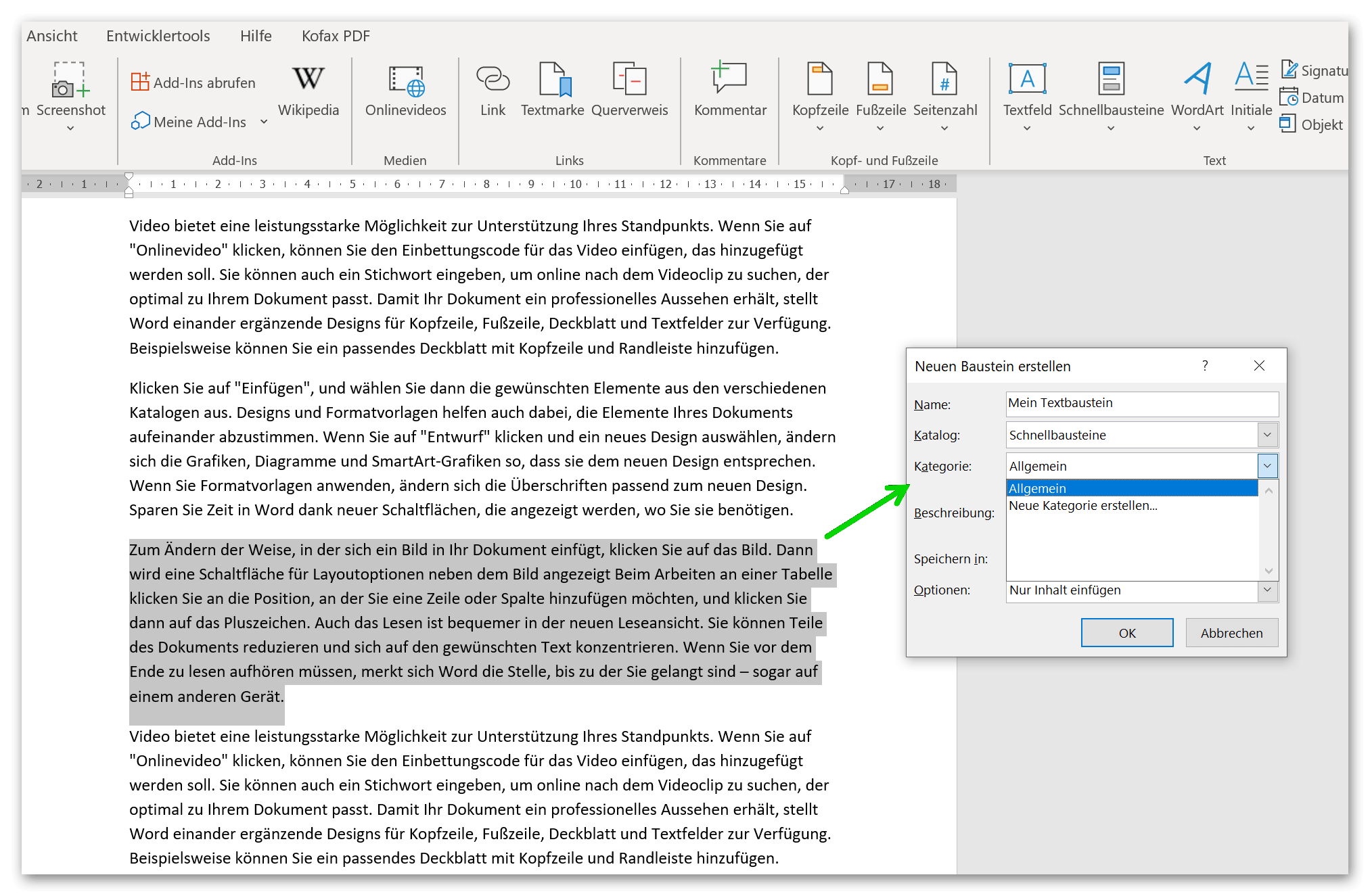
Next you will see a dialog window where you can give your phrase a custom name and place it in a category, but you can also create your own categories. Basically, you have a whole range of options for setting up your own repertoire of quick parts in the sub-item quick parts – organizer for quick parts.
see fig. (click to enlarge)

Of course, this principle works with all content that you have created in Word. In this way, images, graphics, tables, etc. can be easily saved and categorized.
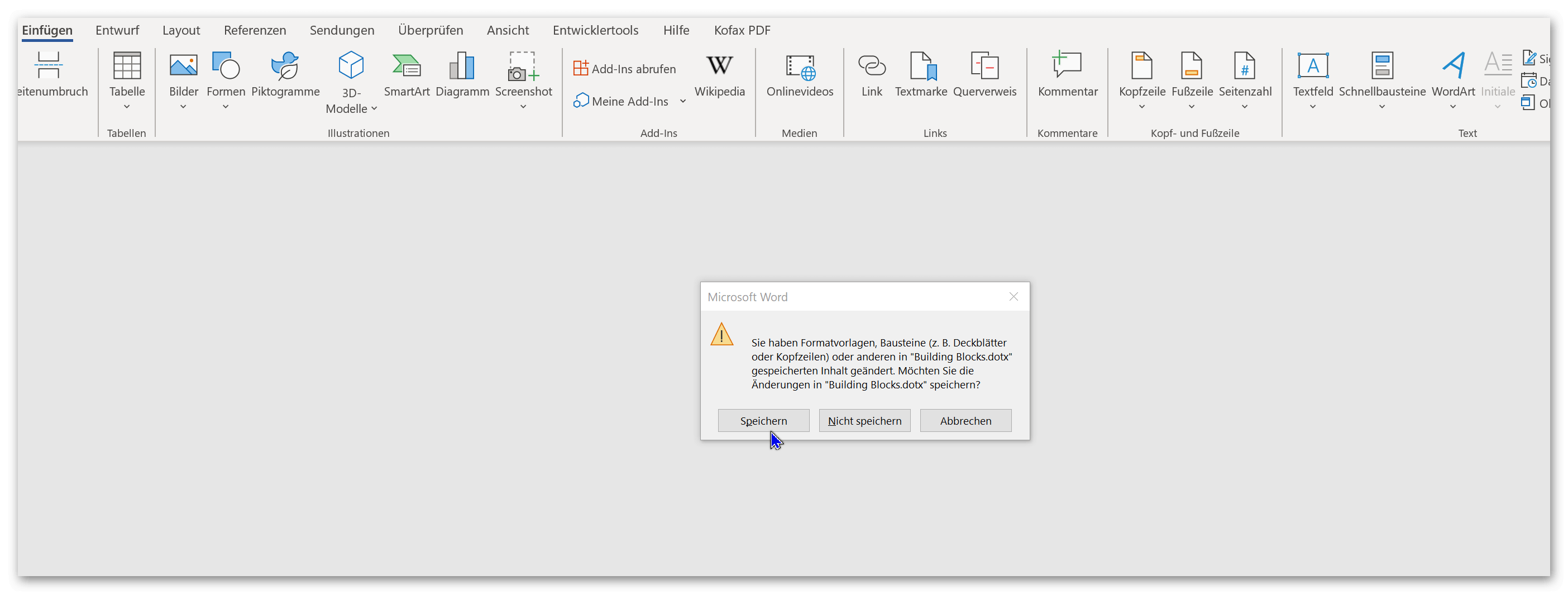
Important: If you save the document from which you created your building blocks in Word, you will be asked in a small dialog window whether you want to save the content that you have stored in the quick building block catalog as dotx. (i.e. template) want to save. Please make sure to save here so that the quick parts are available later in every new Word document. You can change the quick component catalog at any time, and also delete or adapt components that are no longer required.
see fig. (click to enlarge)
That’s basically it. As you have seen, this is done very quickly and can speed up work in Word immensely if you already have ready-made quick building blocks at hand.
As a first example, we had Word create an automated sample text from which we would like to save a few paragraphs as a text module template for future documents.
Tip: If you ever need a bit of text to try out in Word, simply enter =rand(5,5) in the document. This will generate random text from Word. The first number after =rand in brackets is the number of paragraphs you want in the example text, and the second number how many sentences each paragraph should contain.
n the example, we first let Word generate our sample text and simply marked the third paragraph to save it as a template. In the second step we go to Word via the Insert tab – Quick Parts – Save selection to Quick Part Gallery.
Next you will see a dialog window where you can give your phrase a custom name and place it in a category, but you can also create your own categories. Basically, you have a whole range of options for setting up your own repertoire of quick parts in the sub-item quick parts – organizer for quick parts.
see fig. (click to enlarge)
Of course, this principle works with all content that you have created in Word. In this way, images, graphics, tables, etc. can be easily saved and categorized.
Important: If you save the document from which you created your building blocks in Word, you will be asked in a small dialog window whether you want to save the content that you have stored in the quick building block catalog as dotx. (i.e. template) want to save. Please make sure to save here so that the quick parts are available later in every new Word document. You can change the quick component catalog at any time, and also delete or adapt components that are no longer required.
see fig. (click to enlarge)
That’s basically it. As you have seen, this is done very quickly and can speed up work in Word immensely if you already have ready-made quick building blocks at hand.
Popular Posts:

Die Renaissance des Büros: Warum Präsenz manchmal unschlagbar ist
Homeoffice bietet Fokus, doch das Büro bleibt als sozialer Anker unverzichtbar. Spontane Innovation, direktes Voneinander-Lernen und echtes Wir-Gefühl sind digital kaum zu ersetzen. Lesen Sie, warum Präsenz oft besser ist und wie die ideale Mischung für moderne Teams aussieht.

New Work & Moderne Karriere: Warum die Karriereleiter ausgedient hat
Die klassische Karriereleiter hat ausgedient. New Work fordert ein neues Denken: Skills statt Titel, Netzwerk statt Hierarchie. Erfahre, warum das "Karriere-Klettergerüst" deine neue Realität ist und wie du dich mit 4 konkreten Schritten zukunftssicher aufstellst.

Die Homeoffice-Falle: Warum unsichtbare Arbeit deine Beförderung gefährdet
Produktiv im Homeoffice, doch befördert wird der Kollege im Büro? Willkommen in der Homeoffice-Falle. "Proximity Bias" lässt deine Leistung oft unsichtbar werden. Lerne 4 Strategien, wie du auch remote sichtbar bleibst und deine Karriere sicherst – ganz ohne Wichtigtuerei.

Microsoft Loop in Teams: The revolution of your notes?
What exactly are these Loop components in Microsoft Teams? We'll show you how these "living mini-documents" can accelerate your teamwork. From dynamic agendas to shared, real-time checklists – discover practical use cases for your everyday work.

Career booster 2026: These Microsoft Office skills will take you further!
A new year, new career opportunities! But which Office skills will really be in demand in 2026? "Skilled use" is no longer enough. We'll show you today's must-haves – like advanced Excel, using AI in the office, and relevant certifications for your resume.

Why Zero Trust doesn’t work without identity protection!
Zero Trust means: Trust no one, verify everyone. Identity protection is at the heart of this modern security model. Learn how IAM, MFA, Conditional Access, and the principle of least privilege effectively protect your business when the old network perimeter is gone.
Offers 2024: Word & Excel Templates











Popular Posts:
Die Renaissance des Büros: Warum Präsenz manchmal unschlagbar ist
Homeoffice bietet Fokus, doch das Büro bleibt als sozialer Anker unverzichtbar. Spontane Innovation, direktes Voneinander-Lernen und echtes Wir-Gefühl sind digital kaum zu ersetzen. Lesen Sie, warum Präsenz oft besser ist und wie die ideale Mischung für moderne Teams aussieht.
New Work & Moderne Karriere: Warum die Karriereleiter ausgedient hat
Die klassische Karriereleiter hat ausgedient. New Work fordert ein neues Denken: Skills statt Titel, Netzwerk statt Hierarchie. Erfahre, warum das "Karriere-Klettergerüst" deine neue Realität ist und wie du dich mit 4 konkreten Schritten zukunftssicher aufstellst.
Die Homeoffice-Falle: Warum unsichtbare Arbeit deine Beförderung gefährdet
Produktiv im Homeoffice, doch befördert wird der Kollege im Büro? Willkommen in der Homeoffice-Falle. "Proximity Bias" lässt deine Leistung oft unsichtbar werden. Lerne 4 Strategien, wie du auch remote sichtbar bleibst und deine Karriere sicherst – ganz ohne Wichtigtuerei.
Microsoft Loop in Teams: The revolution of your notes?
What exactly are these Loop components in Microsoft Teams? We'll show you how these "living mini-documents" can accelerate your teamwork. From dynamic agendas to shared, real-time checklists – discover practical use cases for your everyday work.
Career booster 2026: These Microsoft Office skills will take you further!
A new year, new career opportunities! But which Office skills will really be in demand in 2026? "Skilled use" is no longer enough. We'll show you today's must-haves – like advanced Excel, using AI in the office, and relevant certifications for your resume.
Why Zero Trust doesn’t work without identity protection!
Zero Trust means: Trust no one, verify everyone. Identity protection is at the heart of this modern security model. Learn how IAM, MFA, Conditional Access, and the principle of least privilege effectively protect your business when the old network perimeter is gone.
Offers 2024: Word & Excel Templates