Apply nested functions in Excel


Most users are familiar with the simple functions in Excel. However, only a few know that functions in Excel can also be nested with one another. By nesting functions, Excel offers exactly the possibilities that cannot be mapped by the individual functions.
Nested functions in Excel can be mapped on up to 64 levels, and thus also enable very complex function models and application scenarios to be displayed. In our tutorial, we would like to take a quick look at how nested functions work in Excel.

Apply nested functions in Excel
Most users are familiar with the simple functions in Excel. However, only a few know that functions in Excel can also be nested with one another. By nesting functions, Excel offers exactly the possibilities that cannot be mapped by the individual functions.
Nested functions in Excel can be mapped on up to 64 levels, and thus also enable very complex function models and application scenarios to be displayed. In our tutorial, we would like to take a quick look at how nested functions work in Excel.
Nesting and combining functions in Excel
In order to show the nesting and combining of functions in Excel as transparently as possible, we have created an example table. Customers should receive a predefined discount under various conditions. To do this, we nested an IF function and an OR function, and then again with an IF function and an AND function.
This allows different discounts to be displayed depending on the turnover made and an additional combination with the order quantity.
In the first example, we’ll look at combining an IF function with an AND function. The following conditions must be met for the customer to receive a discount:
The customer should receive a discount of 5% on the retail price if the order quantity is greater than 5 pieces. And this regardless of the turnover.
The customer should receive a discount of 10% on the retail price if the order quantity is greater than 5 pieces and the turnover is over €1,000.
If none of the conditions are met, the cell should say No discount.
see fig. (click to enlarge)
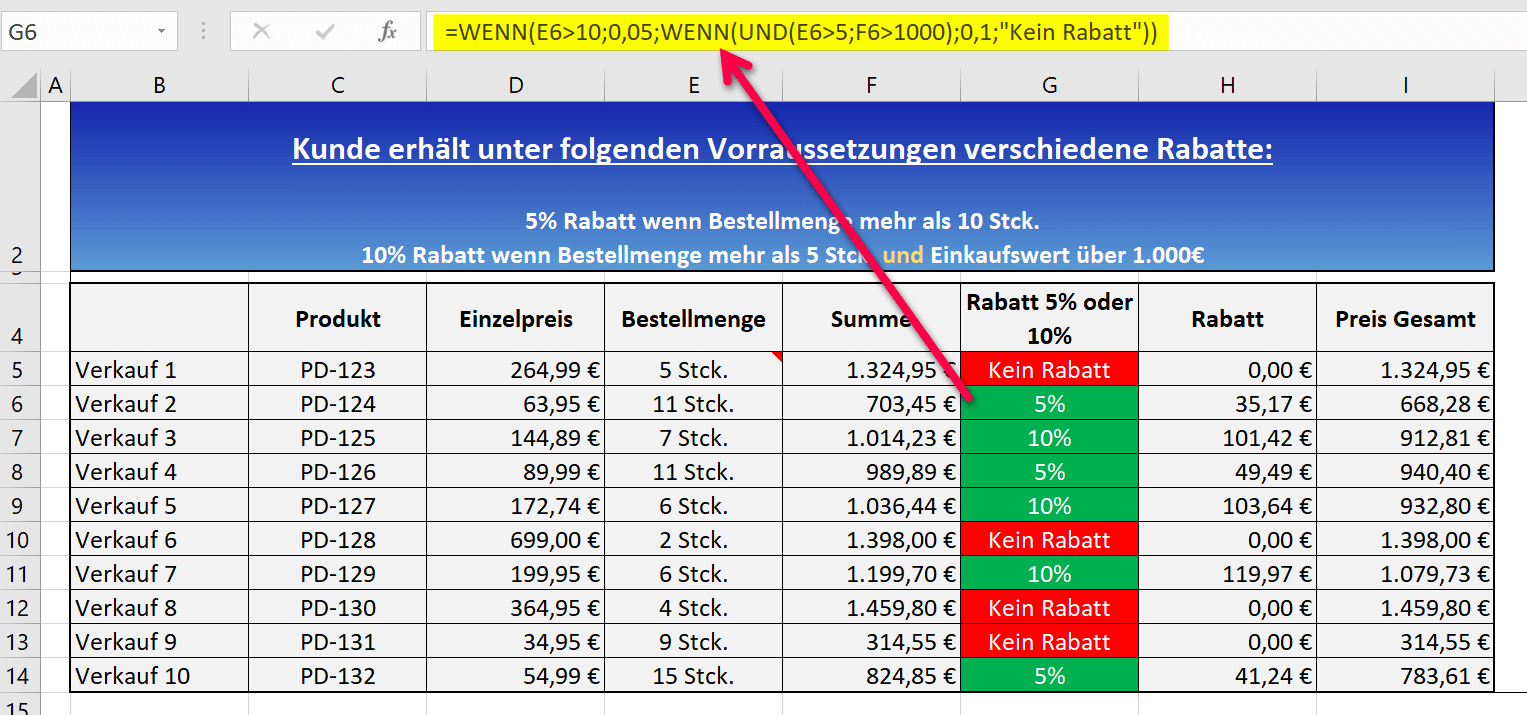

The full nested function in Excel looks like this to represent the desired discount or “No discount” notice:
=IF(E6>10;0,05;IF(AND(E6>5;F6>1000);0,1;”No discount”))
We will now take the function apart piece by piece for the sake of explanation
- =IF( = Here we open the IF function
- =IF(E6>10;0,05; = The first part of the function says that IF the order quantity is greater than 10 pieces THEN the order quantity is greater than 10 pieces THEN the cell there should be filled with the value 0.05. Due to the formatting of the cell as a percentage value there later 5% displayed correctly.
- IF(AND( = Instead of supplying the value for ELSE as usual with an IF function, we immediately insert the next IF function and combine it with an AND function.
- E6>5;F6>1000) = With the AND-function we specify additional arguments that must be fulfilled in order to receive the 10% discount. In this part of the function we say that IF the order quantity is greater than 5 pieces, AND the purchase Value is over 1.000€ than… From here we close the AND function again with the brackets.
- ;0,1;”No discount”)) = In the last part of the function, we continue the IF function we started at the beginning, and state the steps that Excel should take if the two arguments that must be fulfilled for the 10% are true . So if the quantity is more than 5 pieces and the sales price is more than €1,000, the cell should be filled with the value 0.1, and if the two arguments do not apply together, “No discount” should appear there. With the two parentheses at the end, we close our nested function.
Here again the fully nested IF AND function with which both 5%, 10% and also the note “No discount” can be displayed.
=IF(E6>10;0,05;IF(AND(E6>5;F6>1000);0,1;”No discount”))
By the way:
You can automate the colored markings in the column with the percentage values and the note “No discount” with conditional formatting in Excel. Click here for the article
Of course, you can also combine the whole thing with an IF-OR function, in which, for example, not several conditions, but only one of the two (or more) must be fulfilled in order to receive a corresponding discount, or even the message “No discount”.
The nested function in Excel would then look like this:
=IF(N5>10;0,05;IF(OR(N5>5;O5>1000);0,1;”No discount”))
siehe Abb. (klicken zum vergrößern)
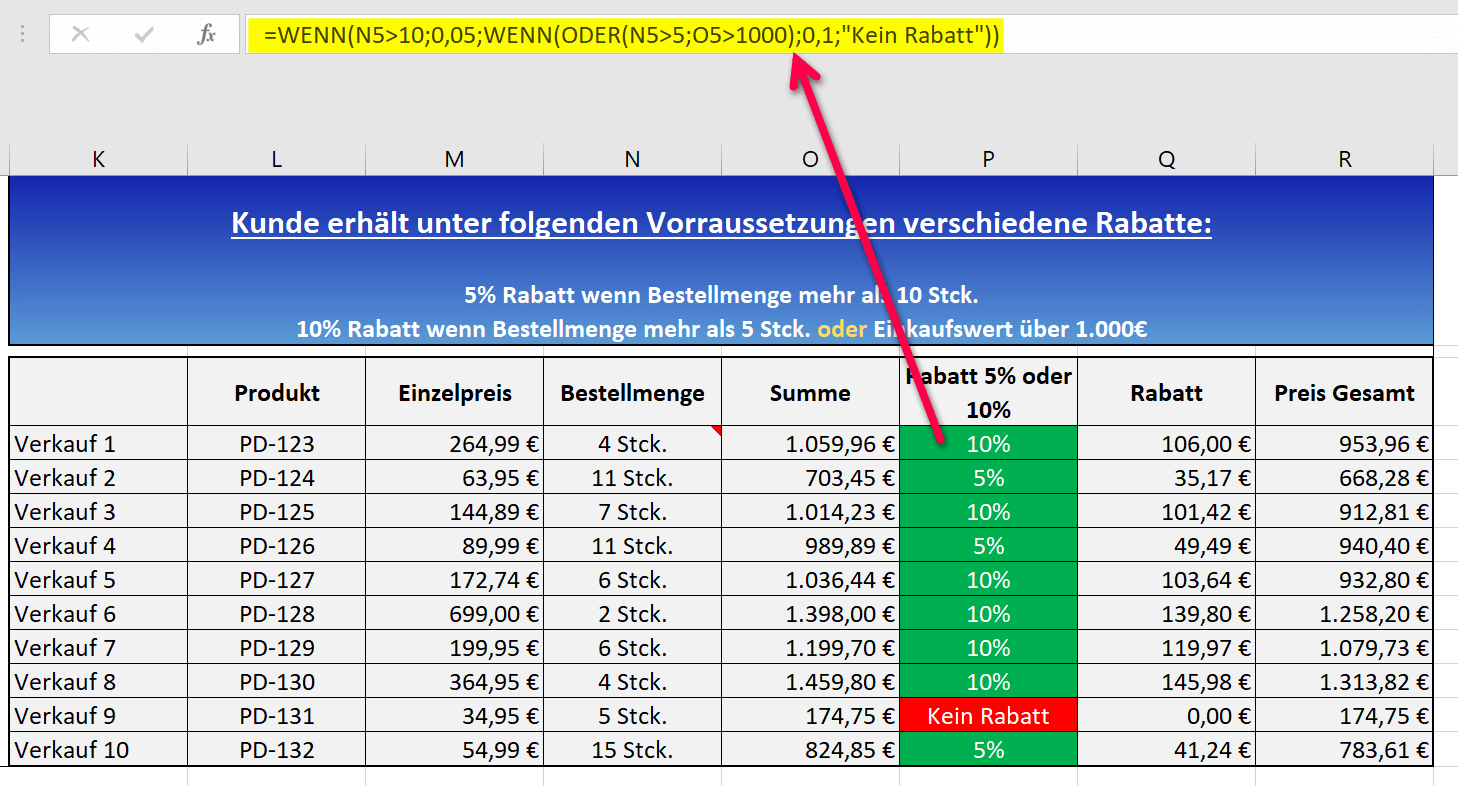
You can download the Excel file that we have built to illustrate the facts clearly here for free to experiment with it.

Nesting and combining functions in Excel
In order to show the nesting and combining of functions in Excel as transparently as possible, we have created an example table. Customers should receive a predefined discount under various conditions. To do this, we nested an IF function and an OR function, and then again with an IF function and an AND function.
This allows different discounts to be displayed depending on the turnover made and an additional combination with the order quantity.
In the first example, we’ll look at combining an IF function with an AND function. The following conditions must be met for the customer to receive a discount:
The customer should receive a discount of 5% on the retail price if the order quantity is greater than 5 pieces. And this regardless of the turnover.
The customer should receive a discount of 10% on the retail price if the order quantity is greater than 5 pieces and the turnover is over €1,000.
If none of the conditions are met, the cell should say No discount.
see fig. (click to enlarge)
The full nested function in Excel looks like this to represent the desired discount or “No discount” notice:
=IF(E6>10;0,05;IF(AND(E6>5;F6>1000);0,1;”No discount”))
We will now take the function apart piece by piece for the sake of explanation
- =IF( = Here we open the IF function
- =IF(E6>10;0,05; = The first part of the function says that IF the order quantity is greater than 10 pieces THEN the order quantity is greater than 10 pieces THEN the cell there should be filled with the value 0.05. Due to the formatting of the cell as a percentage value there later 5% displayed correctly.
- IF(AND( = Instead of supplying the value for ELSE as usual with an IF function, we immediately insert the next IF function and combine it with an AND function.
- E6>5;F6>1000) = With the AND-function we specify additional arguments that must be fulfilled in order to receive the 10% discount. In this part of the function we say that IF the order quantity is greater than 5 pieces, AND the purchase Value is over 1.000€ than… From here we close the AND function again with the brackets.
- ;0,1;”No discount”)) = In the last part of the function, we continue the IF function we started at the beginning, and state the steps that Excel should take if the two arguments that must be fulfilled for the 10% are true . So if the quantity is more than 5 pieces and the sales price is more than €1,000, the cell should be filled with the value 0.1, and if the two arguments do not apply together, “No discount” should appear there. With the two parentheses at the end, we close our nested function.
Here again the fully nested IF AND function with which both 5%, 10% and also the note “No discount” can be displayed.
=IF(E6>10;0,05;IF(AND(E6>5;F6>1000);0,1;”No discount”))
By the way:
You can automate the colored markings in the column with the percentage values and the note “No discount” with conditional formatting in Excel. Click here for the article
Of course, you can also combine the whole thing with an IF-OR function, in which, for example, not several conditions, but only one of the two (or more) must be fulfilled in order to receive a corresponding discount, or even the message “No discount”.
The nested function in Excel would then look like this:
=IF(N5>10;0,05;IF(OR(N5>5;O5>1000);0,1;”No discount”))
siehe Abb. (klicken zum vergrößern)
You can download the Excel file that we have built to illustrate the facts clearly here for free to experiment with it.
Popular Posts:

So sieht das wirklich perfekte Homeoffice-Setup für 2026 aus
Ihr Homeoffice ist veraltet? Steigern Sie 2026 Produktivität & Gesundheit. Unser Guide zeigt das perfekte Setup: von ergonomischen Stühlen und 4K-Webcams bis zu Mesh-WLAN und Kabelmanagement. So investieren Sie in Ihre Karriere.

Internet, Telefon & TV: Die besten Komplettpakete
Internet, TV & Telefon aus einer Hand? Wir vergleichen die Komplettpakete von Telekom, Vodafone, O2 & 1&1. Wer punktet bei Speed, TV-Komfort (MagentaTV vs. GigaTV) und Preis? So finden Sie das beste Triple-Play-Angebot für Ihre Adresse.

5 Anzeichen, dass dein Chef dich im Homeoffice digital überwacht
Nur weil du im Homeoffice bist, heißt das nicht, dass dir niemand zusieht. "Bossware" ist auf dem Vormarsch. Wir zeigen 5 subtile Anzeichen für digitale Überwachung – von "Teams-Status"-Kult bis zu verdächtigen IT-Tools. So erkennst du die Warnsignale und schützt deine Karriere.

Schluss mit dem Tool-Chaos: 5 Apps, die Euer Office wirklich produktiver machen
Schluss mit digitaler Reibung: Diese 5 Apps machen Ihr Büro wirklich produktiver. Entdecken Sie, wie Asana, Loom, Notion, Zapier und Slack die Effizienz steigern, Meetings reduzieren und Ihr Team smarter vernetzen – wenn man sie richtig einsetzt.

AI in everyday office life: Your new invisible colleague
AI won't replace you – but those who use it will have a competitive edge. Make AI your co-pilot in the office! We'll show you four concrete hacks for faster emails, better meeting notes, and solved Excel problems. Get started today, no IT degree required.

Fünf vor Zwölf: Wie Sie erkennen, dass Sie kurz vor dem Burnout stehen
Erschöpfung ist normal, doch wenn das Wochenende keine Erholung mehr bringt und Zynismus die Motivation ersetzt, stehen Sie kurz vor dem Burnout. Erfahren Sie, welche 7 Warnsignale Sie niemals ignorieren dürfen und warum es jetzt lebenswichtig ist, die Notbremse zu ziehen
Offers 2024: Word & Excel Templates











Popular Posts:
So sieht das wirklich perfekte Homeoffice-Setup für 2026 aus
Ihr Homeoffice ist veraltet? Steigern Sie 2026 Produktivität & Gesundheit. Unser Guide zeigt das perfekte Setup: von ergonomischen Stühlen und 4K-Webcams bis zu Mesh-WLAN und Kabelmanagement. So investieren Sie in Ihre Karriere.
Internet, Telefon & TV: Die besten Komplettpakete
Internet, TV & Telefon aus einer Hand? Wir vergleichen die Komplettpakete von Telekom, Vodafone, O2 & 1&1. Wer punktet bei Speed, TV-Komfort (MagentaTV vs. GigaTV) und Preis? So finden Sie das beste Triple-Play-Angebot für Ihre Adresse.
5 Anzeichen, dass dein Chef dich im Homeoffice digital überwacht
Nur weil du im Homeoffice bist, heißt das nicht, dass dir niemand zusieht. "Bossware" ist auf dem Vormarsch. Wir zeigen 5 subtile Anzeichen für digitale Überwachung – von "Teams-Status"-Kult bis zu verdächtigen IT-Tools. So erkennst du die Warnsignale und schützt deine Karriere.
Schluss mit dem Tool-Chaos: 5 Apps, die Euer Office wirklich produktiver machen
Schluss mit digitaler Reibung: Diese 5 Apps machen Ihr Büro wirklich produktiver. Entdecken Sie, wie Asana, Loom, Notion, Zapier und Slack die Effizienz steigern, Meetings reduzieren und Ihr Team smarter vernetzen – wenn man sie richtig einsetzt.
AI in everyday office life: Your new invisible colleague
AI won't replace you – but those who use it will have a competitive edge. Make AI your co-pilot in the office! We'll show you four concrete hacks for faster emails, better meeting notes, and solved Excel problems. Get started today, no IT degree required.
Fünf vor Zwölf: Wie Sie erkennen, dass Sie kurz vor dem Burnout stehen
Erschöpfung ist normal, doch wenn das Wochenende keine Erholung mehr bringt und Zynismus die Motivation ersetzt, stehen Sie kurz vor dem Burnout. Erfahren Sie, welche 7 Warnsignale Sie niemals ignorieren dürfen und warum es jetzt lebenswichtig ist, die Notbremse zu ziehen
Offers 2024: Word & Excel Templates