Include RSS feeds in Outlook and your browser


It is often said that deadly lives last longer …
And so it is with the so-called RSS feeds, which seem almost as outdated as the teletext of the TV station, but the RSS feed is currently experiencing a renaissance among website operators and interested readers.
At the same time, newsletters continue to be valid because they are often associated with many benefits for subscribers. The advantage of RSS feeds compared to newsletters, however, is that you do not necessarily receive the information you have subscribed by e-mail. even with dynamic bookmarks in your web browser.
You can find out how to insert an RSS feed into Microsoft Outlook and your browser in our article.

Include RSS feeds in Outlook and your browser
It is often said that deadly lives last longer …
And so it is with the so-called RSS feeds, which seem almost as outdated as the teletext of the TV station, but the RSS feed is currently experiencing a renaissance among website operators and interested readers.
At the same time, newsletters continue to be valid because they are often associated with many benefits for subscribers. The advantage of RSS feeds compared to newsletters, however, is that you do not necessarily receive the information you have subscribed by e-mail. even with dynamic bookmarks in your web browser.
You can find out how to insert an RSS feed into Microsoft Outlook and your browser in our article.
1. What is an RSS feed anyway?
1. What is an RSS feed anyway?
RSS are special file formats that have been continuously introduced since the beginning of 2000, and show changes on web pages.
These are mostly excerpted, with only some of the changes being displayed (a preview of a new post on a webpage, so to speak) and partly also a full text RSS feed.
- RSS today stands for: Really Simple Syndication (very simple summary).
- Feed stands for: feed, feed (in the sense of feed).
For those who want to get even closer to the terminology and background technology, can do this here:
RSS are special file formats that have been continuously introduced since the beginning of 2000, and show changes on web pages.
These are mostly excerpted, with only some of the changes being displayed (a preview of a new post on a webpage, so to speak) and partly also a full text RSS feed.
- RSS today stands for: Really Simple Syndication (very simple summary).
- Feed stands for: feed, feed (in the sense of feed).
For those who want to get even closer to the terminology and background technology, can do this here:
2. How do I get interesting RSS feeds?
2. How do I get interesting RSS feeds?
Many website operators who also run a blog or a news page offer these RSS feeds in addition to newsletters on their pages.
Of course, you can also use the Google search to simply enter a well-known website and then + RSS feed.
Easily recognize an RSS feed by the unmistakable icon:
See picture:


Many website operators who also run a blog or a news page offer these RSS feeds in addition to newsletters on their pages.
Of course, you can also use the Google search to simply enter a well-known website and then + RSS feed.
Easily recognize an RSS feed by the unmistakable icon:
See picture:
3. Include RSS feed in Outlook
3. Include RSS feed in Outlook
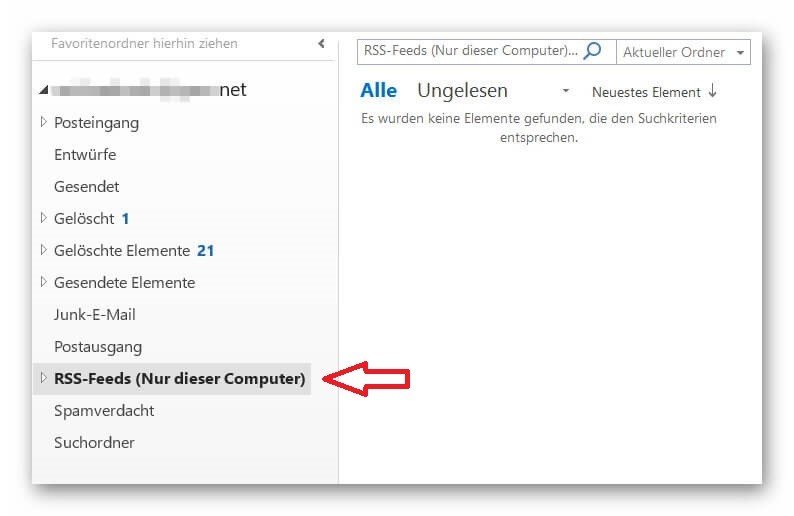
After installing Outlook 2016 and setting up an e-mail address, you will not only see the usual folders such as: Inbox, Outbox, Sent Items, Deleted Items, etc., but also a (non-erasable) folder named: RSS Feeds.
See picture: (click to enlarge)
In order to integrate the RSS feed into your Outlook, you first need the URL of the relevant feed.
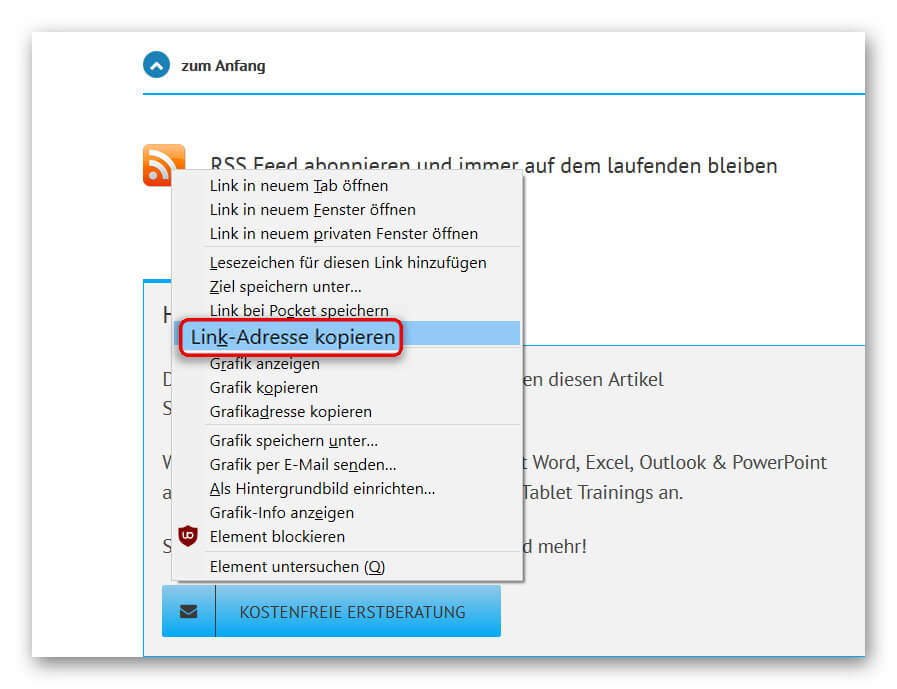
You receive this as follows:
- Right-click on the RSS feed icon and in the context menu “Copy link address”.
- Go to Outlook and locate the RSS feeds folder.
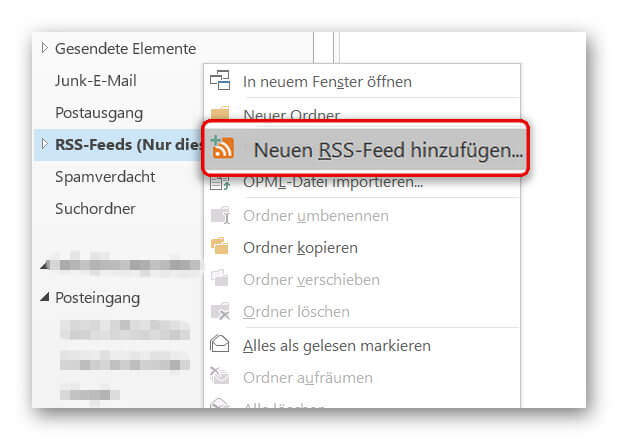
- Right click on the RSS feed folder in Outlook, and there in the context menu: “Add new RSS feed”
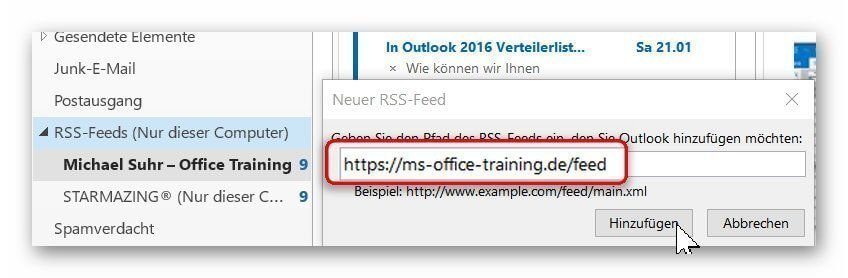
- In the following window, simply insert the link via CTRL + C.
See picture: (click to enlarge)
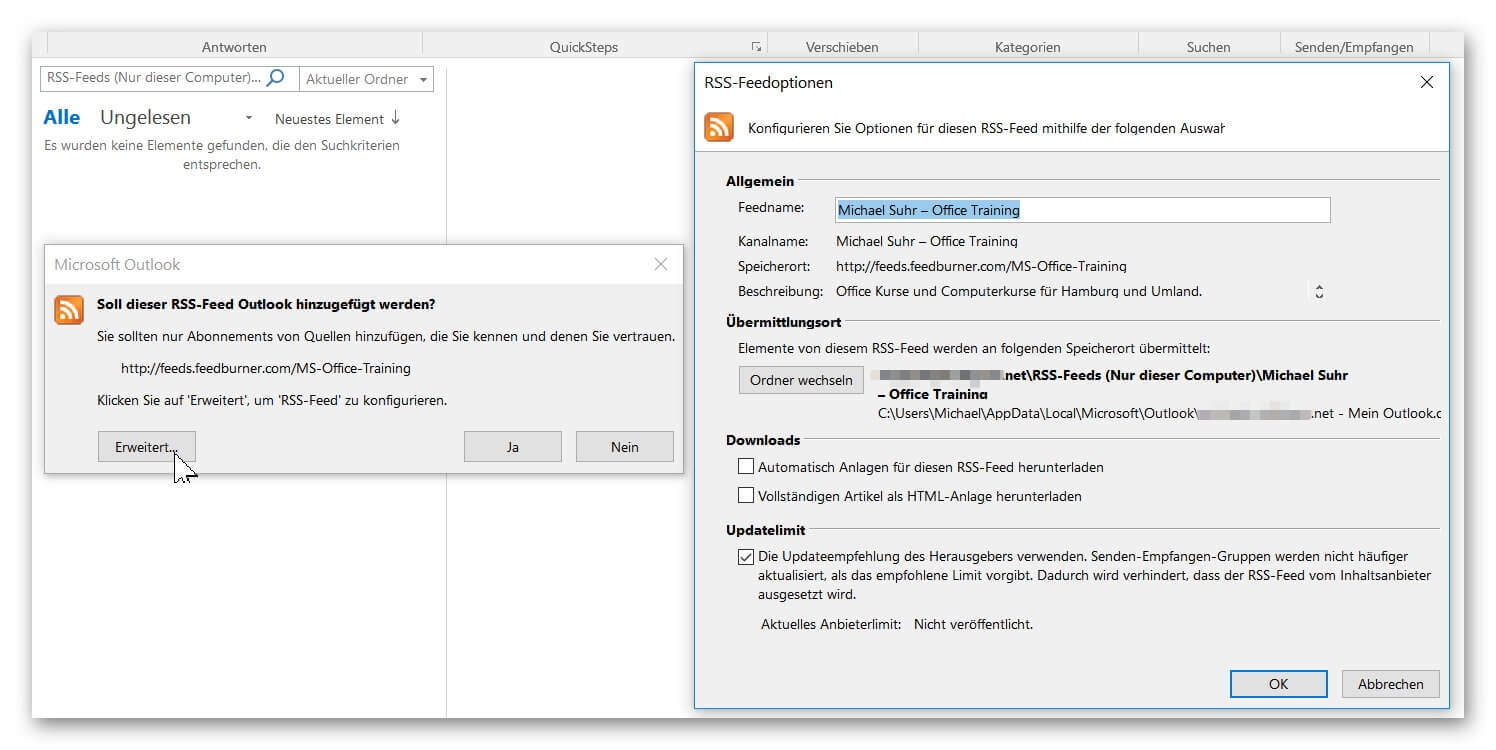
In the following security question you now have the opportunity to customize the RSS feed, and then confirm its receipt.
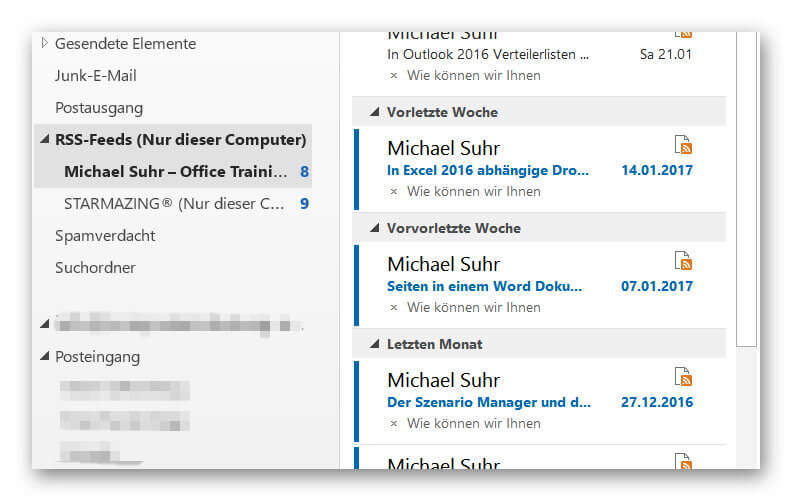
From now on, your new RSS feed will be updated every time your Outlook folders are synced, and you will receive all subscribed news.
See picture: (click to enlarge)
After installing Outlook 2016 and setting up an e-mail address, you will not only see the usual folders such as: Inbox, Outbox, Sent Items, Deleted Items, etc., but also a (non-erasable) folder named: RSS Feeds.
See picture: (click to enlarge)
In order to integrate the RSS feed into your Outlook, you first need the URL of the relevant feed.
You receive this as follows:
- Right-click on the RSS feed icon and in the context menu “Copy link address”.
- Go to Outlook and locate the RSS feeds folder.
- Right click on the RSS feed folder in Outlook, and there in the context menu: “Add new RSS feed”
- In the following window, simply insert the link via CTRL + C.
See picture: (click to enlarge)
In the following security question you now have the opportunity to customize the RSS feed, and then confirm its receipt.
From now on, your new RSS feed will be updated every time your Outlook folders are synced, and you will receive all subscribed news.
See picture: (click to enlarge)
4. Include RSS feed in Mozilla Firefox
4. Include RSS feed in Mozilla Firefox
Of course, you can also receive RSS feeds outside of Outlook as a dynamic bookmark.
In the Mozilla Firefox browser you proceed as follows:
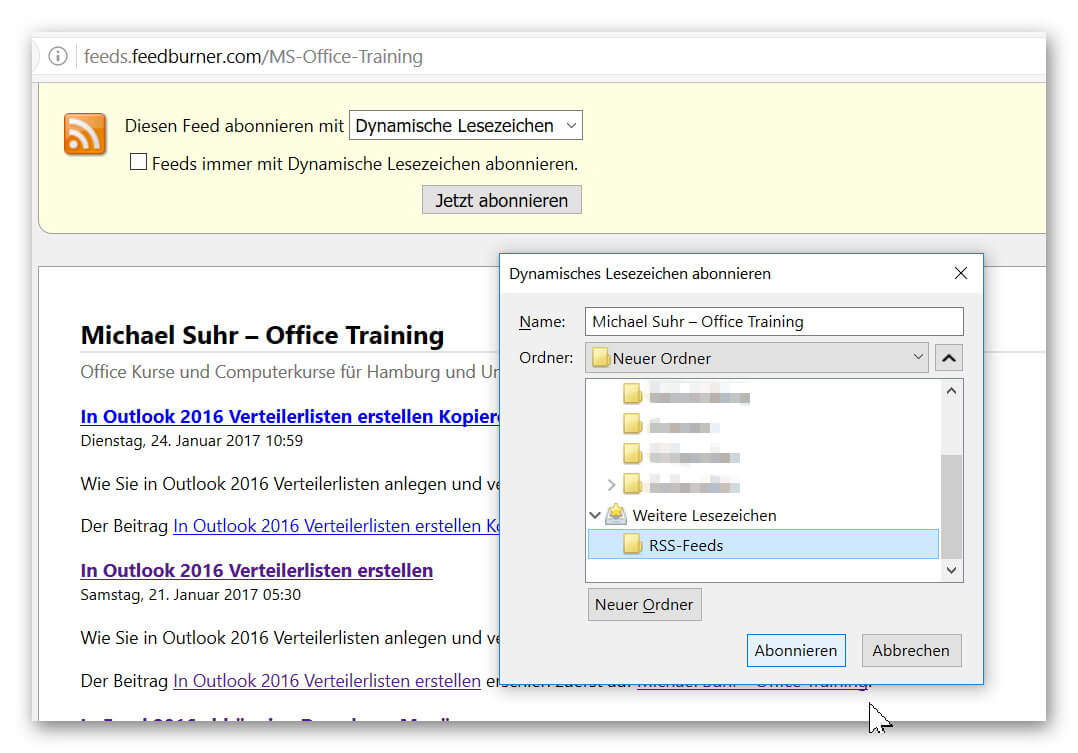
- Left click on the relevant RSS feed.
- In the window that opens, click on “Subscribe now”
- Set a folder in your bookmarks list.
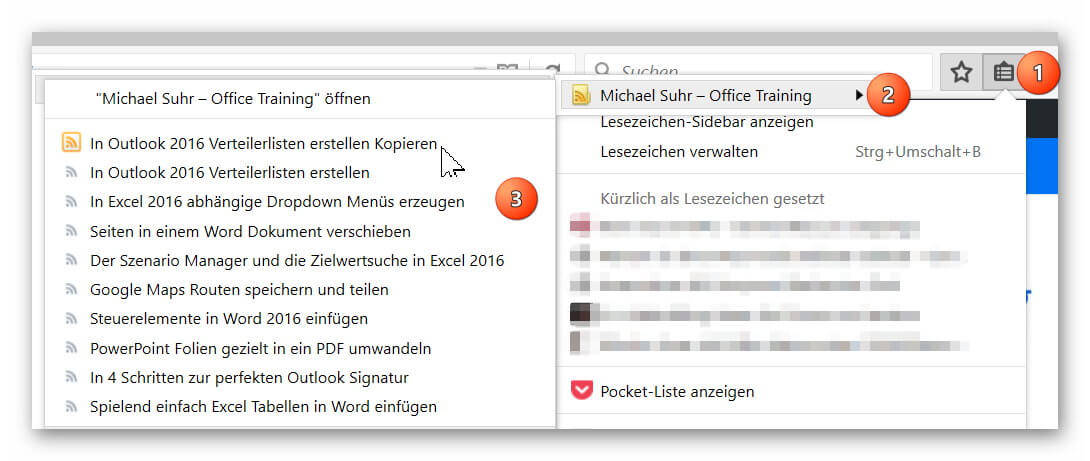
You can now easily see in your bookmarks at any time if there is news on the subscribed page.
See picture: (click to enlarge)
Of course, you can also receive RSS feeds outside of Outlook as a dynamic bookmark.
In the Mozilla Firefox browser you proceed as follows:
- Left click on the relevant RSS feed.
- In the window that opens, click on “Subscribe now”
- Set a folder in your bookmarks list.
You can now easily see in your bookmarks at any time if there is news on the subscribed page.
See picture: (click to enlarge)
5. Include RSS Feed in Microsoft Edge
5. Include RSS Feed in Microsoft Edge
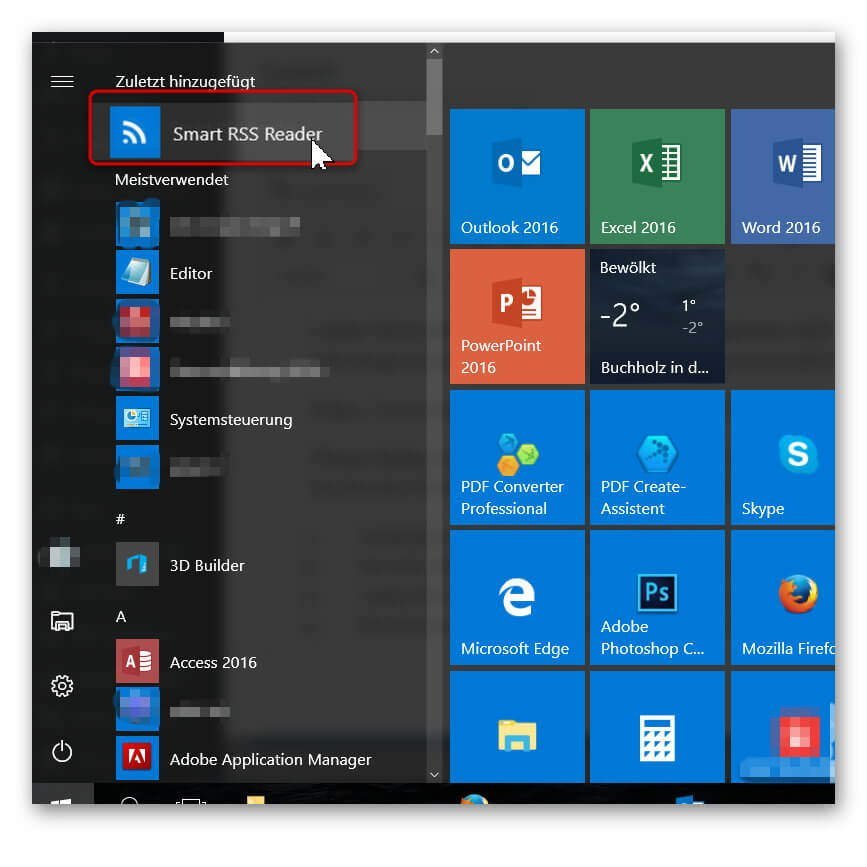
Unfortunately, Microsoft currently does not offer an integrated RSS reader with its Edge Browser.
Of course, you can also receive RSS feeds on Windows by simply downloading a separate RSS reader (for example, from the Microsoft Store):
https://www.microsoft.com/en-us/store/p/smart-rss-reader/9nblggh5x1t7
You will find this later in your program library.
See picture: (click to enlarge)
Unfortunately, Microsoft currently does not offer an integrated RSS reader with its Edge Browser.
Of course, you can also receive RSS feeds on Windows by simply downloading a separate RSS reader (for example, from the Microsoft Store):
https://www.microsoft.com/en-us/store/p/smart-rss-reader/9nblggh5x1t7
You will find this later in your program library.
See picture: (click to enlarge)
6. Include RSS feed in Google Chrome
6. Include RSS feed in Google Chrome
Even in Google Chrome is by nature no RSS reader included, but this is not necessarily a disadvantage.
With its slim base structure, Chrome is one of the fastest browsers that can be easily adapted to individual needs via various extensions.
So you can easily integrate a separate RSS feed reader here.
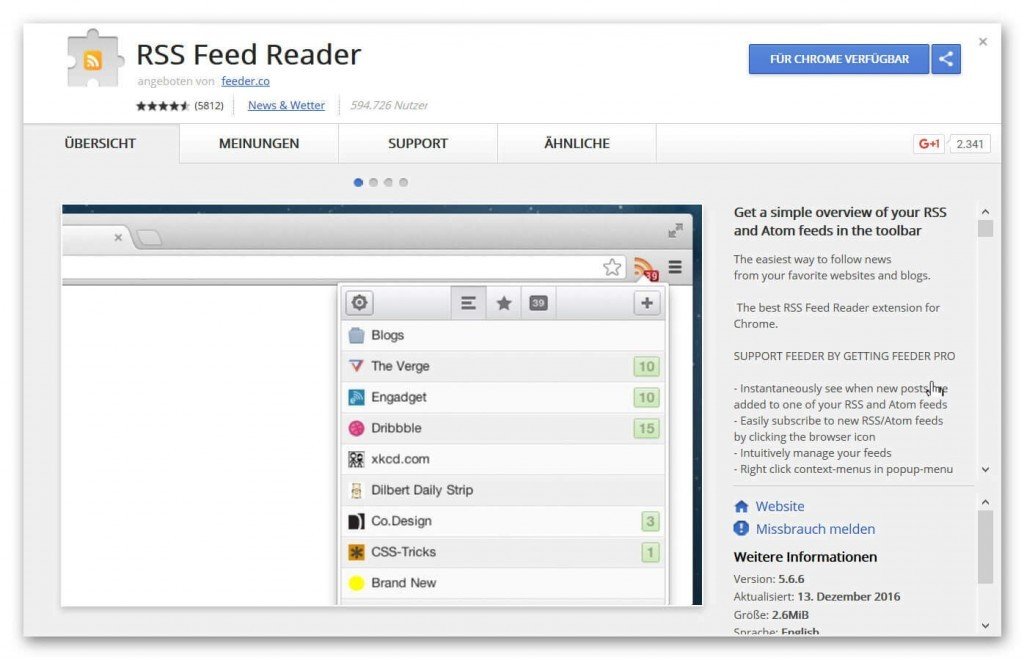
Under the following link you can download it from the official webstore:
https://chrome.google.com/webstore/detail/rss-feed-reader/pnjaodmkngahhkoihejjehlcdlnohgmp
There you have the possibility to receive RSS feeds dynamically via a browser add-on.
See picture: (click to enlarge)

Even in Google Chrome is by nature no RSS reader included, but this is not necessarily a disadvantage.
With its slim base structure, Chrome is one of the fastest browsers that can be easily adapted to individual needs via various extensions.
So you can easily integrate a separate RSS feed reader here.
Under the following link you can download it from the official webstore:
https://chrome.google.com/webstore/detail/rss-feed-reader/pnjaodmkngahhkoihejjehlcdlnohgmp
There you have the possibility to receive RSS feeds dynamically via a browser add-on.
See picture: (click to enlarge)
Popular Posts:

Dynamic ranges in Excel: OFFSET function
The OFFSET function in Excel creates a flexible reference. Instead of fixing =SUM(B5:B7), the function finds the range itself, e.g., for the "last 3 months". Ideal for dynamic charts or dashboards that grow automatically.
Mastering the INDIRECT function in Excel
The INDIRECT function in Excel converts text into a real reference. Instead of manually typing =January!E10, use =INDIRECT(A2 & "!E10"), where A2 contains 'January'. This allows you to easily create dynamic summaries for multiple worksheets.

From assistant to agent: Microsoft’s Copilot
Copilot is growing up: Microsoft's AI is no longer an assistant, but a proactive agent. With "Vision," it sees your Windows desktop; in M365, it analyzes data as a "Researcher"; and in GitHub, it autonomously corrects code. The biggest update yet.
Windows 12: Where is it? The current status in October 2025
Everyone was waiting for Windows 12 in October 2025, but it didn't arrive. Instead, Microsoft is focusing on Windows 11 25H2 and "Copilot+ PC" features. We'll explain: Is Windows 12 canceled, postponed, or is it already available as an AI update for Windows 11?

Blocking websites on Windows using the hosts file
Want to block unwanted websites in Windows? You can do it without extra software using the hosts file. We'll show you how to edit the file as an administrator and redirect domains like example.de to 127.0.0.1. This will block them immediately in all browsers.
The “Zero Inbox” method with Outlook: How to permanently get your mailbox under control.
Caught red-handed? Your Outlook inbox has 1000+ emails? That's pure stress. Stop the email deluge with the "Zero Inbox" method. We'll show you how to clean up your inbox and regain control using Quick Steps and rules.
Offers 2024: Word & Excel Templates











Popular Posts:
Dynamic ranges in Excel: OFFSET function
The OFFSET function in Excel creates a flexible reference. Instead of fixing =SUM(B5:B7), the function finds the range itself, e.g., for the "last 3 months". Ideal for dynamic charts or dashboards that grow automatically.
Mastering the INDIRECT function in Excel
The INDIRECT function in Excel converts text into a real reference. Instead of manually typing =January!E10, use =INDIRECT(A2 & "!E10"), where A2 contains 'January'. This allows you to easily create dynamic summaries for multiple worksheets.
From assistant to agent: Microsoft’s Copilot
Copilot is growing up: Microsoft's AI is no longer an assistant, but a proactive agent. With "Vision," it sees your Windows desktop; in M365, it analyzes data as a "Researcher"; and in GitHub, it autonomously corrects code. The biggest update yet.
Windows 12: Where is it? The current status in October 2025
Everyone was waiting for Windows 12 in October 2025, but it didn't arrive. Instead, Microsoft is focusing on Windows 11 25H2 and "Copilot+ PC" features. We'll explain: Is Windows 12 canceled, postponed, or is it already available as an AI update for Windows 11?
Blocking websites on Windows using the hosts file
Want to block unwanted websites in Windows? You can do it without extra software using the hosts file. We'll show you how to edit the file as an administrator and redirect domains like example.de to 127.0.0.1. This will block them immediately in all browsers.
The “Zero Inbox” method with Outlook: How to permanently get your mailbox under control.
Caught red-handed? Your Outlook inbox has 1000+ emails? That's pure stress. Stop the email deluge with the "Zero Inbox" method. We'll show you how to clean up your inbox and regain control using Quick Steps and rules.
Offers 2024: Word & Excel Templates