Excel Tutorial: How to quickly and safely remove duplicates


Anyone who works with lists knows the problem: email distribution lists, customer lists, or order data are often “polluted” and contain duplicate entries. These duplicates distort analyses and create chaos.
Fortunately, Excel has a built-in function that solves this problem in seconds.

A practical example: An order list
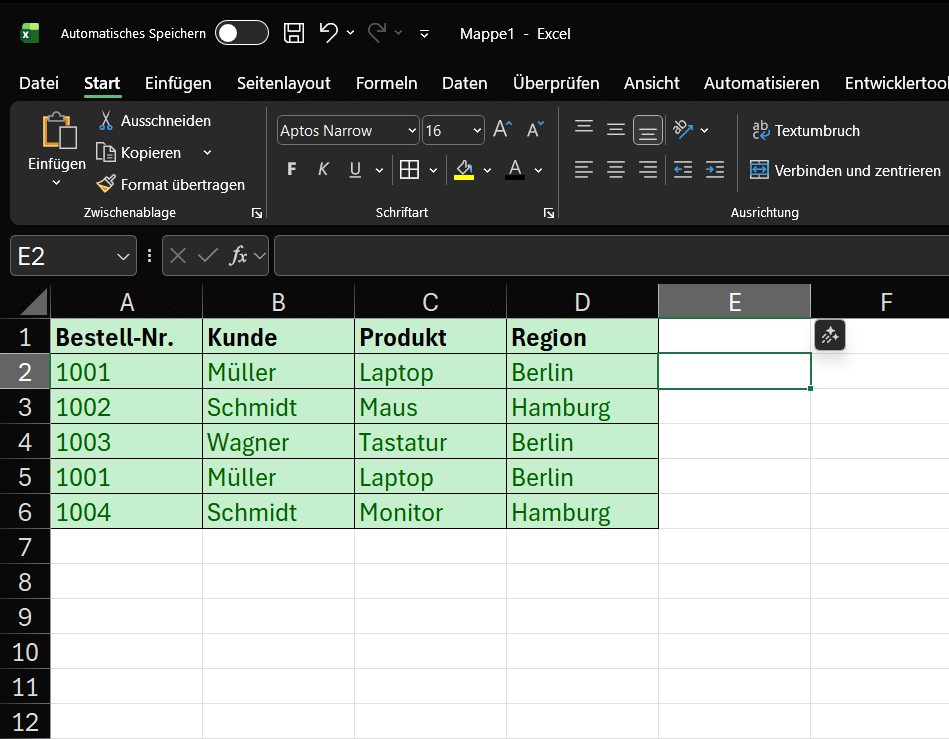
Imagine we have the following table with order data. We immediately see that some entries are repeated.
Our example data (range A1:D6):
Goals:
- Goal A: We want to remove exactly identical rows (row 5 is a duplicate of row 2).
- Goal B: We want to obtain a unique list of all customers (Müller, Schmidt, Wagner).
Step-by-step instructions: How to remove duplicates
The “Remove Duplicates” function permanently deletes data.
⚠️ Important Security Note: Before you begin, always copy your worksheet or create a backup of your file. This way, if you make a mistake, you can revert to the original.
Step 1: Select the Data Range
- Click in your data table. Excel usually detects the contiguous range automatically. However, the safest method is to manually select the entire range (in our example, A1:D6) with your mouse.
Step 2: Finding the Function
- Go to the “Data” tab in the ribbon.
- Find the “Data Tools” group.
- Click the “Remove Duplicates” icon.
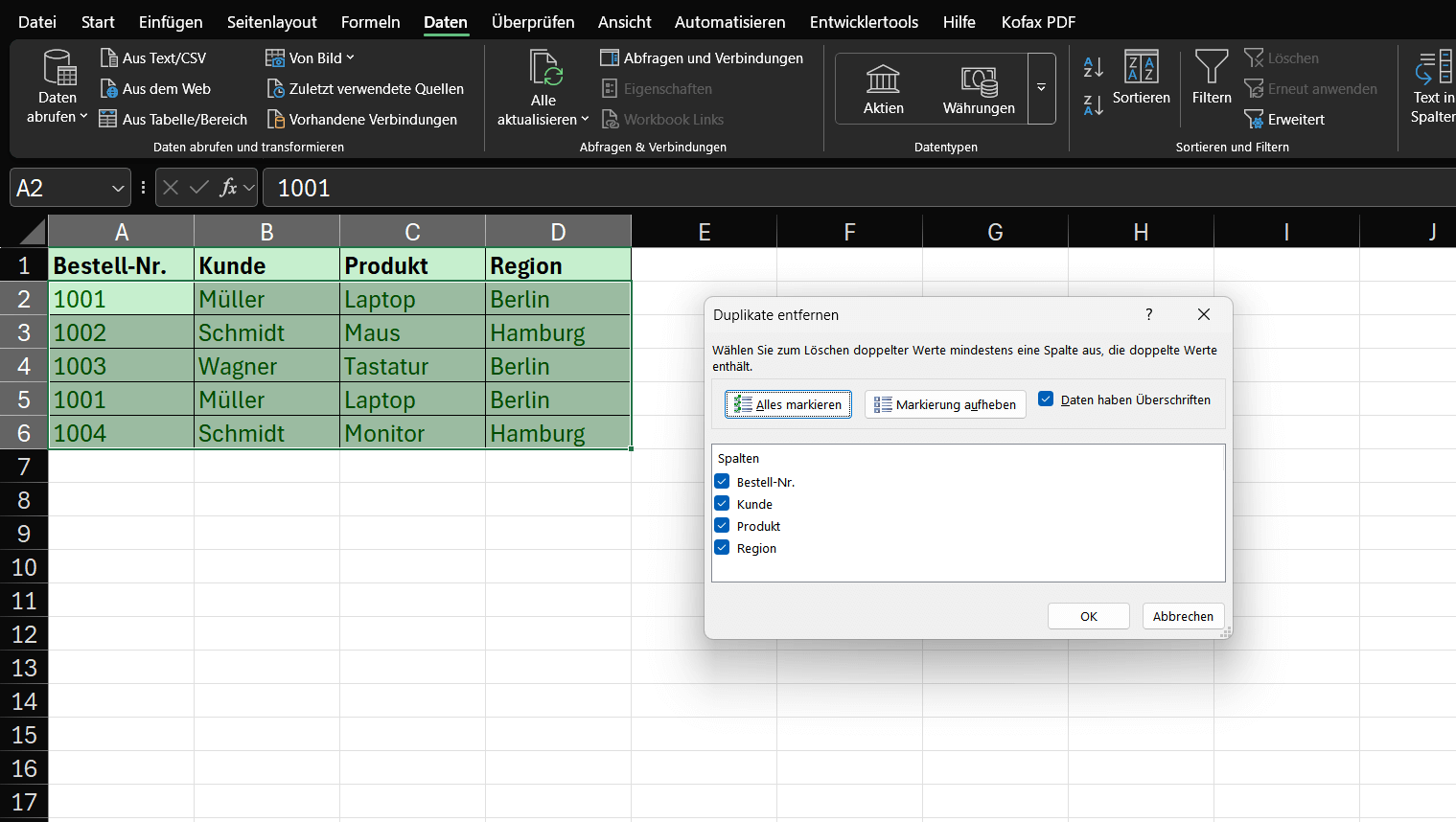
Step 3: The Dialog Box (The Most Important Step)
- A small window will open. This is the control center for the deletion process.
- “Data has headers”: Since our table has headers in row 1 (Order No., Customer, etc.), be sure to leave this checkbox selected. Excel will then ignore this row when deleting.
- Columns: Here, Excel lists all the columns from your selection.
… This is where Excel decides what it considers a “duplicate”.
The two scenarios (Goal A vs. Goal B)
Scenario A: Deleting Exactly Identical Rows
Goal: We want to delete only row 5, as it is identical to row 2 in every column.
- Open “Remove Duplicates” (as described in steps 1 & 2).
- In the dialog box (step 3), ensure that ALL columns (Order No., Customer, Product, Region) are checked.
- Click “OK”.
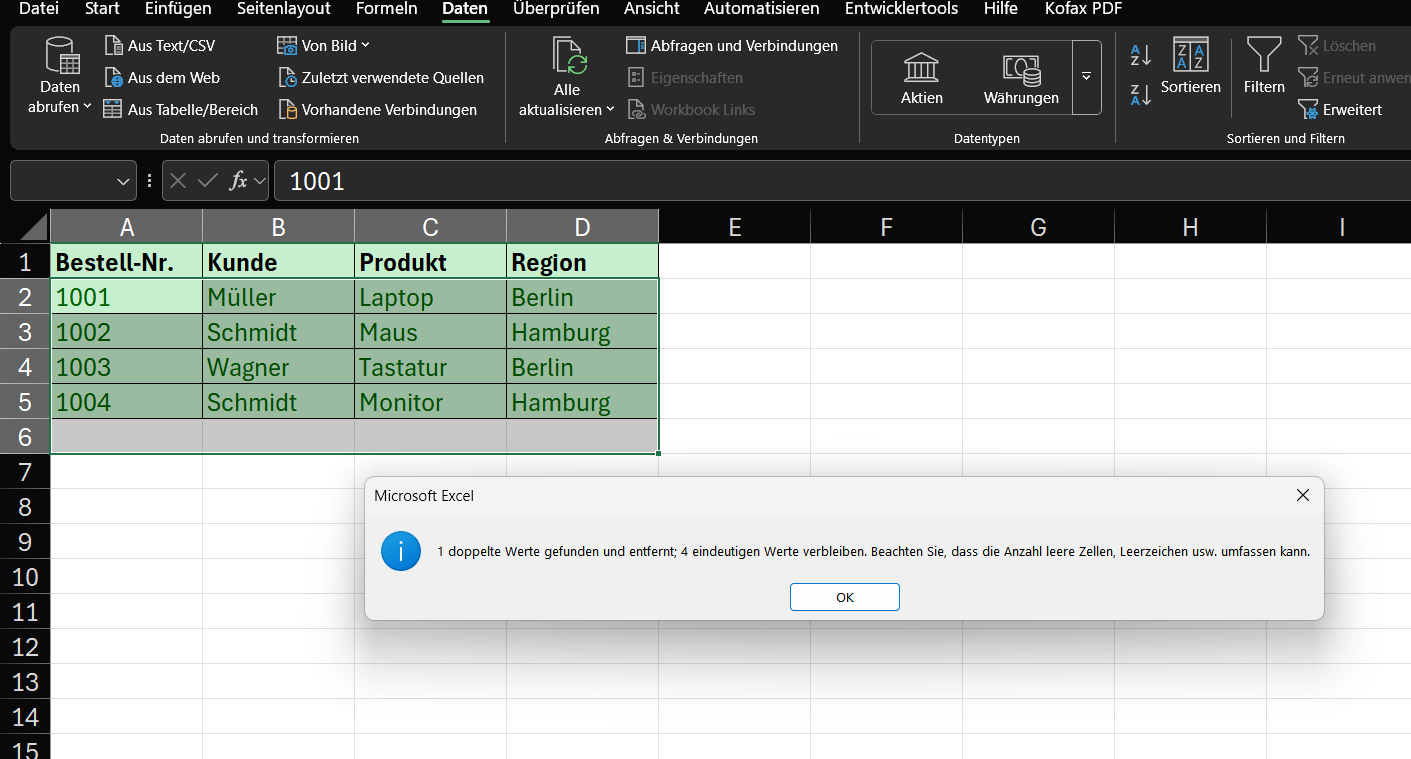
Result: Excel compares entire rows. Since only row 5 is an exact match for row 2, it is deleted. Excel reports: “1 duplicate found and removed; 4 unique values remain.”
Note: Row 6 (Schmidt, Monitor) is NOT deleted, as it differs (in the product field) from row 3 (Schmidt, Mouse).
Scenario B: Creating a unique list based on ONE column
Goal: We are not interested in the entire table. We only want a unique list of all customers (Müller, Schmidt, Wagner).
- Open “Remove Duplicates”.
- In the dialog box, first click “Deselect” to remove all checkmarks.
- Check only the column you want to check for uniqueness – in our case, “Customer”.
- Click “OK”.
Result: Excel only looks in column B.
- Row 2 “Müller” is kept.
- Row 3 “Schmidt” is kept.
- Row 4 “Wagner” is kept.
- Row 5 “Müller” (duplicate!) is deleted.
- Row 6 “Schmidt” (duplicate!) is deleted.
- Excel reports: “2 duplicates Found and removed; 3 unique values remain.
💡What happens: Excel always keeps the first entry it finds in the list and deletes all subsequent duplicates (based on the selected columns).
Summary (Pro tips)
Make a backup: Always copy the worksheet first!
- All columns = Deletes only rows that are completely identical.
- One column = Creates a unique list based on this one column (e.g., listing all customers only once).
Caution: This function deletes the entire row. If you select only “Customer” in Scenario B, the associated order data (laptop, mouse, etc.) will also be deleted. If you don’t want this, copy the customer column to a separate area first and apply the function only there.

Beliebte Beiträge

Microsoft Office 2021 – Is the switch worth it?
Since October 5, 2021, the time has finally come. After Office 2019, Office 2021 is now at the start. We took a closer look at the new Office version and found out whether the switch is worth it.

Excel Scenario manager and target value search
How you can use the scenario manager and target value search in Excel 2016/2019 to present complex issues in a space-saving and clear way.

Insert controls and form fields in Word
With Microsoft Word you can not only comfortably create letters, lists and articles with tables of contents, but also go one step further, and Set up your own forms using controls.

Apply nested functions in Excel
Nested functions in Excel offer the possibility to combine several arguments with each other or to exclude conditions. We explain how it works.

Office 2021 – Everything you need to know about price, versions and scope
Shortly before the release, Microsoft announced the prices and scope for the new Office 2021. We are a little amazed at what is coming.

Insert Excel spreadsheets into Word Documents
So you can easily insert Excel spreadsheets into Word and link them together to get a dynamic document.
Offers 2024: Word & Excel Templates