Dynamic ranges in Excel: OFFSET function


If you think of INDIRECT as a translator (text to reference), then think of OFFSET as a GPS system for your cells.
This function is one of the most flexible tools in Excel for creating dynamic ranges—that is, ranges that can change their size or position based on other calculations. Instead of referencing a fixed range like A1:A10, you tell Excel: “Start at A1, go down 3 rows, 2 columns to the right, and from there give me a range that is 5 rows high and 1 column wide.”
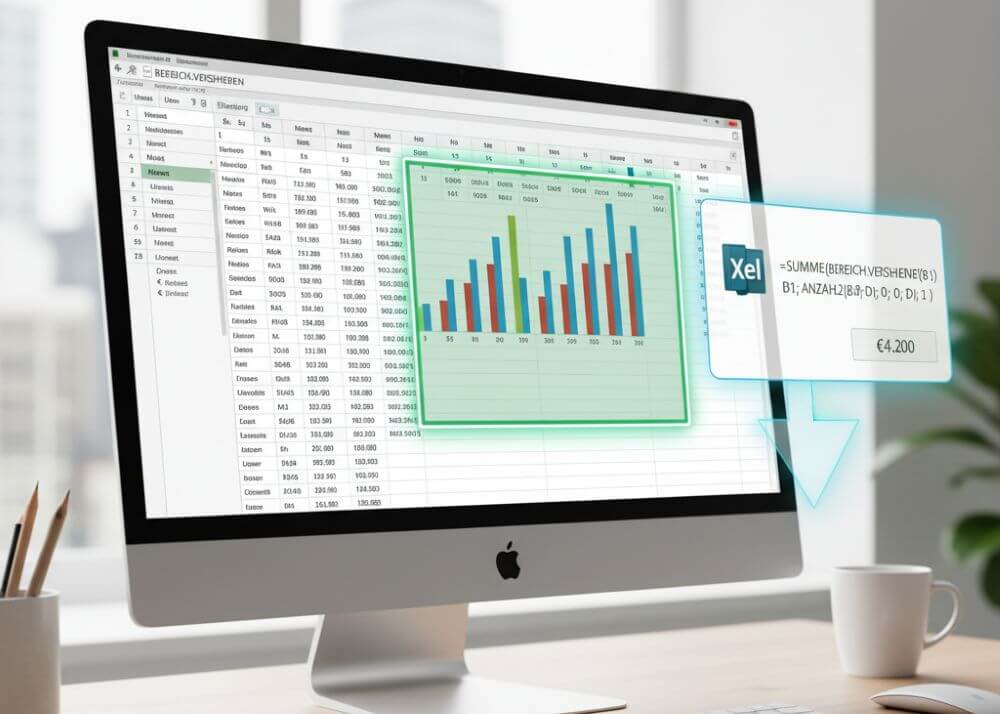
What does OFFSET do?
The function returns a cell reference that is “offset” from a starting cell (or range). It doesn’t move any cells or data; it simply creates a new reference frame that you can then use in other functions (such as SUM, AVERAGE, or in charts).
The Syntax Broken Down
The syntax is more extensive than that of INDIRECT, but each component has a clear purpose:
=OFFSET(reference, rows, columns, [height], [width])
- Reference (Required): Your “anchor” or starting point. The “journey” begins from this cell. (e.g., A1)
- Rows (Required): How many rows you want to move down (positive number) or up (negative number) from the reference.
- Columns (Required): How many columns you want to move to the right (positive number) or left (negative number) from the reference.
- [Height] (Optional): Defines how many rows the new range should have. If omitted, the new range will have the same height as the reference.
- [Width] (Optional): Defines how many columns the new range should have. If omitted, the new range will have the same width as the reference.
Practical example: Calculating the sum of the “last N months”
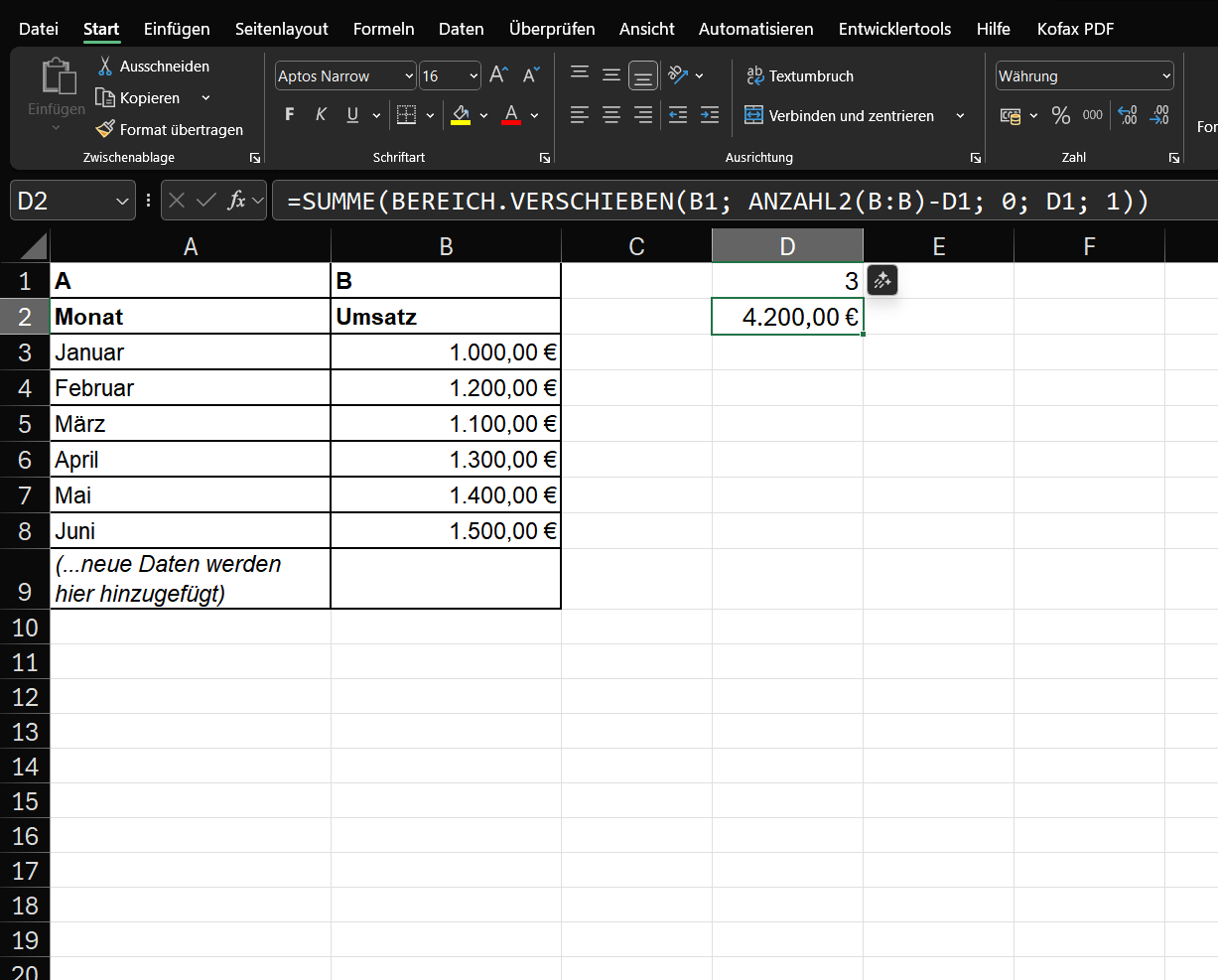
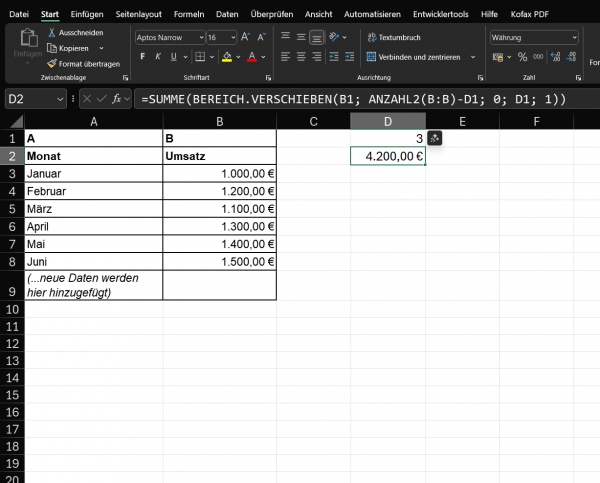
You could manually enter =SUM(B5:B7). But if you add “July,” you would have to change the formula to =SUM(B6:B8). That’s tedious.
The dynamic solution with OFFSET:
- We create a formula that automatically finds the range to be summed.
- In one cell (e.g., D1), you enter how many months you want to consider: 3
- In another cell (e.g., D2), you enter the OFFSET formula, wrapped in a SUM function:
- =SUM(OFFSET(B1, COUNTA(B:B)-D1, 0, D1, 1))
What’s happening here? Let’s break it down:
- OFFSET(…): This is the core.
- B1: Our reference. We start at the heading “Sales”.
- COUNTA(B:B)-D1: The row argument.
- COUNTA(B:B) counts all non-empty cells in column B. In June, that’s 7 (heading + 6 months).
- D1 is 3.
So the calculation is: 7 – 3 = 4.
- Excel is instructed: “Go down 4 rows from the reference (B1).” (It lands at cell B5, “April”).
- 0: The column argument. “Go 0 columns left or right.” (Stays in column B).
- D1: The height argument. “Create a range from B5 that is as tall as the value in D1 (i.e., 3 rows).”
- 1: The width argument. “The range should be 1 column wide.”
- Result: The formula dynamically creates the reference B5:B7. SUM adds this range, and the result is €4,200 (€1,300 + €1,400 + €1,500).
The magic moment: Next month, add “July” with €1,600 in row 8.
The magic moment:
- COUNTA(B:B) is now 8.
- The row argument becomes 8 – 3 = 5.
- The formula starts at B1, goes down 5 rows (to B6, “May”), and creates a range 3 rows high (B6:B8).
- The sum now automatically calculates B6:B8 (May, June, July). You didn’t have to touch the formula!
Important instructions
Like INDIRECT, OFFSET is a volatile function.
This means:
- Performance: The formula is recalculated with every single change in your workbook—even if you type something in a completely different worksheet.
- Performance problem: If you use thousands of OFFSET formulas, your Excel file can become noticeably slower.
Conclusion and modern alternatives
OFFSET is incredibly powerful for creating dynamic ranges, especially for charts that are meant to “grow” with their data (by using the formula in a named range).
However, there are often better, non-volatile alternatives available today:
- Excel tables (Ctrl+T): The best alternative. If you format your data as a table, formulas and charts that reference it will automatically expand when you add new data. This often makes OFFSET unnecessary for this purpose.INDEX: A combination of INDEX and COUNTA can often achieve the same results as OFFSET, but is not volatile and therefore faster.
Use OFFSET when you need ultimate flexibility in moving and resizing a reference, but be aware of the performance cost.

Beliebte Beiträge

The best tips for Microsoft Word
Sparen Sie mit diesen Tipps für Microsoft Word viel Zeit und Nerven. Arbeiten Sie effektiver mit der beliebtesten Textverarbeitungssoftware.

Why is my Excel File so big?
Solve the problem with Excel spreadsheets that take up several megabytes of space without any apparent reason.

The most important tips for Excel
These 10 tips for Microsoft Excel 2016/2019 with questions that many users ask every day are guaranteed to help you and save a lot of time.

More fonts in Word through Google Fonts
You can find out how to expand the font selection in Word with just a few steps and above all free in our article.

Move pages and insert new ones in word
You probably also know the situation that you are sitting on a very long document, and in the middle of it falls on the actually between page 2 and page 3 still a page in between must.
The Sreference and the Wreference in Excel
Microsoft Excel: How to get S-reference and W-reference purposefully data out of a source.
Offers 2024: Word & Excel Templates