Create vCard with Business Photo in Outlook


The end of the thick wallets is reached …
Because although business cards in paper form continue to have their legitimacy, it has become so confusing in the past in our wallet when we have again put the next card in it.
Whereas digital business cards used to be used primarily in e-mail programs such as Outlook, today they are increasingly being sent via e-mail, SMS or messenger services such as WhatsApp to smartphones and other devices running on Android or iOS.
The big advantage of digital business cards in vcf. File format is the amount of information that can be stored there. So you rarely find business cards in paper format which also contain a personal picture, which is very important for the recognition value!
You can find out how to create, save and send your digital business card in Microsoft Outlook in our article.

Create vCard with Business Photo in Outlook
The end of the thick wallets is reached …
Because although business cards in paper form continue to have their legitimacy, it has become so confusing in the past in our wallet when we have again put the next card in it.
Whereas digital business cards used to be used primarily in e-mail programs such as Outlook, today they are increasingly being sent via e-mail, SMS or messenger services such as WhatsApp to smartphones and other devices running on Android or iOS.
The big advantage of digital business cards in vcf. File format is the amount of information that can be stored there. So you rarely find business cards in paper format which also contain a personal picture, which is very important for the recognition value!
You can find out how to create, save and send your digital business card in Microsoft Outlook in our article.
1. Create a new business card in Outlook
1. Create a new business card in Outlook
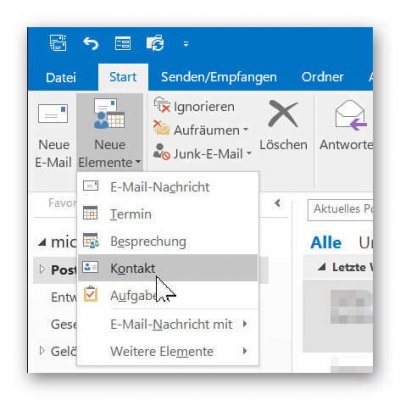
To create a new digital business card in Outlook, first go to “New Items” – “Contact Us”.
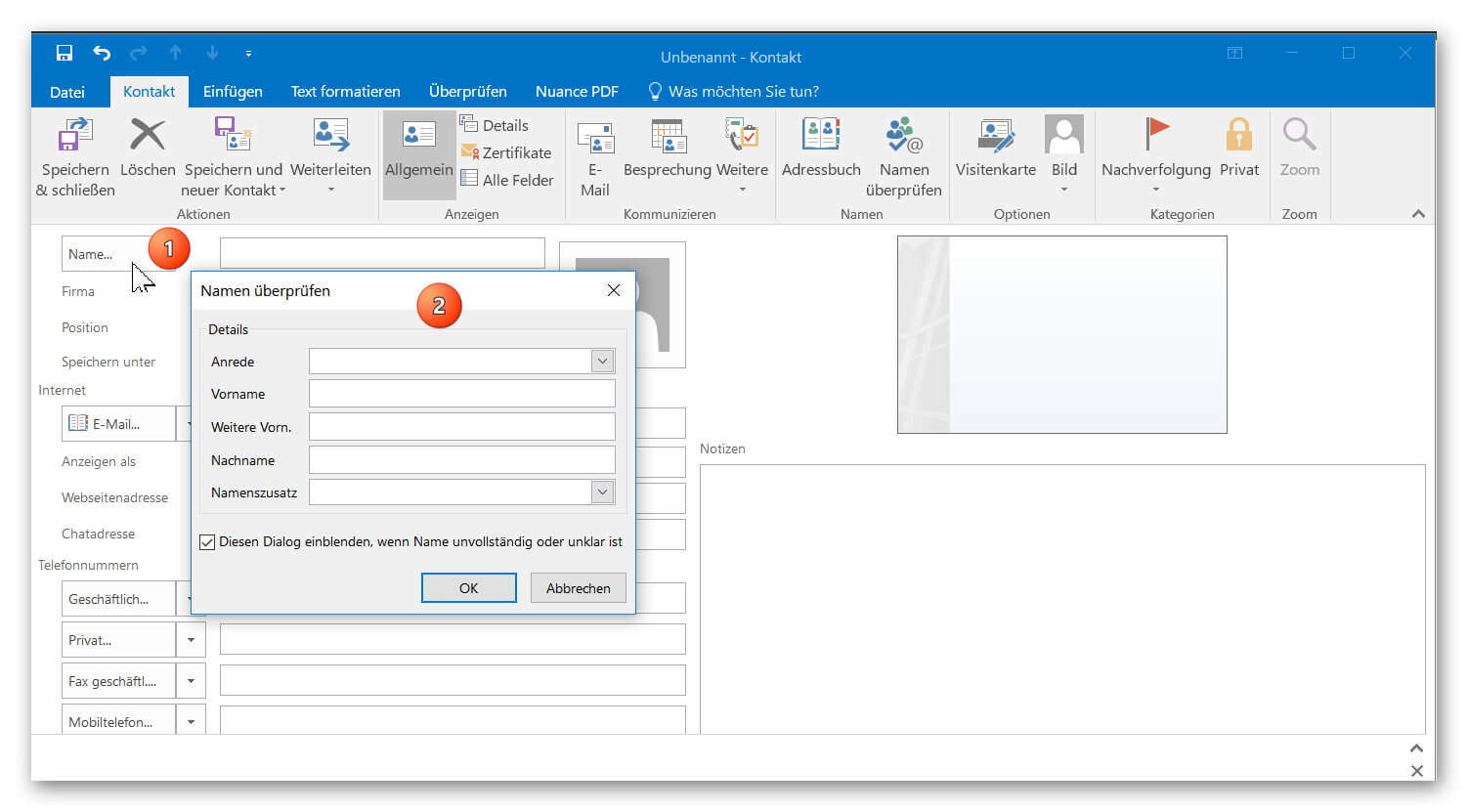
There you enter all contact information such as name, telephone, e-mail, address, etc. in the corresponding form fields.
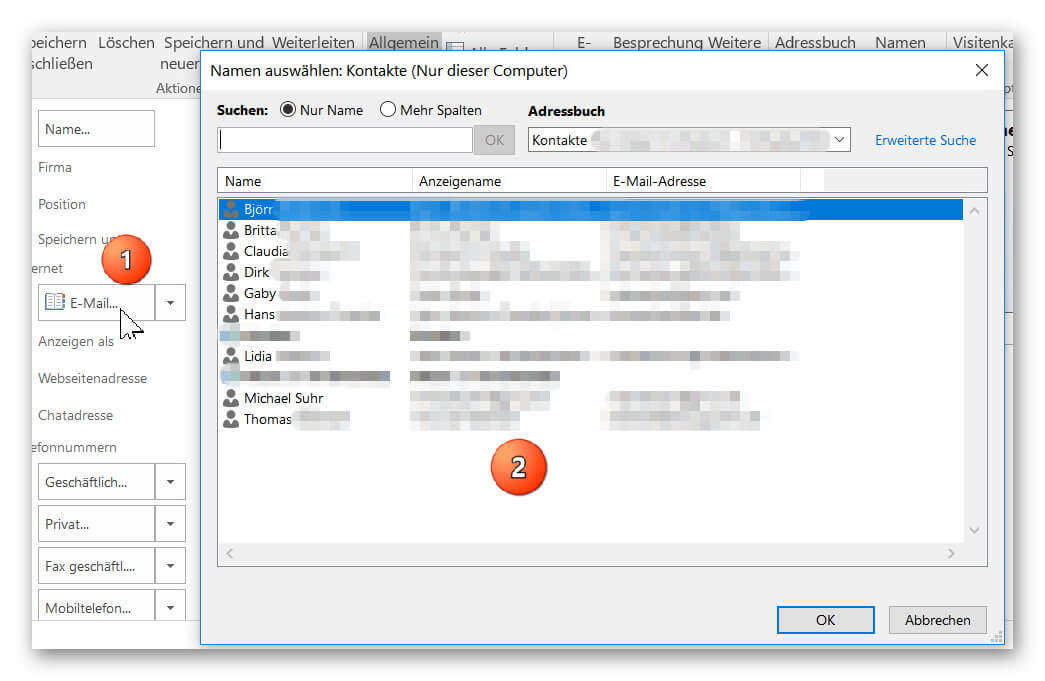
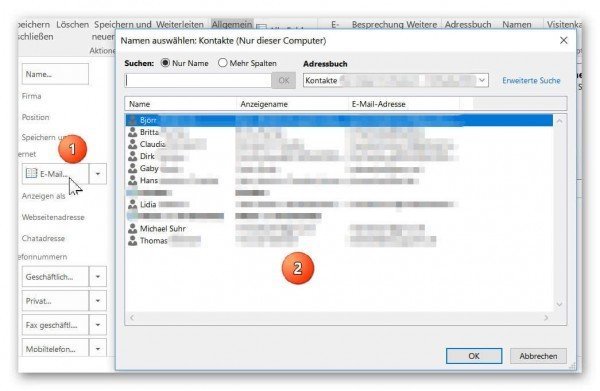
Optionally, you can also select and edit an already existing contact from your address list.
For telephone numbers and e-mail addresses, you can also enter multiple values.
Although not all data is immediately visible in the later view of the preview, they are completely available in Outlook, Android and iOS smartphones.
See picture: (click to enlarge)
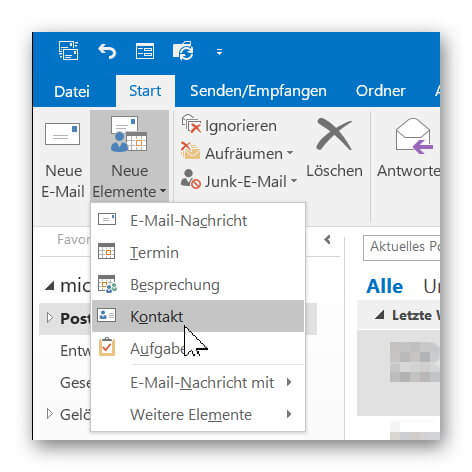
To create a new digital business card in Outlook, first go to “New Items” – “Contact Us”.
There you enter all contact information such as name, telephone, e-mail, address, etc. in the corresponding form fields.
Optionally, you can also select and edit an already existing contact from your address list.
For telephone numbers and e-mail addresses, you can also enter multiple values.
Although not all data is immediately visible in the later view of the preview, they are completely available in Outlook, Android and iOS smartphones.
See picture:
2. Insert business photo into your vCard
2. Insert business photo into your vCard
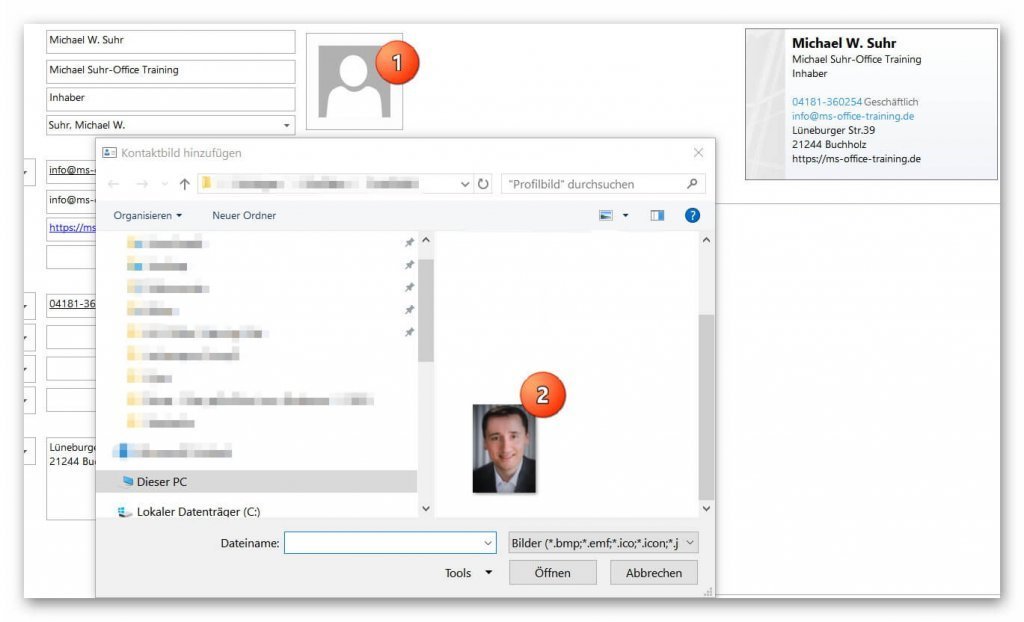
Now, when you add a picture to your digital business card, you should think twice about the following:
1. For what purpose will I use the business card?
“A very conceivable use could be your personal business vCard for business contacts,
Since these are now very often used on different devices, is special here
to pay attention to the quality and the general external effect.
If your current portrait photo looks more like a standard application photo than a business photo, we recommend professional career photo editing.
The advantage: It does not need a new photo shoot.
A picture upload with our Partner Starmazing.de is enough, and you get business photos, like after an exclusive photo shoot in a modern business building.

2. Your image will not be displayed the same size everywhere.
“What does this mean if you call someone who has received your contact information via your vCard, your profile picture will also be displayed on a larger screen to fill the screen.
So it’s not just quality and visibility that have to be chosen, but also the right format. Here, too, a professional picture agency can be a sensible investment.
See picture: (click to enlarge)

Now, when you add a picture to your digital business card, you should think twice about the following:
1. For what purpose will I use the business card?
“A very conceivable use could be your personal business vCard for business contacts,
Since these are now very often used on different devices, is special here
to pay attention to the quality and the general external effect.
If your current portrait photo looks more like a standard application photo than a business photo, we recommend professional career photo editing.
The advantage: It does not need a new photo shoot.
A picture upload with our Partner Starmazing.de is enough, and you get business photos, like after an exclusive photo shoot in a modern business building.
2. Your image will not be displayed the same size everywhere.
“What does this mean if you call someone who has received your contact information via your vCard, your profile picture will also be displayed on a larger screen to fill the screen.
So it’s not just quality and visibility that have to be chosen, but also the right format. Here, too, a professional picture agency can be a sensible investment.
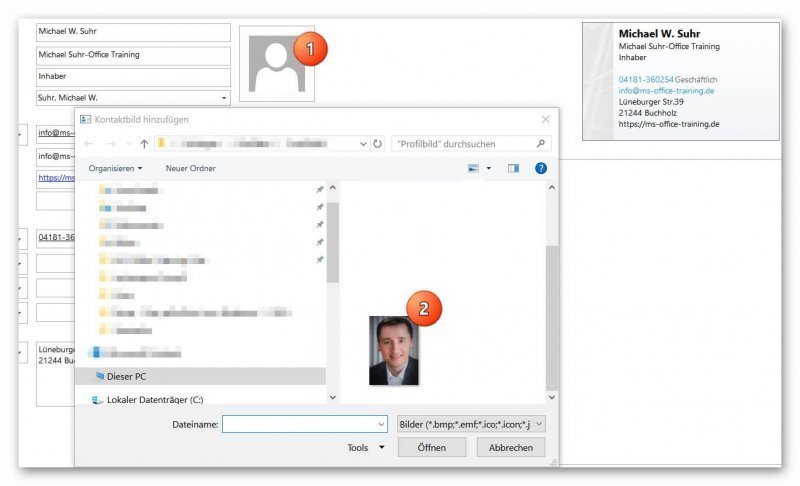
See picture: (click to enlarge)
3. Edit and customize vCard in Outlook
3. Edit and customize vCard in Outlook
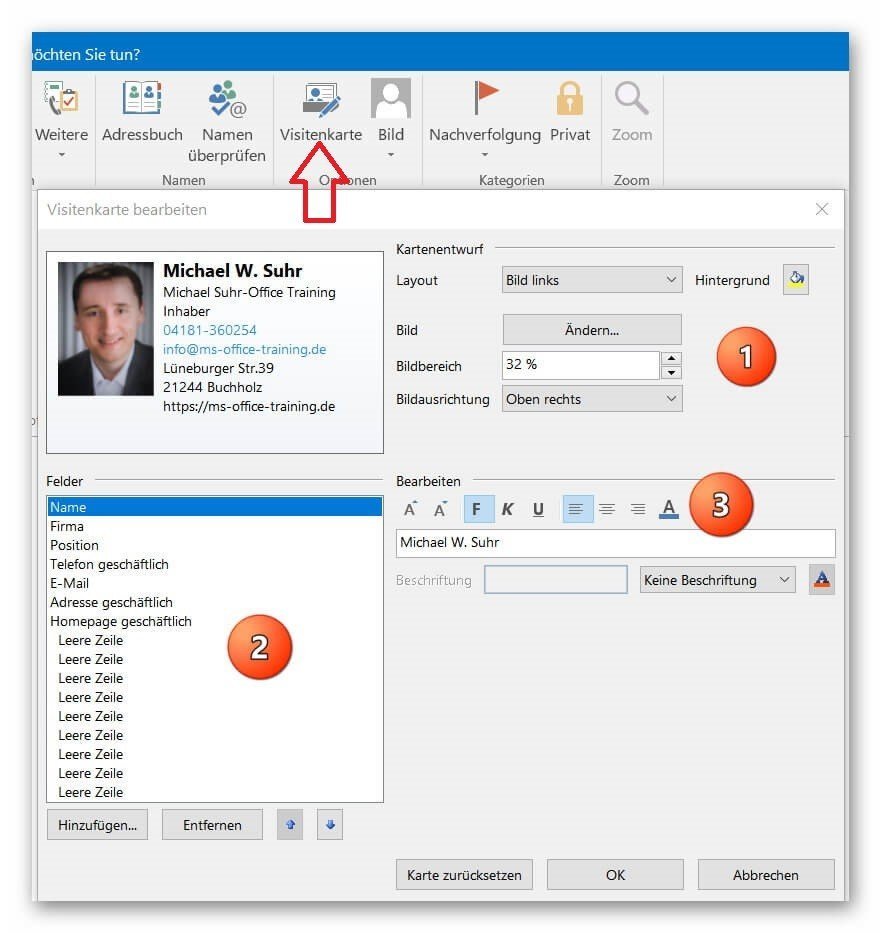
After we have entered our details and inserted our profile picture into the vCard, we now turn to the layout of our digital business card.
To do this, click on: “Edit business card”, which opens a window with a preview of the current layout.
Here you can change the position, size, background and text color of the text and image, as well as the fields that are displayed in the main view, or adjust blank lines.
When you have made all adjustments, click either “Save and Close” or “Save and New Contact” to add more contacts.
See picture: (click to enlarge)
After we have entered our details and inserted our profile picture into the vCard, we now turn to the layout of our digital business card.
To do this, click on: “Edit business card”, which opens a window with a preview of the current layout.
Here you can change the position, size, background and text color of the text and image, as well as the fields that are displayed in the main view, or adjust blank lines.
When you have made all adjustments, click either “Save and Close” or “Save and New Contact” to add more contacts.
See picture: (click to enlarge)
4. vCard as vcf. Send file by e-mail
4. vCard as vcf. Send file by e-mail
Now your business card is ready to be shipped.
Receivers in this vCard will now have all previously set contact details ready at all times when your card is opened.
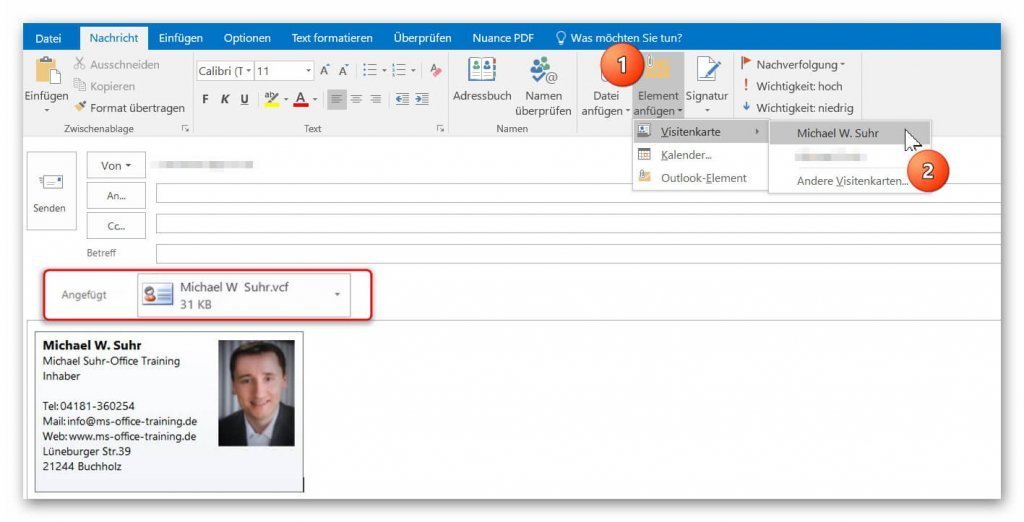
In Outlook you can integrate your card as follows:
- In a new e-mail go to: “Attach item” – “Business Card” and select there by quick selection, or from your contact list.
This is then inserted as an attachment with all the contact data contained, as well as an image file with the main contact information in the signature of your e-mail.
If you do not want your vCard in the signature, you can simply mark the image and remove it. The attached business card remains untouched.
See picture: (click to enlarge)
Now your business card is ready to be shipped.
Receivers in this vCard will now have all previously set contact details ready at all times when your card is opened.
In Outlook you can integrate your card as follows:
- In a new e-mail go to: “Attach item” – “Business Card” and select there by quick selection, or from your contact list.
This is then inserted as an attachment with all the contact data contained, as well as an image file with the main contact information in the signature of your e-mail.
If you do not want your vCard in the signature, you can simply mark the image and remove it. The attached business card remains untouched.
See picture: (click to enlarge)
5. Save vCard as vcf file in Outlook
5. Save vCard as vcf file in Outlook
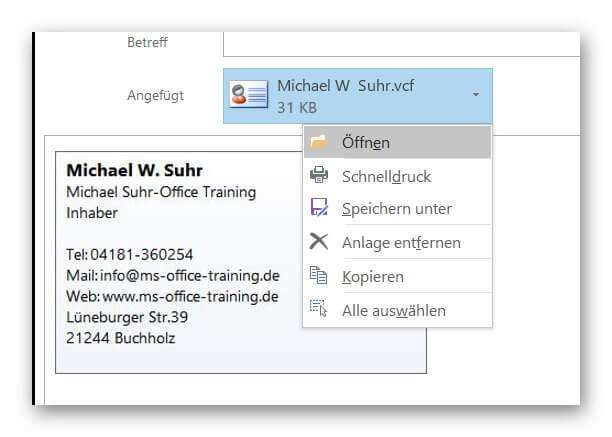
If you receive an e-mail with a vCard attached, you can also save it conveniently, saving yourself the hassle of having to manually create all of the sender’s contact information.
To do this, simply click on “open” in the field of the attached vCard, which will open it completely with all the information contained in Outlook.
Here you have the opportunity to further hints, or to adjust further information, and then save as a contact.
See picture: (click to enlarge)
If you receive an e-mail with a vCard attached, you can also save it conveniently, saving yourself the hassle of having to manually create all of the sender’s contact information.
To do this, simply click on “open” in the field of the attached vCard, which will open it completely with all the information contained in Outlook.
Here you have the opportunity to further hints, or to adjust further information, and then save as a contact.
See picture: (click to enlarge)
6. Save vCard as vcf file in your smartphone
6. Save vCard as vcf file in your smartphone
Regardless of whether you receive a vCard by e-mail, WhatsApp message, or MMS, both Android and iOS devices can easily read them from home and include them in your contact list.
At the reception by e-mail:
- Download the e-mail completely (settings-dependent).
- Open the vcf. File in the attachment.
Then select in which of your address books you want to save the contact.
(Locally on the device, or in one of your online e-mail accounts)
When receiving via WhatsApp or MMS, repeat steps 2 and 3 directly.
After saving the new contact via vCard, you will have the image promptly and all the other information contained in the business card ready on your device.
In addition, you will immediately see the image of the caller when making a call.
See picture: (click to enlarge)
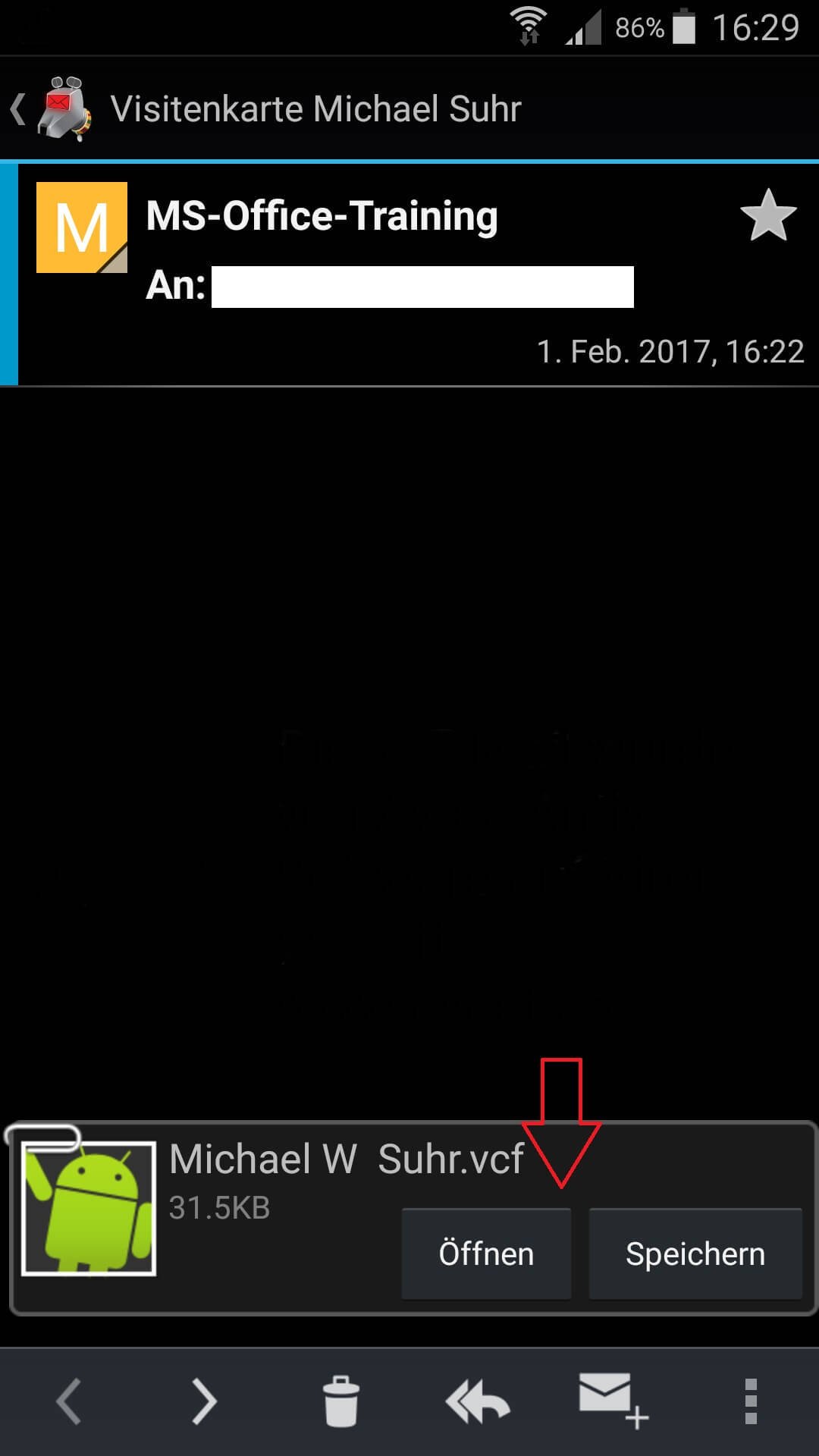
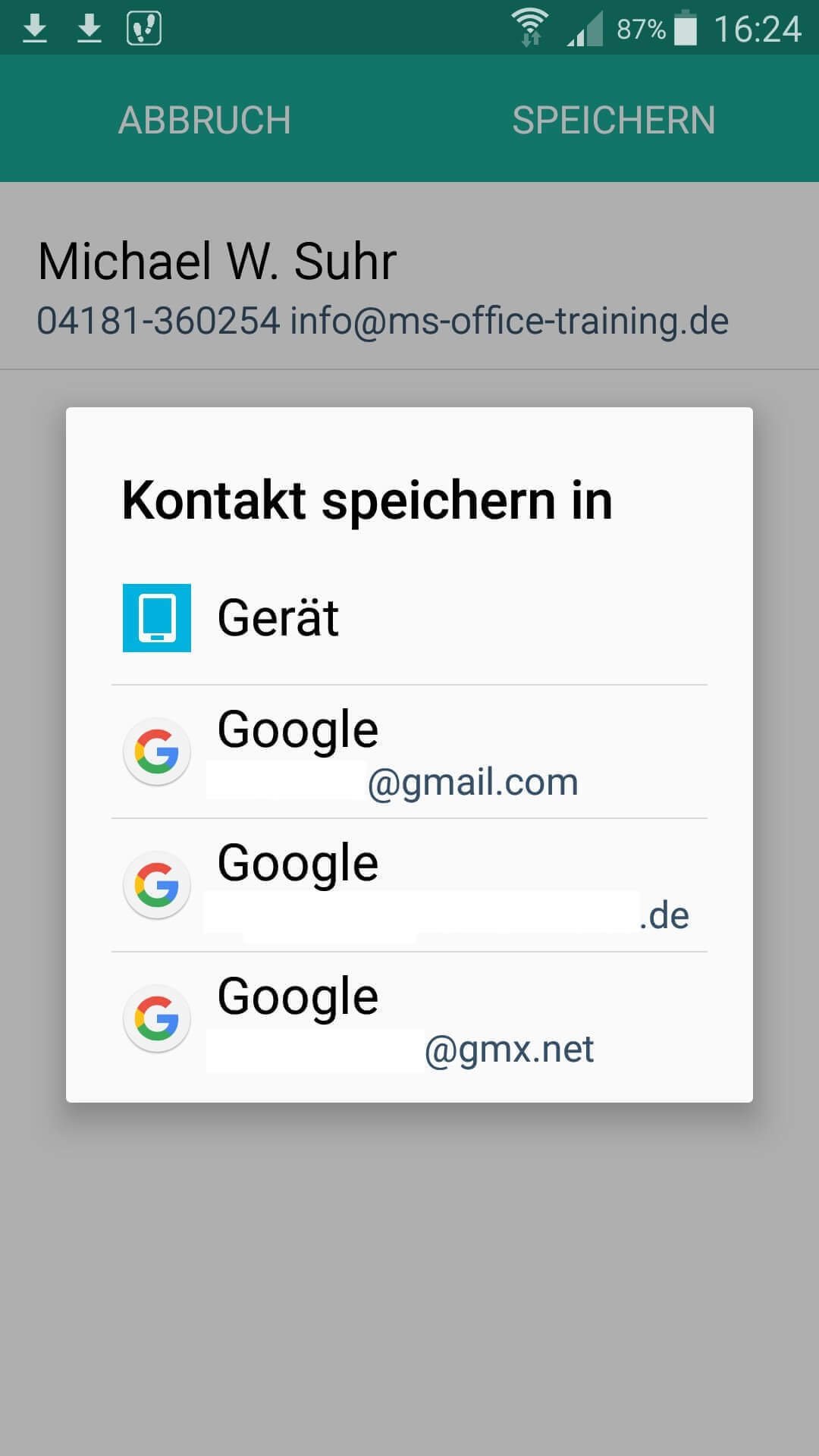
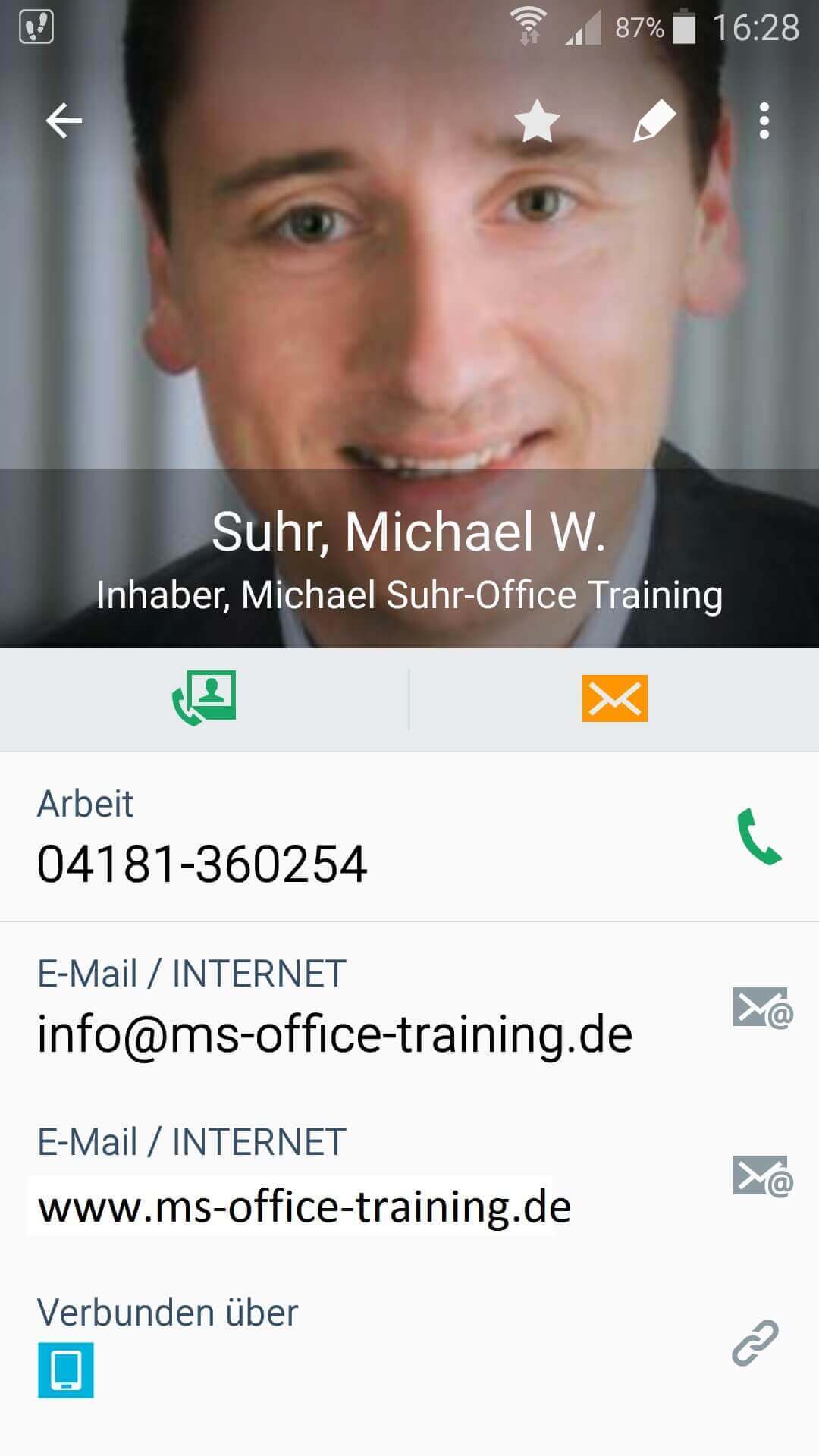

Regardless of whether you receive a vCard by e-mail, WhatsApp message, or MMS, both Android and iOS devices can easily read them from home and include them in your contact list.
At the reception by e-mail:
- Download the e-mail completely (settings-dependent).
- Open the vcf. File in the attachment.
Then select in which of your address books you want to save the contact.
(Locally on the device, or in one of your online e-mail accounts)
When receiving via WhatsApp or MMS, repeat steps 2 and 3 directly.
After saving the new contact via vCard, you will have the image promptly and all the other information contained in the business card ready on your device.
In addition, you will immediately see the image of the caller when making a call.
See picture:
Popular Posts:
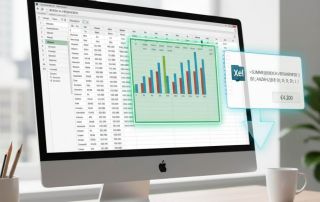
Dynamic ranges in Excel: OFFSET function
The OFFSET function in Excel creates a flexible reference. Instead of fixing =SUM(B5:B7), the function finds the range itself, e.g., for the "last 3 months". Ideal for dynamic charts or dashboards that grow automatically.
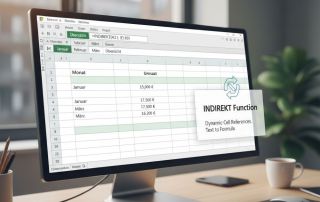
Mastering the INDIRECT function in Excel
The INDIRECT function in Excel converts text into a real reference. Instead of manually typing =January!E10, use =INDIRECT(A2 & "!E10"), where A2 contains 'January'. This allows you to easily create dynamic summaries for multiple worksheets.
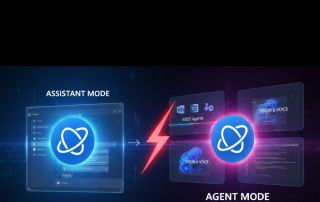
From assistant to agent: Microsoft’s Copilot
Copilot is growing up: Microsoft's AI is no longer an assistant, but a proactive agent. With "Vision," it sees your Windows desktop; in M365, it analyzes data as a "Researcher"; and in GitHub, it autonomously corrects code. The biggest update yet.
Windows 12: Where is it? The current status in October 2025
Everyone was waiting for Windows 12 in October 2025, but it didn't arrive. Instead, Microsoft is focusing on Windows 11 25H2 and "Copilot+ PC" features. We'll explain: Is Windows 12 canceled, postponed, or is it already available as an AI update for Windows 11?

Blocking websites on Windows using the hosts file
Want to block unwanted websites in Windows? You can do it without extra software using the hosts file. We'll show you how to edit the file as an administrator and redirect domains like example.de to 127.0.0.1. This will block them immediately in all browsers.

The “Zero Inbox” method with Outlook: How to permanently get your mailbox under control.
Caught red-handed? Your Outlook inbox has 1000+ emails? That's pure stress. Stop the email deluge with the "Zero Inbox" method. We'll show you how to clean up your inbox and regain control using Quick Steps and rules.
Offers 2024: Word & Excel Templates











Popular Posts:
Dynamic ranges in Excel: OFFSET function
The OFFSET function in Excel creates a flexible reference. Instead of fixing =SUM(B5:B7), the function finds the range itself, e.g., for the "last 3 months". Ideal for dynamic charts or dashboards that grow automatically.
Mastering the INDIRECT function in Excel
The INDIRECT function in Excel converts text into a real reference. Instead of manually typing =January!E10, use =INDIRECT(A2 & "!E10"), where A2 contains 'January'. This allows you to easily create dynamic summaries for multiple worksheets.
From assistant to agent: Microsoft’s Copilot
Copilot is growing up: Microsoft's AI is no longer an assistant, but a proactive agent. With "Vision," it sees your Windows desktop; in M365, it analyzes data as a "Researcher"; and in GitHub, it autonomously corrects code. The biggest update yet.
Windows 12: Where is it? The current status in October 2025
Everyone was waiting for Windows 12 in October 2025, but it didn't arrive. Instead, Microsoft is focusing on Windows 11 25H2 and "Copilot+ PC" features. We'll explain: Is Windows 12 canceled, postponed, or is it already available as an AI update for Windows 11?
Blocking websites on Windows using the hosts file
Want to block unwanted websites in Windows? You can do it without extra software using the hosts file. We'll show you how to edit the file as an administrator and redirect domains like example.de to 127.0.0.1. This will block them immediately in all browsers.
The “Zero Inbox” method with Outlook: How to permanently get your mailbox under control.
Caught red-handed? Your Outlook inbox has 1000+ emails? That's pure stress. Stop the email deluge with the "Zero Inbox" method. We'll show you how to clean up your inbox and regain control using Quick Steps and rules.
Offers 2024: Word & Excel Templates