Create a digital signature in Outlook and Word


Have you ever asked yourself at the end of a letter with Word, or an e-mail under Outlook, how best to sign the document? Because just putting your own name under it is of course not the same
Presumably, you have already come up with the brilliant idea of simply saving your own signature as an image with a transparent background on the PC, and then paste it into the document or the e-mail as a picture. Of course you can do that, but in most e-mails this will not do you much, as e-mail programs often do not display images for security reasons by default.
And this type of signature is also not trustworthy, because forging it is very simple. It looks good, but the bottom line is nothing more than a placebo.
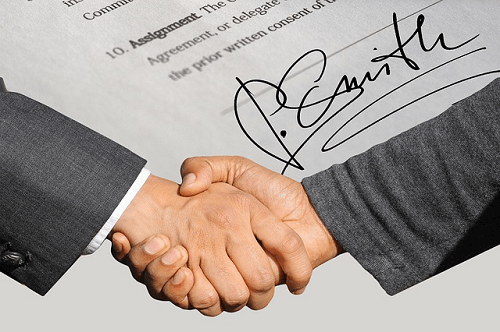
So what we need is a real digital signature that creates the trust that is desired.
If you write only private emails you will hardly devote to such issues. But when it comes to business e-mails, or if you want to earn points from competitors in the case of an e-mail application (which is now common practice), you should first take a look at the topic.
Create a digital signature in Outlook and Word
Have you ever asked yourself at the end of a letter with Word, or an e-mail under Outlook, how best to sign the document? Because just putting your own name under it is of course not the same
Presumably, you have already come up with the brilliant idea of simply saving your own signature as an image with a transparent background on the PC, and then paste it into the document or the e-mail as a picture. Of course you can do that, but in most e-mails this will not do you much, as e-mail programs often do not display images for security reasons by default.
And this type of signature is also not trustworthy, because forging it is very simple. It looks good, but the bottom line is nothing more than a placebo.
So what we need is a real digital signature that creates the trust that is desired.
If you write only private emails you will hardly devote to such issues. But when it comes to business e-mails, or if you want to earn points from competitors in the case of an e-mail application (which is now common practice), you should first take a look at the topic.
1. What is a digital signature?
1. What is a digital signature?
A digital signature is an electronic authentication method for digital documents such as e-mails or other electronic documents (such as Word, Excel, PowerPoint).
It is intended to ensure that a message or a document actually originates from a specific person, and most importantly, has not subsequently been changed by a third party.
A digital signature is an electronic authentication method for digital documents such as e-mails or other electronic documents (such as Word, Excel, PowerPoint).
It is intended to ensure that a message or a document actually originates from a specific person, and most importantly, has not subsequently been changed by a third party.
2. What is a digital signature for?
2. What is a digital signature for?
Of course, a digital signature should primarily fulfill one or more purposes that add value to all involved.
This includes:
- The reality:
The signer is confirmed as the authentic person signing. - The integrity:
Ensures that content has not been altered or manipulated since digitally signed. - The recognition:
All participants are shown the origin of the signed content. - The certification:
Signatures provided with a timestamp of a secure time stamp server in Word, Excel or PowerPoint files are often valid. Which means that the trustworthiness of a signature has to be renewed by the signing at certain intervals by a corresponding certificate.

Of course, a digital signature should primarily fulfill one or more purposes that add value to all involved.
This includes:
- The reality:
The signer is confirmed as the authentic person signing. - The integrity:
Ensures that content has not been altered or manipulated since digitally signed. - The recognition:
All participants are shown the origin of the signed content. - The certification:
Signatures provided with a timestamp of a secure time stamp server in Word, Excel or PowerPoint files are often valid. Which means that the trustworthiness of a signature has to be renewed by the signing at certain intervals by a corresponding certificate.
3. Where can I get a certificate for a digital signature?
3. Where can I get a certificate for a digital signature?
A certificate for a digital signature offers a whole range of services. By the way, these are monitored by the Federal Network Agency, which demands and checks compliance with certain rules, especially with regard to the privacy of such services.
Some services to which Microsoft itself refers are:
- Global Sign: to Website >>>
- Comodo: to Website >>>
- IdenTrust: to Website >>>
These certification offices are roughly comparable to a notary who ensures the legitimacy of a person and then issues a certificate. Unfortunately it is that you do not deserve the trust in real life but have to buy.
A certificate for a digital signature offers a whole range of services. By the way, these are monitored by the Federal Network Agency, which demands and checks compliance with certain rules, especially with regard to the privacy of such services.
Some services to which Microsoft itself refers are:
- Global Sign: to Website >>>
- Comodo: to Website >>>
- IdenTrust: to Website >>>
These certification offices are roughly comparable to a notary who ensures the legitimacy of a person and then issues a certificate. Unfortunately it is that you do not deserve the trust in real life but have to buy.
4. Inserting a digital signature in Word
4. Inserting a digital signature in Word
Before you can digitally sign your Word document, you must first install your vendor’s certificate in accordance with its instructions. Mostly it is an import file, or better still an installation file which makes the installation automatically.
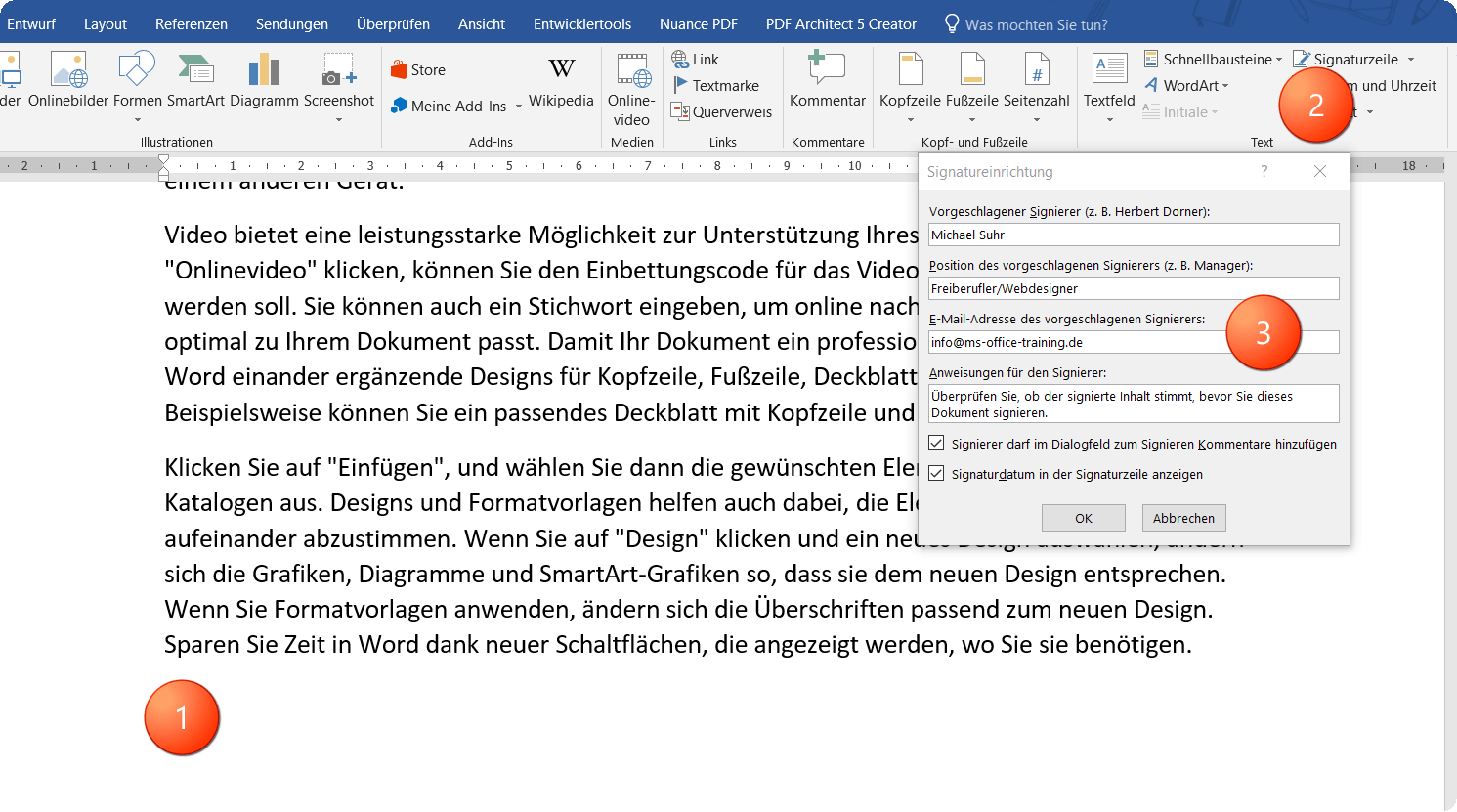
- Next, add a signature line to your Word document as follows:
- Position the cursor at the position in the document where you want to insert the signature line
- Then on the “Insert” tab, click on “Signature Line” and then on “Microsoft Office Signature Line”
- Now enter your name, position and e-mail address and confirm with “OK”
See picture: (click to enlarge)
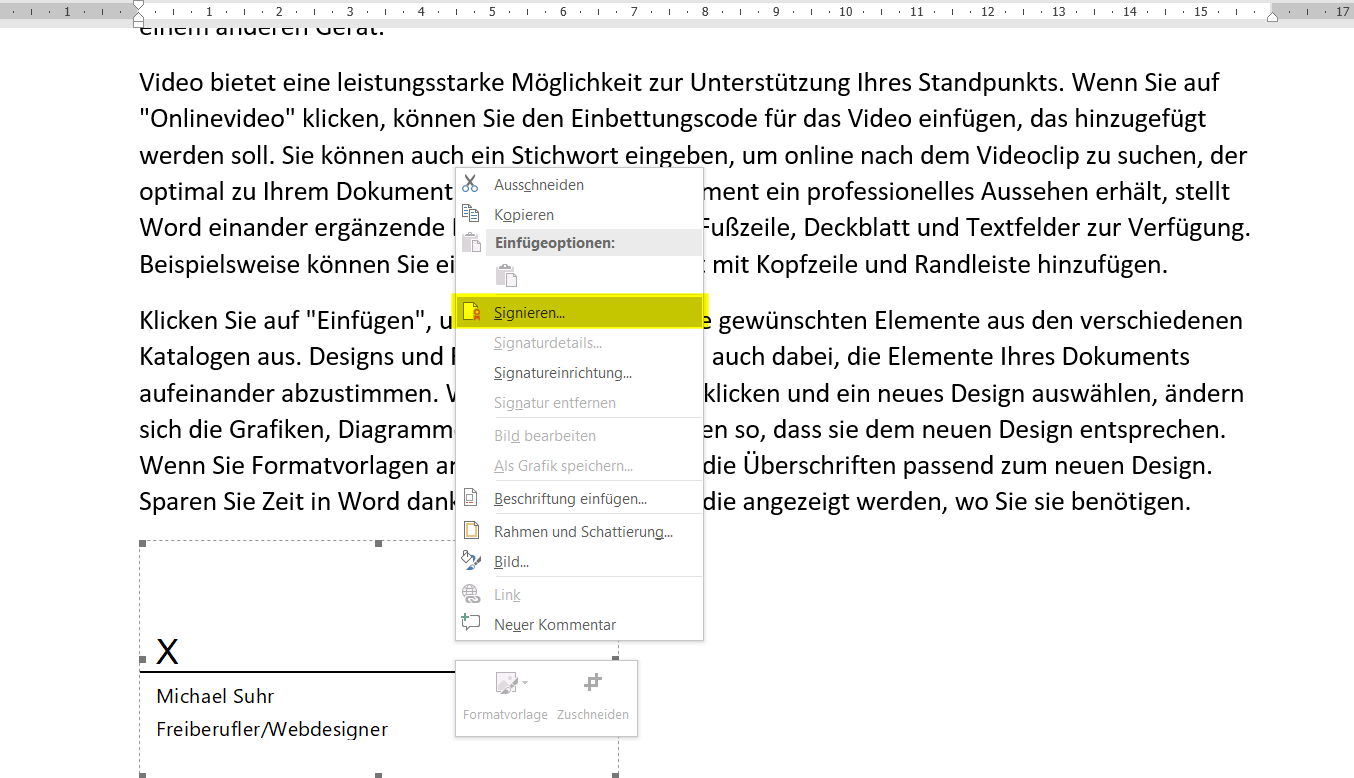
Next, select the option “Sign” in the context menu of the signature line (right mouse button).
(works only if you have a certificate installed before.)
- Now enter your name in the box next to the X.
- In order for the whole thing to look reasonable (but not necessarily), you can add a scanned image to your signature by clicking on “Add Image” and then
- select the appropriate image file on your PC.
See picture: (click to enlarge)
Of course, it is not always the case that one would like to have a signature line visible in the document when you want to digitally sign a document.
That’s why you can also sign your Word document invisibly. To do this, just go to “File” on the “File” tab and then select “Add digital signature”.
See picture: (click to enlarge)

This means your document is still digitally signed, and also recognizable to other users in the status bar (bottom) of Word by the corresponding icon, but the whole just without a visible signature line that is not really appropriate and desirable everywhere.
See picture: (click to enlarge)

Before you can digitally sign your Word document, you must first install your vendor’s certificate in accordance with its instructions. Mostly it is an import file, or better still an installation file which makes the installation automatically.
- Next, add a signature line to your Word document as follows:
- Position the cursor at the position in the document where you want to insert the signature line
- Then on the “Insert” tab, click on “Signature Line” and then on “Microsoft Office Signature Line”
- Now enter your name, position and e-mail address and confirm with “OK”
See picture: (click to enlarge)
Next, select the option “Sign” in the context menu of the signature line (right mouse button).
(works only if you have a certificate installed before.)
- Now enter your name in the box next to the X.
- In order for the whole thing to look reasonable (but not necessarily), you can add a scanned image to your signature by clicking on “Add Image” and then
- select the appropriate image file on your PC.
See picture: (click to enlarge)
Of course, it is not always the case that one would like to have a signature line visible in the document when you want to digitally sign a document.
That’s why you can also sign your Word document invisibly. To do this, just go to “File” on the “File” tab and then select “Add digital signature”.
See picture: (click to enlarge)
This means your document is still digitally signed, and also recognizable to other users in the status bar (bottom) of Word by the corresponding icon, but the whole just without a visible signature line that is not really appropriate and desirable everywhere.
See picture: (click to enlarge)
5. Insert a digital signature in Outlook 2016
5. Insert a digital signature in Outlook 2016
Just as easy as with Word it works (with a few deviations) in itself with the digital signature even under Outlook 2016.
(Of course, it is necessary to request a ditital ID from an appropriate provider for this as well)
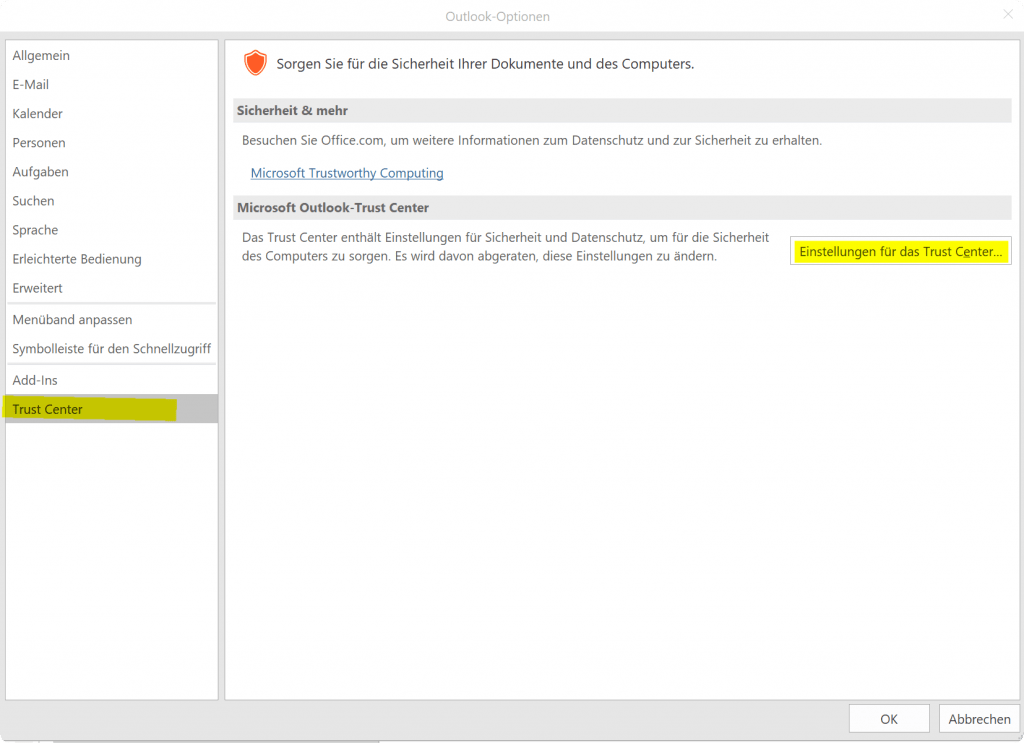
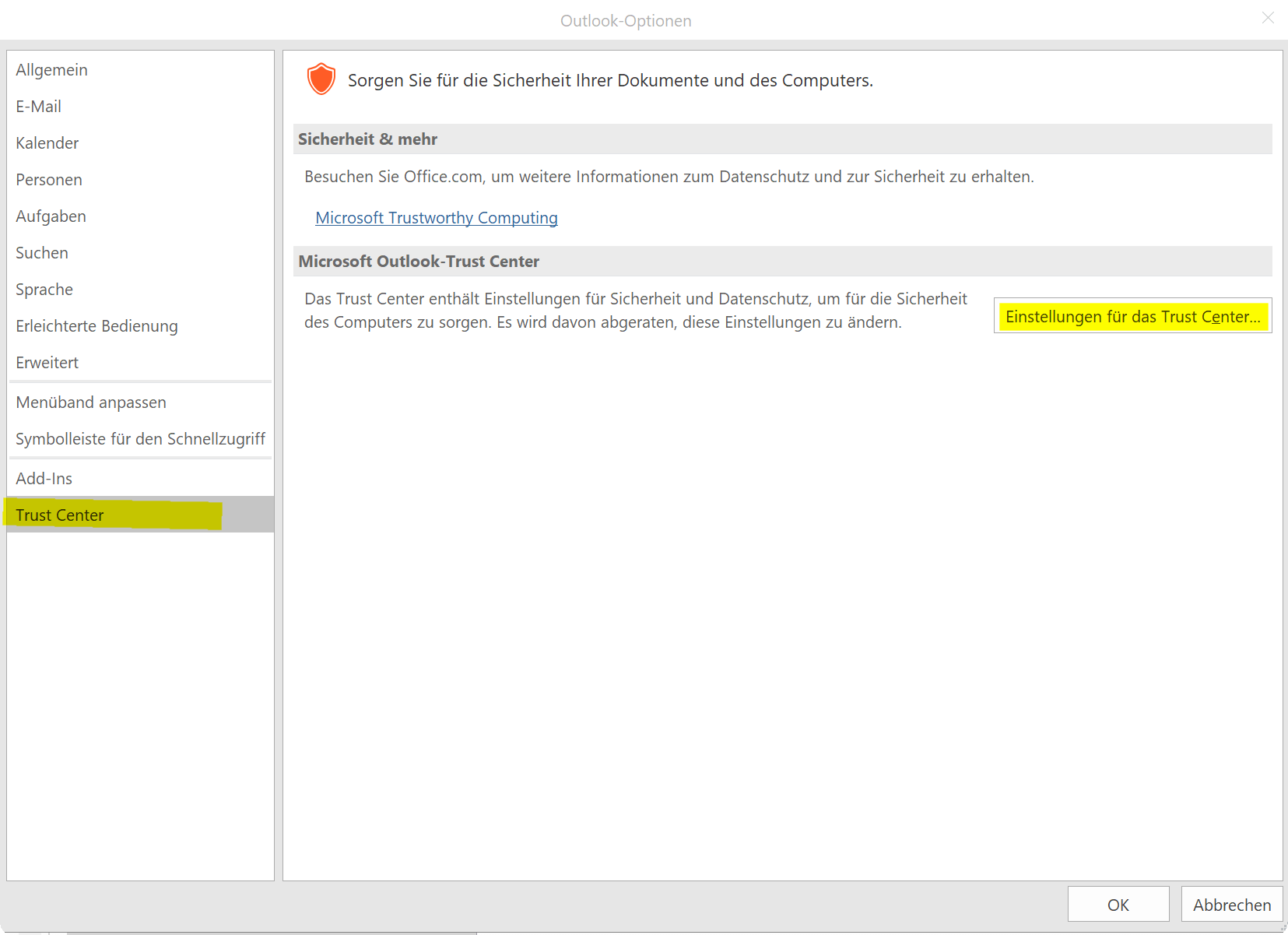
To do this, go to the “Trust Center” in Outlook via the tab “File” and “Options” and then into the “Settings for the Trust Center”.
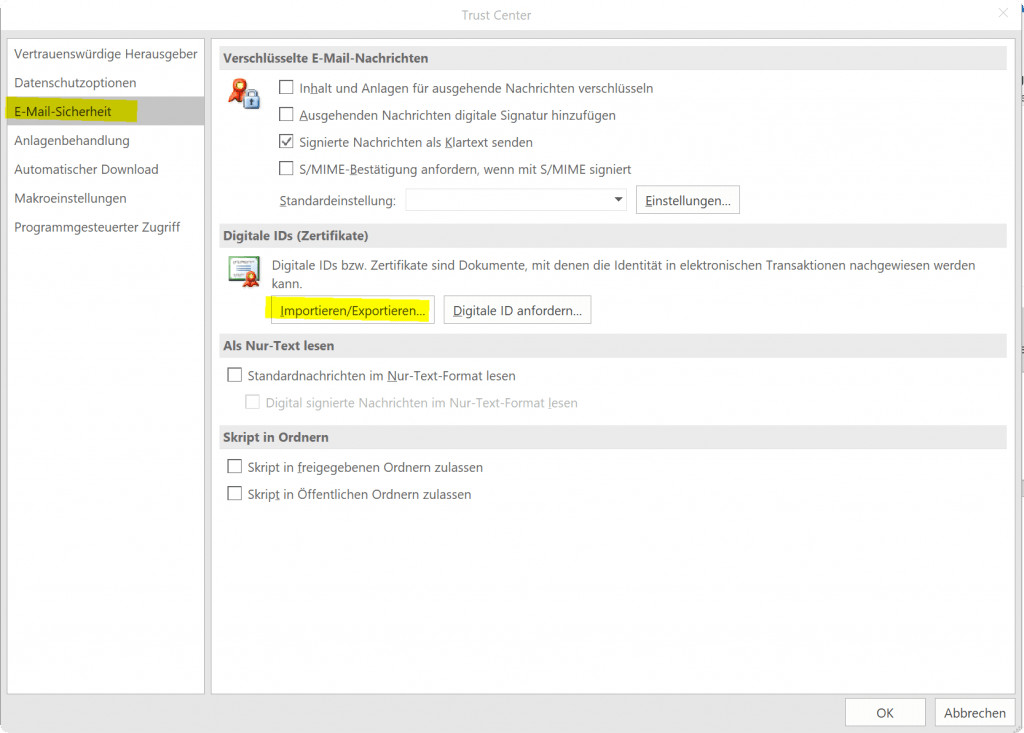
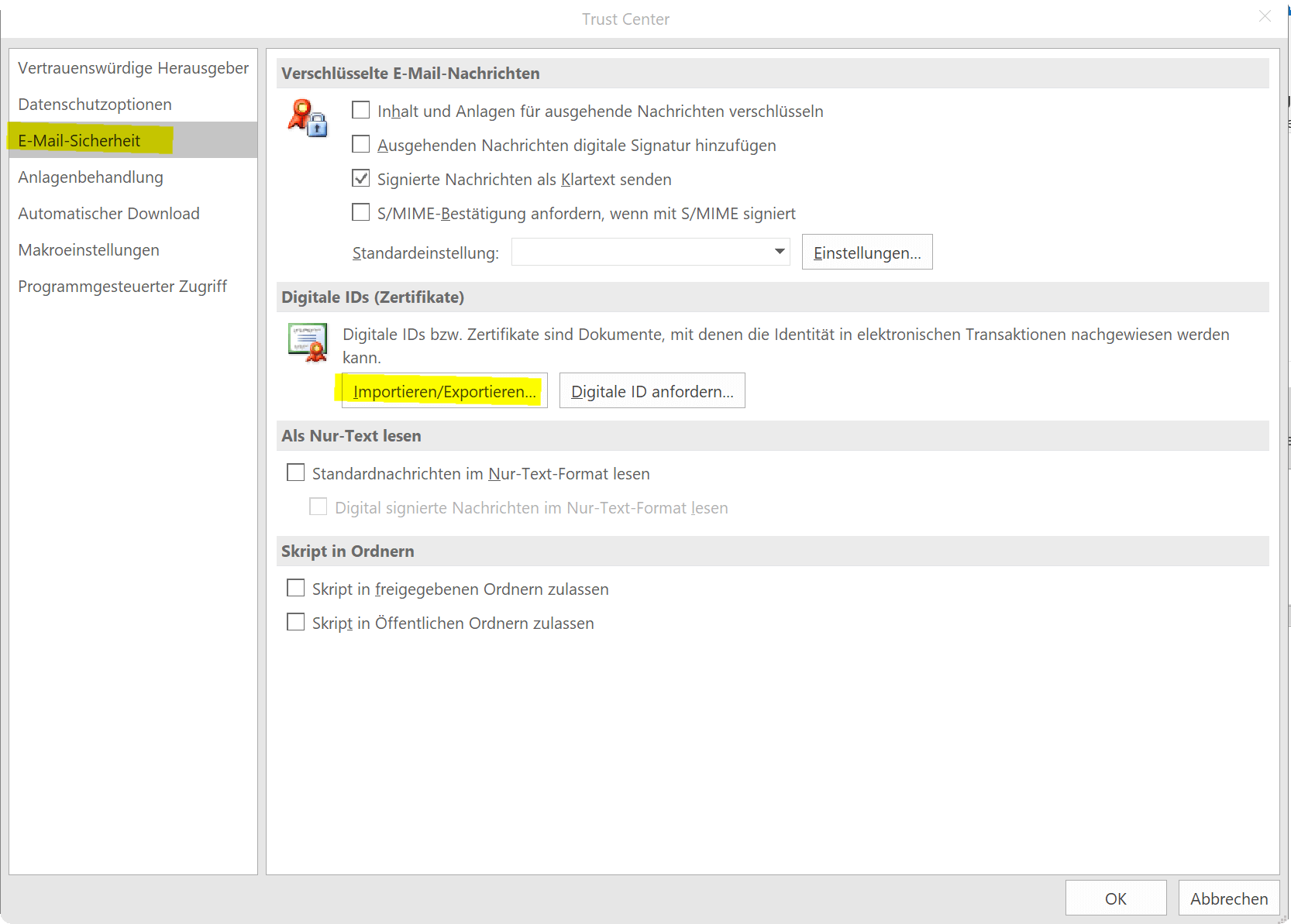
Next, you can use the E-mail Security tab to install a digital signature from a file (XYZ.pfx).
See picture: (click to enlarge)
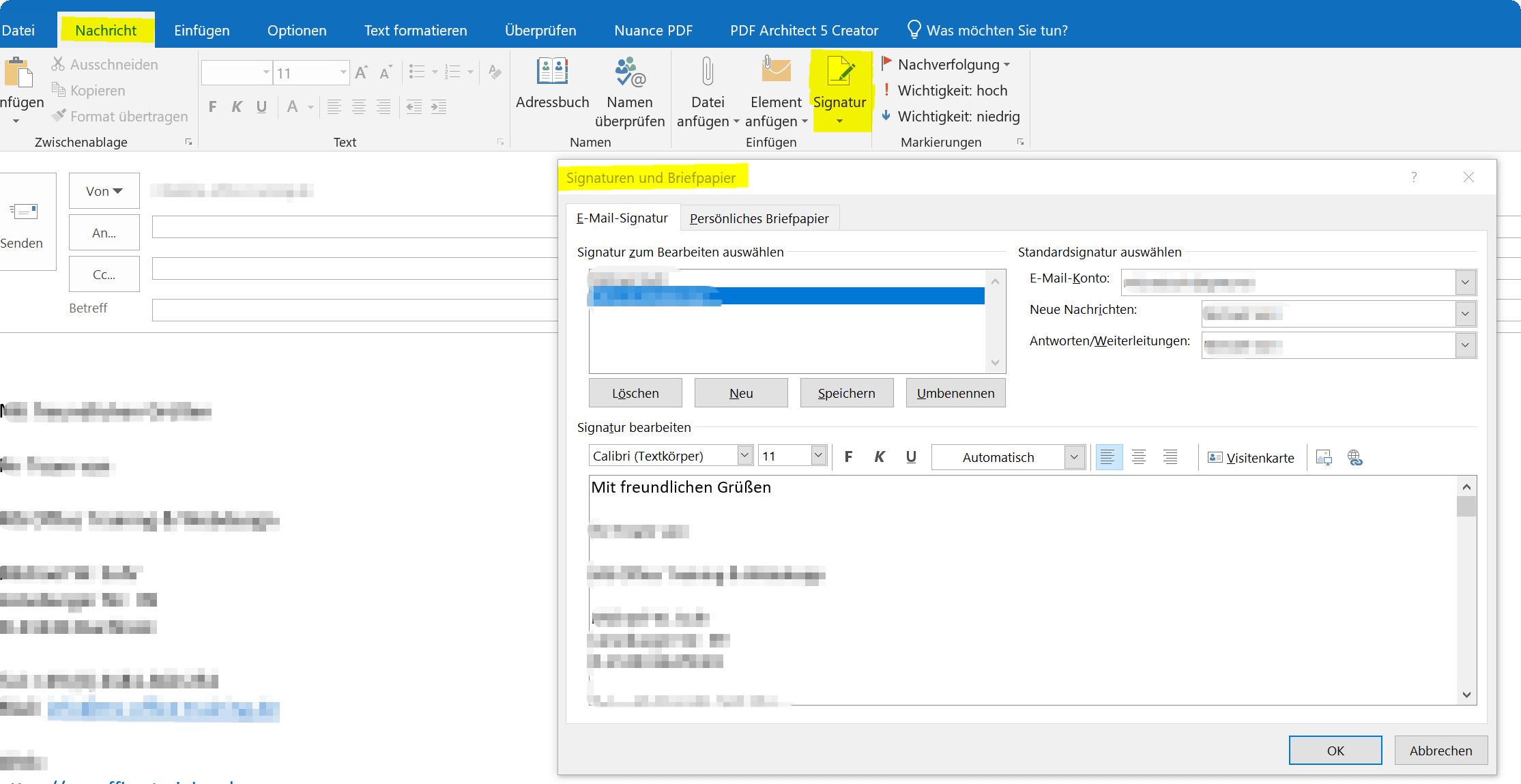
After you install the digital signature, you can paste it later in the Signatures section of emails.
See picture: (click to enlarge)

Conclusion:
Digitization is finding its way into more and more areas and demands a high degree of individual responsibility, especially when dealing with our data, the way we communicate with each other and exchanging information in the form of documents. This also includes protective measures (where necessary) within the scope of the possibilities.
There can not and will never be 100% protection. And even a digital signature will never be able to exclude all risks. But it makes it harder for fraudsters to manipulate, and creates a bit more security.

Just as easy as with Word it works (with a few deviations) in itself with the digital signature even under Outlook 2016.
(Of course, it is necessary to request a ditital ID from an appropriate provider for this as well)
To do this, go to the “Trust Center” in Outlook via the tab “File” and “Options” and then into the “Settings for the Trust Center”.
Next, you can use the E-mail Security tab to install a digital signature from a file (XYZ.pfx).
See picture: (click to enlarge)
After you install the digital signature, you can paste it later in the Signatures section of emails.
See picture: (click to enlarge)
Conclusion:
Digitization is finding its way into more and more areas and demands a high degree of individual responsibility, especially when dealing with our data, the way we communicate with each other and exchanging information in the form of documents. This also includes protective measures (where necessary) within the scope of the possibilities.
There can not and will never be 100% protection. And even a digital signature will never be able to exclude all risks. But it makes it harder for fraudsters to manipulate, and creates a bit more security.
Popular Posts:

So sieht das wirklich perfekte Homeoffice-Setup für 2026 aus
Ihr Homeoffice ist veraltet? Steigern Sie 2026 Produktivität & Gesundheit. Unser Guide zeigt das perfekte Setup: von ergonomischen Stühlen und 4K-Webcams bis zu Mesh-WLAN und Kabelmanagement. So investieren Sie in Ihre Karriere.
Internet, Telefon & TV: Die besten Komplettpakete
Internet, TV & Telefon aus einer Hand? Wir vergleichen die Komplettpakete von Telekom, Vodafone, O2 & 1&1. Wer punktet bei Speed, TV-Komfort (MagentaTV vs. GigaTV) und Preis? So finden Sie das beste Triple-Play-Angebot für Ihre Adresse.

5 Anzeichen, dass dein Chef dich im Homeoffice digital überwacht
Nur weil du im Homeoffice bist, heißt das nicht, dass dir niemand zusieht. "Bossware" ist auf dem Vormarsch. Wir zeigen 5 subtile Anzeichen für digitale Überwachung – von "Teams-Status"-Kult bis zu verdächtigen IT-Tools. So erkennst du die Warnsignale und schützt deine Karriere.

Schluss mit dem Tool-Chaos: 5 Apps, die Euer Office wirklich produktiver machen
Schluss mit digitaler Reibung: Diese 5 Apps machen Ihr Büro wirklich produktiver. Entdecken Sie, wie Asana, Loom, Notion, Zapier und Slack die Effizienz steigern, Meetings reduzieren und Ihr Team smarter vernetzen – wenn man sie richtig einsetzt.

AI in everyday office life: Your new invisible colleague
AI won't replace you – but those who use it will have a competitive edge. Make AI your co-pilot in the office! We'll show you four concrete hacks for faster emails, better meeting notes, and solved Excel problems. Get started today, no IT degree required.

Fünf vor Zwölf: Wie Sie erkennen, dass Sie kurz vor dem Burnout stehen
Erschöpfung ist normal, doch wenn das Wochenende keine Erholung mehr bringt und Zynismus die Motivation ersetzt, stehen Sie kurz vor dem Burnout. Erfahren Sie, welche 7 Warnsignale Sie niemals ignorieren dürfen und warum es jetzt lebenswichtig ist, die Notbremse zu ziehen
Offers 2024: Word & Excel Templates











Popular Posts:
So sieht das wirklich perfekte Homeoffice-Setup für 2026 aus
Ihr Homeoffice ist veraltet? Steigern Sie 2026 Produktivität & Gesundheit. Unser Guide zeigt das perfekte Setup: von ergonomischen Stühlen und 4K-Webcams bis zu Mesh-WLAN und Kabelmanagement. So investieren Sie in Ihre Karriere.
Internet, Telefon & TV: Die besten Komplettpakete
Internet, TV & Telefon aus einer Hand? Wir vergleichen die Komplettpakete von Telekom, Vodafone, O2 & 1&1. Wer punktet bei Speed, TV-Komfort (MagentaTV vs. GigaTV) und Preis? So finden Sie das beste Triple-Play-Angebot für Ihre Adresse.
5 Anzeichen, dass dein Chef dich im Homeoffice digital überwacht
Nur weil du im Homeoffice bist, heißt das nicht, dass dir niemand zusieht. "Bossware" ist auf dem Vormarsch. Wir zeigen 5 subtile Anzeichen für digitale Überwachung – von "Teams-Status"-Kult bis zu verdächtigen IT-Tools. So erkennst du die Warnsignale und schützt deine Karriere.
Schluss mit dem Tool-Chaos: 5 Apps, die Euer Office wirklich produktiver machen
Schluss mit digitaler Reibung: Diese 5 Apps machen Ihr Büro wirklich produktiver. Entdecken Sie, wie Asana, Loom, Notion, Zapier und Slack die Effizienz steigern, Meetings reduzieren und Ihr Team smarter vernetzen – wenn man sie richtig einsetzt.
AI in everyday office life: Your new invisible colleague
AI won't replace you – but those who use it will have a competitive edge. Make AI your co-pilot in the office! We'll show you four concrete hacks for faster emails, better meeting notes, and solved Excel problems. Get started today, no IT degree required.
Fünf vor Zwölf: Wie Sie erkennen, dass Sie kurz vor dem Burnout stehen
Erschöpfung ist normal, doch wenn das Wochenende keine Erholung mehr bringt und Zynismus die Motivation ersetzt, stehen Sie kurz vor dem Burnout. Erfahren Sie, welche 7 Warnsignale Sie niemals ignorieren dürfen und warum es jetzt lebenswichtig ist, die Notbremse zu ziehen
Offers 2024: Word & Excel Templates