Dynamic ranges in Excel: OFFSET function


If you think of INDIRECT as a translator (text to reference), then think of OFFSET as a GPS system for your cells.
This function is one of the most flexible tools in Excel for creating dynamic ranges—that is, ranges that can change their size or position based on other calculations. Instead of referencing a fixed range like A1:A10, you tell Excel: “Start at A1, go down 3 rows, 2 columns to the right, and from there give me a range that is 5 rows high and 1 column wide.”
What does OFFSET do?
The function returns a cell reference that is “offset” from a starting cell (or range). It doesn’t move any cells or data; it simply creates a new reference frame that you can then use in other functions (such as SUM, AVERAGE, or in charts).
The Syntax Broken Down
The syntax is more extensive than that of INDIRECT, but each component has a clear purpose:
=OFFSET(reference, rows, columns, [height], [width])
- Reference (Required): Your “anchor” or starting point. The “journey” begins from this cell. (e.g., A1)
- Rows (Required): How many rows you want to move down (positive number) or up (negative number) from the reference.
- Columns (Required): How many columns you want to move to the right (positive number) or left (negative number) from the reference.
- [Height] (Optional): Defines how many rows the new range should have. If omitted, the new range will have the same height as the reference.
- [Width] (Optional): Defines how many columns the new range should have. If omitted, the new range will have the same width as the reference.
Practical example: Calculating the sum of the “last N months”
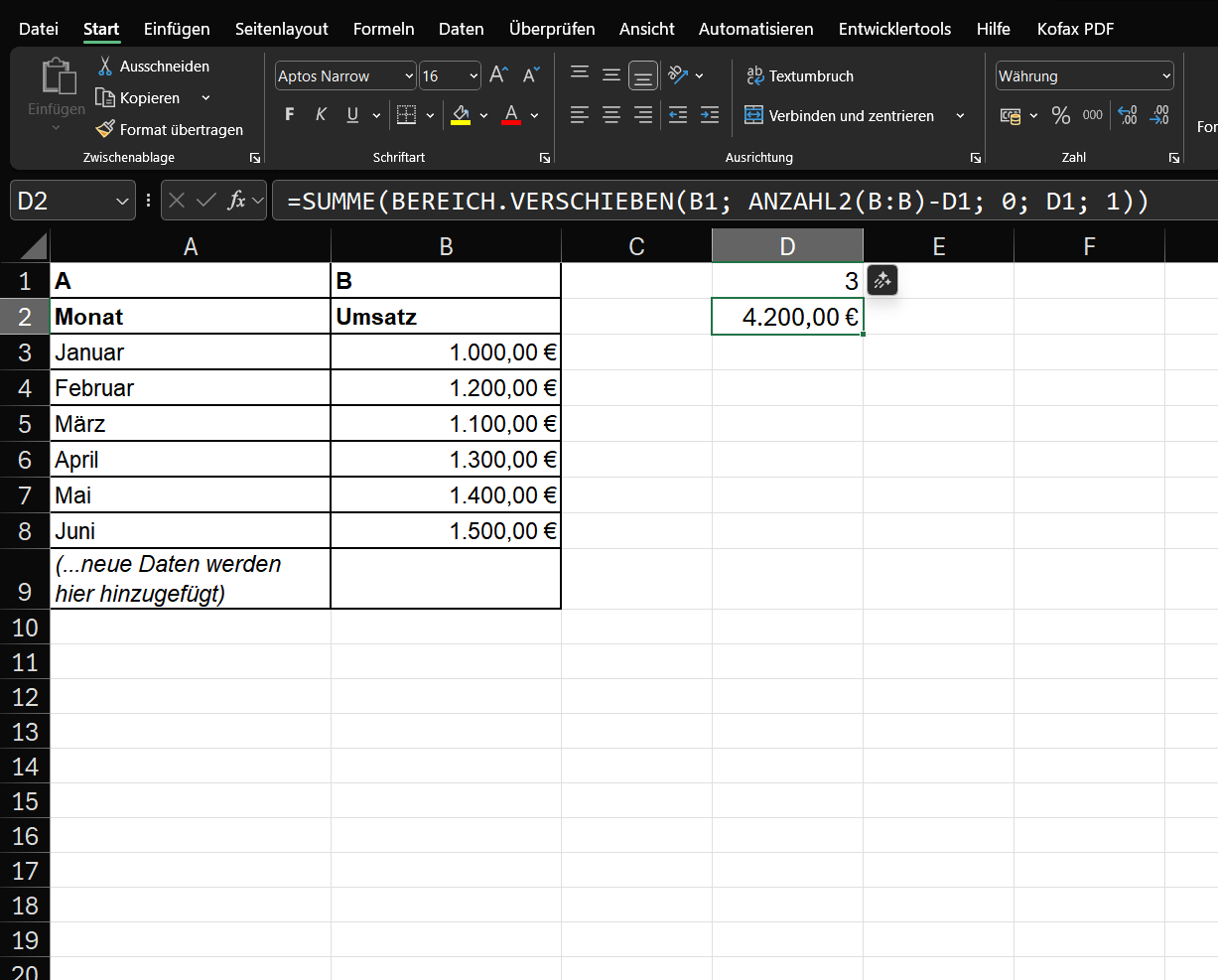
You could manually enter =SUM(B5:B7). But if you add “July,” you would have to change the formula to =SUM(B6:B8). That’s tedious.
The dynamic solution with OFFSET:
- We create a formula that automatically finds the range to be summed.
- In one cell (e.g., D1), you enter how many months you want to consider: 3
- In another cell (e.g., D2), you enter the OFFSET formula, wrapped in a SUM function:
- =SUM(OFFSET(B1, COUNTA(B:B)-D1, 0, D1, 1))
What’s happening here? Let’s break it down:
- OFFSET(…): This is the core.
- B1: Our reference. We start at the heading “Sales”.
- COUNTA(B:B)-D1: The row argument.
- COUNTA(B:B) counts all non-empty cells in column B. In June, that’s 7 (heading + 6 months).
- D1 is 3.
So the calculation is: 7 – 3 = 4.
- Excel is instructed: “Go down 4 rows from the reference (B1).” (It lands at cell B5, “April”).
- 0: The column argument. “Go 0 columns left or right.” (Stays in column B).
- D1: The height argument. “Create a range from B5 that is as tall as the value in D1 (i.e., 3 rows).”
- 1: The width argument. “The range should be 1 column wide.”
- Result: The formula dynamically creates the reference B5:B7. SUM adds this range, and the result is €4,200 (€1,300 + €1,400 + €1,500).
The magic moment: Next month, add “July” with €1,600 in row 8.
The magic moment:
- COUNTA(B:B) is now 8.
- The row argument becomes 8 – 3 = 5.
- The formula starts at B1, goes down 5 rows (to B6, “May”), and creates a range 3 rows high (B6:B8).
- The sum now automatically calculates B6:B8 (May, June, July). You didn’t have to touch the formula!
Important instructions
Like INDIRECT, OFFSET is a volatile function.
This means:
- Performance: The formula is recalculated with every single change in your workbook—even if you type something in a completely different worksheet.
- Performance problem: If you use thousands of OFFSET formulas, your Excel file can become noticeably slower.
Conclusion and modern alternatives
OFFSET is incredibly powerful for creating dynamic ranges, especially for charts that are meant to “grow” with their data (by using the formula in a named range).
However, there are often better, non-volatile alternatives available today:
- Excel tables (Ctrl+T): The best alternative. If you format your data as a table, formulas and charts that reference it will automatically expand when you add new data. This often makes OFFSET unnecessary for this purpose.INDEX: A combination of INDEX and COUNTA can often achieve the same results as OFFSET, but is not volatile and therefore faster.
Use OFFSET when you need ultimate flexibility in moving and resizing a reference, but be aware of the performance cost.

Beliebte Beiträge
Mastering the INDIRECT function in Excel
The INDIRECT function in Excel converts text into a real reference. Instead of manually typing =January!E10, use =INDIRECT(A2 & "!E10"), where A2 contains 'January'. This allows you to easily create dynamic summaries for multiple worksheets.

The best remote maintenance tools for Windows and Mac
Which remote support tool is best for Windows & Mac? From TeamViewer and AnyDesk to Splashtop: We compare the top solutions for IT support and home office. Find the tool with the best performance, security, and the fairest price-performance ratio.

The discount trap: Why supermarket apps don’t give us anything for free
Supermarket apps like Lidl Plus lure customers with discounts. But we don't get anything for free. We pay with our most intimate shopping data. This data turns us into transparent consumers. Retailers use it to analyze and deliberately manipulate our purchasing behavior.

How digital identity turns citizens into objects of surveillance
We are trading privacy for convenience. Our digital identity – from e-IDs to social media likes – is becoming a tool. Corporations and governments are linking data, turning citizens into predictable and transparent objects of surveillance.

From assistant to agent: Microsoft’s Copilot
Copilot is growing up: Microsoft's AI is no longer an assistant, but a proactive agent. With "Vision," it sees your Windows desktop; in M365, it analyzes data as a "Researcher"; and in GitHub, it autonomously corrects code. The biggest update yet.

5 simple security rules against phishing and spam that everyone should know
Deceptively authentic emails from your bank, DHL, or PayPal? That's phishing! Data theft and viruses are a daily threat. We'll show you 5 simple rules (2FA, password managers, etc.) to protect yourself immediately and effectively and help you spot scammers.
Offers 2024: Word & Excel Templates