Create a digital signature in Outlook and Word


Have you ever asked yourself at the end of a letter with Word, or an e-mail under Outlook, how best to sign the document? Because just putting your own name under it is of course not the same
Presumably, you have already come up with the brilliant idea of simply saving your own signature as an image with a transparent background on the PC, and then paste it into the document or the e-mail as a picture. Of course you can do that, but in most e-mails this will not do you much, as e-mail programs often do not display images for security reasons by default.
And this type of signature is also not trustworthy, because forging it is very simple. It looks good, but the bottom line is nothing more than a placebo.

So what we need is a real digital signature that creates the trust that is desired.
If you write only private emails you will hardly devote to such issues. But when it comes to business e-mails, or if you want to earn points from competitors in the case of an e-mail application (which is now common practice), you should first take a look at the topic.
Create a digital signature in Outlook and Word
Have you ever asked yourself at the end of a letter with Word, or an e-mail under Outlook, how best to sign the document? Because just putting your own name under it is of course not the same
Presumably, you have already come up with the brilliant idea of simply saving your own signature as an image with a transparent background on the PC, and then paste it into the document or the e-mail as a picture. Of course you can do that, but in most e-mails this will not do you much, as e-mail programs often do not display images for security reasons by default.
And this type of signature is also not trustworthy, because forging it is very simple. It looks good, but the bottom line is nothing more than a placebo.
So what we need is a real digital signature that creates the trust that is desired.
If you write only private emails you will hardly devote to such issues. But when it comes to business e-mails, or if you want to earn points from competitors in the case of an e-mail application (which is now common practice), you should first take a look at the topic.
1. What is a digital signature?
1. What is a digital signature?
A digital signature is an electronic authentication method for digital documents such as e-mails or other electronic documents (such as Word, Excel, PowerPoint).
It is intended to ensure that a message or a document actually originates from a specific person, and most importantly, has not subsequently been changed by a third party.
A digital signature is an electronic authentication method for digital documents such as e-mails or other electronic documents (such as Word, Excel, PowerPoint).
It is intended to ensure that a message or a document actually originates from a specific person, and most importantly, has not subsequently been changed by a third party.
2. What is a digital signature for?
2. What is a digital signature for?
Of course, a digital signature should primarily fulfill one or more purposes that add value to all involved.
This includes:
- The reality:
The signer is confirmed as the authentic person signing. - The integrity:
Ensures that content has not been altered or manipulated since digitally signed. - The recognition:
All participants are shown the origin of the signed content. - The certification:
Signatures provided with a timestamp of a secure time stamp server in Word, Excel or PowerPoint files are often valid. Which means that the trustworthiness of a signature has to be renewed by the signing at certain intervals by a corresponding certificate.

Of course, a digital signature should primarily fulfill one or more purposes that add value to all involved.
This includes:
- The reality:
The signer is confirmed as the authentic person signing. - The integrity:
Ensures that content has not been altered or manipulated since digitally signed. - The recognition:
All participants are shown the origin of the signed content. - The certification:
Signatures provided with a timestamp of a secure time stamp server in Word, Excel or PowerPoint files are often valid. Which means that the trustworthiness of a signature has to be renewed by the signing at certain intervals by a corresponding certificate.
3. Where can I get a certificate for a digital signature?
3. Where can I get a certificate for a digital signature?
A certificate for a digital signature offers a whole range of services. By the way, these are monitored by the Federal Network Agency, which demands and checks compliance with certain rules, especially with regard to the privacy of such services.
Some services to which Microsoft itself refers are:
- Global Sign: to Website >>>
- Comodo: to Website >>>
- IdenTrust: to Website >>>
These certification offices are roughly comparable to a notary who ensures the legitimacy of a person and then issues a certificate. Unfortunately it is that you do not deserve the trust in real life but have to buy.
A certificate for a digital signature offers a whole range of services. By the way, these are monitored by the Federal Network Agency, which demands and checks compliance with certain rules, especially with regard to the privacy of such services.
Some services to which Microsoft itself refers are:
- Global Sign: to Website >>>
- Comodo: to Website >>>
- IdenTrust: to Website >>>
These certification offices are roughly comparable to a notary who ensures the legitimacy of a person and then issues a certificate. Unfortunately it is that you do not deserve the trust in real life but have to buy.
4. Inserting a digital signature in Word
4. Inserting a digital signature in Word
Before you can digitally sign your Word document, you must first install your vendor’s certificate in accordance with its instructions. Mostly it is an import file, or better still an installation file which makes the installation automatically.
- Next, add a signature line to your Word document as follows:
- Position the cursor at the position in the document where you want to insert the signature line
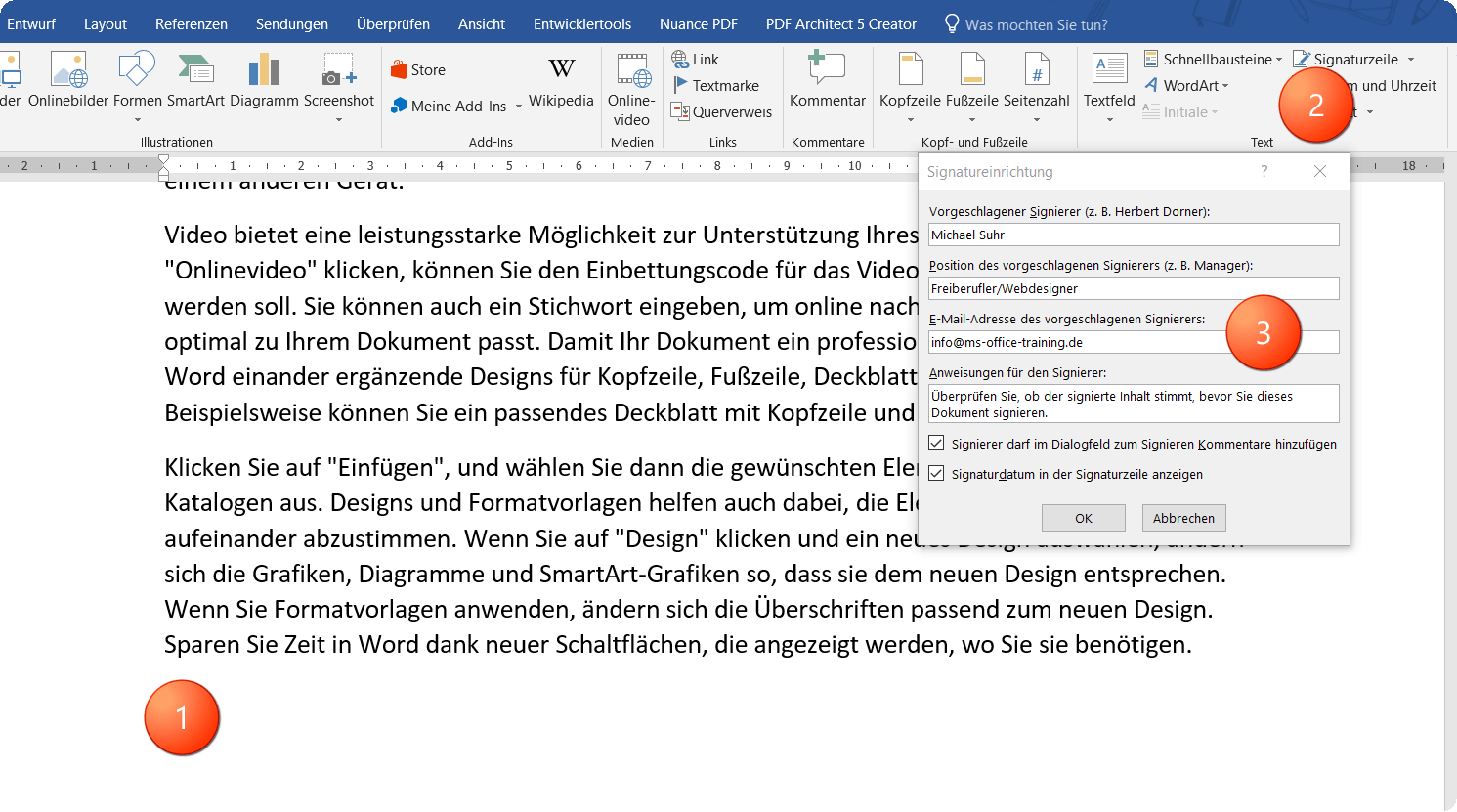
- Then on the “Insert” tab, click on “Signature Line” and then on “Microsoft Office Signature Line”
- Now enter your name, position and e-mail address and confirm with “OK”
See picture: (click to enlarge)
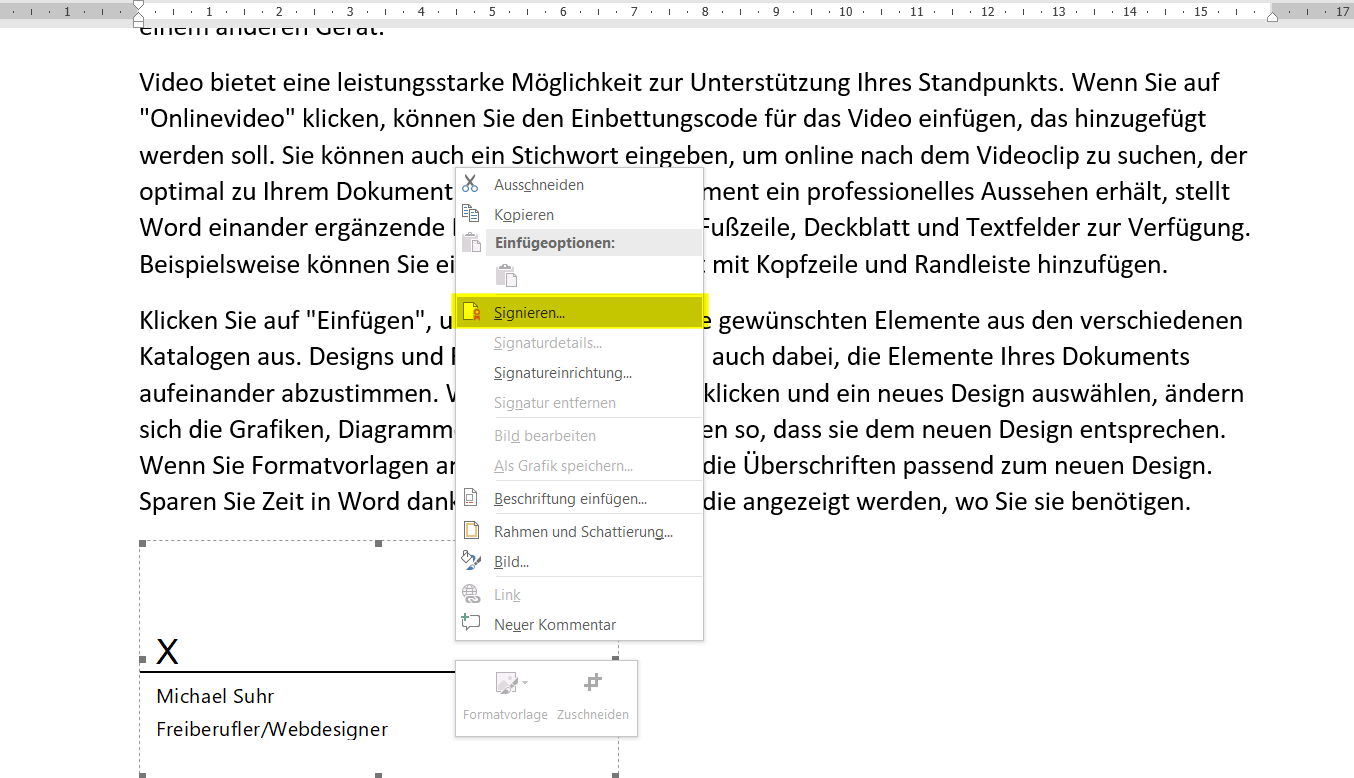
Next, select the option “Sign” in the context menu of the signature line (right mouse button).
(works only if you have a certificate installed before.)
- Now enter your name in the box next to the X.
- In order for the whole thing to look reasonable (but not necessarily), you can add a scanned image to your signature by clicking on “Add Image” and then
- select the appropriate image file on your PC.
See picture: (click to enlarge)
Of course, it is not always the case that one would like to have a signature line visible in the document when you want to digitally sign a document.
That’s why you can also sign your Word document invisibly. To do this, just go to “File” on the “File” tab and then select “Add digital signature”.
See picture: (click to enlarge)

This means your document is still digitally signed, and also recognizable to other users in the status bar (bottom) of Word by the corresponding icon, but the whole just without a visible signature line that is not really appropriate and desirable everywhere.
See picture: (click to enlarge)

Before you can digitally sign your Word document, you must first install your vendor’s certificate in accordance with its instructions. Mostly it is an import file, or better still an installation file which makes the installation automatically.
- Next, add a signature line to your Word document as follows:
- Position the cursor at the position in the document where you want to insert the signature line
- Then on the “Insert” tab, click on “Signature Line” and then on “Microsoft Office Signature Line”
- Now enter your name, position and e-mail address and confirm with “OK”
See picture: (click to enlarge)
Next, select the option “Sign” in the context menu of the signature line (right mouse button).
(works only if you have a certificate installed before.)
- Now enter your name in the box next to the X.
- In order for the whole thing to look reasonable (but not necessarily), you can add a scanned image to your signature by clicking on “Add Image” and then
- select the appropriate image file on your PC.
See picture: (click to enlarge)
Of course, it is not always the case that one would like to have a signature line visible in the document when you want to digitally sign a document.
That’s why you can also sign your Word document invisibly. To do this, just go to “File” on the “File” tab and then select “Add digital signature”.
See picture: (click to enlarge)
This means your document is still digitally signed, and also recognizable to other users in the status bar (bottom) of Word by the corresponding icon, but the whole just without a visible signature line that is not really appropriate and desirable everywhere.
See picture: (click to enlarge)
5. Insert a digital signature in Outlook 2016
5. Insert a digital signature in Outlook 2016
Just as easy as with Word it works (with a few deviations) in itself with the digital signature even under Outlook 2016.
(Of course, it is necessary to request a ditital ID from an appropriate provider for this as well)
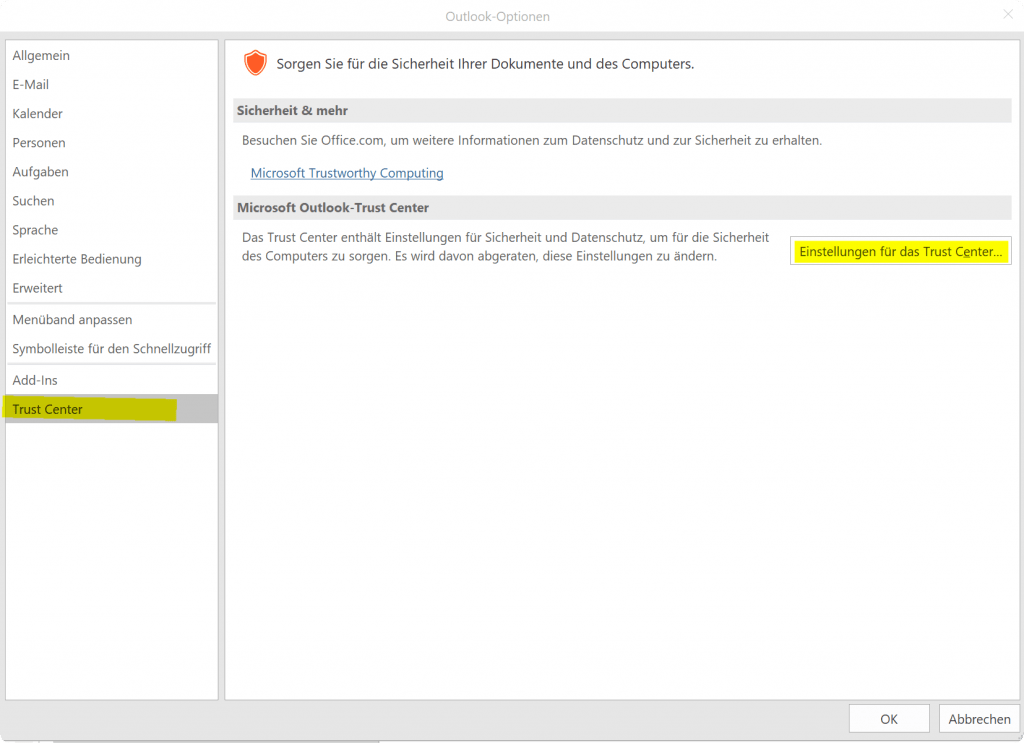
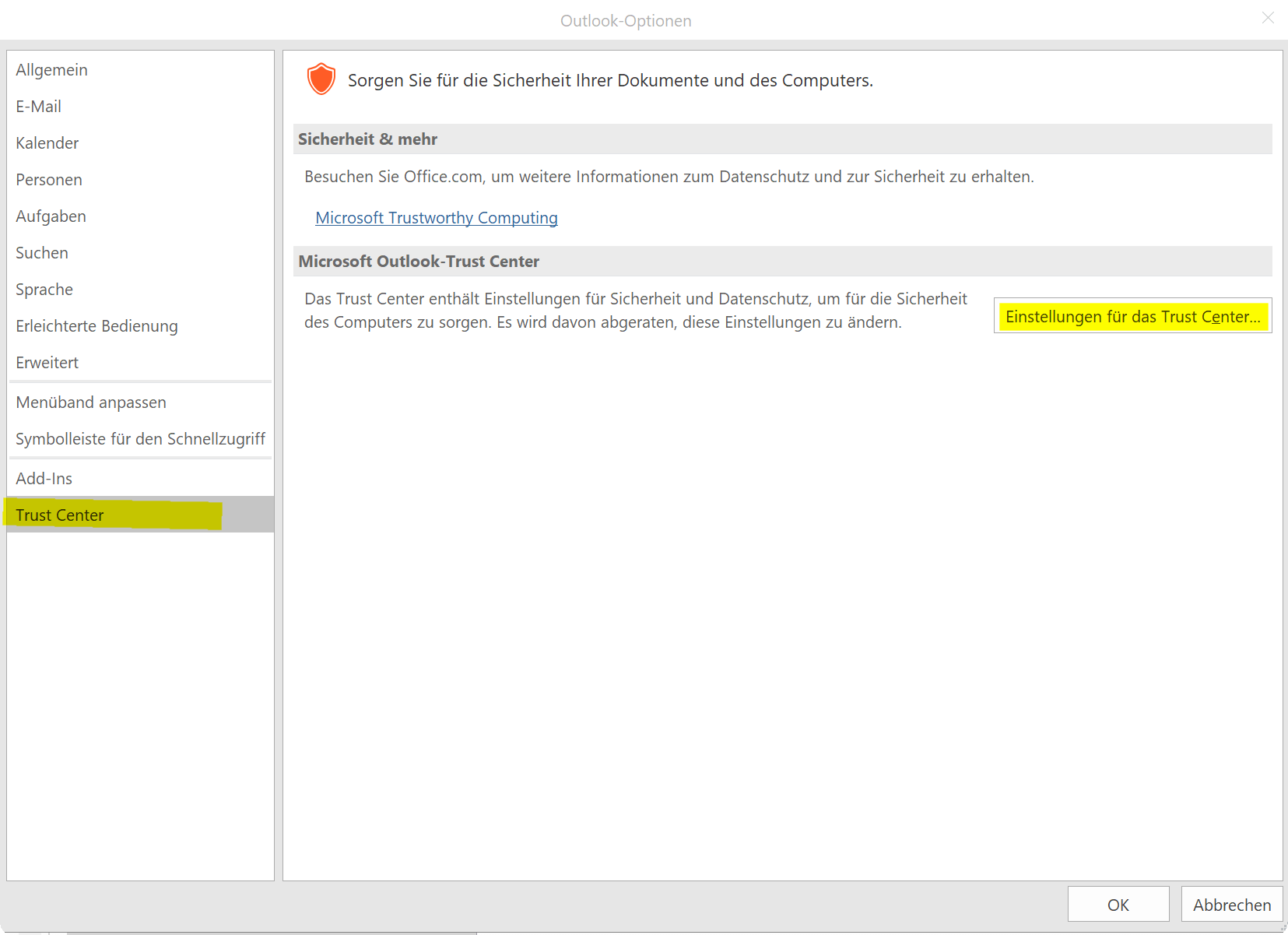
To do this, go to the “Trust Center” in Outlook via the tab “File” and “Options” and then into the “Settings for the Trust Center”.
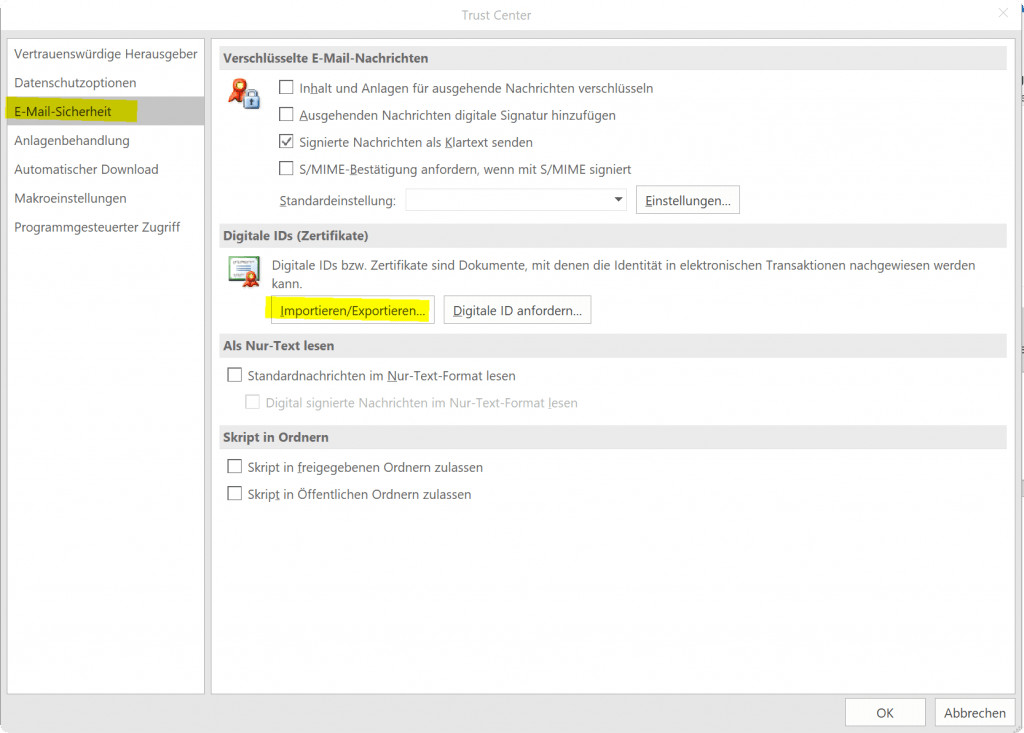
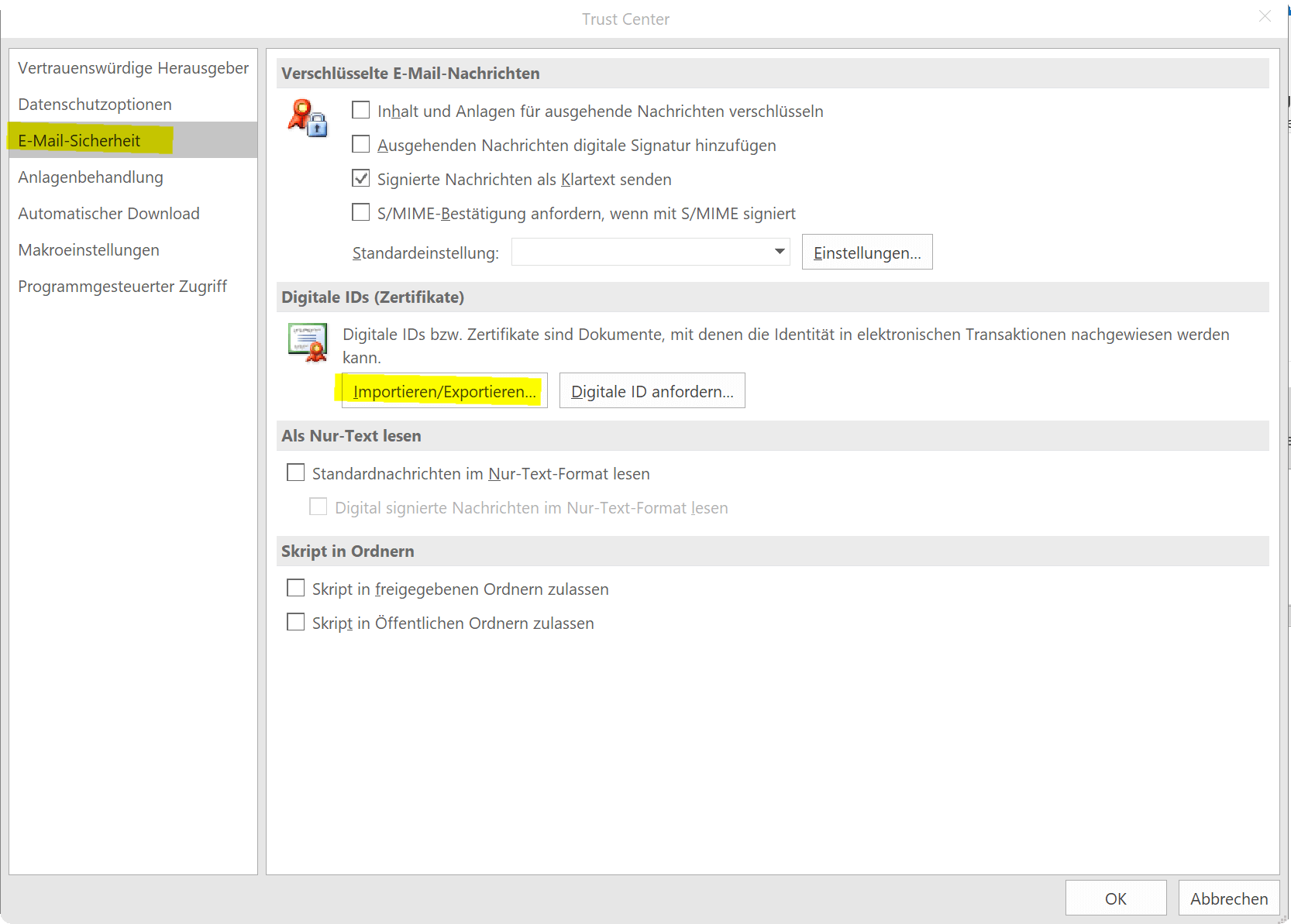
Next, you can use the E-mail Security tab to install a digital signature from a file (XYZ.pfx).
See picture: (click to enlarge)
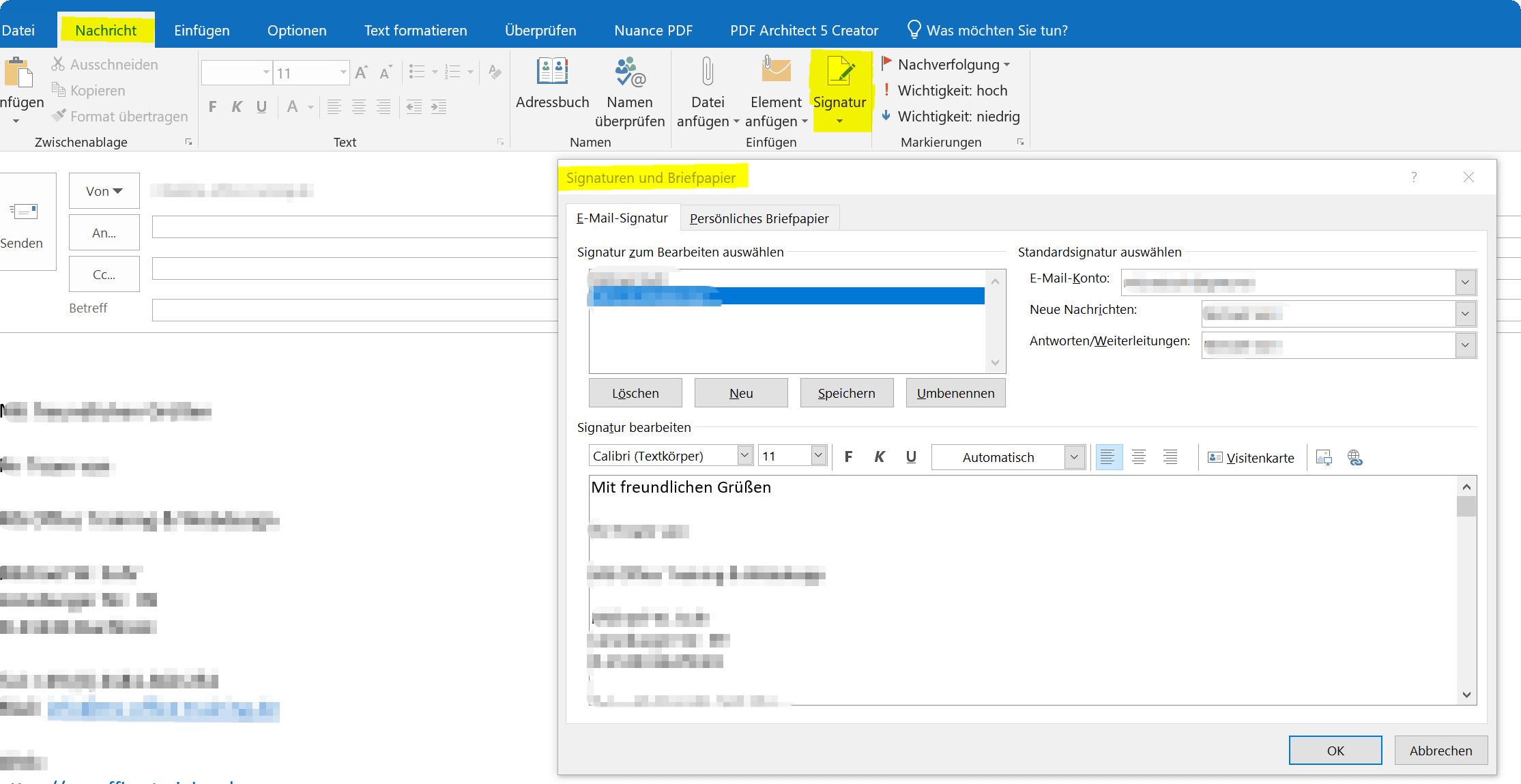
After you install the digital signature, you can paste it later in the Signatures section of emails.
See picture: (click to enlarge)

Conclusion:
Digitization is finding its way into more and more areas and demands a high degree of individual responsibility, especially when dealing with our data, the way we communicate with each other and exchanging information in the form of documents. This also includes protective measures (where necessary) within the scope of the possibilities.
There can not and will never be 100% protection. And even a digital signature will never be able to exclude all risks. But it makes it harder for fraudsters to manipulate, and creates a bit more security.

Just as easy as with Word it works (with a few deviations) in itself with the digital signature even under Outlook 2016.
(Of course, it is necessary to request a ditital ID from an appropriate provider for this as well)
To do this, go to the “Trust Center” in Outlook via the tab “File” and “Options” and then into the “Settings for the Trust Center”.
Next, you can use the E-mail Security tab to install a digital signature from a file (XYZ.pfx).
See picture: (click to enlarge)
After you install the digital signature, you can paste it later in the Signatures section of emails.
See picture: (click to enlarge)
Conclusion:
Digitization is finding its way into more and more areas and demands a high degree of individual responsibility, especially when dealing with our data, the way we communicate with each other and exchanging information in the form of documents. This also includes protective measures (where necessary) within the scope of the possibilities.
There can not and will never be 100% protection. And even a digital signature will never be able to exclude all risks. But it makes it harder for fraudsters to manipulate, and creates a bit more security.
Popular Posts:

Dynamic ranges in Excel: OFFSET function
The OFFSET function in Excel creates a flexible reference. Instead of fixing =SUM(B5:B7), the function finds the range itself, e.g., for the "last 3 months". Ideal for dynamic charts or dashboards that grow automatically.
Mastering the INDIRECT function in Excel
The INDIRECT function in Excel converts text into a real reference. Instead of manually typing =January!E10, use =INDIRECT(A2 & "!E10"), where A2 contains 'January'. This allows you to easily create dynamic summaries for multiple worksheets.
From assistant to agent: Microsoft’s Copilot
Copilot is growing up: Microsoft's AI is no longer an assistant, but a proactive agent. With "Vision," it sees your Windows desktop; in M365, it analyzes data as a "Researcher"; and in GitHub, it autonomously corrects code. The biggest update yet.
Windows 12: Where is it? The current status in October 2025
Everyone was waiting for Windows 12 in October 2025, but it didn't arrive. Instead, Microsoft is focusing on Windows 11 25H2 and "Copilot+ PC" features. We'll explain: Is Windows 12 canceled, postponed, or is it already available as an AI update for Windows 11?

Blocking websites on Windows using the hosts file
Want to block unwanted websites in Windows? You can do it without extra software using the hosts file. We'll show you how to edit the file as an administrator and redirect domains like example.de to 127.0.0.1. This will block them immediately in all browsers.

The “Zero Inbox” method with Outlook: How to permanently get your mailbox under control.
Caught red-handed? Your Outlook inbox has 1000+ emails? That's pure stress. Stop the email deluge with the "Zero Inbox" method. We'll show you how to clean up your inbox and regain control using Quick Steps and rules.
Offers 2024: Word & Excel Templates











Popular Posts:
Dynamic ranges in Excel: OFFSET function
The OFFSET function in Excel creates a flexible reference. Instead of fixing =SUM(B5:B7), the function finds the range itself, e.g., for the "last 3 months". Ideal for dynamic charts or dashboards that grow automatically.
Mastering the INDIRECT function in Excel
The INDIRECT function in Excel converts text into a real reference. Instead of manually typing =January!E10, use =INDIRECT(A2 & "!E10"), where A2 contains 'January'. This allows you to easily create dynamic summaries for multiple worksheets.
From assistant to agent: Microsoft’s Copilot
Copilot is growing up: Microsoft's AI is no longer an assistant, but a proactive agent. With "Vision," it sees your Windows desktop; in M365, it analyzes data as a "Researcher"; and in GitHub, it autonomously corrects code. The biggest update yet.
Windows 12: Where is it? The current status in October 2025
Everyone was waiting for Windows 12 in October 2025, but it didn't arrive. Instead, Microsoft is focusing on Windows 11 25H2 and "Copilot+ PC" features. We'll explain: Is Windows 12 canceled, postponed, or is it already available as an AI update for Windows 11?
Blocking websites on Windows using the hosts file
Want to block unwanted websites in Windows? You can do it without extra software using the hosts file. We'll show you how to edit the file as an administrator and redirect domains like example.de to 127.0.0.1. This will block them immediately in all browsers.
The “Zero Inbox” method with Outlook: How to permanently get your mailbox under control.
Caught red-handed? Your Outlook inbox has 1000+ emails? That's pure stress. Stop the email deluge with the "Zero Inbox" method. We'll show you how to clean up your inbox and regain control using Quick Steps and rules.
Offers 2024: Word & Excel Templates