Career booster 2026:
These Microsoft Office skills will take you further!


A new year is just around the corner – the perfect time to focus on your career. Whether you’re planning a job change or want to advance in your current role, solid and up-to-date Microsoft Office skills are often key. But what exactly will be in demand in 2026? We’ll show you which skills really matter and how to demonstrate them.

More than just the basics: The new must-haves
“Proficient use of MS Office” is a requirement in almost every job posting. But what does that actually mean today? Simply typing in Word or calculating basic sums in Excel is no longer sufficient.
Advanced Excel Skills: Data is the new gold. Skills in Power Query for automated data preparation and pivot tables for rapid analysis are in high demand. Those who are proficient in these areas save hours of manual work – a huge advantage for any employer.
AI Skills (Copilot): The integration of AI, such as Microsoft 365 Copilot, is transforming office work. Knowing how to efficiently use AI for summaries, email drafts, or data analysis (and where its limitations lie!) is quickly becoming an essential core competency.
Collaboration with Teams & Loop: Modern work is teamwork. It’s no longer just about video calls, but about the effective use of Teams channels, collaborative work on documents in real time, and the organization of information with Microsoft Loop components.
Certifications: Your skills in black and white
A resume can claim a lot. Certificates prove it.
Microsoft Office Specialist (MOS): The classic. These official Microsoft certifications are recognized worldwide and confirm your expertise in specific programs like Excel (Associate or Expert level).
LinkedIn Learning & Co.: Certificates from reputable online platforms can also enhance your resume, especially if they cover current topics like “AI in everyday office work.”
Tips for your resume
Be specific: Instead of just writing “MS Office skills,” provide details: “Advanced Excel skills (VLOOKUP, PivotTables, Power Query)” or “Experienced in hybrid collaboration with MS Teams.”
Show up-to-date knowledge: Mention if you’re familiar with the latest versions or features (like Copilot). This signals a willingness to learn and a modern approach.
Invest in your digital skills now. It’s an investment that’s guaranteed to pay off in 2026!

Beliebte Beiträge

Warum dein Excel-Kurs Zeitverschwendung ist – was du wirklich lernen solltest!
Hand aufs Herz: Wann hast du zuletzt eine komplexe Excel-Formel ohne Googeln getippt? Eben. KI schreibt heute den Code für dich. Erfahre, warum klassische Excel-Trainings veraltet sind und welche 3 modernen Skills deinen Marktwert im Büro jetzt massiv steigern.

Microsoft Loop in Teams: The revolution of your notes?
What exactly are these Loop components in Microsoft Teams? We'll show you how these "living mini-documents" can accelerate your teamwork. From dynamic agendas to shared, real-time checklists – discover practical use cases for your everyday work.

Career booster 2026: These Microsoft Office skills will take you further!
A new year, new career opportunities! But which Office skills will really be in demand in 2026? "Skilled use" is no longer enough. We'll show you today's must-haves – like advanced Excel, using AI in the office, and relevant certifications for your resume.

Excel Tutorial: How to quickly and safely remove duplicates
Duplicate entries in your Excel lists? This distorts your data. Our tutorial shows you, using a practical example, how to clean up your data in seconds with the "Remove Duplicates" function – whether you want to delete identical rows or just values in a column.
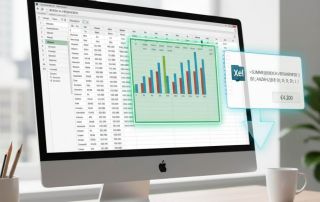
Dynamic ranges in Excel: OFFSET function
The OFFSET function in Excel creates a flexible reference. Instead of fixing =SUM(B5:B7), the function finds the range itself, e.g., for the "last 3 months". Ideal for dynamic charts or dashboards that grow automatically.
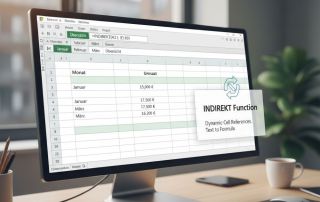
Mastering the INDIRECT function in Excel
The INDIRECT function in Excel converts text into a real reference. Instead of manually typing =January!E10, use =INDIRECT(A2 & "!E10"), where A2 contains 'January'. This allows you to easily create dynamic summaries for multiple worksheets.
Offers 2024: Word & Excel Templates