Everything you need to know about Windows 11
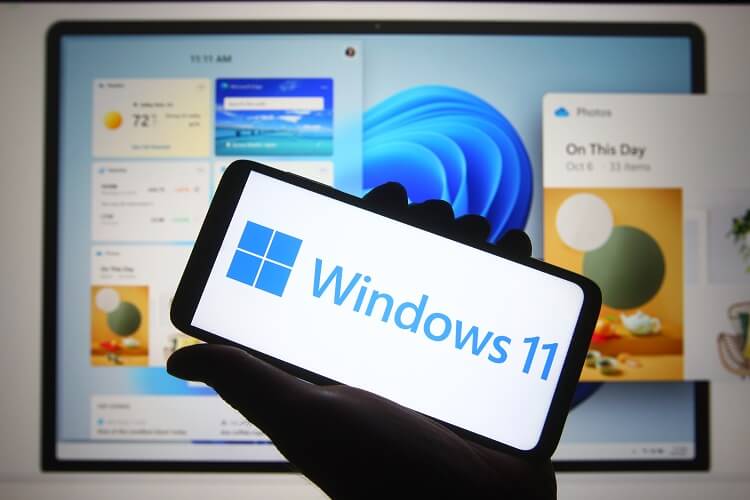
Windows 11 has been available since October 4, 2021. The US company Microsoft had actually planned that Windows 10 should be the last version, which would then simply be further optimized. Now the question arises, what’s new in Windows 11? First and foremost, this version got a new user interface. There are also a number of helpful functions that can make working on the computer much easier.
In this article we report everything important about requirements and new functions of Windows 11.
Everything you need to know about Windows 11
Windows 11 has been available since October 4, 2021. The US company Microsoft had actually planned that Windows 10 should be the last version, which would then simply be further optimized. Now the question arises, what’s new in Windows 11? First and foremost, this version got a new user interface. There are also a number of helpful functions that can make working on the computer much easier.
In this article we report everything important about requirements and new functions of Windows 11.
1. What do you need for Windows 11?
1. What do you need for Windows 11?
There are a number of system requirements for Windows 11. The best way to find out Windows 11 compatibility with your computer is to run the PC Health Check. If the computer is more than three years old, this version might not be an option. An internet connection and a Microsoft account are required to set up the new version. The following requirements must be met for the installation.
| System requirements | Description |
|---|---|
| Processor | 64-Bit-Processor with 2 cores and 1 Gigahertz (Dual-Core-CPU (1GHz) with 64-Bit support) |
| Disk space | 64 Gigabyte |
| RAM | 4 Gigabyte |
| BIOS | UEFI |
| UEFI-Bios security features | Secure Boot and TPM-2.0-Chip |
| Graphic card | DirectX 12 |
| Display | HD 1280 × 720 (greater than 9 inch, about 23 cm) |
| Trusted Platform Module | Version 2.0 required |
Read more about Windows 11 system requirements here.
There are a number of system requirements for Windows 11. The best way to find out Windows 11 compatibility with your computer is to run the PC Health Check. If the computer is more than three years old, this version might not be an option. An internet connection and a Microsoft account are required to set up the new version. The following requirements must be met for the installation.
| System requirements | Description |
|---|---|
| Processor | 64-Bit-Processor with 2 cores and 1 Gigahertz (Dual-Core-CPU (1GHz) with 64-Bit support) |
| Disk space | 64 Gigabyte |
| RAM | 4 Gigabyte |
| BIOS | UEFI |
| UEFI-Bios security features | Secure Boot and TPM-2.0-Chip |
| Graphic card | DirectX 12 |
| Display | HD 1280 × 720 (greater than 9 inch, about 23 cm) |
| Trusted Platform Module | Version 2.0 required |
Read more about Windows 11 system requirements here.
2. What does Windows 11 bring?
2. What does Windows 11 bring?
The Microsoft Windows 11 operating system from the US company Microsoft was released on October 4, 2021. It is the successor version of Windows 10 and was first presented on June 24, 2021. According to Microsoft, the full market launch will take until mid-2022 as the myriad PC hardware and software configurations are checked for compatibility.
In terms of performance, features and security, the two versions are no different. Nevertheless, there are a lot of innovations that we would like to present here.
What’s new in Windows 11?
It was actually planned that these new apps and functions would be integrated into the two versions Windows 10 21H2 and Windows 10X. On the one hand it is the new user interface, on the other hand it is the new functions that should make working on the PC much easier in the future.
Here you can find all new features compared to Windows 10 at a glance:
The Microsoft Windows 11 operating system from the US company Microsoft was released on October 4, 2021. It is the successor version of Windows 10 and was first presented on June 24, 2021. According to Microsoft, the full market launch will take until mid-2022 as the myriad PC hardware and software configurations are checked for compatibility.
In terms of performance, features and security, the two versions are no different. Nevertheless, there are a lot of innovations that we would like to present here.
What’s new in Windows 11?
It was actually planned that these new apps and functions would be integrated into the two versions Windows 10 21H2 and Windows 10X. On the one hand it is the new user interface, on the other hand it is the new functions that should make working on the PC much easier in the future.
Here you can find all new features compared to Windows 10 at a glance:
3. The new user interface design
3. The new user interface design
New to Windows 11 is the slimmer user interface design, which promises a simpler user experience. It is reminiscent of the MAC interface, because like MacOS, the user interface now has rounded corners on the sides.
The icons of the taskbars are centered in this version. The start button of the new desktop is in the middle of the screen.
This version has a floating design floating menu that can be customized. The floating menus and transparent information windows, so-called flyouts, no longer stick to the taskbar as before. Users can access multiple windows at the same time and snap apps side-by-side.
Due to the centered appearance, the mouse pointer no longer has to be moved completely over the screen.
Also the different wallpapers are new in this version. While Windows 10 offered a photographic look, this version takes an artistic approach. The default wallpaper is a folded fabric in the shape of a rose, available in dark and light, represents a folded.
If you don’t like the new design, you can display the start menu on the left again, as in the older versions, and restore the familiar design.
Windows 11 is particularly important for businesses due to its improved user experience. However, there is one issue that is becoming more and more present in companies today due to the security aspect. It is about the topic “anonymous whistleblower system”, also known as the so-called whistleblower system.
New to Windows 11 is the slimmer user interface design, which promises a simpler user experience. It is reminiscent of the MAC interface, because like MacOS, the user interface now has rounded corners on the sides.
The icons of the taskbars are centered in this version. The start button of the new desktop is in the middle of the screen.
This version has a floating design floating menu that can be customized. The floating menus and transparent information windows, so-called flyouts, no longer stick to the taskbar as before. Users can access multiple windows at the same time and snap apps side-by-side.
Due to the centered appearance, the mouse pointer no longer has to be moved completely over the screen.
Also the different wallpapers are new in this version. While Windows 10 offered a photographic look, this version takes an artistic approach. The default wallpaper is a folded fabric in the shape of a rose, available in dark and light, represents a folded.
If you don’t like the new design, you can display the start menu on the left again, as in the older versions, and restore the familiar design.
Windows 11 is particularly important for businesses due to its improved user experience. However, there is one issue that is becoming more and more present in companies today due to the security aspect. It is about the topic “anonymous whistleblower system”, also known as the so-called whistleblower system.
4. Tiles or Widgets
4. Tiles or Widgets
Widgets first came into play with Windows 8. However, the Windows 11 widgets are much more interactive. They deliver a personalized feed powered by AI and using Edge to render. The tiles are essentially a group of small graphical apps that are quickly accessible right from the Windows 11 taskbar and contain information about news, weather, sports scores and stocks, for example.
The widget menu can be customized to show only the widgets you want, and includes a Bing search bar that opens results in a new browser window.
The look and general content delivery style of Windows 11’s widgets may be immediately familiar to anyone who has used the Live Tiles feature in Windows 10. The widgets are operated exclusively by Microsoft’s own services such as MSN and the Edge browser.
Here are all the widgets currently available in the Windows 11 Insider Preview build:
Snap-Layouts
Snap Layouts is a feature designed to improve users‘ multitasking skills and help them get organized more easily. This feature lets you choose from a selection of window layouts and easily fill them with the app windows you want. These layouts can be saved. They’re accessible from the app’s tray icons so you don’t have to recreate them after doing something else on your PC.
Various virtual desktops
With this version, separate desktops can be created for different task areas in order to better organize work. For example, the use of one desktop for purely professional purposes and one for private use is possible.
Widgets first came into play with Windows 8. However, the Windows 11 widgets are much more interactive. They deliver a personalized feed powered by AI and using Edge to render. The tiles are essentially a group of small graphical apps that are quickly accessible right from the Windows 11 taskbar and contain information about news, weather, sports scores and stocks, for example.
The widget menu can be customized to show only the widgets you want, and includes a Bing search bar that opens results in a new browser window.
The look and general content delivery style of Windows 11’s widgets may be immediately familiar to anyone who has used the Live Tiles feature in Windows 10. The widgets are operated exclusively by Microsoft’s own services such as MSN and the Edge browser.
Here are all the widgets currently available in the Windows 11 Insider Preview build:
Snap-Layouts
Snap Layouts is a feature designed to improve users‘ multitasking skills and help them get organized more easily. This feature lets you choose from a selection of window layouts and easily fill them with the app windows you want. These layouts can be saved. They’re accessible from the app’s tray icons so you don’t have to recreate them after doing something else on your PC.
Various virtual desktops
With this version, separate desktops can be created for different task areas in order to better organize work. For example, the use of one desktop for purely professional purposes and one for private use is possible.
Settings app redesign
The redesigned settings app has a persistent left menu. This saves the user from having to reset from nested settings to get to another group faster. Otherwise, the user gets pretty much everything that can be found in the Windows 10 settings interface.
Gaming
Many people may have bought their computers to play games on their whim. This target group gets their money’s worth with Windows 11, because this version offers a premium gaming experience with great graphics and exciting sound.
Settings app redesign
The redesigned settings app has a persistent left menu. This saves the user from having to reset from nested settings to get to another group faster. Otherwise, the user gets pretty much everything that can be found in the Windows 10 settings interface.
Gaming
Many people may have bought their computers to play games on their whim. This target group gets their money’s worth with Windows 11, because this version offers a premium gaming experience with great graphics and exciting sound.
5. Is windows 11 free?
5. Is windows 11 free?
Windows 11 is either installed on new devices out of the box or is available as a free update for Windows 10 users whose computer meets the system requirements. It is combined with a Microsoft 365 subscription for MS Office 2021. Here are the prices for MS Office 2021 with its various subscriptions.

Windows 11 is either installed on new devices out of the box or is available as a free update for Windows 10 users whose computer meets the system requirements. It is combined with a Microsoft 365 subscription for MS Office 2021. Here are the prices for MS Office 2021 with its various subscriptions.
Popular Posts:
Outlook fragt ständig nach dem Passwort? So stoppen Sie die Dauerschleife
Wenn Outlook trotz gespeichertem Passwort ständig nach den Anmeldedaten fragt, blockiert das den E-Mail-Verkehr. Meist helfen das Löschen defekter Windows-Anmeldedaten oder neue App-Passwörter. Erfahren Sie hier, wie Sie das Problem mit wenigen Klicks dauerhaft lösen.
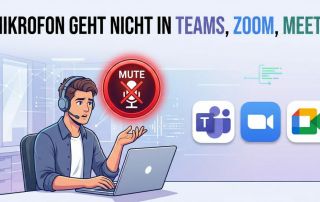
Mikrofon geht nicht in Teams, Zoom oder Meet?
Ein stummes Mikrofon im Meeting ist frustrierend. Oft sind kleine Hardware-Fehler, fehlende System-Rechte oder falsche App-Einstellungen schuld. Dieser Ratgeber liefert Ihnen systematische Schritt-für-Schritt-Lösungen, damit Sie in Teams, Zoom und Meet wieder gehört werden.
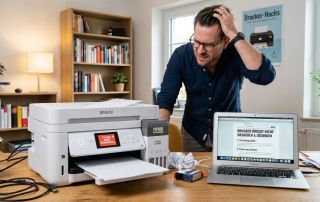
Der Drucker druckt nicht: Ursachen, Fehlerquellen und schnelle Lösungen
Ein streikender Drucker kostet Nerven, lässt sich aber meist schnell reparieren. In diesem Ratgeber zeigen wir dir Schritt für Schritt, wie du Papierstaus, WLAN-Abbrüche, Treiberfehler und leere Patronen erkennst und behebst, damit dein Gerät sofort wieder druckt.

Was tun, wenn Outlook nicht mehr startet oder abstürzt?
Wenn Microsoft Outlook plötzlich einfriert oder sich nicht öffnen lässt, ist schnelle Hilfe gefragt. In diesem Artikel zeigen wir Ihnen die effektivsten Lösungswege – vom abgesicherten Modus über die Office-Reparatur bis hin zum Reparieren beschädigter Datendateien.

Erste Hilfe: Wenn das Windows-Update hängt
Ein eingefrorenes Windows-Update ist ärgerlich, lässt sich aber meist schnell lösen. Dieser Ratgeber zeigt Ihnen, wie Sie mit Geduld, einem sicheren Neustart und Windows-Bordmitteln wie der Problembehandlung oder dem Leeren des Caches das System wieder zum Laufen bringen.

Reibungsloser Wechsel: Passwörter und Lesezeichen sicher umziehen
Der Wechsel auf einen neuen PC oder Browser ist schnell erledigt. Mit unserer Anleitung exportieren und importieren Sie Lesezeichen und Passwörter absolut sicher. Erfahren Sie, worauf Sie bei Chrome, Firefox und Edge achten müssen und warum ein Passwortmanager lohnt.
Angebote 2025/2026 in: Vorlagen










Popular Posts:
Outlook fragt ständig nach dem Passwort? So stoppen Sie die Dauerschleife
Wenn Outlook trotz gespeichertem Passwort ständig nach den Anmeldedaten fragt, blockiert das den E-Mail-Verkehr. Meist helfen das Löschen defekter Windows-Anmeldedaten oder neue App-Passwörter. Erfahren Sie hier, wie Sie das Problem mit wenigen Klicks dauerhaft lösen.
Mikrofon geht nicht in Teams, Zoom oder Meet?
Ein stummes Mikrofon im Meeting ist frustrierend. Oft sind kleine Hardware-Fehler, fehlende System-Rechte oder falsche App-Einstellungen schuld. Dieser Ratgeber liefert Ihnen systematische Schritt-für-Schritt-Lösungen, damit Sie in Teams, Zoom und Meet wieder gehört werden.
Der Drucker druckt nicht: Ursachen, Fehlerquellen und schnelle Lösungen
Ein streikender Drucker kostet Nerven, lässt sich aber meist schnell reparieren. In diesem Ratgeber zeigen wir dir Schritt für Schritt, wie du Papierstaus, WLAN-Abbrüche, Treiberfehler und leere Patronen erkennst und behebst, damit dein Gerät sofort wieder druckt.
Was tun, wenn Outlook nicht mehr startet oder abstürzt?
Wenn Microsoft Outlook plötzlich einfriert oder sich nicht öffnen lässt, ist schnelle Hilfe gefragt. In diesem Artikel zeigen wir Ihnen die effektivsten Lösungswege – vom abgesicherten Modus über die Office-Reparatur bis hin zum Reparieren beschädigter Datendateien.
Erste Hilfe: Wenn das Windows-Update hängt
Ein eingefrorenes Windows-Update ist ärgerlich, lässt sich aber meist schnell lösen. Dieser Ratgeber zeigt Ihnen, wie Sie mit Geduld, einem sicheren Neustart und Windows-Bordmitteln wie der Problembehandlung oder dem Leeren des Caches das System wieder zum Laufen bringen.
Reibungsloser Wechsel: Passwörter und Lesezeichen sicher umziehen
Der Wechsel auf einen neuen PC oder Browser ist schnell erledigt. Mit unserer Anleitung exportieren und importieren Sie Lesezeichen und Passwörter absolut sicher. Erfahren Sie, worauf Sie bei Chrome, Firefox und Edge achten müssen und warum ein Passwortmanager lohnt.
Angebote 2025/2026 in: Vorlagen