Insert Excel spreadsheets into Word Documents
Of course, having the ability to create simple tables in a Word document is not new to you. However, there is also the option to insert both new and existing Excel spreadsheets in Word for further editing as well as linking.
Read in our article how to easily connect Excel to Word.
Insert Excel spreadsheets into Word Documents
Of course, having the ability to create simple tables in a Word document is not new to you. However, there is also the option to insert both new and existing Excel spreadsheets in Word for further editing as well as linking.
Read in our article how to easily connect Excel to Word.
1. Insert existing table in Word
1. Insert existing table in Word
In order to insert a spreadsheet already existing as an Excel file into a Word document, we must first determine at which point in your Word document the Excel spreadsheet should be inserted.
To do this, place the cursor in the desired position in the document:
See picture (click to enlarge)

Note:
Please keep in mind that the text underneath the insertion point may be wrapped on other pages.
In order to insert a spreadsheet already existing as an Excel file into a Word document, we must first determine at which point in your Word document the Excel spreadsheet should be inserted.
To do this, place the cursor in the desired position in the document:
See picture (click to enlarge)
Note:
Please keep in mind that the text underneath the insertion point may be wrapped on other pages.
2. Select Excel table to insert
2. Select Excel table to insert
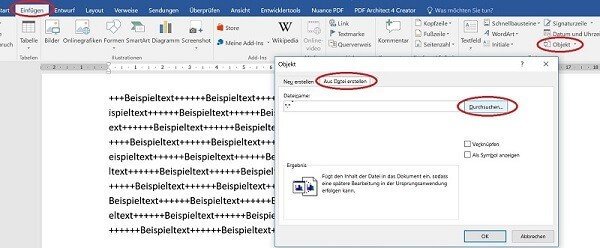
Next, we’ll do the following in your Word document:
- Insert tab
- In the ribbon „Text“ on „Object“ Sub-item again „Object“
- In the then opening window on „Create from file“
- With the „Browse“ option, select the desired Excel table on your drive by double-clicking
See picture (click to enlarge)
Next, we’ll do the following in your Word document:
- Insert tab
- In the ribbon „Text“ on „Object“ Sub-item again „Object“
- In the then opening window on „Create from file“
- With the „Browse“ option, select the desired Excel table on your drive by double-clicking
See picture (click to enlarge)
3. Edit Excel spreadsheet in Word
3. Edit Excel spreadsheet in Word
After inserting our spreadsheet into the Word document, depending on the size of the Word document, it will seriously mess up the text components in the Word document.
Why is it better to place the spreadsheet on a separate page in your document and adjust it according to your orientation (portrait or landscape orientation)?
Because we want to show the table so completely, because a user later should not switch to edit mode to display all content.
The inserted table is initially displayed as an embedded image, which we can resize by dragging the corners.
To edit, simply right-click on the inserted Excel table in the context menu and select „Worksheet Object“ and „Edit“.
See picture (click to enlarge)

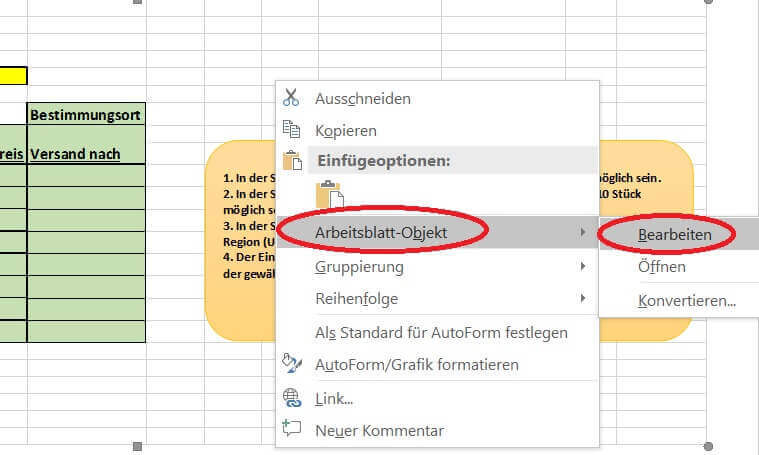
In edit mode we now have the complete working interface of Excel in our Word document.
After inserting our spreadsheet into the Word document, depending on the size of the Word document, it will seriously mess up the text components in the Word document.
Why is it better to place the spreadsheet on a separate page in your document and adjust it according to your orientation (portrait or landscape orientation)?
Because we want to show the table so completely, because a user later should not switch to edit mode to display all content.
The inserted table is initially displayed as an embedded image, which we can resize by dragging the corners.
To edit, simply right-click on the inserted Excel table in the context menu and select „Worksheet Object“ and „Edit“.
See picture (click to enlarge)
In edit mode we now have the complete working interface of Excel in our Word document.
4. Insert new Excel spreadsheet in Word
4. Insert new Excel spreadsheet in Word
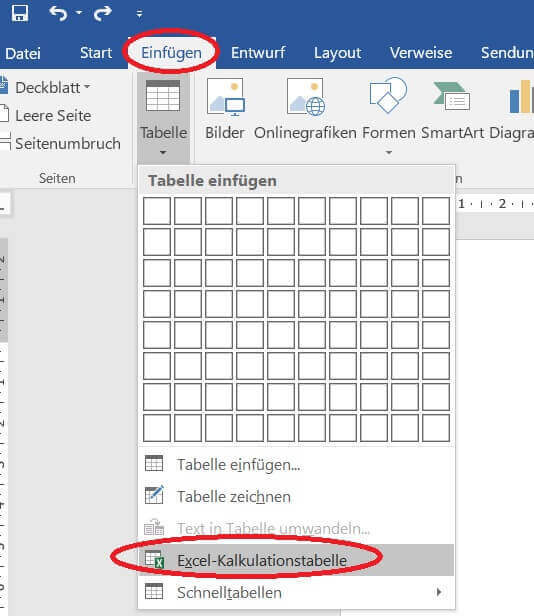
Of course, you also have the option of inserting a completely new Excel spreadsheet into your Word document.
To do this, simply go to the tab under Word:
- „Start“ on „Paste“
- And then on „Excel spreadsheet“
- Again, we can resize the table as you like, and edit it under the Excel desktop.
As soon as you leave the table area, for example, In your Word document, the inserted spreadsheet will look like a picture.
See picture (click to enlarge)
Of course, you also have the option of inserting a completely new Excel spreadsheet into your Word document.
To do this, simply go to the tab under Word:
- „Start“ on „Paste“
- And then on „Excel spreadsheet“
- Again, we can resize the table as you like, and edit it under the Excel desktop.
As soon as you leave the table area, for example, In your Word document, the inserted spreadsheet will look like a picture.
See picture (click to enlarge)
5. Link Excel table to Word
5. Link Excel table to Word
In the previous steps, we have an Excel spreadsheet embedded in a Word document.
But if changes are made to the source file, they will not affect the inserted table yet.
The Excel spreadsheet in our Word document is thus static.
This can of course make sense for a snapshot.
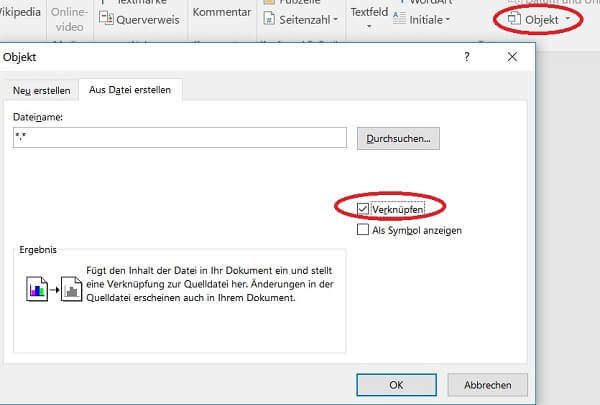
To link the table dynamically with the changes in the source file, just activate the „Link“ checkbox when inserting the file.
See picture (click to enlarge)

In the previous steps, we have an Excel spreadsheet embedded in a Word document.
But if changes are made to the source file, they will not affect the inserted table yet.
The Excel spreadsheet in our Word document is thus static.
This can of course make sense for a snapshot.
To link the table dynamically with the changes in the source file, just activate the „Link“ checkbox when inserting the file.
See picture (click to enlarge)
Popular Posts:

Outlook fragt ständig nach dem Passwort? So stoppen Sie die Dauerschleife
Wenn Outlook trotz gespeichertem Passwort ständig nach den Anmeldedaten fragt, blockiert das den E-Mail-Verkehr. Meist helfen das Löschen defekter Windows-Anmeldedaten oder neue App-Passwörter. Erfahren Sie hier, wie Sie das Problem mit wenigen Klicks dauerhaft lösen.

Mikrofon geht nicht in Teams, Zoom oder Meet?
Ein stummes Mikrofon im Meeting ist frustrierend. Oft sind kleine Hardware-Fehler, fehlende System-Rechte oder falsche App-Einstellungen schuld. Dieser Ratgeber liefert Ihnen systematische Schritt-für-Schritt-Lösungen, damit Sie in Teams, Zoom und Meet wieder gehört werden.

Der Drucker druckt nicht: Ursachen, Fehlerquellen und schnelle Lösungen
Ein streikender Drucker kostet Nerven, lässt sich aber meist schnell reparieren. In diesem Ratgeber zeigen wir dir Schritt für Schritt, wie du Papierstaus, WLAN-Abbrüche, Treiberfehler und leere Patronen erkennst und behebst, damit dein Gerät sofort wieder druckt.

Was tun, wenn Outlook nicht mehr startet oder abstürzt?
Wenn Microsoft Outlook plötzlich einfriert oder sich nicht öffnen lässt, ist schnelle Hilfe gefragt. In diesem Artikel zeigen wir Ihnen die effektivsten Lösungswege – vom abgesicherten Modus über die Office-Reparatur bis hin zum Reparieren beschädigter Datendateien.

Erste Hilfe: Wenn das Windows-Update hängt
Ein eingefrorenes Windows-Update ist ärgerlich, lässt sich aber meist schnell lösen. Dieser Ratgeber zeigt Ihnen, wie Sie mit Geduld, einem sicheren Neustart und Windows-Bordmitteln wie der Problembehandlung oder dem Leeren des Caches das System wieder zum Laufen bringen.

Reibungsloser Wechsel: Passwörter und Lesezeichen sicher umziehen
Der Wechsel auf einen neuen PC oder Browser ist schnell erledigt. Mit unserer Anleitung exportieren und importieren Sie Lesezeichen und Passwörter absolut sicher. Erfahren Sie, worauf Sie bei Chrome, Firefox und Edge achten müssen und warum ein Passwortmanager lohnt.
Angebote 2025/2026 in: Vorlagen











Popular Posts:
Outlook fragt ständig nach dem Passwort? So stoppen Sie die Dauerschleife
Wenn Outlook trotz gespeichertem Passwort ständig nach den Anmeldedaten fragt, blockiert das den E-Mail-Verkehr. Meist helfen das Löschen defekter Windows-Anmeldedaten oder neue App-Passwörter. Erfahren Sie hier, wie Sie das Problem mit wenigen Klicks dauerhaft lösen.
Mikrofon geht nicht in Teams, Zoom oder Meet?
Ein stummes Mikrofon im Meeting ist frustrierend. Oft sind kleine Hardware-Fehler, fehlende System-Rechte oder falsche App-Einstellungen schuld. Dieser Ratgeber liefert Ihnen systematische Schritt-für-Schritt-Lösungen, damit Sie in Teams, Zoom und Meet wieder gehört werden.
Der Drucker druckt nicht: Ursachen, Fehlerquellen und schnelle Lösungen
Ein streikender Drucker kostet Nerven, lässt sich aber meist schnell reparieren. In diesem Ratgeber zeigen wir dir Schritt für Schritt, wie du Papierstaus, WLAN-Abbrüche, Treiberfehler und leere Patronen erkennst und behebst, damit dein Gerät sofort wieder druckt.
Was tun, wenn Outlook nicht mehr startet oder abstürzt?
Wenn Microsoft Outlook plötzlich einfriert oder sich nicht öffnen lässt, ist schnelle Hilfe gefragt. In diesem Artikel zeigen wir Ihnen die effektivsten Lösungswege – vom abgesicherten Modus über die Office-Reparatur bis hin zum Reparieren beschädigter Datendateien.
Erste Hilfe: Wenn das Windows-Update hängt
Ein eingefrorenes Windows-Update ist ärgerlich, lässt sich aber meist schnell lösen. Dieser Ratgeber zeigt Ihnen, wie Sie mit Geduld, einem sicheren Neustart und Windows-Bordmitteln wie der Problembehandlung oder dem Leeren des Caches das System wieder zum Laufen bringen.
Reibungsloser Wechsel: Passwörter und Lesezeichen sicher umziehen
Der Wechsel auf einen neuen PC oder Browser ist schnell erledigt. Mit unserer Anleitung exportieren und importieren Sie Lesezeichen und Passwörter absolut sicher. Erfahren Sie, worauf Sie bei Chrome, Firefox und Edge achten müssen und warum ein Passwortmanager lohnt.
Angebote 2025/2026 in: Vorlagen